
Looking for a tutorial to create a WordPress multi-step form?
A multi-step form splits up large forms into smaller parts. Multi-step forms reduce the clutter and make it simpler for your visitors to sign up. It’s a great way to increase conversions and improve the overall user experience.
But creating one from scratch is really tiring and if you have to hire a developer to create one, it’s going to be expensive as well.
In this article, we’re going to show you how to create a WordPress multi-step form the easy way without coding.
让我们开始吧。
Step 1: Create a New Form With WPForms
您需要做的第一件事是安装并激活WPForms。

WPForms是全球排名第一的WordPress表单构建器插件。如果您不确定如何安装WPForms,您应该查看这篇关于如何安装WordPress插件的分步指南。
然后,前往您的WPForms仪表板,然后转到 下载 以获取您的插件:
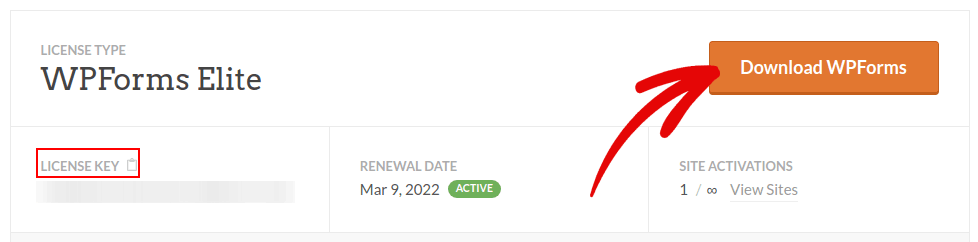
接下来,在您的网站上安装并激活该插件。并在同一选项卡中复制您的许可证密钥。
最后,转到您的WordPress仪表板,然后前往WPForms » 设置,然后粘贴您的许可证密钥:
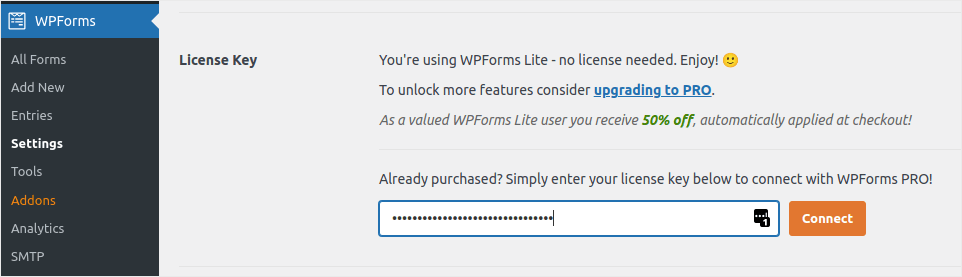
完成后,单击连接。
现在 WPForms 已安装并激活,是时候创建您的第一个表单了。前往 WPForms » 新建表单:

这将打开 WPForms 的拖放式表单构建器。
要创建新表单,请为其命名并选择您的表单模板:
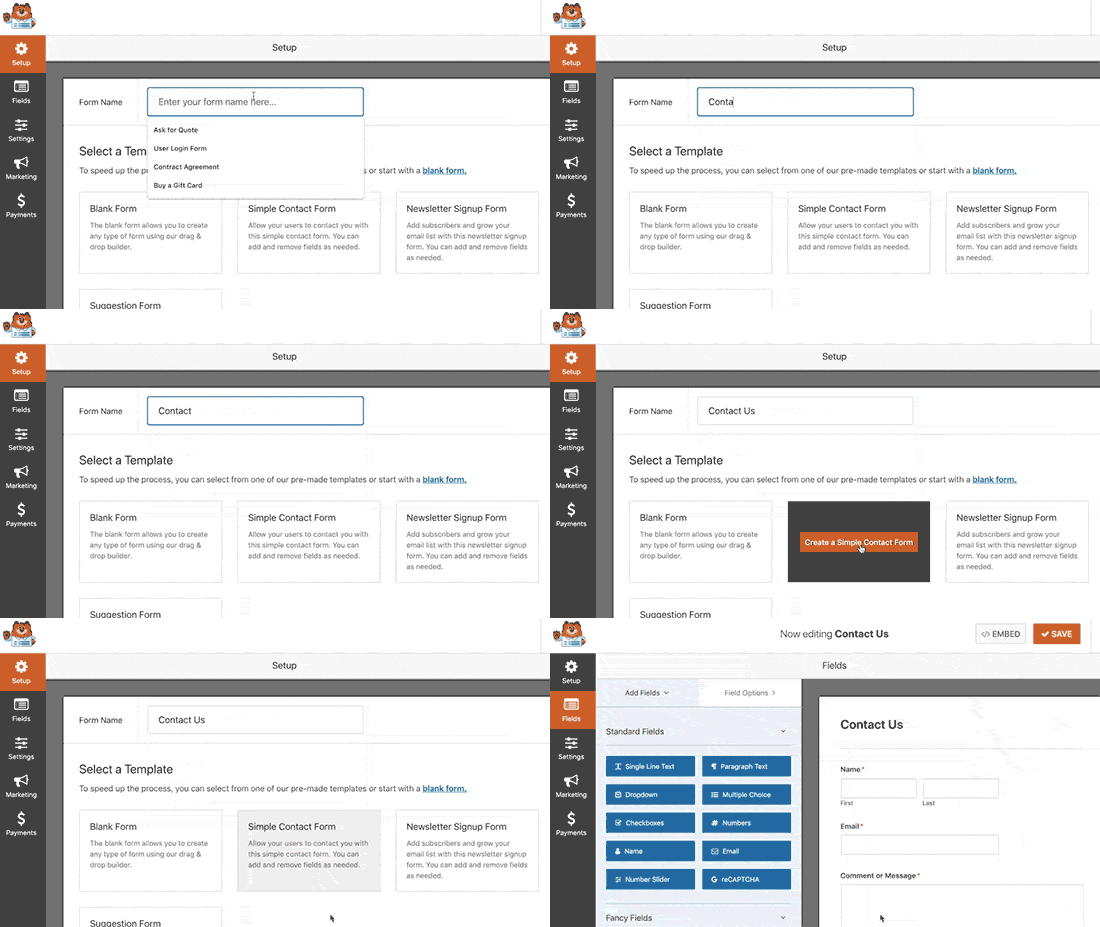
And that’s it! if you want to add or edit the fields in your contact form, you can do so from the sidebar. Darg and drop form fields to add new ones and click on the existing fields to edit them:
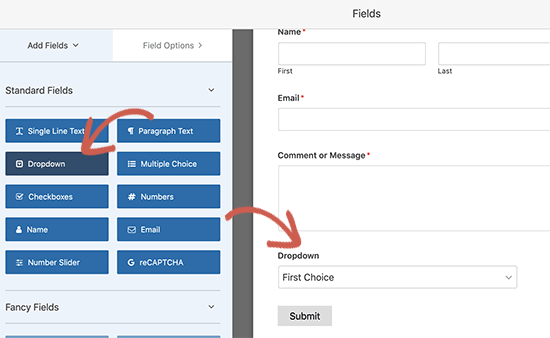
完成后,单击保存。
Step 2: Insert the Page Break Field Into Your Form
Splitting your form into multiple pages is very simple and easy with WPForms.
Once you’ve added and customized all the form fields on your form, you need to add the Page Break form field to your site to split it into different pages.
To do this, drag the Page Break form field, found under Fancy Fields, from the left-hand panel to the right-hand panel.
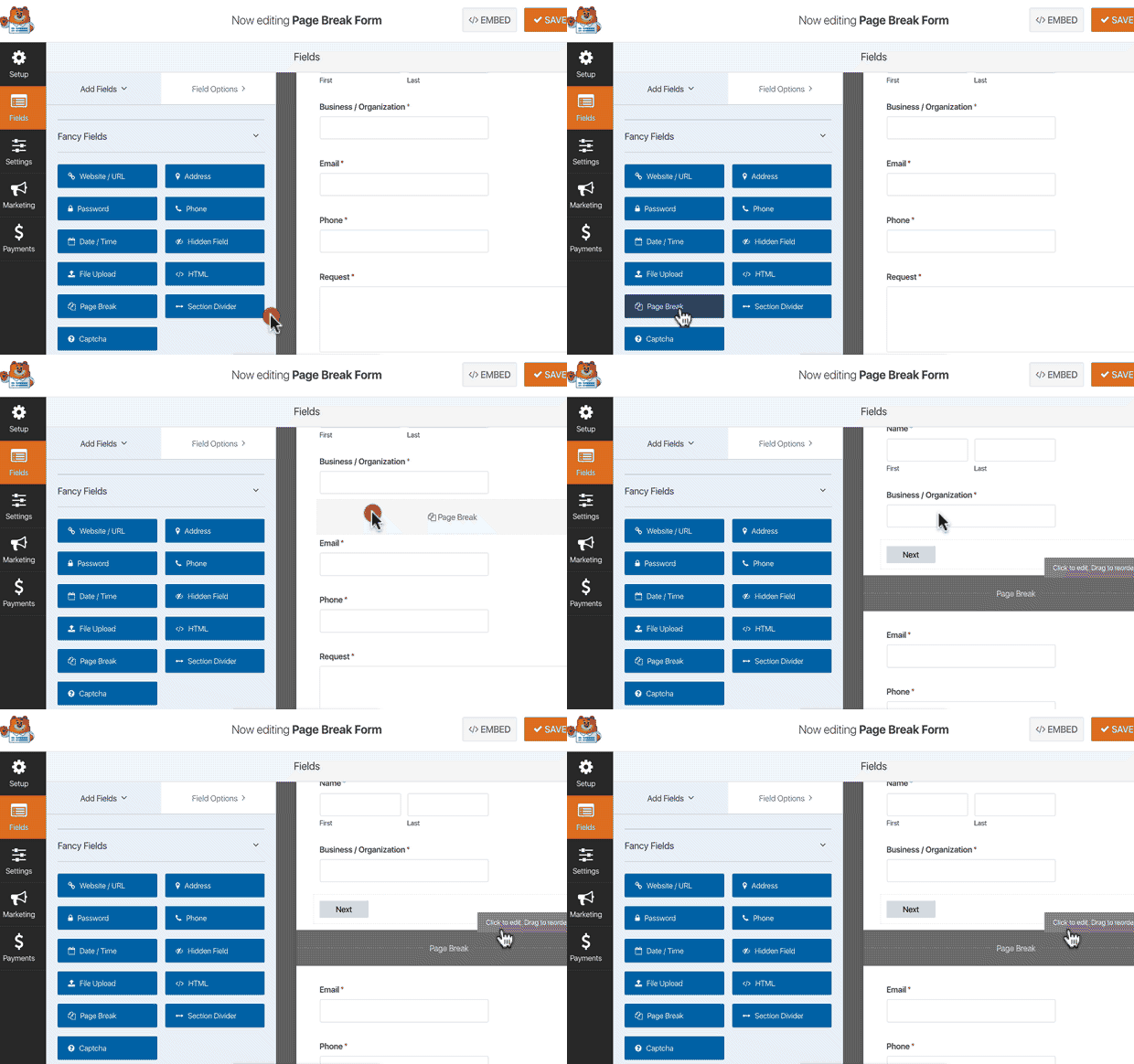
Place the field where you want the form to split. If you want multiple breaks, just use multiple page break modules.
Step 3: Customize the Multi-Page Form Progress Bar
Most of your work in designing the form is done at this point. But for any multi-page form, we recommend using a progress bar to let your visitors know how far along they are in the signup process. You can go above and beyond to give your pages titles as well.
To customize the progress bar and page title of the first page of your multi-step form, click on the First Page break section.
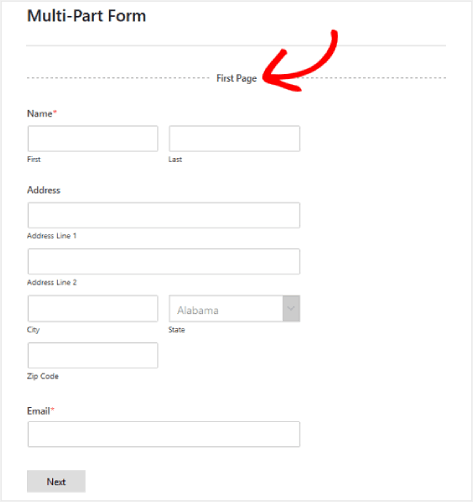
In the sidebar, you can set the type of progress indicator as either Circles or Connectors. You can also set the title for the page.
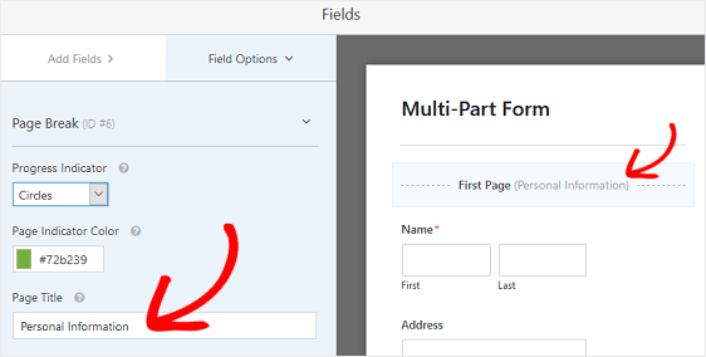
The epic thing is that you can also set a custom Page Indicator Color. When you’re happy, you can also customize the other page breaks in the exact same way.
You can also toggle on the feature that lets you show site visitors a Previous page button. This way they can return to the previous page of your form if they need to.
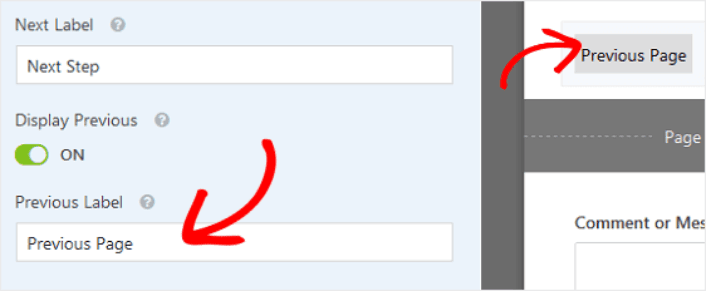
When you’re done, just hit the Save button.
Step 4: Configure Your Multi-Step Form Settings
接下来,您需要设置通知和确认。
通知是有人填写表单时您收到的电子邮件。确认是为了提醒用户他们已成功填写表单。通常,这是一个“谢谢”消息,但您也可以将用户重定向到专用页面。
前往 设置 » 确认 以配置确认设置:

然后在同一菜单中,转到 通知 以配置您的通知消息:

默认情况下,通知会发送到 WordPress 管理员电子邮件。因此,如果您希望将电子邮件发送到其他地方,例如您的销售主管的电子邮件 ID,您可以在此处进行设置。
Step 5: Add Your Multi-Step Form to Your WordPress Website
You’re done configuring your WordPress contact form at this point. So, let’s go ahead and add it to a page. There are 3 basic methods to add a WPForms contact form to your WordPress site. We’re going to take a look at each.
Method#1: Add the Form Using the Block Editor
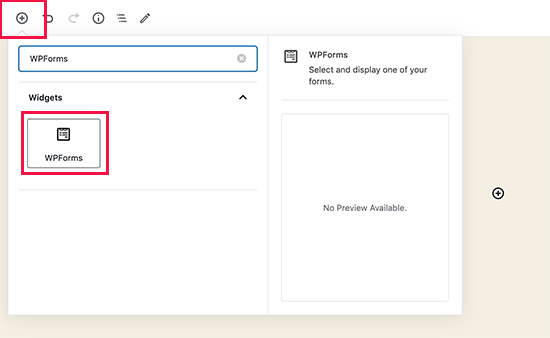
Head over to whichever page you want to add your contact form and add a new WPForms block:
Then, select your newly created form using the dropdown menu:
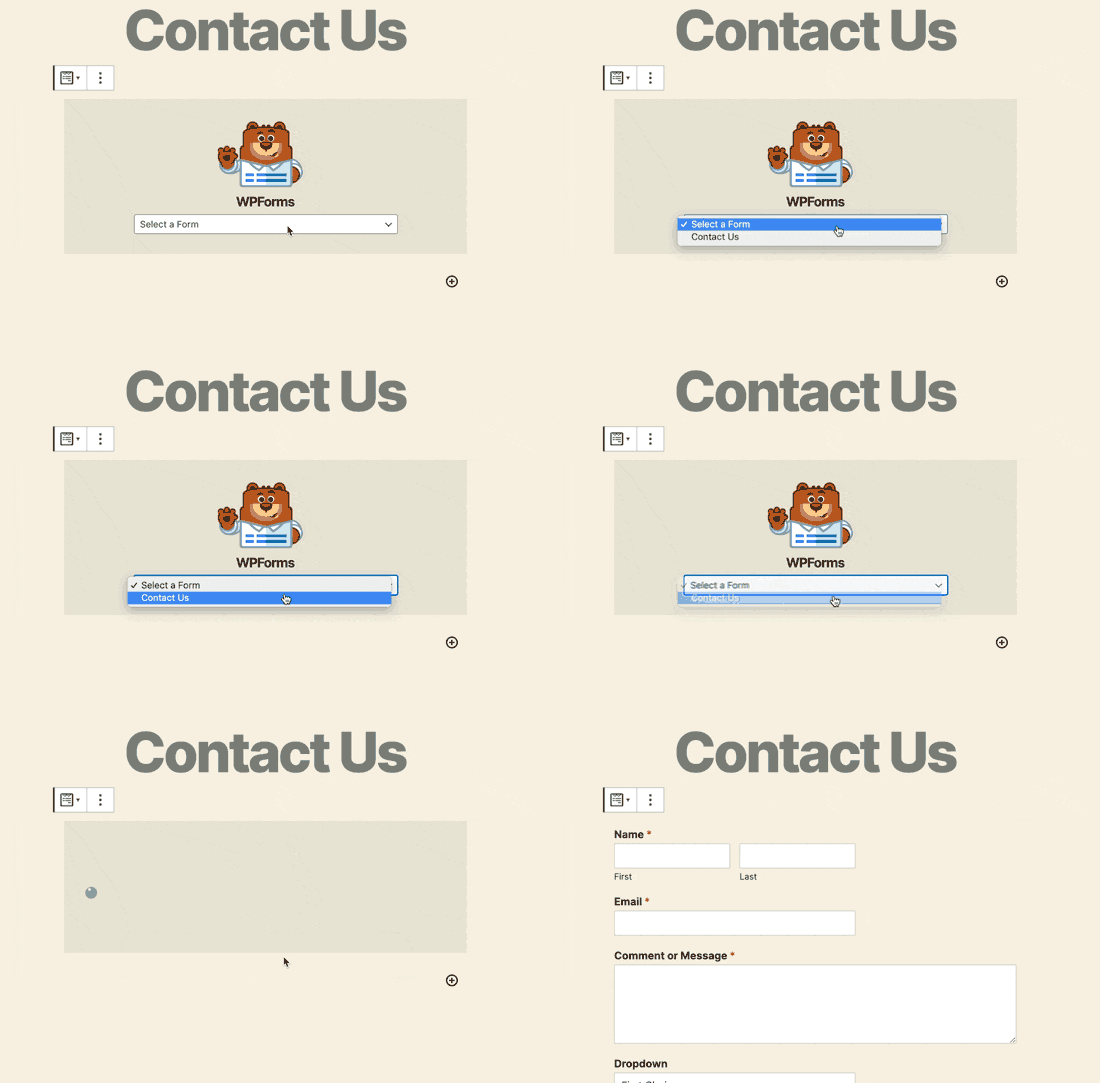
And you should see your contact form get inserted automatically into your page.
Just hit Save and Publish to see your WordPress form in action.
Method #2: Add Your Contact Form Using WPForms Shortcodes
WPForms also generates a shortcode for each WordPress contact form. You can copy the contact form shortcode by visiting WPForms » All Forms:
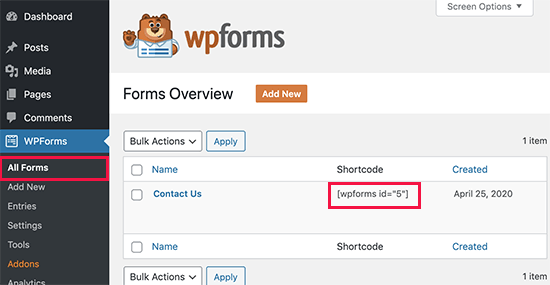
And then, paste the shortcode into any post or page you want. It’s that simple.
If you’re new to shortcodes, you should check out this article on how to add a shortcode on WordPress sites.
Method #3: Add Your Contact Form to the Sidebars
The sidebar is one of the most underused features in most WordPress sites. We highly recommend inserting a contact form in your site’s sidebars. Head over to Appearance » Widgets in your WordPress dashboard and add the WPForms widget to your sidebar:
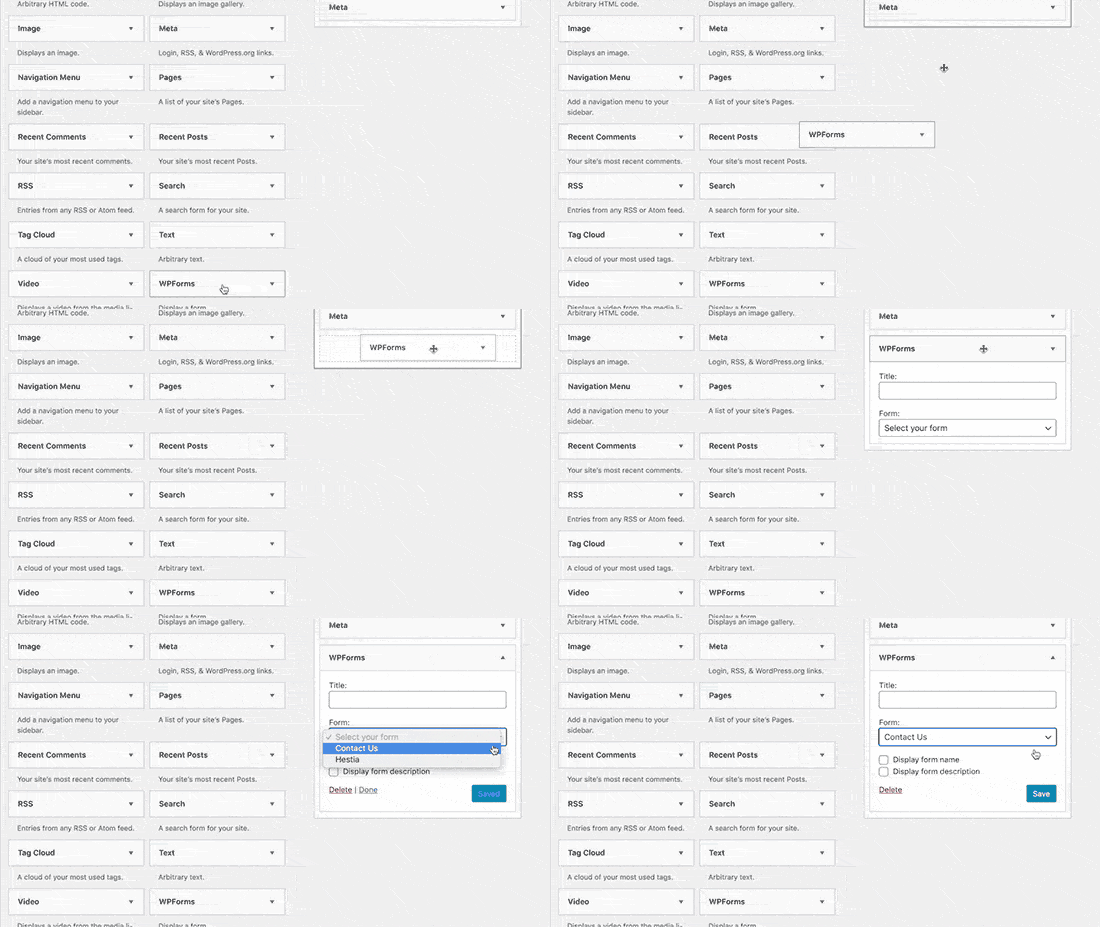
您就完成了!
How to Promote Your WordPress Multi-Step Form
好了,各位,本次分享就到这里!
By now, you’ve created a WordPress multi-step form. Next, you should set up form abandonment tracking to reduce your form abandonment rates.
之后,剩下要做的就是为您的网站吸引流量,以便您的联系表单可以开始工作。一种简单的方法是开始使用推送通知。发送推送通知是为您的网站吸引重复流量的好方法。如果您对此感兴趣,还应该查看以下文章:
We recommend using PushEngage to send your push notifications. PushEngage is the #1 push notification software in the world. So, if you haven’t already, get started with PushEngage today.


