
Are you looking for an easy way to add a Twitter feed to your WordPress site?
If you have a great Twitter feed, it makes a lot of sense to embed it in your WordPress website and borrow some of that engagement. But how do you do it? Do you need a plugin? If yes, what plugin should you use? And if not, do you have to get your hands dirty with coding?
在本文中,我们将回答所有这些问题以及更多问题。
Let’s check out how to embed a Twitter feed in WordPress the easy way.
Should You Add a Twitter Feed in WordPress Using a Plugin?
You should use a plugin to add a Twitter feed in WordPress. The trick is finding the right plugin for the job. You don’t want a poorly coded plugin slowing down your site. So, it’s best to use a professionally made plugin to add a Twitter feed to your WordPress site.
The best WordPress plugins are tested and optimized for speed. And it’s important to use a good plugin because your can embed a Twitter feed in a landing page to act as social proof and get more conversions.
Of course, this doesn’t mean that you can’t embed a Twitter feed in WordPress without a plugin. But it’s difficult to customize the look and feel of your feed without knowing HTML and CSS. You could also lose your embed code if you switch your WordPress theme. The same problem happens if you’re not using a child theme and your theme gets a major update.
It’s also really annoying to embed multiple Twitter feeds in different posts and pages through code.
We recommend using Smash Balloon’s Twitter Feed Pro to embed your Twitter feeds in WordPress.

Smash Balloon is a simple WordPress plugin that allows you to display your social media feeds on your site without using any code at all.
您可以使用 Smash Balloon 在几秒钟内为您的 WordPress 网站创建自定义社交媒体动态。无需编码,也无需聘请开发人员。您可以根据需要将 Instagram、Facebook、Twitter 和 YouTube 动态集成在一起或单独展示。
使用 Smash Balloon 这类插件的一个很酷的方法是使用社交媒体动态来创建推荐墙。

最棒的部分?它非常易于使用。
Smash Balloon 的设置几乎只需要 5 分钟。而且完全没有学习曲线。
超过 200 万用户信赖 Smash Balloon 在其网站上展示社交动态。此外,Smash Balloon 在 WordPress 上的平均评分为 4.8 星(满分 5 星)。
Let’s check out how to create a Twitter feed embed for your site using Smash Balloon.
How to Add a Twitter Feed in WordPress
Go ahead and install and activate the Twitter Feed Pro plugin. If you’re not sure how to do it, check out this article on how to install a WordPress plugin. Then, follow the steps in this guide to set up and embed a Twitter feed in WordPress.
Step #1: Create a Twitter Feed
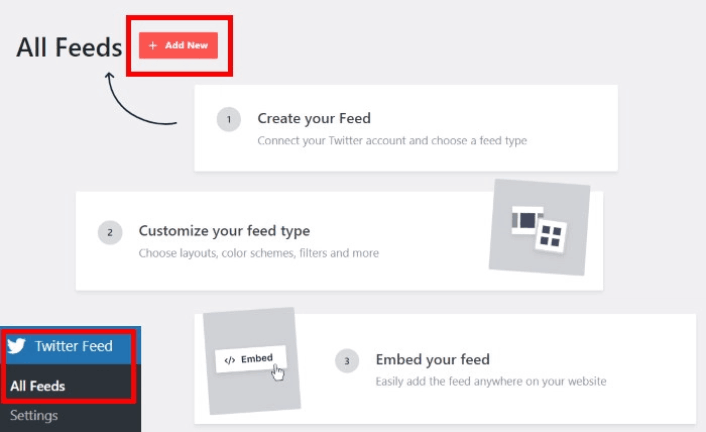
To get started, go to the Twitter Feed » All Feeds menu from your WordPress dashboard and click on the Add New button:
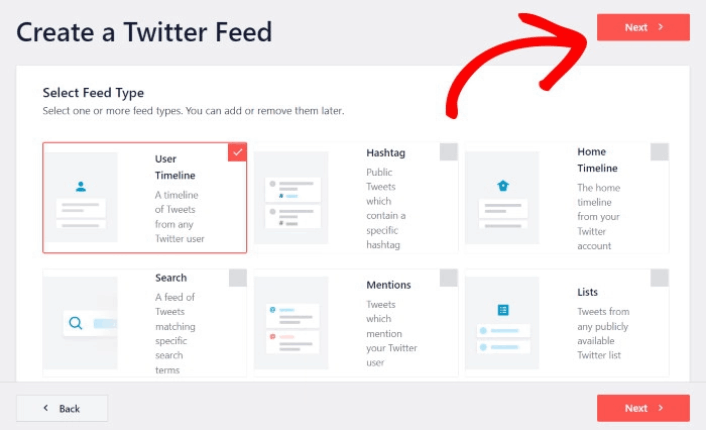
Next, choose the type of Twitter feed that you want to show on your website. There are 7 types of Twitter feeds you can create:
- User Timeline: All tweets from your Twitter account
- Hashtag: A feed of public hashtags from Twitter
- Home Timeline: Tweets from your Twitter timeline and the people you follow
- Search: A feed to display the results from an advanced Twitter search
- Mentions: All the tweets where other Twitter users have tagged you
- Lists: A feed with tweets from users on specific Twitter lists
Click the feed type you’d like to create, then click the Next button.
For this tutorial, we’re going with a User Timeline feed:
But we also recommend creating a Mentions feed to create a testimonial wall on your site.
Step #2: Link Your Twitter Account
For your Twitter feed to show on your site dynamically, you need to verify your Twitter feed. This way, the feed on your site will get automatically updated whenever you tweet something new.
To get started, click on the Connect button:
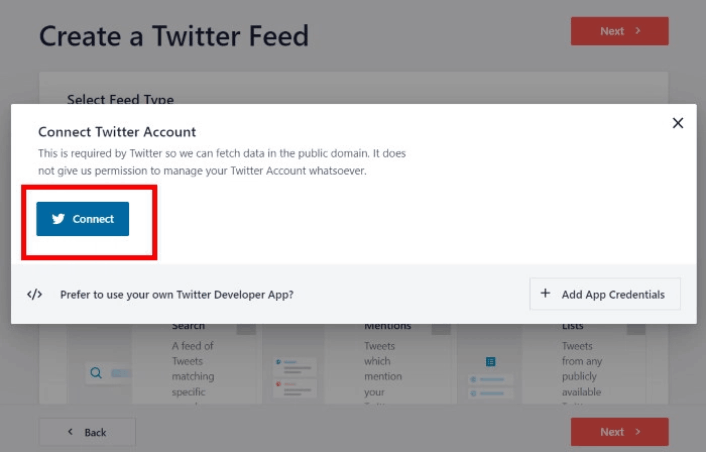
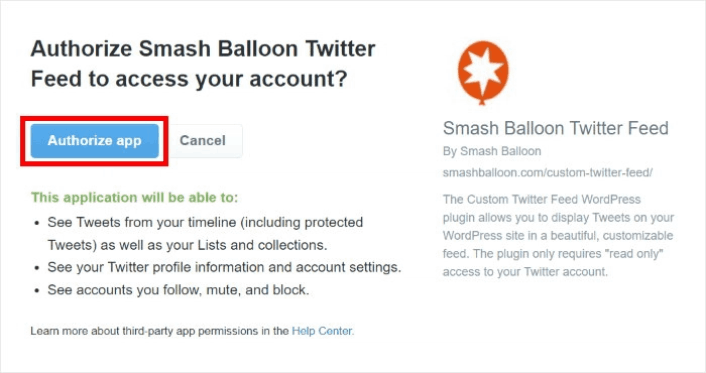
Now, the plugin will open Twitter and ask for read-only access to your Twitter account. Read-only access means that Twitter Feed Pro will only view information on Twitter and won’t be able to make changes to your account at all.
Click on the Authorize app button:
Enter the Twitter handle, hashtag, search term, Twitter list, and more that you want to embed and click the Next button:
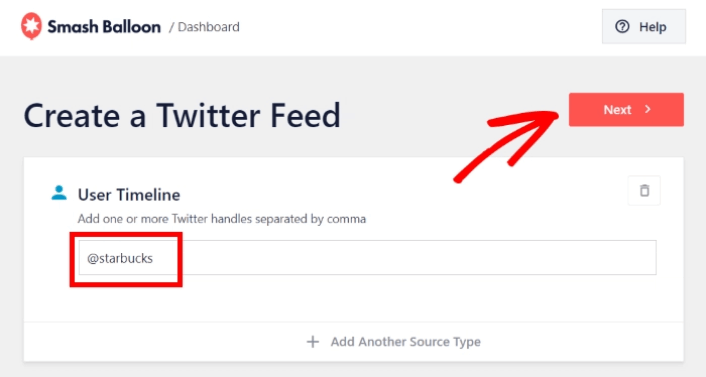
Next, you can customize how your Twitter feed looks and feels.
Step #3: Customize Your Twitter Feed in WordPress
Twitter Feeds Pro comes with responsive designs for your Twitter feeds. So, no matter what WordPress theme you’re using, it’s going to look awesome. Select a feed template that you prefer and click on the Next button:
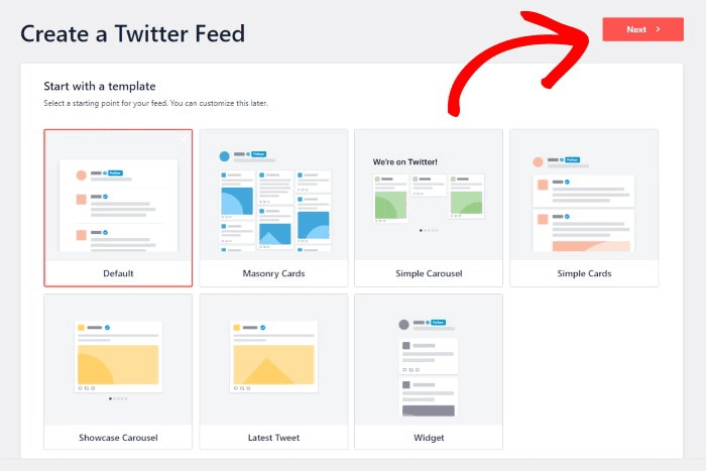
You can change your feed’s color scheme, layout, header style, load more button, and more on the left.

点击左侧面板上的 Feed Layout 选项:

With Twitter Feed Pro, you can pick from 3 options: List, Masonry, and Carousel.

Play around with the different layouts until you find the right fit for your site. Just click on the Color Scheme option on the left to get started:

You get 4 color schemes that you can use to quickly change the colors of your Twitter feed:

And like before, click on the Save button to confirm your changes.
Step #4: Publish Your Twitter Feed in WordPress
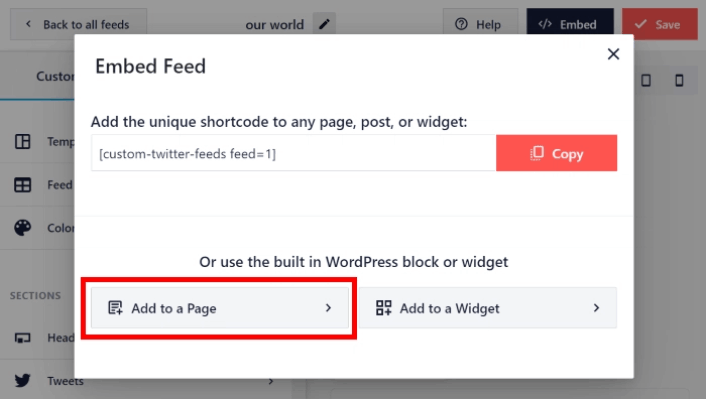
点击顶部的 Embed 按钮开始操作。

要将其嵌入 WordPress 页面,请点击 Add to a Page 按钮:
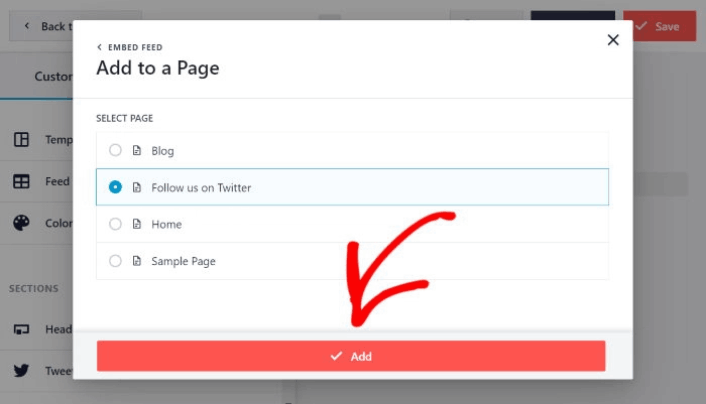
只需选择要在其中嵌入Feed的页面,然后单击“添加”按钮:
这将会在块编辑器中打开WordPress页面。单击加号(+)图标以添加新的WordPress块。

Click the Twitter Feed WordPress block to add it to your page:
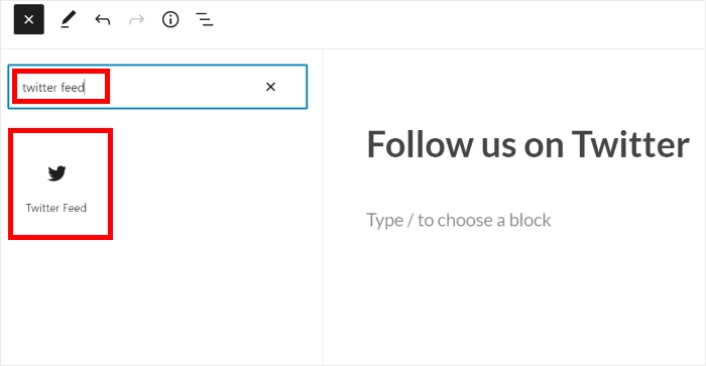
最后,单击“发布”或“更新”按钮,您的Twitter Feed将发布在您的WordPress网站上,如下所示:

就是这样!您已完成。
What to do After You Add a Twitter Feed in WordPress
That’s all for this one, folks! By now, you’ve managed to embed a Twitter feed in WordPress. You should also check out how to embed Instagram photos in WordPress. And how to set up a viral giveaway to supercharge your social media following.
之后,剩下要做的就是为您的网站吸引流量,以便您的联系表单可以开始工作。一种简单的方法是开始使用推送通知。发送推送通知是为您的网站吸引重复流量的好方法。如果您对此感兴趣,还应该查看以下文章:
我们建议使用PushEngage发送推送通知。PushEngage是全球排名第一的推送通知软件。因此,如果您还没有,请立即开始使用PushEngage。


