
Looking for a detailed guide on how to change themes in WordPress?
Themes control everything WordPress right down from the look and feel of the site to the range of functionality that comes with it. Truth be told, if you have a WordPress development team on hand, you can use almost any WordPress theme or create your own. But if you can’t custom-develop your own theme, then the right theme matters quite a lot.
And if you’re stuck with a mediocre theme, then you need to change themes quickly. But how do you do it? If you simply deactivate one theme and install another, you’ll likely wreck your site. Most themes leave behind HTML and CSS code that define how your site looks.
In this article, we’re going to show you how to change themes in WordPress the right way without coding.
让我们开始吧。
Before You Learn How to Change Themes in WordPress
As we said, deactivating a theme and installing a new one isn’t all there is to changing themes in WordPress. Before you learn how to change themes in WordPress, there are a couple of small things to take care of.
Let’s check out the necessary prep work.
#1. Copy Snippets from Your Current Theme
There’s a good chance that your existing website has some custom code in it. If you had your website or theme modified, the code for that is going to be in your functions.php file. Since most of these are one-time changes, it’s easy to forget about them.
We recommend heading into your functions.php file and copying any added code to a file so that you can add it back later on. If you’re not sure how to add code to WordPress, check out this article on how to add custom code to your site without breaking it.
#2. Test Load Time
The time it takes for a page on your site to load can have a huge impact on your SEO traffic and rankings. Poorly coded sites tend to take much longer to load. So, before you change themes in WordPress, always test your load time.
If you know your load time before and after you change themes, it can help you troubleshoot or fix bloated code on your site. For detailed instructions on testing load times, check out this guide on how to run a site speed test.
#3. Copy Your Tracking Code
Many themes allow you to directly add tracking and analytics code to the theme files from their settings. The tracking code is super important for keeping track of your marketing efforts. So, if you lose that code, it can make you lose sight of your traffic, engagement, and conversion data.
You need to make sure that you copy all the tracking codes, so you can add them to your new site after changing the theme. This is exactly why we recommend using a Google Analytics plugin on your site such as MosnterInsights.

MonsterInsights 是一款WordPress插件,可让您轻松使用Google Analytics。Google Analytics对初学者来说太复杂了。但更糟糕的是,在不获得任何可操作的业务增长见解的情况下,很容易迷失在海量数据中。
MonsterInsights专注于洞察力而非海量数据。这对于电子商务业务来说非常有用,因为除了SEO指标外,您还需要查看收入数字。
很酷的是,您无需编写任何代码即可在WordPress上安装Google Analytics。
以下是MonsterInsights可以为您做什么的快速概览:
- 无需任何代码即可跟踪Google Analytics
- 兼容任何版本的Google Analytics
- 查找热门内容的报告
- 详细的受众洞察
- 电子商务分析
- 表单注册分析
- 自定义维度的附加洞察
- 联盟链接点击跟踪
- GDPR合规
- 高级集成
如果您需要仔细查看这些功能,您应该看看我们的MonsterInsights评测。
For other tracking codes such as Facebook and Pinterest Pixels, you should use the WPCode plugin to insert code on your site.
#4. Take a Full WordPress Site Backup
WordPress backups include both files and the database. Taking a backup manually can be super technical and it’s not always successful. We recommend using a WordPress backup plugin to store a backup to your computer or on a cloud server.
If something goes wrong with changing themes, you can always use the backup to restore your WordPress site to the way it was. For future reference, changing anything on your site without taking a backup is a bad idea. You can easily wreck your entire site and lose all your progress in a matter of seconds.
#5. Copy Sidebar Content
Sidebars are used for adding different widgets including social links, advertisements, subscription forms, or a contact form.
Make sure to double-check these changes. If there is any custom code added to a widget, then make sure you copy and paste this code on your computer, so you can reuse it in your new theme.
#6. Enable Maintenance Mode
While you’re switching themes and working out the kinks, it’s best to put your site in maintenance mode. We recommend using SeedProd to enable maintenance mode on your site.

To keep your site in maintenance mode, you need to install and activate the SeedProd plugin. Next, head over to SeedProd » Pages from your WordPress admin panel and then click the Set up a Maintenance Mode Page.
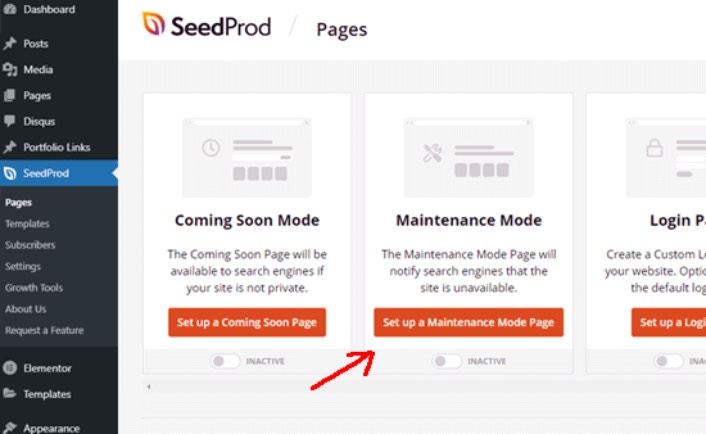
After that, you’ll need to select a template for your maintenance mode page. You can also use a blank template and create a page from scratch. You can now use the SeedProd drag and drop page builder to customize your maintenance mode page.
How to Install a New Theme in WordPress
Once you’re done with the precautions, the next step is to install a theme that you want to use on your site. WordPress has thousands of free and paid themes to choose from, but we recommend using SeedProd.
SeedProd is the best drag and drop website builder for WordPress. We already mentioned you can use it to create a maintenance mode page. But, you can also use it to create a custom WordPress theme without writing any code.
If you’re not 100% sure if SeedProd is the right theme builder for you, then check out our full review of SeedProd first. But no matter what theme you settle for, go ahead and download the zip file for the theme.
For SeedProd, go ahead and buy the plugin. Then, from the SeedProd dashboard, download the zip file. Next, go to your WordPress dashboard and head over to Plugins » Add New and click on Upload Plugin:
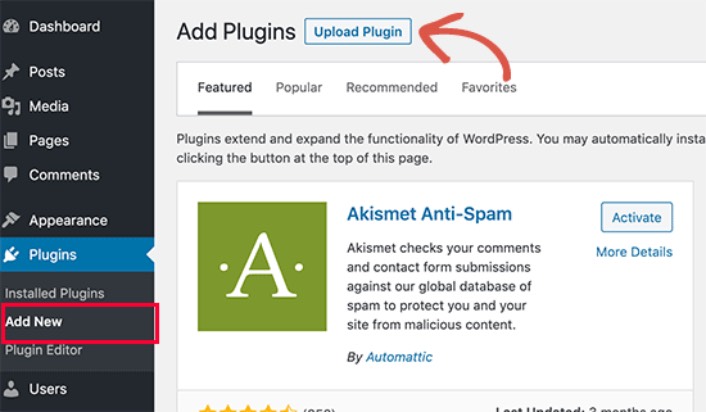
Click on Choose File to upload your plugin zip file:
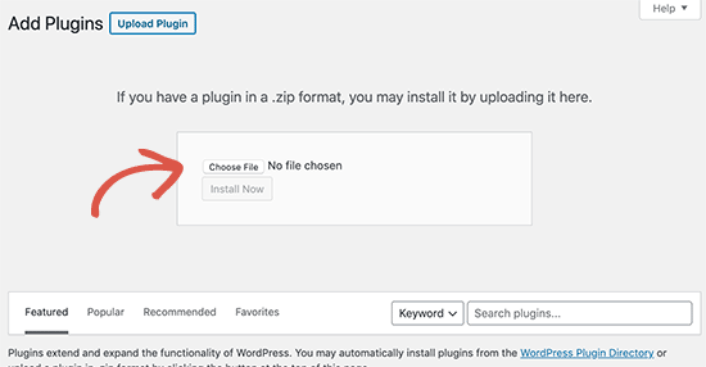
Then, click the Activate button once WordPress finishes uploading the plugin. Finally, go to the SeedProd plugin welcome screen and verify your license key:

After your account is verified, you’re ready to create a landing page or your own theme without any coding.
Preview Your Theme Before Changing It
Once you’re done creating a theme or installing one, you need to preview it to make sure that it doesn’t wreck your site. By default, WordPress allows you to preview a theme on your website without changing it. To do that, head over to Appearance » Themes from the left sidebar of your admin panel.
On this page, you’ll see all the installed themes on your site. You need to hover your mouse over the theme you want to preview and click on the Live Preview button.
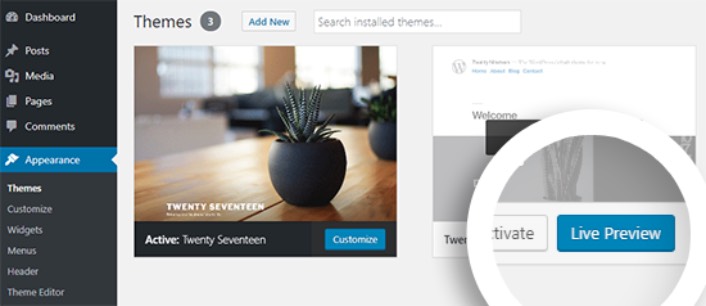
This will open your new theme in the WordPress Theme Customizer. You can now test your new theme and make sure that everything is working properly. Checking the Live Preview of your theme is a good way to find unwanted leftover code on your site. If you see code snippets on your pages, go ahead and delete that HTML. It’s super easy to do and it prevents your site from breaking down.
After you clean up the site, click the Activate button to activate your new theme.
Pro Tip: After changing themes in WordPress, remember to go back to SeedProd and deactivate the maintenance mode.
What to do After You Know How to Change Themes in WordPress
Now that you know how to change themes in WordPress, the only challenge you have left is growing the traffic to your site. We recommend checking your site loading speed after changing themes, but your core focus should be to increase traffic, engagement, and sales on your site.
如果您正在寻找一种经济高效的方式来增加流量,我们建议使用推送通知。推送通知可以帮助您带来更多重复流量和网站互动。您还可以创建自动推送通知广告系列来产生销售。
不信?查看这些资源:
我们建议使用PushEngage来创建您的推送通知广告系列。PushEngage是全球排名第一的推送通知软件。所以,如果您还没有,请立即开始使用PushEngage!


