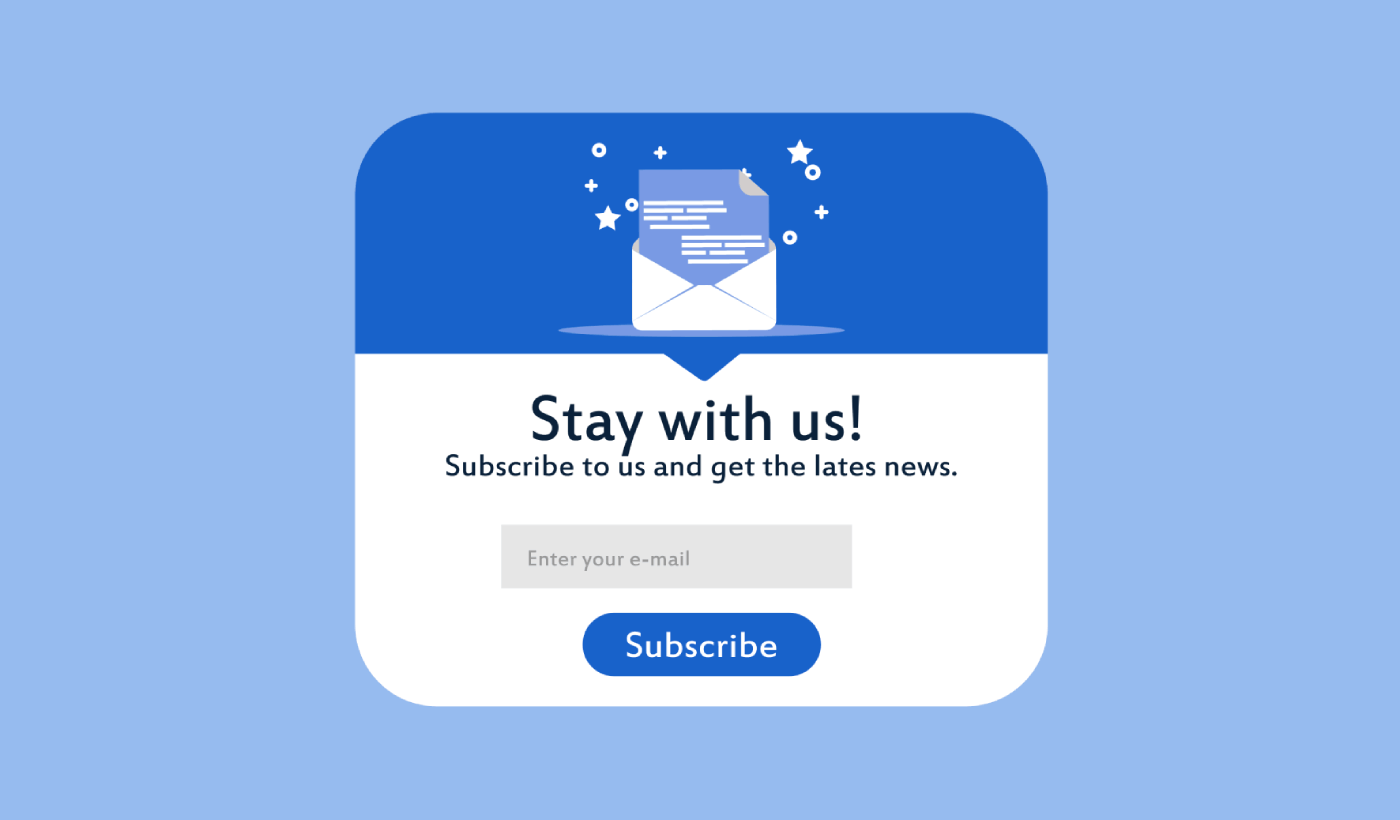
Looking for a way to create a full screen popup for your WordPress site?
A full screen popup can be incredibly effective for capturing leads. They’re designed to convince and convert by pulling the visitor’s entire focus on themselves.
But having to code one from scratch is a real pain. For one thing, you’d have to know enough HTML, CSS, and Javascript to create the popup along with trigger rules for when to show it. Then, you’d have to create a manual integration with your email service provider. And finally, you’d have to deal with any privacy and security issues.
Good news: there’s a much simpler way.
In this article, we’re going to show you how to launch a full screen popup in WordPress with zero coding in less than 10 minutes.
让我们开始吧。
What is a Full Screen Popup in WordPress?
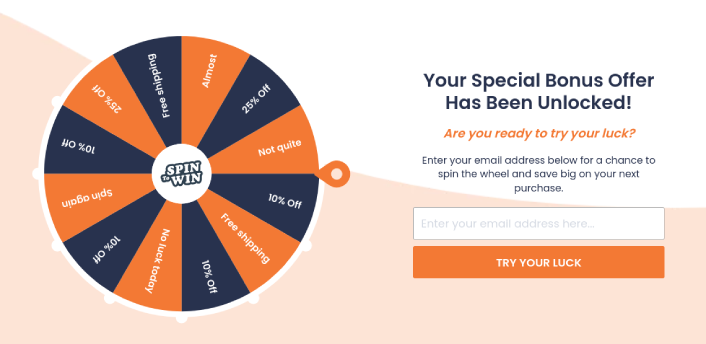
A full screen popup is an opt-in form that popups up with a full screen cinematic effect. Think of it as watching a movie on Netflix in full-screen mode. When a full screen optin form pops up, you can’t see the rest of the WordPress site. This way, your entire focus is on the popup.
这是一个示例:
You can use full screen popups to:
- Welcome new visitors
- Offer a discount coupon
- Point visitors to their best content
- Send visitors to their social media profiles
And more. You can even create popup contact forms. Popups are super flexible and as long as you’re creative, you can set up high-converting ones easily.
How to Create a Full Screen Popup in WordPress
Now that you understand what a full screen popup is and why you’d want to create one, how do you create a full screen popup? We recommend using OptinMonster to create all your popups.
OptinMonster 是全球排名第一的转化工具包,我们自己也使用它。OptinMonster 可以非常轻松地创建强大的、能够带来转化的弹出窗口。而且您永远不需要编写任何代码。
We even wrote a full review of OptinMonster.
You can check that out, or get started with your campaign right now. All you have to do is signup for OptinMonster and follow along with the rest of this article.
Step #1: Create a Campaign
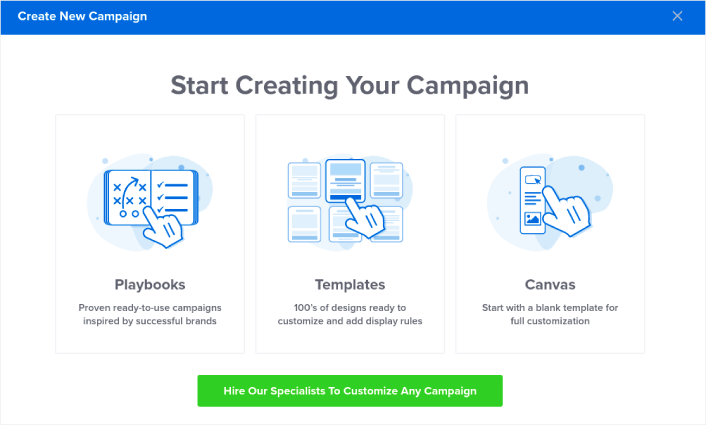
前往您的 OptinMonster 仪表板,然后点击 创建 按钮:
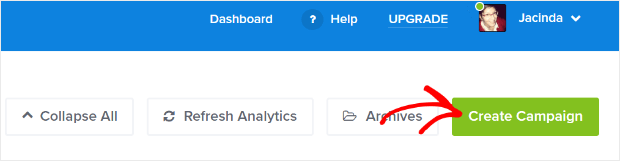
选择 模板 选项,开始使用预设计的模板创建注册表单:
Select the Fullscreen to get started with full screen popup templates:
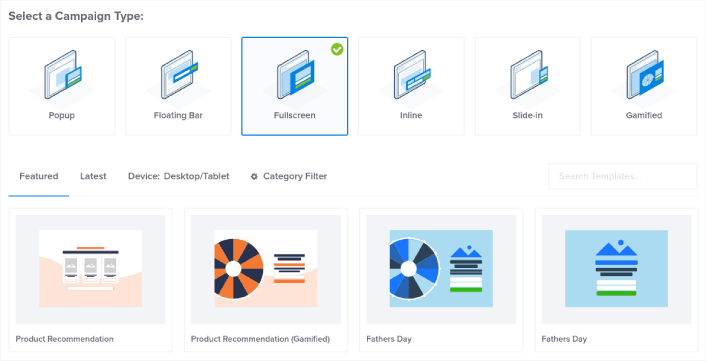
Then, choose a campaign template. You can choose whatever template you like, but we’re going with the Product Recommendation (Gamified) campaign template for this tutorial.
选择模板后,为您的营销活动命名。请记住,此营销活动名称仅供您自己参考,您很可能会创建大量具有不同定位选项的弹出窗口。因此,请为营销活动起一个有意义的名称,否则以后您会非常困惑。
Also, depending on your plan, you can also use OptinMonster on multiple sites. So, select the website where you want to display your campaign as well.
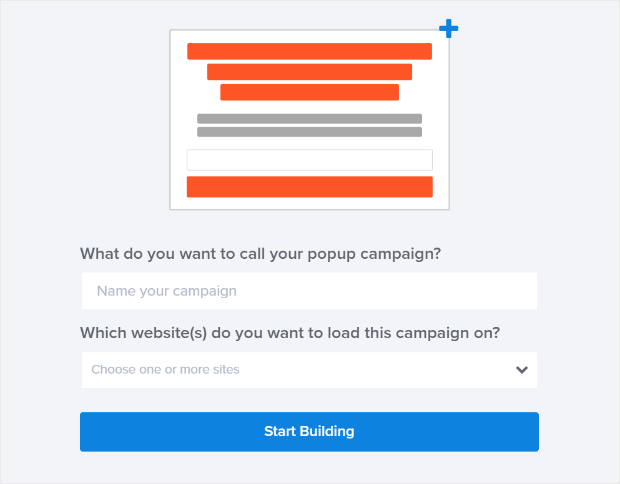
完成后,按开始构建。
Step #2: Edit Your Popup
With OptinMonster, you’ll get a visual drag and drop popup builder. Once you’re done creating your campaign, you’ll be able to edit even the tiniest details about your popup. Start by editing your popup headline:
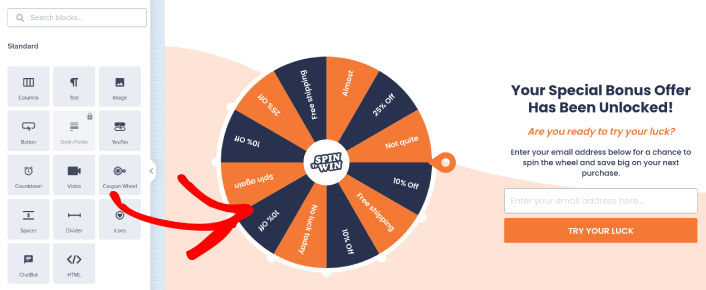
这里最神奇的部分是,您只需点击想要编辑的任何文本即可在线更改。无需填写表单或编辑弹出窗口中的任何 HTML 代码。
You can edit everything you want about your full screen popup. When you’re happy with the optin’s appearance, you can move on to more advanced settings.
Step #3: Set Full Screen Popup Display Rules
Display rules are meant to define when your campaign shows up on your site and who sees it.
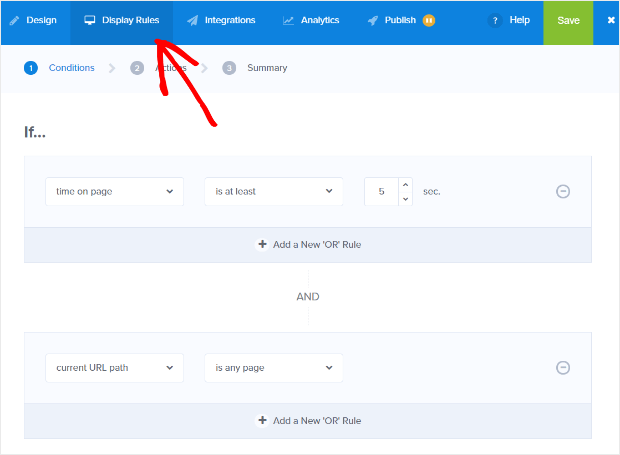
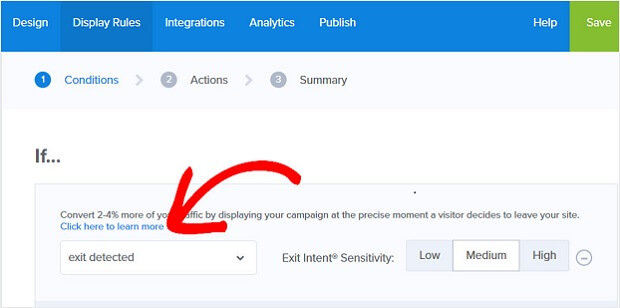
Our recommendation is that you change the trigger condition to exit-intent:
Click Next Step to choose the Action. Here, we recommend that you set Show the campaign view to Optin View, set the show with MonsterEffect to any entry animation you like, and play sound effect to any sound effect for your popup.
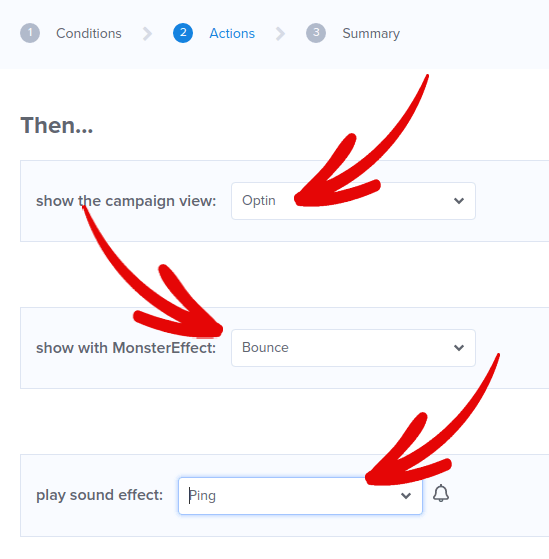
And then, click the Next Step button. You can see the full extent of your settings in the Summary tab.
第 4 步:向您的弹出窗口添加点击订阅按钮
推送通知可帮助您自动增加网站流量和参与度。如果您经营在线商店,PushEngage 还可以通过帮助您创建自动电子商务推送通知来帮助您增加销售额。
您可以免费开始使用,但如果您想认真发展业务,则应购买付费套餐。此外,在购买任何推送通知服务之前,您应该查看这篇关于 推送通知成本的指南。
PushEngage 提供以下功能,快速概览:
- 高转化率的自动化营销活动
- 多种定位和营销活动调度选项
- 目标跟踪和高级分析
- 智能 A/B 测试
- 专属客户成功经理
您会发现,如果您想为您的业务带来流量、参与度和销售额,PushEngage 绝对是最佳选择。而且,如果您预算有限,您总是可以 在推送通知方面发挥创意。
首先,从 OptinMonster 中的侧边栏将一个HTML块添加到您的弹出窗口。
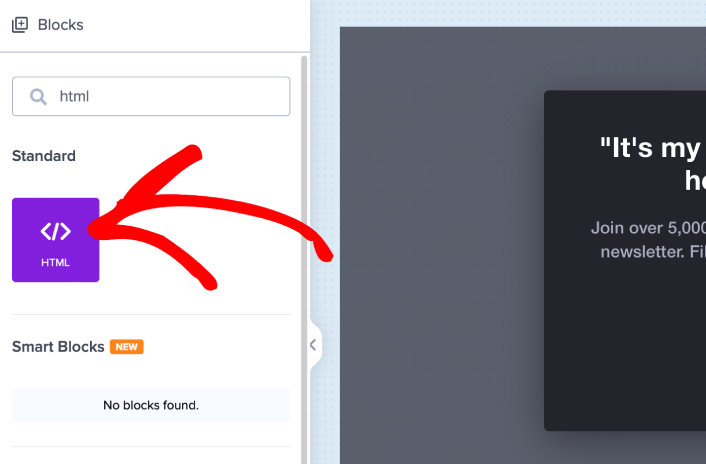
这是我们将添加代码以收集推送通知订阅者的地方。首先,粘贴以下代码以创建可点击按钮:
<button onclick="subscribeOnClickButton()" style="border: none; width: 100%; padding-left: 15%; padding-right:15%; text-align: center; display: inline-block; color: white;">Get Updates via Push Notifications</button>将代码粘贴到显示可以添加 HTML 的位置:
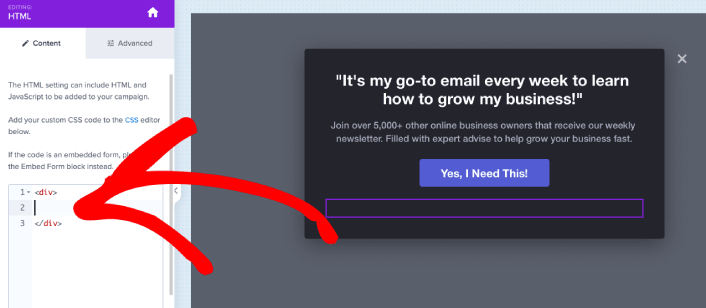
当然,您可以调整样式使其看起来更具吸引力。接下来,我们将使按钮在被点击时收集推送通知订阅者。
前往 PushEngage 主页,然后点击“开始使用”按钮:

然后,您可以选择免费计划来试用 PushEngage,或者如果您想认真发展您的业务,可以选择付费计划。付费计划提供更多的营销活动选项,并能够建立更大的订阅用户列表。
在您的 PushEngage 仪表板中,转到“网站设置”»“网站详细信息”,然后点击“单击此处获取设置说明”按钮。在“任何网站”下,您将获得安装代码:

警告:您需要复制从仪表板获取的代码。该代码对于每个 PushEngage 用户都是唯一的。您将无法复制图像中的代码并收集推送通知订阅者。
在您的 PushEngage 仪表板中获得代码后,复制第二个脚本并为其添加一些额外的代码。您的最终代码应如下所示:
<script src="https://clientcdn.pushengage.com/core/02a6e92667ae2279fcba8932356c1d93.js" async></script>
<script> window._peq = window._peq || [];
function subscribeOnClickButton(){
window._peq.push(['subscribe',{}.pe,function(res){
console.log(res);
}]);
}
</script>
将此代码添加到 OptinMonster 中的HTML块,紧跟在按钮代码之后,并放在<div></div>代码块之间,这样就完成了!
Step #5: Setup Your Email Integration
The next step is to set up your email integration. Click Add New Integration from the Integrations tab and select your email service provider:
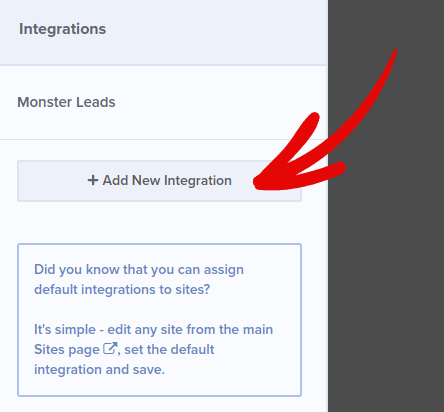
We recommend using Drip for your email marketing if you don’t already have an email service provider.
Step #6: Publish Your Full Screen Popup in WordPress
创建新广告系列时,它默认处于暂停状态。
转到顶部菜单的发布选项卡,查看发布选项。然后,将状态设置为发布并选择网站平台:
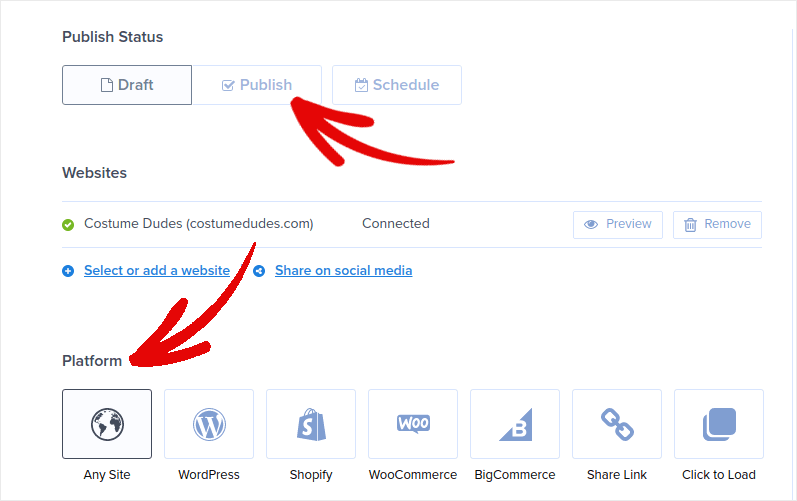
如果您运行的是 WordPress 网站,OptinMonster 插件会自动处理其余的设置。Shopify 和 BigCommerce 也是如此。对于任何其他网站,请点击任何网站并将嵌入代码粘贴到您网站的 head 中:
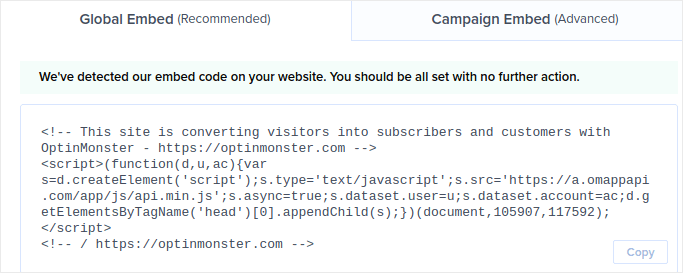
您就完成了!
What to do After Creating a Full Screen Popup in WordPress
好了,各位,本次分享就到这里!
Let us know if this article helped. Creating popups on your site can help you convert your traffic into email subscribers and genuine business leads. And we highly recommend that you start creating full screen popups right away.
如果您正在寻找一种经济高效的方式来增加流量,我们建议使用推送通知。推送通知可以帮助您带来更多重复流量和网站互动。您还可以创建自动推送通知广告系列来产生销售。
不信?查看这些资源:
我们建议使用 PushEngage 来创建您的推送通知广告系列。PushEngage 是全球排名第一的推送通知软件。所以,如果您还没有,请立即开始使用 PushEngage!


