
Do you want to embed YouTube live streams in your WordPress blog posts?
Live streams are the ultimate tool for you to engage with your community and grow your following. If you can couple that with your website traffic, you can get the best of both worlds.
The sad thing about live streams is that once they’re done, YouTube doesn’t always push it to new viewers unless they’re making a lot of money out of ads. So, showcasing your live streams on your WordPress site is a nice way to add views to your older streams as well.
You’re probably worried about having to handle the HTML code to embed videos. WordPress actually makes it super easy to embed videos from video hosting sites like YouTube, Vimeo, Facebook, Twitter, and many others. But live streams are a whole other beast.
In this article, we’re going to show you step-by-step how to embed YouTube live streams in WordPress.
让我们开始吧。
How to Embed a YouTube Live Stream in WordPress
Unlike regular YouTube videos, live streams are usually longer and allow viewers to interact directly with the creator in real time.
You can use WordPress video embed plugins to embed a YouTube live stream on your site. A plugin can help you automatically embed all of your YouTube channel videos and live streams in a customizable gallery format.
We recommend using Smash Balloon to embed your YouTube live streams.

Smash Balloon 是一款简单的 WordPress 插件,可让您在不使用任何代码的情况下在网站上显示社交媒体动态。在网站上显示社交动态是将网站流量转化为社交媒体关注者并让他们长期参与的好方法。
Smash Balloon 最棒的地方在于无需任何编码。您只需安装插件,然后将您的社交媒体页面连接到您的网站即可。
您可以使用 Smash Balloon 来:
- 在您的网站上使用您的标签动态作为社交证明
- 在您的网站上展示互动式 Twitter 动态以提高网站参与度
- Embed your YouTube videos on your site to grow your YouTube subscribers
- 将真实的 Facebook Business Page 评论添加到您的网站以增加转化率
And lots more! Check out our review of Smash Balloon or just get started.
Step #1: Install YouTube Feed Pro
First thing you need to do is install the YouTube Feed Pro plugin.

The YouTube Feed Pro plugin is meant to especially embed YouTube videos to your WordPress site. For more details, see our step by step guide on how to install a WordPress plugin.
Step #2: Create a YouTube Live Stream Feed
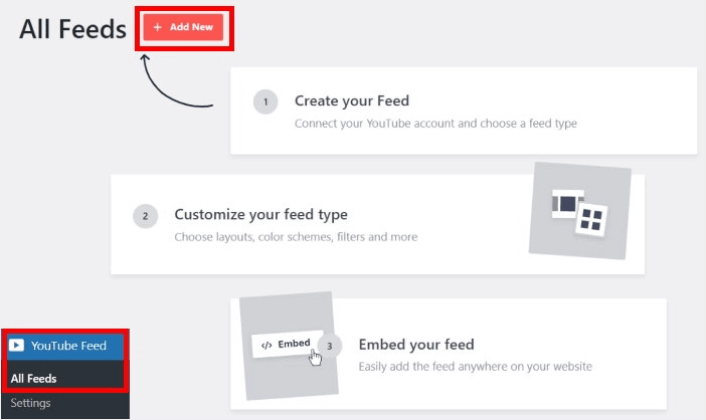
Head over to YouTube Feed » All Feeds menu from your WordPress dashboard and click on the Add New button:
Select the Live Streams option for now and then click on the Next button.
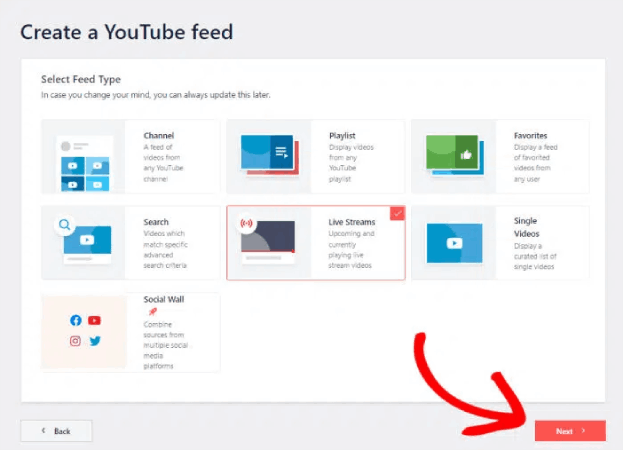
Now, you can set up your website to automatically pull your live streams from your YouTube channel and display them on a page.
Step #3: Connect YouTube to Your WordPress Site
The easiest way to connect your YouTube channel to your WordPress site is to use your YouTube API Key. If you don’t have an API key yet, you can take a look at this step-by-step guide for creating your YouTube API Key.
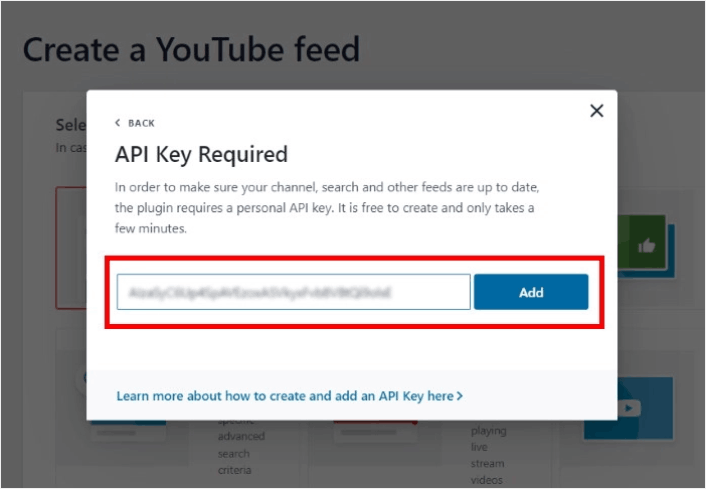
Once you do that, copy the YouTube API key and open your WordPress site. Now paste your API key into the popup there and then click on Add.
Next, go to your YouTube channel and take a look at the URL for your channel. You’ll need to copy the code that comes after “/channel/” or “/user/” on the URL.
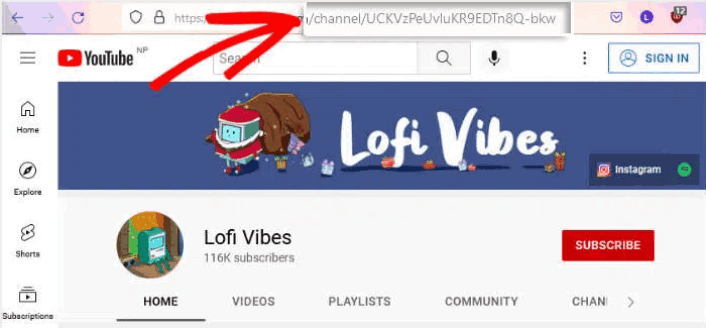
After copying the code, go back to your website and then paste it into Add Channel ID for Livestream field.
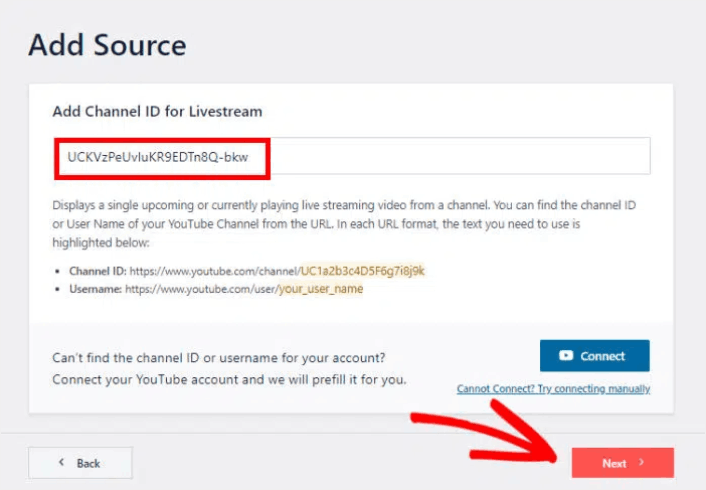
Then, simply click on the Next button.
Step #4: Customize Your Live YouTube Feed
Finally, we’re going to customize how your embedded feed looks on your site. It’s super easy. The plugin asks you to choose a pre-built template for your feed. You have 8 different feed templates to choose from:
- 默认
- 轮播
- Cards
- List
- Gallery
- Latest video
- 展示轮播
- 窗口小部件
Simply select the layout that you want to use and then click on Next.

You’re can now use the plugin’s live feed editor to customize your live streams in detail.
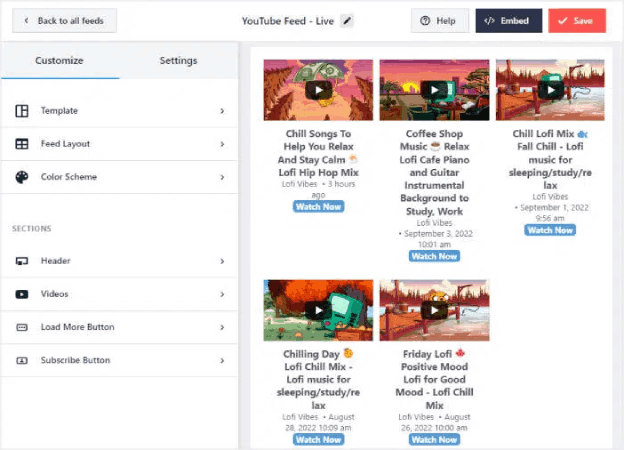
Once you’re ready to start designing your feed, click on the Feed Layout tab on the sidebar menu. Or, to change the color palette for your embed, you can click on the Color Scheme tab. When you’re done customizing your feed layout, remember to hit Save.
Step #5: Embed YouTube Live Stream Feed on WordPress
With YouTube Feed Pro, you can start embedding your YouTube feeds directly from the live feed editor. To do that, first, click on the Embed button at the top.
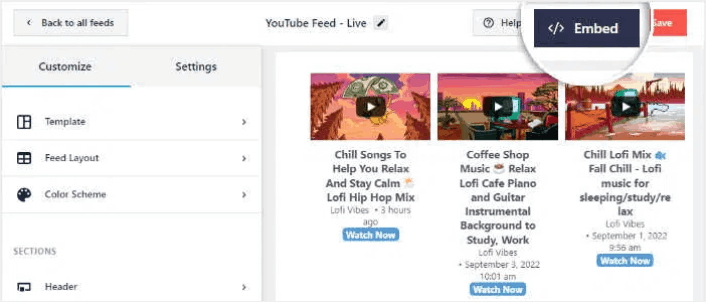
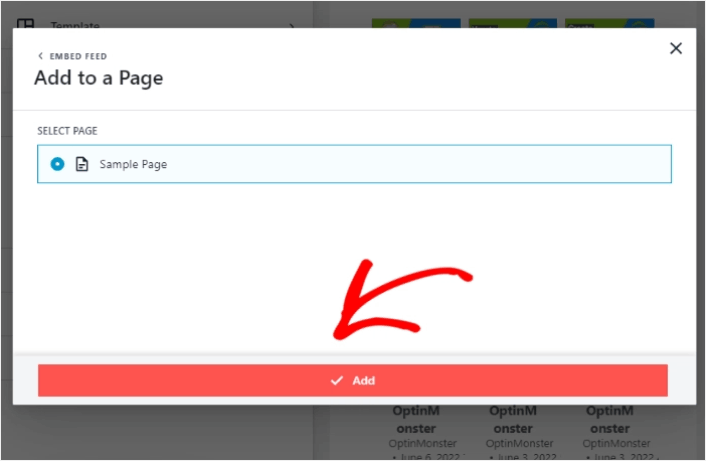
YouTube Feed Pro will then show you a popup with the embed options for this live feed. For now, select the Add to a Page option on the popup.
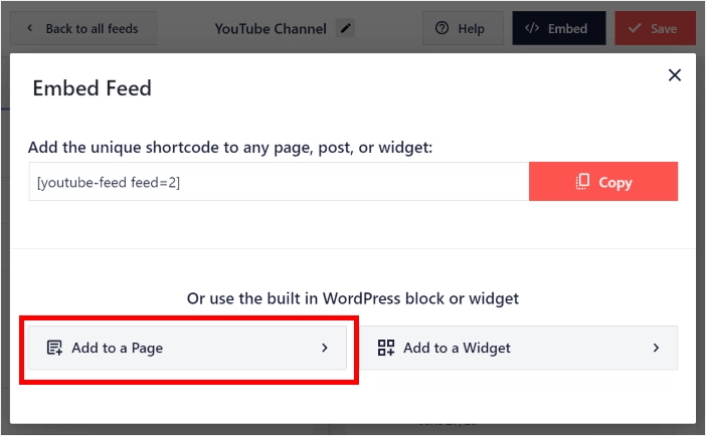
Now select your WordPress page from the list and then click on Add to continue.
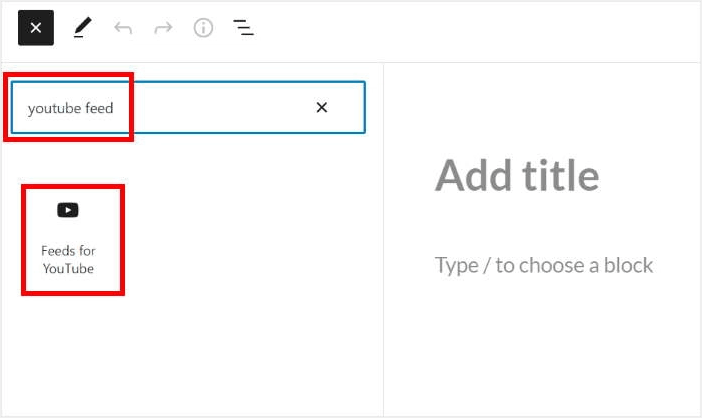
You’ll see the Gutenberg page editor open up for that page. All you have to do now is add a new block and select the YouTube Feed block.
Click on the Update button and your YouTube live streams will be online on your site.

And that’s it, you’re done!
What to do After You Embed a YouTube Live Stream
That’s all for this one, folks! By now, you’ve managed to embed a YouTube live stream in WordPress. You should also check out how to embed Instagram photos in WordPress. And how to set up a viral giveaway to supercharge your social media following.
之后,剩下要做的就是为您的网站吸引流量,以便您的联系表单可以开始工作。一种简单的方法是开始使用推送通知。发送推送通知是为您的网站吸引重复流量的好方法。如果您对此感兴趣,还应该查看以下文章:
- 推送通知成本:真的免费吗?(价格分析)
- 如何为您的WordPress博客吸引更多流量(9种简单方法)
- 如何提高您的网络推送通知选择加入率(7 种方法)
- 如何为您的网站添加 WordPress 网站通知插件
我们建议使用PushEngage发送推送通知。PushEngage是全球排名第一的推送通知软件。因此,如果您还没有,请立即开始使用PushEngage。


