
Looking for a quick and easy tutorial on how to embed Instagram photos in WordPress?
Instagram embeds are not the same as having a link to an Instagram post. With Instagram embeds, you can showcase your entire Instagram feed or parts of it as you see fit.
But the tricky part is to create an Instagram embed for WordPress. WordPress doesn’t support Facebook and Instagram oEmbeds anymore. oEmbed was a simple way to fetch Instagram photos on any site by simply pasting the link. But now, you have to sign up as a Facebook app developer and create an app with oEmbed permissions to embed Instagram photos in WordPress.
If that sounds complicated, that’s because it really is. The good news is that there’s a super simple way to embed Instagram photos in WordPress. In this article, we’re going to see exactly how you can embed Instagram photos in WordPress without a single line of code.
而且我们将在 10 分钟或更短的时间内完成!
让我们开始吧。
Why You Should Embed Instagram Photos in WordPress
If you can embed Instagram photos in WordPress, you’ll see a lot of benefits right away. It’s a great way to get the website visitors you bring in from other channels such as SEO to become your Instagram follower.
But that’s just the most obvious benefit. With Instagram feeds, you can customize the section to show your customer reviews, content from your top affiliates and influencers, and your most successful campaigns. It’s super easy to do as well. You can filter the showcased posts by specific hashtags and brand mentions.
动态内容还可以增加你网站的参与度。由于你页面上增加了内容,甚至可以为你的网站带来一些 SEO 加成。
How to Embed Instagram Photos on Your WordPress Site
You can easily embed Instagram feeds on your website using the Instagram Feed Pro plugin from Smash Balloon.
Smash Balloon is the #1 social media feed plugin for WordPress. The Instagram Feed Pro plugin by Smash Balloon is the easiest way to embed Instagram photos in WordPress.
您可以使用 Smash Balloon 来:
- 在您的网站上使用标签动态作为 社交证明
- Display interactive Twitter feeds to boost website engagement
- 在您的网站上嵌入 YouTube 视频以 增加订阅者
- 在您的网站上添加真实的 Facebook Business Page 评论以 提高转化率
And lots more! Most importantly, Instagram Feed Pro lets you embed an Instagram feed without registering as an app developer. This will save you a ton of time and hassle.
如果你想查看 Smash Balloon 的完整功能列表,你应该看看我们的 Smash Balloon 评测。
The next few steps are all you need to do to embed Instagram photos in WordPress. If you follow every step, you should be able to create an Instagram feed on your site like this one:

让我们开始吧。
Step #1: Install and Activate the Instagram Feed Pro Plugin
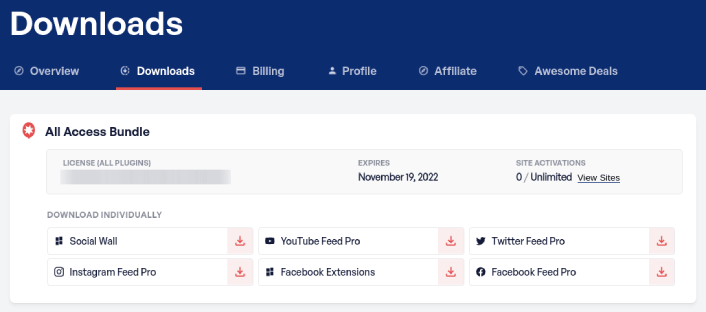
First off, install and activate the Instagram Feed Pro plugin. You can download the Instagram Feed Pro plugin from your Smash Balloon account under Downloads:
Then, activate the plugin using your license key in your WordPress dashboard by going to Instagram Feed » Settings » General » License Key:
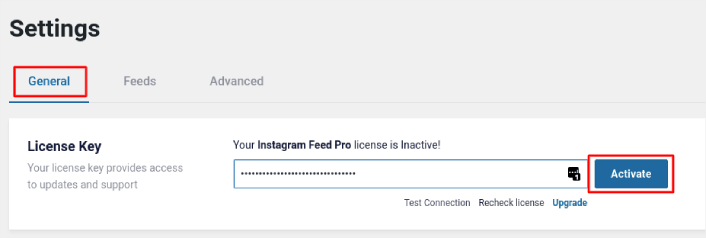
Paste in your license key and click on the Activate button.
Step #2: Connect Your Instagram Account to WordPress
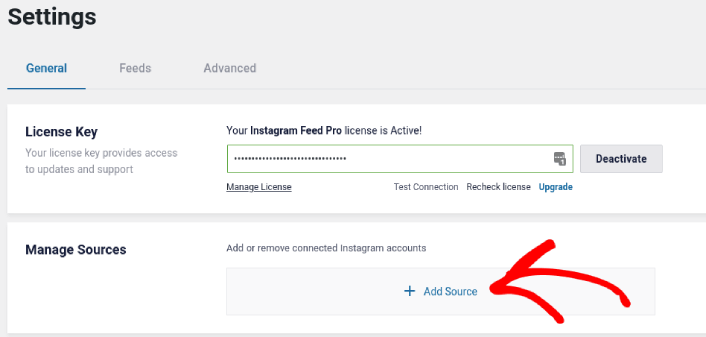
In your WordPress dashboard, go to Instagram Feed » Settings » General » Manage Sources and the click the plus (+) button:
Then, click on the Login with Instagram button:
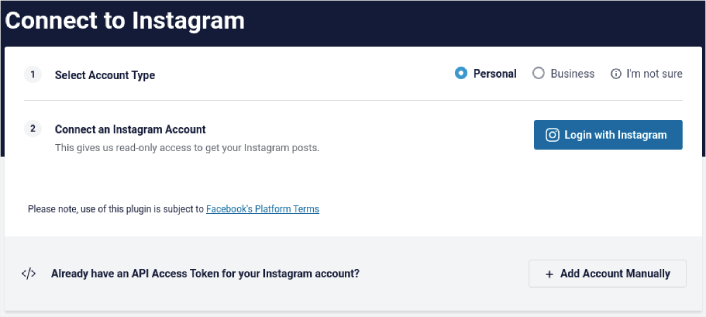
Once you’re done logging in to your account, you can start creating Instagram feeds for your site.
Step #3: Choose the Instagram Content to Display
In your WordPress dashboard, go to Instagram Feed » All Feeds and click the Add New button:
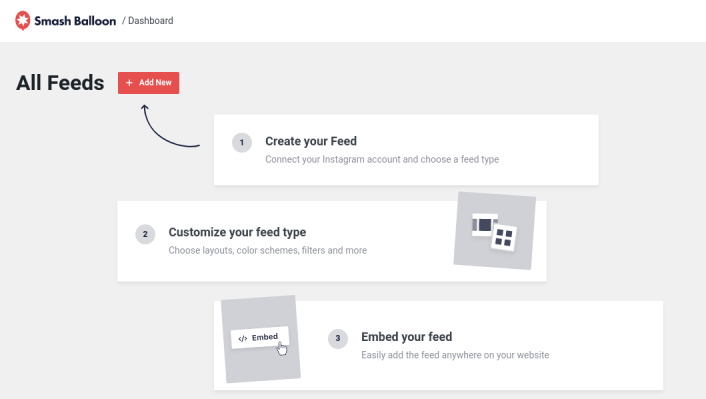
Next, you’ll need to select the type of content you want to display on your site:
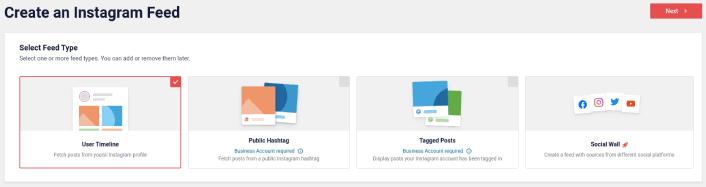
You can create 4 types of Instagram feeds:
- User Timeline:此类型的Feed适用于所有帐户,您可以使用它来显示您的最新帖子。
- Public Hashtag: You can embed this type of feed to display only posts with a specific hashtag.
- Tagged Posts: This type of feed displays only posts where your Instagram handle is tagged. It’s perfect for showcasing social media reviews.
- Social Wall: You can embed Instagram photos in WordPress as part of a custom wall with feeds from other social media platforms as well.
Pick the right type of content for your site and click the Next button. You’ll be prompted to select the source for your Instagram feed. Just select the account you connected with your WordPress site earlier.
Step #4: Customize Your Instagram Feed
Now for the coolest bit about Smash Balloon. You can use a drag-and-drop editor to customize your Instagram feed! In the left-hand sidebar, you get a bunch of design options that are super easy to use.
自定义Feed布局
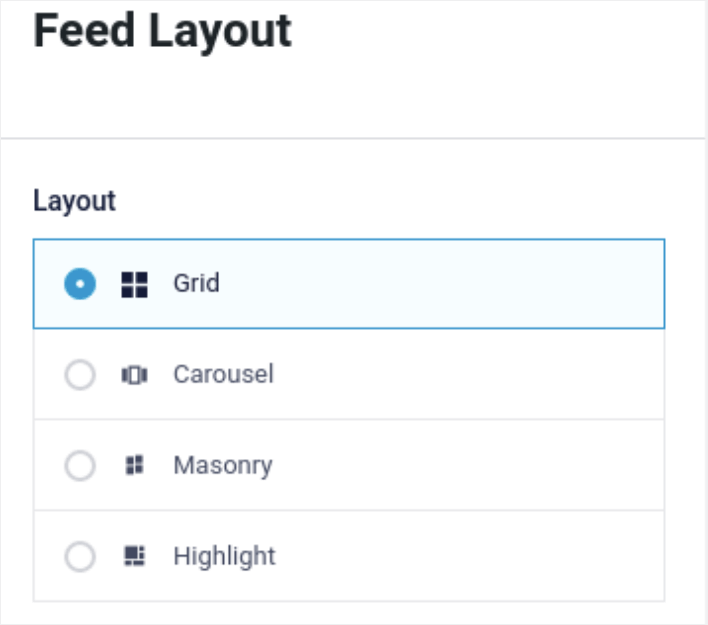
您可以单击Customize下的Feed Layout选项卡来选择嵌入的布局:
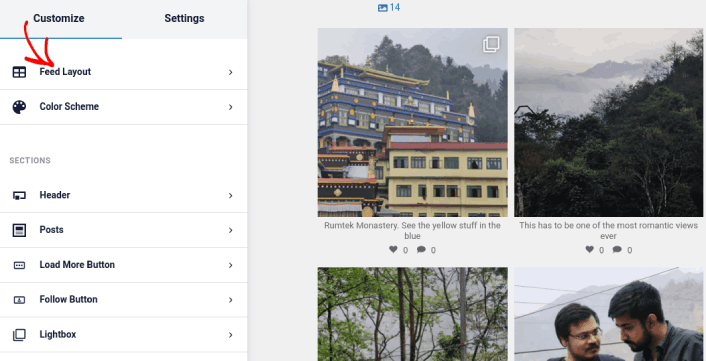
有4种布局可供选择。您可以查看每种布局的预览效果,然后选择您最喜欢的一种:
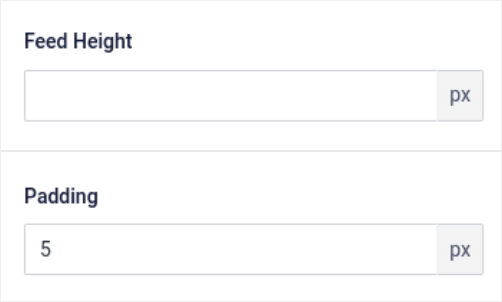
您还可以设置自定义Feed高度和内边距:
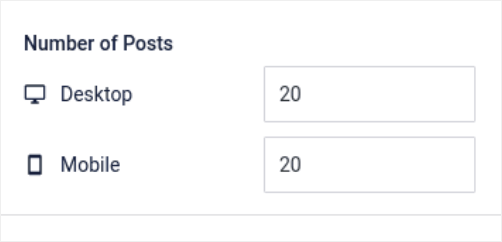
您甚至可以设置一次要展示的帖子数量:
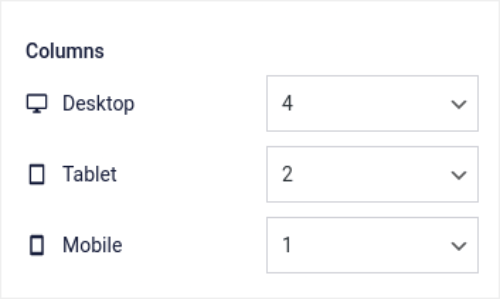
And if you’re feeling really fancy, you can also set the number of columns in your Instagram feed:
自定义配色方案
The default color scheme in Instagram Feed Pro is meant to work with almost any site’s design. But just in case you feel that it’s out of place with the rest of your site, you can customize the feed’s color scheme as well.
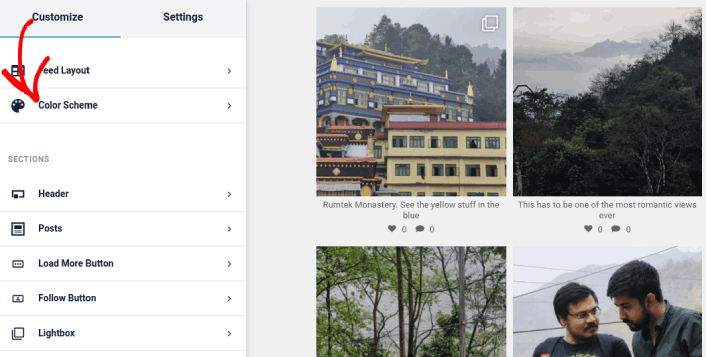
在Customize下,转到Color Scheme以选择自定义外观:
我们建议使用Inherit from Theme选项,因为它会自动获取您主题的样式。
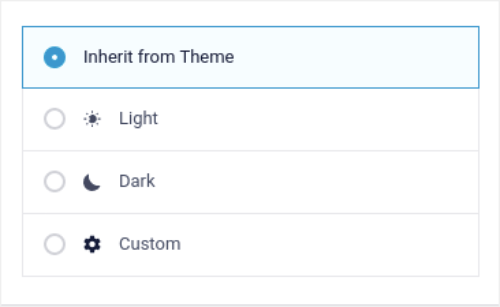
但是您可以单击Custom来创建自己的配色方案。
向您的 Instagram Feed 添加版块
Finally, you can also add custom sections to your Instagram feed under Customize » Sections:
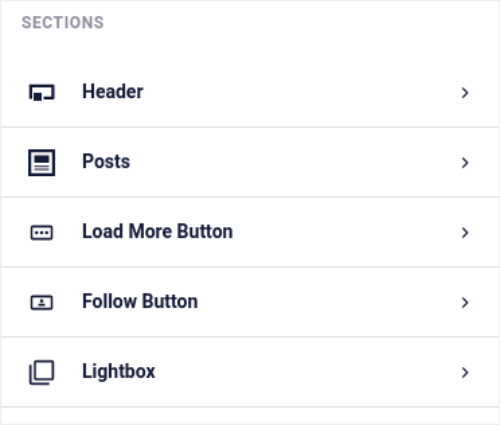
这包括:
- Header:您可以自定义标题,包括字体样式、自定义显示图片、自定义个人简介等。
- Posts:您可以自定义帖子的图片和视频分辨率,允许显示标题、包含点赞和评论摘要,以及创建悬停效果。
- 加载更多按钮:您可以在动态消息中添加一个加载更多按钮,以便在访问者点击时获取更多图片。
- Follow Button: You can add a button to nudge your website visitors to follow you on Instagram.
- 灯箱:您可以创建一个灯箱弹出窗口,当您的帖子被点击时,它们会以全屏模式弹出。
设置满意后,请点击保存按钮。
Step #5: Embed Instagram Photos in WordPress Page/Post
Now that your feed has been fully customized, it’s time to embed Instagram photos on your site. In your WordPress dashboard, go to Instagram Feed » All Feeds and copy the feed shortcode:
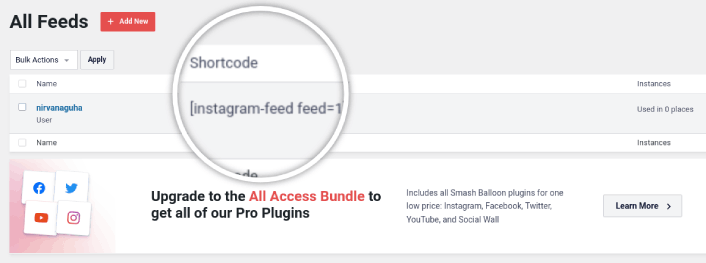
Now, you can use this shortcode to embed Instagram photos in WordPress instantly. You can add it to the sidebar, footer, posts, and even pages across your site.
If you followed all the steps from start to finish, you should have an Instagram feed on your site like this one:
就是这样!您已全部完成。
What to do After You Embed Instagram Photos in WordPress
好了,各位,本次分享就到这里!
By now, you’ve managed to embed Instagram photos in WordPress. Next, you should set up a viral giveaway to supercharge your social media following.
之后,剩下要做的就是为您的网站吸引流量,以便您的联系表单可以开始工作。一种简单的方法是开始使用推送通知。发送推送通知是为您的网站吸引重复流量的好方法。如果您对此感兴趣,还应该查看以下文章:
我们建议使用PushEngage发送推送通知。PushEngage是全球排名第一的推送通知软件。因此,如果您还没有,请立即开始使用PushEngage。


