
Are you looking for an easy way to embed Google Business reviews on your website?
If you’re running a small business with a store that needs foot traffic, your Google Business reviews are super important. Not only does Google Business bring in new leads for you, the Google rating for your store can help you convert customers more easily from your website as well.
But how do you add Google Business reviews to your WordPress site? Do you need to write custom code? Can you use a WordPress plugin? Are the plugins easy to use? What kind of features do you get with your Google Business reviews widget?
If you want to manually create a Google Business reviews widget, you’ll have to purchase access to the Google Places API. As a result, showing reviews on your website could get expensive. But there’s a way around it.
In this article, we’re going to answer all these questions and more. Let’s check out how to add Google Business reviews to your WordPress website the easy way.
Why Use a Google Business Reviews Plugin for WordPress?
You should use a plugin to add a Google Business reviews widget in WordPress. The trick is finding the right plugin for the job. You don’t want a poorly coded plugin slowing down your site. So, it’s best to use a professionally made plugin to add a Google Business review widget to your WordPress site.
PushEngage是全球排名第一的推送通知插件。免费获取!
最好的WordPress插件都经过测试和优化以提高速度。使用一个好的插件很重要,因为您可以将Tripadvisor小部件嵌入到一个登录页面,以作为社会证明并获得更多转化。
Of course, this doesn’t mean that you can’t embed a Google Business reviews widget in WordPress without a plugin. But it’s difficult to customize the look and feel of your feed without knowing HTML and CSS. You could also lose your embed code if you switch your WordPress theme. The same problem happens if you’re not using a child theme and your theme gets a major update.
It’s also really annoying to embed multiple feeds for different business locations in different posts and pages through code.
We recommend using Smash Balloon to insert a WordPress Google Business reviews widget to your site.
Smash Balloon是一个简单的WordPress插件,可让您在不使用任何代码的情况下在您的网站上显示您的社交媒体信息流和评论。
You can use Smash Balloon to create custom social media feeds for your WordPress site in a few clicks. There’s no coding involved and no need to hire a developer. And you get to integrate Tripadvisor, Instagram, Facebook, Twitter, and YouTube feeds together or separately as you wish.
Signup for Smash Balloon is to use their Reviews Feed Pro to create a Google Business reviews widget for your site.

最棒的部分?它非常易于使用。
Smash Balloon 的设置几乎只需要 5 分钟。而且完全没有学习曲线。
超过 200 万用户信赖 Smash Balloon 在其网站上展示社交动态。此外,Smash Balloon 在 WordPress 上的平均评分为 4.8 星(满分 5 星)。
Let’s check out how to create a Google Business reviews widget for your WordPress site using Smash Balloon.
How to Add a Google Business Reviews Widget in WordPress
继续安装并激活 Reviews Pro 插件。如果您不确定如何操作,请阅读这篇关于如何安装 WordPress 插件的文章。然后,按照本指南中的步骤在 WordPress 中设置和嵌入 Tripadvisor feed。
Step #1: Create a Google Business Reviews Widget in WordPress
首先,从您的 WordPress 控制面板转到 Reviews Feed 菜单,然后点击 Add New 按钮:
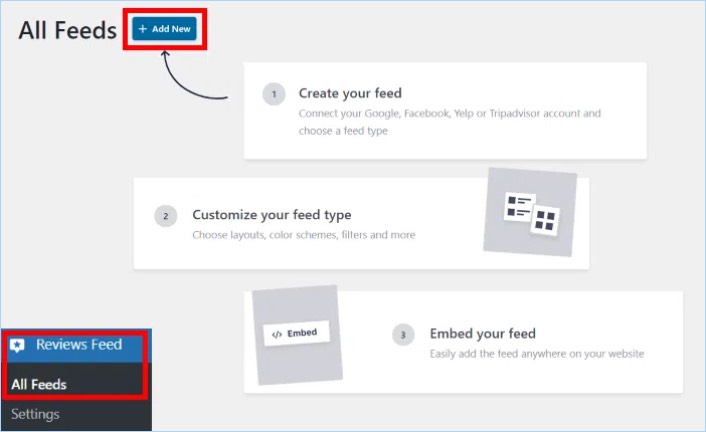
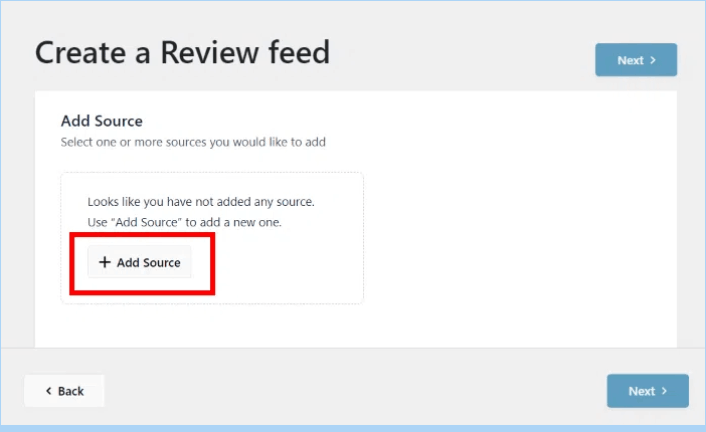
The next step is to add sources for your new reviews widget. You can simply connect this widget to your Google Business reviews. Click on the Add Source button here to get started.
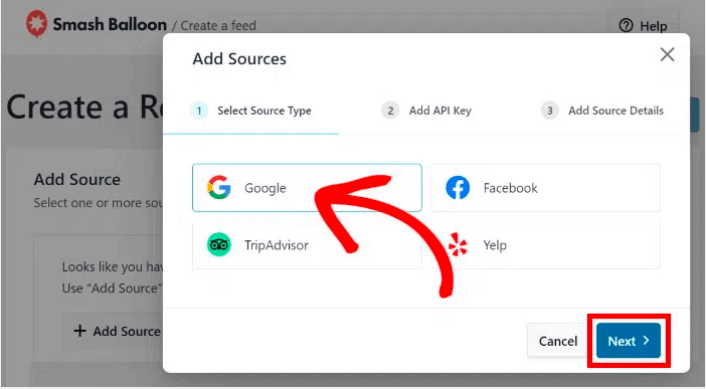
To continue, select the Google option on the popup and click on Next.
Step #2: Connect Your Widget to Google
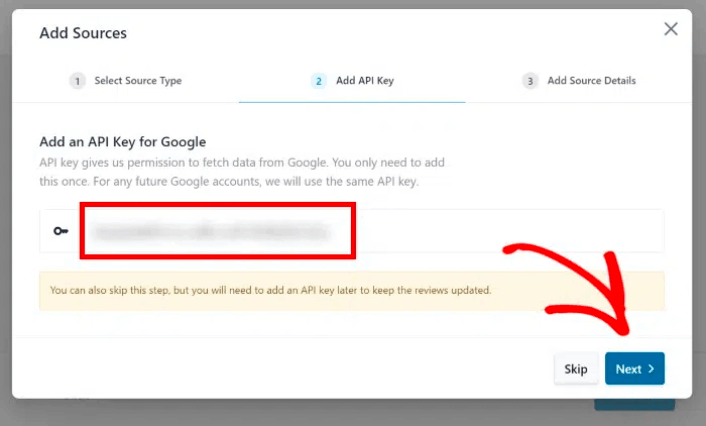
With the Reviews Pro plugin, you can connect to Google even without using an API key! In case you already have a Google Places API key, paste it into the popup and click on the Next button.
或者,您可以点击 Skip 按钮继续。
Next, select which business to show using your Google reviews widget by entering the Place ID of the Google Business page.
If you don’t know the Place ID to your business, you can simply create one yourself. Head over to the official Place ID generator and scroll down until you see a Google map.
Enter the name and location of a business in the search bar at the top.
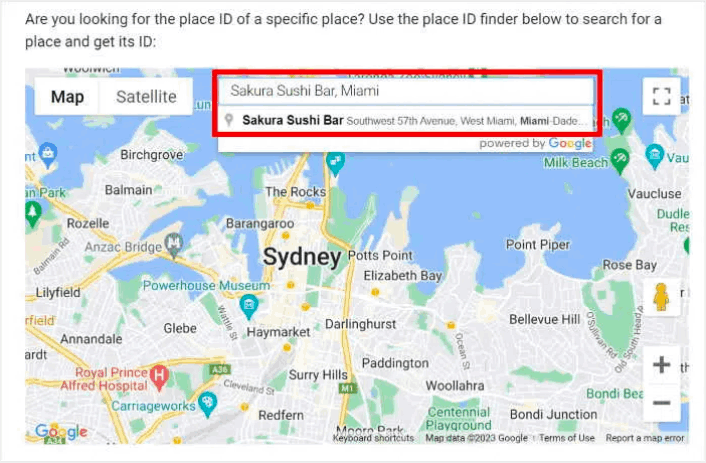
So, you want to showcase reviews from a particular business, right?
No worries, just pick the business you’re interested in from the dropdown list. After that, Google will display the Place ID for that specific business profile on the map. You’ll easily spot the Place ID field, and right beside it, you’ll find the code.
Just copy that code, and you’re good to go!
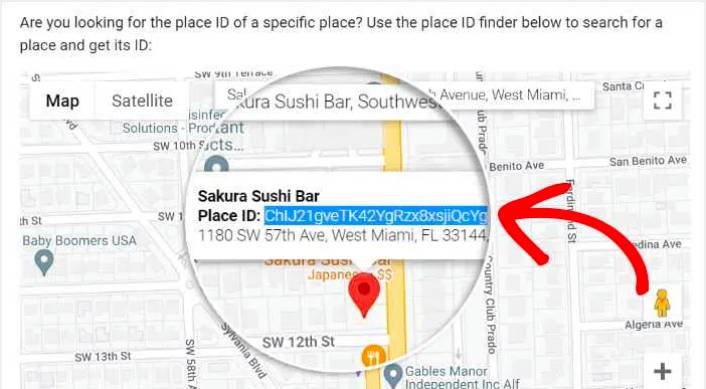
Then, go back to your site and paste the Place ID into your widget source.
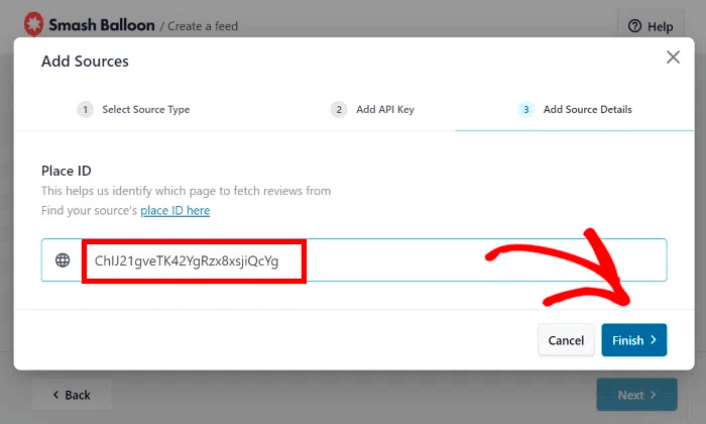
Exactly like that, you’ve successfully linked your new reviews widget to Google and integrated a source. From now on, you can use this source whenever you’re making new widgets with this plugin.
Finally, click on the Next button to confirm this source for your Google Business reviews widget.
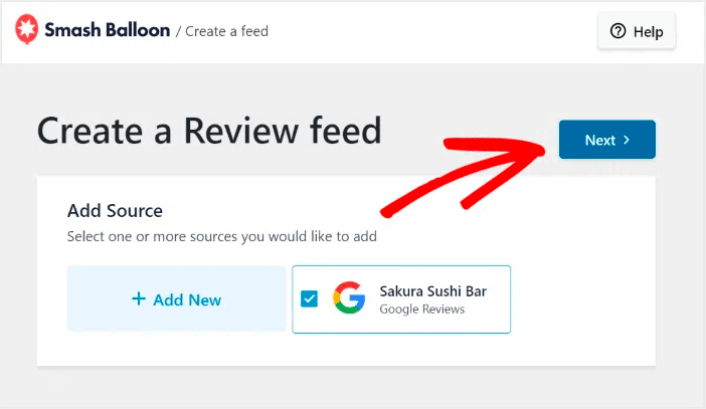
Your new Google Business reviews widget will now automatically copy your website’s design and look beautiful even without any custom code.
Step #3: Customize Your Google Business Reviews Widget
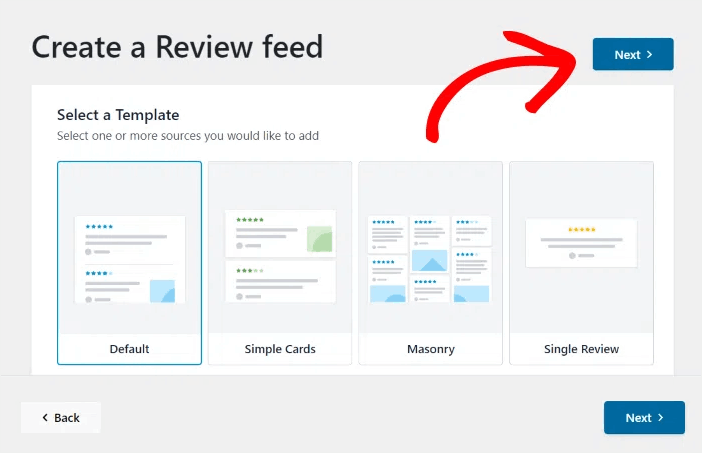
To customize your Google Business Reviews widgets, all you have to do is select a pre-designed template that comes with the plugin.
我们提供 7 种不同设计的模板供您选择:
- 默认
- 简洁卡片
- 砌体
- 单条评论
- 展示轮播
- 轮播
- 网格轮播
选择您的小工具模板后,点击 Next 按钮。
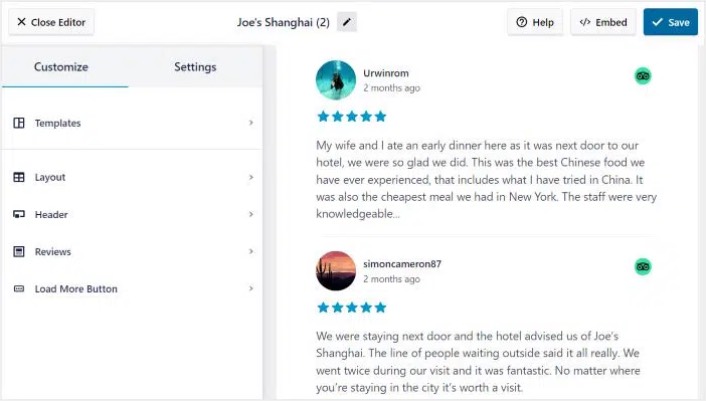
Whenever you make any changes, the live preview on the right will show you how your Google Business widget looks in real-time.
点击左侧面板上的 Feed Layout 选项:
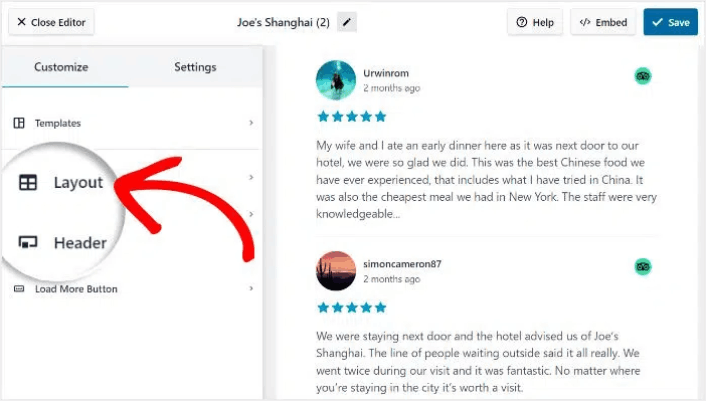
使用 Reviews Feed Pro,您可以从 3 个选项中进行选择:List、Masonry 和 Carousel。
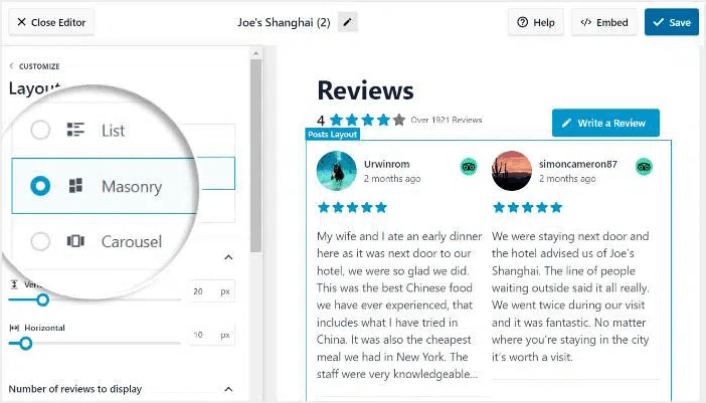
尝试不同的布局,直到找到适合您网站的布局。点击 Save 按钮确认您的更改。
Step #4: Publish Your Google Business Reviews Widget in WordPress
点击顶部的 Embed 按钮开始操作。
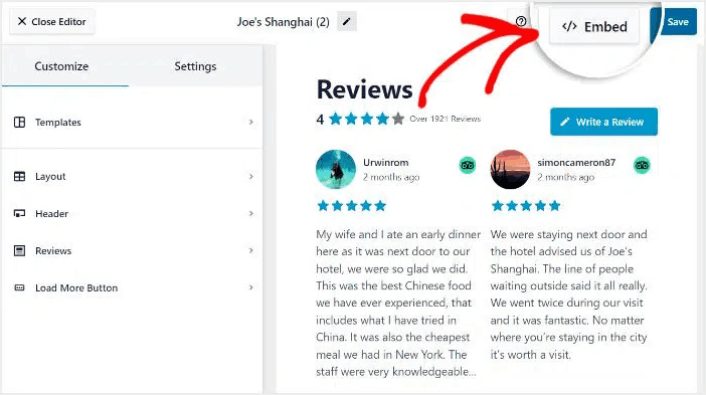
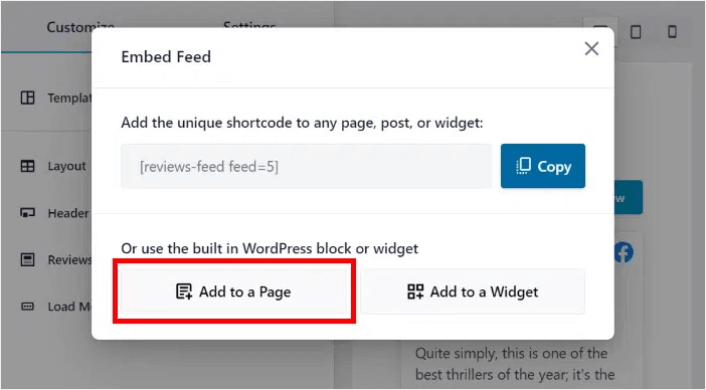
要将其嵌入 WordPress 页面,请点击 Add to a Page 按钮:
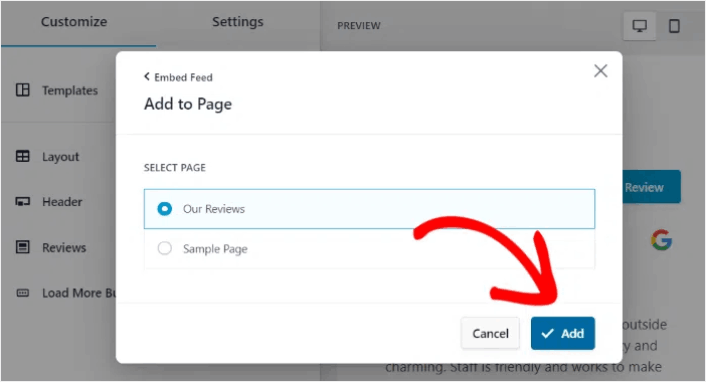
只需选择要在其中嵌入Feed的页面,然后单击“添加”按钮:
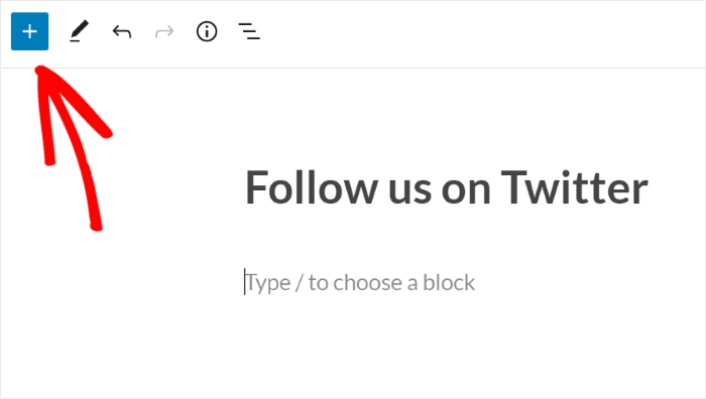
这将会在块编辑器中打开WordPress页面。单击加号(+)图标以添加新的WordPress块。
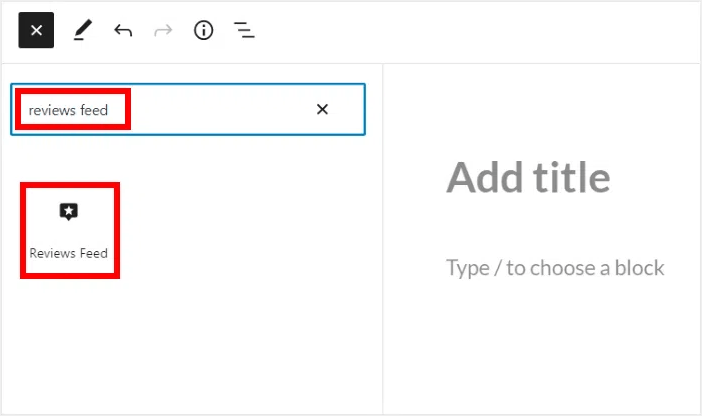
单击“Reviews Feed”WordPress块将其添加到您的页面:
最后,单击“发布”或“更新”按钮,您的Twitter Feed将发布在您的WordPress网站上,如下所示:
就是这样!您已完成。
After You Embed Google Business Reviews On Your Website
That’s all for this one, folks! By now, you’ve managed to embed a Google Business reviews on your WordPress website. You should also check out how to embed Instagram photos in WordPress. And how to set up a viral giveaway to supercharge your social media following.
之后,剩下要做的就是为您的网站吸引流量,以便您的联系表单可以开始工作。一种简单的方法是开始使用推送通知。发送推送通知是为您的网站吸引重复流量的好方法。如果您对此感兴趣,还应该查看以下文章:
- 推送通知成本:真的免费吗?(价格分析)
- 如何为您的网站添加 WordPress 网站通知插件
- 如何为您的WordPress博客吸引更多流量(9种简单方法)
- 如何提高您的网络推送通知选择加入率(7 种方法)
我们建议使用PushEngage发送推送通知。PushEngage是全球排名第一的推送通知软件。因此,如果您还没有,请立即开始使用PushEngage。


