如何在网站上使用多个弹出窗口

If you want to show different styles of popups on your website at the same time, you need a different strategy to get people to Opt-in or show segment preferences in some Popups and have a regular Popup on other pages. You can enable multiple popups now with PushEngage.

In this guide, you will explore how effectively you can target your subscribers through multiple popups through Local Targeting Rules.

How to Set up Local Targeting Rule

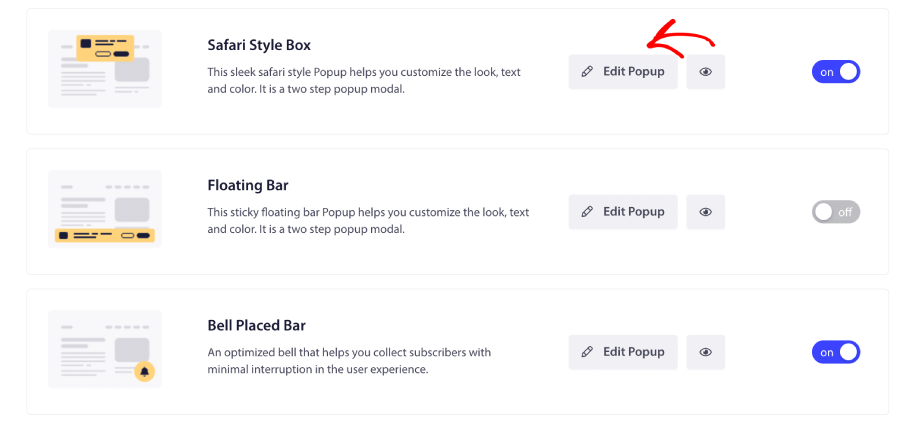
If you wish to use more than one Popup Modal to collect subscribers from your website, then it’s recommended to apply Local Rules when customizing the Popups. This allows you to manage different styles on specific pages or for different countries. To do this, go to “Design” > “Popup Modals,” scroll to the Popup style you want to edit, and click on “Edit Popup” as shared below.

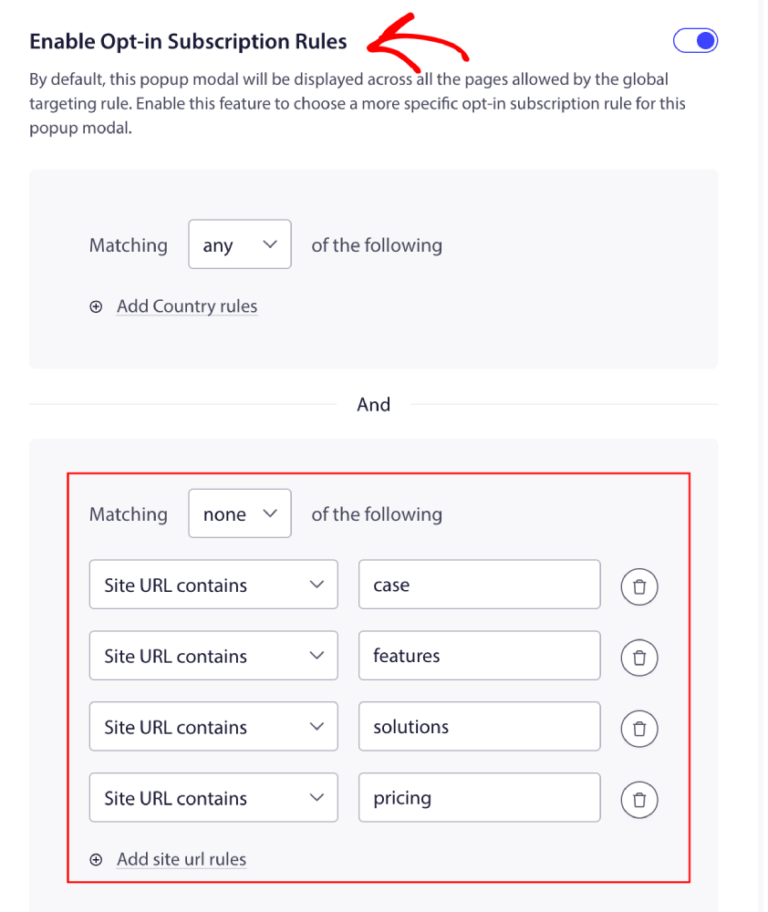
In the next steps you need to scroll down to the “Subscription Opt-in Rules” section and switch the toggle to “On.”

You can now add the rules, click “Save,” and then select your display options.

That’s it! This is how you can manage the targeting rules for the Subscription Popup.

如果您遇到任何问题,请 联系我们 。我们的支持团队将能够帮助您。

仍然卡住了?我们能帮您什么?
最后更新于 2026 年 3 月 9 日

在访客离开您的网站后与他们互动并挽留他们

通过难以忽略的推送通知,增加每次网站访问的价值。

  • 永久免费套餐
  • 轻松设置
  • 五星支持