如何使用受众分组与不活跃的订阅者互动

PushEngage audience group feature in enhances the efficiency, effectiveness, and personalization of your push notification campaigns allows you to group together your custom segments, geo-locations, and people who interact with your push campaigns.

Audience groups allow for more precise targeting. By combining different criteria into one group, you can send more personalized and relevant notifications to your users, improving engagement and response rates. Instead of manually selecting multiple segments every time you want to send a campaign, you can select the pre-defined audience group. This saves time and effort, especially when dealing with large subscriber bases.

In this guide today, you will learn how to target your inactive subscribers using Audience Groups. You can try to retarget them for some time with more targeted messages before cleaning them up.

开始之前

This guide assumes that you have activated PushEngage. If not you can get started here.

Audience Group is available in our Business plan & above.

创建受众群体

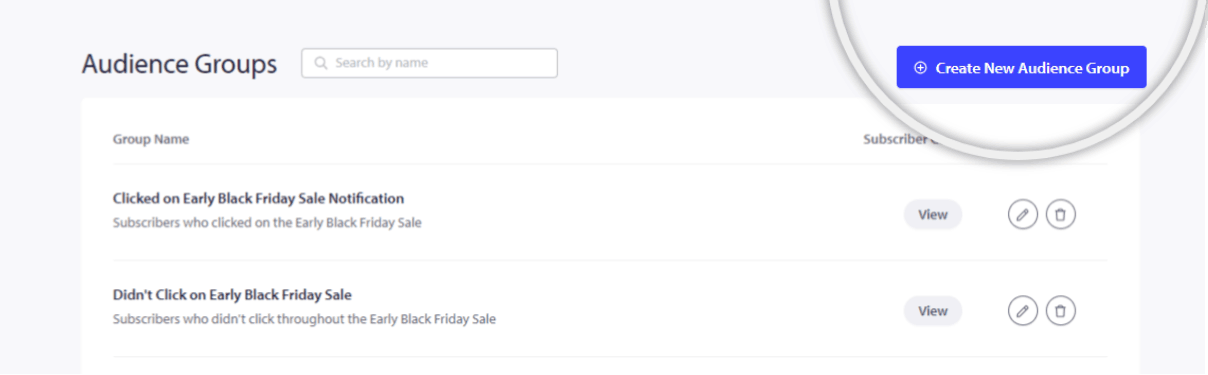
In your PushEngage account, go to the Audience section and select Audience Group.

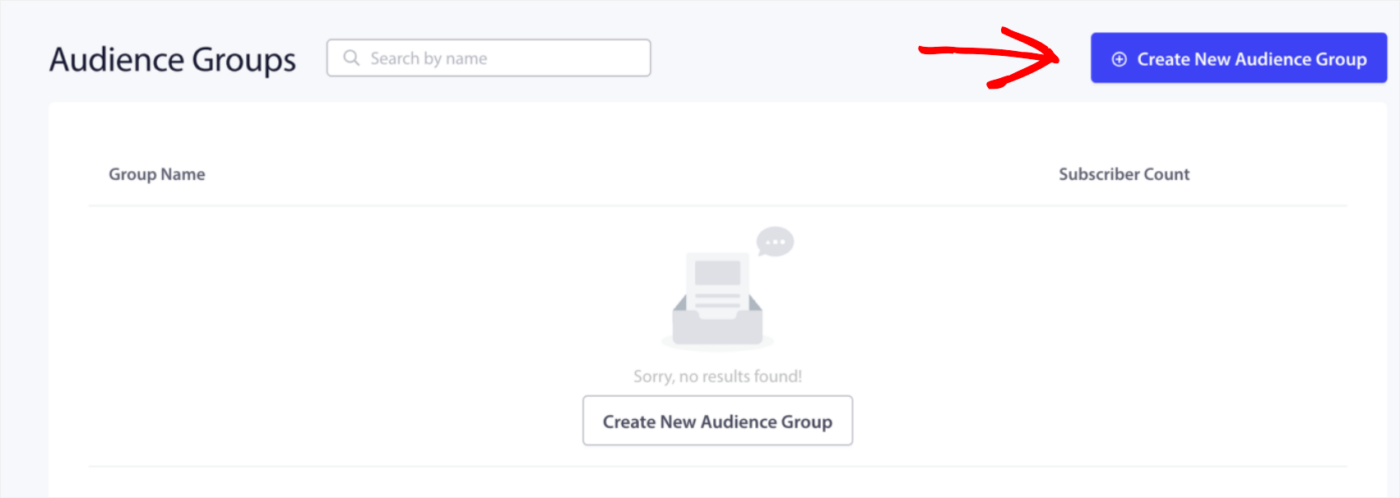
Click on Create New Audience Group and enter a name for the group.

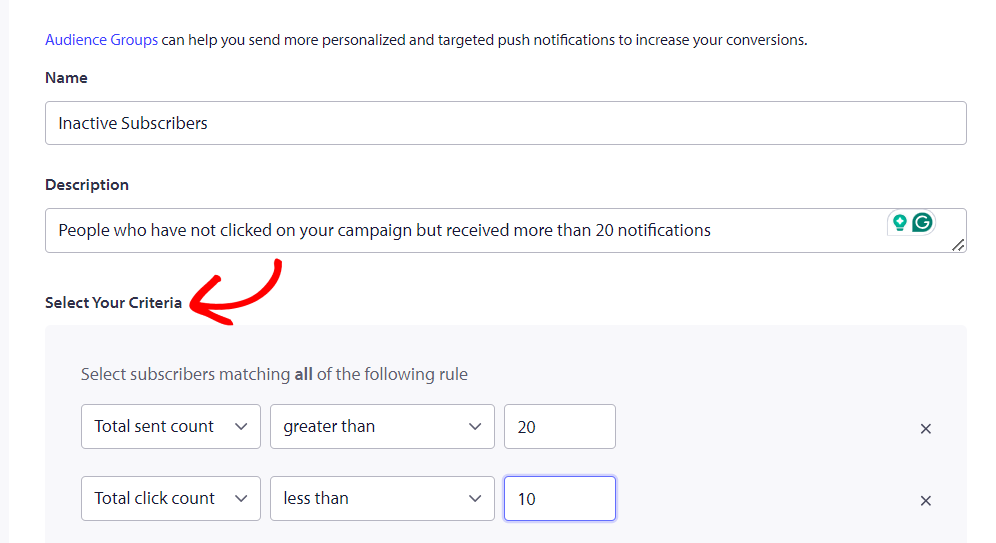
You can also add a description to help you and your team understand the purpose of the audience group at a glance.

Now, you can add the criteria to group the inactive subscribers.

You can filter based on specific user attributes, existing user segments, web browsers, and different devices. Additionally, you can narrow down by geographical locations such as countries, states, or cities. Subscription dates and last-click activity are also useful criteria for targeting users.

With this feature, you can retarget users who haven’t clicked on your notifications in the past few days. For instance, you can create a specific audience group for these users by setting criteria like this – Total sent count is greater than 20 or and click count is less than 10.

This enables you to send more personalized notifications to your least active subscribers, thereby boosting their engagement. Moreover, incorporating additional relevant criteria allows for further segmentation within this audience group, ensuring that your notifications are finely targeted and effective.

Sending Push Broadcast to Audience Group

Now that the Audience Group is created, let’s create a Push Broadcast.

Navigate to Campaign » Push Broadcast. Either choose from the template or create Push Broadcasts from scratch. Here is the guide to creating Push Broadcasts.

As you have to target inactive subscribers, you can choose the specific Audience Group rather than sending it to your entire subscriber base.

Screenshot on 2024-07-12 at 16-53-13.png

You click on send/schedule to send push broadcasts to your inactive subscribers.

Once you have sent them enough campaigns and still do not see very high re-engagement rate. You can also clean up your cold or inactive subscribers. This guide explains how you can manage your list by cleaning up inactive subscribers.

如果您遇到任何问题,请随时在此处单击 联系我们 。我们的支持团队将能够为您提供帮助。

仍然卡住了?我们能帮您什么?
最后更新于 2026 年 3 月 9 日

在访客离开您的网站后与他们互动并挽留他们

通过难以忽略的推送通知,增加每次网站访问的价值。

  • 永久免费套餐
  • 轻松设置
  • 五星支持