
Looking for a tutorial on how to take a cloud WordPress backup?
Backups can save your business from crashing and dying many times over. Sometimes you wreck your site, sometimes hackers do it for you! But if you take cloud backups, your entire business is safe and secure. And, you can get back online super fast and easy.
The only question is… which WordPress backup plugin do you use? Can it take backups to your favorite cloud service? What’s the right way to take cloud backups?
In this article, we’ll show you how to take a cloud WordPress backup. And we’ll do it using a simple plugin so that you don’t have to get into coding yourself.
让我们开始吧。
Why Take a Cloud WordPress Backup?
Ever thought about what happens if your website suddenly crashes or gets hacked? Scary, right? That’s where a cloud WordPress backup can come in as your digital safety net.
PushEngage是全球排名第一的推送通知插件。免费获取!
Let’s dive into why taking a cloud backup of your WordPress site is a no-brainer.
1. Always Have a Plan B: Imagine you’re working on your site and poof – something goes wrong. With a cloud backup, it’s like having a ‘undo’ button for your entire site. You can restore your site back to normal in no time.
2. Keep Your Data Safe from Threats: The internet can be a wild place with hackers lurking around. Cloud backups keep a copy of your site safe and sound, away from the reach of these online baddies.
3. Updates Gone Wrong? No Problem!: We’ve all been there – updating a plugin or theme and suddenly your site looks like a Picasso painting. Cloud backups allow you to revert back to the version before the update chaos.
4. Easy Peasy Access: The best part about cloud backups? You can access them from anywhere, anytime. Whether you’re sipping a latte in a café or chilling at the beach, your site’s backup is just a few clicks away.
5. Automatic and Hassle-Free: Set it and forget it! Most cloud backup services offer automated options. This means your site gets backed up regularly without you having to lift a finger.
6. Space Saver: Storing backups on your own server can eat up space. Cloud backups are like having an extra garage for your digital stuff, keeping your server roomy and speedy.
In short, taking a cloud backup for your WordPress site is like having a digital safety net. It’s about peace of mind, knowing that no matter what happens, your online presence is secure and just a restore away. Better safe than sorry, right?
How to Create a Cloud WordPress Backup
The simplest way to create a cloud WordPress backup is to use a simple and easy WordPress backup plugin. We recommend using Duplicator Pro to do it:
Duplicator Pro is the best WordPress backup and migration plugin in the market.
With Duplicator, you can:
- Create secure, scheduled backups
- Save your backups to a cloud storage of your choice
- Restore your site with one click
- Migrate sites as large as 100 GB seamlessly
- Protect and archive your backups with AES-256 encryption
But that’s not all. Duplicator offers complete WooCommerce backups so that your online store is well protected.
And one of the most amazing features we’ve ever seen in any backup plugin is the site templates feature.
If you’re likely to create multiple sites with the same plugins, themes, and functions, you can use Duplicator to create a site template and launch new websites instantly.
Since it’s part of the Awesome Motive suite of plugins, it’s tested to work seamlessly with the best WordPress plugins in the world.
Step #1: Install and Activate the Duplicator Pro Plugin
Once you buy Duplicator Pro from the website, go ahead and download the plugin from your account page. Then, install it like any WordPress plugin. If you’re never done it before, check out this tutorial on how to install a WordPress plugin.
Before you start using Duplicator, you’ll need to activate your license key. To do this, go to Settings » Licensing:

Paste the license key you received with your purchase. Finally, hit Activate.
Step #2: Connect a Cloud Service

转到 Duplicator Pro » Storage。 在这里,您会看到默认的备份位置是您的本地服务器。要设置云 WordPress 备份,请点击 Add New:
在这里,您可以选择您想要的云服务:

您可以从众多云服务中选择来存储您的备份,包括:
- Google Drive
- Dropbox
- OneDrive
- Amazon S3
- Backblaze B2
- Wasabi
- Google Cloud
- DreamObjects
- Vultr
- DigitalOcean Spaces
- Cloudflare R2
- 本地服务器
- FTP
在本教程中,我们将使用 Microsoft OneDrive 进行备份。选择提供商后,您需要授权 Duplicator 将备份保存到您的云帐户。向下滚动到 授权 部分,然后点击 连接到 OneDrive (或您选择的其他服务):

接下来,点击 授权 OneDrive 以完成连接设置:

最后,允许您的第三方服务访问:

您将从云服务中获得一个授权码。您需要做的就是将该代码粘贴到 Duplicator Pro 插件中。

完成后,点击 完成设置。
Step #3: Create a Cloud WordPress Backup
With Duplicator, you’re basically making a neat package of your site. It grabs all your themes, plugins, the core WordPress files, and even your database tables, and wraps them up in one tidy zip file. Think of it as putting all your website’s treasures in a treasure chest.
Once your site’s all packed up, Duplicator takes over and sends this package straight to the cloud. It’s like magic! You don’t have to do a thing – Duplicator does the heavy lifting for you.
To get started, head over to Duplicator Pro » Packages » Create New:
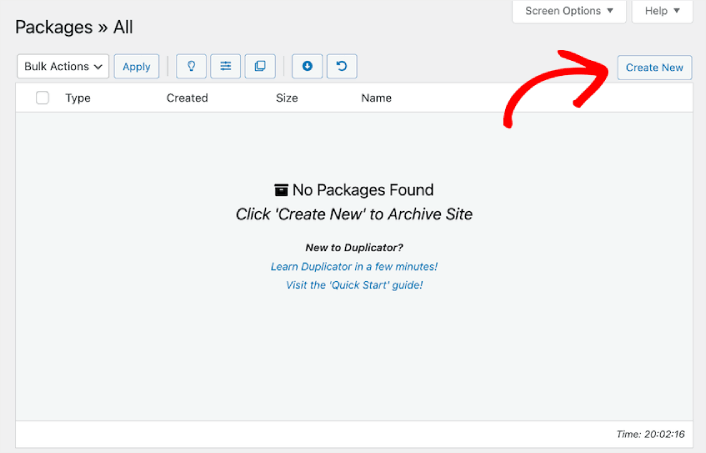
继续为您的备份包命名。

然后,选择您的云存储服务。


您可以使用 Duplicator 进行不同类型的备份,例如:
- 仅媒体备份
- 数据库备份
- 完整备份
And even a custom backup to backup specific parts of your site.
Next, Duplicator will scan your entire site. You’ll see all Good notices if your site can be backed up successfully:
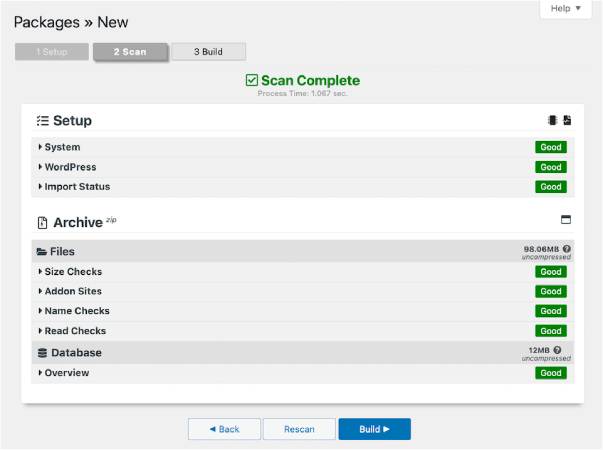
When it’s done, hit Build.
What to do After You Take a Cloud WordPress Backup
好了,各位,本次分享就到这里!
Now that you know how to take a cloud WordPress backup, it’s time to get back to the business end of your website. Backups are meant to buy you peace of mind. So, you should get back to optimizing your site to increase conversions.
And if you’re looking for a simple, affordable way to grow your repeat traffic and conversions, we recommend using push notifications. Push notifications can help you bring in more repeat traffic and site engagement. You can also create automated push notification campaigns that generate sales.
不信?查看这些资源:
我们建议使用PushEngage来创建您的推送通知广告系列。PushEngage是全球排名第一的推送通知软件。所以,如果您还没有,请立即开始使用PushEngage!


