Observera: Det finns ingen äldre dokumentation tillgänglig för det här objektet, så du ser den aktuella dokumentationen.
A/B-testning låter dig skicka två versioner av en push-sändning och jämföra vilken som presterar bäst. Du skapar två notisvarianter, och PushEngage kan skicka var och en till ett urval av din publik, och sedan automatiskt skicka den vinnande versionen till alla andra. Den här guiden visar dig hur du ställer in ett A/B-test på en push-sändning i PushEngage Shopify-appen.
Innan du börjar
- Installera och anslut PushEngage till din Shopify-butik, och bygg upp en publik innan du testar.
- Ha minst två idéer att jämföra, som två titlar, två meddelanden eller två bilder.
- För intelligent A/B-testning behöver din målgrupp vara tillräckligt stor för att kunna göra ett urval, med minst 50 prenumeranter i testfasen för att se bästa resultat.
Hur A/B-testning fungerar
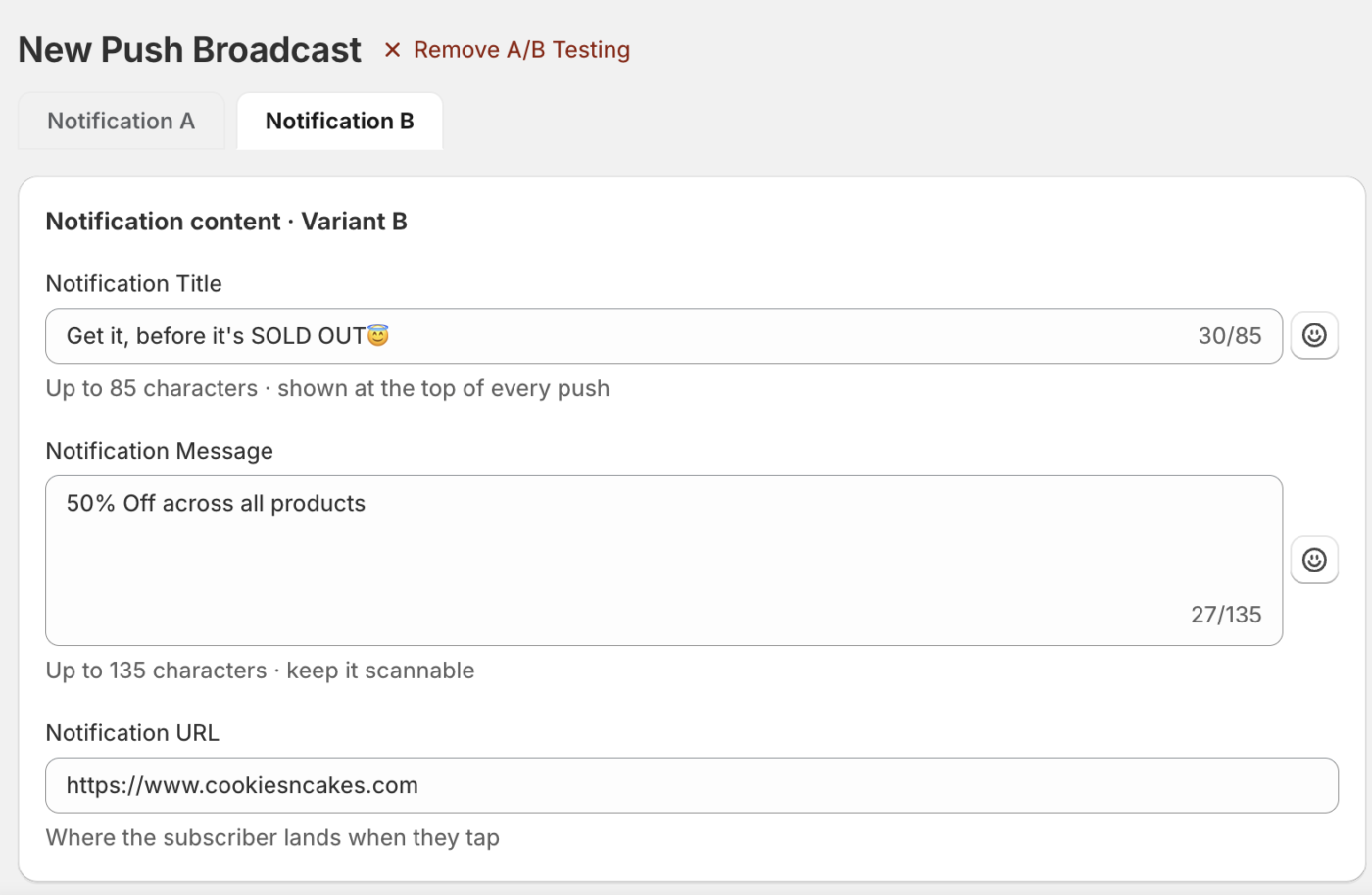
Du börjar från en push-sändning och lägger till A/B-testning till den. Sändningen har sedan två innehållsvarianter, Notis A och Notis B, som delar samma publik och schema. Innehållet i varje variant är oberoende, så du kan ändra titel, meddelande, URL, bild och åtgärdsknappar per variant.
Med Intelligent AB Test aktiverat skickar PushEngage varje variant till ett urval av din publik, väntar en fördröjning du ställer in, och skickar sedan automatiskt den vinnande varianten till resten av publiken. Du kontrollerar urvalsstorleken och fördröjningen innan vinnaren skickas ut.
Skapa ett A/B-test
1. Gå till Pushnotiser » Kampanjer. Push-sändningar är standardvyn.
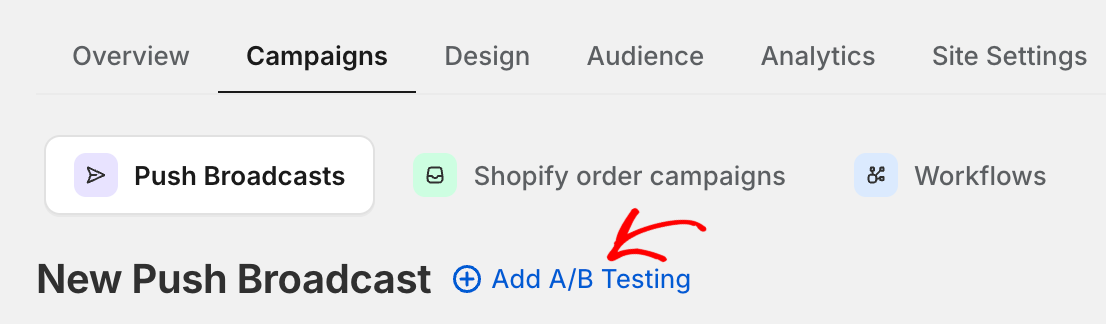
2. Klicka på Skapa för att starta en ny sändning och fyll i detaljerna. Klicka sedan på Lägg till A/B-testning för att aktivera testet.
3. Byt nu till fliken Notis B och skriv den andra versionen.
4. Ställ in din publik och ditt schema, som båda varianterna delar.
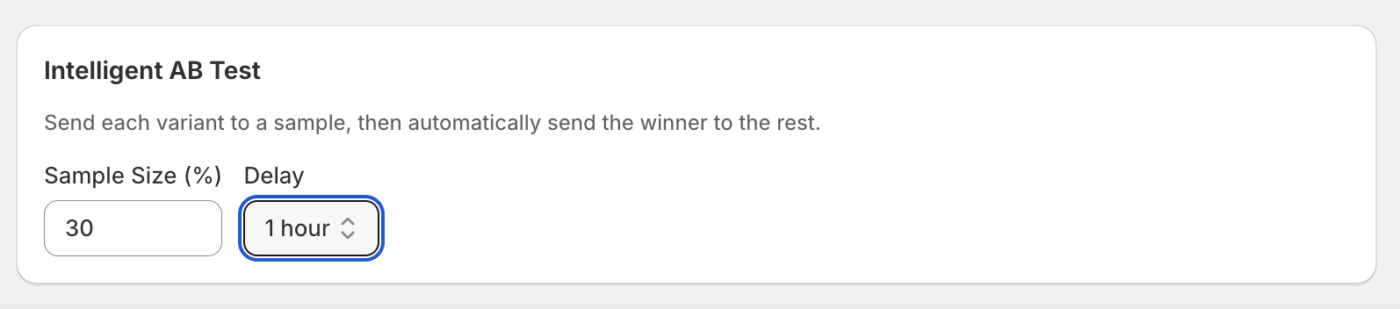
5. Konfigurera alternativen för Intelligent AB Test om du vill att PushEngage ska välja och skicka vinnaren automatiskt.
6. Spara som utkast eller schemalägg sändningen.
Ställ in Intelligent AB Test
I kortet Intelligent AB Test skickar PushEngage varje variant till ett urval, och skickar sedan automatiskt vinnaren till resten. Ställ in Urvalsstorlek (%) för att kontrollera hur mycket av din publik som får testet, och ställ in Fördröjning för att kontrollera hur länge PushEngage väntar innan vinnaren skickas till alla andra. Urvalet måste nå minst 50 prenumeranter för att testet ska köras.
Granska testresultat
Efter att ett test har körts, öppna sändningen från listan Push-sändningar för att se resultaten. Varje variant visar sin egen prestanda, och den vinnande varianten är markerad så att du kan se vilken version din publik svarade på.
Vanliga frågor
Vad kan jag ändra mellan de två varianterna?
Du kan ändra vilket innehållsfält som helst, inklusive titel, meddelande, URL, ikon, stor bild och åtgärdsknappar. Målgruppen och schemat delas, så den enda skillnaden dina prenumeranter upplever är innehållet du varierar.
Hur bestämmer PushEngage vinnaren?
Med Intelligent AB Test aktiverat skickar PushEngage varje variant till det urval du ställer in, väntar på din fördröjning och skickar sedan den bättre presterande varianten till den återstående målgruppen.
Kan jag A/B-testa en dropp- eller utlöst kampanj?
A/B-testning gäller för push-sändningar. För dropp- och utlösta kampanjer, skapa separata kampanjer för att jämföra metoder.
Om du stöter på några problem är du välkommen att kontakta oss genom att klicka här. Vårt supportteam kommer att kunna hjälpa dig.


