Хотите информировать своих клиентов об обновлениях их последних заказов, побудить их повторить запросы на покупку или повысить количество отзывов о вашем магазине с помощью веб-push-уведомлений в вашем магазине WooCommerce?
Если да, то вы пришли по адресу! В этом руководстве мы шаг за шагом расскажем, как настроить и эффективно управлять веб-push-уведомлениями для ваших клиентов в вашем магазине WooCommerce.
Прежде чем начать
Убедитесь, что плагин PushEngage установлен в вашем магазине WooCommerce. Это руководство предполагает, что у вас уже есть WooCommerce и PushEngage
Существует множество кампаний, которые вы можете отправлять клиентам для различных сценариев использования:
- Стандартные кампании
- Push-рассылки и шаблоны
- Автоответчики Drip
- Триггерные кампании и автоматизация
Управление настройками стандартных уведомлений
Вы можете перейти в WooCommerce » Настройки
Затем перейдите на вкладку Push Notifications

На этой вкладке вы можете включить все типы уведомлений, которые хотите активировать на данный момент. Это поле также позволяет вам решить, хотите ли вы отправлять уведомления только администратору или клиентам.
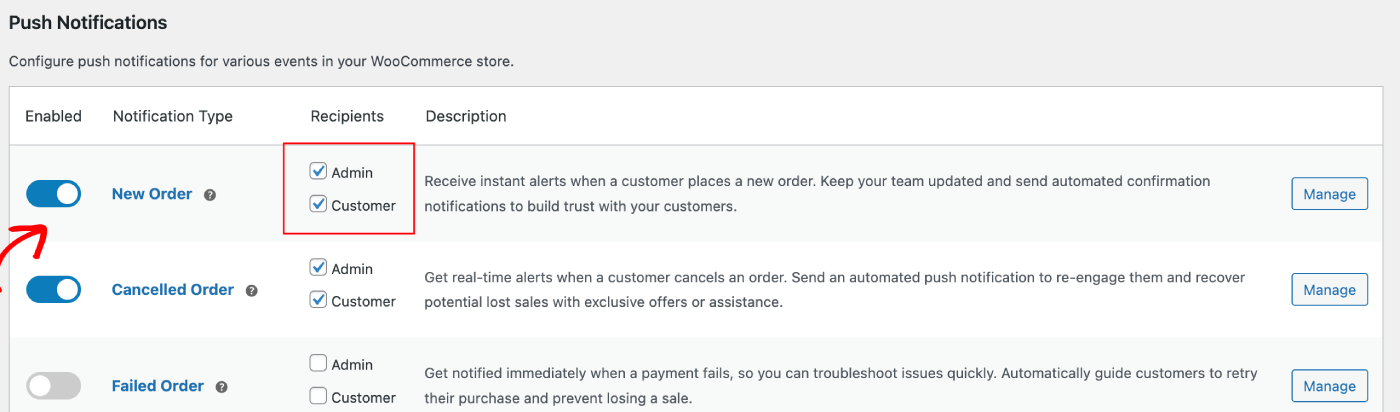
Вы можете выбрать кампанию, которую хотите отредактировать, и нажать кнопку Управление. Вы можете установить флажок, который включает отправку кампаний клиентам. Например, здесь мы настраиваем push-уведомления для запроса повторной покупки.
Вы можете настроить заголовок и сообщение уведомления вместе с URL страницы оформления заказа.
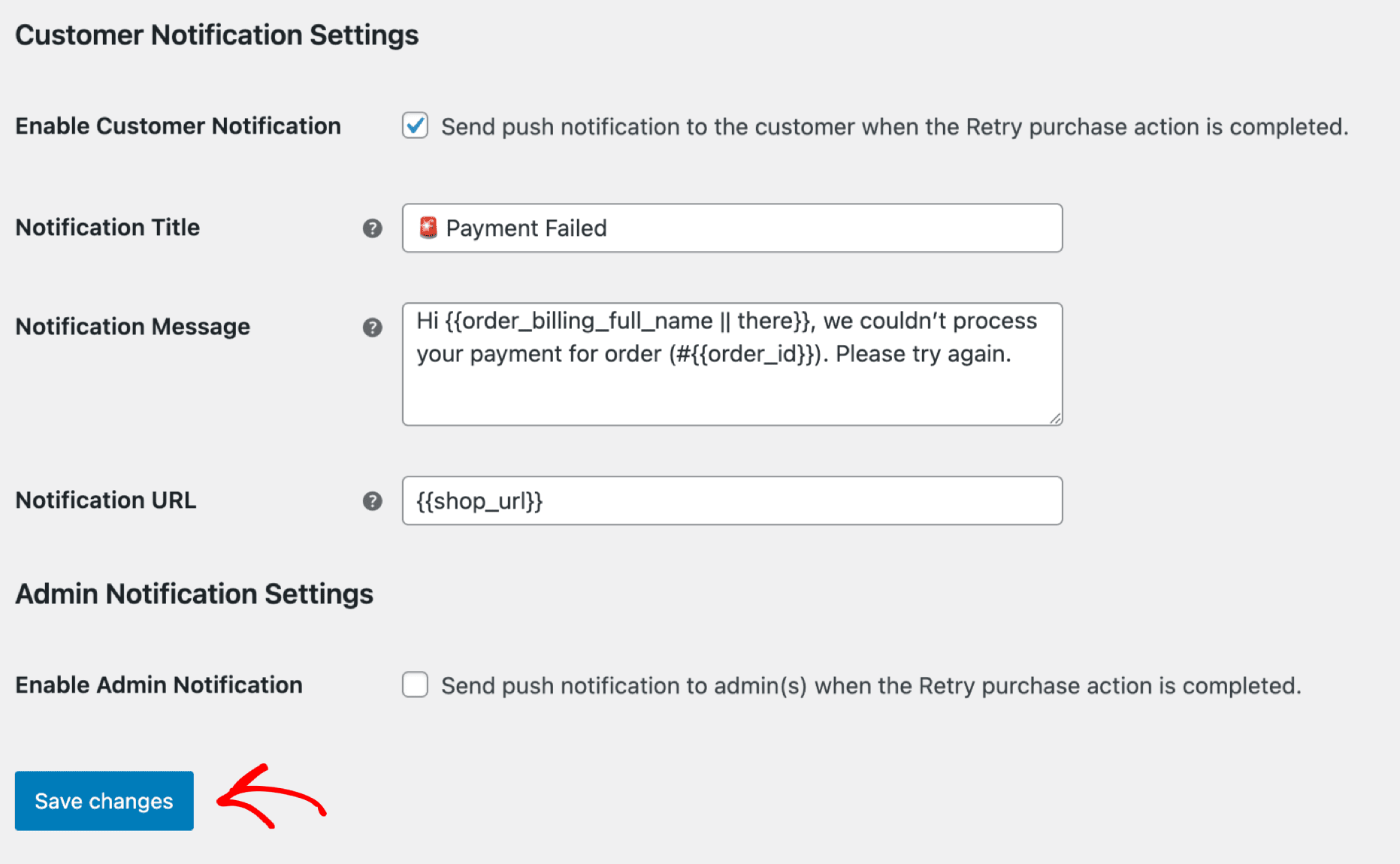
После обновления деталей нажмите кнопку Сохранить изменения.
Push-рассылки и шаблоны
Вы можете отправлять push-рассылки для распродаж, сезонных предложений или для увеличения продаж товаров.
Вы можете войти в панель управления PushEngage, а затем перейти в раздел Push Broadcasts. Это поможет вам выбрать из множества шаблонов и категорий, а также настроить аудиторию и параметры отправки/планирования.
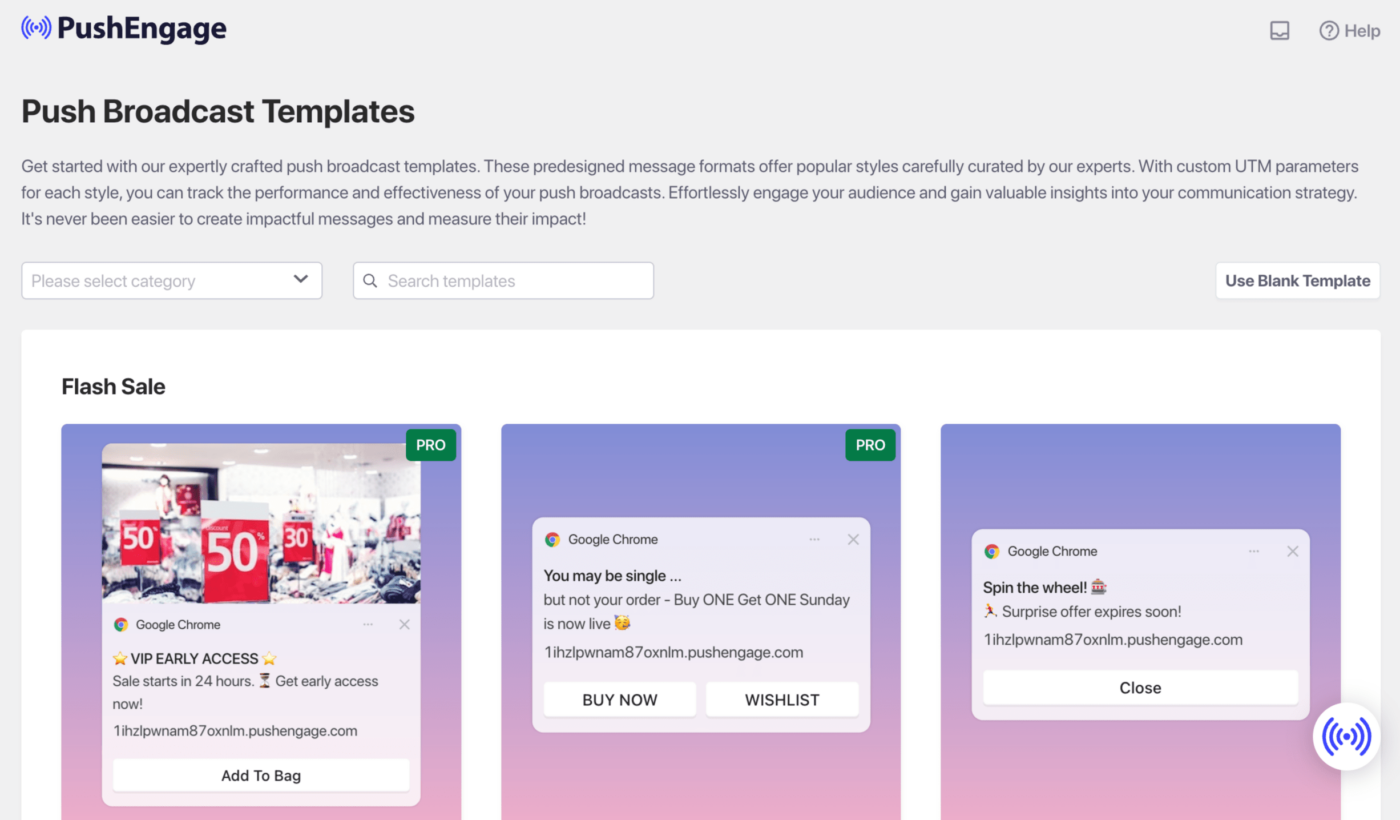
Вот руководство, которое вы можете использовать для создания push-кампаний в панели управления WordPress.
Автоответчики Drip
Вы можете включить кампанию автоматического респондента веб-push-уведомлений и отправить ее всем подписанным пользователям или списку/сегменту пользователей в PushEngage. Сегментируйте пользователей по конкретным спискам, что может происходить на определенных страницах или когда пользователь подписывается на серию уведомлений.
Это идеально подходит для отправки приветственного письма со скидочным купоном, или для отправки кампаний перекрестных продаж, запросов на отзывы и сезонных предложений.
Вот руководство, которое поможет вам создать кампанию рассылки.
Триггерные автоматические кампании
У нас есть триггерные кампании, которые являются событийными. Они специфичны для целей, например: кампании по брошенной корзине и просмотру. Эти кампании предварительно созданы для вашего магазина. Вам нужно только убедиться, что кампании включены после подключения вашего магазина.
Включение настроек "Брошенная корзина" и "Брошенный просмотр"
У нас есть автоматическая кампания по брошенной корзине и просмотру, которая напрямую интегрирована с товарным фидом вашего магазина. У нас есть начальное и конечное событие, чтобы предотвратить отправку дальнейших уведомлений после достижения желаемой цели.
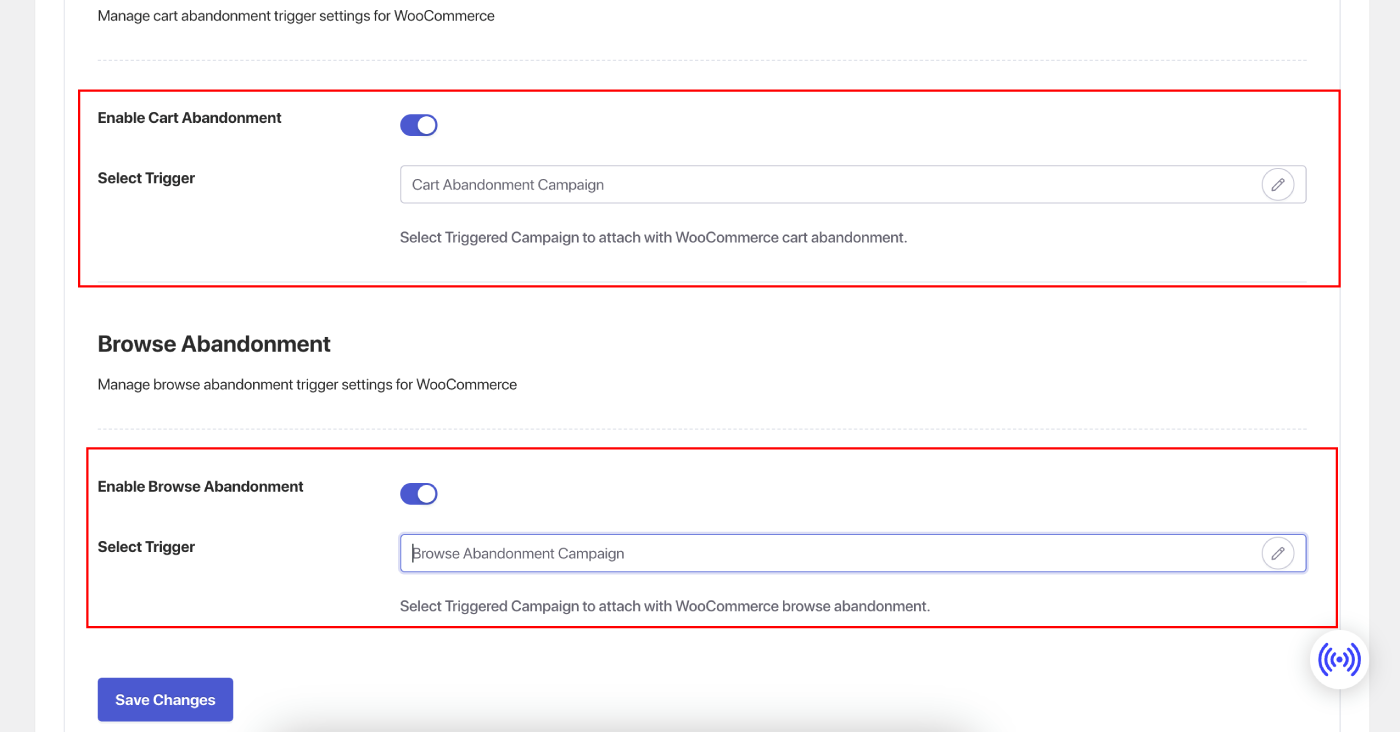
После завершения интеграции вы можете управлять настройками брошенной корзины и брошенного просмотра для вашего магазина WooCommerce.
Перейдите в раздел Настройки » вкладка Интеграции и в раздел WooCommerce.
Включите "Брошенная корзина" и "Брошенный просмотр", переключив соответствующий переключатель.
Настройка кампаний
Перейдите в раздел "Триггерные кампании" и добавьте несколько уведомлений в свою кампанию.
Укажите задержку и условия для каждого уведомления, а также добавьте резервные переменные.
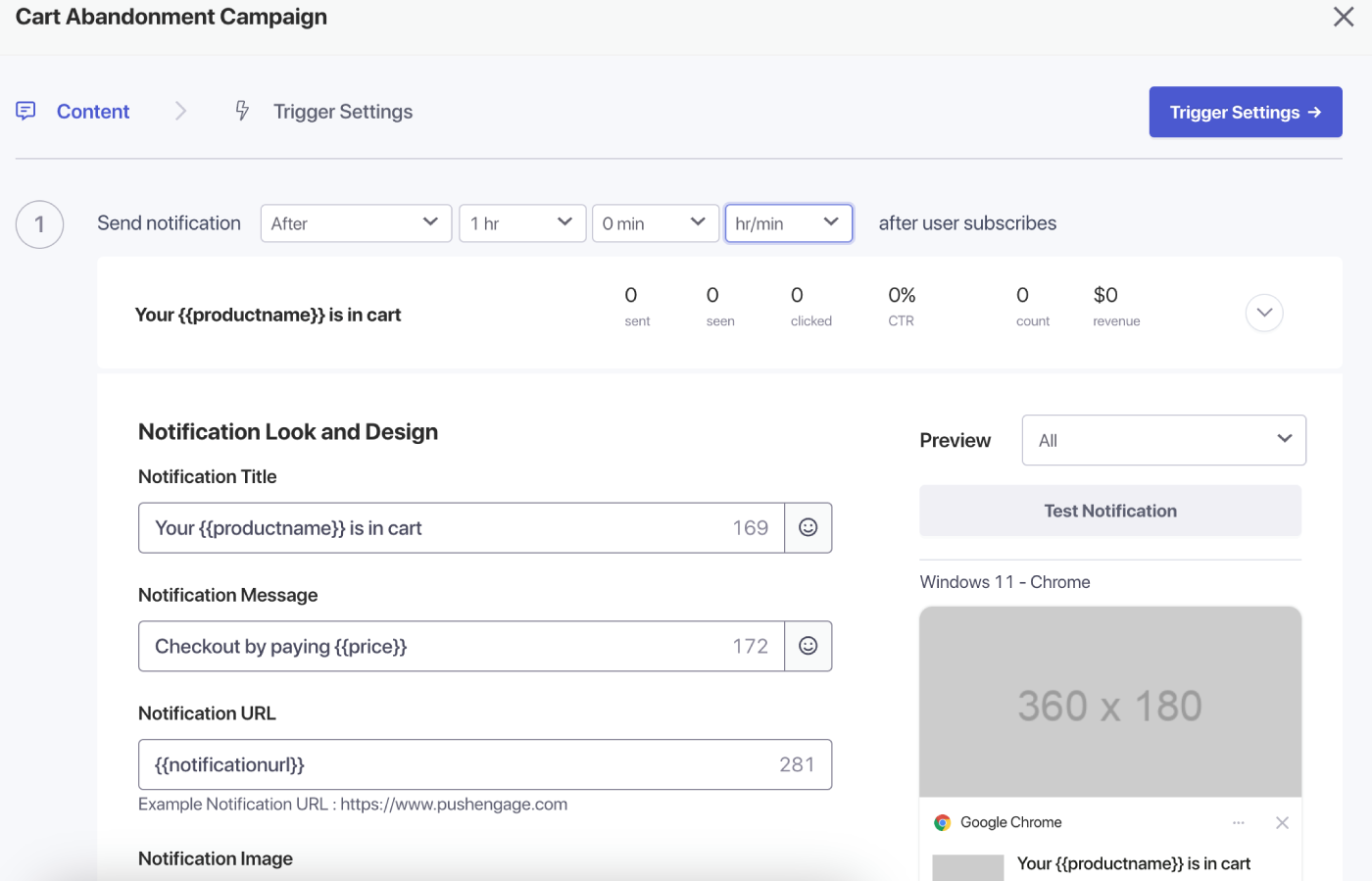
Настройки триггера
В разделе "Настройки триггеров" ограничьте частоту уведомлений, чтобы не отправлять спам вашим клиентам. Здесь вы можете выбрать ежедневный или еженедельный лимит. Например, если у вас есть 2 уведомления для ежедневного лимита, добавьте 14 для еженедельного лимита, чтобы даже если люди бросают более 2 товаров в день, они не получали спам со всеми push-уведомлениями.
Вы также можете добавить UTM-параметры для этих кампаний, чтобы их было легче отслеживать в Google Analytics.
После настройки триггеров сохраните изменения и активируйте кампании. Если они включены, вы можете просмотреть аналитику кампании и увидеть конверсию дохода по целям.
Вот и все, вы создали несколько мощных кампаний для вашего магазина WooCommerce.
Если у вас возникнут какие-либо проблемы, пожалуйста, не стесняйтесь связаться с нами, нажав здесь. Наша служба поддержки сможет