Примечание: Устаревшая документация для этого элемента отсутствует, поэтому вы видите текущую документацию.
Мы проведем вас через процесс включения кампаний "Уведомление о наличии" и "Уведомление о снижении цены" в вашем магазине Shopify. Эти уведомления позволяют вашим клиентам получать оповещения, когда интересующий их товар снова появится в наличии или его цена снизится, что помогает повысить вовлеченность и увеличить продажи.
Выполните эти простые шаги для интеграции и настройки этих кампаний с помощью PushEngage, и все это без необходимости программирования.
Прежде чем начать
Вот несколько моментов, которые следует знать перед началом работы:
- Это руководство предполагает, что у вас уже есть приложение PushEngage и магазин Shopify для вашего веб-сайта.
- Наша интеграция с Shopify требует подписки PushEngage Growth для активации наших уведомлений о снижении цены и наличии с помощью нашей функции "Триггерные кампании".
Виджет уведомлений инициирует кампании. Как только посетители подпишутся на уведомления, они начнут их получать.
Включить виджеты для подписки на уведомления
Вы можете перейти в раздел Дизайн » Виджеты.
Затем прокрутите вниз до Виджета кампании уведомлений. Вы можете включить его, чтобы ваши подписчики могли специально подписаться на кампании "Уведомление о снижении цены" и "Уведомление о наличии", чтобы они срабатывали.

Вы можете настроить виджет уведомлений с различными сообщениями, подбирая цвета под тему вашего бренда, чтобы сделать его более привлекательным для посетителей, чтобы они могли нажать и подписаться через него.

Включение кампаний "Уведомление о снижении цены" и "Уведомление о наличии"
Войдите в свою учетную запись PushEngage. На панели управления перейдите в раздел Кампании » Триггерные кампании.
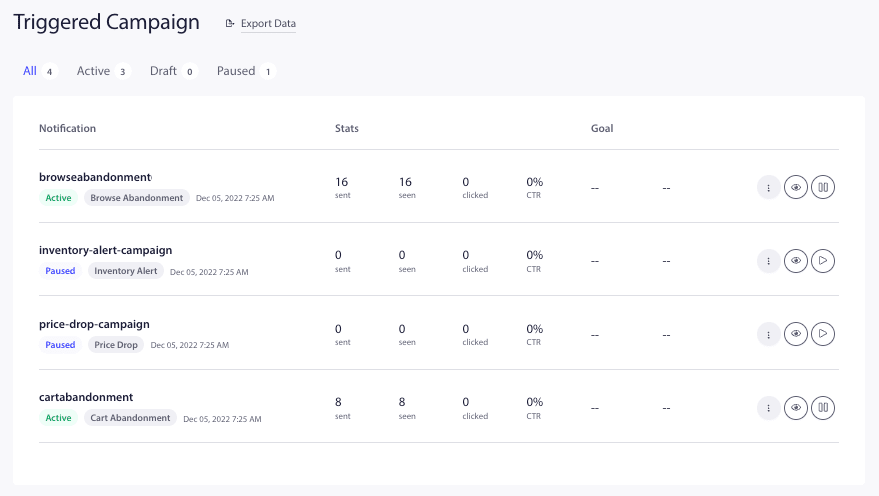
PushEngage легко интегрируется с вашим магазином и предлагает готовые шаблоны для кампаний "Уведомление о снижении цены" и "Уведомление о наличии". Эти кампании интегрируются непосредственно с вашим каталогом товаров и извлекают все необходимые переменные.
Вы можете нажать кнопку Возобновить триггер.

Вы также можете редактировать уже созданные кампании; после нажатия кнопки «Редактировать» вы увидите несколько push-уведомлений, добавленных в кампанию.
Примечание: Пожалуйста, не удаляйте переменные для названия продукта, цены, изображения и URL-адреса, чтобы динамический контент отображался пользователям.
Вы также можете запланировать ход кампании для каждого уведомления. Вы можете добавлять новые кампании или удалять их.
Оптимизация настроек уведомлений
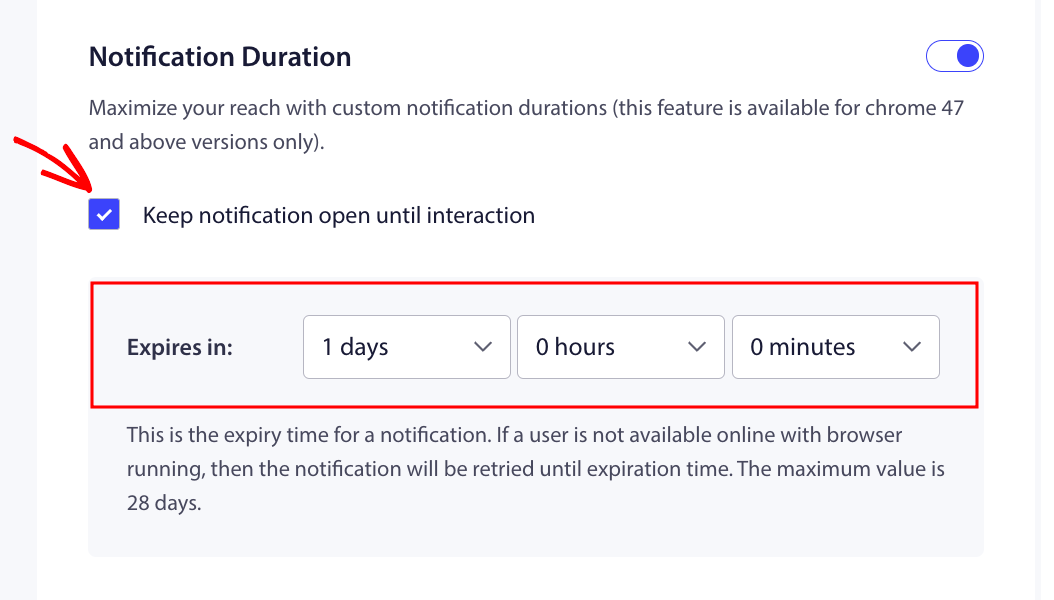
Длительность уведомления поможет установить продолжительность кампании, в течение которой она активна. Лучшая практика — устанавливать ее на основе следующего запланированного события. Это означает, что если первое уведомление должно было быть отправлено через 1 день, а второе — через 2 дня, то срок действия первого уведомления должен составлять 48 часов/2 дня.
Вы также всегда должны оставлять уведомление открытым до реакции, чтобы кампания не исчезала с экрана и оставалась в центре действий, если подписчик не предпринял никаких действий.
Установите ограничение частоты
Это очень важный фактор, чтобы избежать спама для пользователей, когда они добавили несколько уведомлений. Вы можете перейти в раздел Настройки триггера.
Вы можете установить недельный и месячный лимит уведомлений. Например, если дневной лимит составляет 2, вы можете установить недельный лимит в 14. Это означает, что это ограничение для каждого подписчика в день.
Отслеживание эффективности кампаний
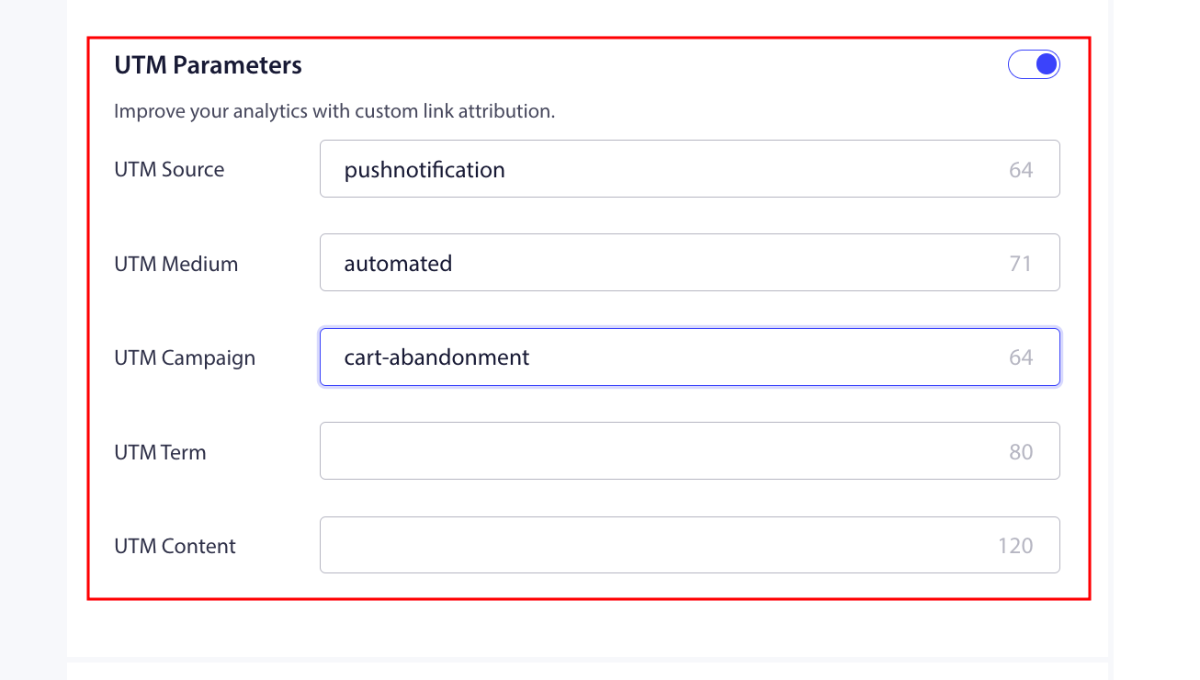
Вы можете использовать UTM-параметры и отслеживание целей для мониторинга эффективности ваших кампаний. Кроме того, мы можем включить отслеживание целей. Здесь находится руководство, которое поможет вам включить отслеживание целей.
A
Вот и все; вы включили кампании «Оповещение о снижении цены» и «Оповещение о возобновлении наличия» для вашего магазина с помощью PushEngage.
Если у вас возникнут какие-либо проблемы, пожалуйста, не стесняйтесь связаться с нами , нажав здесь. Наша служба поддержки сможет вам помочь.


