PushEngage позволяет вам превращать посетителей вашего сайта в подписчиков веб-push. Подписчик — это любой, кто нажмет «Разрешить» во всплывающем окне подписки, которое вы настраиваете на своем сайте. Кампания веб-push не собирает личную информацию, такую как адрес электронной почты или номер телефона. Однако вы можете обращаться к своим подписчикам, даже когда они не находятся на вашем сайте.
Установите PushEngage на свой сайт
Добавить сведения о сайте
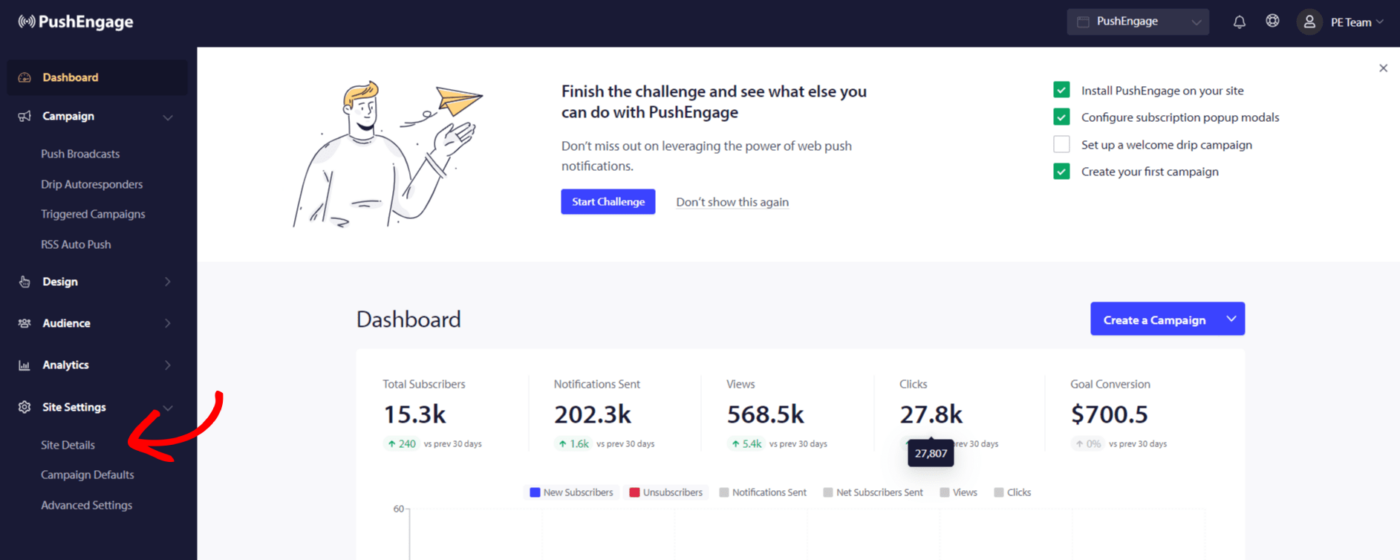
1. Чтобы завершить установку PushEngage, перейдите в раздел Настройки сайта » Сведения о сайте.
2. Вам необходимо ввести информацию о сайте – название сайта, логотип вашего бренда и убедиться, что URL сайта указан правильно.
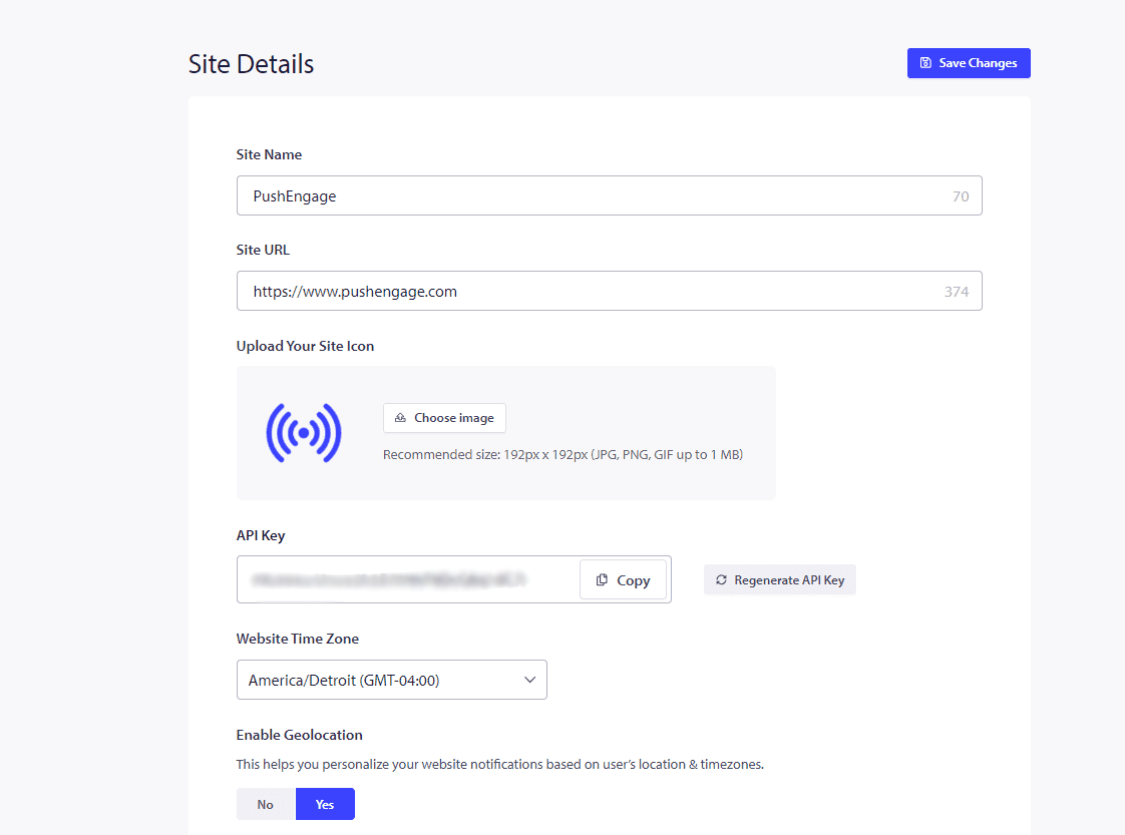
3. Если у вас есть платные тарифы, убедитесь, что вы удалили Брендинг PushEngage. Вы можете установить этот флажок и сохранить изменения.
После завершения нажмите «Перейти к инструкциям по настройке».
4. Выберите тип вашего сайта из предложенных вариантов и следуйте приведенным инструкциям, чтобы завершить установку.
Если платформа, на которой размещен ваш сайт, не указана, скопируйте установочный код и добавьте его в HTML вашего веб-сайта. Если у вас есть доступ к корневому каталогу, загрузите файл service-worker.js и добавьте его в корневой каталог так, чтобы он был общедоступен.
Если у вас нет доступа к корневому каталогу, вы можете пропустить шаг добавления файла service-worker.js. Вы можете просто добавить код и использовать любую двухэтапную подписку для сбора подписчиков.
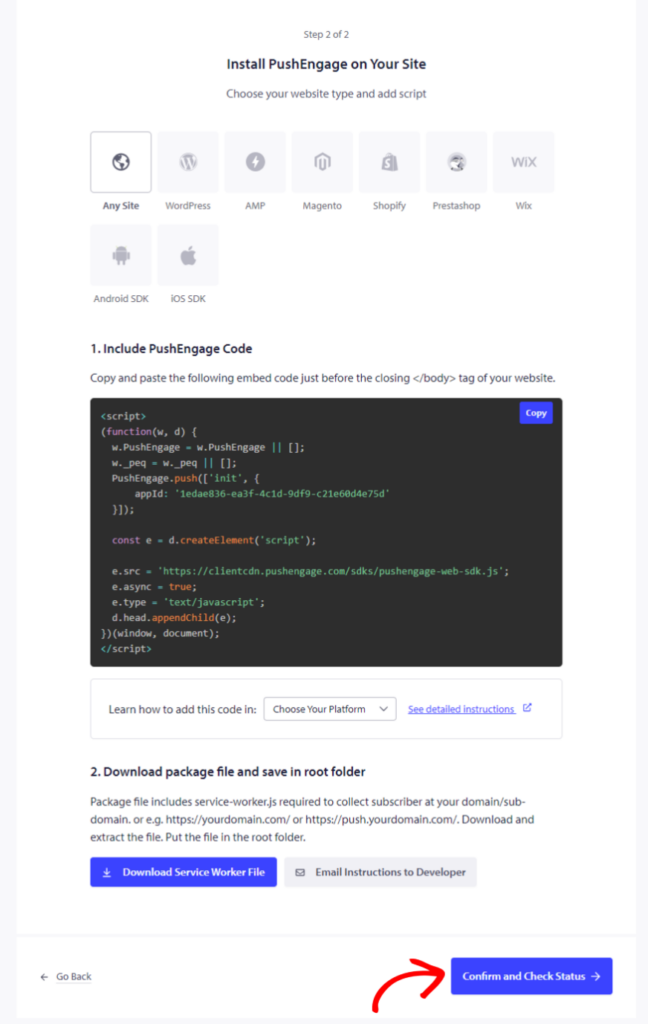
После этого нажмите «Подтвердить и проверить статус» и сохраните настройки.
Выбор опции подписки
Теперь, когда вы закончили добавление кода, вы можете настроить опцию подписки.
Вы можете перейти в раздел Дизайн » Модальные окна.
Вы можете выбрать любой из стилей диалогового окна подписки, включив кнопку переключения.
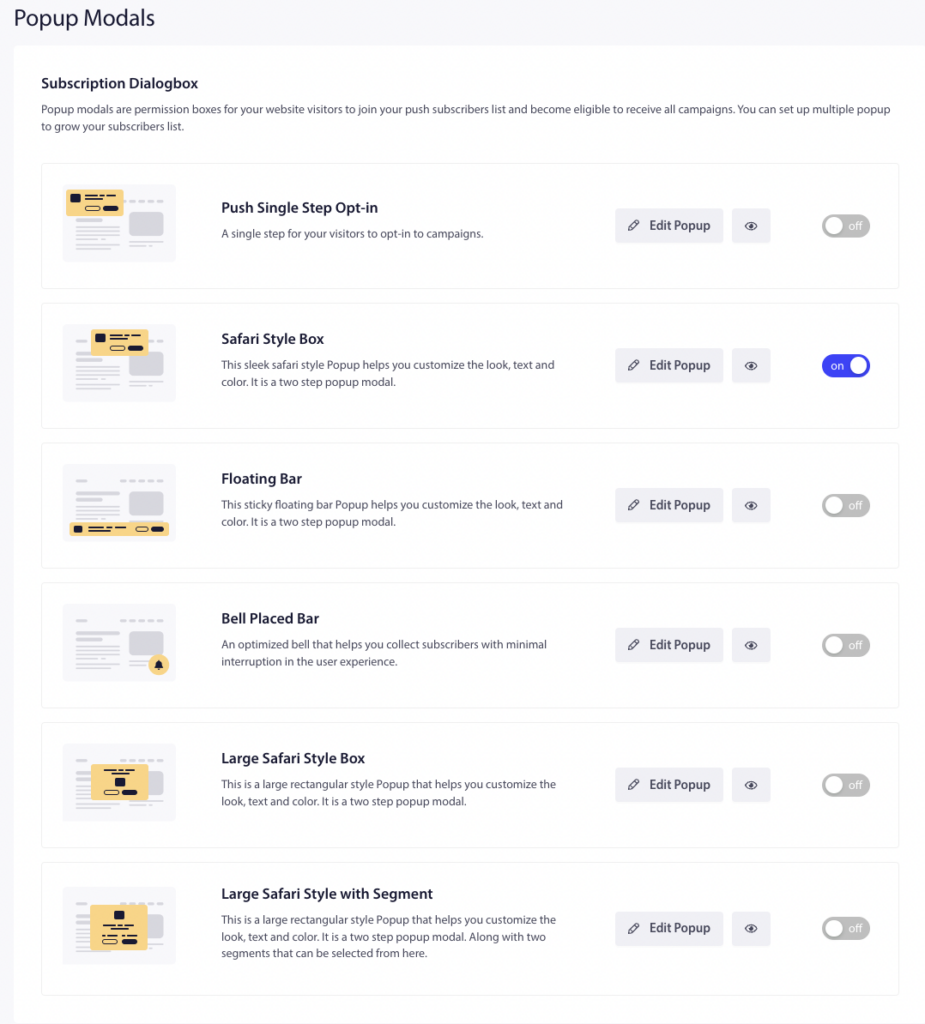
Затем вы можете настроить стили Opt-in в соответствии с требованиями вашего бизнеса. Одноэтапный выбор Push — это подписка в один шаг; остальные — двухэтапный выбор, который позволяет посетителям настраивать параметры, но требует двух шагов для становления подписчиками.
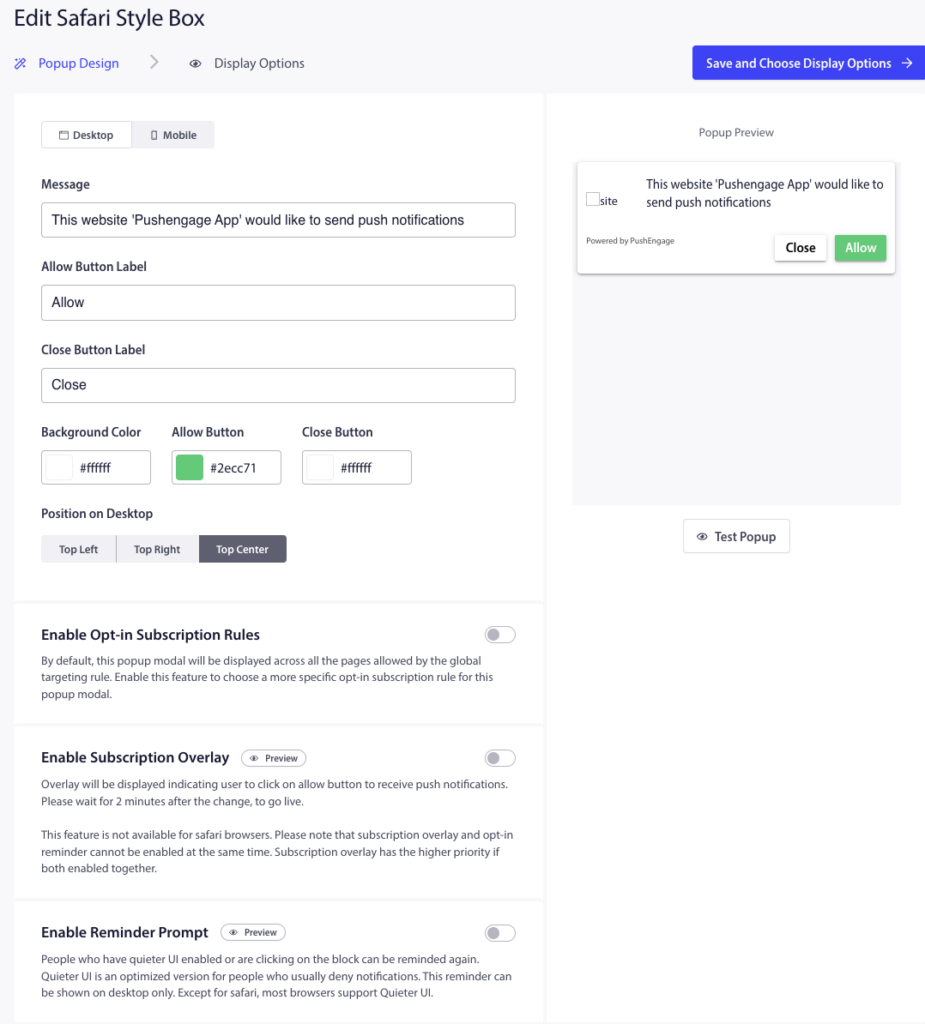
После завершения редактирования нажмите «Сохранить и выбрать параметры отображения» » Сохранить и включить всплывающее окно.
Настроить приветственную серию рассылок
Чтобы создать приветственную кампанию, перейдите в раздел «Кампании» » «Автоответчики». Вы увидите шаблон приветственной серии, который можно активировать, нажав кнопку воспроизведения.
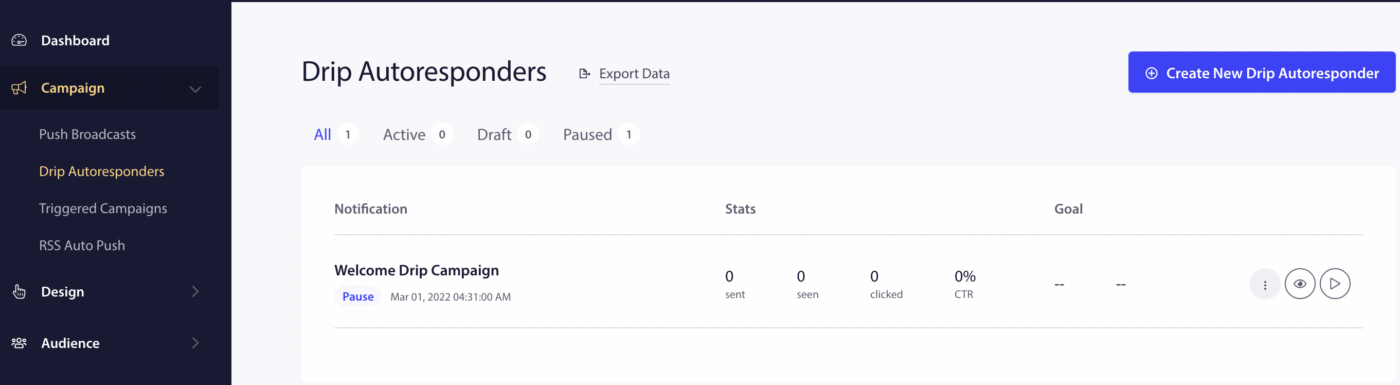
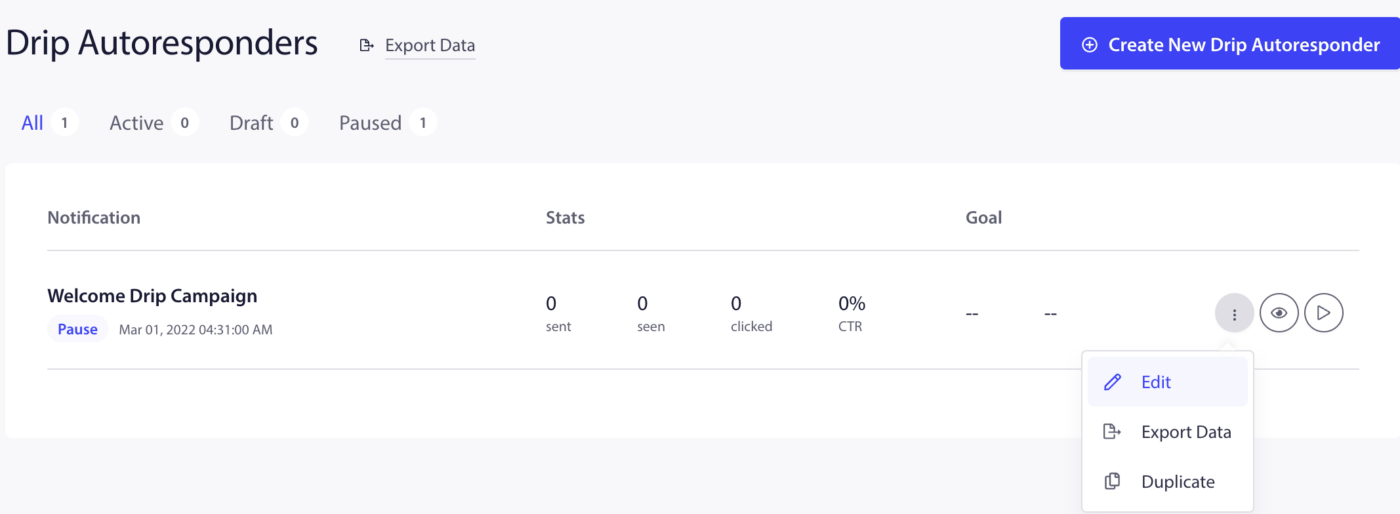
Вы также можете отредактировать эту кампанию, если хотите, нажав на дополнительные параметры, а затем выбрав «Редактировать».
Вы можете отправлять приветственные уведомления своим подписчикам немедленно или через x часов/минут после подписки. Вместо отправки одного уведомления вы также можете создать серию из 2-3 уведомлений.
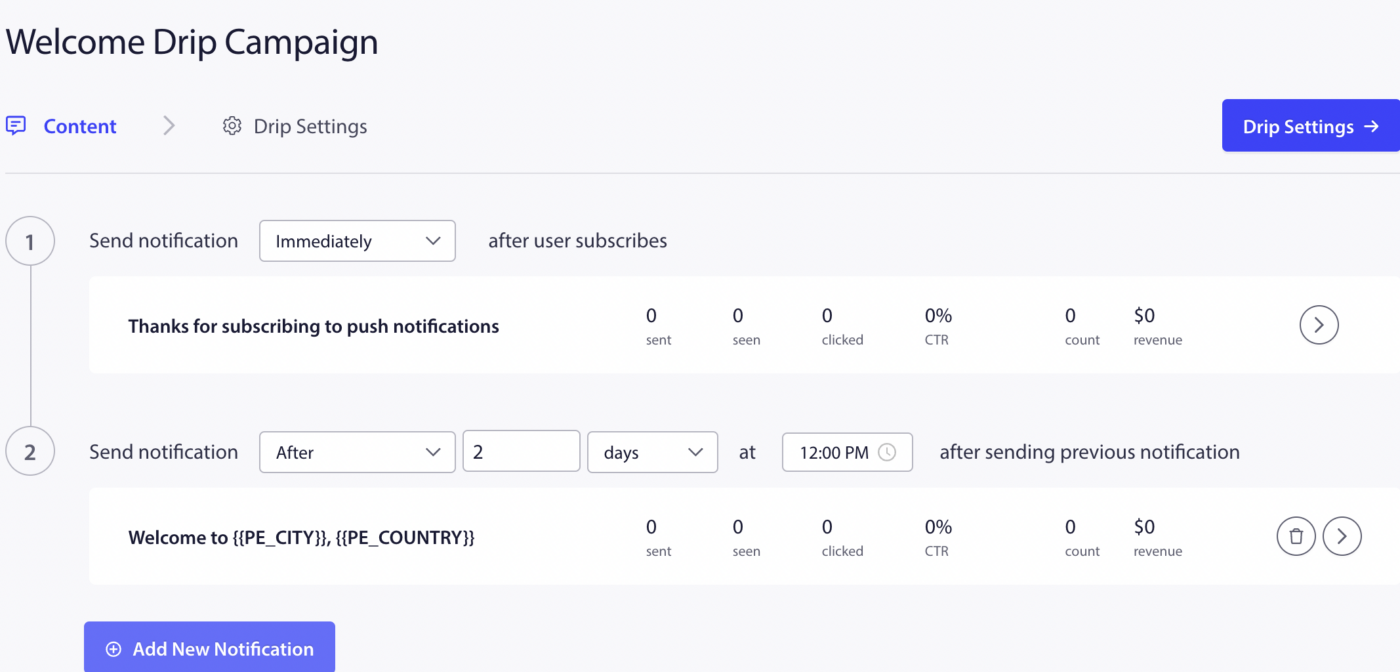
После завершения нажмите «Активировать автоответчик».
Создайте свою первую кампанию
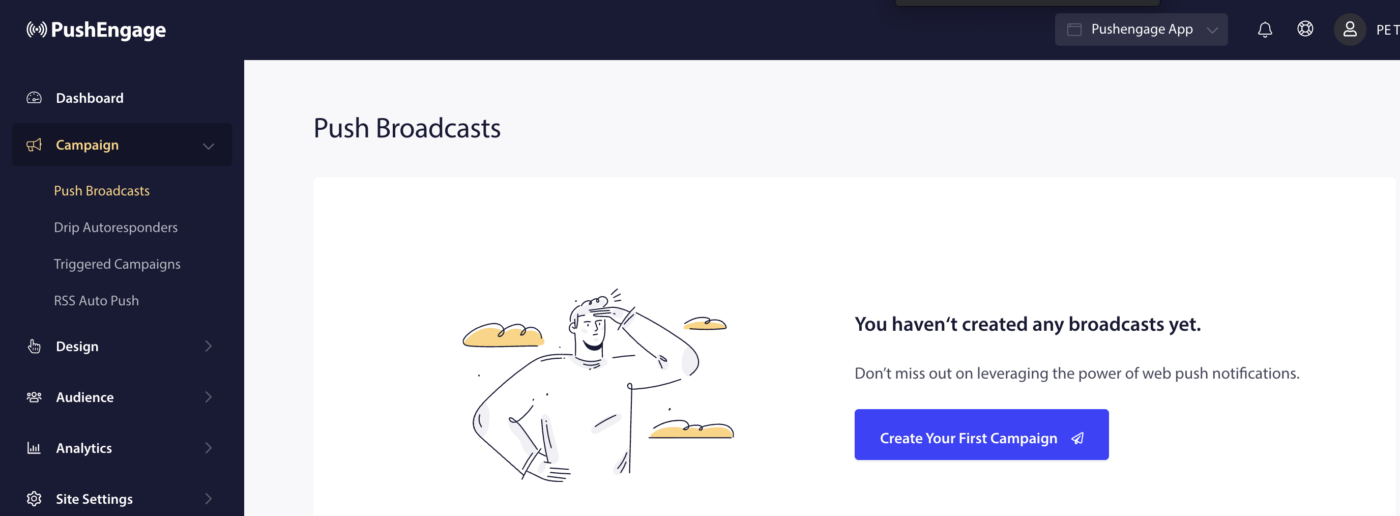
Чтобы создать первую push-рассылку, перейдите в раздел «Кампании» » «Push-рассылки» » «Создайте свою первую кампанию».
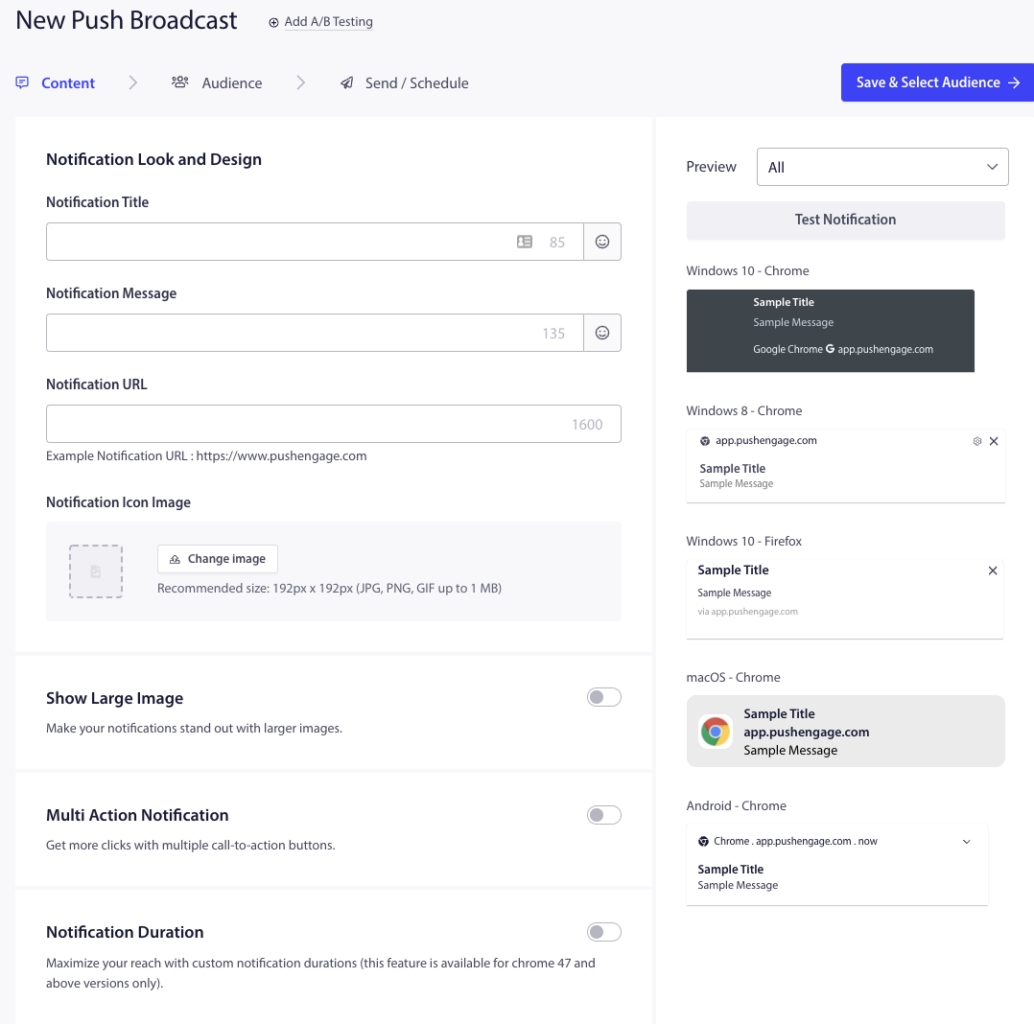
Введите заголовок уведомления, сообщение, URL и изображение в разделе «Новая push-рассылка». Следите за ограничением количества символов и размером изображения при создании кампании.
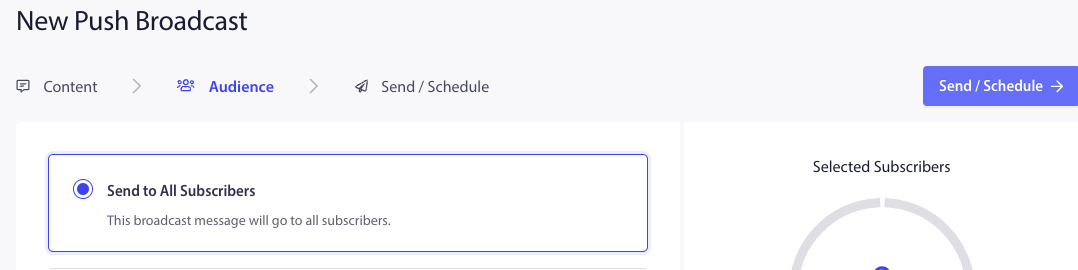
Затем выберите «Сохранить и выбрать аудиторию», а на следующей вкладке выберите «Отправить всем подписчикам » Отправить».
Вы достигли конца испытания и готовы использовать PushEngage.
Если у вас возникнут какие-либо проблемы, пожалуйста, свяжитесь с нами, нажав здесь. Наша служба поддержки сможет вам помочь.