Примечание: Устаревшая документация для этого элемента отсутствует, поэтому вы видите текущую документацию.
Стандартные кампании — это готовые к использованию автоматизации, настраиваемые один раз, которые PushEngage запускает для вашего магазина Shopify автоматически после включения. Существует три типа: приветственное уведомление для новых подписчиков, оповещение о новом товаре в каталоге и полный набор уведомлений о статусе заказа. Вы включаете их, настраиваете сообщение, а PushEngage позаботится обо всем остальном.
Это руководство поможет вам найти стандартные кампании, включить каждую из них и настроить текст уведомлений.
Прежде чем начать
- PushEngage установлен в вашем магазине Shopify. Если нет, см. Руководство по добавлению push-уведомлений в ваш магазин Shopify с помощью PushEngage.
- Хотя бы один подписчик согласился на получение push-уведомлений из вашего магазина.
Поиск стандартных кампаний
- Войдите в свою панель управления PushEngage.
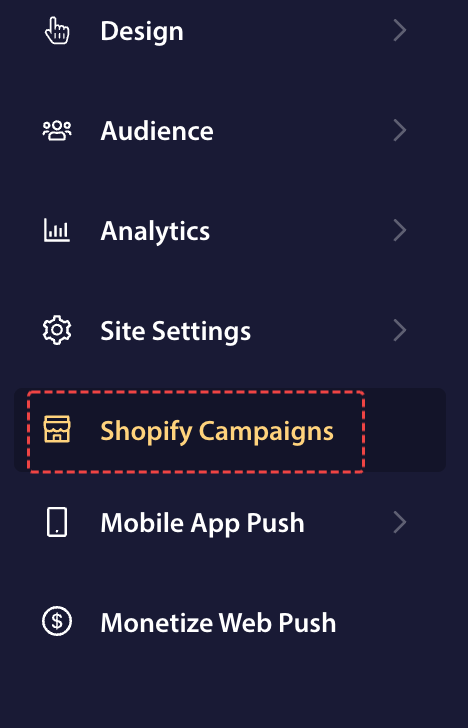
- В меню навигации слева перейдите в раздел Кампании Shopify.
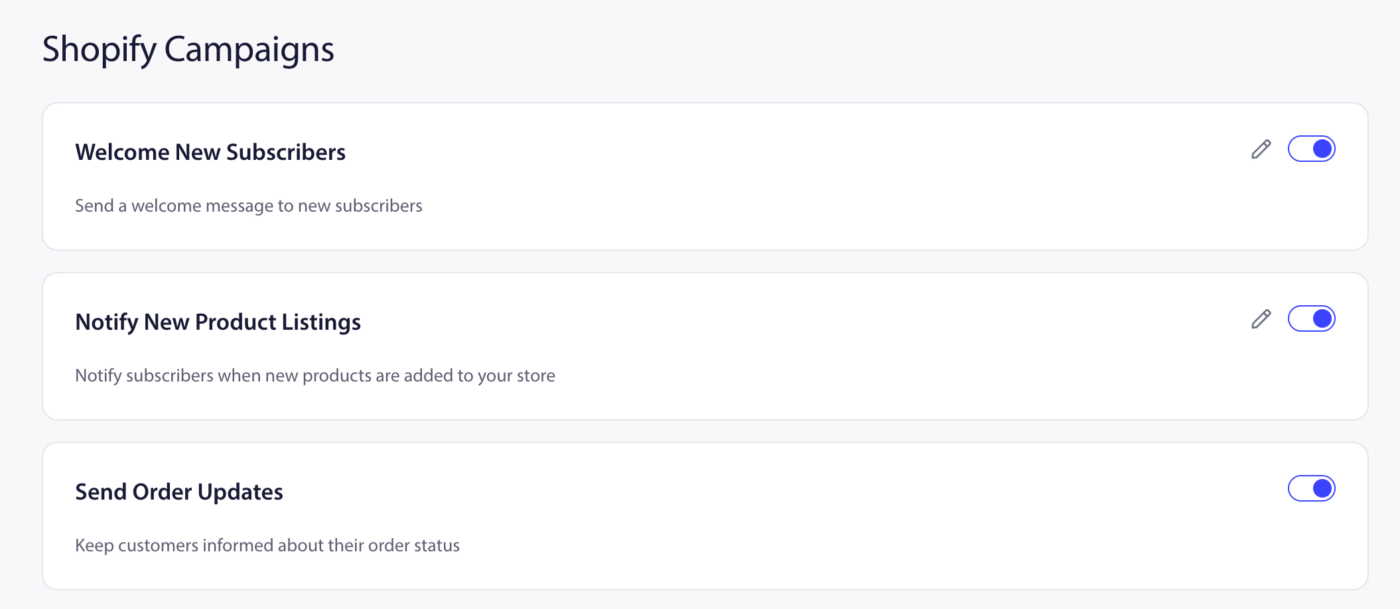
Вы увидите три карточки стандартных кампаний: Приветствие новых подписчиков, Уведомление о новых товарах и Отправка обновлений заказа.
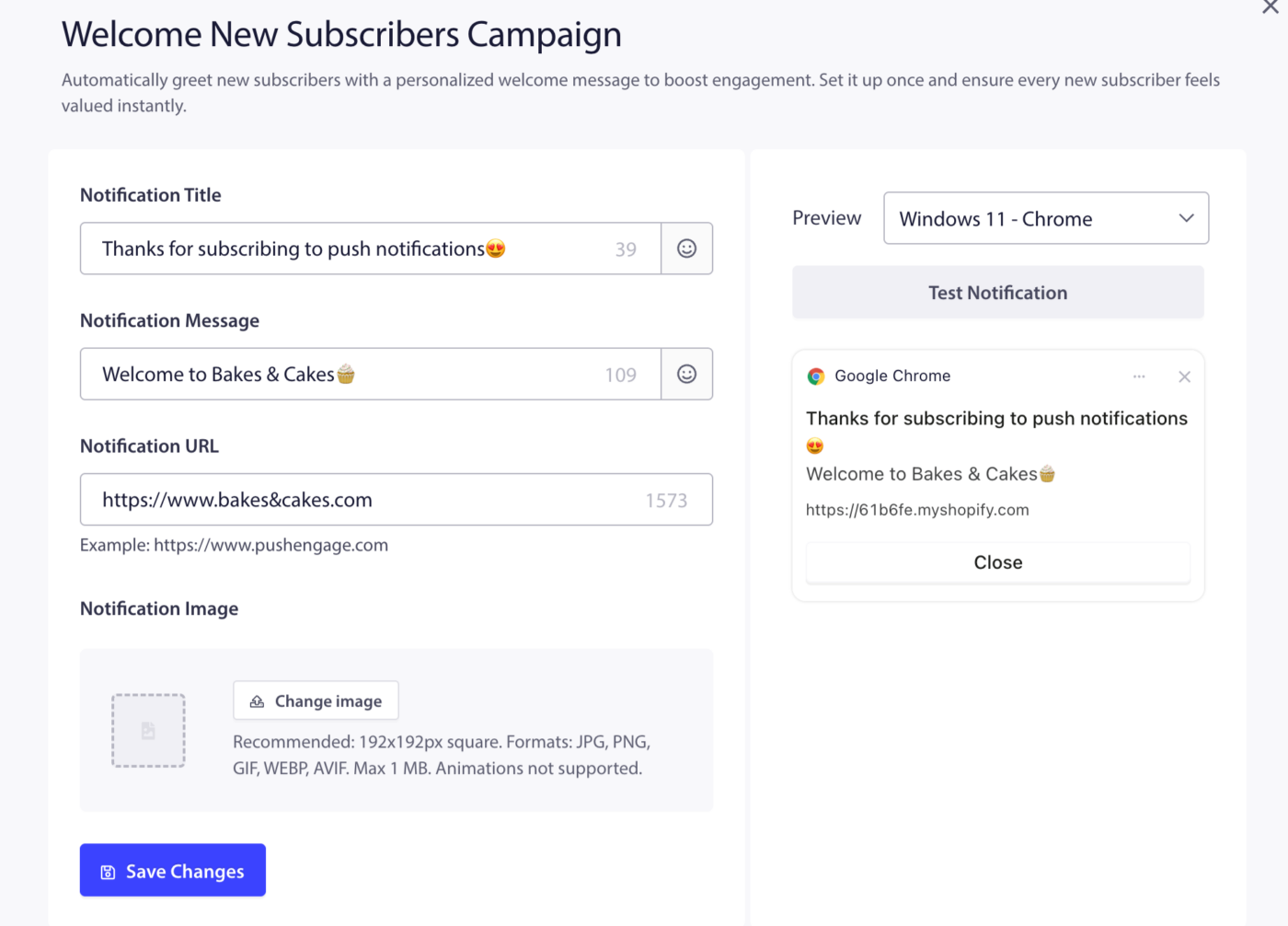
1. Приветствие новых подписчиков
Отправляет одно приветственное push-уведомление каждому новому подписчику в момент, когда он соглашается на получение push-уведомлений вашего магазина. Оно работает как капельная кампания с одним шагом уведомления. Первое впечатление имеет значение. Приветственное уведомление подтверждает подписку, укрепляет доверие и дает возможность сразу же вернуть подписчика в ваш магазин.
- На странице Кампании Shopify найдите карточку Приветствие новых подписчиков.
- Переключите переключатель в положение «Вкл.».
Кампания активируется немедленно для всех новых подписчиков в дальнейшем.
2. Уведомление о новых товарах
Автоматически отправляет push-уведомление всем подписчикам всякий раз, когда вы публикуете новый товар в своем магазине Shopify. Оно превращает ваш каталог товаров в канал повторного вовлечения. Подписчики, которые давно не заходили, получают автоматическую причину вернуться.
- На странице Кампании Shopify найдите карточку Уведомление о новых товарах.
- Переключите переключатель в положение «Вкл.».
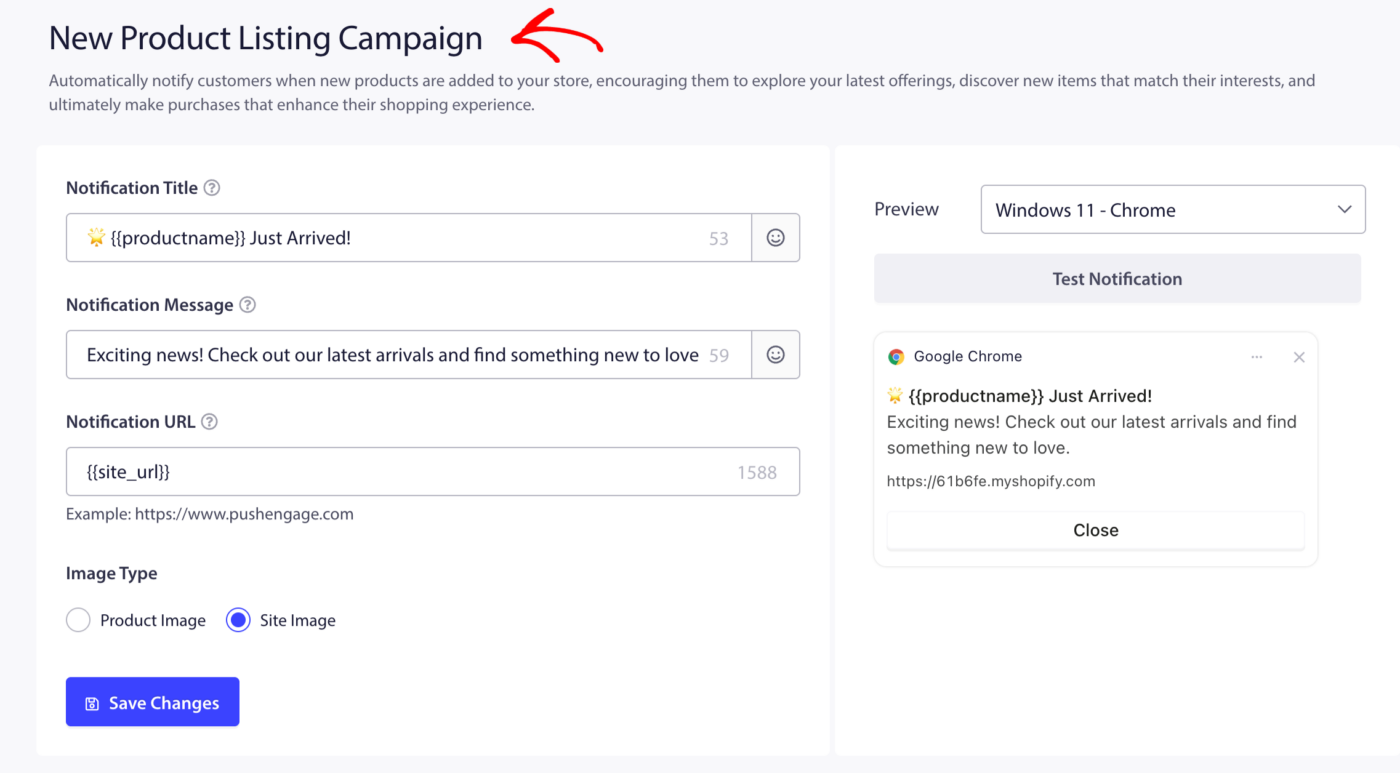
Доступные плейсхолдеры
Вы можете вставлять динамические значения в заголовок уведомления и сообщение уведомления, используя эти плейсхолдеры. PushEngage заменяет их реальными данными о товаре при отправке уведомления.
| Плейсхолдер | Что она вставляет |
|---|---|
{{productname}} | Название недавно добавленного товара |
{{price}} | Цена нового товара |
{{site_url}} | URL вашего магазина Shopify |
Для поля URL уведомления вы можете использовать:
| Плейсхолдер | Что она вставляет |
|---|---|
{{site_url}} | URL вашего магазина Shopify |
Пример заголовка с использованием плейсхолдеров:
Новое поступление: {{productname}} — теперь всего за {{price}}
3. Отправка обновлений заказа
Отправляет автоматические push-уведомления клиентам на каждом этапе жизненного цикла их заказа. Это главный переключатель, который раскрывает шесть отдельных кампаний по статусу заказа, каждая из которых может быть включена или отключена независимо. Обновления заказов являются одними из наиболее открываемых push-уведомлений в электронной коммерции — клиенты активно ждут этой информации. Их включение сокращает количество запросов в службу поддержки и укрепляет доверие после покупки.
- На странице Кампании Shopify найдите карточку Отправлять обновления заказа.
- Переключите переключатель Отправлять обновления заказа в положение Вкл.
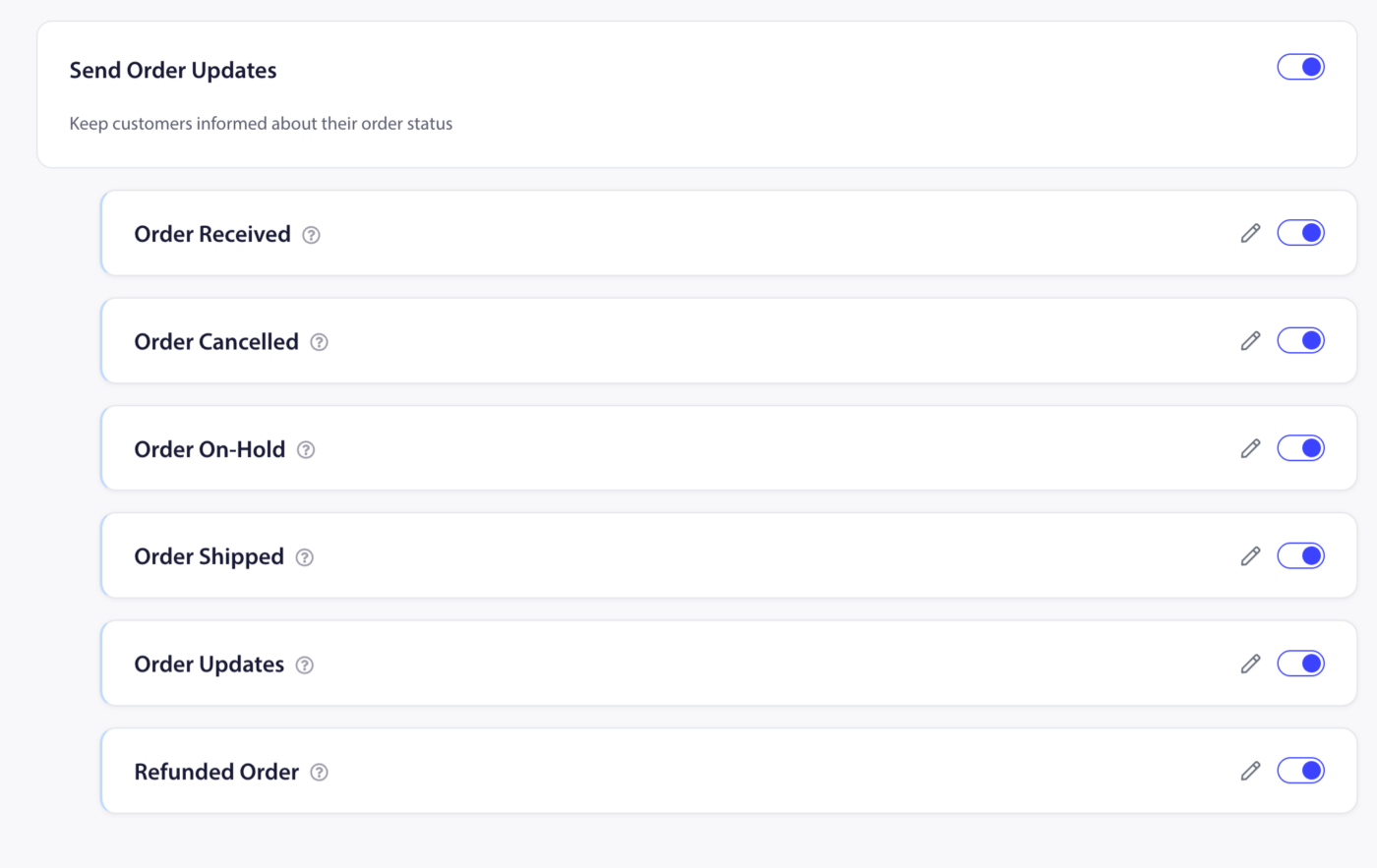
Кампании статуса заказа
Вы можете включать каждое уведомление о статусе независимо. Все шесть используют один и тот же рабочий процесс редактирования: нажмите значок карандаша на карточке, настройте уведомление и сохраните.
| Кампания | Триггер |
|---|---|
| Заказ получен | Срабатывает, когда клиент размещает новый заказ |
| Заказ отменен | Срабатывает, когда заказ отменен |
| Заказ в режиме ожидания | Срабатывает, когда заказ помещен в режим ожидания |
| Заказ отправлен | Срабатывает, когда статус выполнения заказа отмечен как отправленный |
| Обновления заказов | Срабатывает при любом другом обновлении заказа |
| Возвращенный заказ | Срабатывает при обработке возврата средств за заказ |
Чтобы включить или отключить любое отдельное состояние, переключите его переключатель. Чтобы отключить все уведомления о заказах одновременно, отключите родительский переключатель Отправлять обновления заказа.
Доступные плейсхолдеры
Для Названия уведомления и Сообщения уведомления доступны следующие заполнители в кампаниях статуса заказа. Обратите внимание, что доступность зависит от типа кампании.
| Плейсхолдер | Что она вставляет | Доступно в |
|---|---|---|
{{order_billing_full_name}} | Полное имя клиента для выставления счета | Все кампании статуса заказа |
{{order_id}} | Номер ID заказа | Все кампании статуса заказа |
{{order_date}} | Дата размещения заказа | Все кампании статуса заказа |
{{order_url}} | Прямая ссылка на страницу заказа клиента | Полученный заказ, Отмененный, Отправленный, Обновления |
{{site_url}} | URL вашего магазина Shopify | Все кампании статуса заказа |
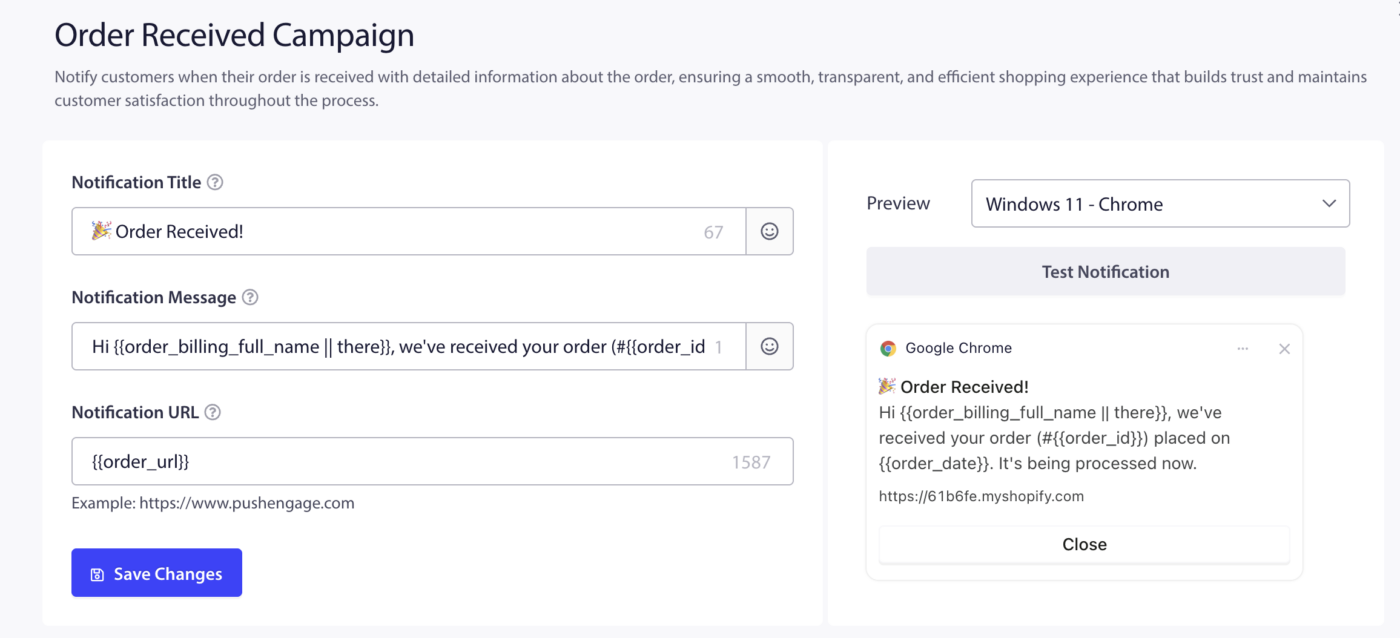
Для поля URL уведомления вы можете использовать:
| Плейсхолдер | Доступно в |
|---|---|
{{order_url}} | Полученный заказ, Отмененный, Отправленный, Обновления |
{{site_url}} | Все кампании статуса заказа |
Пример заголовка с использованием плейсхолдеров:
Здравствуйте, {{order_billing_full_name}}, ваш заказ №{{order_id}} отправлен!
Пример сообщения с использованием заполнителей:
Ваш заказ, размещенный {{order_date}}, в пути. Нажмите, чтобы отследить.
Часто задаваемые вопросы
Могу ли я отключить один статус заказа, не отключая все?
Да. Каждая из шести карточек статуса заказа имеет свой переключатель. Вы можете включить только те, которые вам нужны — например, включить «Заказ получен» и «Заказ отправлен», оставив остальные выключенными.
Уведомление «Добро пожаловать» отправляется существующим подписчикам?
Нет. Кампания «Добро пожаловать новым подписчикам» запускается только для подписчиков, которые подписались после того, как вы ее включили. Она не отправляется задним числом существующим подписчикам.
Могу ли я использовать один и тот же плейсхолдер как в заголовке, так и в сообщении?
Да. Плейсхолдеры работают в любом текстовом поле (заголовок, сообщение) и отдельно в поле URL.
Что произойдет, если для плейсхолдера нет данных?
Если запускается уведомление о заказе, а значение плейсхолдера пустое (например, URL заказа отсутствует), PushEngage оставит это поле пустым. Всегда тестируйте на реальном заказе, чтобы убедиться, что ваше сообщение отображается корректно.
Если у вас возникнут какие-либо проблемы, пожалуйста, не стесняйтесь связаться с нами , нажав здесь. Наша служба поддержки сможет вам помочь.


