WooCommerceストアで、購入者の最新の注文に関する最新情報を提供したり、購入リクエストの再試行を促したり、ウェブプッシュ通知を通じてストアのレビューを増やしたりしたいとお考えですか?
もしそうなら、あなたは正しい場所にたどり着きました!このガイドでは、WooCommerceストアのお客様向けのウェブプッシュ通知を設定し、効果的に管理する手順を説明します。
開始する前に
WooCommerceストアにPushEngageプラグインがインストールされていることを確認してください。このガイドでは、すでにWooCommerceとPushEngageがインストールされていることを前提としています。
多くのユースケースで顧客に送信できる複数のキャンペーンがあります –
- デフォルトキャンペーン
- プッシュブロードキャスト&テンプレート
- ドリップ自動応答
- トリガーキャンペーン&オートメーション
デフォルト通知設定の管理
WooCommerce » 設定に移動します。
次に、プッシュ通知タブに移動します。

このタブの下で、現在有効にしたいすべての通知タイプをオンにすることができます。このフィールドでは、管理者のみに送信するか、顧客に送信するかを決定することもできます。
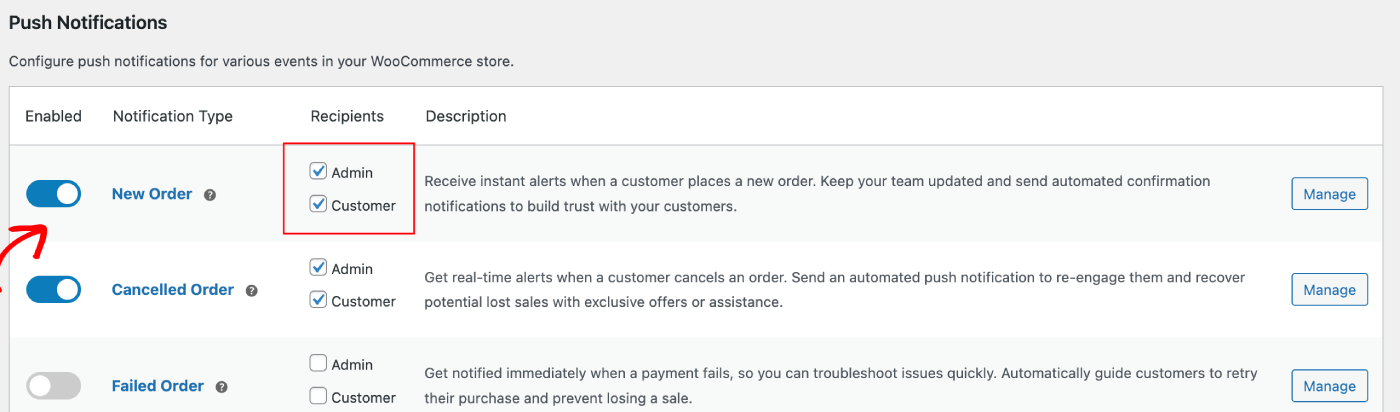
編集したいキャンペーンを選択し、管理ボタンをクリックします。顧客にキャンペーンを送信できるようにするチェックボックスをオンにできます。たとえば、ここでは購入再試行リクエストのプッシュ通知を設定しています。
通知タイトルとメッセージ、およびチェックアウトページのURLを設定できます。
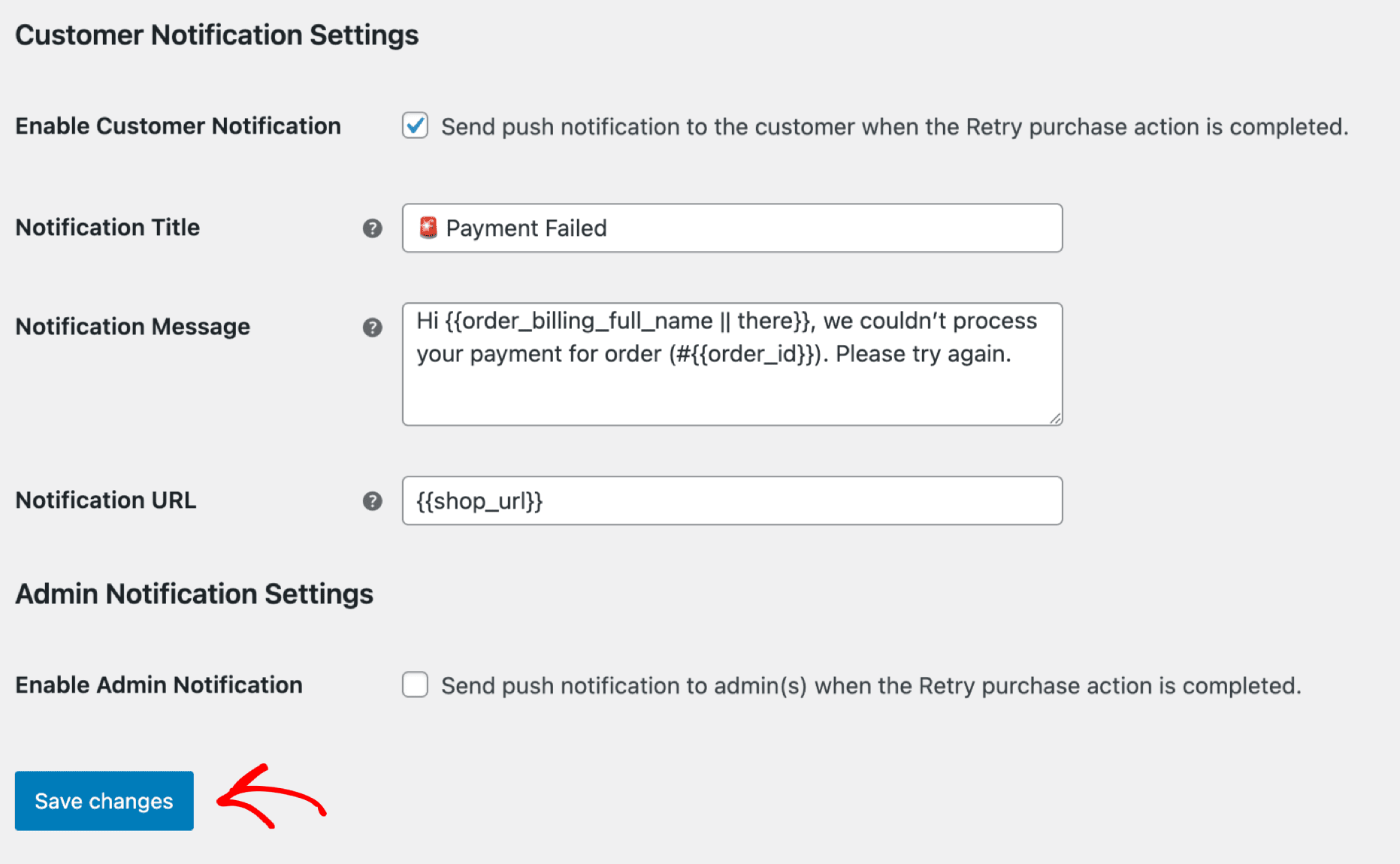
詳細を更新したら、変更を保存ボタンをクリックします。
プッシュブロードキャスト&テンプレート
フラッシュセール、季節限定オファー、または商品のアップセルに関するプッシュブロードキャストを送信できます。
PushEngageダッシュボードにログインし、プッシュブロードキャストに移動します。これにより、さまざまなテンプレートとカテゴリから選択し、オーディエンスと送信/スケジューリングオプションをカスタマイズできます。
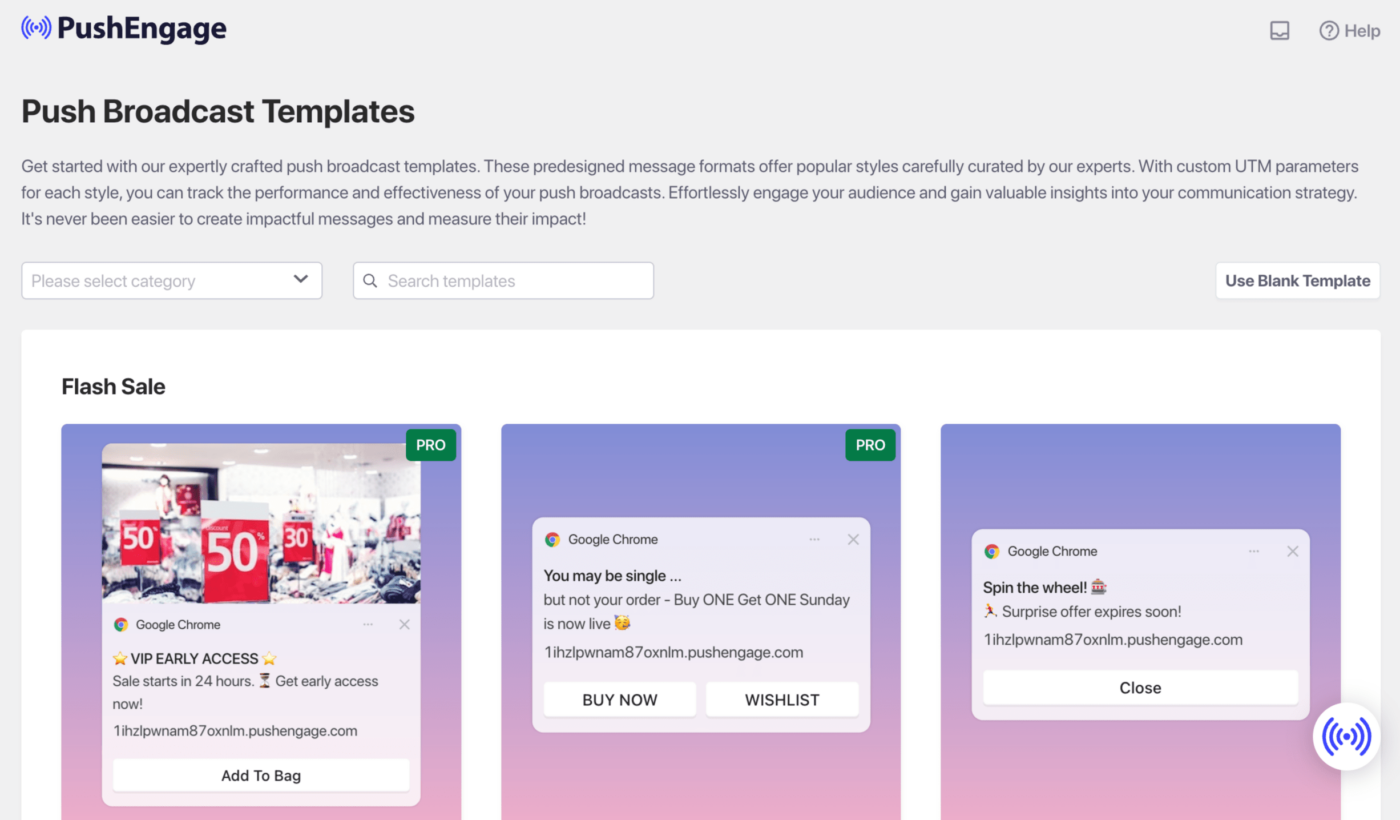
WordPressダッシュボード内でプッシュキャンペーンを作成する方法については、こちらのガイドを参照してください。
ドリップ自動応答
ウェブプッシュ通知の自動応答キャンペーンを有効にし、購読しているすべてのユーザーまたはPushEngageのユーザーリスト/セグメントに送信できます。ユーザーを特定のリストにセグメント化します。これは特定のページで発生したり、ユーザーが通知カリキュラムに購読したときに発生したりします。
割引クーポン付きのウェルカムドリップを送信したり、クロスセルキャンペーン、レビューリクエスト、季節限定オファーを送信したりするのに最適です。
ドリップキャンペーンの作成に役立つガイドはこちらです。
トリガーオートメーションキャンペーン
イベント固有のキャンペーンであるトリガーキャンペーンがあります。目標に特化しており、例としてはカート放棄キャンペーンや閲覧放棄キャンペーンがあります。これらのキャンペーンはストア用に事前作成されています。ストアが接続されたら、キャンペーンが有効になっていることを確認するだけです。
カート放棄および閲覧放棄設定の有効化
ストアの製品フィードと直接統合された自動カート放棄キャンペーンと閲覧放棄キャンペーンがあります。意図した目標が完了した後、それ以上の通知が送信されないようにするための開始イベントと停止イベントがあります。
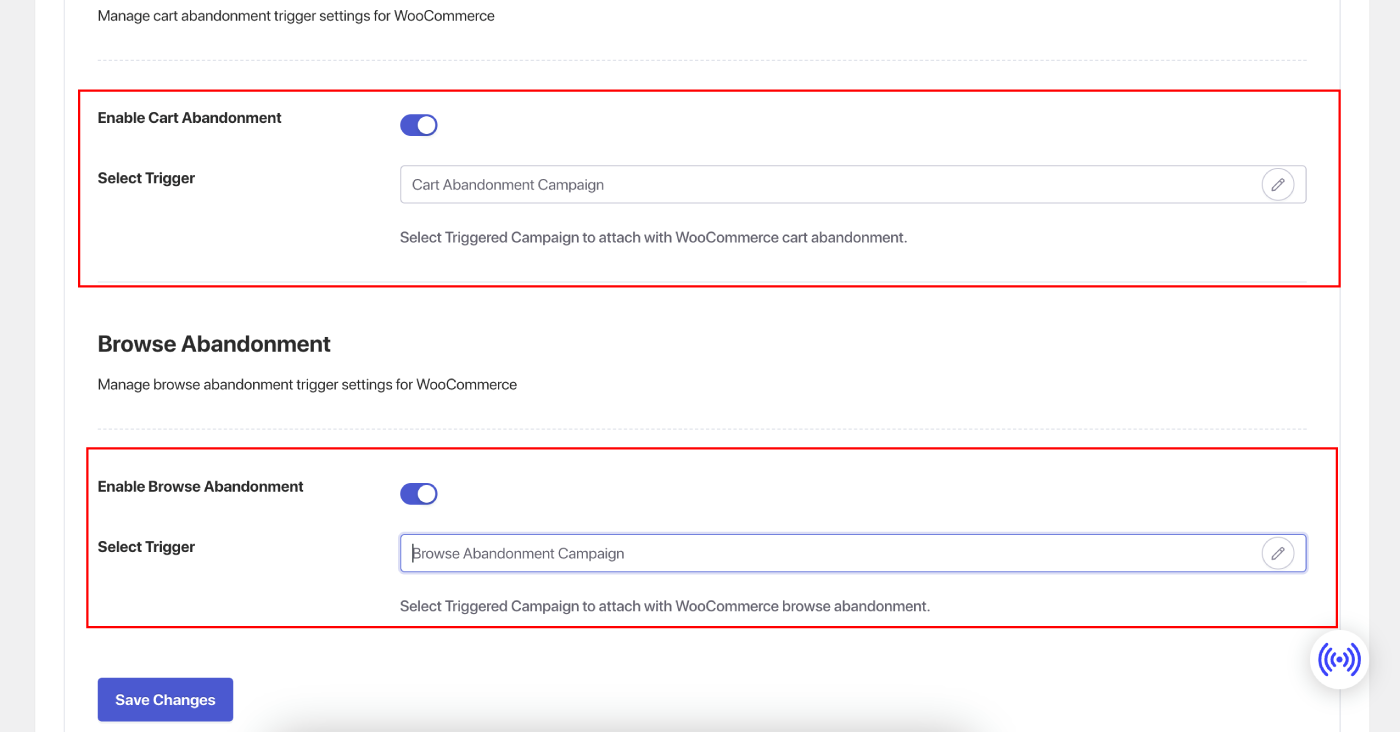
連携が完了したら、WooCommerceストアのカート放棄および閲覧放棄設定を管理できます。
設定 » 連携タブのWooCommerceセクションに移動します。
スイッチをオンにして、「カート放棄」および「閲覧放棄」を有効にします。
キャンペーンのカスタマイズ
「トリガーキャンペーン」に移動し、キャンペーンに複数の通知を追加します。
各通知の遅延と条件を指定し、フォールバック変数(代替変数)を追加します。
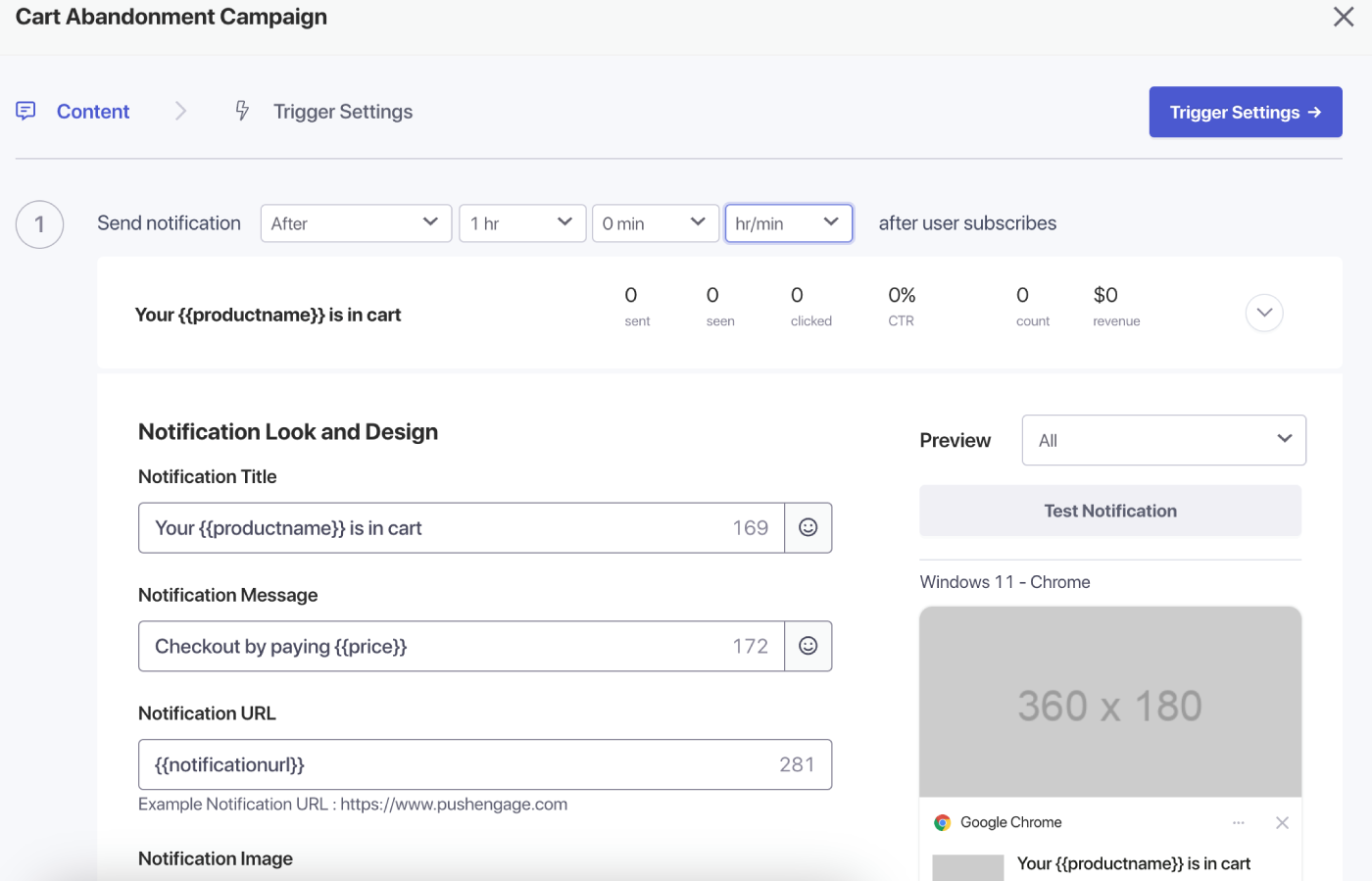
トリガー設定
「トリガー設定」で、顧客にスパム送信を防ぐために通知の頻度を制限します。ここでは、1日あたりの制限または1週間あたりの制限を選択できます。たとえば、1日あたりの通知が2件の場合、1週間あたりの制限を14件に設定すると、人々が1日に2つ以上の商品を放棄した場合でも、すべてのプッシュ通知でスパム扱いされることはありません。
これらのキャンペーンにUTMパラメータを追加することもできるため、Googleアナリティクスでの追跡が容易になります。
トリガーを設定したら、変更を保存してキャンペーンをアクティブにします。有効になっている場合は、キャンペーン分析を表示して、目標収益のコンバージョンを確認できます。
これで、WooCommerceストア向けの強力なキャンペーンを作成できました。
問題が発生した場合は、こちらをクリックしてお気軽にお問い合わせください。サポートチームがお手伝いします。