PushEngage Flutter SDKを使用すると、プッシュ通知をFlutterアプリケーションに簡単に統合でき、AndroidとiOSの両方のプラットフォームでシームレスな互換性を提供します。
このガイドでは、PushEngage Flutter SDKを設定し、AndroidおよびiOSアプリでプッシュ通知を有効にする手順を説明します。
開始する前に
必要なもののリストはこちらです
- FlutterプロジェクトとPushEngageアカウント。アカウントをお持ちでない場合は、こちらからサインアップできます。
- Android用にFirebase Cloud Messaging(FCM)が設定されたFirebaseアカウント。
- iOSでApple Push Notification(APN)サービスを設定するためのApple Developerアカウント。
インストール
1.コードエディタでFlutterプロジェクトを開きます。
2.pubspec.yamlファイルに次の依存関係を追加します。
dependencies:
	pushengage_flutter_sdk: ^1.0.0
3.次のコマンドを実行してパッケージをインストールします。
dependencies:
flutter pub get
Androidの設定
JitPackリポジトリを追加します。PushEngage Android SDKはJitPack経由で配布されるため、SDKセットアップを正常に実行するには必須のリポジトリです。
新しいプロジェクト →
android/settings.gradle内
dependencyResolutionManagement { repositories { … } } 古いプロジェクト →
android/build.gradle内
allprojects { repositories { … } } グルーヴィー:
maven { url 'https://jitpack.io' } Kotlin DSL:
maven { url = uri("https://jitpack.io") }Firebase Cloud Messaging(FCM)の設定
Androidでプッシュ通知を有効にするには、Firebase Cloud Messaging(FCM)を設定する必要があります。
1.Googleアカウントを使用してFirebaseコンソールにアクセスします。
2.新しいプロジェクトを作成または既存のプロジェクトを選択します:「プロジェクトを追加」をクリックして新しいプロジェクトを作成するか、リストから既存のプロジェクトを選択します。既存のプロジェクトを使用している場合は、手順4に直接進んでください。
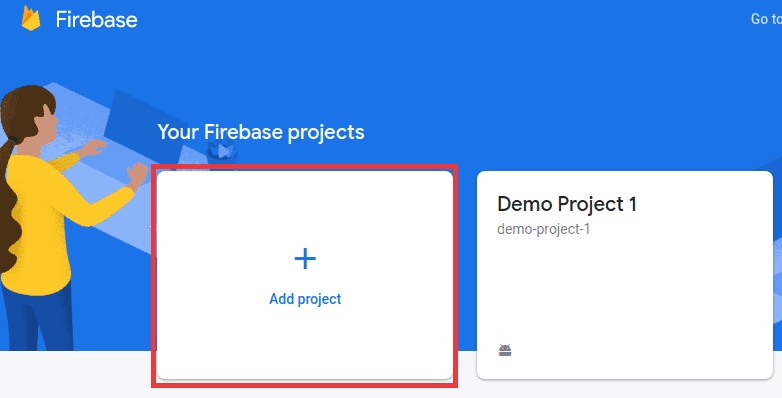
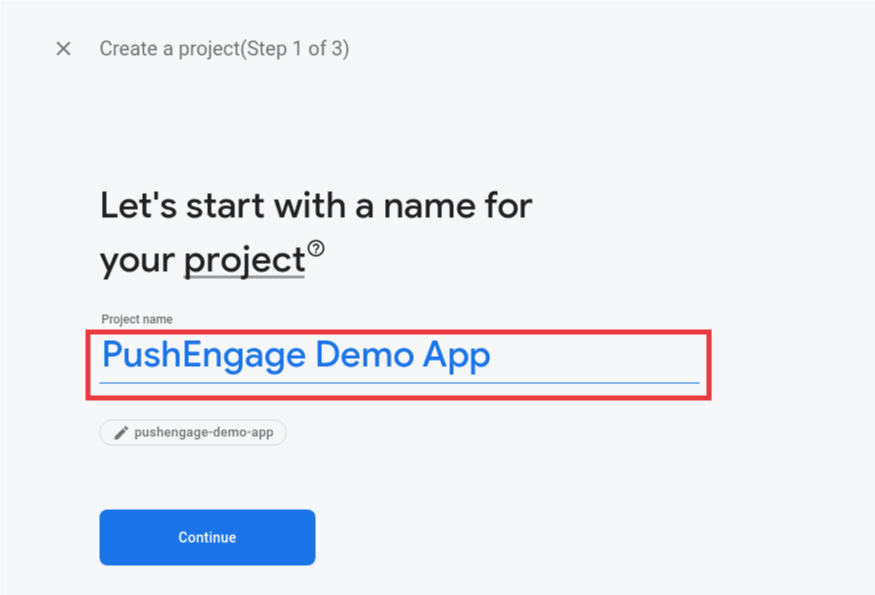
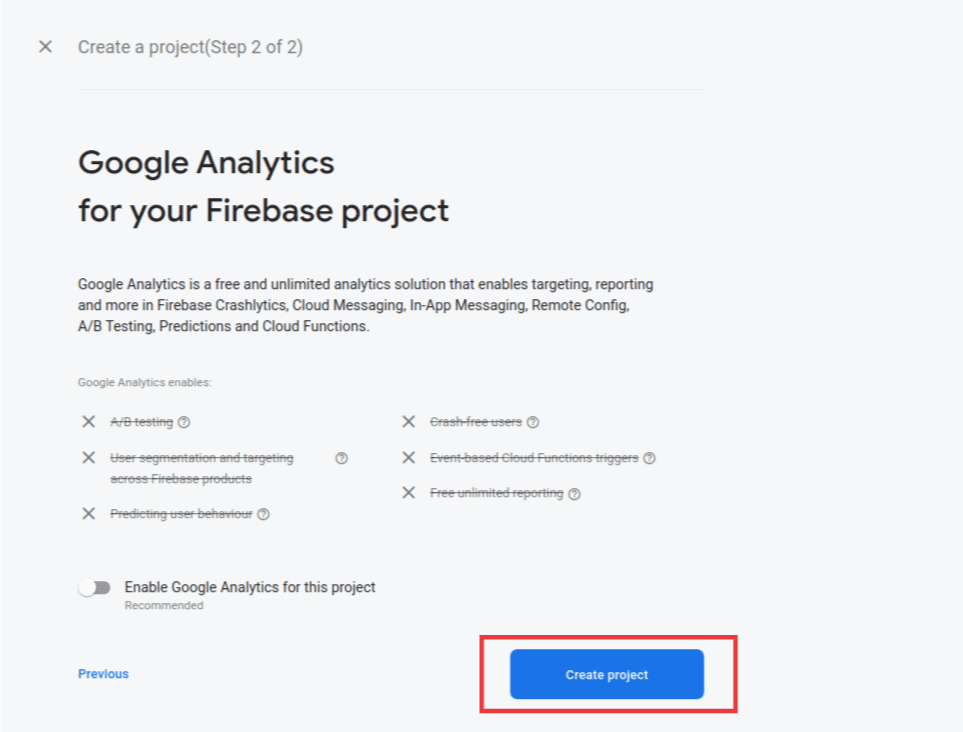
3.プロジェクトの詳細を入力します:プロジェクトの名前を追加し、続行をクリックします。最終画面で「プロジェクトを作成」をクリックしてセットアッププロセスを完了します。
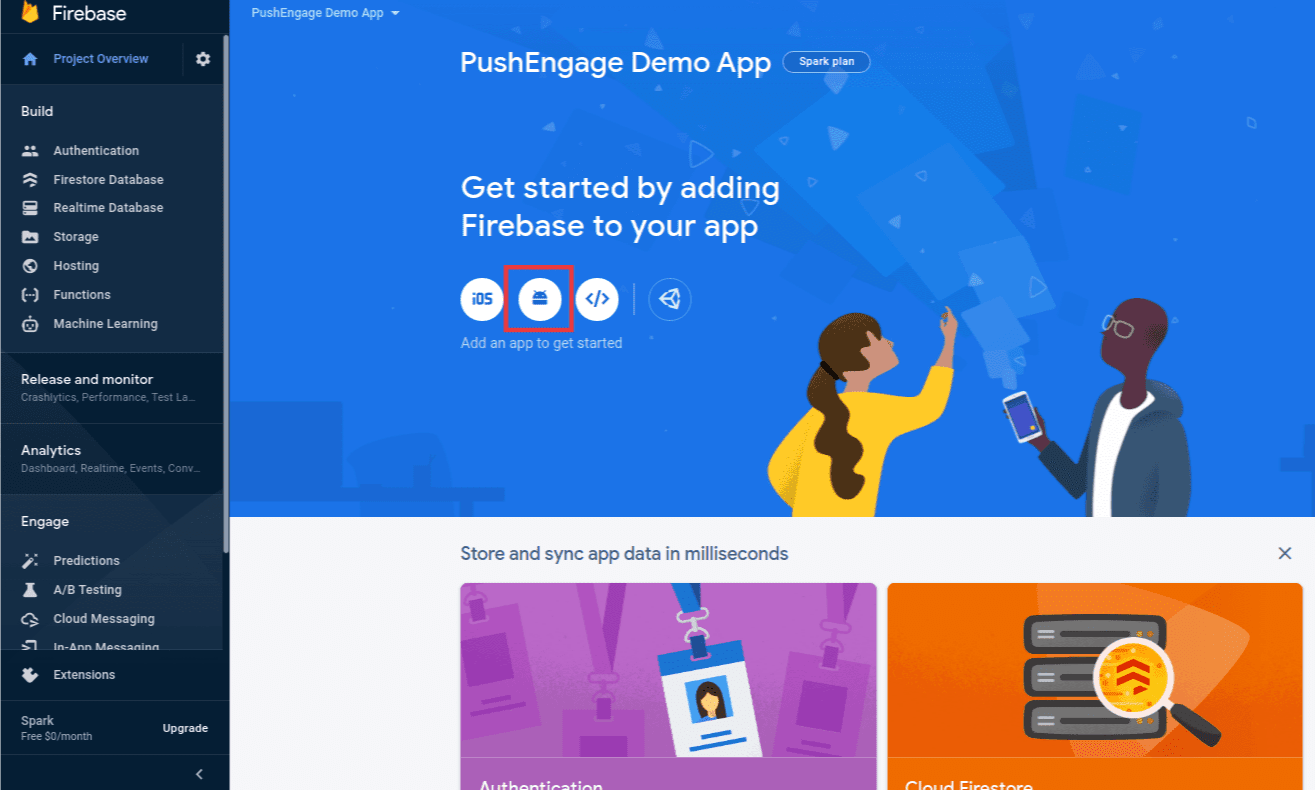
4.プロジェクトにAndroidアプリを追加します:Firebaseプロジェクトダッシュボードで、AndroidアイコンをクリックしてAndroidアプリを追加します。
5.Androidアプリを設定します:Androidアプリのパッケージ名(android/app/build.gradleのandroidブロックの下にあります)を入力し、アプリ名を提供します。完了したら、登録をクリックします。
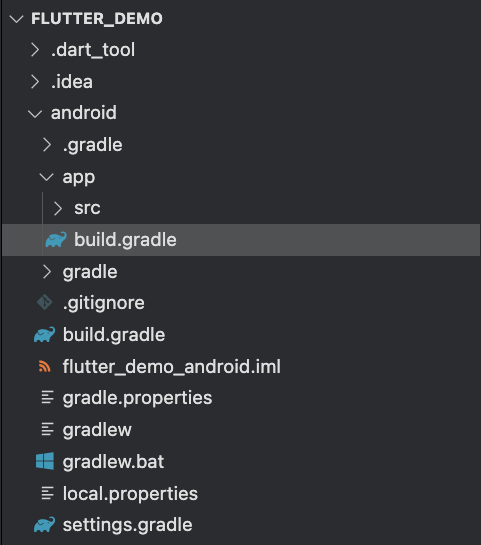
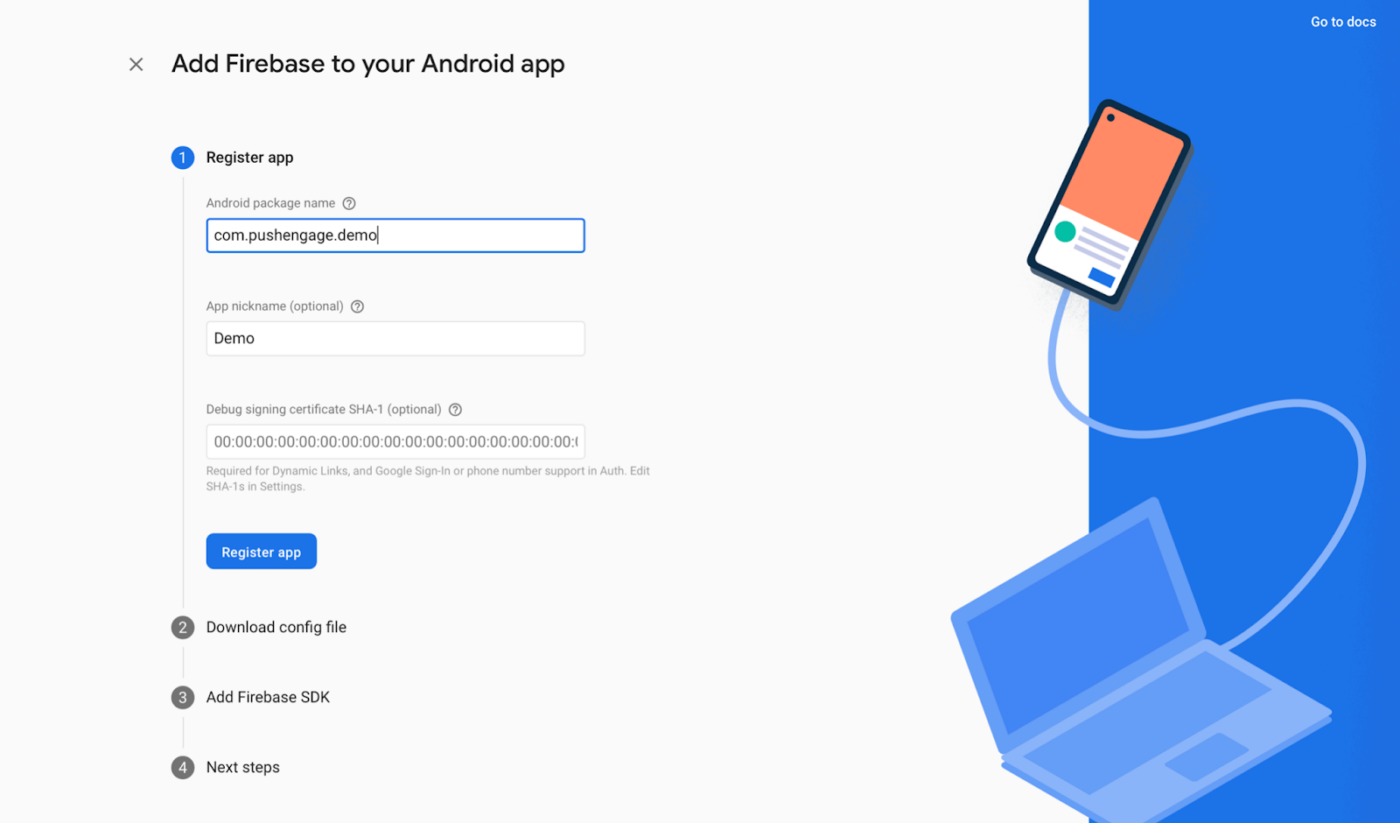
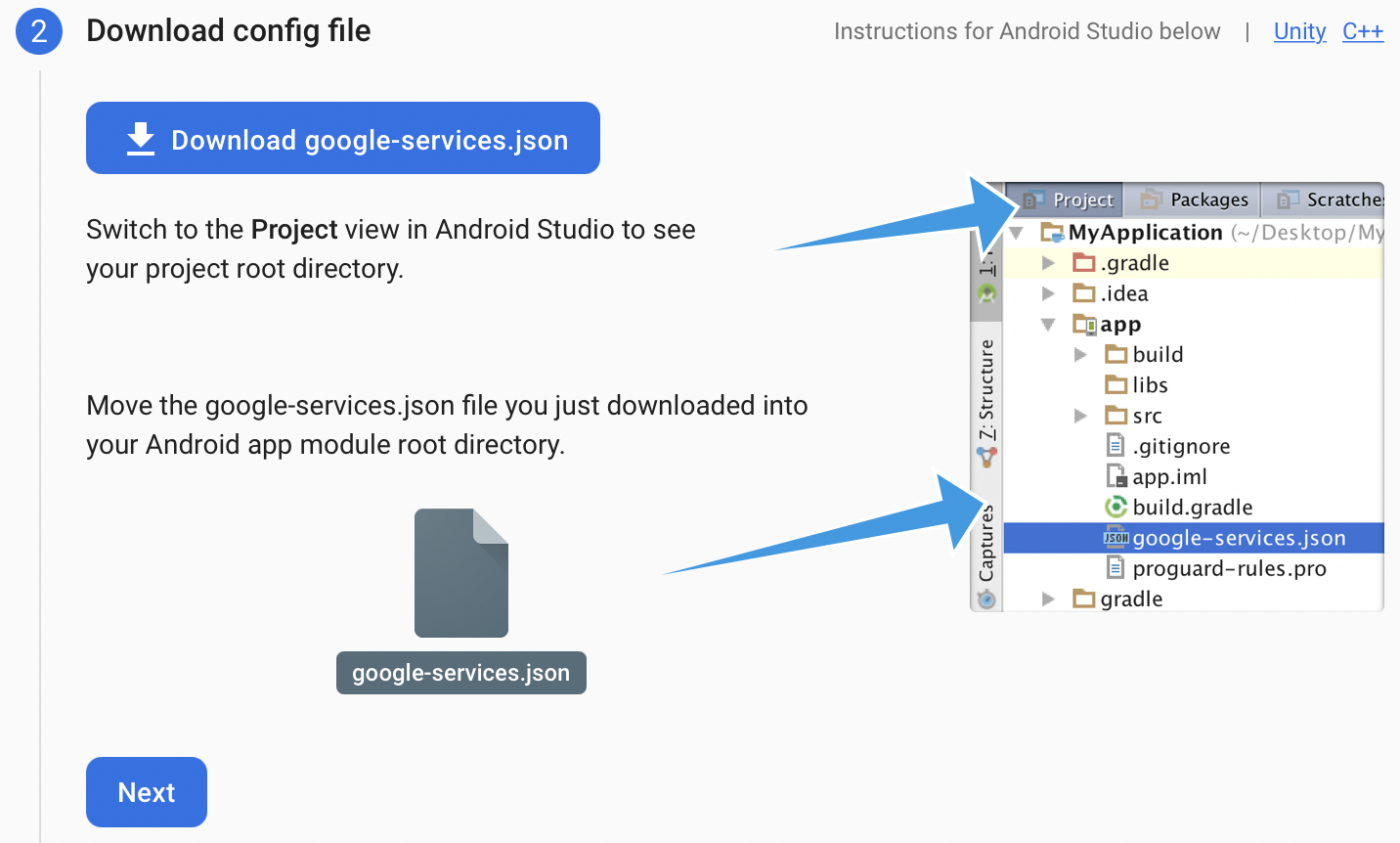
6.設定ファイルをダウンロードします:google-services.jsonファイルをダウンロードし、Androidアプリモジュールのルート(android/app/)に配置します。
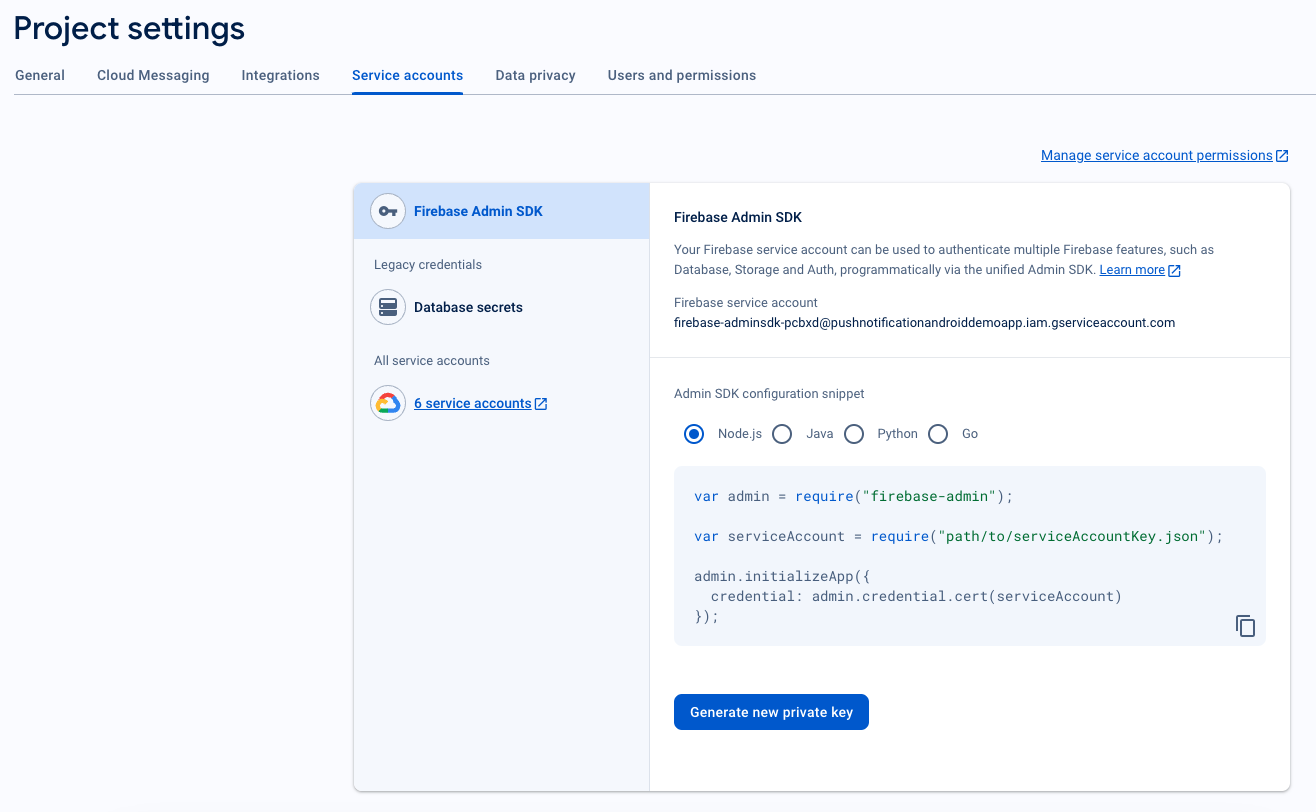
7.サービスアカウントJSONを生成します
- Firebaseコンソールで、左上の「プロジェクトの概要」の横にある設定アイコンをクリックし、プロジェクトの設定を選択します。
- サービスアカウントタブに移動します。
- 新しい秘密鍵を生成をクリックし、.jsonファイルをダウンロードします。
- このファイルはPushEngageダッシュボードの設定で必要になるため、安全に保管してください。
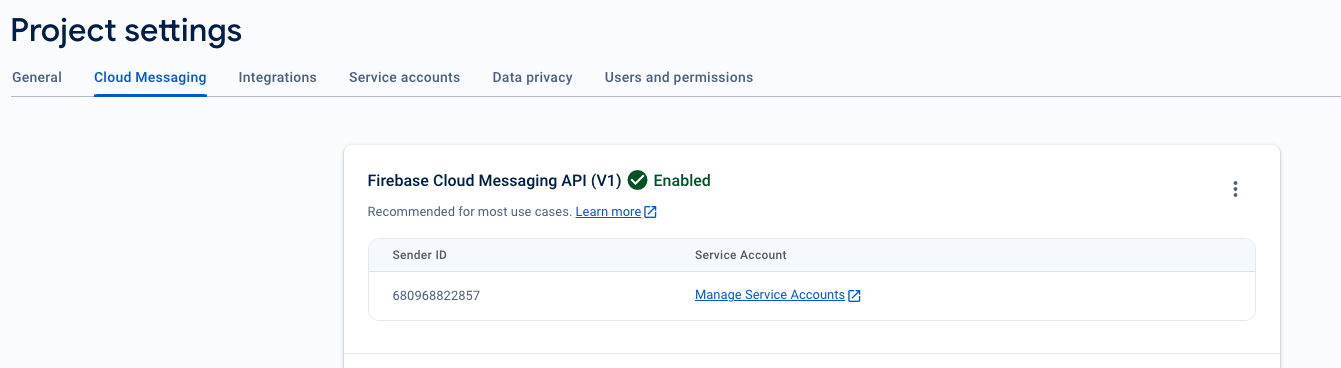
8.送信者IDを取得します
- Firebaseコンソールで、左上のプロジェクトの概要の横にある設定アイコンをクリックし、「プロジェクトの設定」を選択します。
- Cloud Messagingタブを選択します。ここに、PushEngage SDKの初期化に必要な送信者IDがあります。
FCMをPushEngageダッシュボードに統合する
FCMの詳細をPushEngageダッシュボードにシームレスに統合するには、以下の手順に従ってください。
- 資格情報を使用してログインすることにより、PushEngageアカウントにアクセスします。
- 設定 » インストールに移動し、Android SDKタブを選択します
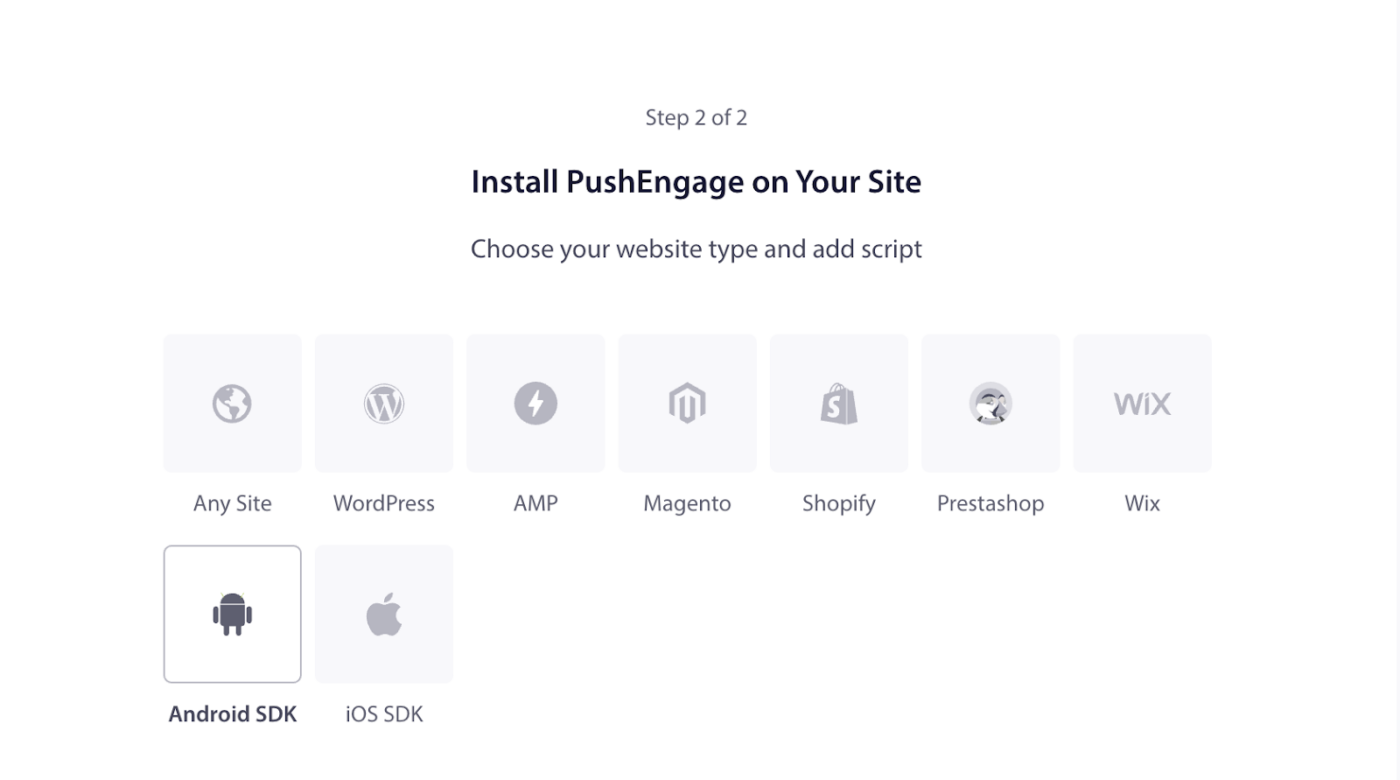
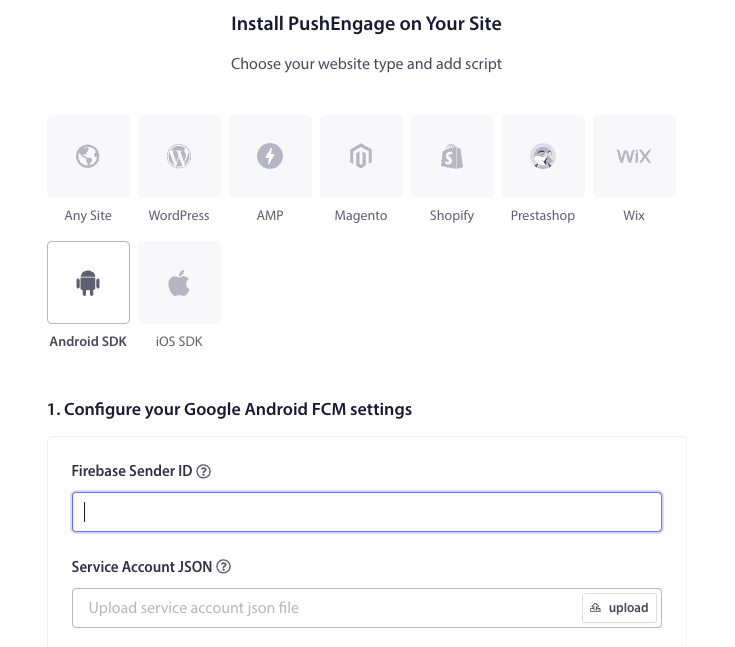
- 次に、FCM設定を構成します
- Firebase Sender ID(Firebaseコンソールから取得)を入力します。
- Service Account JSONファイル(Firebaseからダウンロード)をアップロードします。
- 更新ボタンをクリックして、これらの設定を保存します。
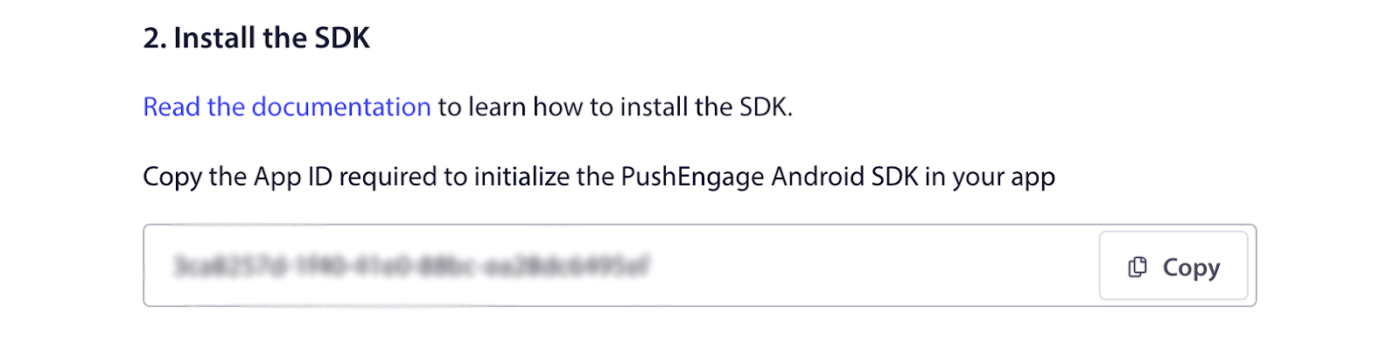
5. アプリIDをコピー: FCM設定を構成した後、アプリIDが提供されます。このアプリIDは、FlutterアプリでPushEngage Android SDKを初期化するために必要なのでコピーしてください。
iOSの設定
プロジェクトの設定
プロジェクトを開いた後、以下の手順に従ってください。
プロジェクトを開く方法は次のとおりです: your_project_name » iOS » Runner.xcworkspace。
1. リモート通知を有効にする
- Xcodeプロジェクトを開き、プロジェクトナビゲーターでルートプロジェクトを選択します。
- メインアプリターゲットを選択します。
- 「署名と機能」に移動します。
- バックグラウンドモード機能が追加されていることを確認します。追加されていない場合は、「機能を追加」ボタンをクリックして追加します。
- 同様に、プッシュ通知機能が追加されていることを確認します。「機能を追加」ボタンを使用して追加します。
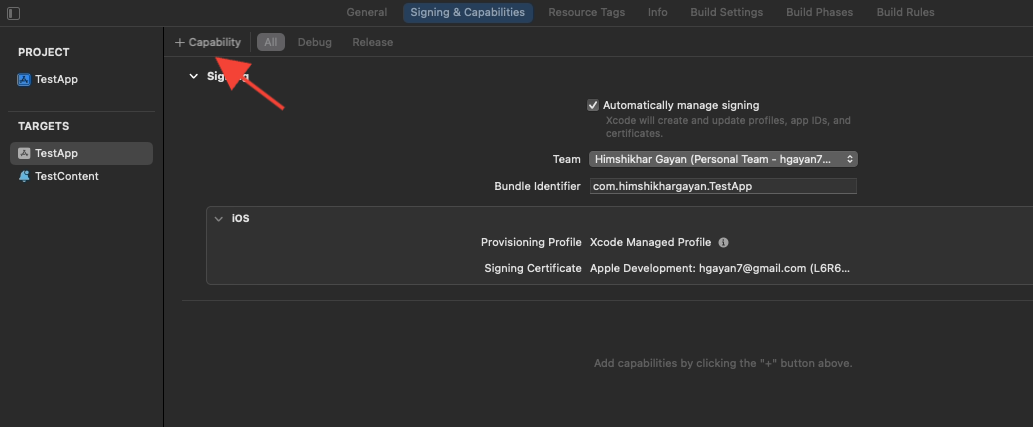
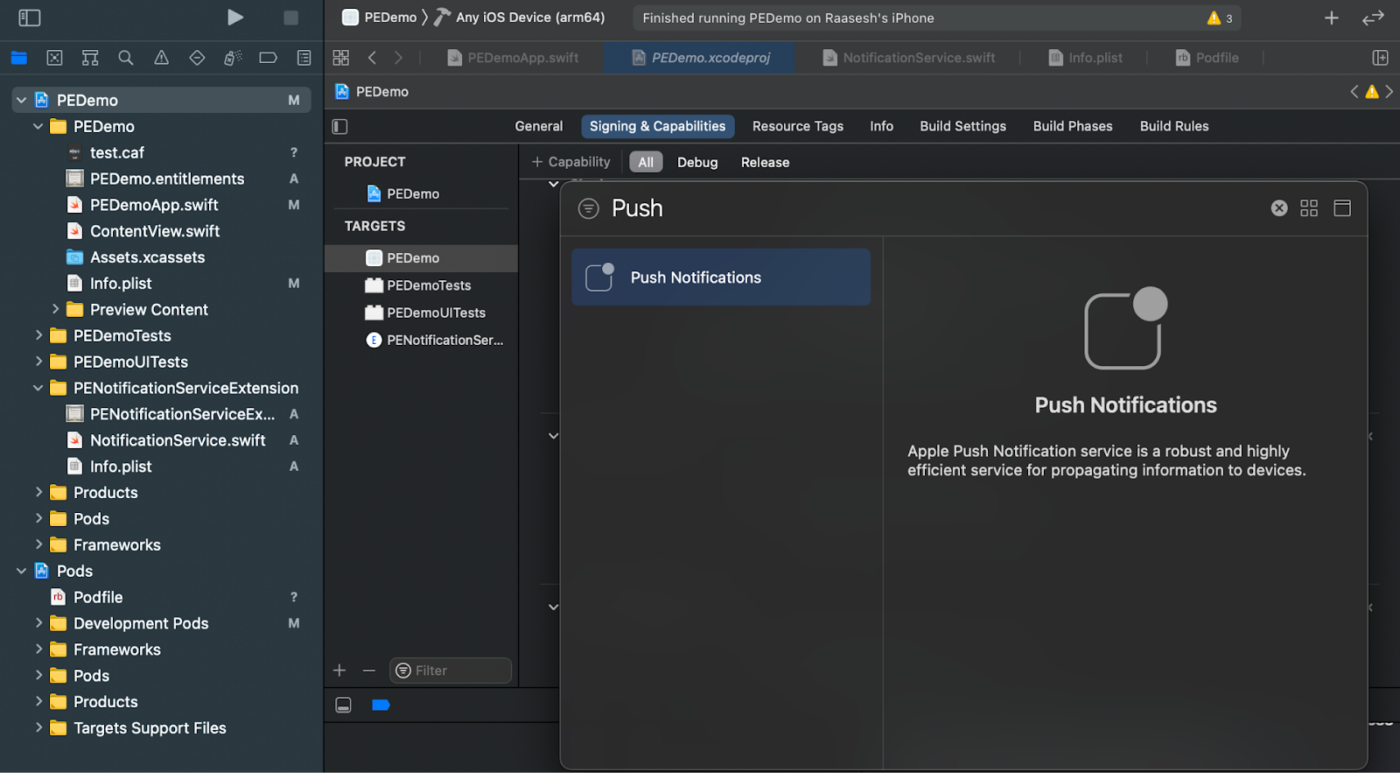
Xcodeで「プッシュ通知」機能が表示されない場合:
- Apple Developerアカウントに移動します。
- 「証明書、ID、プロファイル」に移動します。アプリIDを選択します。
- アプリIDの設定を編集し、プッシュ通知が有効になっていることを確認します。
- Xcodeに戻り、「プッシュ通知」機能の追加を再度試してください。
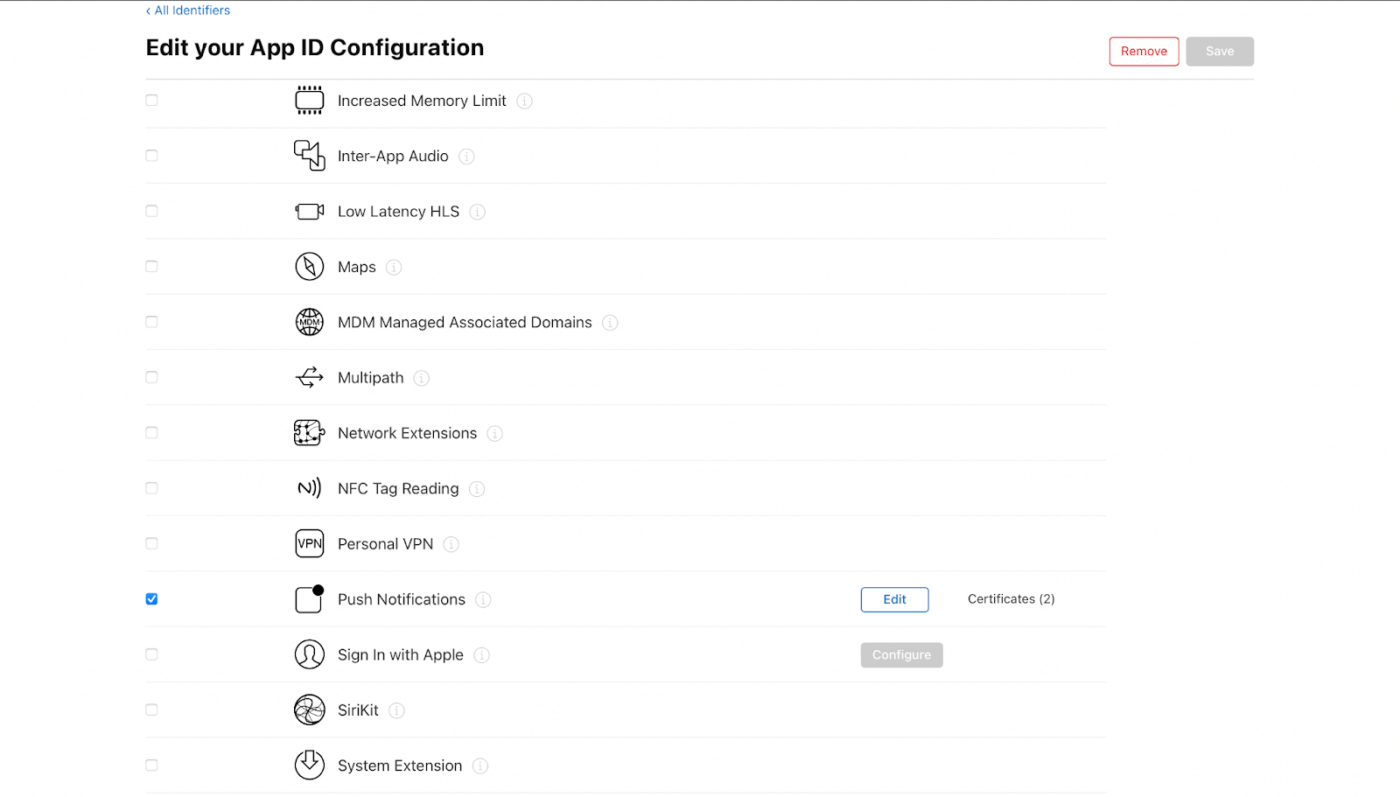
2. バックグラウンドモードを有効にする
- Xcodeプロジェクトで、「署名と機能」に移動します。
- 「バックグラウンドモード」内で、「リモート通知」と「バックグラウンド取得」の両方を有効にします。
- この手順により、アプリがリモート通知とバックグラウンド取得を効率的に処理できるようになります。
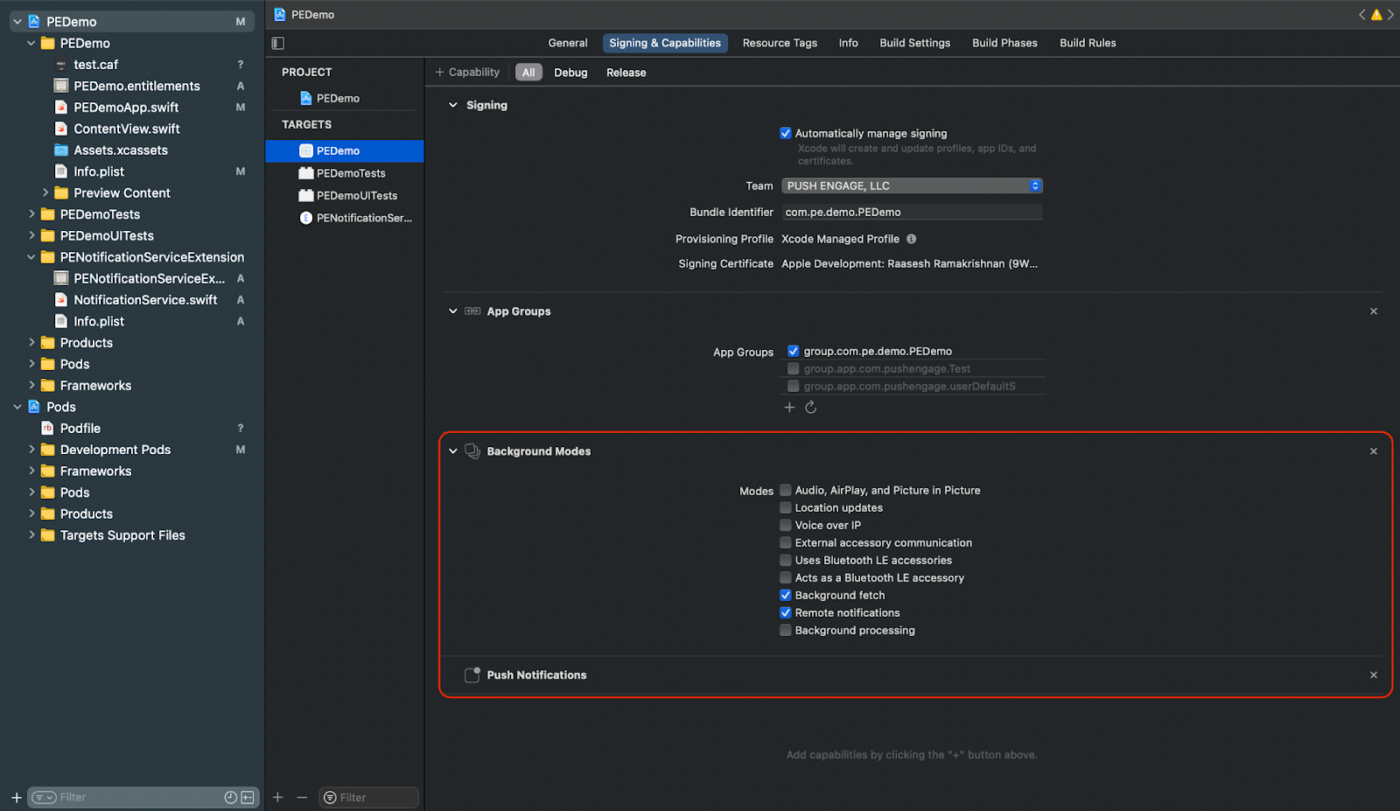
iOS用のAPN証明書をお持ちでない場合は、こちらのガイドを使用して作成できます。
次に、iOSのみにNotification Service拡張機能とNotification Content拡張機能を追加する必要があります。
通知サービス拡張機能の作成
通知サービス拡張機能は、iOSアプリが通知を受信する機能を強化します。これは、通知を受信したときに通知の内容を変更したり、データを取得/処理するために使用されます。通知サービス拡張機能を作成するには、次の手順に従ってください。
- Xcodeを開き、プロジェクトに移動します。
- メニューからFile » New » Targetを選択します。
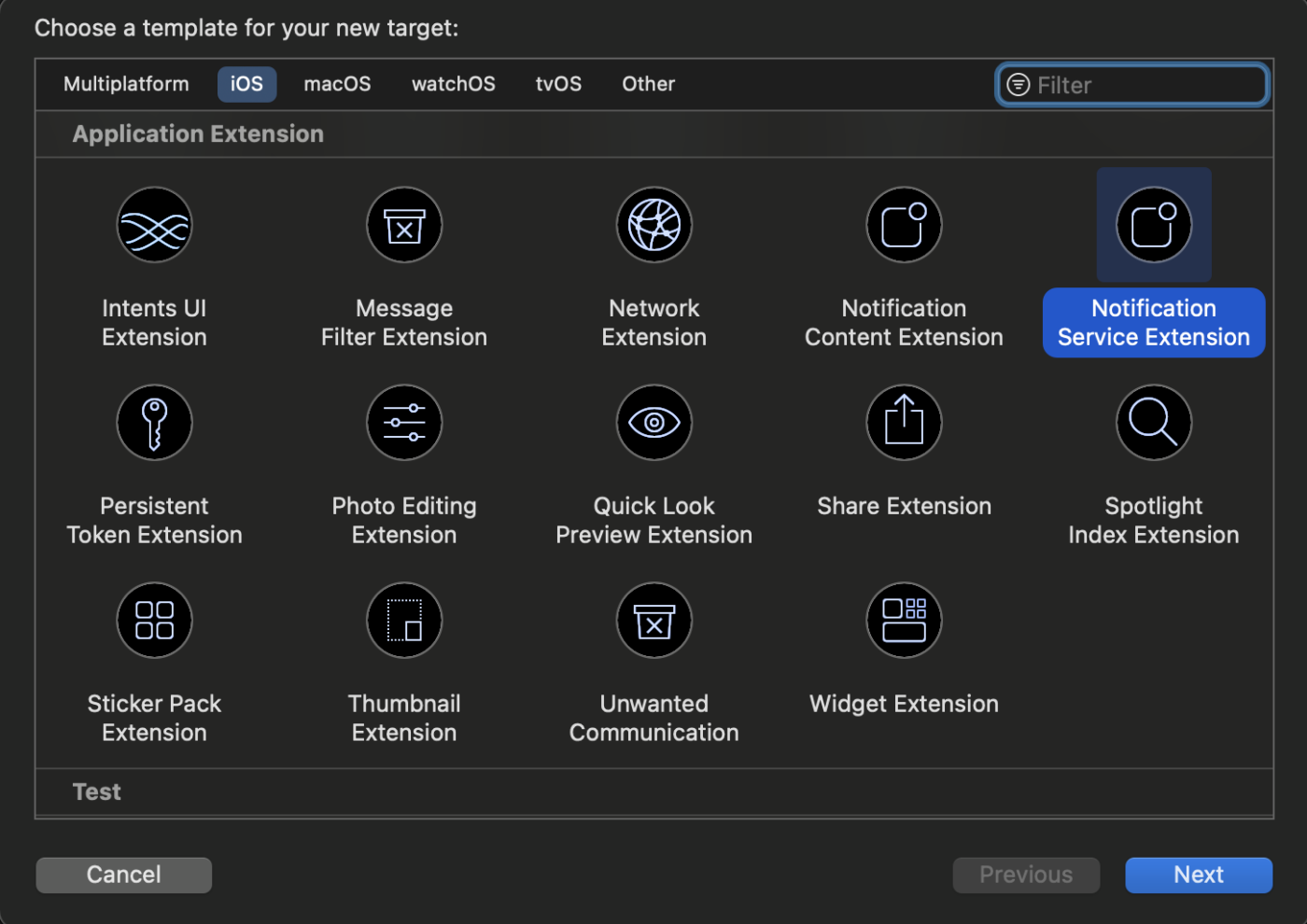
- テンプレート選択ウィンドウで、Notification Service Extensionを選択し、Nextをクリックします。
4. 拡張機能の名前を入力します。例: PushEngageNotificationServiceExtension。その後、Finishをクリックします。
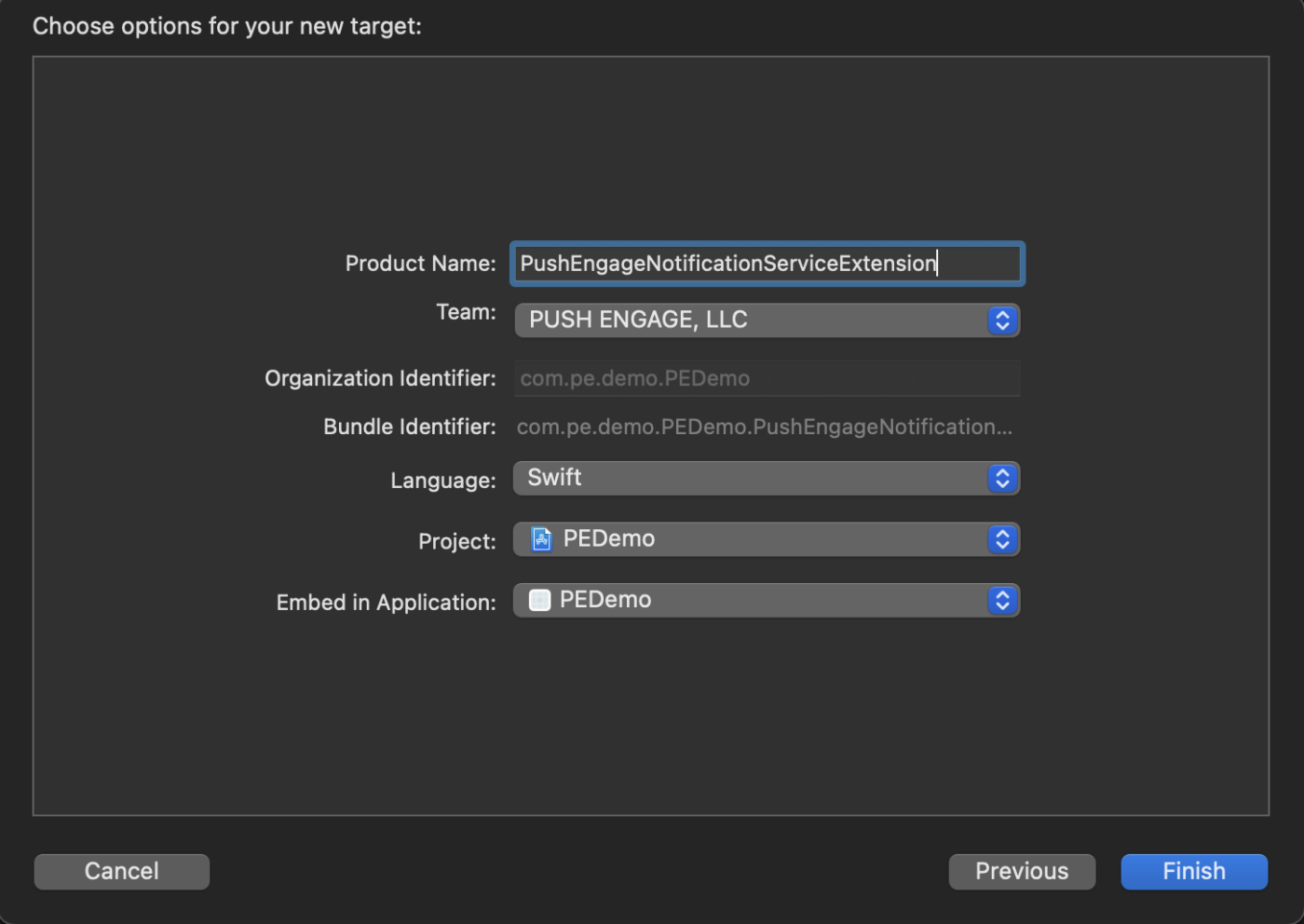
4. 拡張機能の名前を入力します。例: PushEngageNotificationServiceExtension。その後、Finishをクリックします。
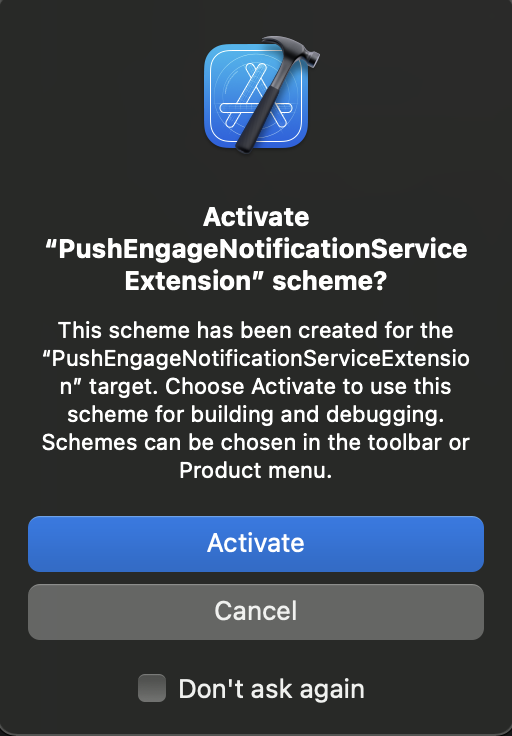
5. Notification Service Extensionの作成が完了したら、アクティベートを促される場合があります。すぐにアクティベートしないでください。拡張機能をアクティベートすると、Xcodeのデバッグフォーカスがアプリから拡張機能に切り替わるためです。誤ってアクティベートしてしまった場合は、心配いりません。Xcode内でアプリのデバッグに切り替えることができます。
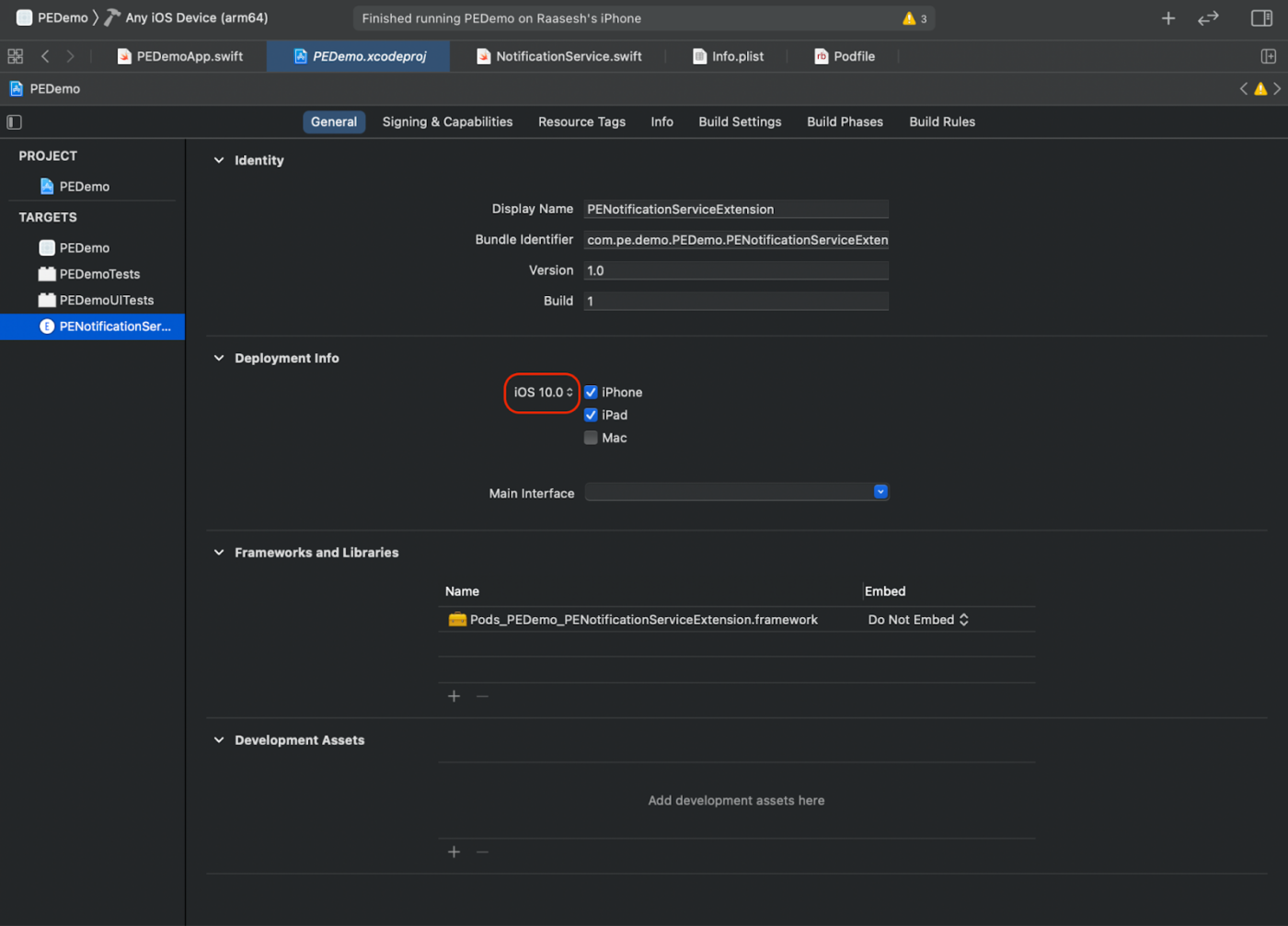
6. プロジェクトナビゲーターで、最上位のプロジェクトディレクトリを選択し、ステップ4で作成したターゲットリストからプロジェクト内のNotificationServiceExtensionターゲットを選択します。
7. Deployment TargetをiOS 10以上に設定します。これは、Appleがこの拡張機能のサポートをリリースしたiOSのバージョンです。
Notification Service ExtensionのPushEngage SDKの初期化
iOS Notification Service ExtensionでPushEngage SDKが正しく機能することを確認するには、以下の手順に従ってください。
- your_project_name » ios » Podfileを開きます。
- Podfileの末尾に以下を追加します:
post_install do |installer|
  installer.pods_project.targets.each do |target|
    flutter_additional_ios_build_settings(target)
  end
end

target 'Your_Notification_Service_Extension_Name' do
    use_frameworks!
    pod 'PushEngageExtension', '1.0.0'

  end
- 依存関係をインストールします:
次に、プロジェクトのiOSディレクトリにコマンドを入力し、以下のコマンドを実行する必要があります:
pod repo update

pod install
- Notification Service Extensionターゲットで、PushEngageフレームワークをインポートし、必要な初期化コードを追加していることを確認してください。Swiftを使用して行う方法は次のとおりです。
import UserNotifications
import PushEngageExtension

class NotificationService: UNNotificationServiceExtension {

    var contentHandler: ((UNNotificationContent) -> Void)?
    var bestAttemptContent: UNMutableNotificationContent?
    var request: UNNotificationRequest?

    override func didReceive(_ request: UNNotificationRequest,
                             withContentHandler contentHandler: @escaping (UNNotificationContent) -> Void) {
        self.request = request
        self.contentHandler = contentHandler
        self.bestAttemptContent = (request.content.mutableCopy() as? UNMutableNotificationContent)

        if let bestContent = bestAttemptContent {
            PushEngageExtension.didReceiveNotificationExtensionRequest(request, bestContentHandler: bestContent)
            contentHandler(bestContent)
        }
    }

    override func serviceExtensionTimeWillExpire() {
        if let contentHandler = contentHandler,
           let request = request,
           let bestAttemptContent = bestAttemptContent {
            guard let content = PushEngageExtension.serviceExtensionTimeWillExpire(request, content: bestAttemptContent) else {
                contentHandler(bestAttemptContent)
                return
            }
            contentHandler(content)
        }
    }
}
通知コンテンツ拡張機能の作成
カスタムUIを追加して表示方法を改善するには、通知コンテンツ拡張機能を作成する必要があります。拡張機能を設定するには、以下の手順に従ってください:
- Xcodeで、File » New » Targetに移動します。
- Notification Content Extensionを選択し、Nextをクリックします。
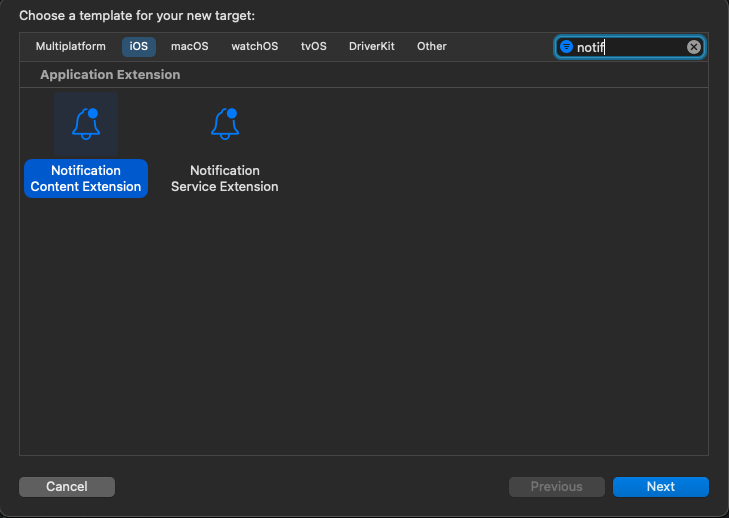
3. Finishをクリックした後に表示されるダイアログで「Activate」を選択しないでください。キャンセルすると、Xcodeは拡張機能ではなくアプリのデバッグを続行します。誤ってアクティベートした場合は、Xcode内でアプリのデバッグに切り替えてください(実行ボタンの隣)。
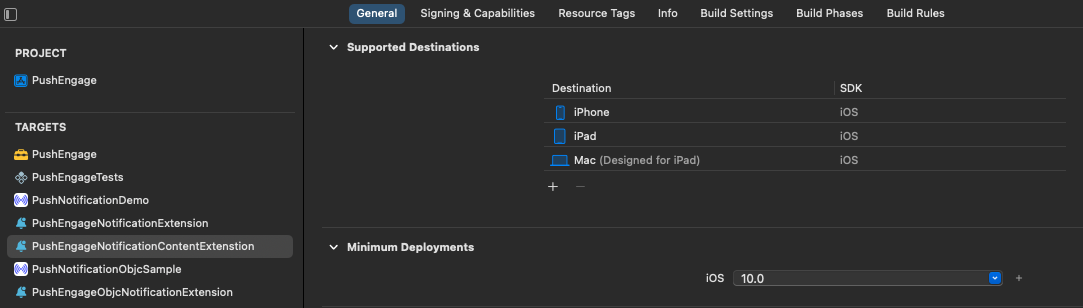
4. プロジェクトナビゲーターで、最上位のプロジェクトディレクトリを選択し、ステップ2で作成したターゲットリストからプロジェクト内のNotificationContentExtensionターゲットを選択します。
5. Deployment TargetをiOS 10以上に設定します。これは、Appleがこの拡張機能のサポートをリリースしたiOSのバージョンです。
Notification Content ExtensionのPushEngage SDKの初期化
iOS Notification Content ExtensionでPushEngage SDKが正しく機能することを確認するには、次の手順に従ってください:
your_project_name » iOS » Podfileを開きます。
Podfileの末尾に以下を追加します:
target 'Your_Notification_Content_Extension_Name' do
    use_frameworks!
    pod 'PushEngageExtension', '1.0.0'
  end
- 依存関係をインストールします: コマンドラインで実行する必要があるコードは次のとおりです。
e
pod repo update
pod install
- Notification Content Extensionターゲットで、PushEngageフレームワークをインポートし、必要な初期化コードを追加してください。Swiftを使用したUI要素の例とともに、その方法を以下に示します。
import UIKit
import UserNotifications
import UserNotificationsUI
import PushEngageExtension

@available(iOSApplicationExtension 10.0, *)

class NotificationViewController: UIViewController, UNNotificationContentExtension {
    fileprivate var hostingView: UIHostingController<ContentView>?
    override func viewDidLoad() {
        super.viewDidLoad()
        self.view.backgroundColor = .white
    }

    func didReceive(_ notification: UNNotification) {
        if(notification.request.content.categoryIdentifier == "your_identifier"){
            let payLoad = PushEngageExtension.getCustomUIPayLoad(for: notification.request)
  //pass the payload to your custom View
            let view = CustomView(payLoadInfo: payLoad)
            hostingView = UIHostingController(rootView: view)
If let customView = self.hostingView {
            addChild(hostingView!)
}
        }
    }
}
App Groupsの追加
App Groups は、メインアプリ、通知サービス拡張機能、通知コンテンツ拡張機能間の通信を有効にするために不可欠です。iOS プロジェクトに App Groups を追加するには、次の手順に従ってください。
既存のアプリグループがあり、それのみを使用したい場合は、手順4にスキップしてください。
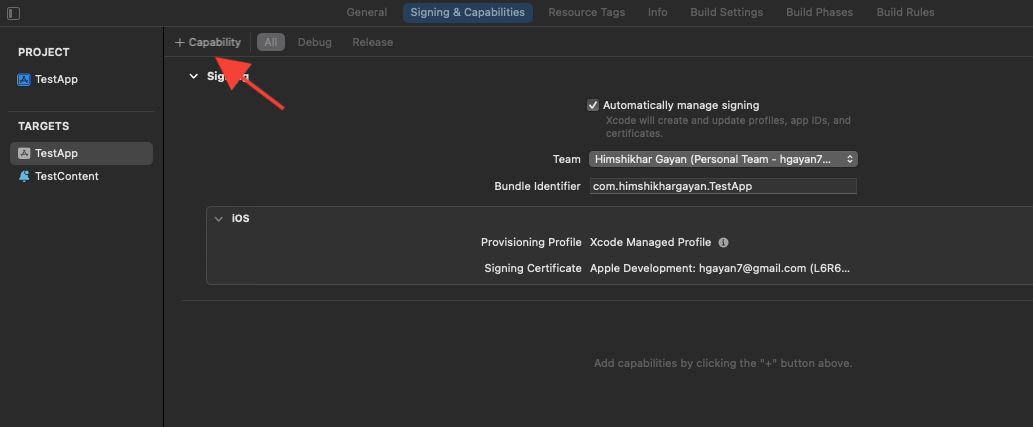
- Xcodeプロジェクトのプロジェクトナビゲーターで、最上位のプロジェクトディレクトリを選択し、アプリのメインターゲットを選択します。
- 署名と機能タブに移動します。
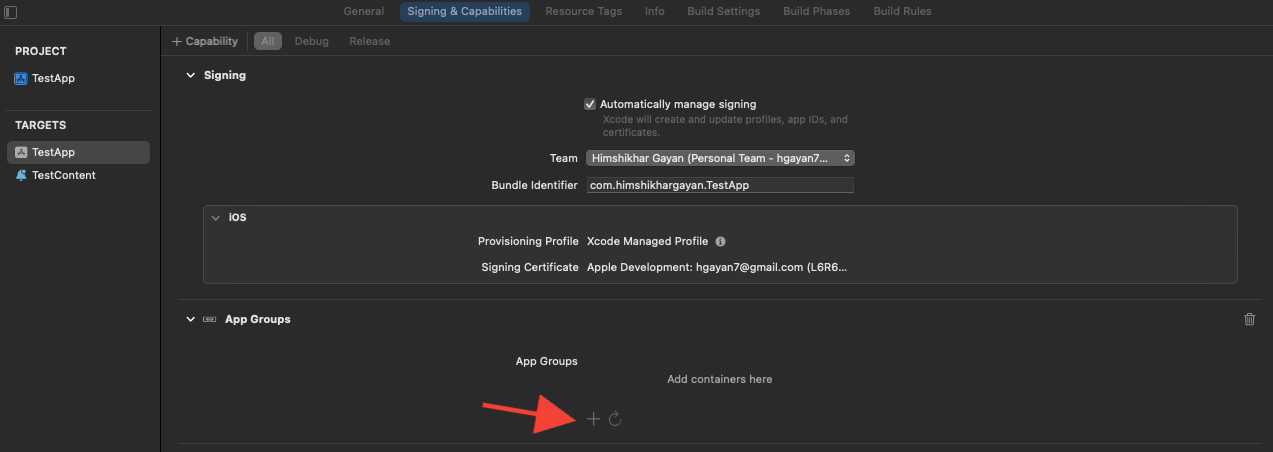
- 「+ 機能」ボタンをクリックし、リストからアプリグループを選択します。
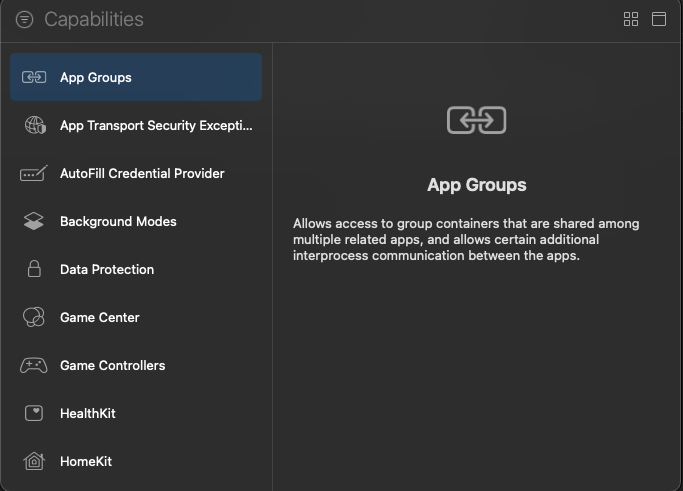
4. 「+」ボタンをクリックして、App Group を追加します。
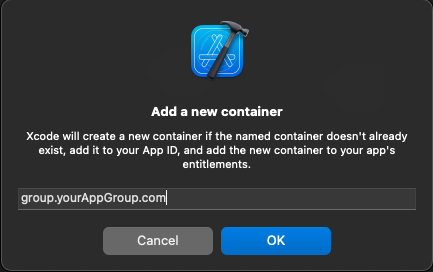
5. 一意の App Group 名を追加し、OK をクリックします。
6. メインエディタ領域で、アプリのメインターゲットを選択します。アプリグループを作成した場合は、アプリケーションのInfo.plistでキーPushEngage_App_Group_Keyを使用してグループ名を提供してください。
7. 通知サービス拡張機能の Info.plist ファイルに同じキーと値を追加します。
8. メインアプリケーションターゲットと通知サービス拡張機能の両方で、同じアプリグループを選択していることを確認してください。
PushEngage SDK の初期化
main.dartで、PushEngage SDKを初期化します。
void main() {
  runApp(const MyApp());
}

class MyApp extends StatefulWidget {
  const MyApp({super.key});
  @override
  State<MyApp> createState() => _MyAppState();
}

class _MyAppState extends State<MyApp> {
  @override
  void initState() {
    super.initState();
    initPlatformState();
  }

  Future<void> initPlatformState() async {
    PushEngage.setAppId("your_pushengage_app_id");
  }
  @override
  Widget build(BuildContext context) {
    return const MaterialApp(
      title: 'PushEngage',
      debugShowCheckedModeBanner: false,
      home: Home(),
    );
  }
}
iOSアプリのAppDelegate.swiftで
import Flutter
import UIKit
import PushEngage

@UIApplicationMain
@objc class AppDelegate: FlutterAppDelegate {

    override init() {
        super.init()
        PushEngage.swizzleInjection(isEnabled: true)
    }

    override func application(
        _ application: UIApplication,
        didFinishLaunchingWithOptions launchOptions: [UIApplication.LaunchOptionsKey: Any]?
    ) -> Bool {
        if #available(iOSApplicationExtension 10.0, *) {
            UNUserNotificationCenter.current().delegate = self
        }
        GeneratedPluginRegistrant.register(with: self)
        PushEngage.setBadgeCount(count: 0)
        PushEngage.setNotificationWillShowInForegroundHandler { notification, completion in
            if notification.contentAvailable == 1 {
                // in case developer failed to set completion handler. After 25 sec handler will call.
                completion(nil)
            } else {
                completion(notification)
            }
        }
        return super.application(application, didFinishLaunchingWithOptions: launchOptions)
    }
}
deeplink の処理
deepLinkStreamは、ディープリンクデータを放出するものです。
Flutterアプリでは、deepLinkStreamストリームをリッスンすることでディープリンクを処理できます。このストリームは、アプリが実行中に通知がタップされたときに発行されます。コールドブートタップ(iOSでアプリを終了状態から起動する通知タップ)はここでは配信されません。それらについては、getInitialNotificationを使用してください。これはこちらで説明されています。
class Home extends StatefulWidget {
  const Home({super.key});

  @override
  _HomeState createState() => _HomeState();
}

class _HomeState extends State<Home> {
  late StreamSubscription _deepLinkSubscription;

  @override
  void initState() {
    super.initState();
    PushEngage.deepLinkStream.listen((data) {
      _handleDeepLink(data);
    });
  }

  void _handleDeepLink(Map<String, dynamic>? data) {
    // Parse the deep link and navigate accordingly
    Uri uri = Uri.parse(data?['deepLink']);
    print('Path: ${uri.path}');
    updateResponseText(data.toString());
    switch (uri.path) {
      case 'trigger':
      case '/trigger':
        print('your_implementation')
        break;
    }
  }
以上で、AndroidおよびiOSアプリのFlutter SDKの統合が正常に完了しました。
問題が発生した場合は、ここをクリックして お問い合わせ ください。サポートチームがお手伝いします。