カスタムサブドメイン機能は、別のドメインを通じてウェブプッシュ通知購読者
を収集するためのものです。ウェブサイトのルートまたはサブフォルダにサービスワーカーを追加できない特定の
状況向けに設計されています。
このガイドでは、機能の概要、使用時期、および段階的な実装方法について説明します。
カスタムサブドメインはいつ使用すべきか?
この機能は、次の2つのシナリオのいずれかに該当する場合に最適なソリューションです。
- プラットフォームの制限: Webflow、ClickFunnels、Blogspotなどのプラットフォームでウェブサイトが構築されており、サイトの
ルートディレクトリにファイルをアップロードできない場合。これにより、PushEngageサービスワーカー
ファイルをルートフォルダに標準でインストールできなくなり、サブドメインで購読者を収集
せざるを得なくなります。したがって、購読を追加するために別のドメインをホストする
意思がある場合は、この機能を使用できます。 - 一元化された購読: 複数のドメインまたはサブドメインを運営しており、すべてのプッシュ購読者を単一の
一元化されたドメインの下で収集および管理したい場合。これにより、購読者の管理と
ブランディングが簡素化されます。
カスタムサブドメイン機能は、管理下にあるサブドメインの中間ページを使用して機能します。
このページが購読プロセスを処理し、プラットフォームのファイル制限を回避して
オーディエンスを一元化できるようにします。これはHTTPS URLである必要があります。
ここで購読が行われ、各プッシュキャンペーンで表示されます。
この機能を使用する場合、Push Single Step Optinを使用することはできません。利用可能な
Double Step Optinのみを使用することに注意してください。
カスタムサブドメインの設定
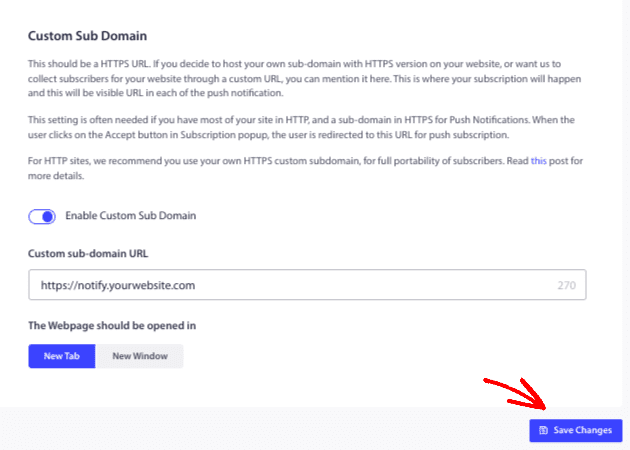
設定でカスタムサブドメインを有効にする
まず、使用するサブドメインをPushEngageに通知する必要があります。
- PushEngageダッシュボードに移動します。
- サイト設定 » 詳細設定に移動します。
- 購読用のカスタムサブドメインオプションを見つけます。
- スイッチを切り替えて有効にします。
- テキストボックスに、使用するサブドメインの完全なURL(例:
https://notify.yourwebsite.com)
を入力します。追加したドメインを新しいウィンドウまたはタブで開くかどうかを選択できます。
インストールコードの更新
ステップ1: メインサイト(サイトA)にインストールコードを追加する
このコードはメインウェブサイトに配置する必要があります。訪問者の購読オプトイン
プロンプトをトリガーします。
- 以下のコードスニペットをコピーします。
- メインウェブサイトの購読者
を収集したいすべてのページで、</head>タグの直前に貼り付けます。 'YOUR APP ID'を実際
のアプリIDに置き換えます。ダッシュボードのサイト設定 » インストール設定
に移動すると、アプリIDを見つけることができます。
サイトA(メインサイト)のコード:
<script>
(function(w, d) {
  w.PushEngage = w.PushEngage || [];
  w._peq = w._peq || [];
  PushEngage.push(['init', {
      appId: 'YOUR APP ID'
  }]);
  var e = d.createElement('script');
  e.src = 'https://clientcdn.pushengage.com/sdks/pushengage-web-sdk.js';
  e.async = true;
  e.type = 'text/javascript';
  d.head.appendChild(e);
})(window, document);
</script>
ステップ2: カスタムサブドメイン(サイトB)にインストールコードを追加する
この特別なバージョンのコードは、カスタムサブドメインの中間ページに配置する必要があります。
- 以下のコードスニペットをコピーします。
- カスタムサブドメインのメインページ(例:
index.html)の</head>タグの直前に貼り付けてください。 'YOUR APP ID'を、ステップ2で使用したものと同じApp IDに置き換えてください。
このコードにはisSubscriptionOnSubDomain:trueパラメータが含まれています。この行は、サブスクリプションのオプトインがサブドメイン自体に表示されるのを防ぐため、非常に重要です。その唯一の目的はサブスクリプションを処理することだからです。
サイトB(カスタムサブドメイン)のコード:
<script>
(function(w, d) {
  w.PushEngage = w.PushEngage || [];
  w._peq = w._peq || [];
  PushEngage.push(['init', {
      appId: 'YOUR APP ID',
      isSubscriptionOnSubDomain:true
  }]);
  var e = d.createElement('script');
  e.src = 'https://clientcdn.pushengage.com/sdks/pushengage-web-sdk.js';
  e.async = true;
  e.type = 'text/javascript';
  d.head.appendChild(e);
})(window, document);
</script>
ステップ3:サービスワーカーファイルをサブドメインに配置する
PushEngageサービスワーカーファイルは、独自のドメインからのプッシュ通知を可能にするものです。
- PushEngageダッシュボードのサイト設定 » インストール設定から
service-worker.jsファイルをダウンロードしてください。 - このファイルをサイトB(カスタムサブドメイン)のルートディレクトリにアップロードしてください。
- ファイルが公開からアクセス可能であることを確認してください。
https://your.subdomain.com/service-worker.jsにブラウザでアクセスしてテストできます。404エラーではなく、ファイルのコードが表示されるはずです。
オプトインスタイルのクイックインストールを有効にする
これは必須の最終ステップです。カスタムサブドメイン方式を機能させるには、オプトインに対してクイックインストール機能を有効にする必要があります。この設定により、カスタムサブドメインを利用するポップアップウィンドウを通じてサブスクリプションが行われるようになります。
1. PushEngageダッシュボードで、デザイン » ポップアップモーダルに移動します。
2. サイトで使用することに抵抗のないポップアップモーダルを選択し、編集するためにクリックします。
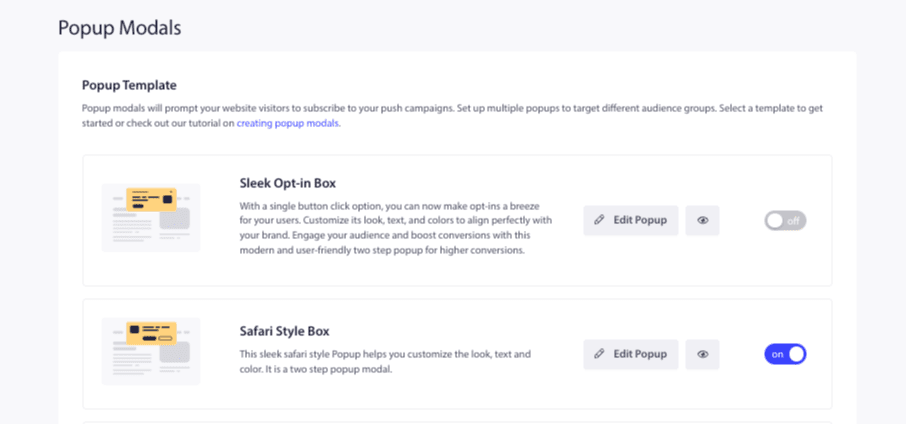
3. オプトインエディタ内で、クイックインストールトグルが有効になっていることを確認します。
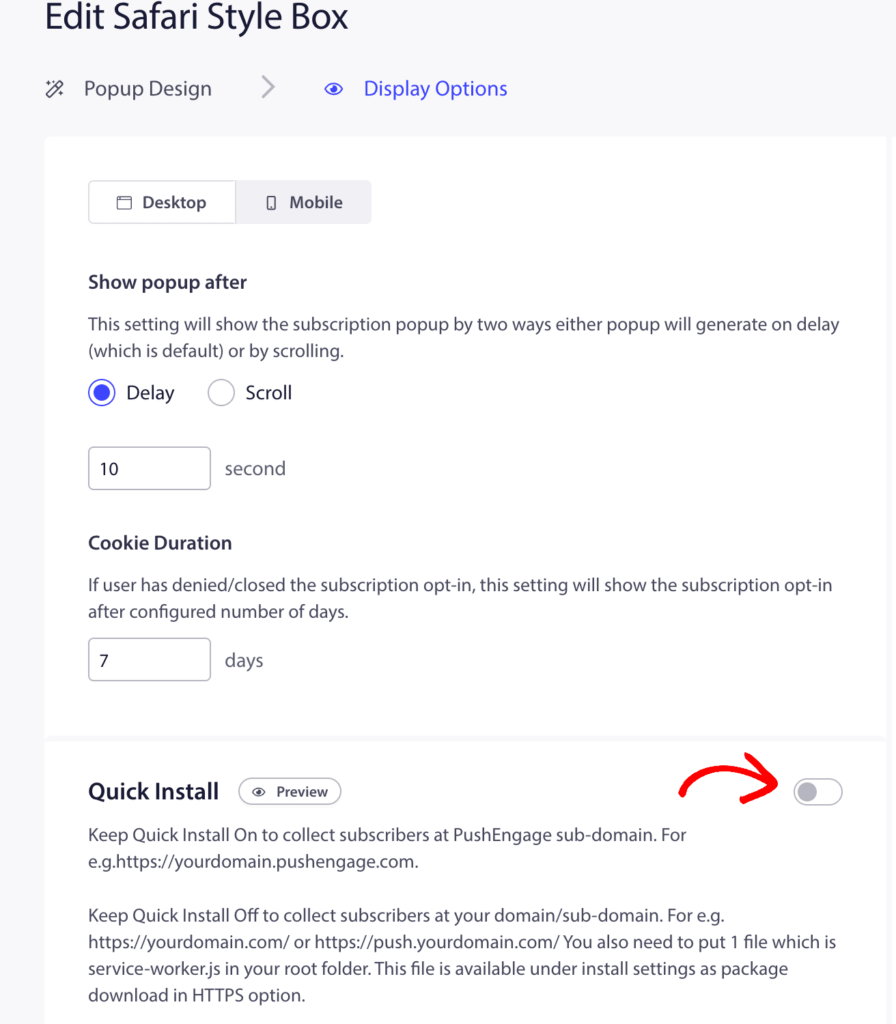
4. 変更を保存します。
注意:サイトで使用されるオプトインスタイルでは、常にクイックインストールを有効にする必要があります。無効にすると、カスタムサブドメインは使用されず、サブスクリプションプロセスは失敗します。
これで完了です!これらのすべてのステップを完了すると、ウェブサイトはカスタムサブドメインを使用してプッシュ通知購読者を受け取る準備が整います。メインサイトの訪問者が購読をクリックすると、サブドメインページを通じてシームレスに購読されます。
問題が発生した場合は、こちらをクリックして お気軽にお問い合わせください 。サポートチームがお手伝いします。