通知:この項目にはレガシー ドキュメントがありません。そのため、現在のドキュメントが表示されています。
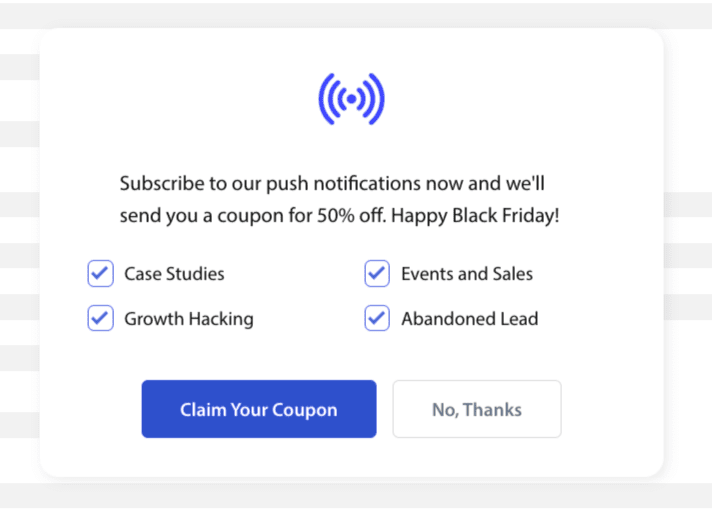
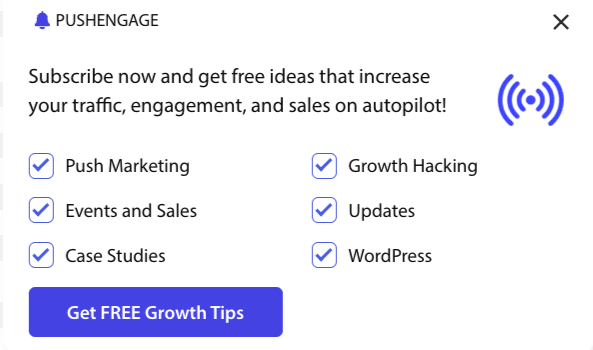
サブスクリプションのオプトインまたはポップアップモーダルで、セグメントチェックボックスをカスタマイズして含めることができるようになりました。これにより、ウェブサイト訪問者は、すべてのキャンペーンまたは選択したセグメントのみの通知を受け取るかどうかを決定する機会を得ることができます。
購読オプトインのさまざまなスタイル
訪問者をウェブプッシュ購読者や顧客に変えることができる、サブスクリプションポップアップのさまざまなスタイルがあります。
洗練されたオプトインボックス:このスタイルは洗練されたデザインで、2つではなく1つのボタンのみです。
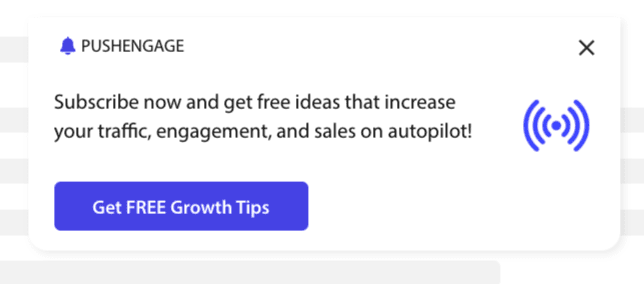
Safariスタイルボックス:これは、許可または拒否をクリックするための2つのボタンを備えたクラシックなダブルステップオプトインであり、カスタマイズ可能です。
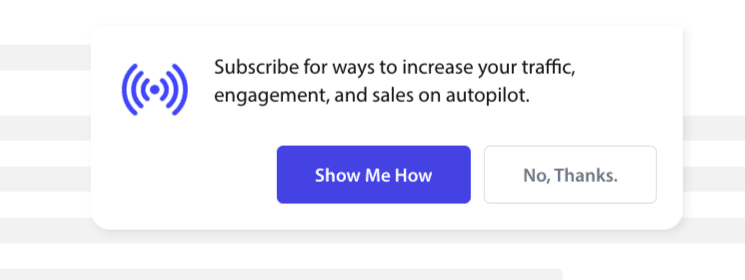
ベル配置バー:この小さなベルは、購読またはブロックするように促します。下隅の小さなベルアイコンはカスタマイズ可能ですが、画面スペースをあまり取らないため、人々はプッシュ通知を購読できます。

フローティングバー:このポップアップスタイルは画面全体に広がり、下部に配置されます。デザインポップアップに長いテキストを追加できます。

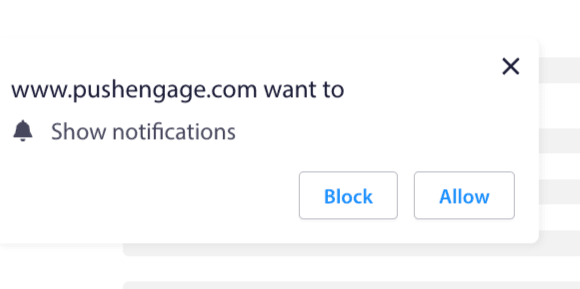
プッシュシングルステップオプトイン:カスタマイズやパーソナライズされたメッセージの追加ができない、シングルステップの許可ボックス。
大きなSafariスタイルボックス:画面の中央に表示され、セグメントを追加できるボックス。
注:シングルステップオプトインを除くすべてのサブスクリプションポップアップスタイルは編集またはカスタマイズできます。プッシュシングルステップオプトインはブラウザのデフォルトスタイルであり、編集またはカスタマイズすることはできません。
サブスクリプションオプトインへのセグメントの追加
オプトインしたいスタイルを選択し、「編集」をクリックします。「ポップアップデザイン」の下で、「すべてのセグメントを有効にする」必要があります。
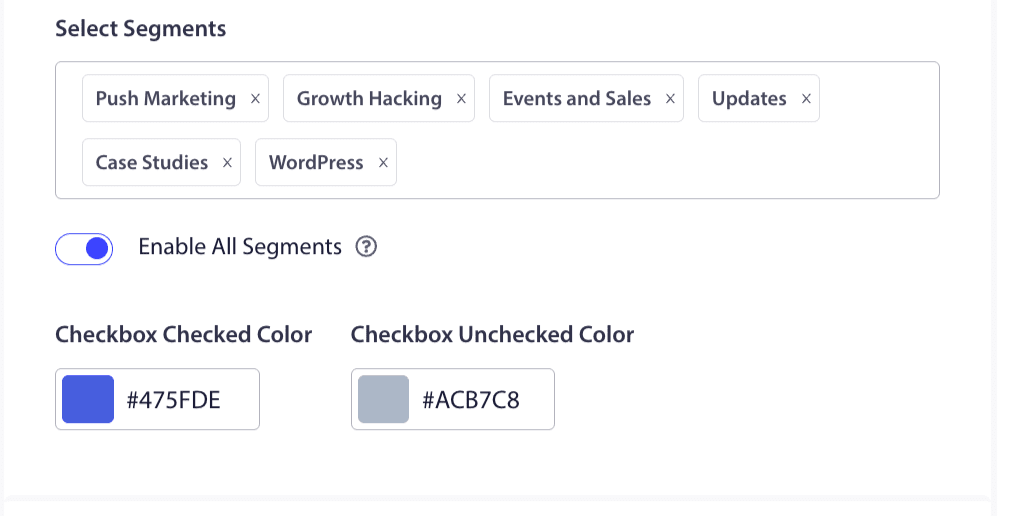
ドロップダウンからセグメントを選択し、プレビューが希望どおりの外観になっているか確認できます。チェックボックスの色をカスタマイズして、ブランドカラーに合わせることもできます。プレビューは次のようになります –
機能強化のためのオプションの理解
オプトインサブスクリプションを有効にする ルール
このポップアップモーダルは、グローバルターゲティングルールが許可するすべてのページに表示されます。ただし、必要に応じて特定のウェブページにこれらのポップアップを追加することもできます。
購読オーバーレイを有効にする
オーバーレイは、許可をクリックするように人々を強調表示するオプションであり、ユーザーに許可ボタンをクリックしてプッシュ通知を受信するように促します。
リマインダープロンプトを有効にする:
ChromeやEdgeなどのブラウザは、訪問者がブロックを頻繁にクリックした場合のウェブ訪問者の過去の行動に基づいています。アドレスバーにベルアイコンが表示される、より静かなUIを有効にします。これは、通知を通常拒否する人々のためのサブスクリプションポップアップの最適化されたバージョンです。このリマインダーはデスクトップでのみ表示できます。これは、人々が引き続きウェブプッシュキャンペーンを購読するように教育するためです。
購読ポップアップ:
これは、コードがインストールされているページにオプトインを表示するかどうかを無効または有効にするトグルボタンです。このトグルをオフにすると、購読者の収集が停止します。
表示オプションの理解
この画面は、購読ポップアップの表示方法を最適化するのに役立ちます。
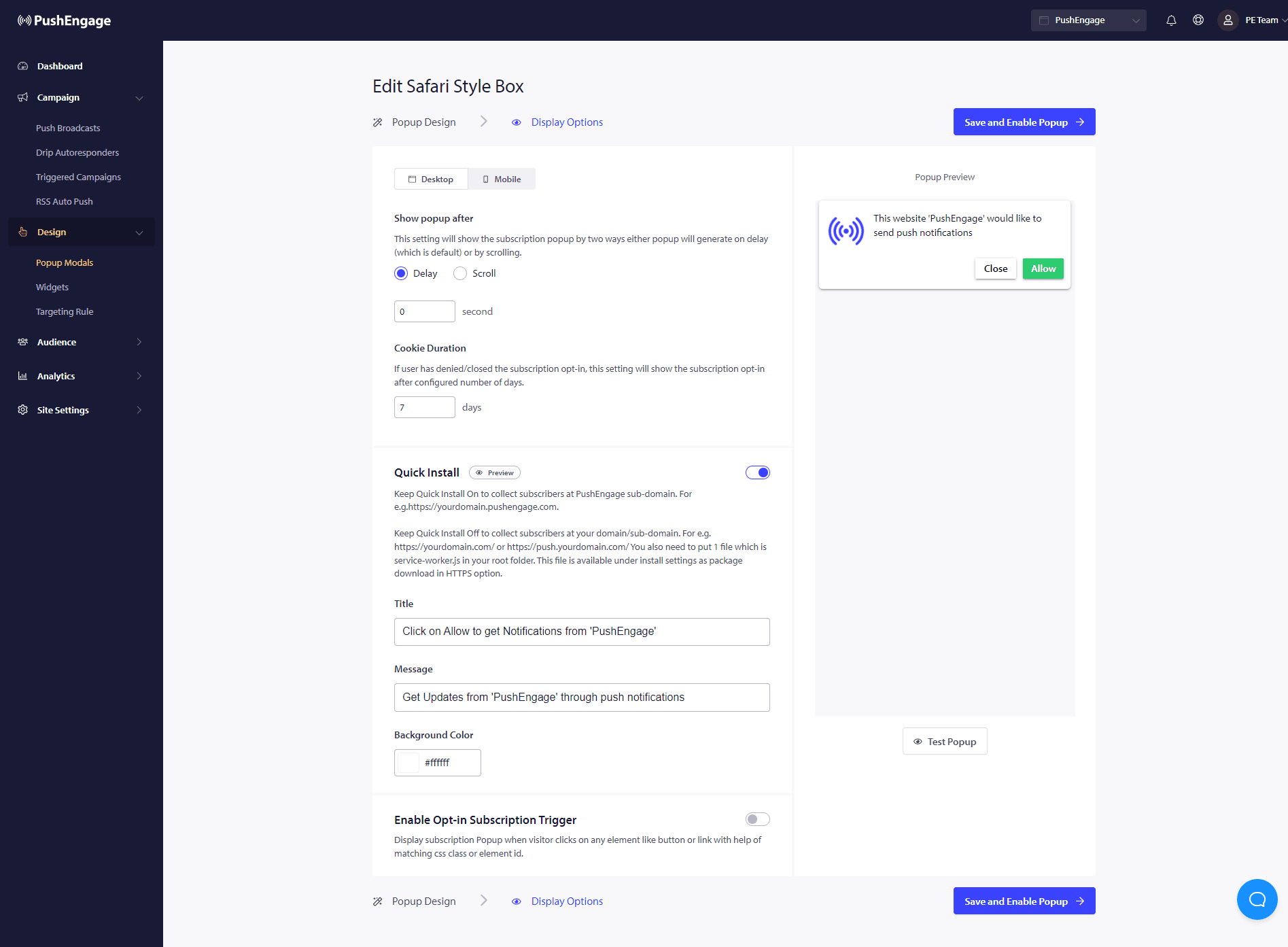
クイックインストール :
このオプションは常にオフにしておくことをお勧めします。これにより、購読者はあなたのドメインで収集されます。このオプションは、サービスワーカーをウェブサイトに追加できず、ドメインで購読を収集できない人のためのものです。
オプトイン購読トリガーを有効にする:
ページ読み込み以外にも、ポップアップは、一致するCSSクラスまたは要素IDを持つボタンやリンクのいずれかをクリックしたときなど、他のあらゆるイベントでトリガーできます。コードベースを変更せずにポップアップをトリガーできます。
オプトインを表示:
ここで、遅延後にオプトインを表示するか、ページの特定割合をスクロールした後に表示するかを設定するルールを設定できます。
- 遅延 – サブスクリプションポップアップはどのくらい後に表示されるべきですか?ベストプラクティスは、5秒未満または最大10秒にすることをお勧めします。
- スクロール – 訪問者が画面のXパーセントをスクロールした場合にサブスクリプションポップアップをトリガーできるかどうかを決定できます。
- Cookieの有効期間 – 人がキャンセルしてサブスクリプションポップアップを許可しない/ブロックすることにした場合、リセットCookieの有効期間を定義できます。その日数が経過すると、訪問者は再度ポップアップを見ることができます。
これで完了です。サブスクリプションポップアップをニーズに合わせてカスタマイズしたら、変更を保存できます。
これで、ウェブサイトの訪問者がウェブプッシュサブスクライバーにコンバージョンするのを見る準備が整いました。
問題が発生した場合は、こちらをクリックして お気軽にお問い合わせください 。サポートチームがお手伝いします。


