PushEngageを使用すると、ウェブサイトの訪問者をウェブプッシュサブスクライバーに変換できます。サブスクライバーとは、ウェブサイトに設定したサブスクリプションポップアップで「許可」をクリックした人のことです。ウェブプッシュキャンペーンでは、メールアドレスや電話番号などの個人情報は取得しません。ただし、訪問者がウェブサイトにアクセスしていない場合でも、サブスクライバーにリーチできます。
PushEngageをサイトにインストールする
サイトの詳細を追加
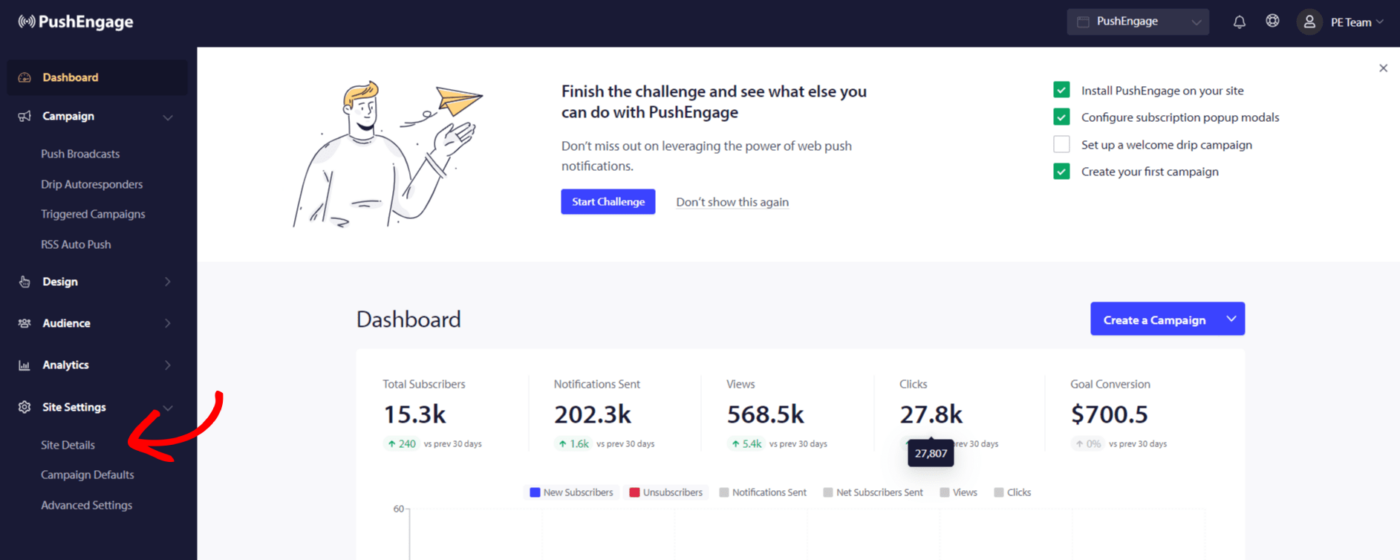
1. PushEngageのインストールを完了するには、サイト設定 » サイト詳細に移動します。
2. サイト情報(サイト名、ブランドロゴ)を入力し、サイトURLが正しいことを確認する必要があります。
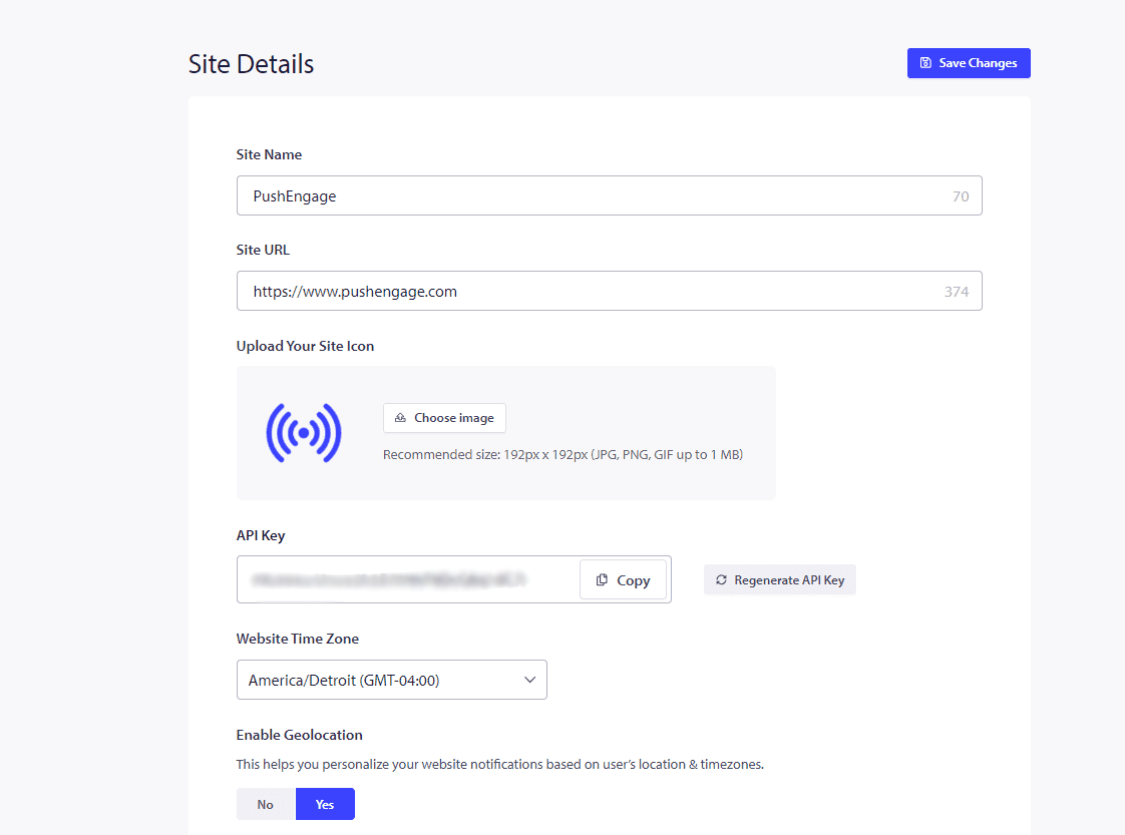
3. 有料プランをご利用の場合は、PushEngageブランディングを削除してください。このチェックボックスをオンにして変更を保存できます。
完了したら、セットアップ手順はこちらをクリックしてください。
4. 表示されているオプションからサイトタイプを選択し、共有された手順に従ってインストールを完了します。
サイトがホストされているプラットフォームが記載されていない場合は、インストールコードをコピーしてウェブサイトのHTMLに追加してください。ルートディレクトリにアクセスできる場合は、service-worker.jsファイルをダウンロードして、公開からアクセス可能なルートディレクトリに追加してください。
ルートディレクトリにアクセスできない場合は、service-worker.jsファイルを追加する手順をスキップできます。コードを追加して、ダブルステップオプトインを使用して購読者を収集するだけです。
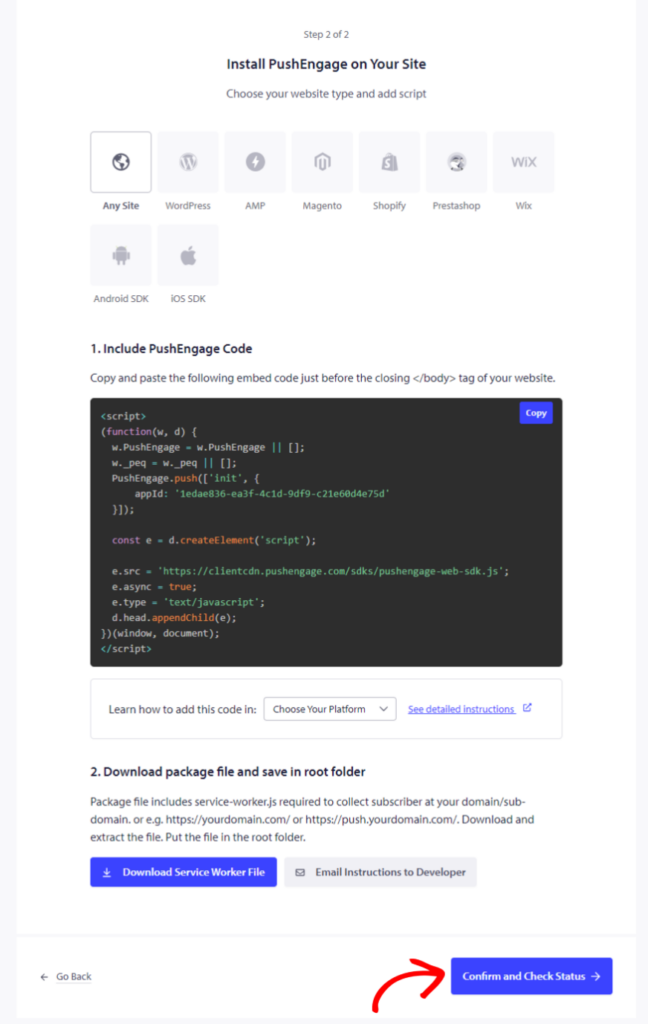
これが完了したら、確認してステータスをチェックをクリックして設定を保存してください。
サブスクリプションオプトインの選択
コードの追加が完了しました。サブスクリプションオプトインを設定できます。
デザイン » ポップアップモーダルに移動します。
トグルボタンをオンにすることで、サブスクリプションダイアログボックスのいずれかのスタイルを選択できます。
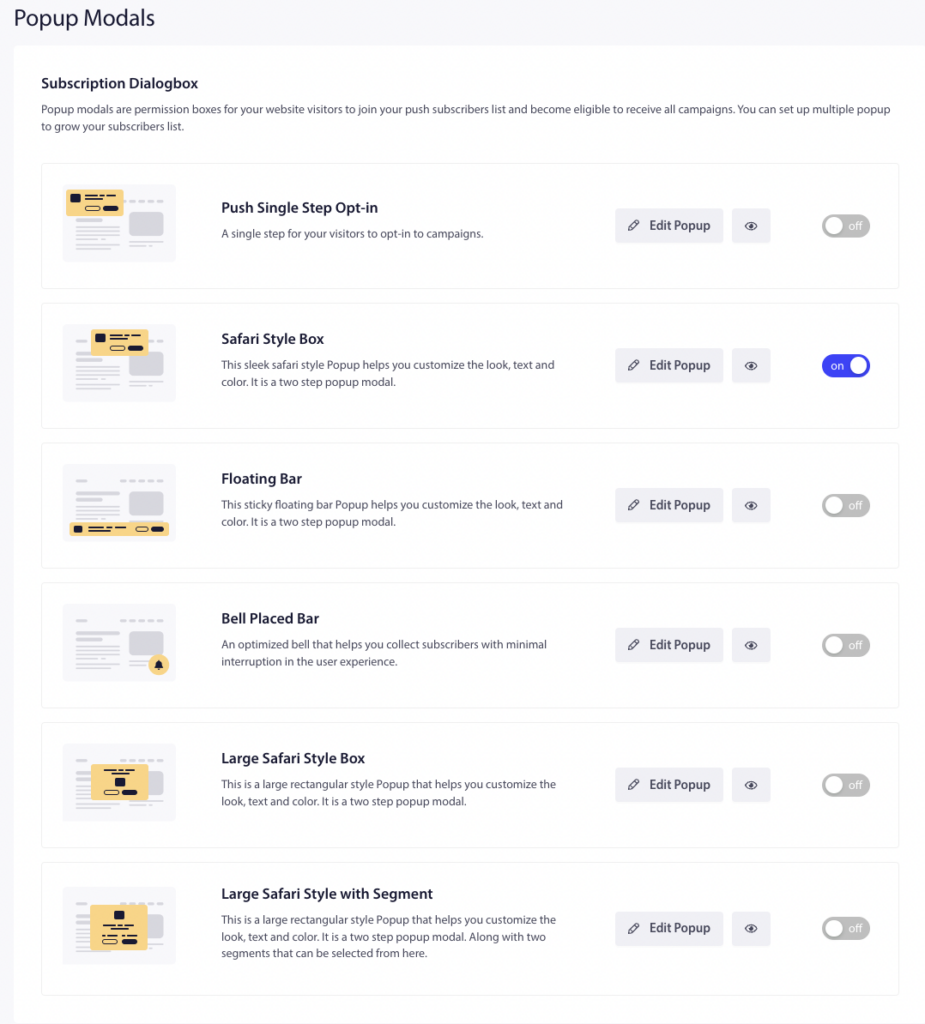
次に、オプトインスタイルをデザインして、ビジネス要件に合わせることができます。Pushシングルステップオプトインは1回のサブスクリプションです。その他はダブルステップオプトインで、訪問者はカスタマイズできますが、サブスクライバーになるには2つのステップが必要です。
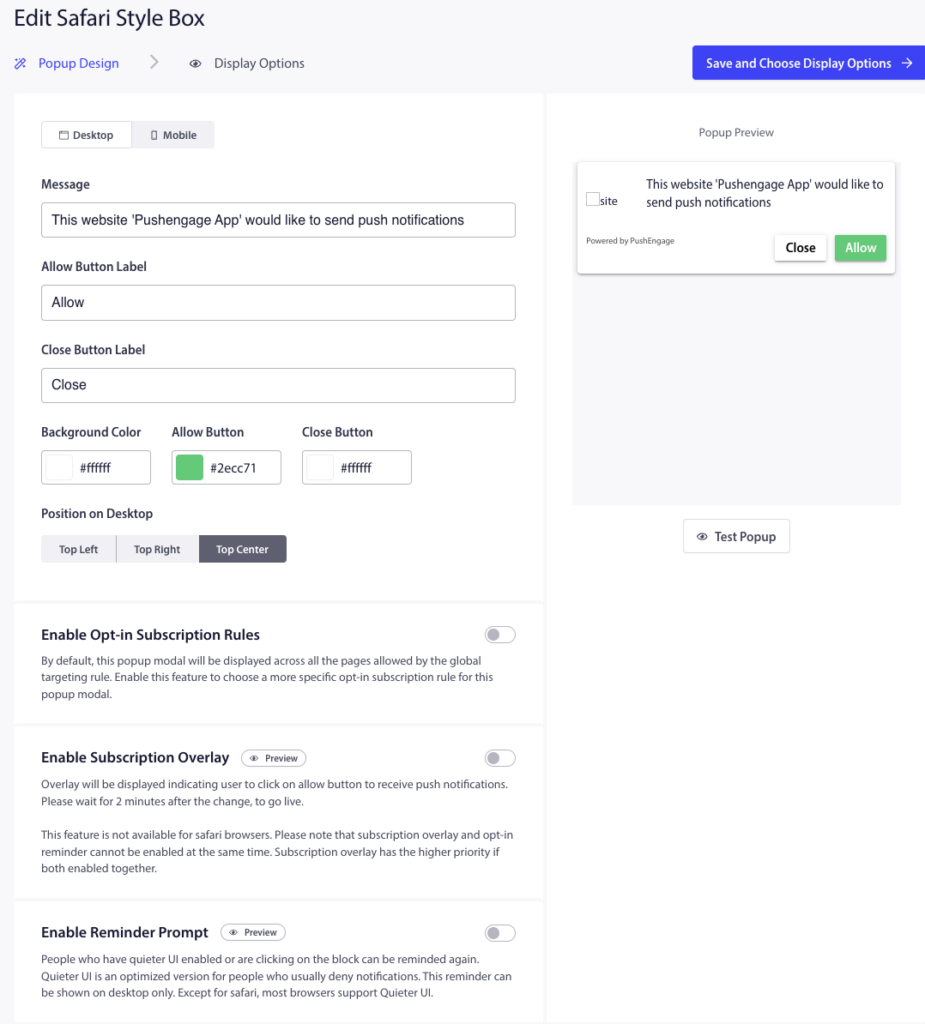
編集が完了したら、保存して表示オプションを選択 » ポップアップを保存して有効化 をクリックしてください。
ウェルカムドリップキャンペーンを設定する
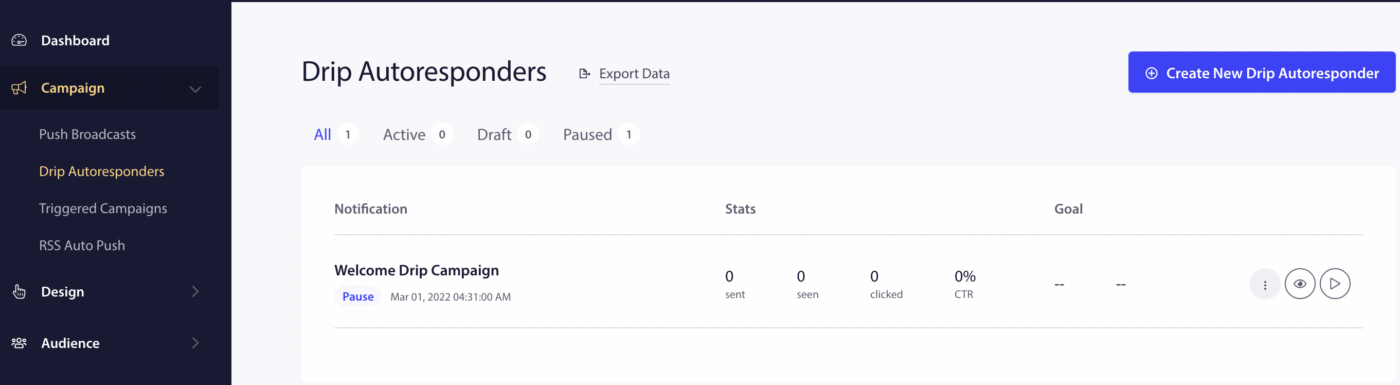
ウェルカムキャンペーンを作成するには、キャンペーン » ドリップ自動応答 に移動します。ウェルカムドリップのテンプレートが表示され、再生ボタンをクリックすることでアクティブにできます。
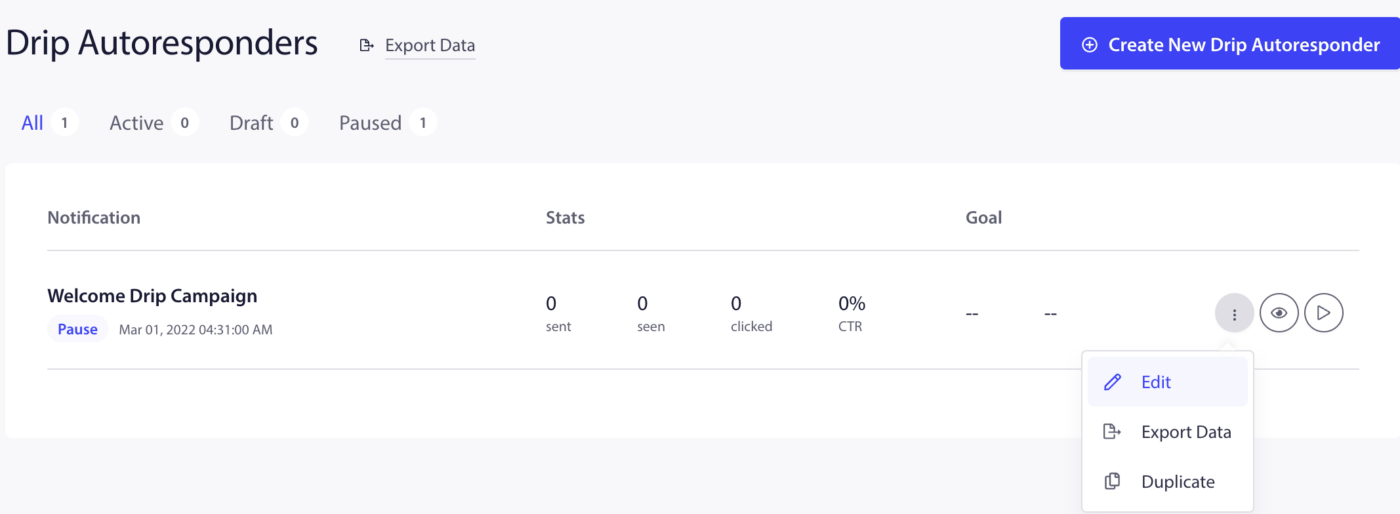
さらにオプションをクリックしてから編集を選択して、同じキャンペーンを編集することもできます。
ウェルカム通知を購読者にすぐに送信するか、サブスクリプション完了後x時間/分後に送信するかを選択できます。1つの通知を送信する代わりに、2〜3件の通知シリーズを作成することもできます。
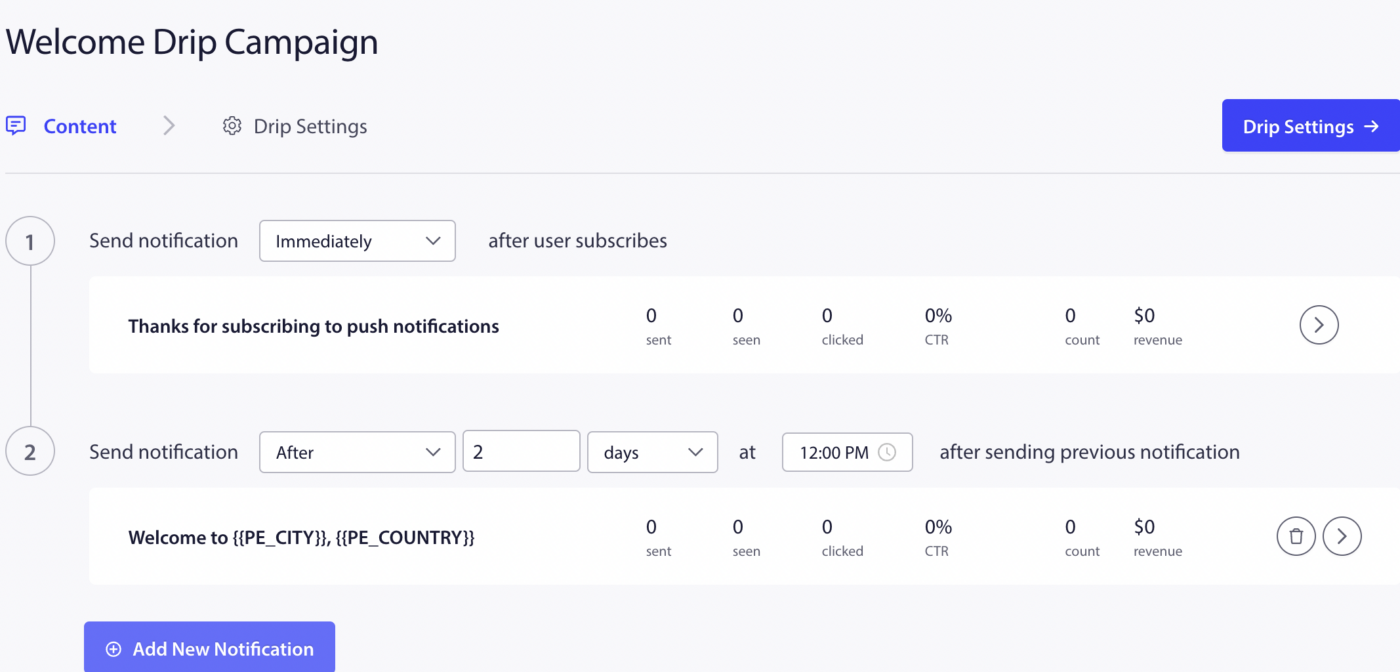
完了したら、自動応答をアクティブ化 をクリックしてください。
最初のキャンペーンを作成する
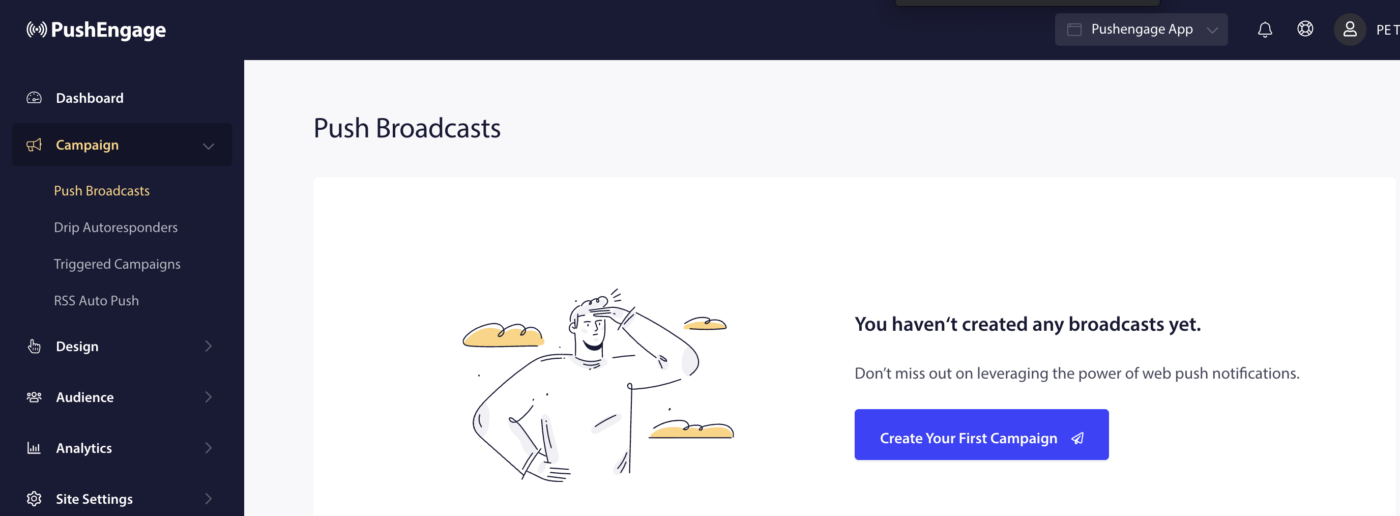
最初のプッシュブロードキャストを作成するには、キャンペーン » プッシュブロードキャスト » 最初のキャンペーンを作成 に移動します。
新しいプッシュブロードキャストの下に通知タイトル、メッセージ、URL、画像を入力します。キャンペーン作成中は、文字数制限と画像サイズに注意してください。
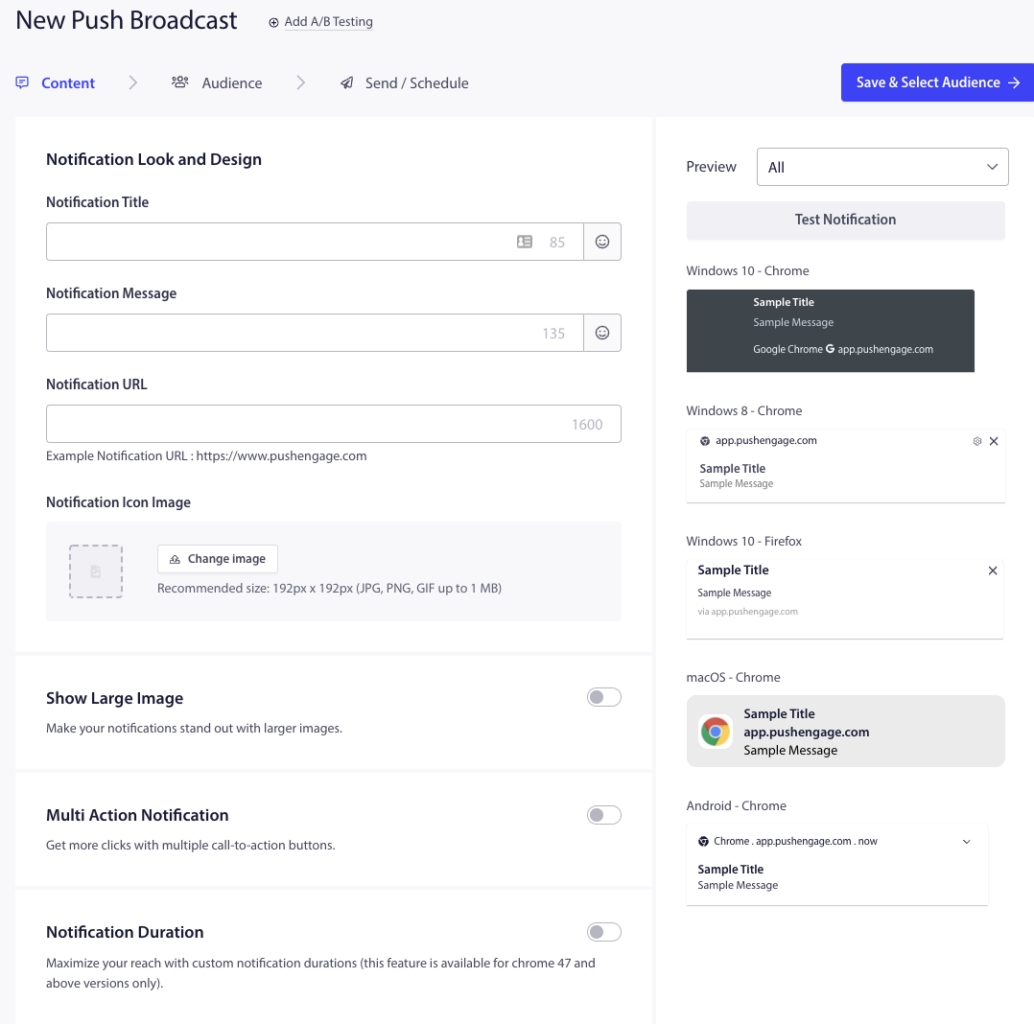
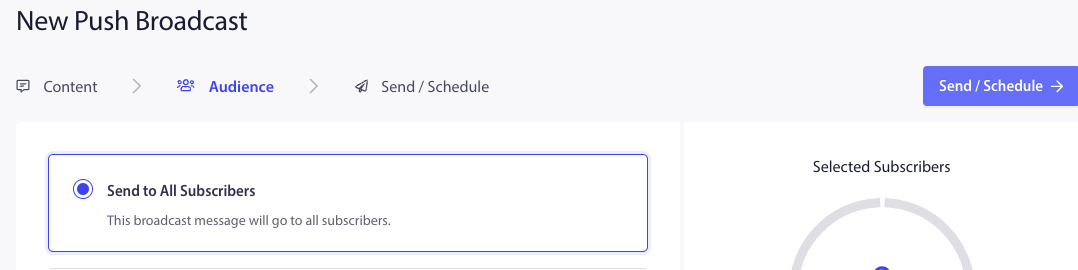
次に、次のタブで保存してオーディエンスを選択 を選択し、すべての購読者に送信 » 送信 を選択します。
これでチャレンジの終了に達し、PushEngageを使用する準備が整いました。
万が一問題が発生した場合は、ここをクリックしてお問い合わせください。サポートチームがお手伝いします。