ようこそ!WordPressでウェブサイトのプッシュブロードキャストを送信して、購読者とエンゲージする準備が整いました。
この記事では、購読者にブロードキャストメッセージを作成して送信する手順をステップバイステップで説明します。
注意:収集した購読者へのブロードキャストには無料キャンペーンをご利用いただけます。まだ行っていない場合は、[email protected]までご連絡ください。無料で作成いたします!
WordPressダッシュボードにログインし、「インストール済みプラグイン」リストに移動して、「PushEngageプラグイン」をクリックしてください。
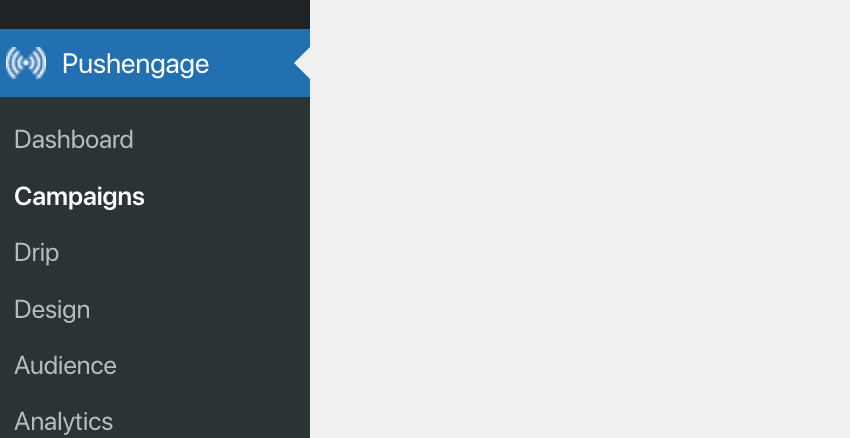
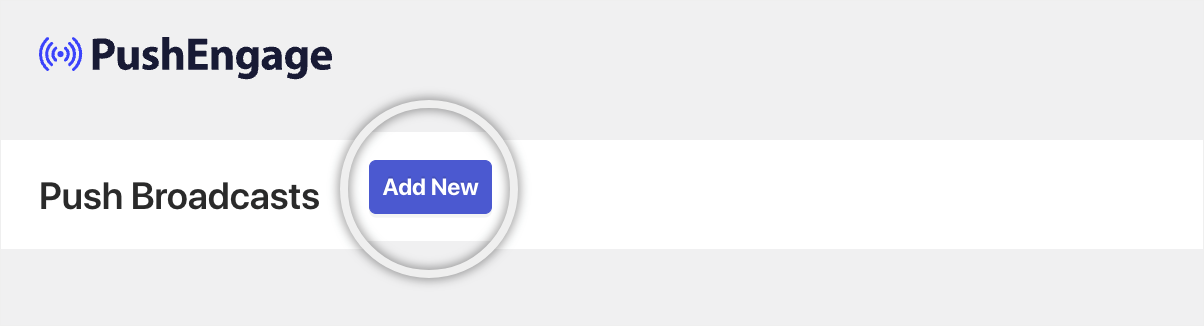
次に、上部にある「キャンペーン」»「新規追加」ボタンに移動できます。
開始する前に
キャンペーンの作成を開始するには、ウェブサイトへのインストールが完了していることを確認してください。キャンペーンは、購読者を集めるまで誰にも届きません。まだ完了していない場合は、こちらのリンクを参照してインストールを完了してください。その後、キャンペーン作成に戻ることができます。
これまでに収集した購読者へのキャンペーン送信を開始できます。すべての購読者に送信されたメッセージ、またはセグメント化された購読者セットにブロードキャストできます。
セグメンテーションは、ビジネスプラン以上で利用可能です。
プッシュキャンペーンを手動で作成したくない場合は、WordPress自動プッシュ機能を使用して、キャンペーン公開時にキャンペーンを送信することもできます。
基本的なプッシュキャンペーンの作成
「キャンペーン」» 上部にある「新規追加」ボタンをクリックに移動する必要があります。
これで、プッシュキャンペーンのコンテンツを追加できます。
ブログ/投稿のコンテンツに合わせて、通知タイトルとメッセージを追加することから始めることができます。
後で、購読者がキャンペーンを受信してクリックしたときにアクセスする投稿リンクの通知URLを追加できます。これにより、ウェブサイトへのトラフィックが繰り返されます。
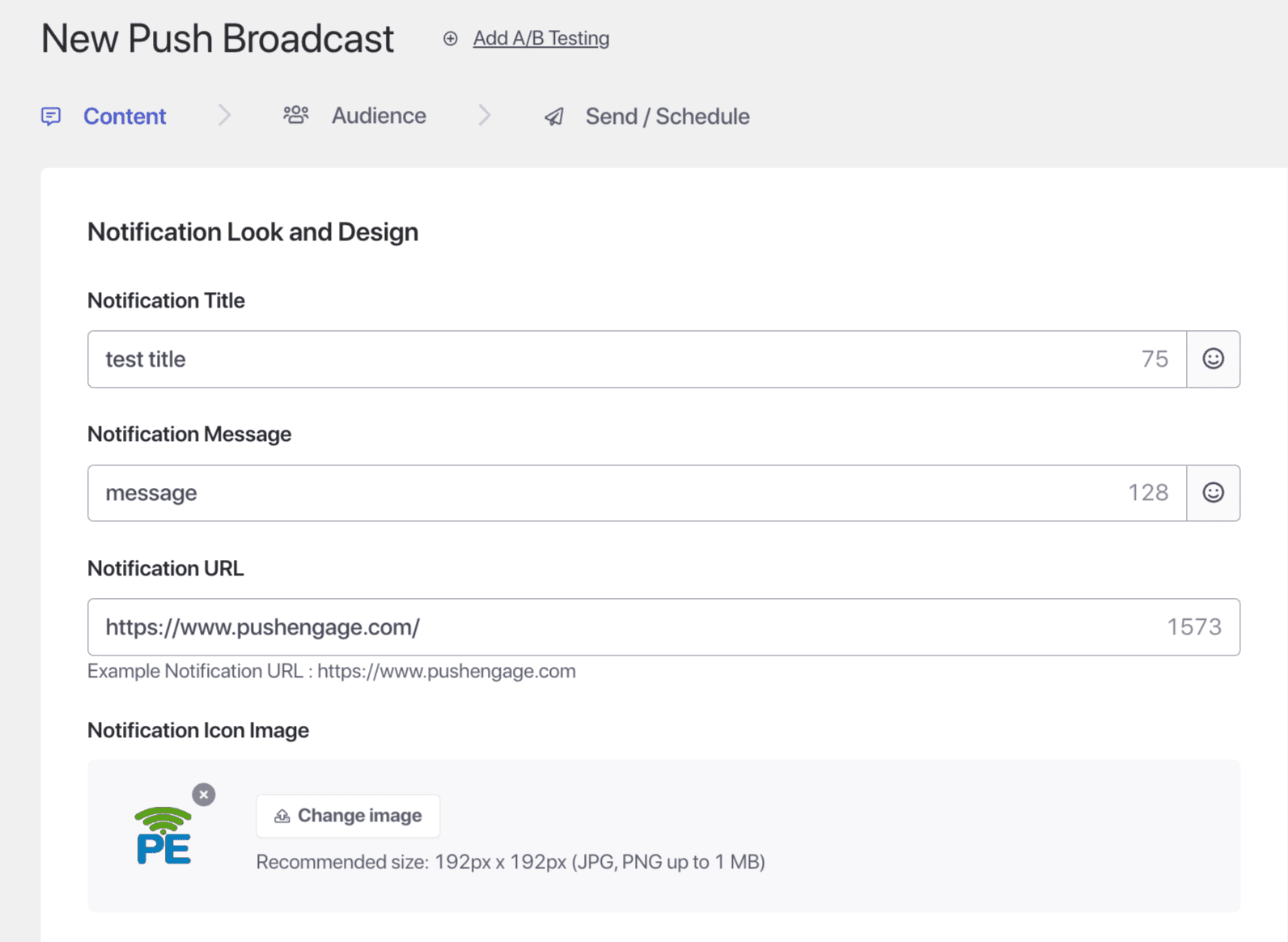
キャンペーン作成中に注意すべき点がいくつかあります –
- 絵文字😊を含む最大135文字のブロードキャストメッセージを作成できます。
- 最大85文字のタイトルを追加してください。
- サイズ240px X 180pxのラージイメージで、最大1MBの豊富な画像
- サイズ192px x 192pxの通知画像またはブランドロゴを通知画像として
プッシュキャンペーンのスタイリングオプション
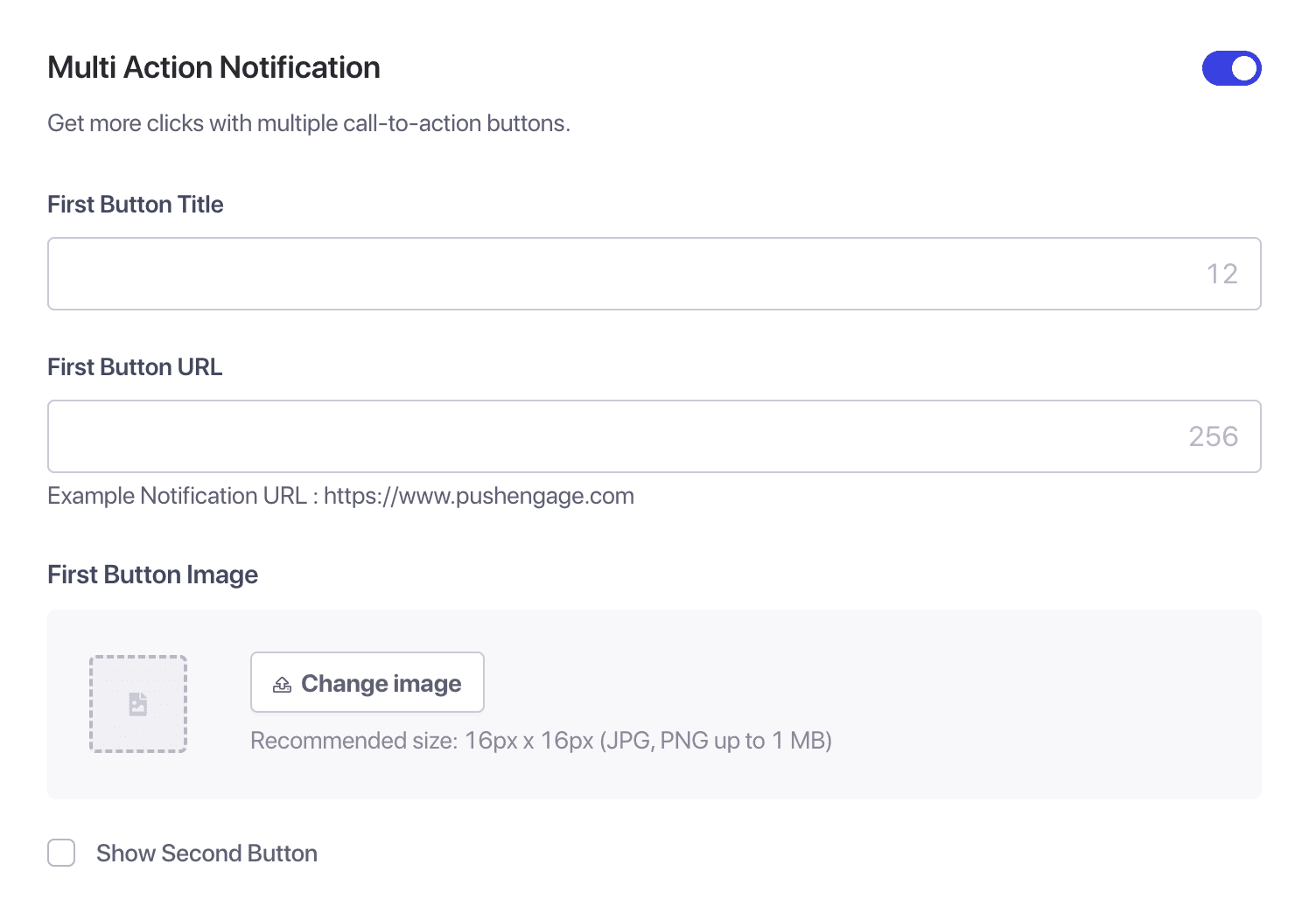
マルチアクションボタン:ボタンを有効にすることで、マルチアクション通知を作成できます。これらのボタンは、キャンペーンの追加のコールトゥアクションです。追加のコールトゥアクションは、キャンペーンのエンゲージメントを高めるのに役立つため、常に推奨しています。
キャンペーンに最大2つのボタンを追加でき、両方のボタンに異なるランディングURLを設定できます。
例としては、PIN ITボタンでPinterestページにリダイレクトしたり、他のソーシャルメディアチャネルや関連ブログ投稿にリダイレクトしたりすることが挙げられます。
ラージイメージ:通知送信中にラージイメージを追加すると、視聴者の注意を引き、クリック率を向上させることができます。ここでは、デスクトップの場合は最大360×180px、モバイルデバイスの場合は360X80pxのサイズの画像のみをアップロードできます。
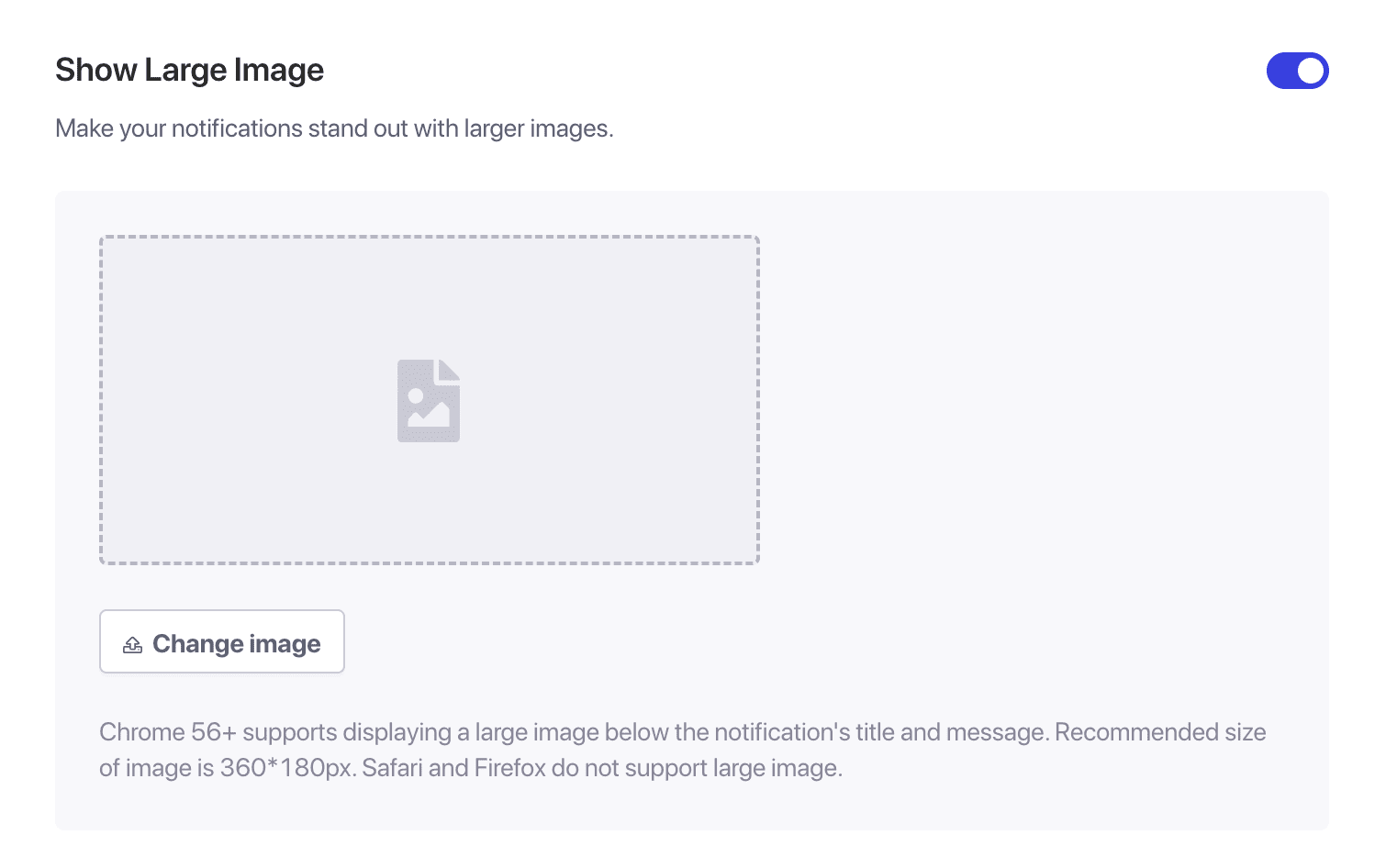
マルチアクションボタンまたは大きな画像は、選択されたオペレーティングシステムとブラウザの組み合わせでのみ表示できます。デスクトップのプレビューで確認でき、Windows 10とChromeで表示されます。モバイルでは、AndroidとChromeでのみ表示されます。
キャンペーンの動作管理とトラッキング
通知期間:購読者に通知が殺到するのを避けるために、送信前にすべての通知の期間を設定する必要があります。これにより、購読者に大量の通知が送られ、購読解除が増加する可能性があります。1日に1件のキャンペーンを送信する場合、24時間で期限切れにする方がパフォーマンスが向上するため、短い有効期限を設定することをお勧めします。
通知の有効期限は最大28日間(デフォルトの有効期限時間でもあります)に設定できますが、変更することを強くお勧めします。
Google AnalyticsのUTMパラメータトラッキング:UTMパラメータを追加すると、Google Analyticsでデータを分析できます。通知を送信する際にUTMパラメータを設定すると、GAに表示されるデータをキャプチャするのに役立ちます。必須フィールド(UTM Source、UTM Medium、UTM Campaign)を指定できます。
キャンペーンのオーディエンスを選択する
これにより、Businessプラン以上で利用可能なオーディエンスを選択できます。オーディエンスを選択すると、ターゲットを絞った通知を送信でき、送信された通知の表示回数とクリック数が増加します。
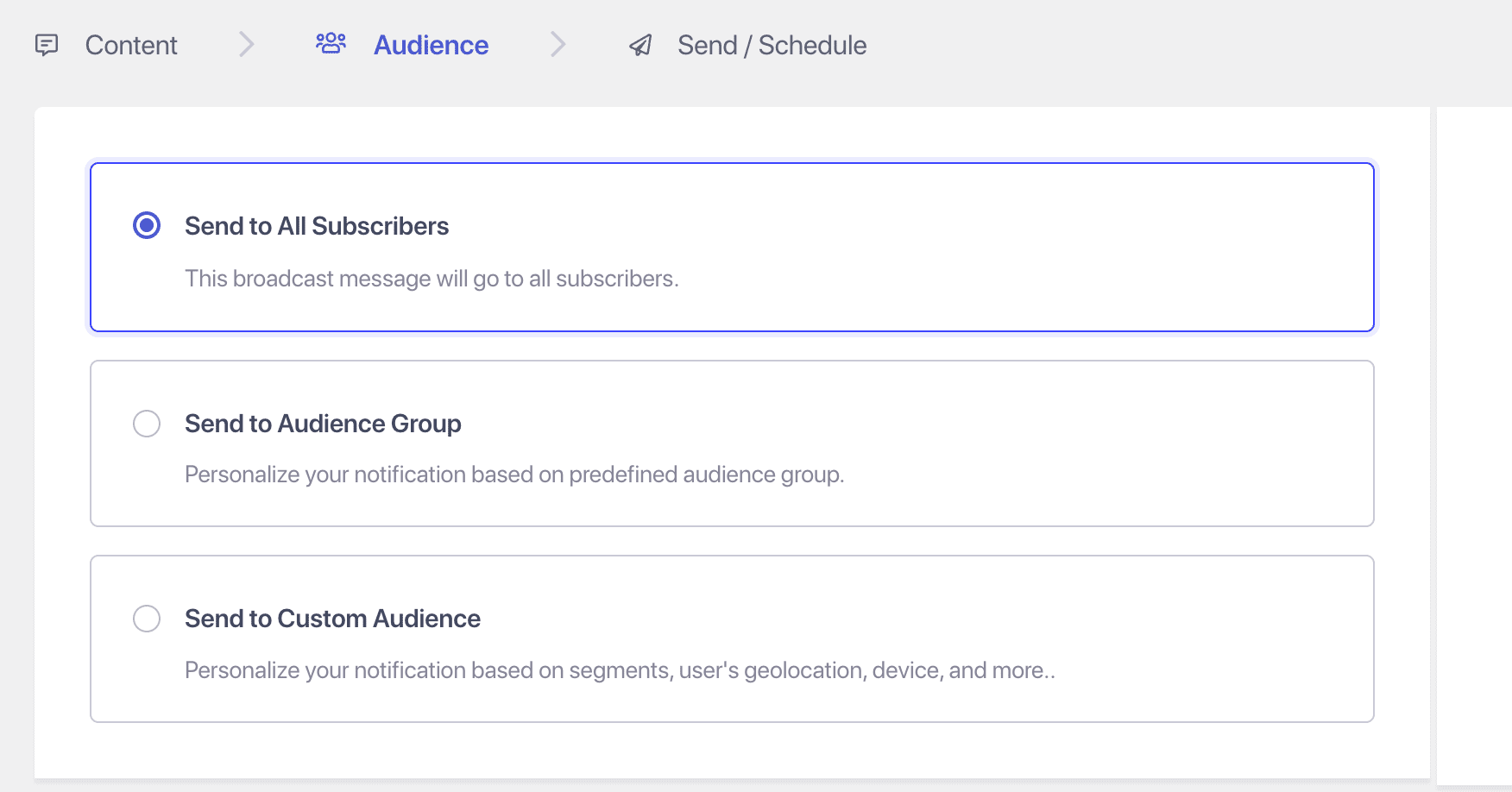
オーディエンスを選択する際には、3つのオプションがあります。
1. すべての購読者に送信 – すべての購読者に一斉送信します。
2. オーディエンスグループに送信。オーディエンスグループを作成してから、プッシュキャンペーンを送信できます。
3. カスタムオーディエンスに送信。ここでは、さまざまなセグメントをグループ化して、すべてではなくターゲットオーディエンスにリーチできます。
スケジュールオプション
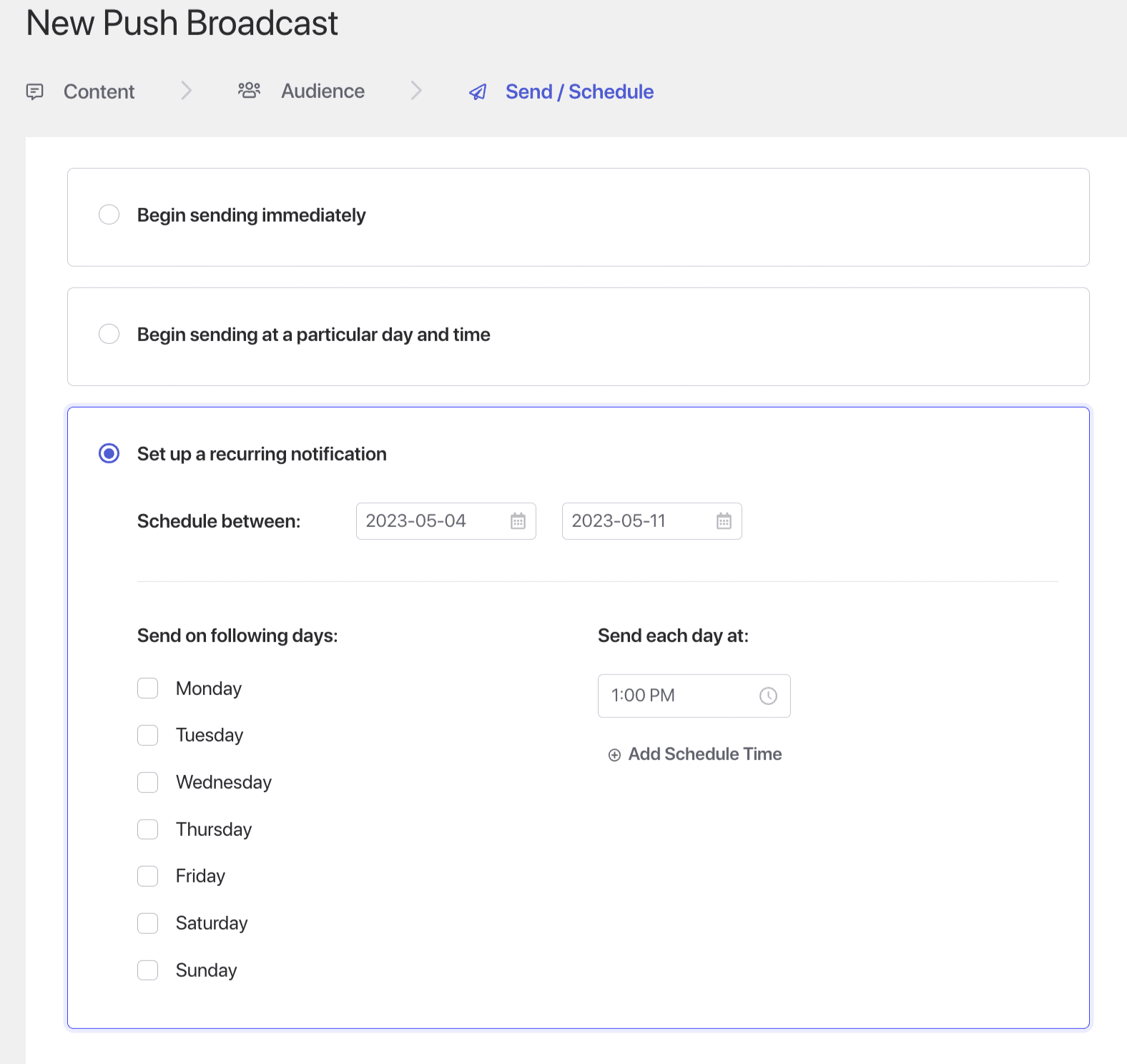
通知は、勤務時間外や休暇中でも後で送信するようにスケジュールできます。また、スケジュールは、週の曜日を設定し、送信タイミングを設定することで繰り返すことができます。以下に選択できるオプションを示します。
- すぐに送信
- 特定の日時送信
- スケジュールされたキャンペーンを繰り返す
テストキャンペーン
テスト送信すると、購読者に送信されたときにブロードキャストがどのように表示されるかがわかります。画面左側へ移動 » 下へスクロールし、通知のテスト送信をクリックします。PushEngageで通知を許可していることを確認してください。
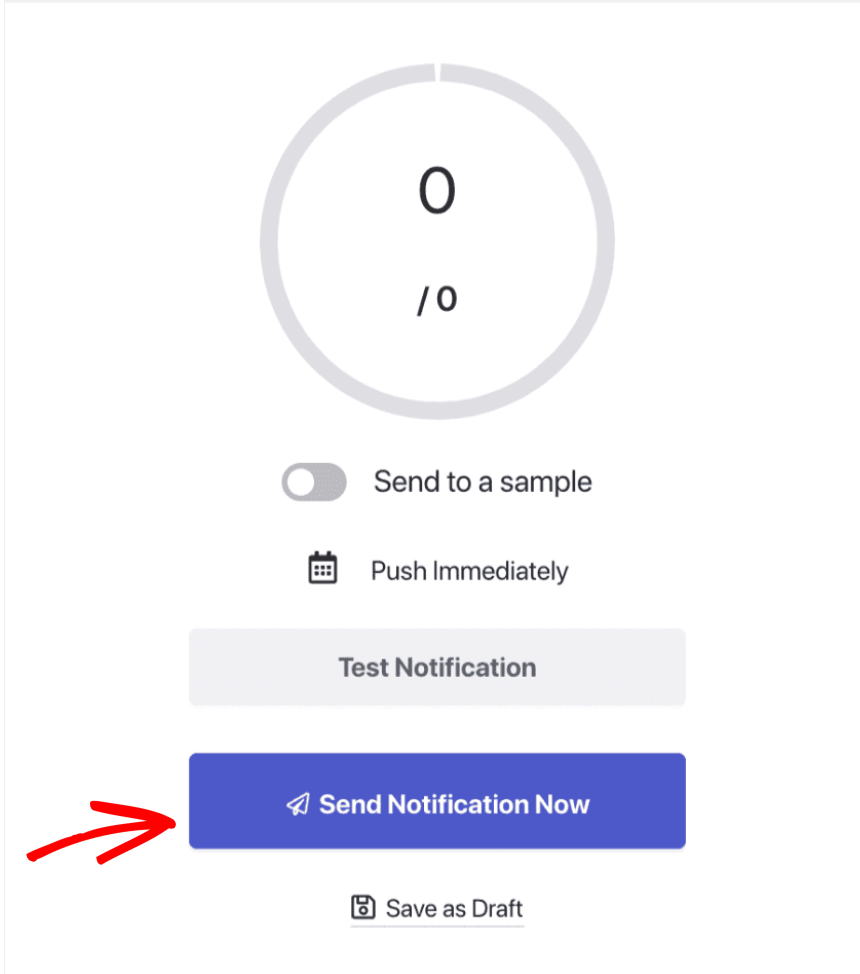
コンテンツやその他の詳細で問題がなければ、キャンペーンをスケジュールまたは送信できます。プッシュブロードキャストキャンペーンを正常に送信しました!
問題が発生した場合は、ここをクリックしてお気軽にお問い合わせください。サポートチームがお手伝いします。