Easy Digital Downloadsは、WordPressウェブサイト専用に設計された、多用途で使いやすいeコマージャンルです。カートとブラウズの放棄のような課題は、どのeコマースストアにもつきものです。PushEngageは革新的なソリューションを提供し、製品フィードと直接連携するキャンペーンを可能にし、WPCodeの助けを借りて潜在的な損失をコンバージョンに変えます。
お客様は、放棄後にプッシュ通知リマインダーを受け取ることができ、チェックアウトを完了するように促すことができます。
開始する前に
開始する前に知っておくべきこと:
- 当社のWooCommerce連携では、プッシュ通知の「成長」サブスクリプションが必要です。これにより、トリガーキャンペーン機能を使用して、カート放棄および閲覧放棄キャンペーンを作成できます。
- このガイドでは、WordPressウェブサイトにWooCommerceとWPCodeプラグインがすでにインストールされていることを前提としています。
PushEngageダッシュボードでトリガーキャンペーンを作成する
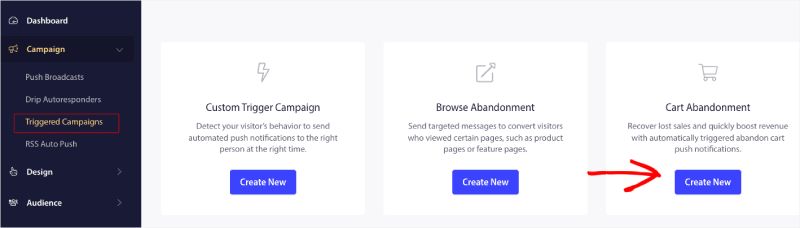
ダッシュボードにログインし、キャンペーン » トリガーキャンペーンに移動する必要があります。
カート/ブラウズ放棄キャンペーンを選択し、新規作成をクリックします。
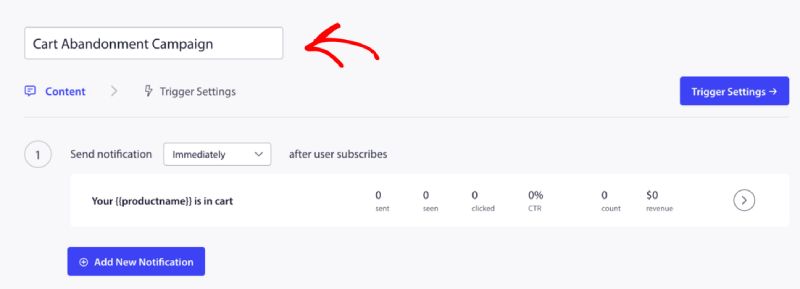
これでキャンペーン名を入力できます。
キャンペーンコンテンツの追加
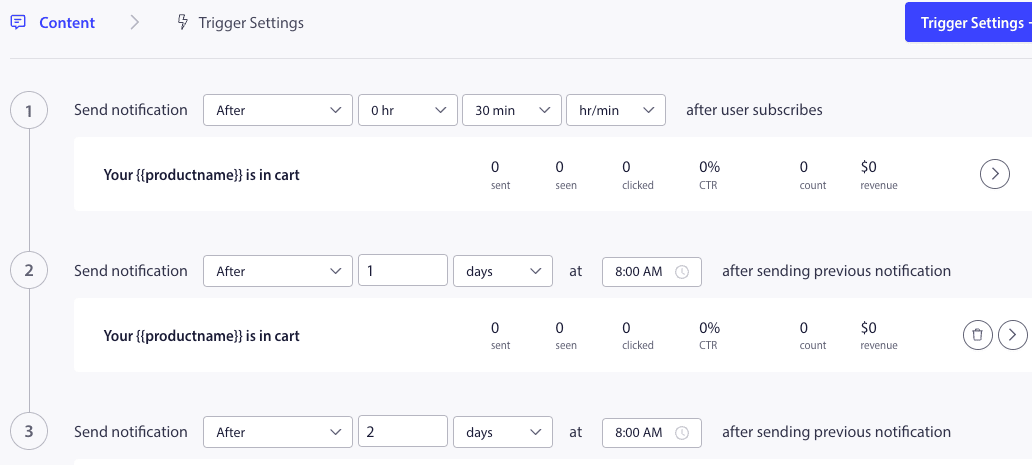
次のステップは、ジャーニースケジュールを設定することです。即時、n時間n分後、または特定の日後のいずれかのオプションを選択できます。
通常、即時のスケジュール設定はお勧めしません。シリーズの最初のキャンペーンには、少なくとも15分または30分の間隔を空ける必要があります。
シリーズを設定する場合、少なくとも3つのキャンペーンを設定できます。シリーズの各キャンペーンのタイトルとメッセージをカスタマイズできます。これらの変数をキャンペーンで使用する場合は、変数を変更しないようにしてください。
キャンペーンごとにコードに追加されるデフォルトの変数は、{{productname}}、{{price}}、{{notificationurl}}です。
トリガー設定の管理
通知コンテンツを追加したら、トリガー設定に移動できます。
ここではトリガーが事前定義されています。人が商品をカートに追加してチェックアウトを完了しなかった場合、キャンペーンが開始されます。チェックアウトを完了した場合、カート放棄通知は受信しません。ただし、これらは定義されたイベントにすぎず、ウェブサイトに配置されない限り実行されません。
ここでのトリガーは、開始キャンペーン条件が「カートに追加」、停止キャンペーン条件が「チェックアウト」です。
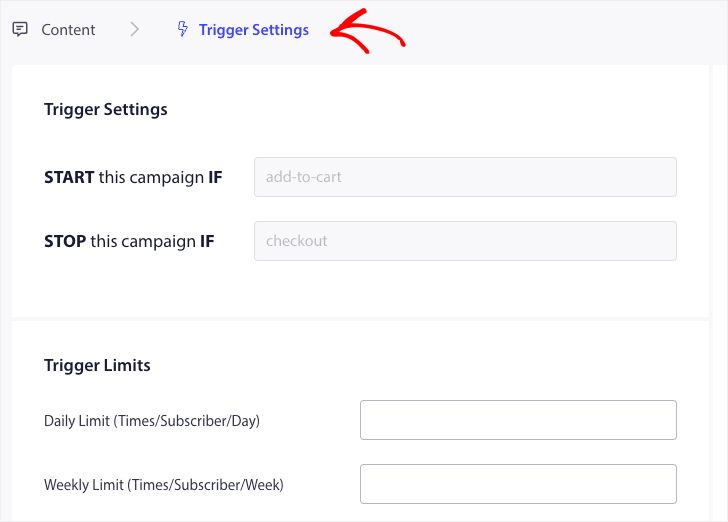
次のステップは、日次および週次のトリガー制限を追加することです。これにより、加入者が毎日および毎週受け取ることができる通知の総数が定義されます。たとえば、1日の通知が2件の場合、週次では14件になります。これにより、2つ以上の商品が放棄された場合でも、頻度が上限設定されます。
WPCode でスニペットを編集してアクティブ化する
開始するには、WordPress ダッシュボードの **Code Snippets** タブにアクセスしてください。
ここでは、キャンペーンに基づいて2つのスニペットを編集する必要があります。
- カート放棄キャンペーンの場合 – EDDのカート追加イベントで、EDDのチェックアウトイベント後。
- ブラウズ放棄キャンペーンの場合 – EDD製品の閲覧中、EDDのカート追加イベントで。
キャンペーンに基づいて選択し、スニペットがエディタで開いたら、スニペットを使用をクリックします。
キャンペーン名の追加
両方のイベントに正しいキャンペーン名が追加されていることを確認してください。場所を変更する必要はありません。スニペットはサイト全体に追加されるようにしてください。
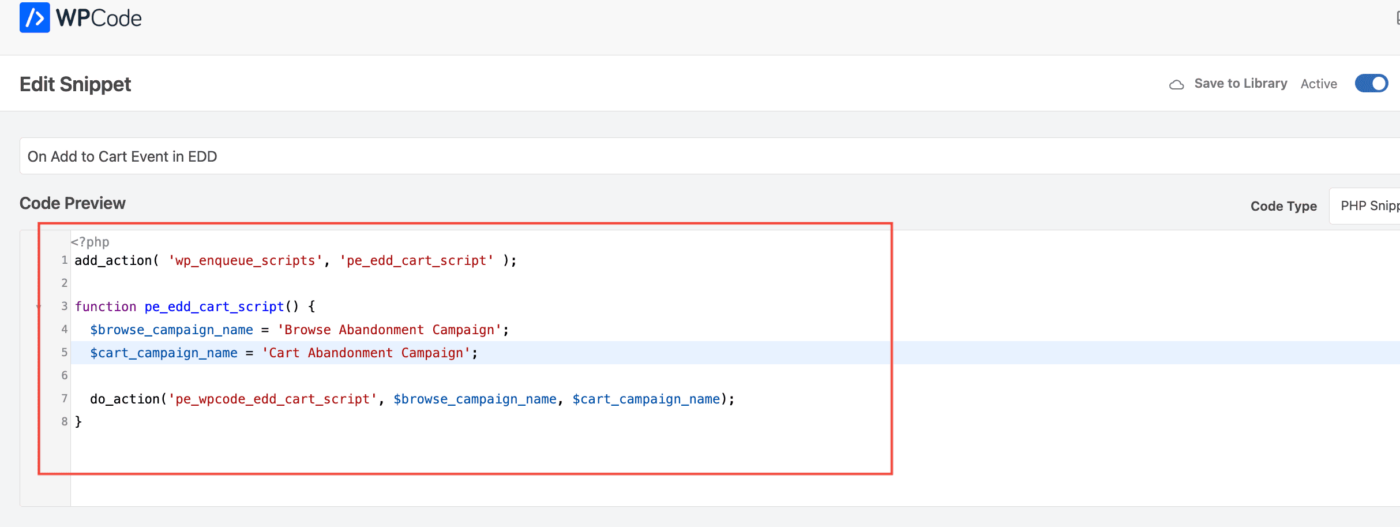
スニペットが最終決定されたら、アクティブ化できます。アクティブ化しないと、スニペットは機能しません。
トリガーキャンペーンのトラブルシューティング
- キャンペーン名は、コードとPushEngageダッシュボードで同じである必要があります。
- PushEngageのインストールコードは、カート放棄キャンペーンコードが存在する場所に存在する必要があります。そうでない場合、キャンペーンは実行されません。
- コードをウェブサイトに配置した後、キャンペーンがダッシュボードでアクティブであることを確認してください。
- カート放棄キャンペーンをシステムで受信しているかどうかをテストするには、ご自身のウェブサイトのウェブプッシュ購読者である必要があります。そうでない場合はテストできません。
これで完了です!WPCodeを使用して、WooCommerceストアでカート/ブラウズ放棄キャンペーンをアクティブ化しました。
問題が発生した場合は、こちらをクリックして お問い合わせ ください。サポートチームがお手伝いします。