Bemærk: Der findes ingen ældre dokumentation tilgængelig for dette element, så du ser den aktuelle dokumentation.
The Price Drop Alert campaign sends an automated push notification to subscribers who have opted in to price drop alerts for a specific product on your Shopify store. When you reduce a product’s price in Shopify, PushEngage detects the change and notifies everyone who subscribed to that product’s alert.
Denne guide forklarer, hvordan lageropdaterings-widgetten fungerer, hvordan du aktiverer og tilpasser den, og hvordan du konfigurerer meddelelseskampagnen.
Før du starter
- PushEngage er installeret på din Shopify-butik.
- Price Drop Alert campaigns require a PushEngage Growth plan or Automation Plan.
- Kampagnen er forudbygget af PushEngage under onboarding. Denne guide dækker aktivering og tilpasning af den.
How Price Drop Alerts Work
The Price Drop Alert runs in two parts: a widget on your product pages that customers use to subscribe, and a trigger campaign that fires when a price drops.
- A visitor lands on a product page and sees the Price Drop Alert widget.
- They click Notify me when the price drops and subscribe.
- When you lower the price of that product in your Shopify admin, PushEngage detects the change.
- Every subscriber who opted in for that product receives a push notification with the new price.
Abonnenter modtager kun meddelelser for de specifikke produkter, de har tilmeldt sig. De vil ikke modtage meddelelser om andre produkter, medmindre de tilmelder sig disse separat.
Trin 1: Aktiver lageropdaterings-widgetten
The widget is what customers see on your product pages to opt in. It must be enabled before the campaign can collect subscribers.
- Log ind på dit PushEngage-dashboard.
- Gå til Design » Widgets.
- Rul ned til Lageropdaterings-widget.
- Skift kontakten til Til.
Tilpasning af widgetten
Once enabled, you can customize the widget appearance to match your store’s branding.
| Indstilling | Beskrivelse |
|---|---|
| Widget-besked | The text shown to visitors prompting them to subscribe. Example: “Get notified when this price drops” |
| Knaptekst | The label on the subscribe button. Example: “Notify Me” |
| Farver | Match the widget background and button color to your store’s theme |
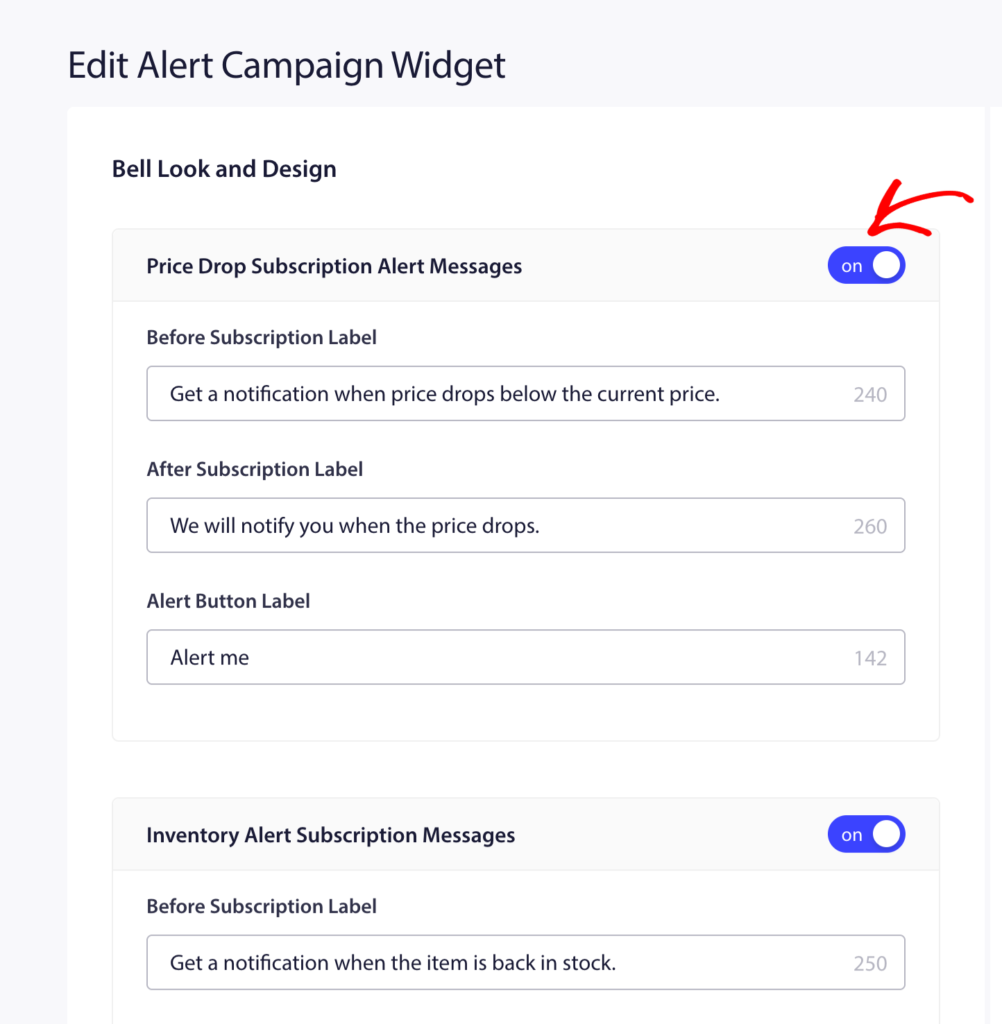
Klik på Gem efter at have foretaget ændringer.
Step 2: Open the Price Drop Alert Campaign
- Gå til Kampagner » Udløserkampagner.
- Find Price Drop Alert in the list and click Edit.
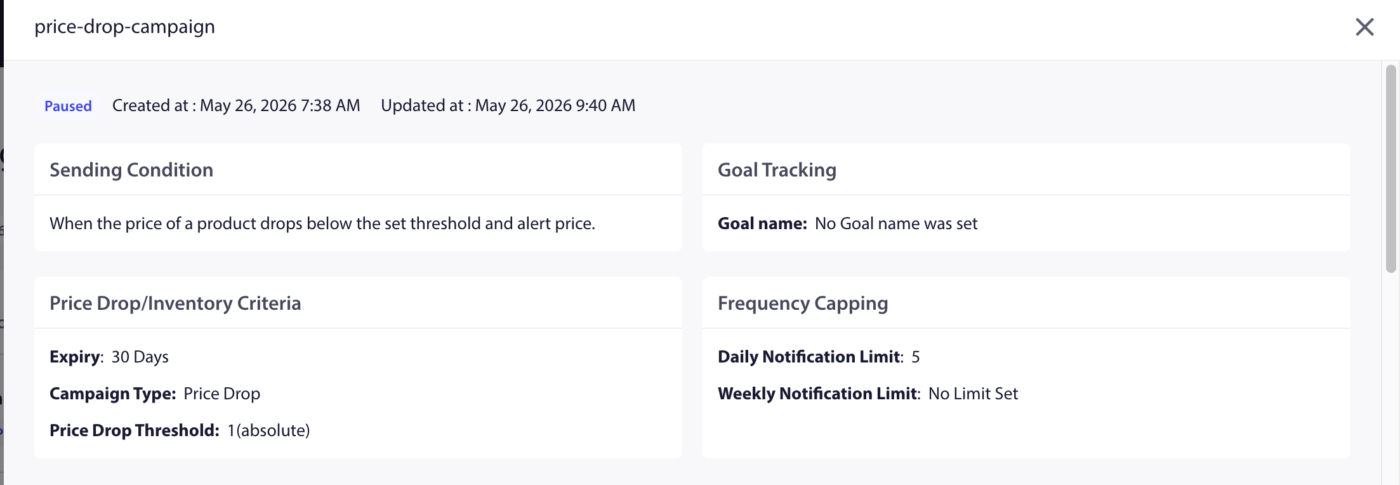
Trin 3: Rediger meddelelsen
Den forudbyggede kampagne indeholder én notifikation. Klik på den for at redigere.
Tilgængelige variabler
| Variabel | Hvad den indsætter |
|---|---|
{productname} | Name of the product whose price dropped |
{price} | The new (lower) price of the product |
{notificationurl} | Direkte link til produktsiden |
{imageurl} | Dit butiksvarelogo |
{bigimageurl} | Produktbillede |
Bemærk: Fjern ikke disse variabler. De henter live produktdata fra din Shopify-butik på det tidspunkt, hvor notifikationen udløses.
Anbefalede feltindstillinger
| Felt | Anbefaling |
|---|---|
| URL | Brug {notificationurl} til at linke direkte til produktsiden |
| Billede | Brug {bigimageurl} til at vise produktbilledet |
Kopier indstillinger
| Indstilling | Titel | Besked |
|---|---|---|
| 1 | Price drop on {productname}! | Good news! {productname} is now only {price}. Grab it before it goes back up. |
| 2 | The price just dropped | {productname} is now {price}. You subscribed to this alert. Now is the time to buy. |
| 3 | Your price alert is here | {productname} dropped to {price}. Click to shop now before stock runs out. |
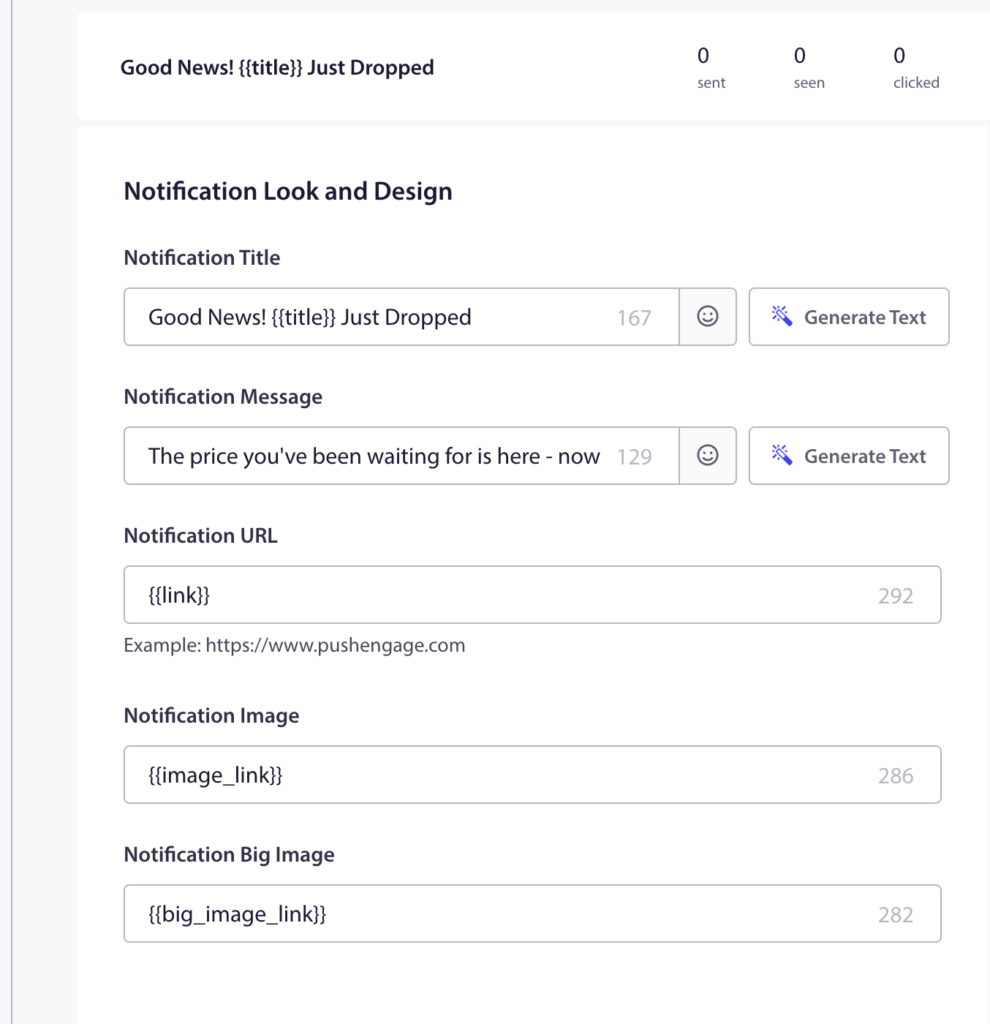
Trin 4: Indstil notifikationsvarighed
Set the expiry so the notification does not sit in the subscriber’s notification center too long after it is no longer relevant.
Anbefalet indstilling: 48 timer
Enable Keep notification open until user interaction so the push stays visible until the subscriber clicks or dismisses it.
Trin 5: Aktiver kampagnen
- Klik på Gem i kampagneeditoren.
- Gå tilbage til Kampagner » Udløs kampagner.
- Click the Play / Resume button next to Price Drop Alert.
The campaign is now active. The next time you reduce a price on any product in your Shopify admin, subscribers who opted in to that product’s price alert will receive the notification automatically.
Sporing af ydeevne
For at gennemgå, hvordan kampagnen klarer sig:
- Gå til Kampagner » Udløserkampagner.
- Click on Price Drop Alert to expand the analytics view.
- Gennemgå sendte, leverede, klikkede og konverteringsmetrikker.
For indtægtsattribuering skal du aktivere målsporing. Se Sådan opsættes målsporing for instruktioner.
Ofte stillede spørgsmål
Does the alert fire for every price reduction, even small ones? Yes. Any price reduction on a product triggers the alert for subscribers of that product. If you want to avoid notifying subscribers of minor adjustments, consider how frequently you change prices.
Can a subscriber receive price drop alerts for multiple products? Yes. Subscribers can opt in to alerts on as many individual products as they want. Each product has its own subscriber list.
What if a product’s price goes back up after the alert fires? The alert only fires when a price drops. Price increases do not trigger any notification. Subscribers remain subscribed to future price drop alerts for the same product.
Can I customize the widget separately for Price Drop vs. Back-in-Stock? The Alert Campaign Widget toggle enables both types. The widget appearance settings apply to both. You cannot style them differently from the same widget panel.
Where do subscribers go when they click the notification? They are taken to the product page via the {notificationurl} variable. You can change this to a cart page or any other URL by editing the URL field in the campaign editor.
Hvis du støder på problemer, er du velkommen til at kontakte os ved at klikke her. Vores supportteam vil kunne hjælpe dig.


