Prisfalds-alarmkampagnen sender en automatiseret push-meddelelse til abonnenter, der har tilmeldt sig prisfalds-alarmer for et bestemt produkt i din Shopify-butik. Når du reducerer et produkts pris i Shopify, registrerer PushEngage ændringen og giver besked til alle, der har abonneret på den pågældende produkts alarm.
Denne guide forklarer, hvordan lageropdaterings-widgetten fungerer, hvordan du aktiverer og tilpasser den, og hvordan du konfigurerer meddelelseskampagnen.
Før du starter
- PushEngage er installeret på din Shopify-butik.
- Prisfalds-alarmkampagner kræver en PushEngage Growth plan eller Automation Plan.
- Kampagnen er forudbygget af PushEngage under onboarding. Denne guide dækker aktivering og tilpasning af den.
Sådan fungerer prisfalds-alarmer
Prisfalds-alarmen fungerer i to dele: en widget på dine produktsider, som kunderne bruger til at abonnere, og en udløserkampagne, der aktiveres, når prisen falder.
- En besøgende lander på en produktside og ser widgetten for prisfalds-alarm.
- De klikker på Giv mig besked, når prisen falder og abonnerer.
- Når du sænker prisen på det produkt i din Shopify-administrator, registrerer PushEngage ændringen.
- Alle abonnenter, der har tilmeldt sig det pågældende produkt, modtager en push-meddelelse med den nye pris.
Abonnenter modtager kun meddelelser for de specifikke produkter, de har tilmeldt sig. De vil ikke modtage meddelelser om andre produkter, medmindre de tilmelder sig disse separat.
Trin 1: Aktiver lageropdaterings-widgetten
Widgetten er det, kunderne ser på dine produktsider for at tilmelde sig. Den skal være aktiveret, før kampagnen kan indsamle abonnenter.
- Log ind på dit PushEngage-dashboard.
- Gå til Design » Widgets.
- Rul ned til Lageropdaterings-widget.
- Skift kontakten til Til.
Tilpasning af widgetten
Når den er aktiveret, kan du tilpasse widgettens udseende, så den passer til din butiks branding.
| Indstilling | Beskrivelse |
|---|---|
| Widget-besked | Teksten, der vises for besøgende, som opfordrer dem til at abonnere. Eksempel: “Få besked, når denne pris falder” |
| Knaptekst | Mærkaten på abonnementsknappen. Eksempel: “Giv mig besked” |
| Farver | Match widgettens baggrunds- og knapfarve med din butiks tema |
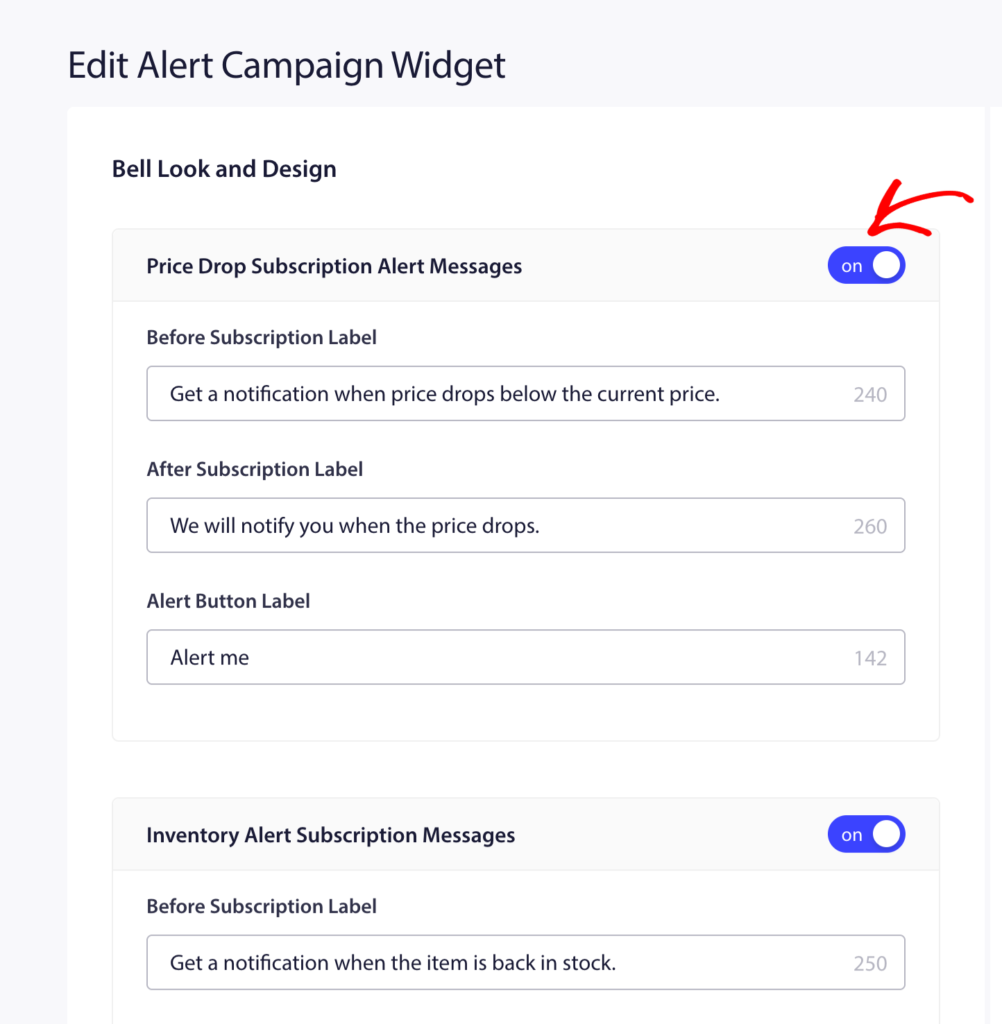
Klik på Gem efter at have foretaget ændringer.
Trin 2: Åbn kampagnen for prisfalds-alarm
- Gå til Kampagner » Udløserkampagner.
- Find Prisfalds-alarm på listen, og klik på Rediger.
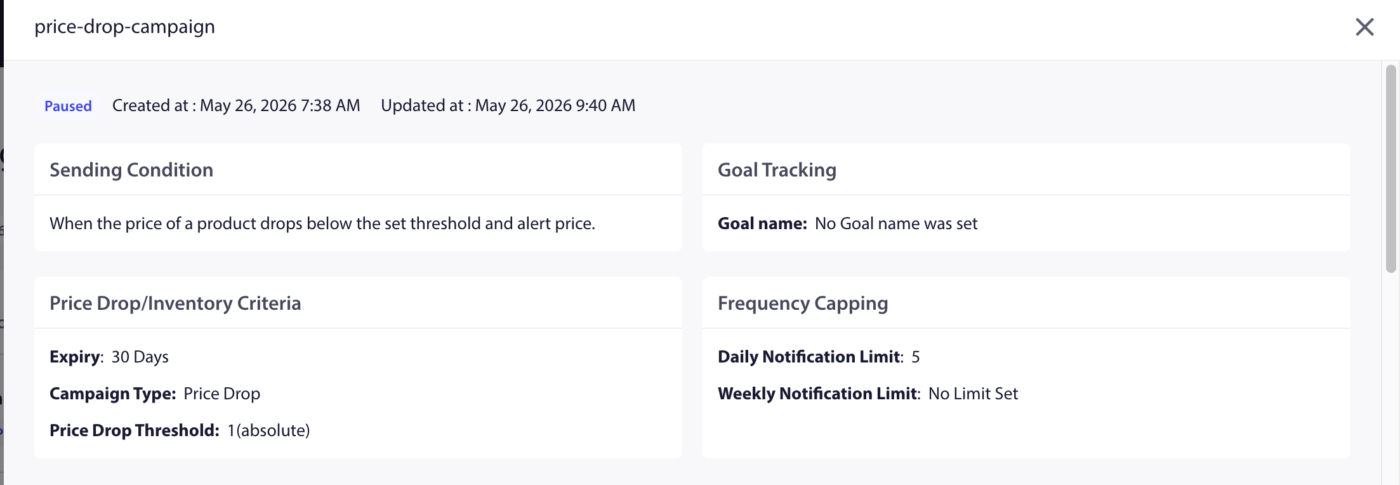
Trin 3: Rediger meddelelsen
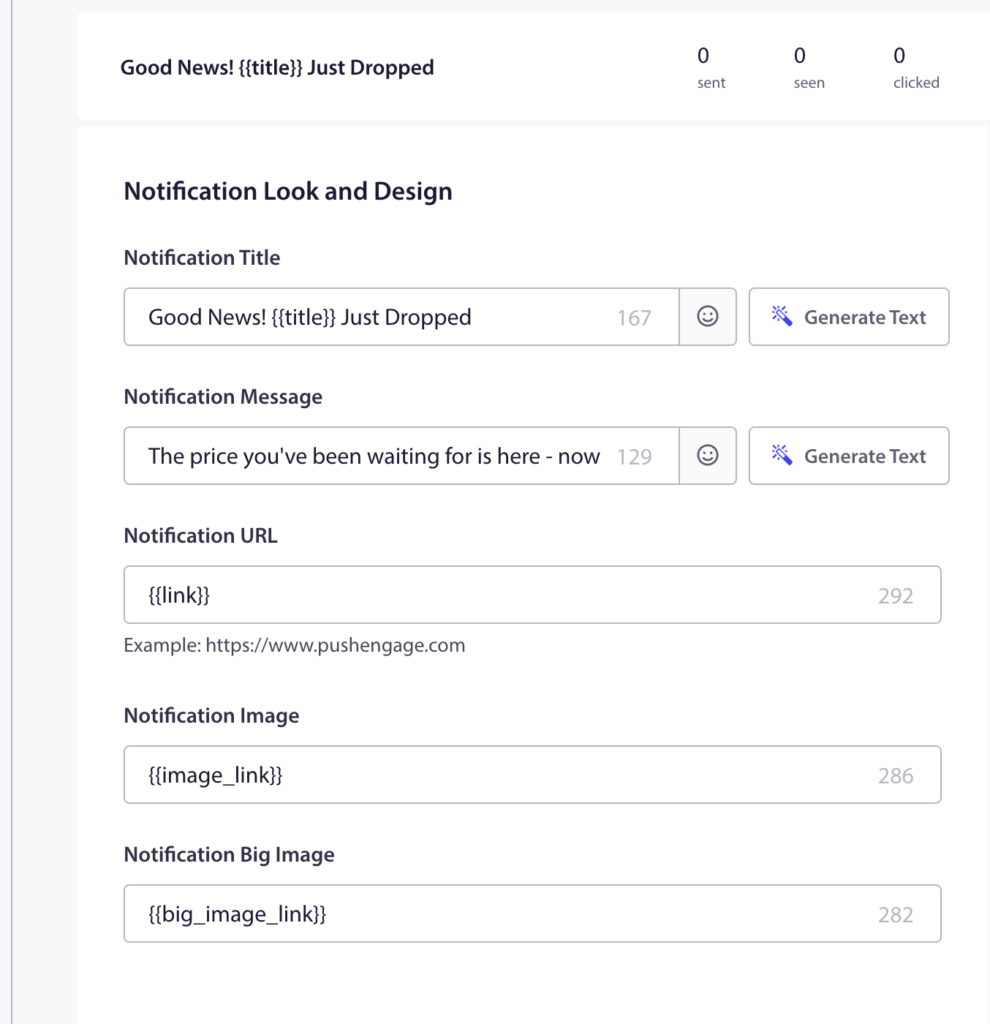
Den forudbyggede kampagne indeholder én notifikation. Klik på den for at redigere.
Tilgængelige variabler
| Variabel | Hvad den indsætter |
|---|---|
{{productname}} | Navnet på produktet, hvis pris faldt |
{{price}} | Den nye (lavere) pris på produktet |
{{notificationurl}} | Direkte link til produktsiden |
{{imageurl}} | Dit butiksvarelogo |
{{bigimageurl}} | Produktbillede |
Bemærk: Fjern ikke disse variabler. De henter live produktdata fra din Shopify-butik på det tidspunkt, hvor notifikationen udløses.
Anbefalede feltindstillinger
| Felt | Anbefaling |
|---|---|
| URL | Brug {{notificationurl}} til at linke direkte til produktsiden |
| Billede | Brug {{bigimageurl}} til at vise produktbilledet |
Kopier indstillinger
| Indstilling | Titel | Besked |
|---|---|---|
| 1 | Prisfald på {{productname}}! | Gode nyheder! {{productname}} koster nu kun {{price}}. Grib den, før den stiger igen. |
| 2 | Prisen er lige faldet | {{productname}} koster nu {{price}}. Du har tilmeldt dig denne notifikation. Nu er det tid til at købe. |
| 3 | Din prisfalds-alarm er her | {{productname}} er faldet til {{price}}. Klik for at købe nu, før lageret slipper op. |
Trin 4: Indstil notifikationsvarighed
Indstil udløbet, så meddelelsen ikke ligger for længe i abonnentens meddelelsescenter, efter den ikke længere er relevant.
Anbefalet indstilling: 48 timer
Aktivér Behold notifikation åben indtil brugerinteraktion, så push-beskeden forbliver synlig, indtil abonnenten klikker eller afviser den.
Trin 5: Aktiver kampagnen
- Klik på Gem i kampagneeditoren.
- Gå tilbage til Kampagner » Udløs kampagner.
- Klik på knappen Afspil / Genoptag ud for Prisfalds-alarm.
Kampagnen er nu aktiv. Næste gang du reducerer prisen på et produkt i din Shopify-administrator, vil abonnenter, der har tilmeldt sig det pågældende produkts prisfalds-alarm, automatisk modtage meddelelsen.
Sporing af ydeevne
For at gennemgå, hvordan kampagnen klarer sig:
- Gå til Kampagner » Udløserkampagner.
- Klik på Prisfalds-alarm for at udvide analysevisningen.
- Gennemgå sendte, leverede, klikkede og konverteringsmetrikker.
For indtægtsattribuering skal du aktivere målsporing. Se Sådan opsættes målsporing for instruktioner.
Ofte stillede spørgsmål
Udløses alarmen for enhver prisreduktion, selv små? Ja. Enhver prisreduktion på et produkt udløser alarmen for abonnenter på det pågældende produkt. Hvis du vil undgå at give abonnenter besked om mindre justeringer, skal du overveje, hvor ofte du ændrer priser.
Kan en abonnent modtage prisfalds-alarmer for flere produkter? Ja. Abonnenter kan tilmelde sig alarmer på så mange individuelle produkter, som de ønsker. Hvert produkt har sin egen abonnentliste.
Hvad hvis et produkts pris stiger igen, efter at alarmen er udløst? Alarmen udløses kun, når en pris falder. Prisstigninger udløser ingen notifikation. Abonnenter forbliver tilmeldt fremtidige prisfaldsalarmer for det samme produkt.
Kan jeg tilpasse widgetten separat for prisfald vs. lagerbeholdning? Afbryderen til Alarmkampagne-widgetten aktiverer begge typer. Indstillingerne for widgettens udseende gælder for begge. Du kan ikke style dem forskelligt fra det samme widgetpanel.
Hvor går abonnenter hen, når de klikker på notifikationen? De føres til produktsiden via variablen {notificationurl}. Du kan ændre dette til en indkøbsvognside eller en hvilken som helst anden URL ved at redigere URL-feltet i kampagneeditoren.
Hvis du støder på problemer, er du velkommen til at kontakte os ved at klikke her. Vores supportteam vil kunne hjælpe dig.