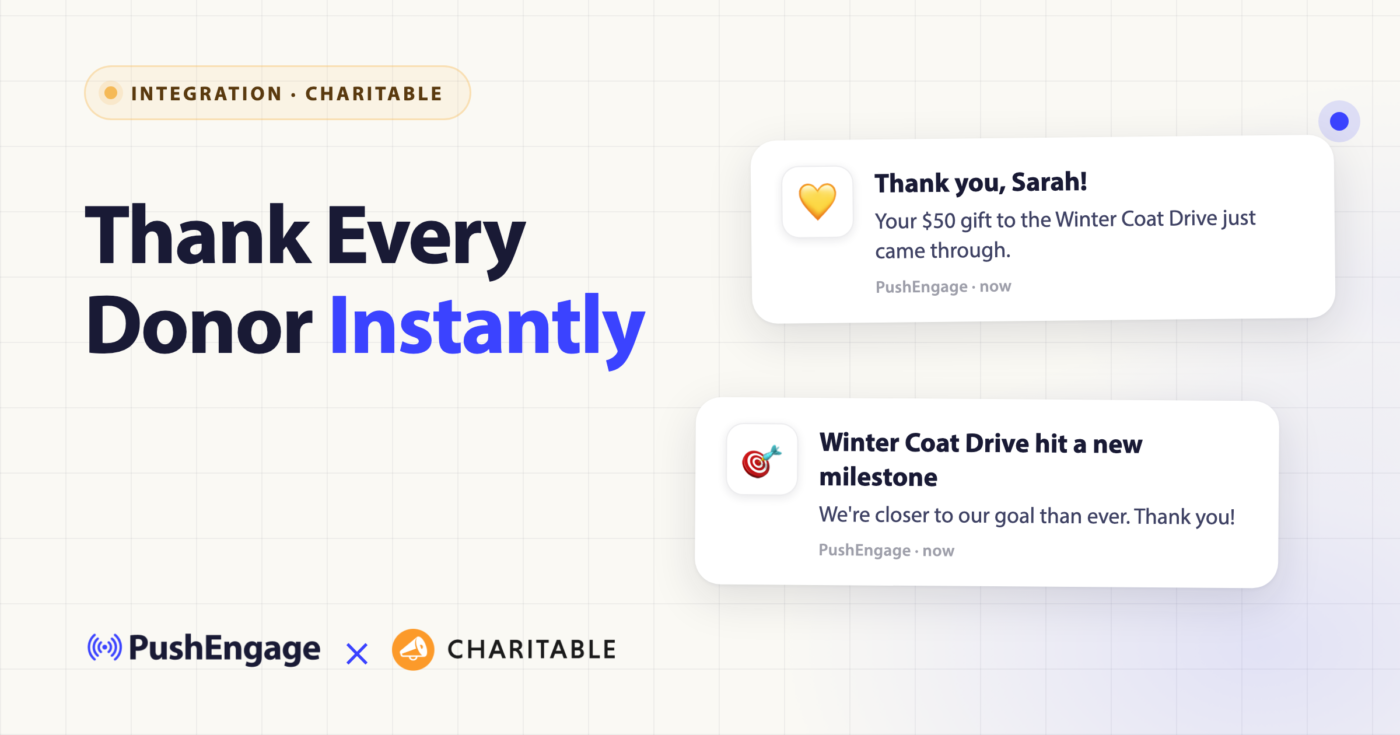
If you raise money on WordPress with Charitable, your campaigns can now send web push notifications on their own. Charitable Pro includes a built-in PushEngage integration with four triggers: one thanks each donor the moment they give, and three keep your subscribers updated as a campaign launches, grows and nears its end date.
Our sibling team at Charitable shipped it in Charitable Pro 1.8.16 (read their announcement). Here’s what it does for nonprofits, churches, schools and grassroots fundraisers, and how to set it up.
What the PushEngage and Charitable integration does
The work is split between the two plugins.
- The free PushEngage plugin shows the opt-in prompt on your site and keeps your subscriber list.
- Charitable decides when to send, what to say, and which campaign each notification belongs to.
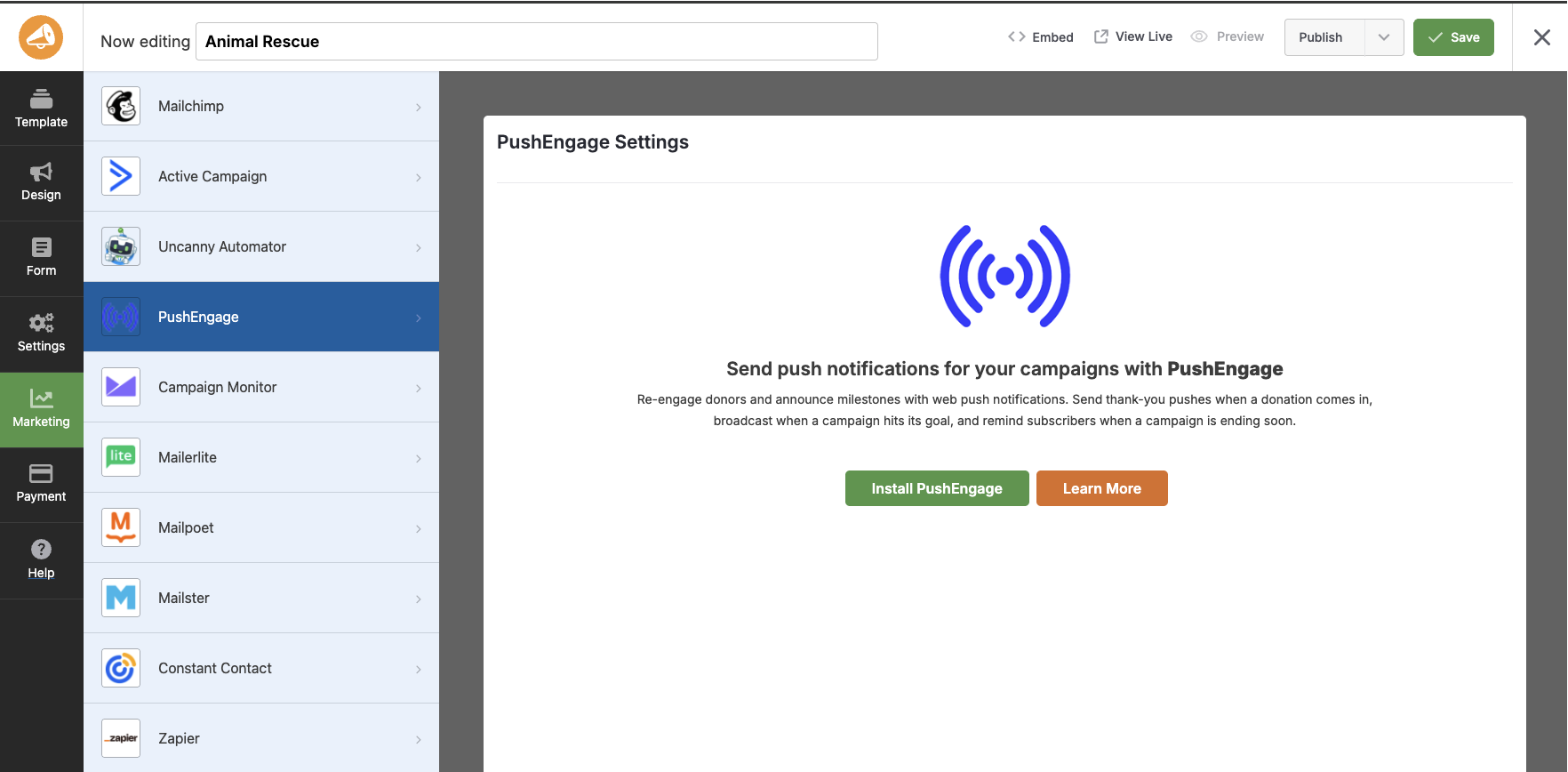
You connect your PushEngage account once. Then every campaign gets its own PushEngage settings in the Campaign Builder, under the Marketing tab.
Why push notifications work for donors
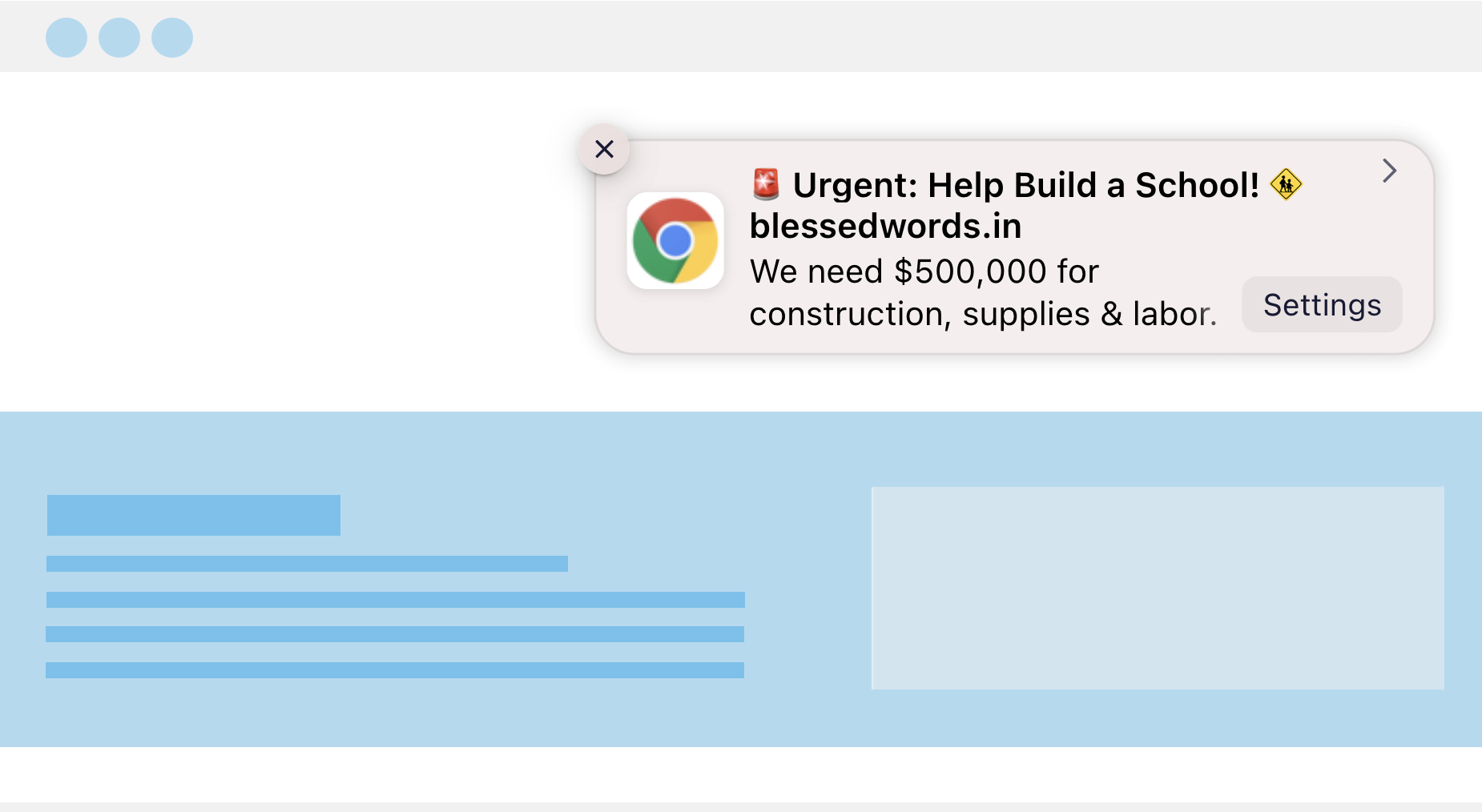
A web push notification is a short message that appears in a supporter’s desktop or mobile browser after they click “Allow” on your site, even when they aren’t on your site.
- No email address or phone number needed. Supporters subscribe with one click.
- It shows up within seconds, not in an inbox they’ll check tomorrow.
- Priced by subscribers, not messages. With PushEngage you pay only for active subscribers (each plan includes a monthly sending volume), and the free plan costs nothing.
- It fits the moments that matter: a gift, a milestone, a closing date.
The four Charitable triggers
Each trigger can be turned on separately, per campaign. One is personal. The other three go to everyone who has subscribed on your site.
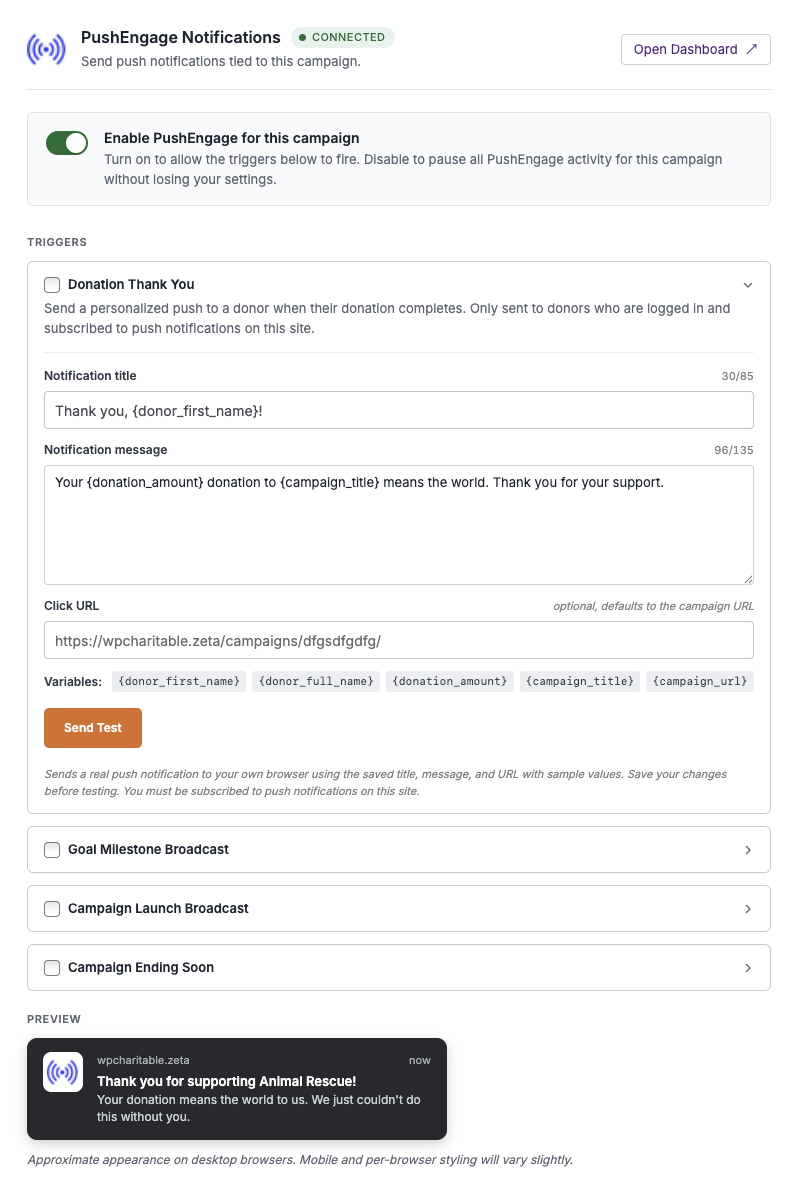
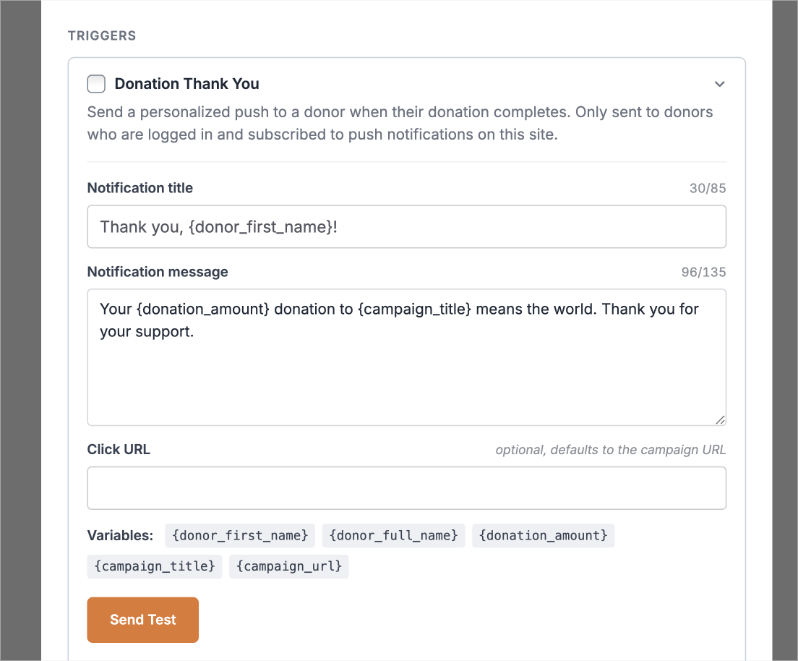
Donation Thank You
Sent the instant a donation completes, to that donor only, while the decision to give is still fresh. It reaches donors who are logged in and subscribed to push notifications on your site.
Title: Thank you, {donor_first_name}!
Message: Your {donation_amount} gift to {campaign_title} just came through. See what it’s helping us do.
Goal Milestone
Broadcast to all your subscribers when the campaign crosses 50%, 75% and 100% of its goal. Enable it once and all three milestones send automatically.
Title: {campaign_title} just hit a new milestone!
Message: We’re closer to our goal than ever. Thank you for getting us here.
Campaign Launch
Broadcast to all your subscribers once, when a new campaign goes live.
Title: New campaign: {campaign_title}
Message: We just opened a new fundraiser. See the goal and how you can help.
Ending Soon
Broadcast to all your subscribers as the campaign approaches its end date, a gentle last call for people who meant to give.
Title: Last chance to give to {campaign_title}
Message: This campaign closes soon. Every gift before the deadline counts.
Personalize each message, then send yourself a test
Every trigger has its own title, message and link. Each one lists the placeholders it supports right under the message field. The Donation Thank You, for example, offers {donor_first_name}, {donor_full_name}, {donation_amount}, {campaign_title} and {campaign_url}. Keep the donor’s name for the thank-you, since the other three go to your whole list.
Give each trigger its own link: an impact story for the thank-you, the campaign page for milestones, the donation form for the last call.
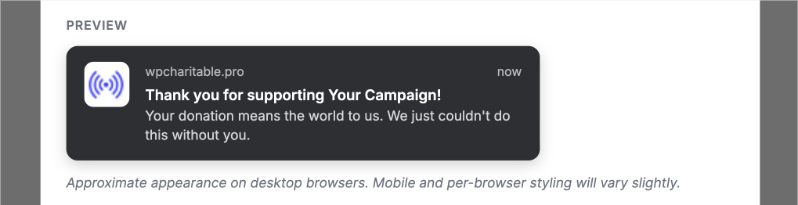
Before anything goes live, save your changes and click Send Test to send the notification to your own browser (you need to be subscribed on your site to receive it). A preview under the triggers also shows roughly how it will look. It’s the easiest way to catch a typo or a placeholder that reads oddly. Keep titles to about 50 characters and messages to about 90. Traffic from your notifications is tracked automatically.
Three triggers reach your whole list, and browsers are getting stricter with sites whose notifications get ignored (our guide to staying on the right side of that). Mix thank-yous and updates in with your asks.
How to set up PushEngage in Charitable
You’ll need Charitable Pro 1.8.16 or later, a PushEngage account (the free plan works) and a published opt-in prompt so visitors can subscribe.
Option 1: Install PushEngage first
- Update Charitable Pro to 1.8.16 or later.
- Download PushEngage from the Downloads tab in your Charitable account and upload it under Plugins » Add New » Upload Plugin, or install it from the WordPress plugin directory.
- Activate it and connect your PushEngage account in the plugin’s settings.
- Go to Campaigns » [your campaign] » Campaign Builder » Marketing » PushEngage.
- Switch on Enable PushEngage for this campaign, turn on the triggers you want, write each message, add a link, save, and click Send Test.
Option 2: Start from the Campaign Builder
- Open any campaign in the Campaign Builder.
- Click Marketing, then PushEngage.
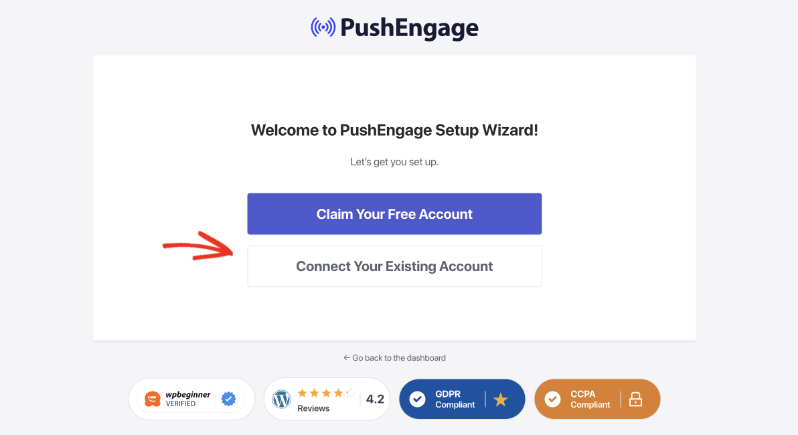
- Click Install PushEngage and follow the wizard to create a free account or log in.
- Back in the campaign, switch on Enable PushEngage for this campaign, turn on your triggers, write your messages, save, and send a test.
Once a campaign is saved, its triggers run on their own.
Our Charitable setup doc walks through each trigger, and Charitable’s step-by-step guide has ten sample messages to adapt.
Frequently asked questions
Do I need Charitable Pro?
For the four triggers, yes: Charitable Pro 1.8.16 or later. On the free version of Charitable you can still install PushEngage and start building your subscriber list.
Do I need a paid PushEngage plan?
No. The free plan covers 1 site, up to 200 subscribers and 30 campaigns, with no card required. Paid plans start at $8/month billed yearly (first-year price), you pay only for active subscribers, and every paid plan has a 14-day money-back guarantee.
Who receives each notification?
The Donation Thank You goes only to the donor who just gave, if they’re logged in and subscribed to notifications on your site. Goal Milestone, Campaign Launch and Ending Soon go to all your subscribers. The integration doesn’t target segments; for that, send from your PushEngage dashboard.
Do supporters have to give me an email address or phone number?
No. They subscribe with one click in their browser, on desktop or mobile.
Can I send notifications beyond the four triggers?
Yes. From your PushEngage dashboard you can send one-off notifications any time, such as volunteer calls, event reminders or an impact update after a campaign closes.
Start sending donor notifications
PushEngage is trusted by 75,000+ businesses, and like Charitable it’s part of the Awesome Motive family. If you use Charitable Pro, run the 1.8.16 update and open any campaign’s Marketing tab.
Get the free PushEngage plugin or see PushEngage plans
New to Charitable? Start at wpcharitable.com.


