注意:此项目没有可用的旧版文档,因此您看到的是当前文档。
You do not need to create broadcast campaigns only when you need them sent. If you have planned an upcoming event or sale or content that you want to broadcast for a later date/time or while you are away, you can do so by using the scheduling feature. Your subscribers will see the campaigns as you set them on the date & at the time that you schedule them.
In this guide, you will learn how to schedule broadcasts for your push subscribers.
开始之前
We have three scheduling options –
- Regular Scheduling
- Scheduling/Sending in Customer’s Timezone.
- Recurring Schedule.
You can log in with your registered account and navigate to Campaigns » Push Broadcast » Content.
You can add the text fields of all the Notification Title, Notification Message, and Notification URLs & add an image to be seen in the campaigns.
Note: A scheduled notification can be edited or deleted before the scheduled date & time arrives. You need a Business plan and above to schedule the campaigns.
Under the Send/Schedule option, you can schedule the notifications to go out later, even when it is out of your working hours or enjoying your vacation. Also, the scheduling can be repeated by setting up the days in a week and setting the timing of the sending.
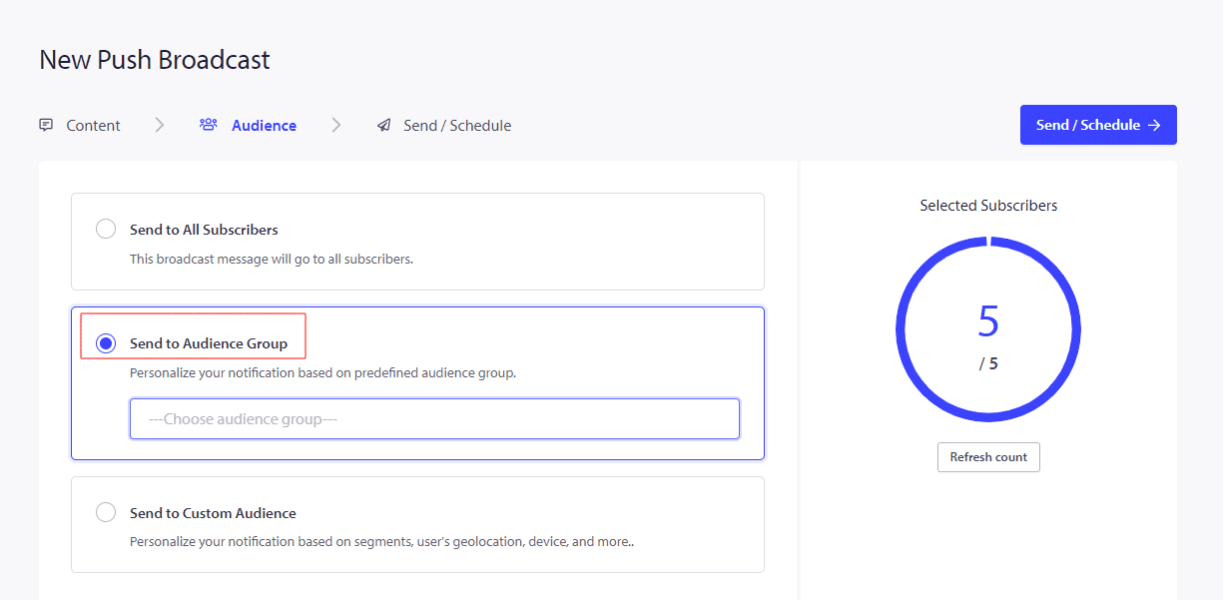
Selecting Audience Group/Custom Audience
The Audience can be selected while sending out campaigns. You can click on Send to Specific Audience group.

Here, you can select any of the options mentioned below :
- Subscription date range
- Subscriber Time zone

Send/Schedule
You will always have the option to send now or send later. If you are scheduling for later, you can play around with options that suit your needs.
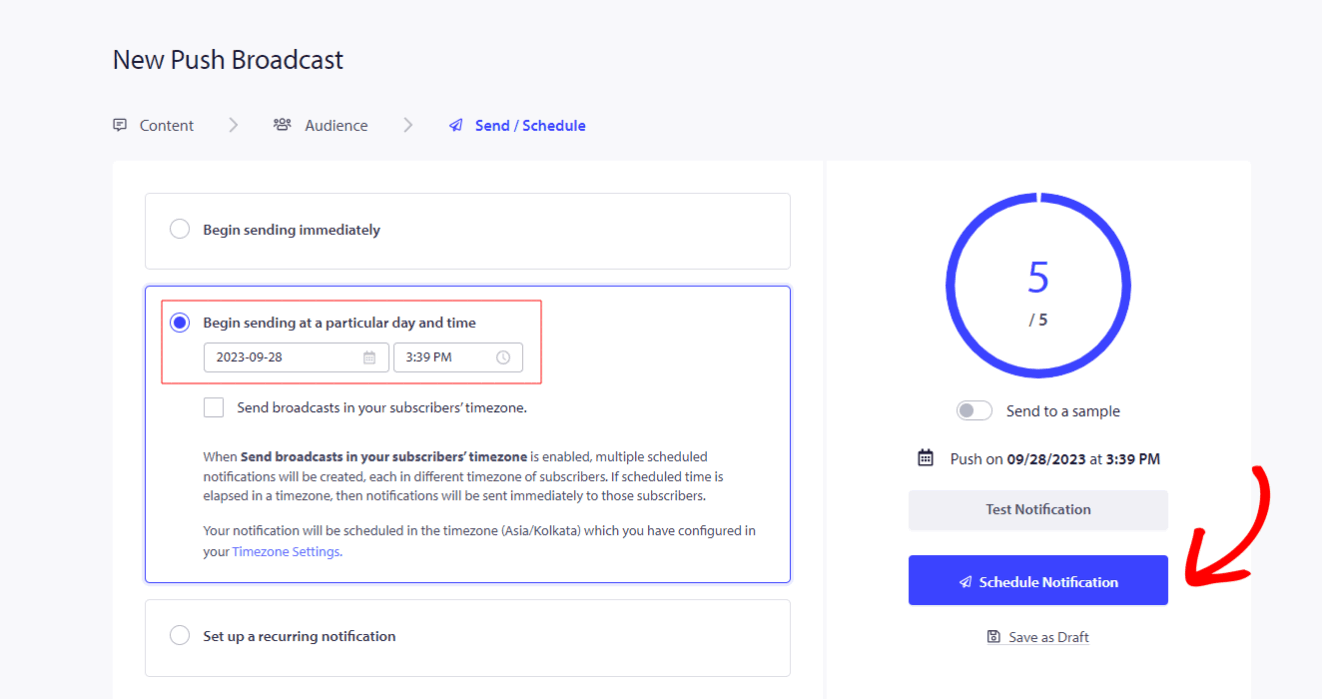
Regular Schedule
Schedule on a particular day & time – This is where you can schedule a campaign one time for a specific time and day, the time will be as per the timezone added in your Account Settings for that site.
Scheduling in Customer’s Timezone
Sending in Customer’s Timezone is a good option for dealing with an Audience multiple timezone. When you choose a date & time let’s say 11 AM, it will schedule as per the Customer’s 11 AM, for example, unless the time has passed. In that case, it just skips scheduling in that timezone. This guide helps you understand all the steps in detail.
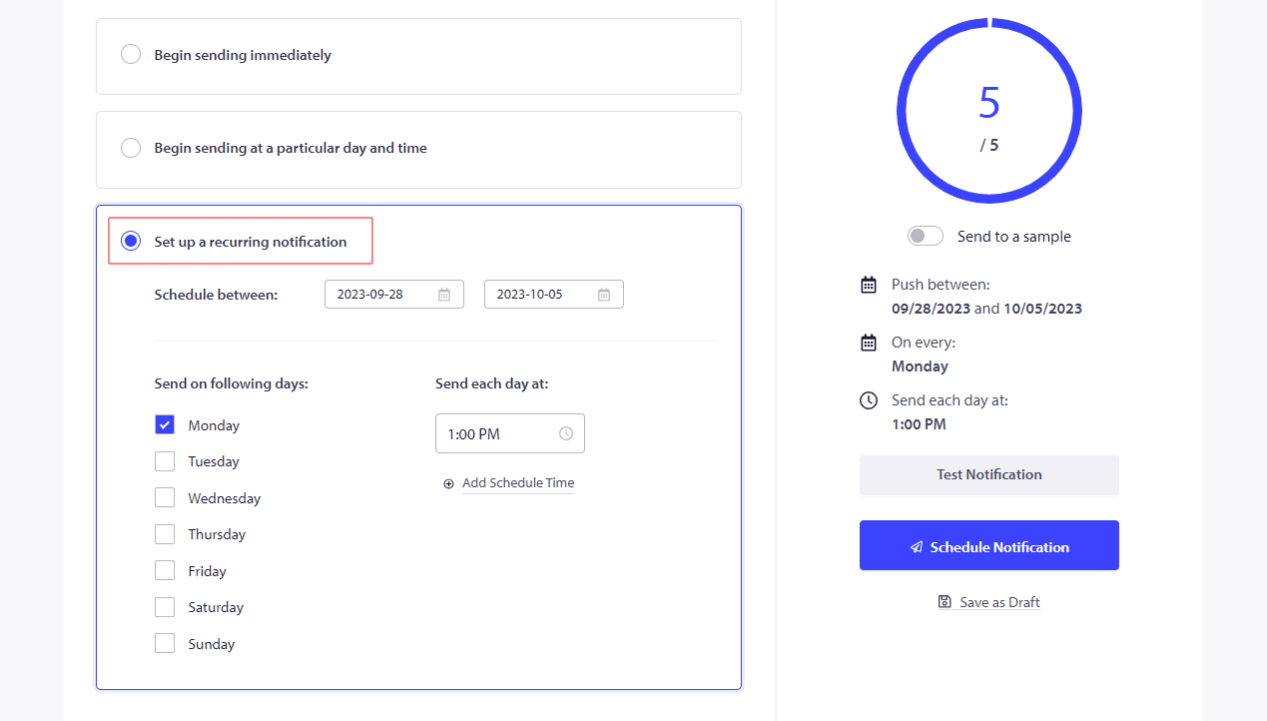
Recurring Schedule
You can schedule repeated notifications on the days of the week at a particular time. This way, the same campaign will be sent out at a specific time without having to schedule every day or every weekend.

如果您遇到任何问题,请随时通过单击此处 联系我们。我们的支持团队将能够为您提供帮助