PushEngage är ett verktyg som hjälper dig att skicka push-notiser till användare av deras webbplats. Push-kampanjer är korta meddelanden som kan skickas till en användares enhet oavsett om de är på din webbplats eller inte. Anta att du har en WordPress-webbplats och vill använda push-notiser för att informera dina användare om nytt innehåll, kampanjer eller andra uppdateringar. I så fall kan du ladda ner PushEngage Plugin och komma igång på fyra enkla steg.
Så snart du har slutfört installationen bör insamlingen av prenumerationer starta eftersom pluginet automatiskt lägger till javascript-koden och service worker till din webbplats.
1. Ställ in automatisk sändning
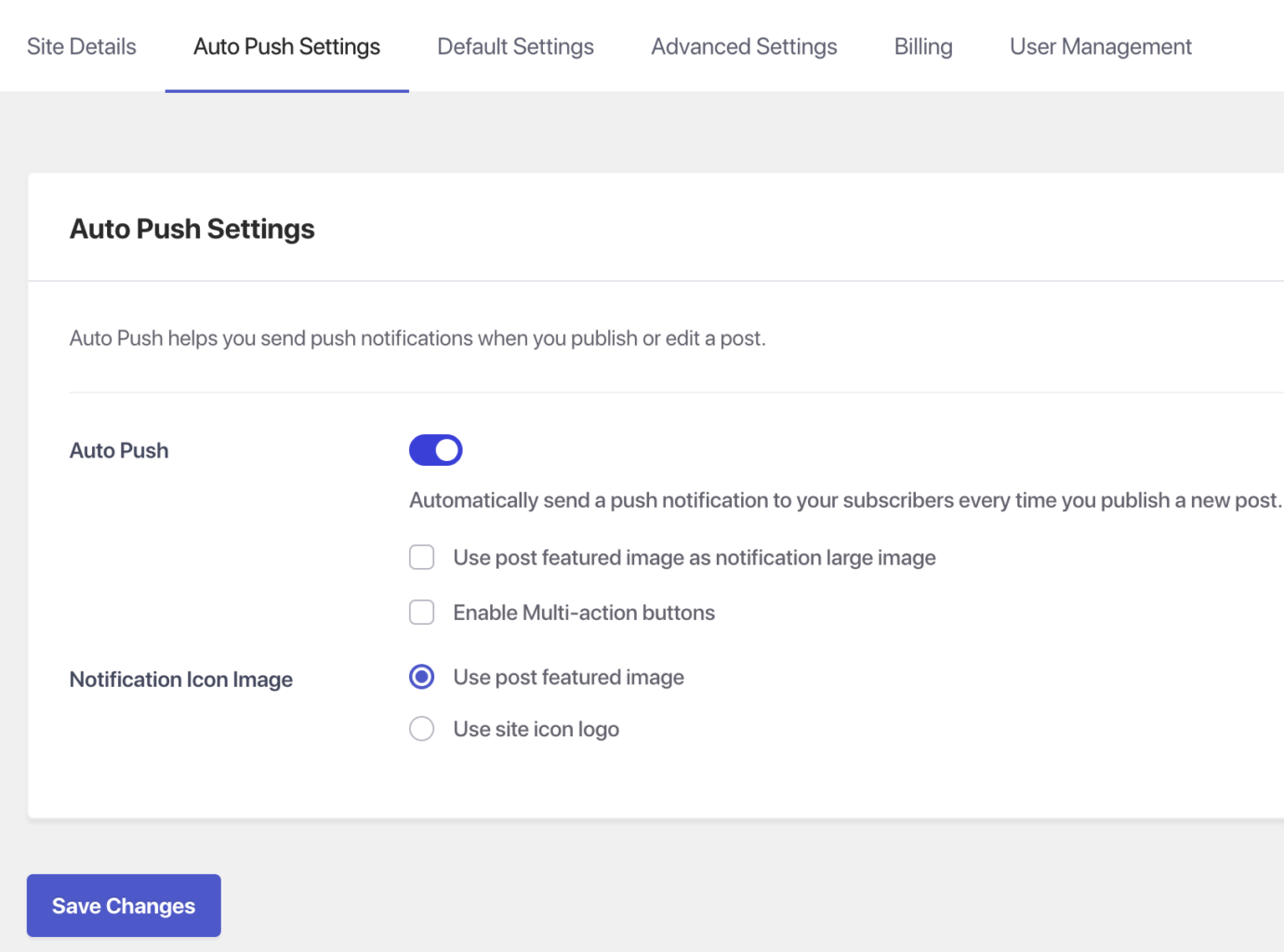
Välj PushEngage Plugin från din WordPress Dashboard och navigera till Inställningar > Inställningar för automatisk push
- Aktivera växlingsknappen för att automatiskt skicka en push-notis till dina prenumeranter varje gång du publicerar ett nytt inlägg och välj vilken typ av notisbild du vill ha för dina kampanjer
- När detta är gjort, välj Spara ändringar
2. Konfigurera prenumerationspopup
Prenumerationsopt-in eller popup-modulen är det första en webbplatsbesökare ser när de besöker din webbplats. Du kan anpassa utseendet på prenumerationspopupen för att matcha din webbplats tema. Flera olika stilar finns tillgängliga för prenumerationspopupen, som är följande –
- Safari-stilruta
- Flytande fält
- Klockplacerat fält
- Stor safari-liknande ruta
- Stor Safari-stil med segment
- Enstegsopt-in.
Innan du implementerar några ändringar är det viktigt att överväga vilken stil som kommer att vara mest effektiv för din webbplats och dess besökare.
För att komma åt designalternativen för Popup-moduler, gå till fliken Design > Popup-moduler. Därifrån kan du välja önskad stil och klicka på Redigera popup för att anpassa dess utseende.
I avsnittet Popupdesign kan du ändra placeringen av opt-in, bakgrundsfärgen och utseendet på tillåt- och blockknapparna. För att göra popupen mer konsekvent med ditt varumärke eller webbplatstema kan du anpassa dessa designelement för att matcha din önskade estetik.
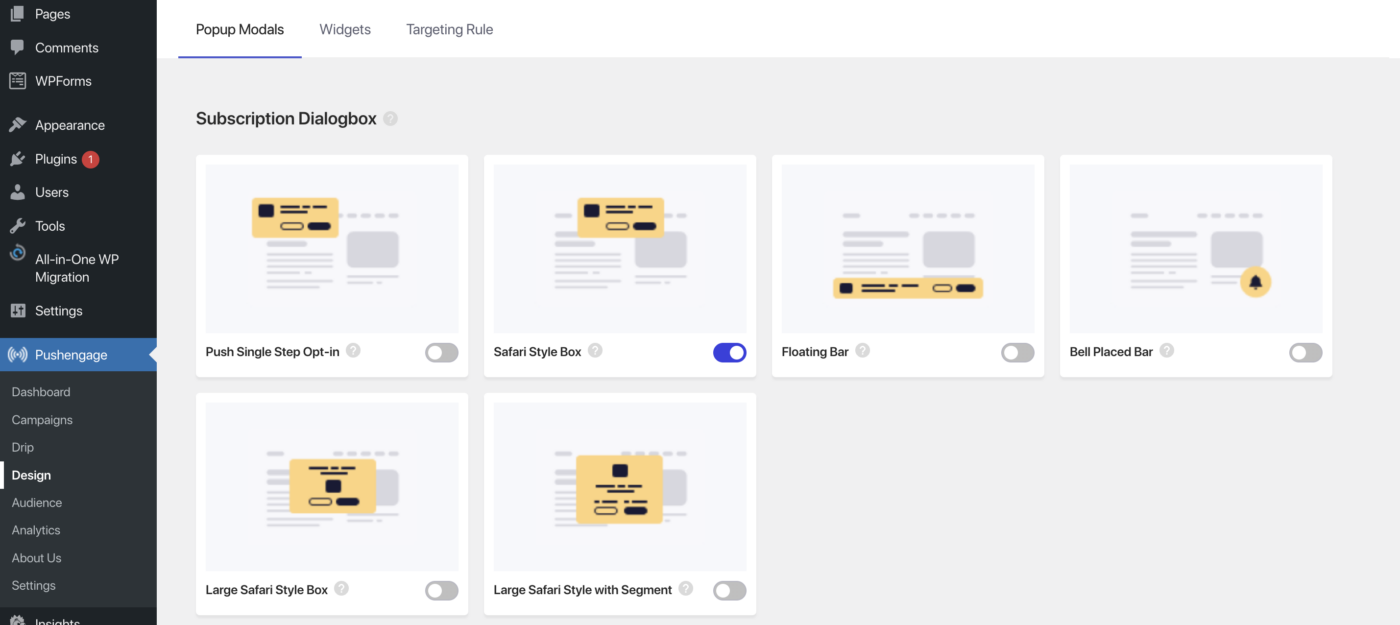
Aktivera växlingsknappen för popup-modulen och börja samla in prenumeranter.
3. Aktivera välkomst-drip
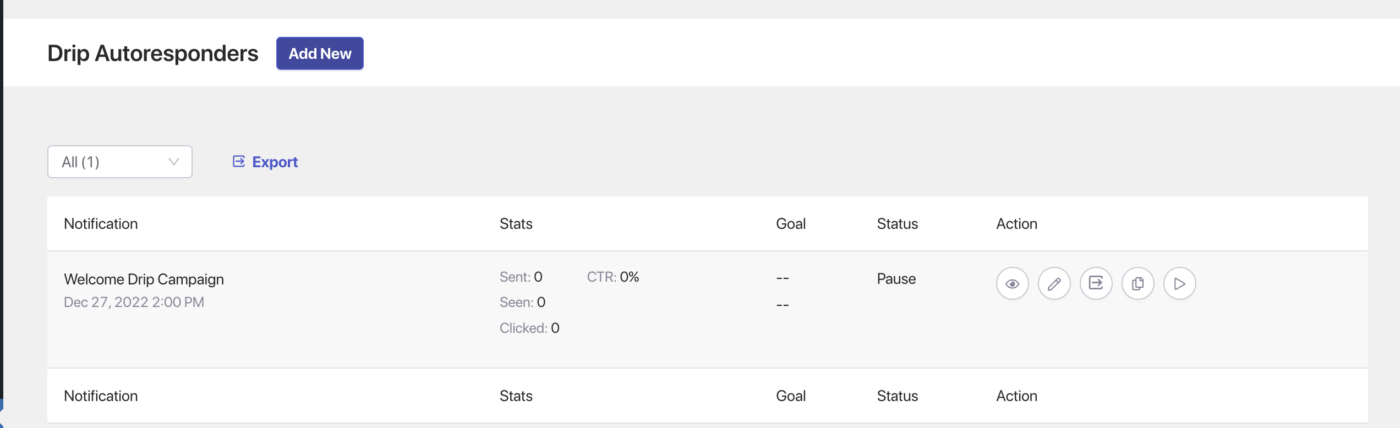
- Navigera till Drip och aktivera välkomst-drip-kampanjen genom att klicka på Spela-knappen.
4. Skapa din första kampanj
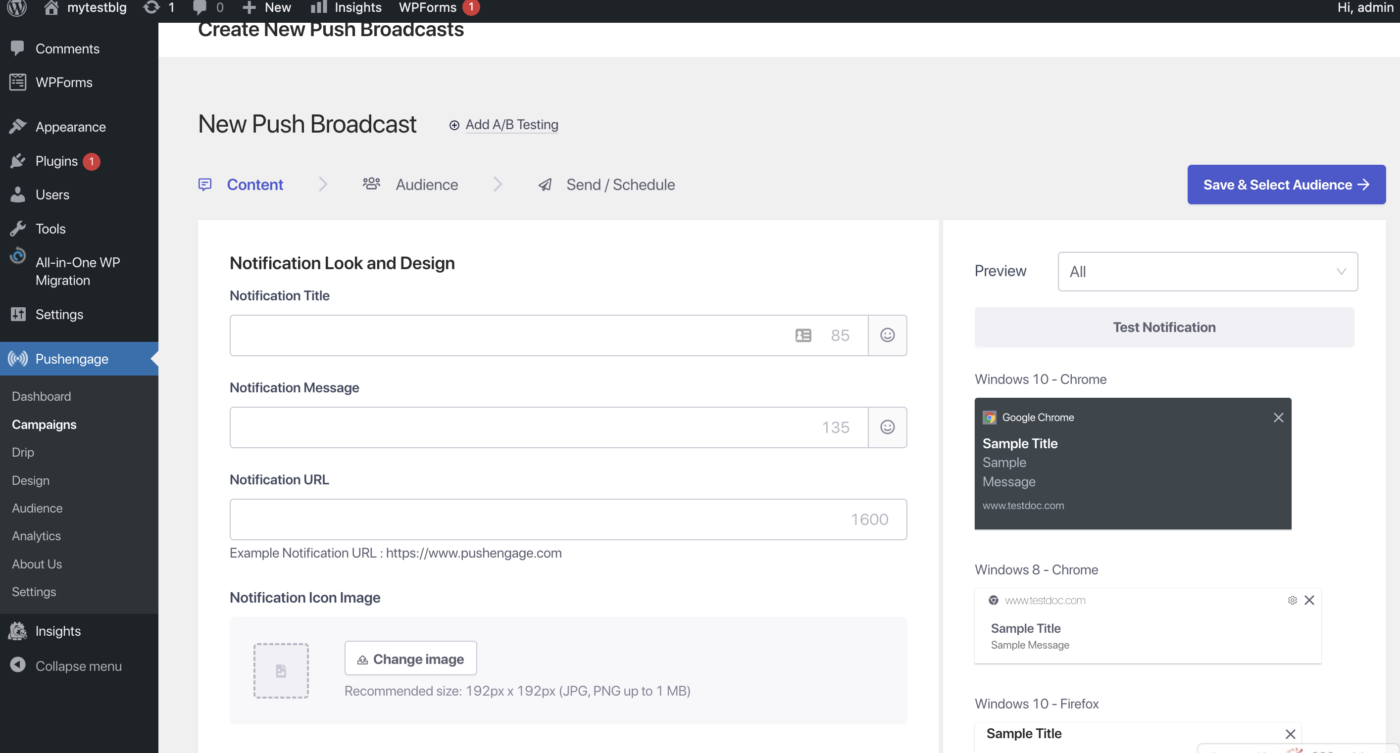
Navigera till Kampanjer > Lägg till ny, och nu kan du börja skapa din första push-kampanj
När du skapar ett sändningsmeddelande kan du inkludera ett meddelande på upp till 135 tecken, inklusive emojis, och en titel på upp till 85 tecken. Du kan också ha en bild på upp till 1 MB och ange en landnings-URL som ska öppnas när meddelandet klickas på.
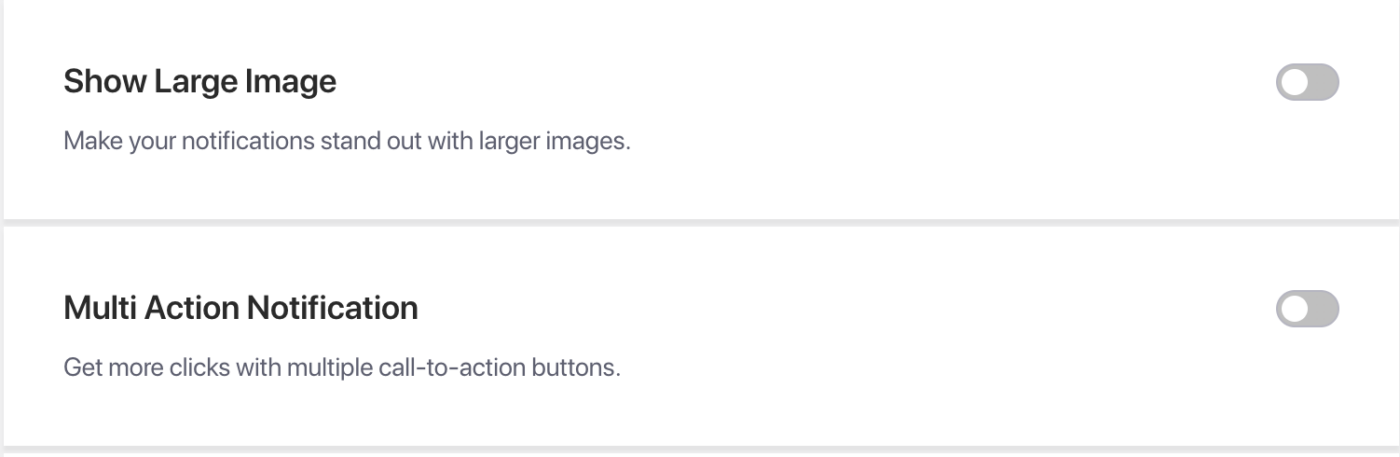
Kampanj med flera åtgärder – I kampanjdesignprocessen kan du lägga till knappar för notiser med flera åtgärder, vilket ger ytterligare call-to-action-alternativ för dina kampanjer. Det rekommenderas generellt att inkludera ytterligare call-to-action-knappar eftersom de kan öka engagemanget med dina kampanjer.
Stor bild – Att använda en stor bild i dina aviseringar kan hjälpa till att fånga din målgrupps uppmärksamhet och öka klickfrekvensen. När du lägger till en stor bild i dina aviseringar kan du ladda upp en bild med en maximal storlek på 360×180 pixlar för stationära enheter och 360×80 pixlar för mobila enheter.
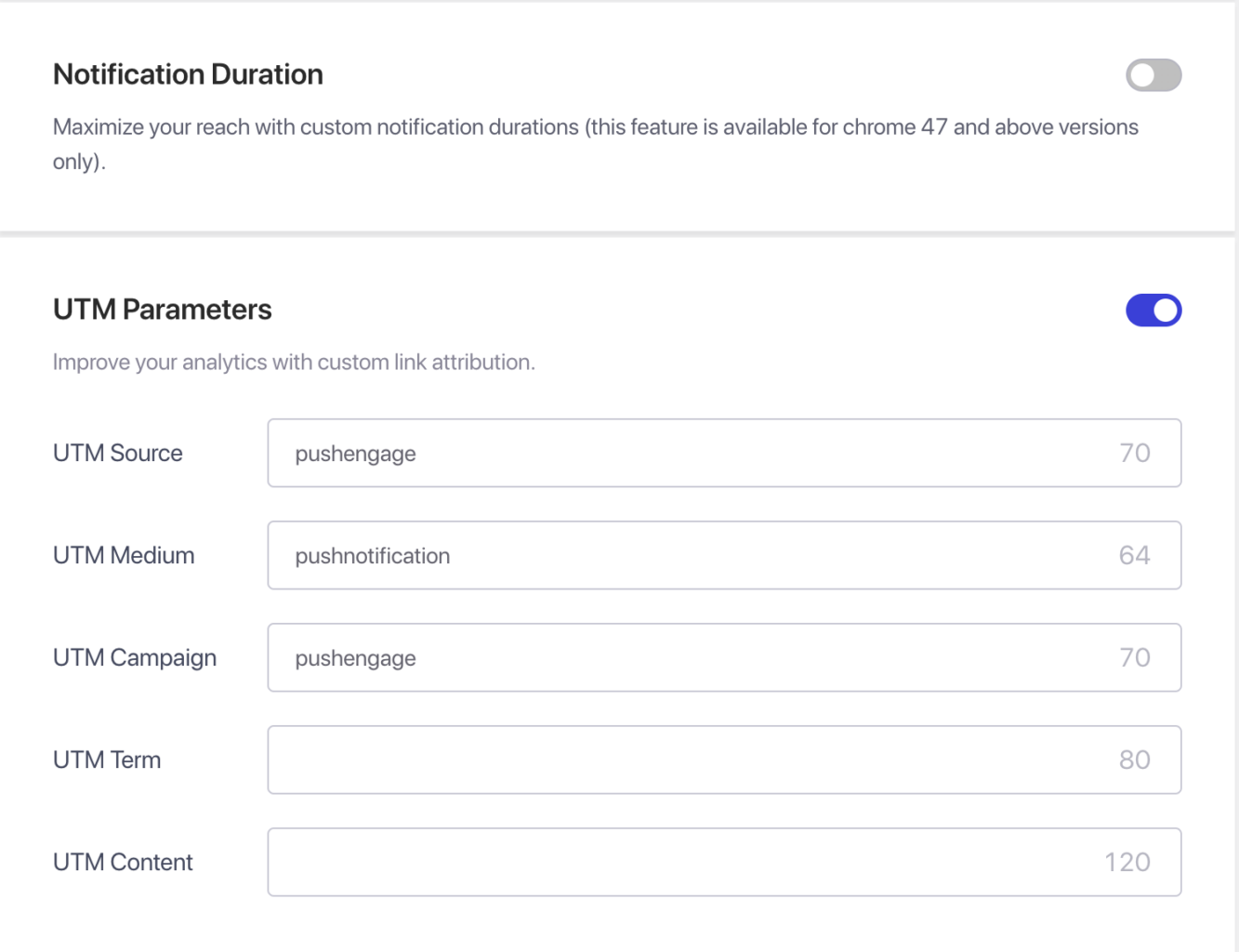
I inställningarna för Kampanjbeteende, spårning och målgrupp kan du ange varaktigheten för dina kampanjer för att undvika att överväldiga dina prenumeranter. Den maximala varaktigheten för att aviseringar ska upphöra är 28 dagar, men bästa praxis är att ha den kortare baserat på nästa kampanj du planerar att skicka.
Du kan också använda UTM-parametrar för att spåra data i Google Analytics och skicka riktade aviseringar till specifika målgrupper, vilket ökar visningarna och klickningarna för de aviseringar du skickar. Den här funktionen är endast tillgänglig i Business-planen och högre.
Schemaläggning – Med schemaläggningsfunktionen kan du ställa in dina aviseringar så att de skickas vid ett senare tillfälle, även när du inte är tillgänglig eller är på semester. Du kan också upprepa schemaläggningen på specifika veckodagar och ställa in tidpunkten för när aviseringarna ska skickas. Två filter är tillgängliga för schemaläggning: möjligheten att schemalägga för en viss dag och tid samt alternativet att schemalägga en återkommande kampanj.
När du har skapat kampanjen, välj fliken Spara och schemalägg, och sedan kan du skicka kampanjen till dina prenumeranter.
Du har nu installerat PushEngage-pluginet framgångsrikt. Du kan börja samla prenumeranter och skicka push-kampanjer.
Om du stöter på några problem, tveka inte att kontakta oss genom att klicka här. Vårt supportteam kan hjälpa dig.