Den här guiden hjälper dig att hantera flera användare under ett konto. Du kan hantera webbplatsnivåbehörigheter för dina teammedlemmar och ha flexibiliteten att definiera roller också.
Innan du börjar
Du behöver en Premium-plan eller högre med PushEngage för att lägga till flera användare i ditt konto.
Lägga till användare
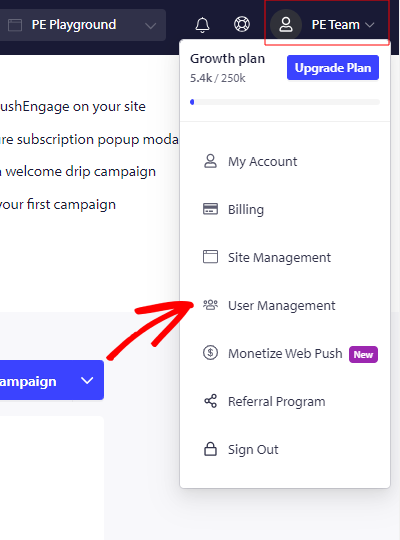
När du har loggat in på PushEngage Dashboard, klicka i det övre högra hörnet där du ser profilikonen & klicka sedan på Användarhantering.
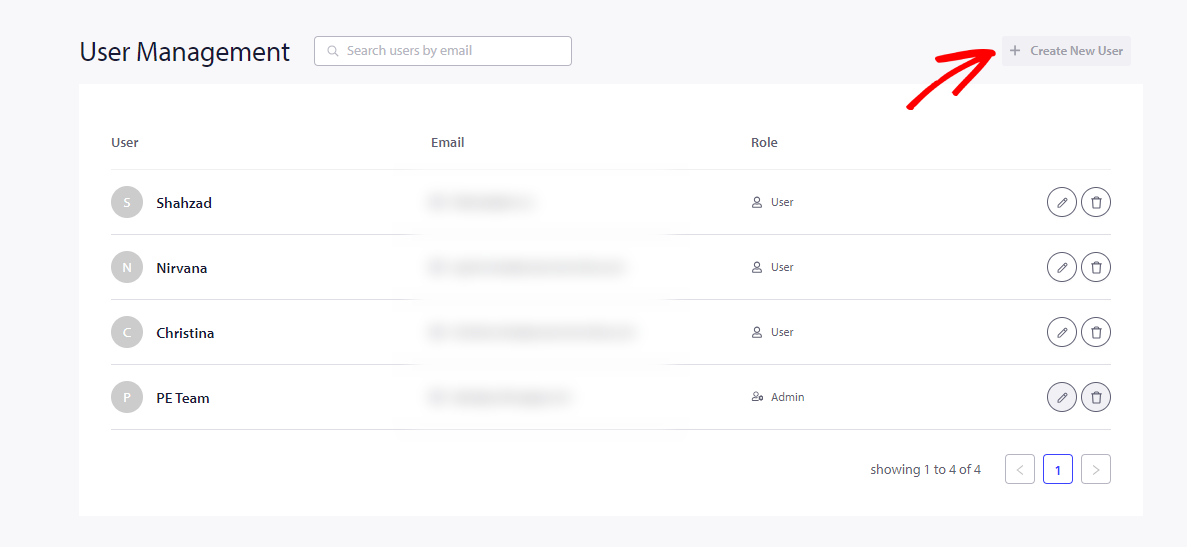
Du kan sedan klicka på Skapa ny användare & ange alla användarrelaterade detaljer. Du kan välja växlingsknappen för att ge användar-/administratörsåtkomst till den visade användaren.
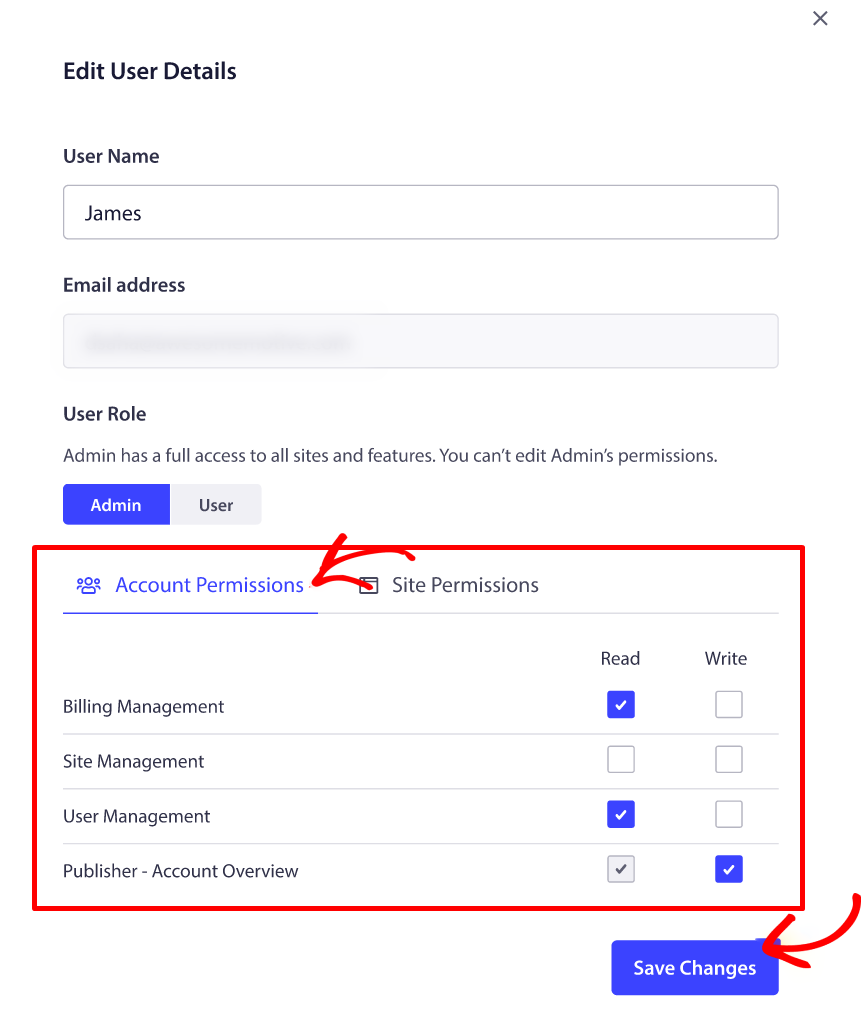
Ett administratörskonto kan ge åtkomst till webbplatser & behörigheter för varje användarkonto. Användarrollen kommer att ha begränsad åtkomst & behörigheter.
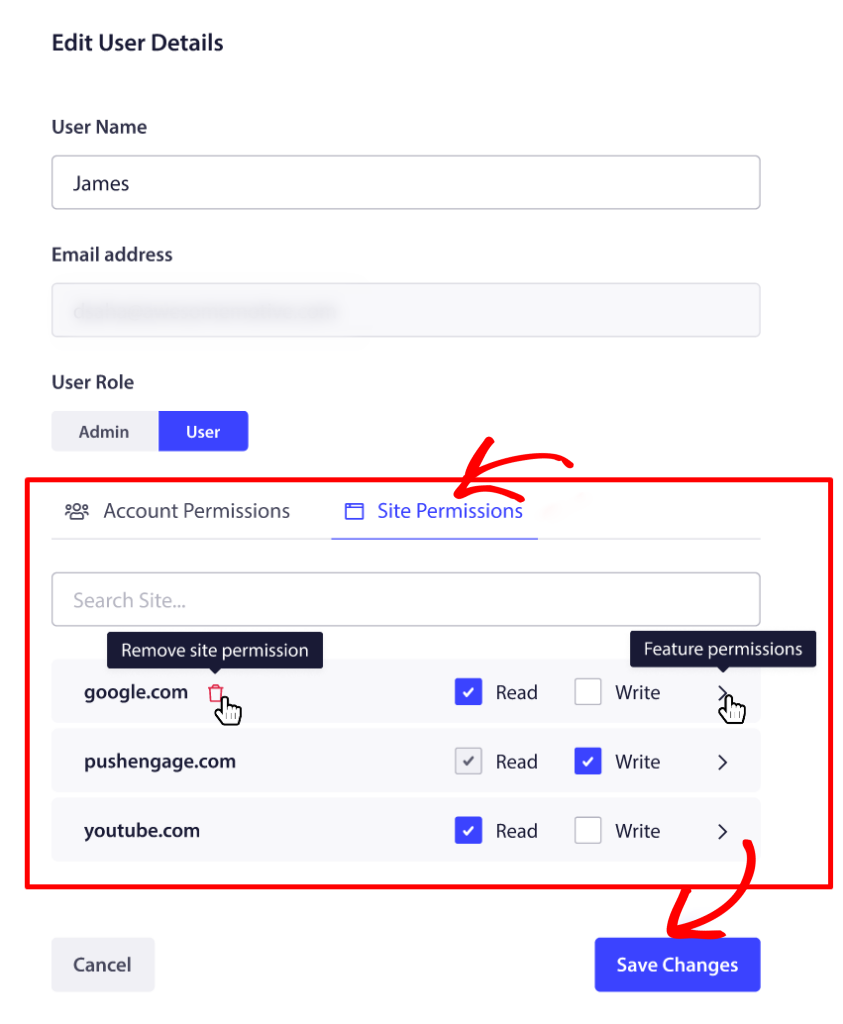
Webbplatsbehörigheter kan ges från samma fönster för varje användare.
Redigera eller ta bort användare
Användardetaljer kan redigeras genom att klicka på pennikonen, som visas nedan.
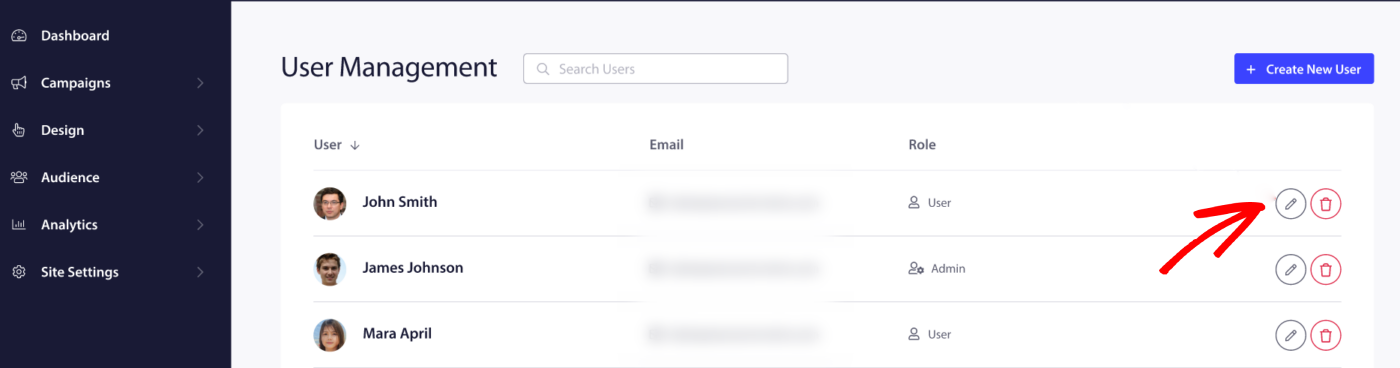
Du har också möjlighet att ta bort en användare om och när det behövs. Du kan göra det genom att klicka på borttagningsikonen mot den användare du vill ta bort.
Om du stöter på några problem, tveka inte att kontakta oss genom att klicka här. Vårt supportteam kommer att kunna hjälpa dig.