Analyseafsnittet kan give dig en idé om tendenserne i dine kampagner, abonnentstatistikker & region. Vi har forskellige muligheder for at hjælpe dig med at forstå dine abonnenters data. Denne artikel vil hjælpe dig med at forstå analyserne af push-kampagner.
Tre forskellige muligheder kan hjælpe dig med at forstå abonnentoversigten –
- Oversigt
- Opt-in Analyse
- Abonnenter
Oversigt
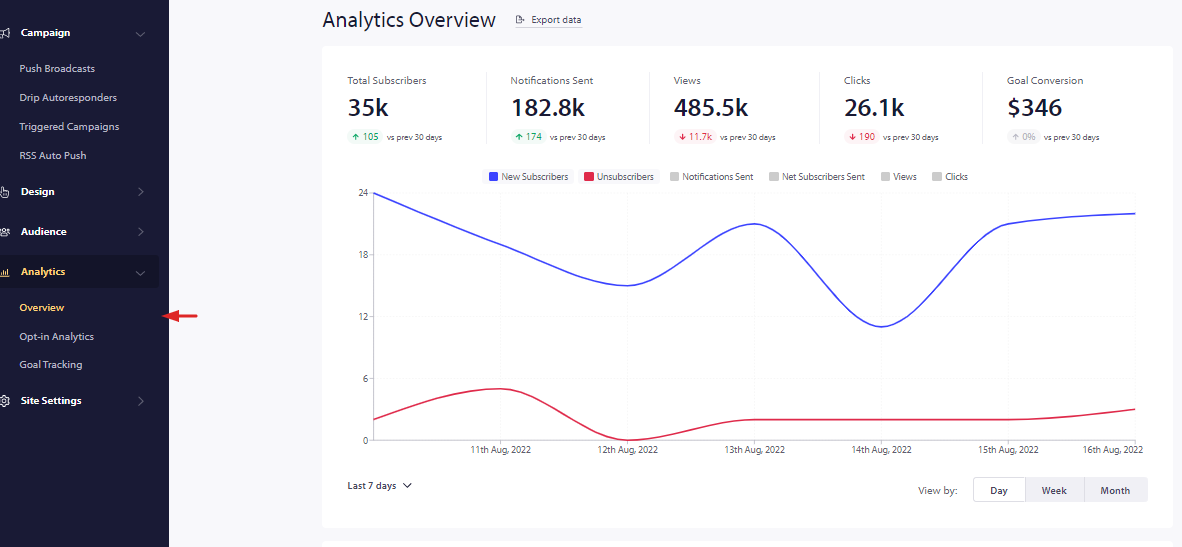
Hvert websted har sin oversigt eller opsummering af analyser. Dette kan ses under Analyse > Oversigt.
Her kan du se detaljer om abonnenter indsamlet, afmeldt og kampagner set, daglige, ugentlige eller månedlige klik mellem et givet datointerval.
Opt-in Analyse
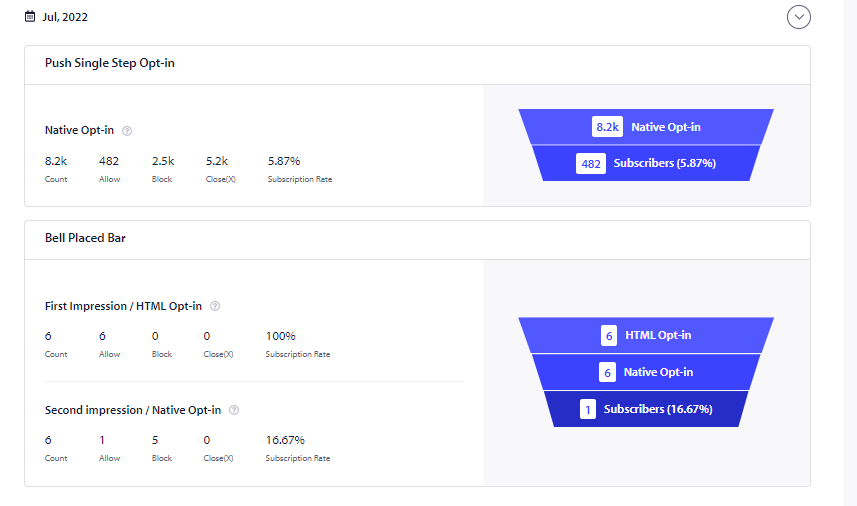
Dette giver en detaljeret analyse af tilmeldingsraten. Hvor mange mennesker så pop op-vinduet, folk der klikkede på tillad eller bloker sammen med tilmeldingsraten for det valgte pop op-dialogboks.
Du skal aktivere Opt-in Analytics ved at navigere til Målgruppe > Opt-in Analytics > Indstillinger i øverste højre hjørne.
Aktivér sporingen. Det er ikke vigtigt at aktivere overvågning i ét trin eller tilføje en advarsel for fald i tilmeldingsraten. Det er en valgfri funktion, der skal bruges baseret på dine krav.
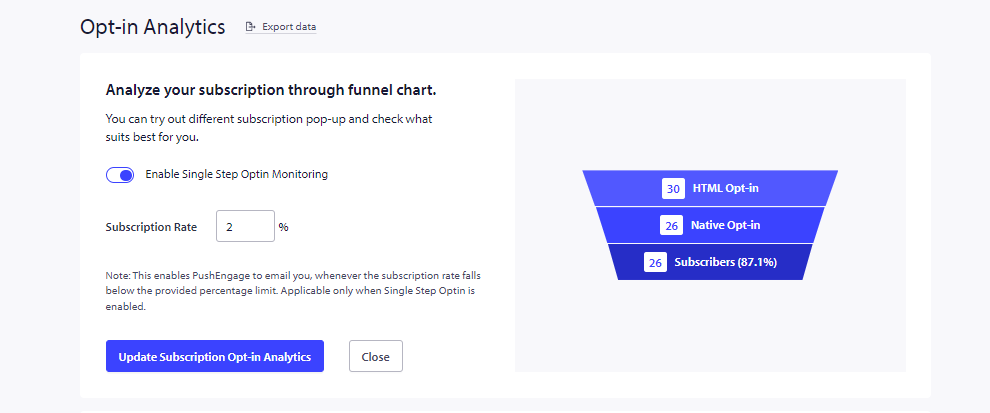
Når du har aktiveret, kan du tjekke detaljerne under Analyse > Opt-in Analytics.
Du kan se en tragtvisning af opt-in-ydeevnen. Den giver et holistisk billede af folk, der klikkede på tillad, bloker eller luk. Den inkluderer også analyserne af gendannelseswidgetten – 'Få notifikationswidget', hvilket betyder folk, der tilmeldte sig via denne metode. Du kan se disse data i daglige, ugentlige & månedlige visninger.
Abonnenter
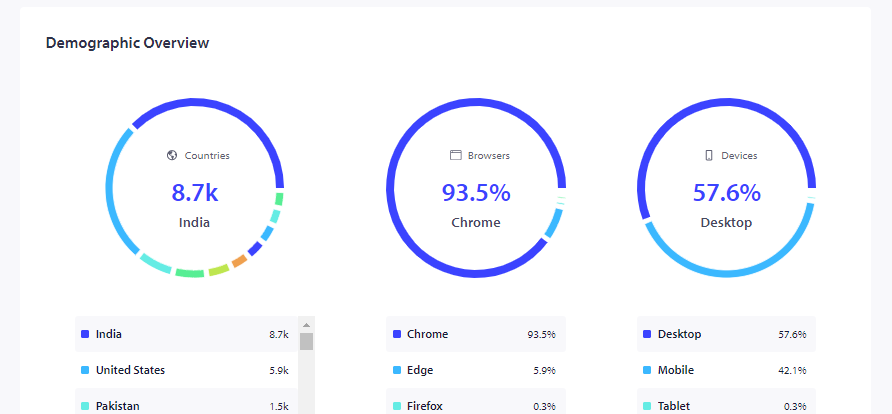
Dette hjælper dig med at forstå demografien for en abonnent. Du kan navigere til Målgruppe > Abonnenter.
Du kan se abonnentens oversigt med lande, browsere og enheder sammen med nye abonnenter tilføjet og afmeldt oversigt.
Hvis du støder på problemer, er du velkommen til at kontakte os ved at klikke her. Vores supportteam vil kunne hjælpe dig.