PushEngage giver dig mulighed for at konvertere dine hjemmesidebesøgende til web push-abonnenter. En abonnent er enhver, der klikker på tillad på abonnementspopup'en, du konfigurerer på din hjemmeside. En web push-kampagne indsamler ikke personlige oplysninger som e-mail eller telefonnummer. Du kan dog kontakte dine abonnenter, selv når de ikke er på din hjemmeside.
Installer PushEngage på dit websted
Tilføj webstedsdetaljer
1. For at fuldføre PushEngage-installationen skal du navigere til Sideindstillinger » Sideoplysninger.
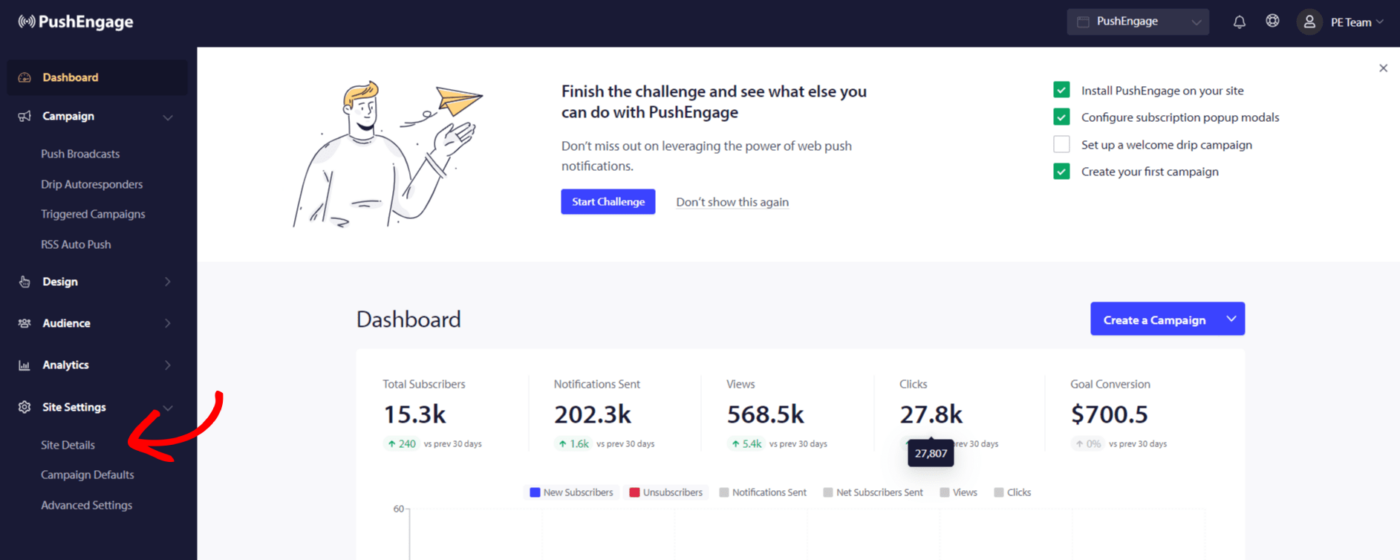
2. Du skal indtaste sideoplysningerne – sidenavn, dit brands logo, og sikre, at websteds-URL'en er korrekt.
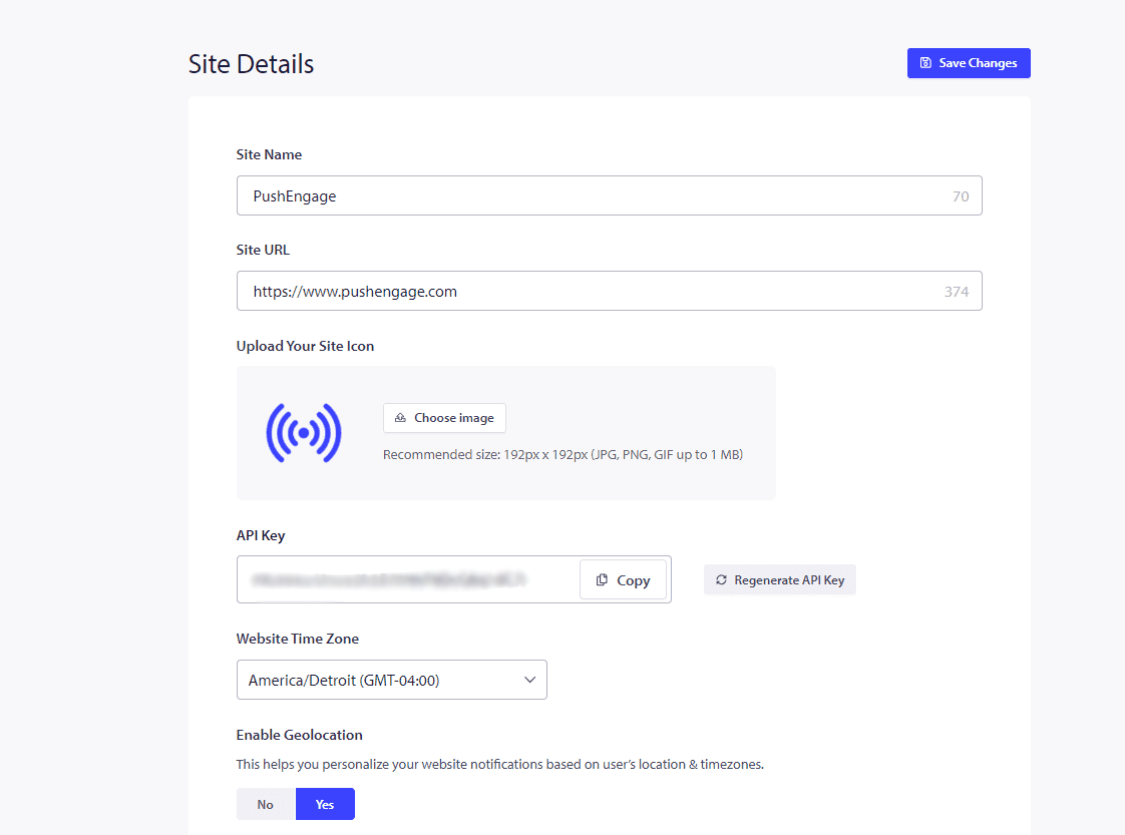
3. Hvis du har betalte planer, skal du sørge for at fjerne PushEngage Branding. Du kan markere dette felt og gemme ændringer.
Når du er færdig, skal du klikke på Klik her for opsætningsvejledning.
4. Vælg din sidtype fra de nævnte muligheder, og følg de delte trin for at fuldføre installationen.
Hvis platformen, hvor dit websted er hostet, ikke er nævnt, skal du kopiere installationskoden og tilføje den til din hjemmesides HTML. Hvis du har adgang til din rodmappe, skal du downloade service-worker.js-filen og tilføje den til rodmappen, så den er offentligt tilgængelig.
Hvis du ikke har adgang til rodmappen, kan du springe trinnet med at tilføje service-worker.js-filen over. Du kan blot tilføje koden og bruge en hvilken som helst dobbelttrins-tilmelding til at indsamle abonnenter.
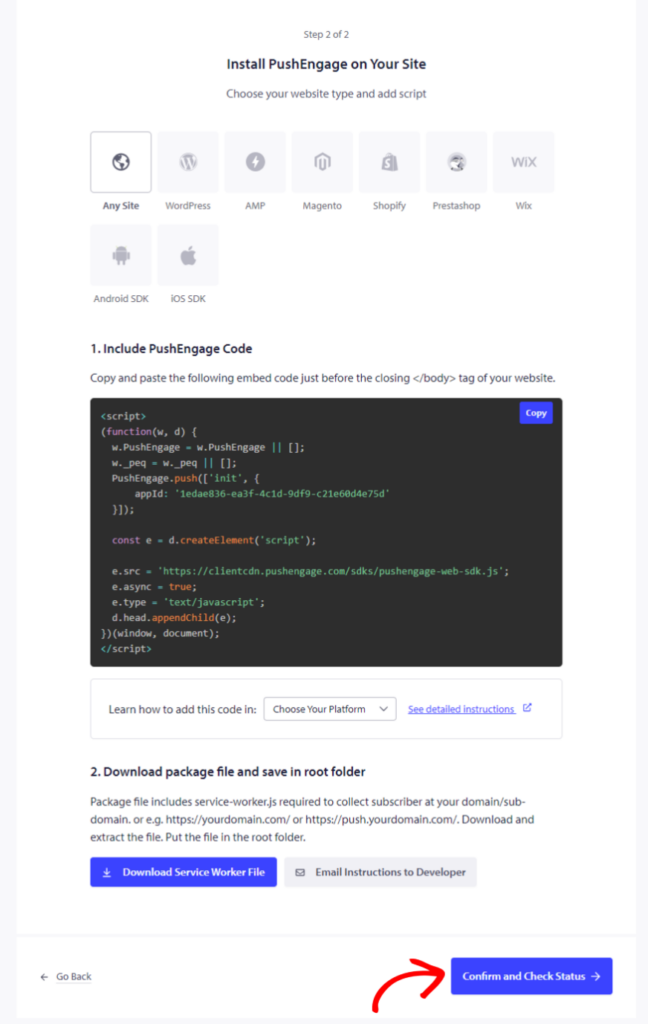
Når dette er gjort, skal du klikke på Bekræft og tjek status og gemme indstillingerne.
Valg af abonnements-opt-in
Nu hvor du har fuldført tilføjelsen af koden. Du kan konfigurere abonnements-opt-in.
Du kan navigere til Design » Popup-modaler.
Du kan vælge en af abonnementsdialogboksens stilarter ved at tænde for afbryderknappen.
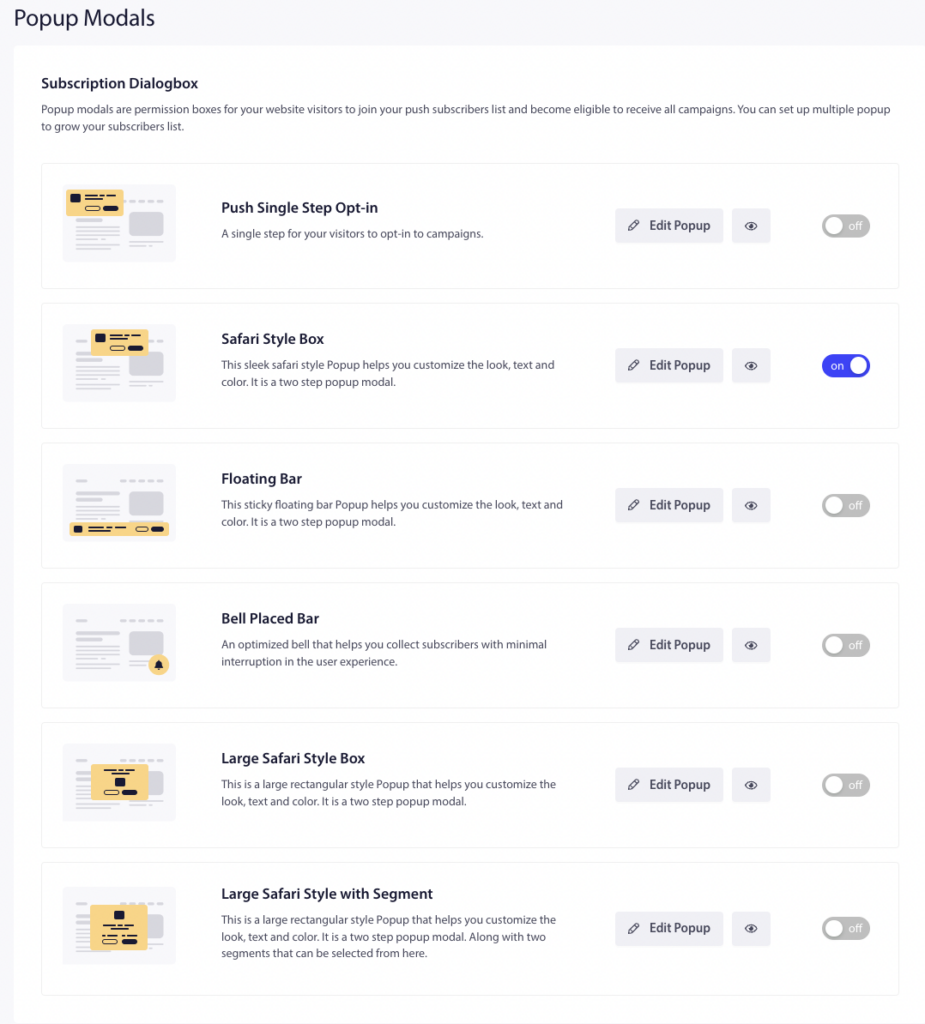
Du kan derefter designe Opt-in-stilarterne, så de passer til dine forretningskrav. Push Single Step Opt-in er et et-trins abonnement; de andre er Double Step Opt-in, som giver besøgende mulighed for at tilpasse, men kræver to trin for at blive abonnenter.
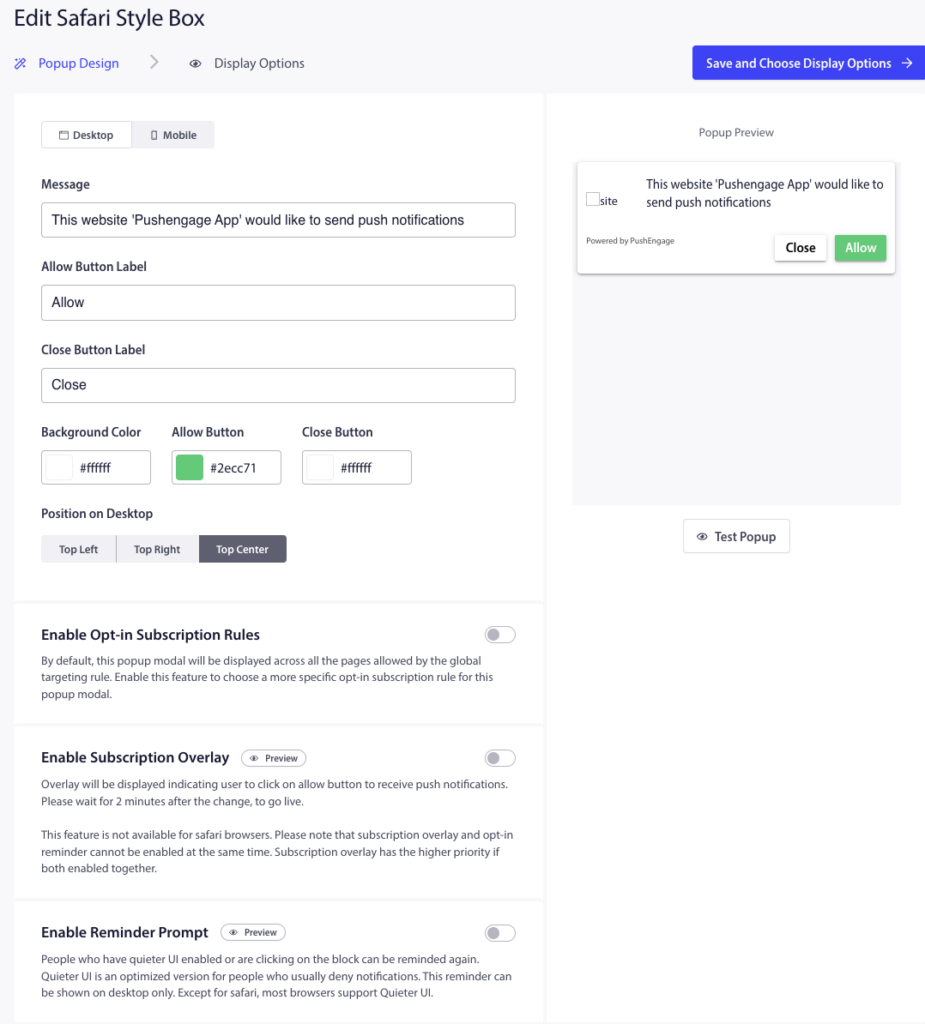
Når du er færdig med redigeringen, skal du klikke på Gem og vælg visningsindstillinger » Gem og aktiver popup.
Opsæt velkomst-drip-kampagne
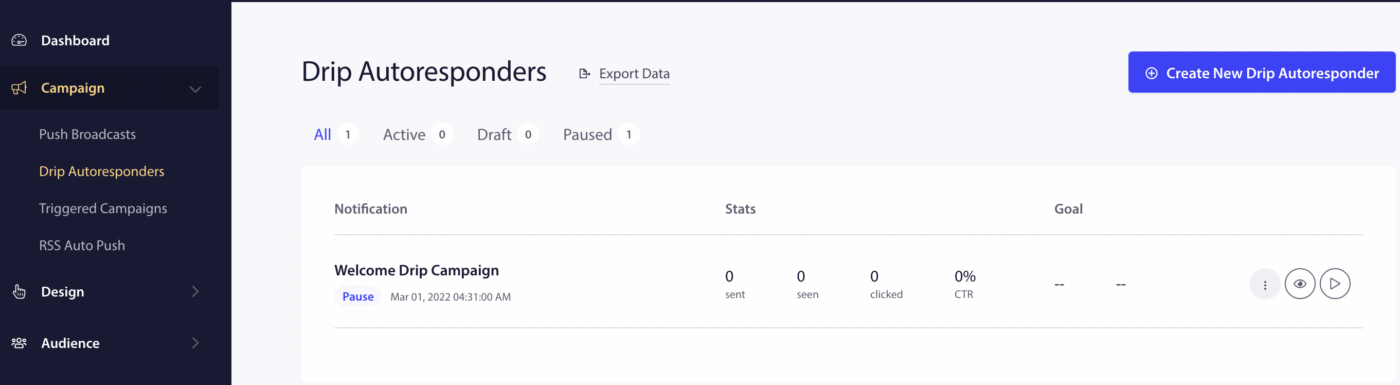
For at oprette velkomstkampagnen skal du navigere til Kampagner » Drip Autoresponders. Du vil se en skabelon til en velkomst-drip, som du kan aktivere ved at klikke på afspilningsknappen.
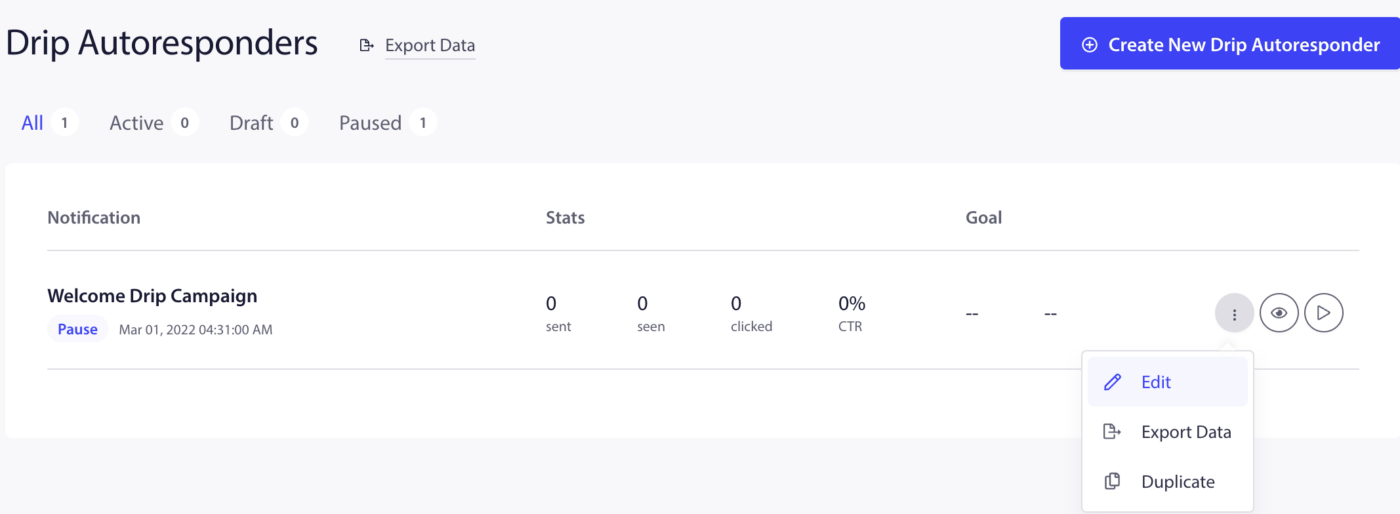
Du kan også redigere den samme kampagne, hvis du ønsker det, ved at klikke på mere-indstillingen og derefter vælge Rediger.
Du kan enten sende velkomstmeddelelserne til dine abonnenter med det samme eller x timer/minutter efter tilmelding. I stedet for at sende én meddelelse kan du også oprette en serie på 2-3 meddelelser.
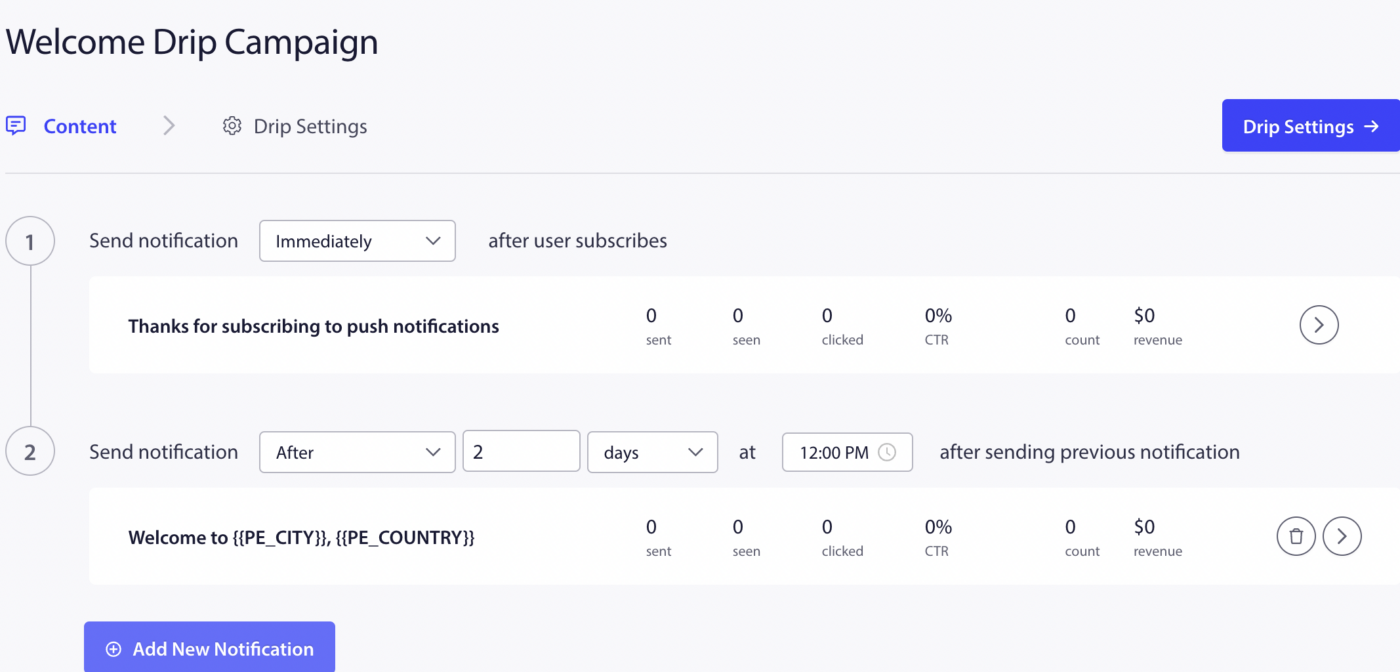
Når du er færdig, skal du klikke på Aktivér autoresponder.
Opret din første kampagne
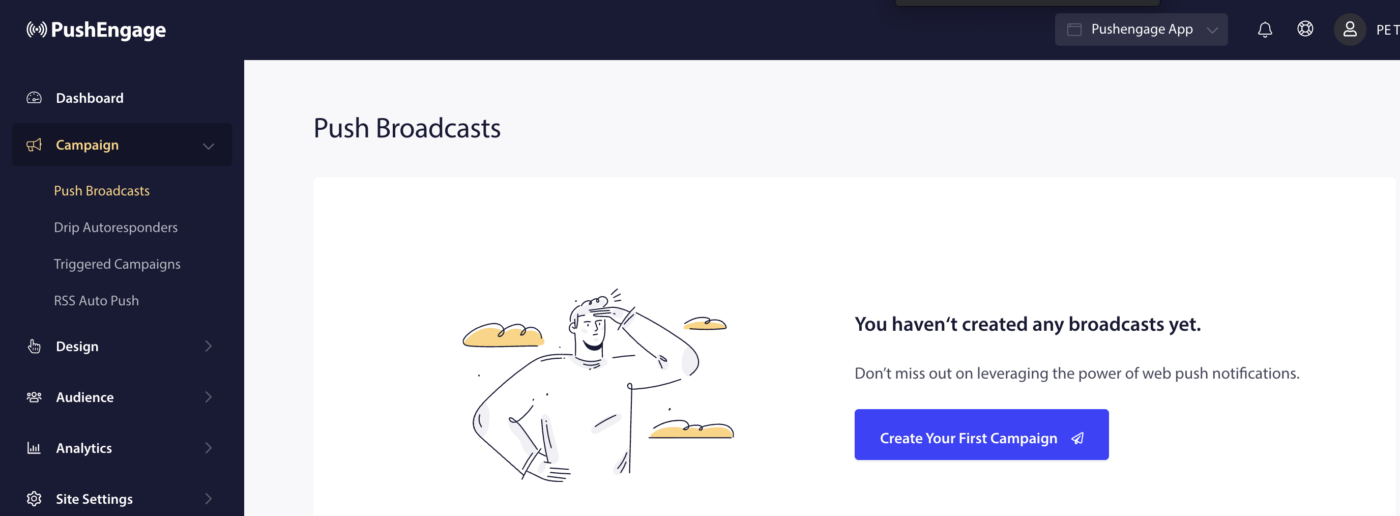
For at oprette den første push-udsendelse skal du navigere til Kampagne » Push-udsendelser » Opret din første kampagne.
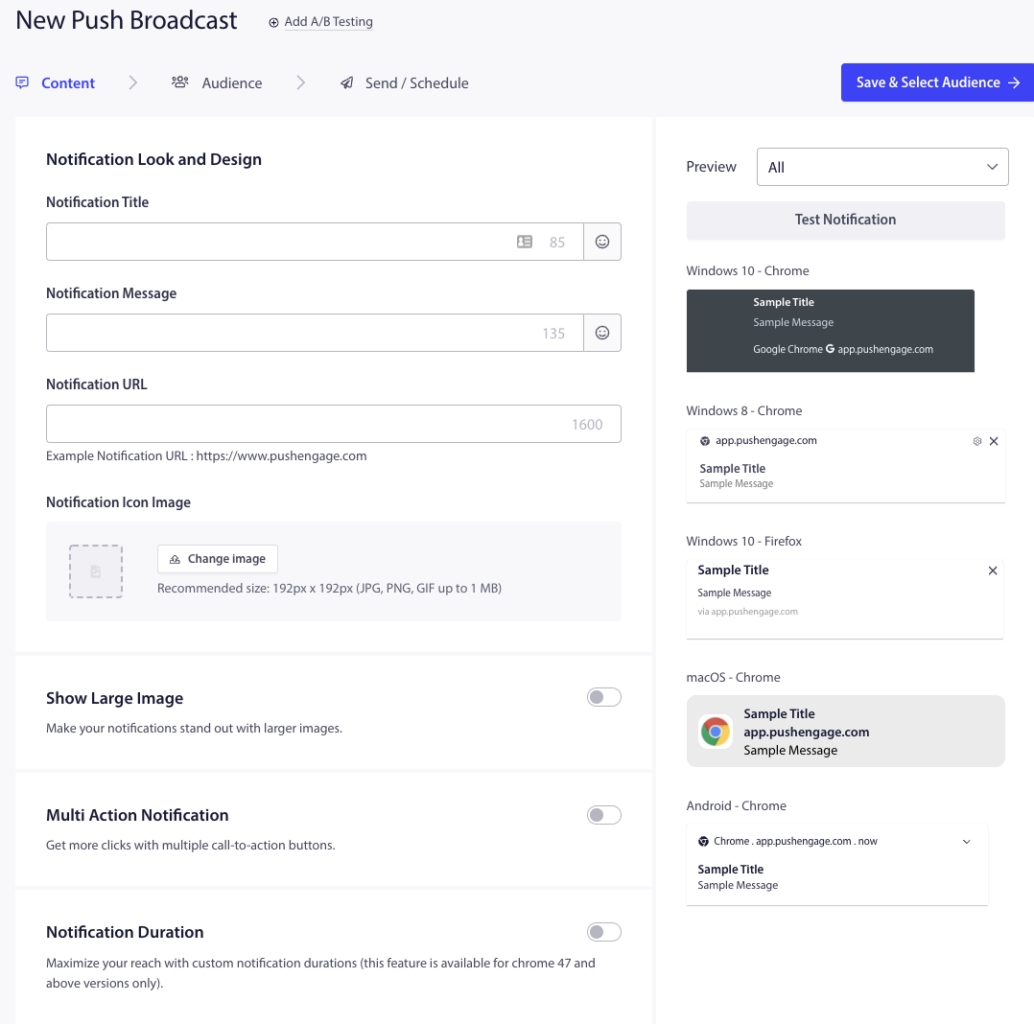
Indtast notifikationstitlen, beskeden, URL'en og et billede under Ny push-udsendelse. Hold øje med tegnbegrænsningen og billedstørrelsen, mens du opretter kampagnen.
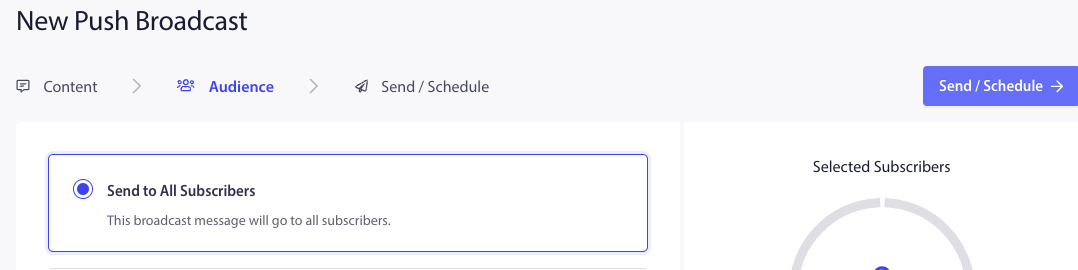
Vælg derefter Gem og vælg målgruppe og vælg på den næste fane Send til alle abonnenter » Send.
Du har nu nået slutningen af udfordringen, og du er klar til at bruge PushEngage.
Hvis du støder på problemer, er du velkommen til at kontakte os ved at klikke her. Vores supportteam vil kunne hjælpe dig.