PushEngage React Native SDK 简化了在 React Native 应用中集成推送通知的过程,为 Android 和 iOS 提供了无缝支持。我们提供三种框架来实现应用推送通知:React、Native 和 Flutter。您可以在此找到 Native Android、iOS 和 Flutter 应用推送通知的指南以获得进一步的帮助。
在本指南中,我们将引导您完成 PushEngage React Native SDK 的设置,以在 Android 和 iOS 上启用推送通知。
开始之前
以下是您需要准备的清单
- 一个 React Native 项目和 Turbo 模块支持。 如果您没有账户,可以 在此注册。
- 一个已为 Android 设置 Firebase Cloud Messaging (FCM) 的 Firebase 账户。
- 一个 Apple Developer 账户,用于配置 iOS 的 Apple Push Notification (APN) 服务。
安装 PushEngage React Native SDK
您可以使用 npm 或 yarn 来安装 PushEngage React Native SDK
npm install @pushengage/pushengage-react-native对于 React Native 0.77.0 或更早版本
如果您使用的是 React Native 版本 0.77.0 或更早版本,请使用 SDK 的 0.0.1 版本,如下所示:
npm install @pushengage/[email protected]设置 Android
Firebase Cloud Messaging (FCM) 设置
要为 Android 启用推送通知,您需要配置 Firebase Cloud Messaging (FCM)
1. 使用您的 Google 账户访问 Firebase 控制台。
2. 点击“添加项目”以创建新项目,或从列表中选择现有项目。如果您使用的是现有项目,请直接进行第 4 步。
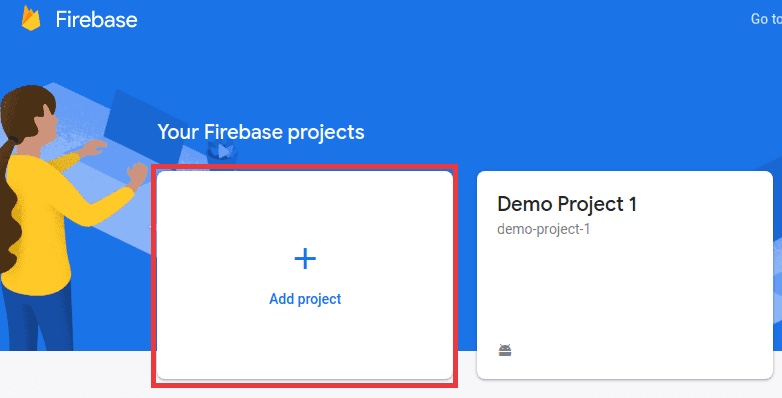
3. 输入项目名称,然后点击继续。在最后一屏点击“创建项目”完成设置过程。
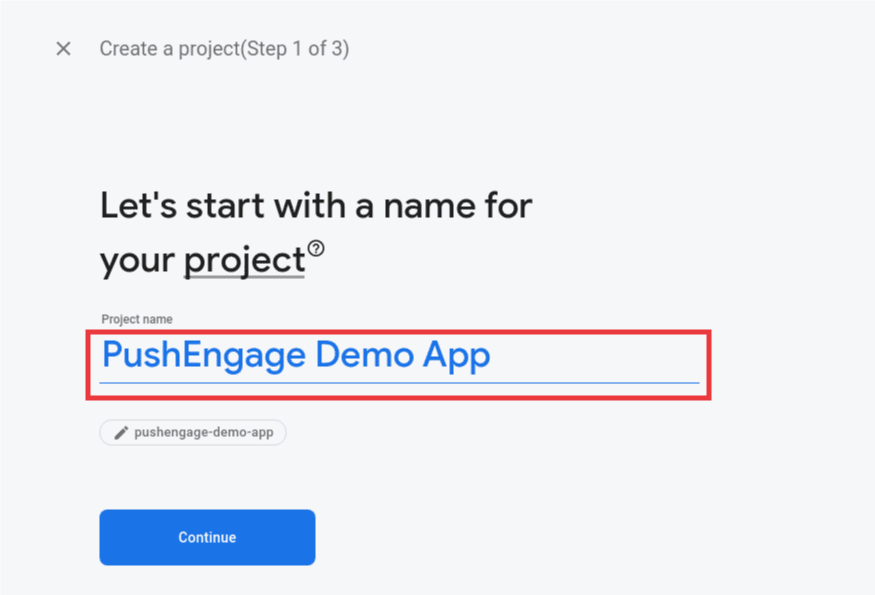
4. 在您的 Firebase 项目仪表板中,点击 Android 图标以添加 Android 应用。
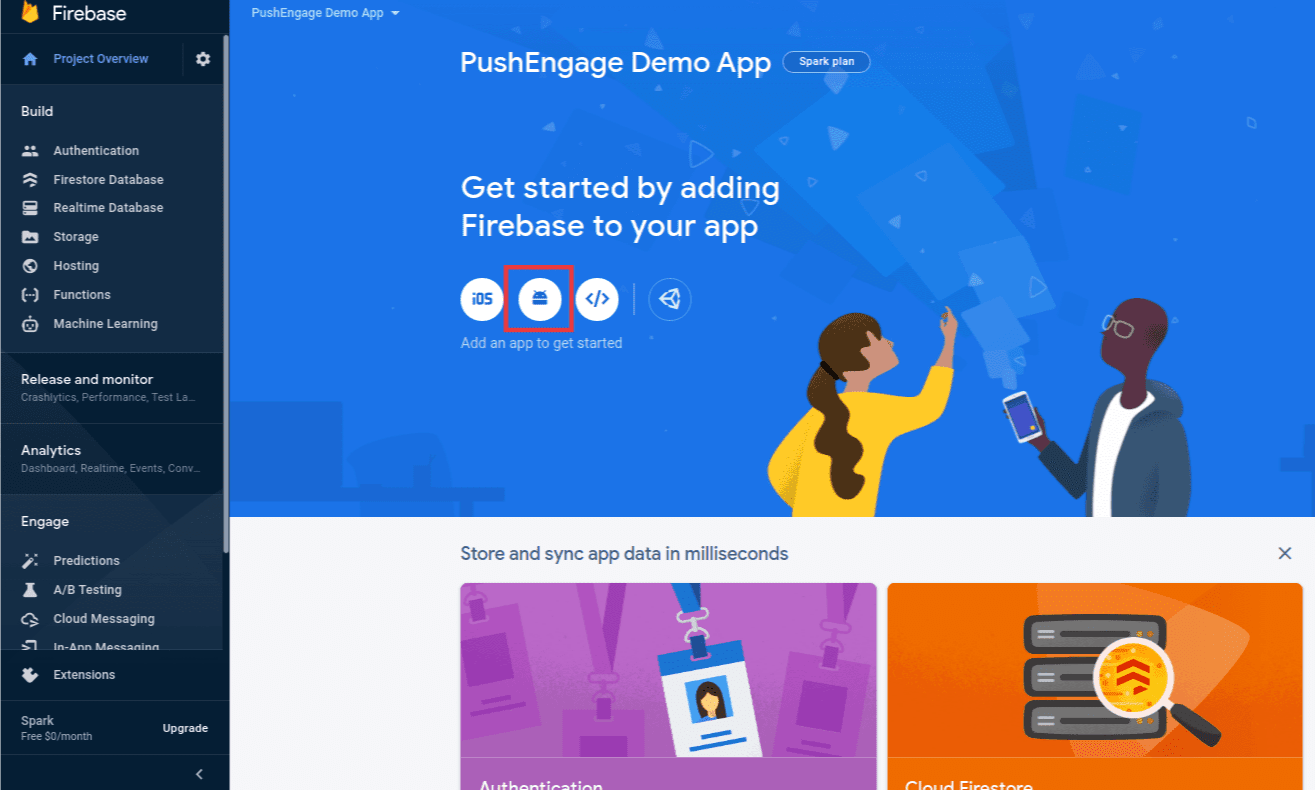
5. 输入您的 Android 应用的包名(可在 android/app/build.gradle 的 android 块中找到)并提供应用名称。完成后点击注册。
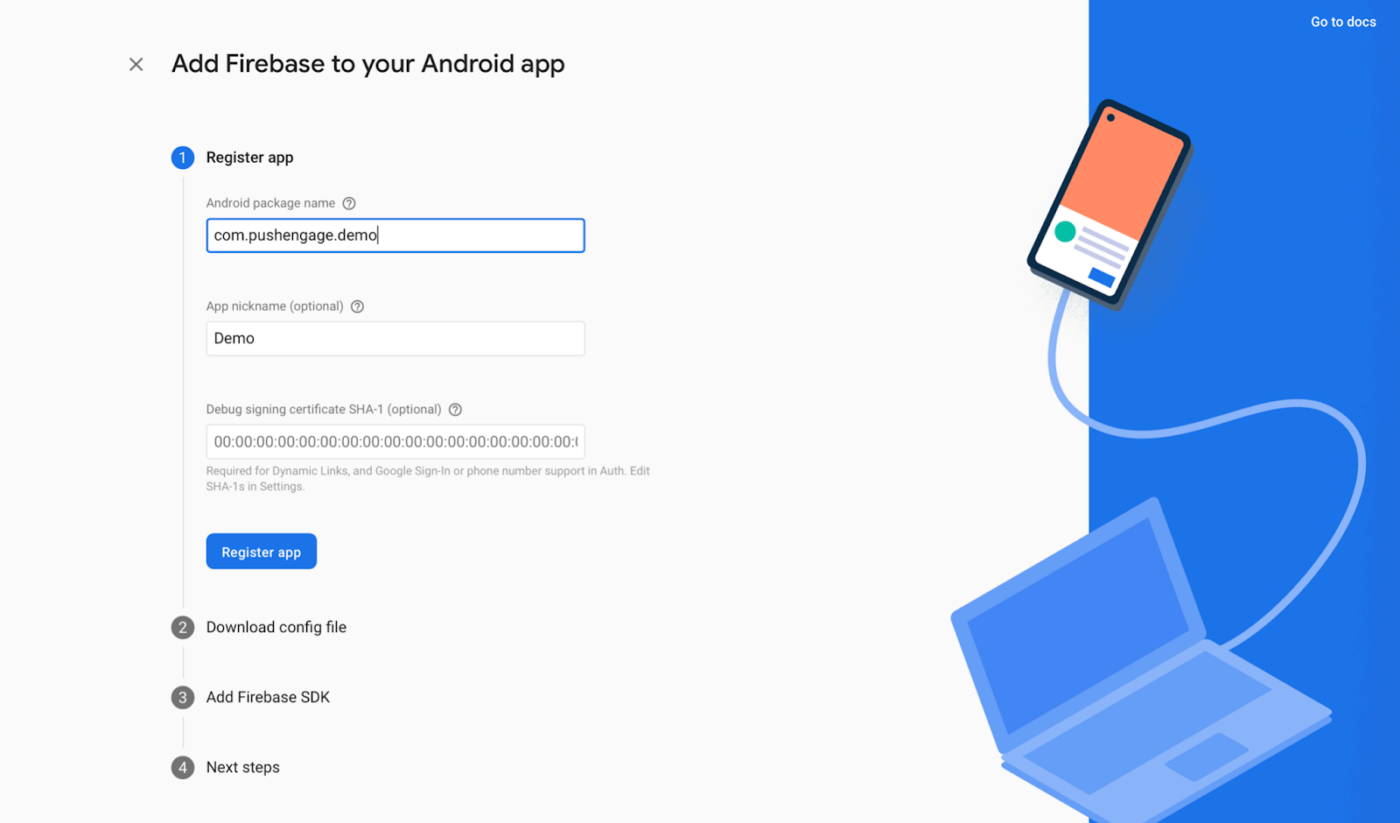
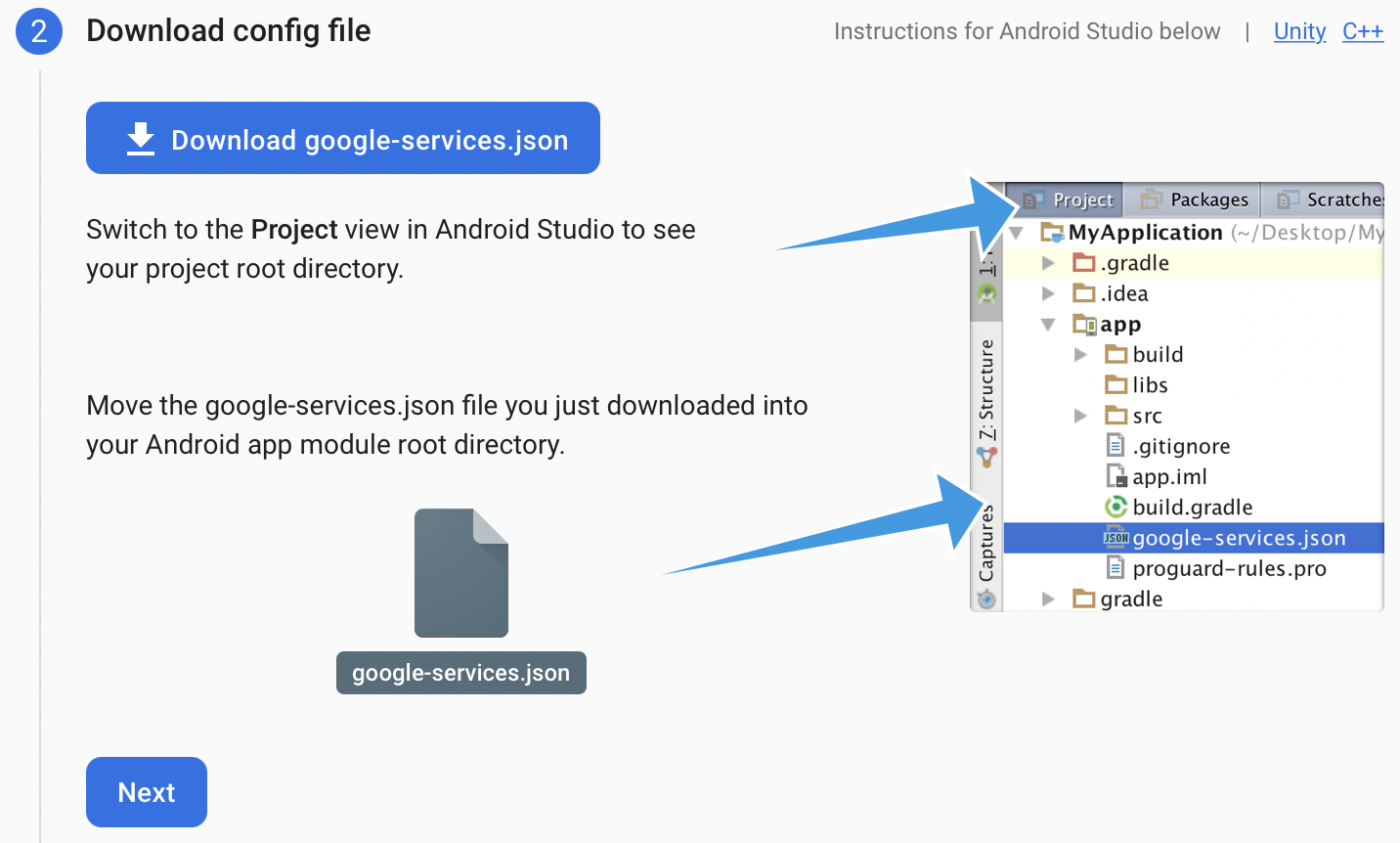
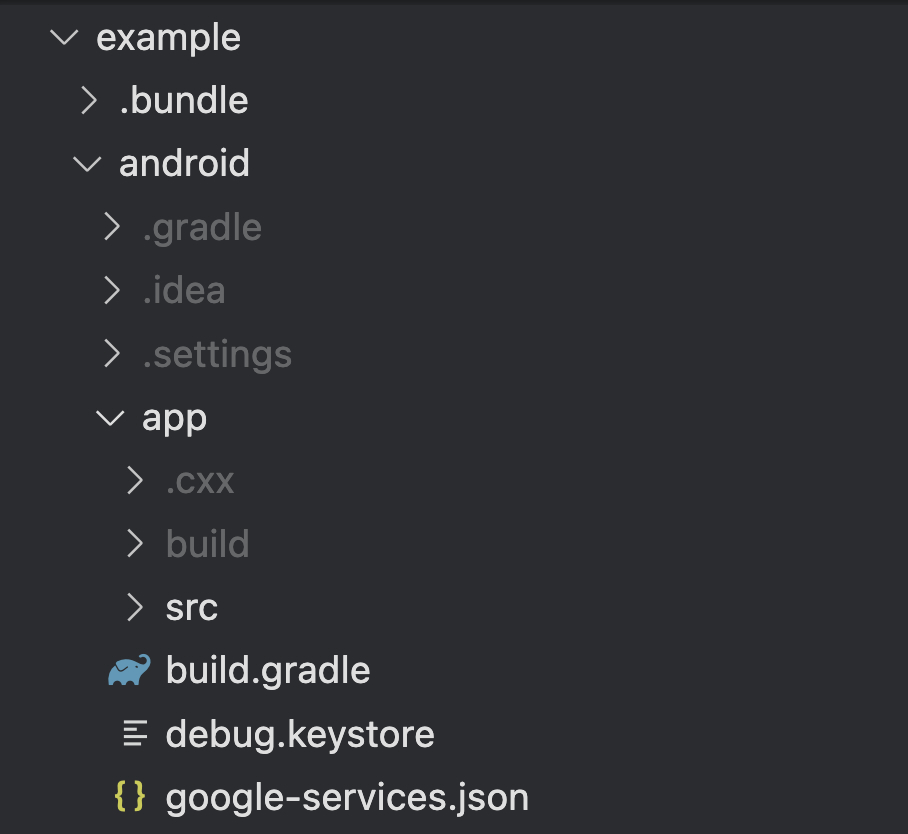
6. 下载 google-services.json 文件并将其放置在 Android 应用模块的根目录 android/app/ 中。
7. 生成服务账户 JSON
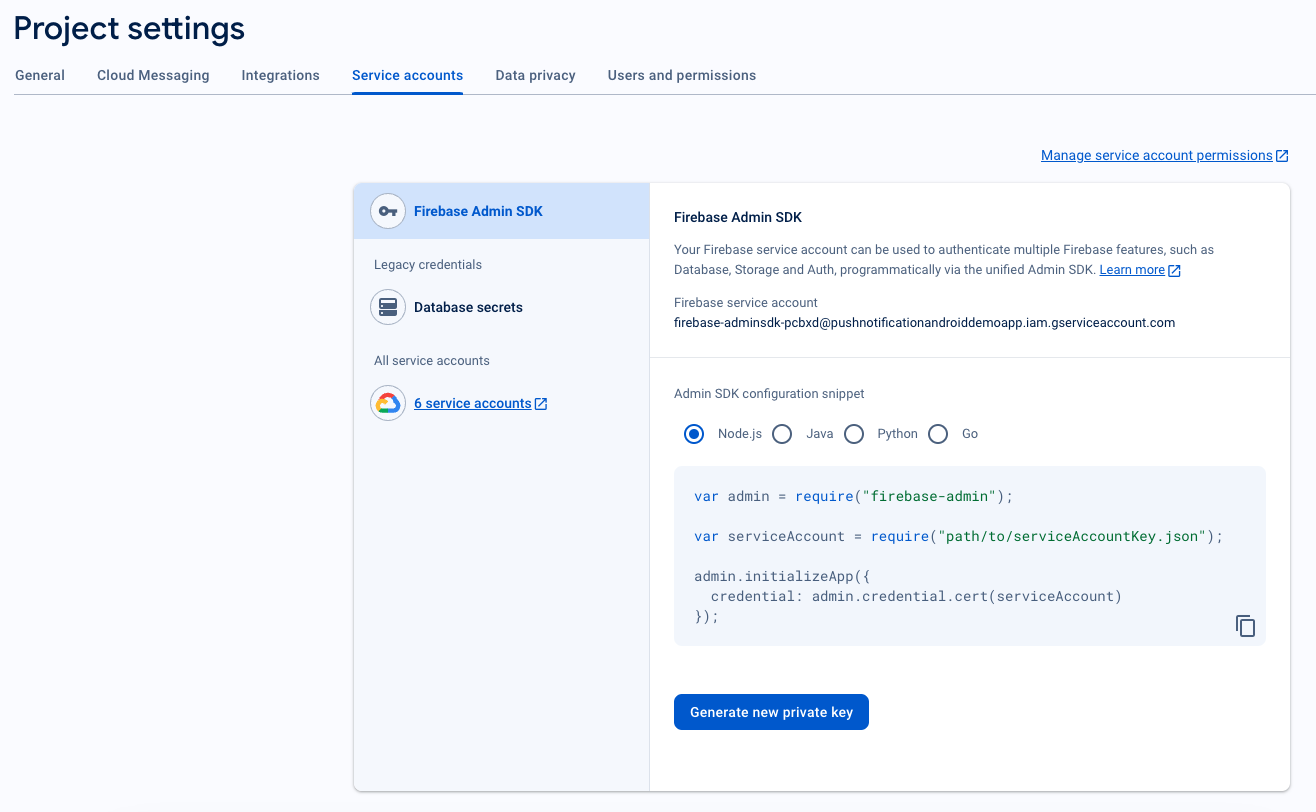
- 在 Firebase 控制台中,点击左上角“项目概览”旁边的设置图标,然后选择项目设置。
- 导航到服务账户选项卡。
- 点击生成新的私钥,然后下载 .json 文件。
- 妥善保管此文件,因为您将在 PushEngage 信息中心设置中使用它。
8. 获取发送者 ID
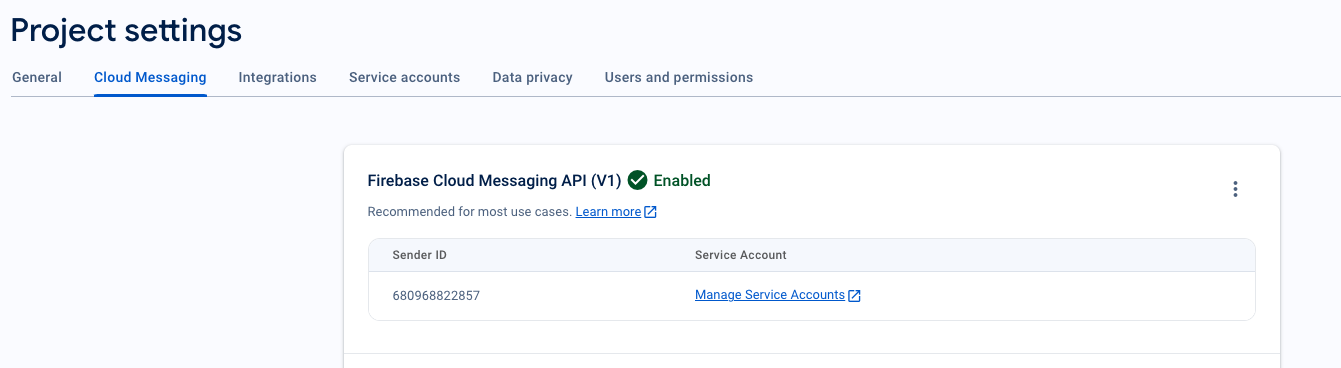
- 在 Firebase 控制台中,点击左上角项目概览旁边的设置图标,然后选择“项目设置”。
- 选择Cloud Messaging选项卡,您可以在此处找到发送方 ID,这是 PushEngage SDK 初始化所必需的。
将 FCM 与 PushEngage 集成
要将 FCM 详细信息无缝集成到 PushEngage 仪表板,您可以按照以下步骤操作。
1. 登录以访问您的 PushEngage 账户
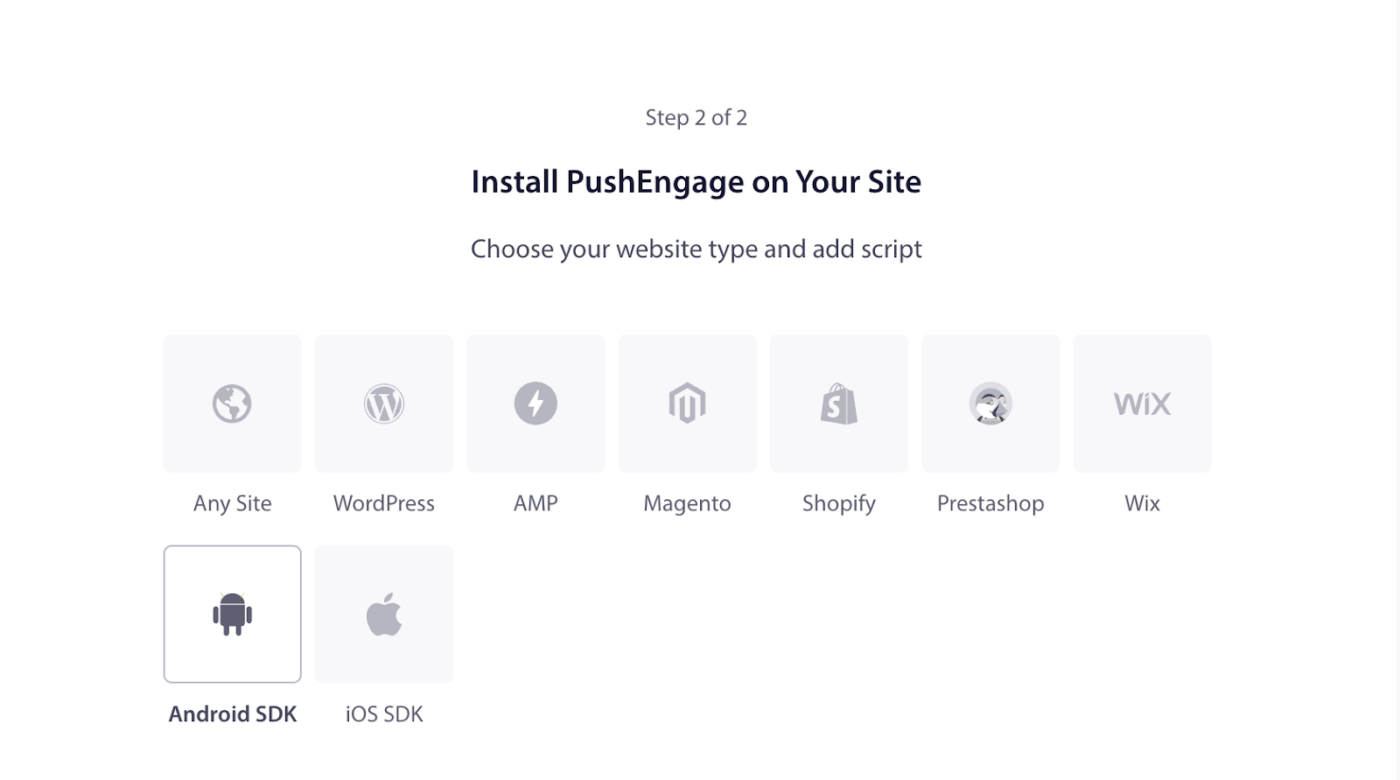
2. 在左侧导航栏中,转到设置 » 安装。选择 Android SDK
3. 在可用平台列表中,选择Android SDK 选项以配置 Android 的推送通知。
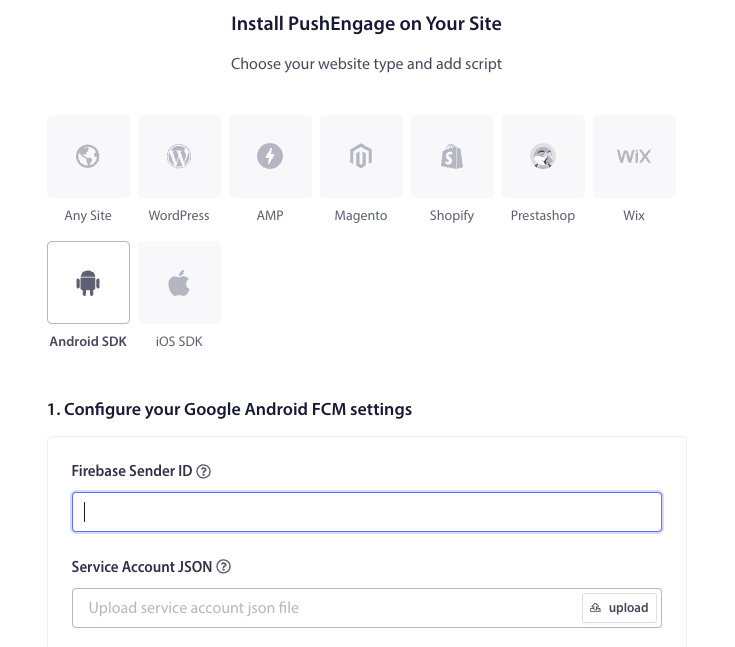
4. 配置 FCM 设置 – 输入您的Firebase 发送者 ID(从 Firebase 控制台获取)。上传服务账户 JSON 文件(从 Firebase 下载)。点击更新按钮以保存这些设置。
5. 配置 FCM 设置后,您将获得一个应用 ID。复制此应用 ID,因为它是在 Flutter 应用中初始化 PushEngage Android SDK 所必需的。
设置 iOS
打开your_project_name » iOS » your_project_name.xcworkspace. 后,您可以按照以下步骤操作。
步骤 1:启用远程通知
1. 打开您的 Xcode 项目,然后在项目导航器中选择根项目。
2. 选择您的主应用目标。
3. 导航至“签名与功能.”。
4. 确保已添加后台模式功能。如果未添加,请点击“+ 功能”按钮进行添加。
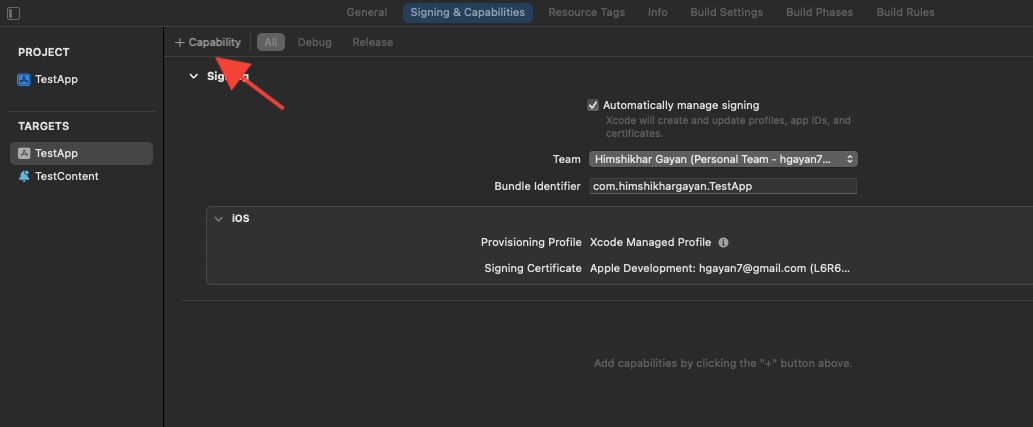
5. 同样,请确保已添加推送通知功能。如果未添加,请使用“+ 功能”按钮进行添加。
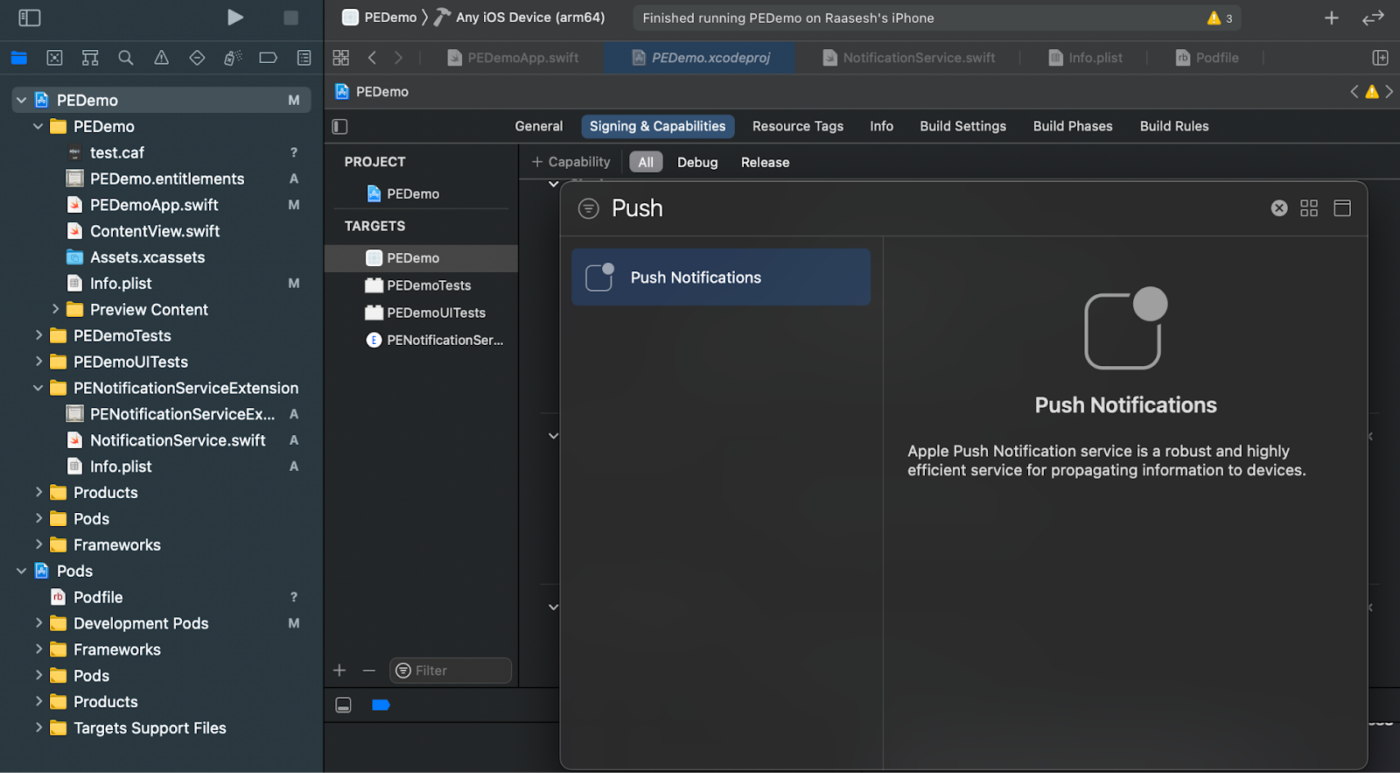
如果 Xcode 中未显示“推送通知”功能:
1. 前往您的 Apple Developer 账户。
2. 导航至“证书、标识符和配置文件.”。
3. 选择您的应用标识符。
4. 编辑您的 App ID 配置,并确保推送通知已启用。
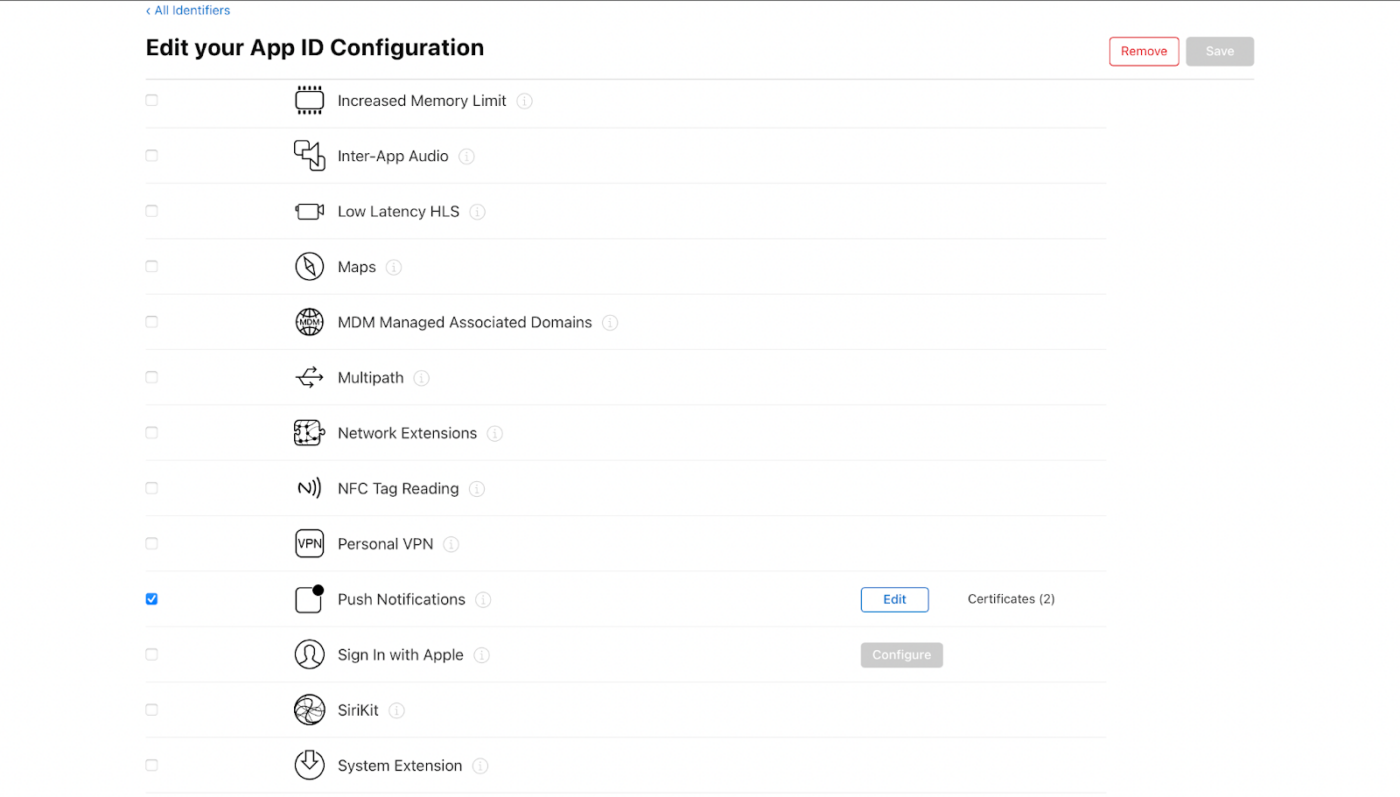
5. 返回 Xcode,然后尝试再次添加推送通知功能。
步骤 2:启用后台模式
1. 在您的 Xcode 项目中,导航至“签名与功能.”。
2. 在“后台模式”中,同时启用“远程通知”和“后台获取.”。
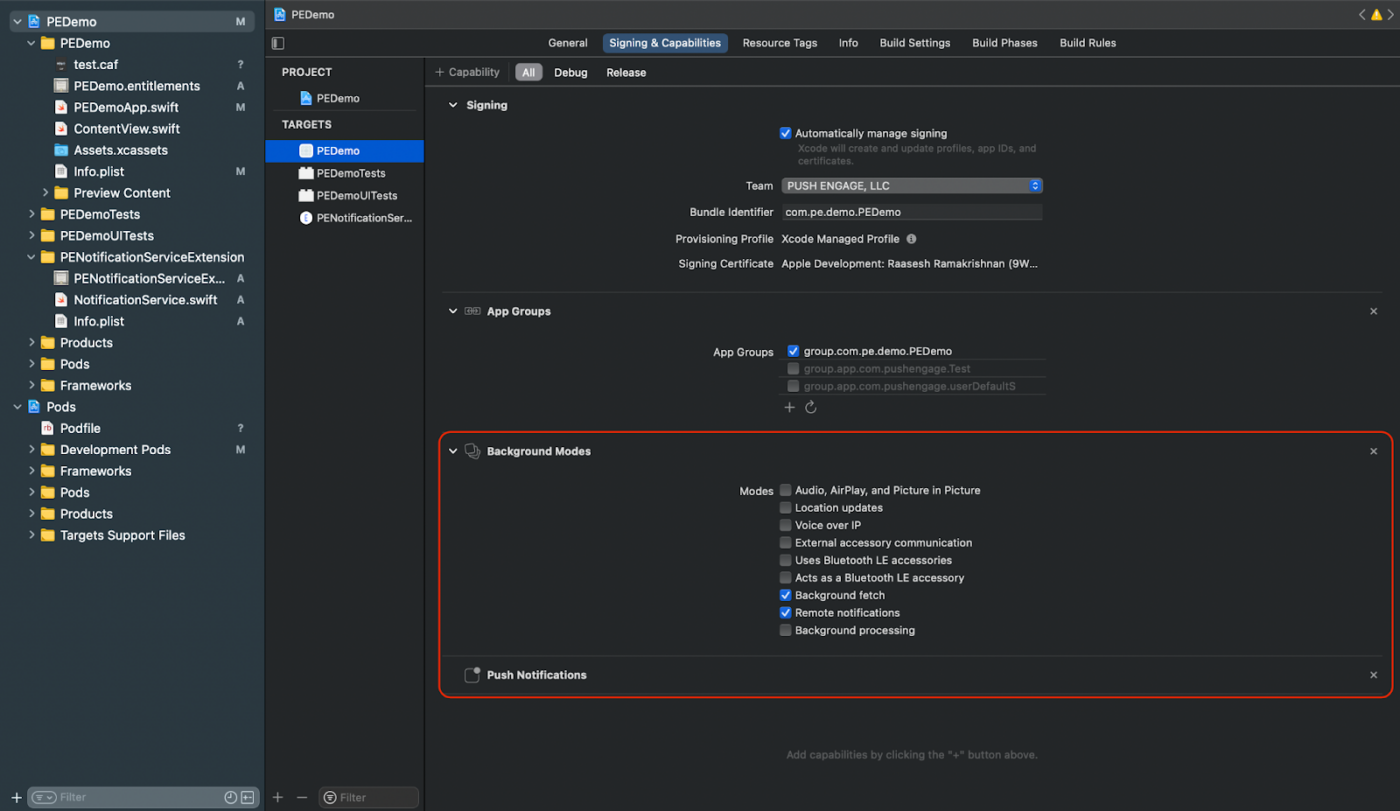
此步骤可确保您的应用能够高效地处理远程通知和后台获取。
创建 iOS APNs 证书
如果您还没有 iOS APNs 证书,可以参考此处的指南进行创建。
添加通知服务扩展和通知内容扩展
这仅适用于 iOS 设备。
创建通知服务扩展
通知服务扩展增强了您的 iOS 应用接收通知的能力。它用于在接收通知时修改通知内容或获取/处理任何数据。请按照以下步骤创建通知服务扩展:
1. 打开 Xcode 并导航至您的项目。
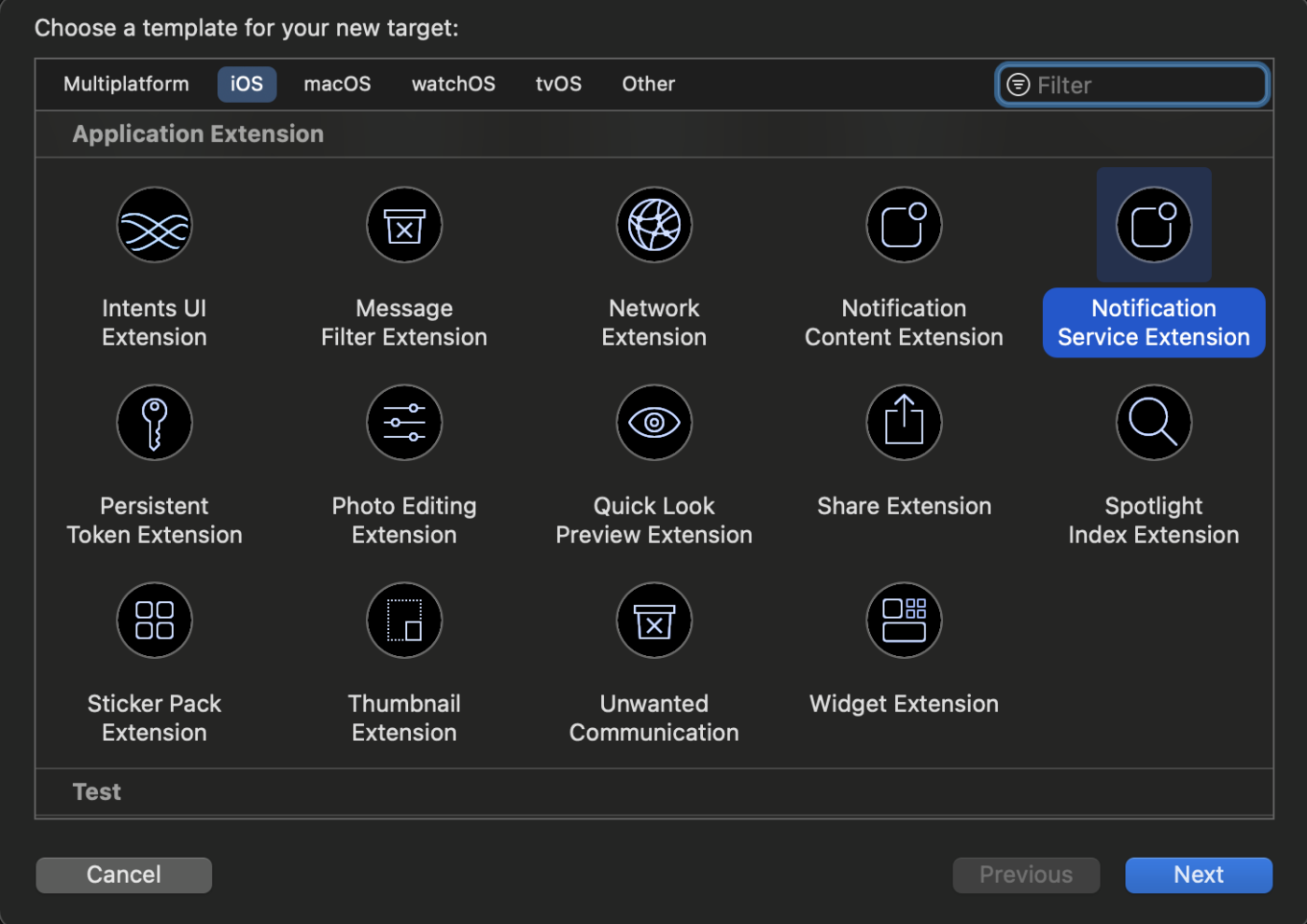
2. 从菜单中选择 文件 » 新建 » 目标。
3. 在模板选择窗口中,选择 通知服务扩展,然后点击 下一步。
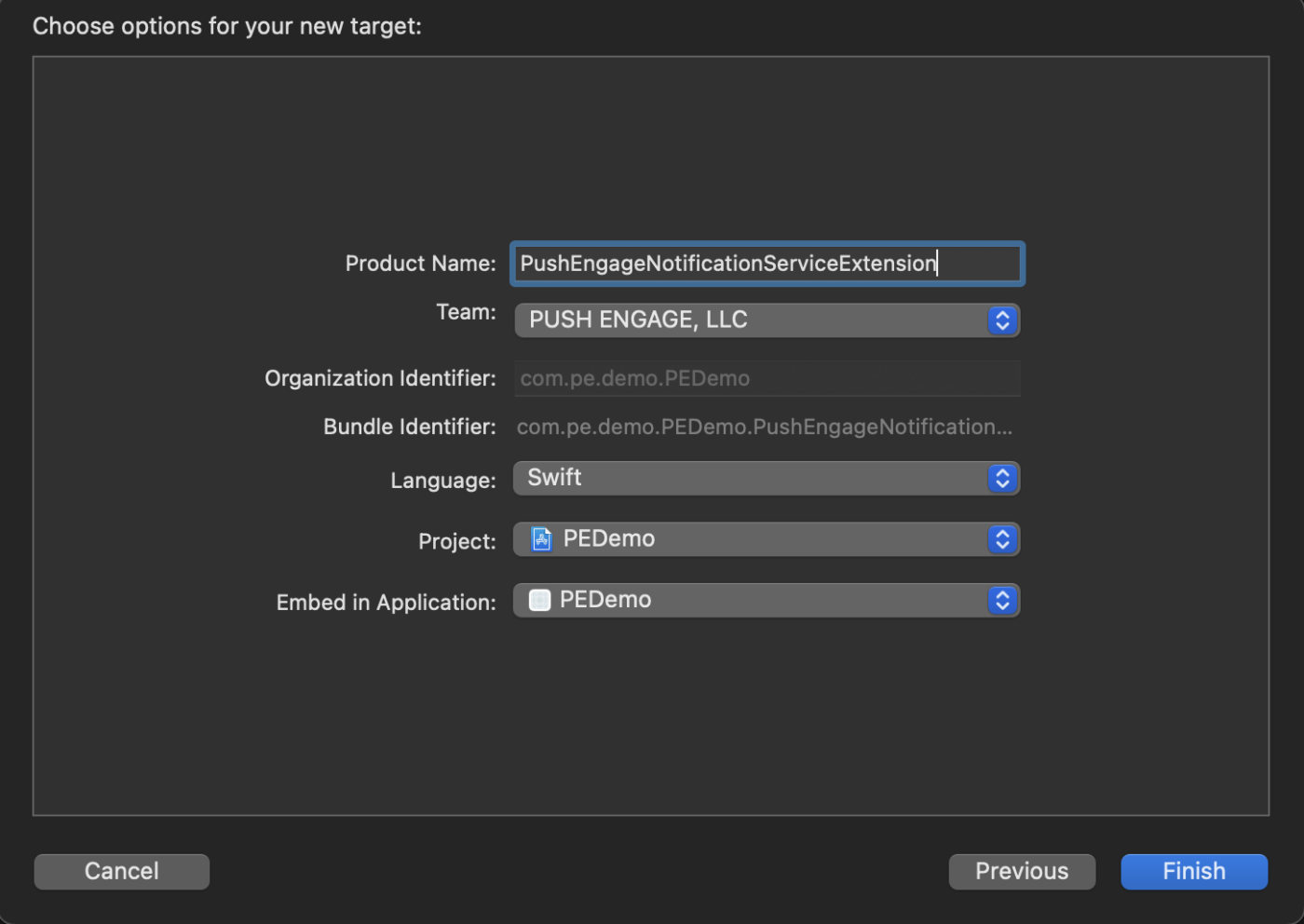
4. 为您的扩展提供一个名称,例如 PushEngageNotificationServiceExtension,然后点击 完成。
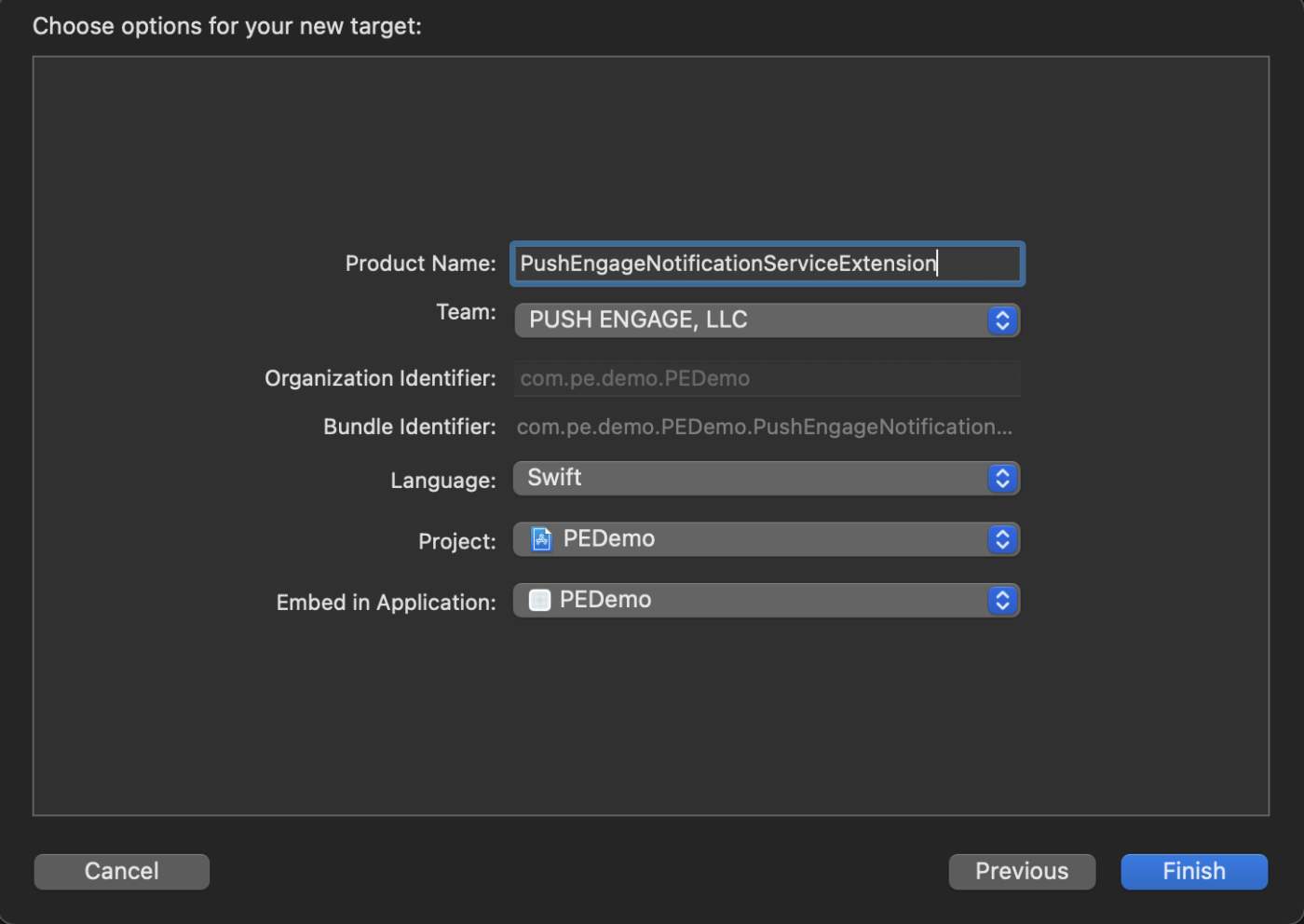
完成创建通知服务扩展后,系统可能会提示您激活它。请勿立即激活。
激活扩展会将 Xcode 的调试焦点从您的应用转移到扩展。如果您不小心激活了它,请不要担心;您可以在 Xcode 中切换回调试您的应用。
5. 在项目导航器中,选择顶层项目目录,然后在项目中的目标列表中选择在第 4 步中创建的 NotificationServiceExtension 目标。
6. 将部署目标设置为 iOS 10 或更高版本,这是 Apple 发布此扩展支持的版本。
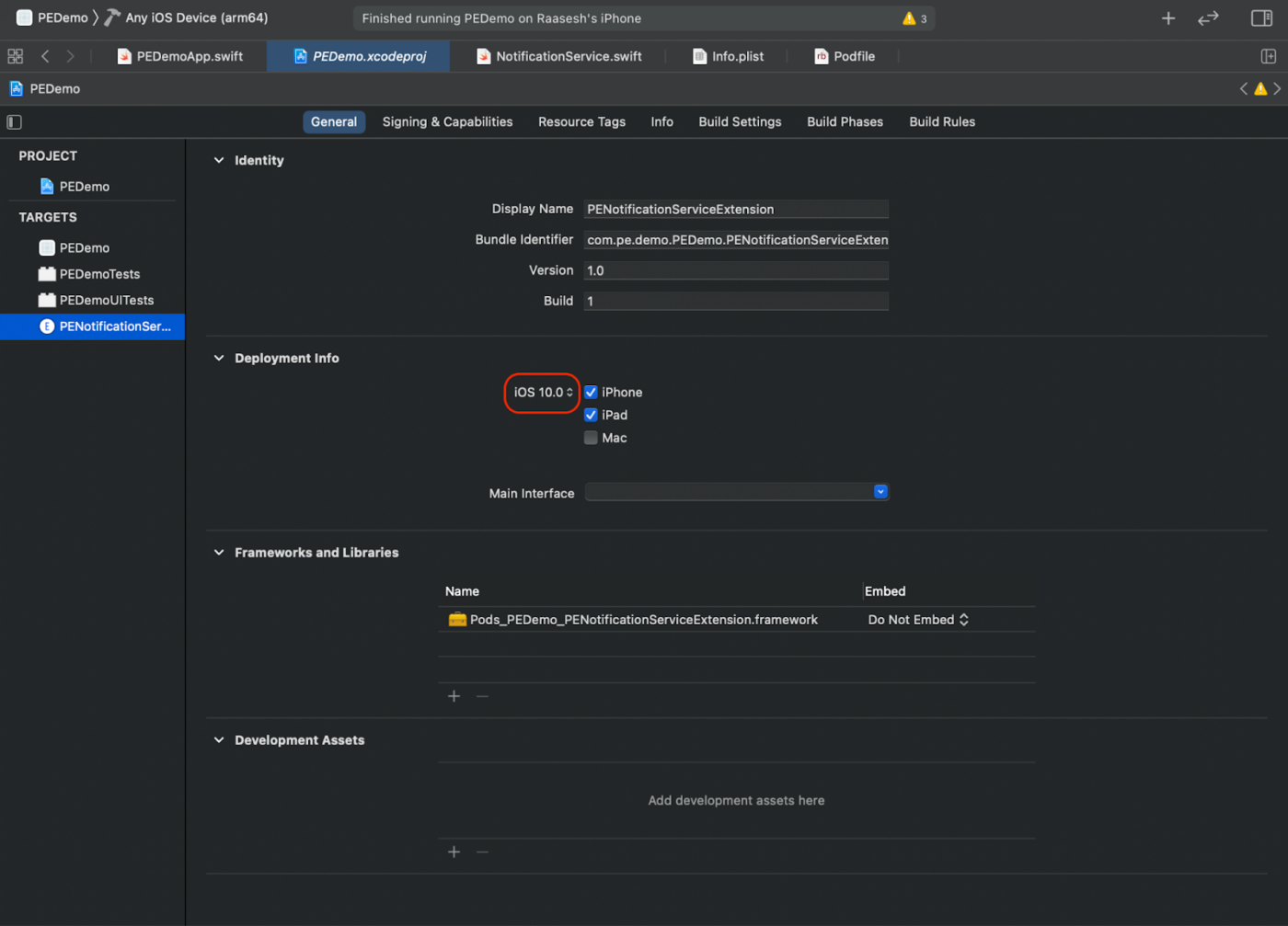
初始化通知服务扩展的 PushEngage SDK
为确保 PushEngage SDK 在您的 iOS 通知服务扩展中正常运行,请按照以下步骤操作:
1. 打开 your_project_name » ios » Podfile。
2. 将以下内容添加到主应用目标的 post_install 块中
post_install do |installer|
    # https://github.com/facebook/react-native/blob/main/packages/react-native/scripts/react_native_pods.rb#L197-L202
    react_native_post_install(
      installer,
      config[:reactNativePath],
      :mac_catalyst_enabled => false,
      # :ccache_enabled => true
    )
  end
3. 添加到文件末尾
target 'Your_Notification_Service_Extension_Name' do
  pod 'PushEngageExtension', '1.0.0'
end
4. 安装依赖项
pod repo update
pod install
5. 在您的通知服务扩展目标中,确保导入 PushEngage 框架并添加必要的初始化代码。
Swift
import UserNotifications
import PushEngageExtension

class NotificationService: UNNotificationServiceExtension {

    var contentHandler: ((UNNotificationContent) -> Void)?
    var bestAttemptContent: UNMutableNotificationContent?
    var request: UNNotificationRequest?

    override func didReceive(_ request: UNNotificationRequest,
                             withContentHandler contentHandler: @escaping (UNNotificationContent) -> Void) {
        self.request = request
        self.contentHandler = contentHandler
        self.bestAttemptContent = (request.content.mutableCopy() as? UNMutableNotificationContent)

        if let bestContent = bestAttemptContent {
            PushEngageExtension.didReceiveNotificationExtensionRequest(request, bestContentHandler: bestContent)
            contentHandler(bestContent)
        }
    }

    override func serviceExtensionTimeWillExpire() {
        // Called just before the extension will be terminated by the system.
        // Use this as an opportunity to deliver your "best attempt" at modified
        // content, otherwise the original push payload will be used.
        if let contentHandler = contentHandler, let request = request, let bestAttemptContent = bestAttemptContent {
            guard let content = PushEngageExtension.serviceExtensionTimeWillExpire(request, content: bestAttemptContent) else {
                contentHandler(bestAttemptContent)
                return
            }
            contentHandler(content)
        }
    }
}
创建通知内容扩展
为了通过添加自定义 UI 来改进显示方式,您需要创建一个通知内容扩展。请按照以下步骤进行设置:
1. 在 Xcode 中,前往 File » New » Target。
2. 选择 Notification Content Extension,然后点击 Next。
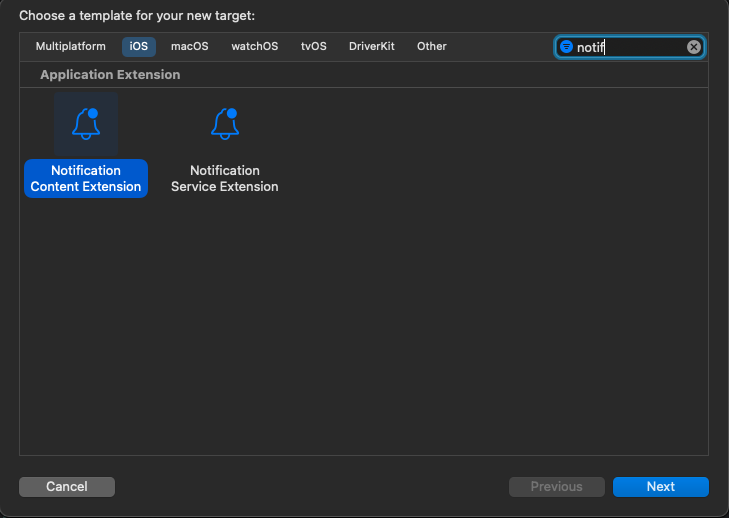
3. 点击完成后的对话框中,不要选择“激活”。取消会使 Xcode 继续调试您的应用而不是扩展。如果您不小心激活了它,请在 Xcode 中切换回调试您的应用(位于运行按钮旁边)。
4. 在项目导航器中,选择顶级项目目录,然后在目标列表中选择在第 2 步中创建的 NotificationContentExtension 目标。
5. 将部署目标设置为 iOS 10 或更高版本,这是 Apple 发布此扩展程序支持的版本。
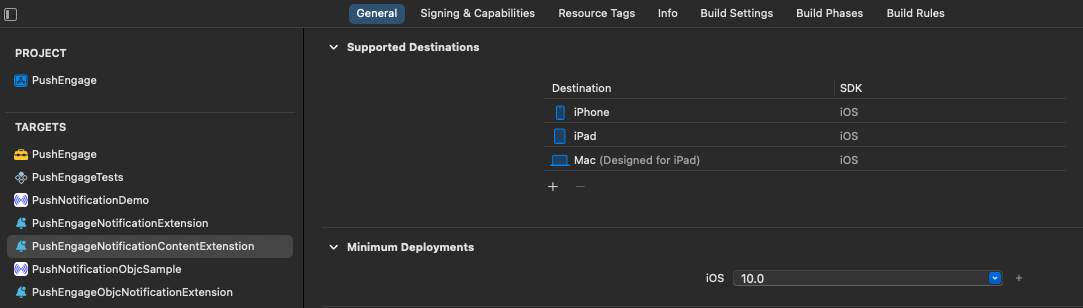
初始化通知内容扩展的 PushEngage SDK
为确保 PushEngage SDK 在您的 iOS 通知内容扩展中正常运行,请按照以下步骤操作:
1. 打开 your_project_name » iOS » Podfile。
2. 在 Podfile 的底部添加以下内容:
target 'Your_Notification_Content_Extension_Name' do
  pod 'PushEngageExtension', '1.0.0'
end
3. 安装依赖项:
将项目中的 ios 目录 cd 进入并运行以下命令
pod repo update
pod install
4. 在您的 Notification Content Extension 目标中,请确保导入 PushEngage 框架并添加必要的初始化代码。以下是您可以通过一些 UI 元素示例来完成此操作的方法:
Swift
import UIKit
import UserNotifications
import UserNotificationsUI
import SwiftUI
import PushEngageExtension

@available(iOSApplicationExtension 13.0, *)
class NotificationViewController: UIViewController, UNNotificationContentExtension {

    fileprivate var hostingView: UIHostingController<ContentView>?

    override func viewDidLoad() {
        super.viewDidLoad()
        self.view.backgroundColor = .white
    }

    func didReceive(_ notification: UNNotification) {
        if notification.request.content.categoryIdentifier == "your_identifier" {
            let payLoad = PushEngageExtension.getCustomUIPayLoad(for: notification.request)
            // Pass the payload to your custom SwiftUI view
            let view = ContentView(payLoadInfo: payLoad)
            hostingView = UIHostingController(rootView: view)
            if let hostingView = hostingView {
                addChild(hostingView)
                hostingView.view.translatesAutoresizingMaskIntoConstraints = false
                self.view.addSubview(hostingView.view)
                NSLayoutConstraint.activate([
                    hostingView.view.leadingAnchor.constraint(equalTo: self.view.leadingAnchor),
                    hostingView.view.trailingAnchor.constraint(equalTo: self.view.trailingAnchor),
                    hostingView.view.topAnchor.constraint(equalTo: self.view.topAnchor),
                    hostingView.view.bottomAnchor.constraint(equalTo: self.view.bottomAnchor)
                ])
            }
        }
    }
}
添加应用组
应用组对于实现主应用、通知服务扩展和通知内容扩展之间的通信至关重要。请按照以下步骤将应用组添加到您的 iOS 项目中:
如果您已有应用组并希望使用它,则可以跳至第 4 步。
1. 在您的 Xcode 项目中,在项目导航器中,选择顶层项目目录并选择应用的主 target。
2. 导航到 Signing & Capabilities 选项卡。
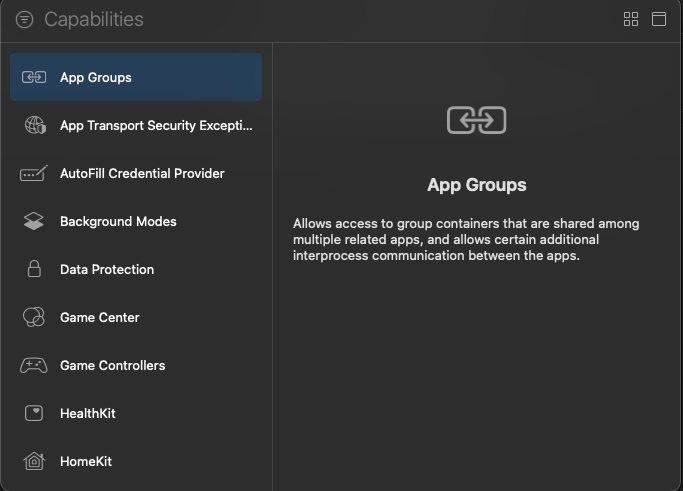
3. 点击“+ Capability”按钮,然后从列表中选择 App Groups。
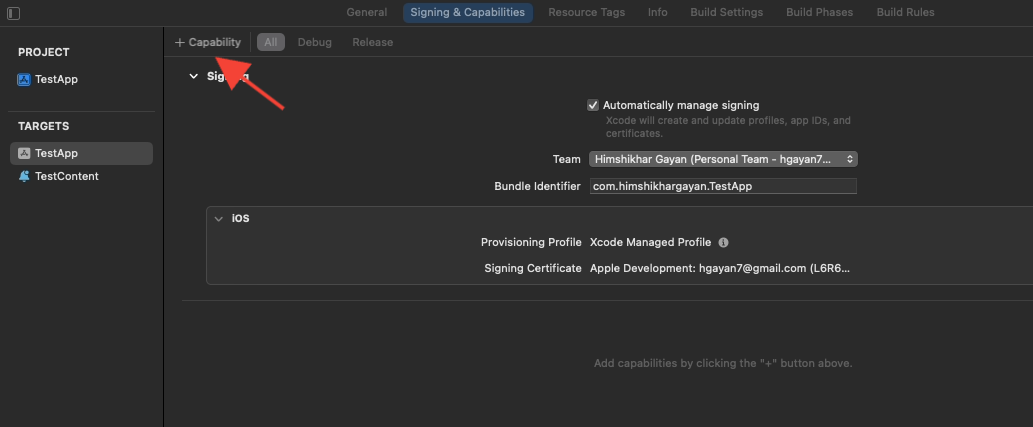
4. 点击“+”按钮添加一个应用组。
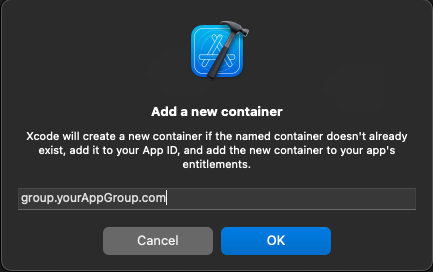
5. 为您的应用组添加一个唯一的名称,然后点击“确定”。
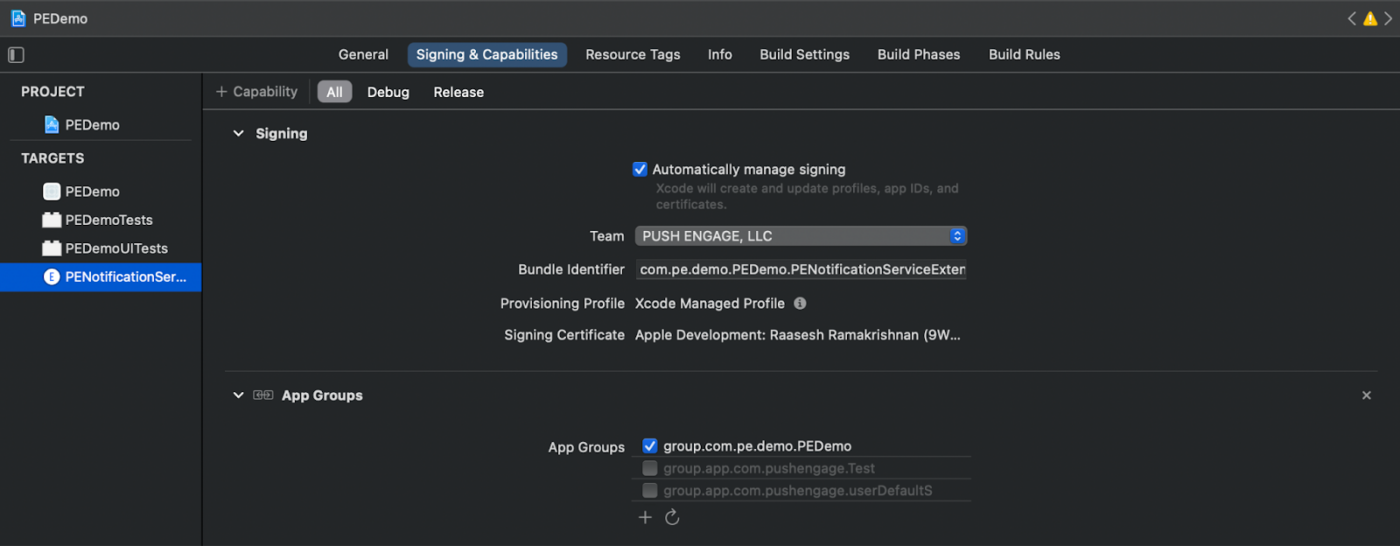
6. 在主编辑器区域,选择您应用的主目标。 如果您已创建应用组,请在您的应用程序 Info.plist 中提供该组的名称,键为 PushEngage_App_Group_Key。
7. 在通知服务扩展的 Info.plist 文件中添加相同的键和值。
8. 确保在主应用目标和您的通知服务扩展中都选择了相同的应用组。
初始化 PushEngage SDK
在您的 index.js 中,初始化 PushEngage SDK。
import PushEngage from '@pushengage/pushengage-react-native';
PushEngage.setAppId('your-app-id');
在 iOS 应用的 AppDelegate.mm 中
@import PushEngage;

@implementation AppDelegate

- (instancetype)init
{
    self = [super init];
    if (self) {
        [PushEngage swizzleInjectionWithIsEnabled: YES];
    }
    return self;
}

- (BOOL)application:(UIApplication *)application didFinishLaunchingWithOptions:(NSDictionary *)launchOptions
{
  self.moduleName = @"PushengageReactNativeExample";
  // You can add your custom initial props in the dictionary below.
  // They will be passed down to the ViewController used by React Native.
  self.initialProps = @{};
  [PushEngage setInitialInfoFor:application with:launchOptions];
  return [super application:application didFinishLaunchingWithOptions:launchOptions];
}

- (void)application:(UIApplication *)application didReceiveRemoteNotification:(NSDictionary *)userInfo fetchCompletionHandler:(void (^)(UIBackgroundFetchResult))completionHandler {
    completionHandler(UIBackgroundFetchResultNewData);
}
处理 deepLink
监听深度链接事件并在您的应用程序中处理它们
const listenerSubscription = React.useRef<null | EventSubscription>(null);
React.useEffect(() => {
  // 1. Runtime taps — notification tapped while the app is running/backgrounded.
  listenerSubscription.current = PushEngage.onValueChanged((data) => {
    Alert.alert(`Deeplink: ${data.deepLink}`);
    console.log('Data:', data.data);
  });
  // 2. Cold-boot tap — the notification that launched the app from a killed
  //    state. Delivered once here, NOT through onValueChanged.
  PushEngage.getInitialNotification().then((initial) => {
    if (initial) {
      Alert.alert(`Deeplink: ${initial.deepLink}`);
      console.log('Data:', initial.data);
    }
  });
  return () => {
    listenerSubscription.current?.remove();
    listenerSubscription.current = null;
  };
}, []);
故障排除
为错误添加 -fcxx-modules 到 Other C++ flags: 在 iOS 项目的 Build Settings 下使用 @import 时 C++ 模块被禁用,请考虑使用 -fmodules 和 -fcxx-modules。
如果您想探索 iOS SDK 的更多功能,可以查阅我们详细的 API 文档。
如果您遇到任何问题,请 联系我们 。我们的支持团队将能够帮助您。