注意:此项目没有可用的旧版文档,因此您看到的是当前文档。
This guide helps you manage multiple users under one account. You can handle site-level permissions for your team members and have the flexibility to define the roles as well.
开始之前
You need a Premium plan or above with PushEngage to add multiple users to your account.
Adding Users
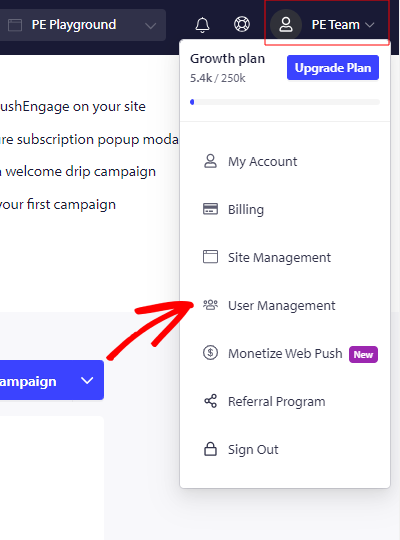
Once you log in to PushEngage Dashboard, click on the top right corner where you see the Profile icon & then click on User Management.

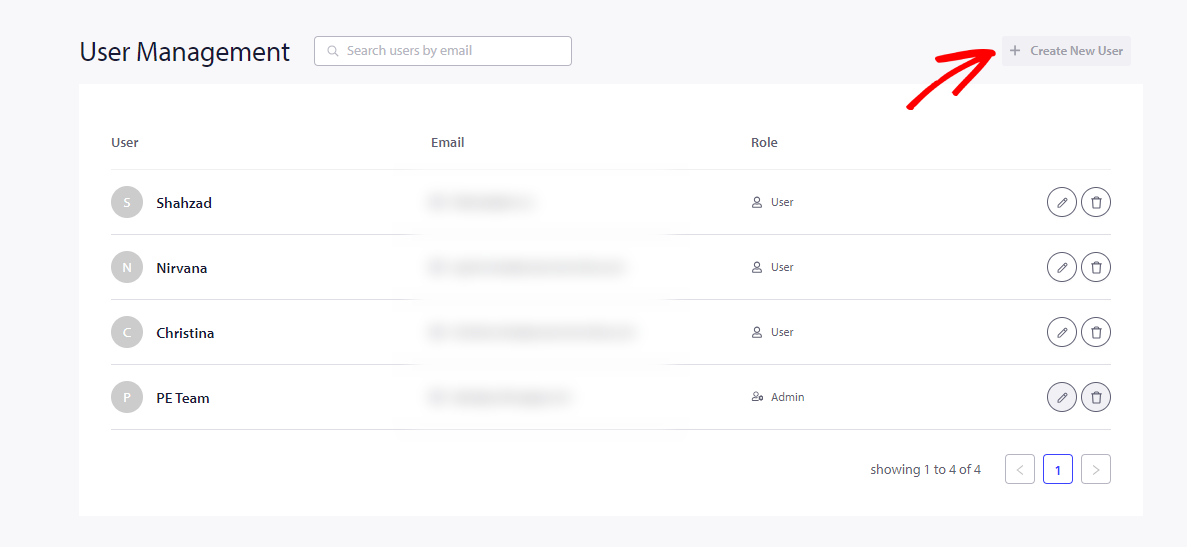
You can then click on Create New User & enter all the user-related details. You can choose the toggle button to provide User/ Admin access to the user shown.

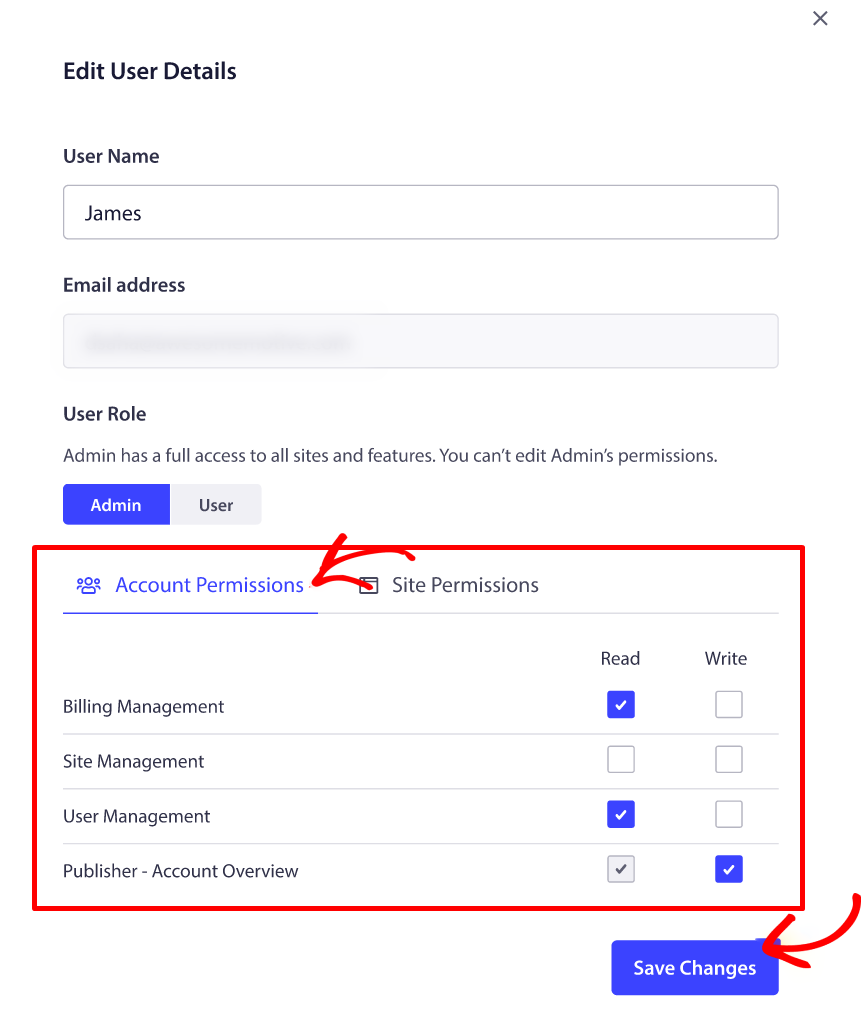
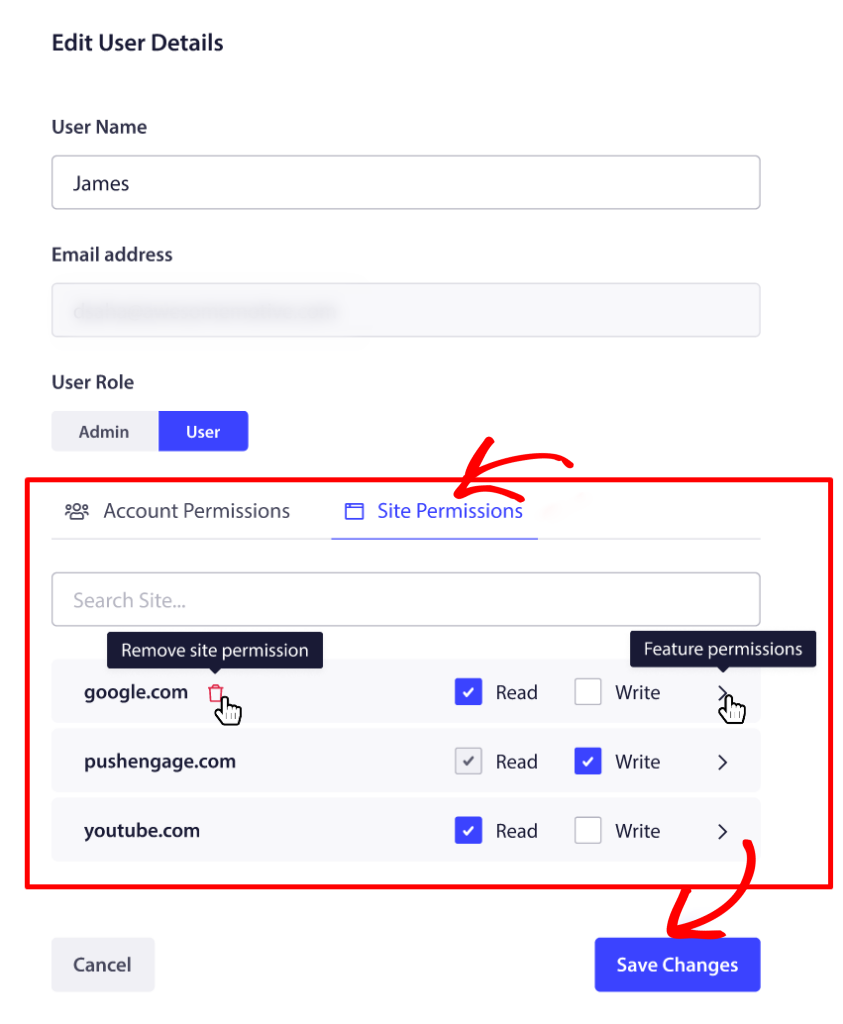
An Admin account can give access to the sites & permissions for each User account. The user role will be with restricted access & permissions.

Site permissions can be provided from the same window for each User.

Editing or Deleting Users
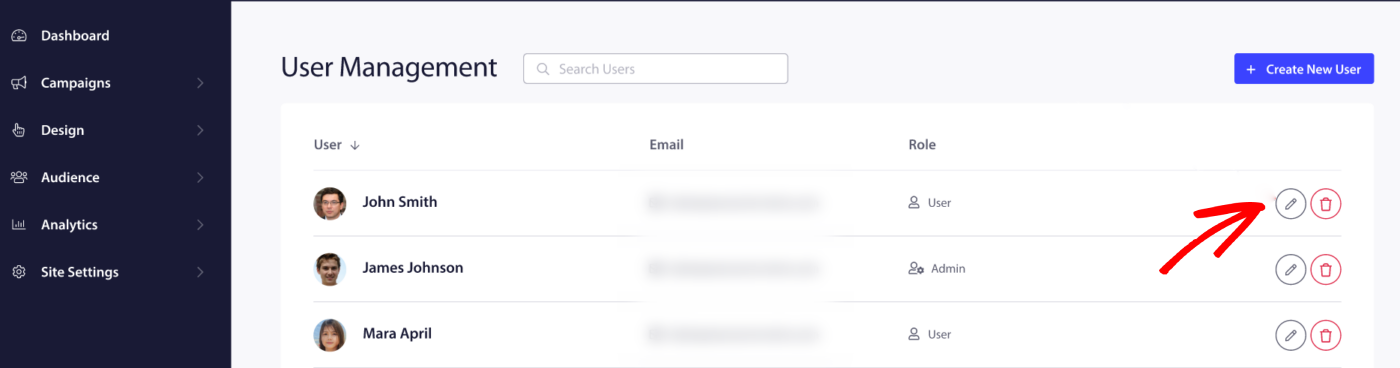
The User Details can be edited by clicking on the pen icon, as shown below.

You also have the option to delete a user if and when needed. You can do so by clicking on the Delete icon against the user that you want to delete.
如果您遇到任何问题,请随时在此处单击 联系我们 。我们的支持团队将能够为您提供帮助。