
Ψάχνετε για ένα απλό σεμινάριο για να προσθέσετε meta tags Open Graph του WordPress στον ιστότοπό σας;
Το Open Graph είναι ο τρόπος με τον οποίο το Facebook χειρίζεται τα μεταδεδομένα όταν μοιράζεστε τη δημοσίευση ή τη σελίδα σας σε αναρτήσεις του Facebook. Είναι ο τρόπος με τον οποίο το Facebook ανακτά αυτόματα την προβεβλημένη εικόνα και την περιγραφή meta μόνο από τη διεύθυνση URL.
Αλλά η προσθήκη του χειροκίνητα στον ιστότοπό σας μπορεί να είναι πραγματικός μπελάς.
Καταρχάρχας, θα πρέπει να μάθετε πώς γράφονται τα δομημένα δεδομένα Open Graph. Στη συνέχεια, θα πρέπει να τα εισαγάγετε στα αρχεία του θέματος του WordPress σας. Και αυτό είναι εξαιρετικά επικίνδυνο. Θα πρέπει να επεξεργαστείτε αρχεία που βοηθούν ολόκληρο τον ιστότοπό σας να λειτουργεί σωστά. Μια μόνο γραμμή εκτός θέσης θα μπορούσε να καταρρίψει ολόκληρο τον ιστότοπό σας.
Σε αυτό το άρθρο, θα προσθέσουμε meta tags Open Graph του WordPress με τον εύκολο τρόπο, χωρίς καμία κωδικοποίηση.
Ας ξεκινήσουμε.
Βήμα #1: Εγκαταστήστε το All in One SEO
Το All in One SEO είναι το #1 plugin SEO του WordPress στον κόσμο. Είναι το τέλειο plugin για να προσθέσετε meta tags Open Graph του WordPress στον ιστότοπό σας χωρίς καμία κωδικοποίηση.

All in One SEO (AIOSEO) είναι ένα από τα πιο αναγνωρισμένα plugins SEO στην κοινότητα του WordPress. Η αρχική έκδοση ανανεώθηκε πλήρως για να προσθέσει έναν τόνο νέων χαρακτηριστικών και πρόσθετων. Έτσι, αν χρησιμοποιήσατε το AIOSEO στο παρελθόν, πρέπει να ελέγξετε ξανά το plugin.
Όχι μόνο το AIOSEO είναι αρκετά ισχυρό για να εφαρμόσει τις τελευταίες βέλτιστες πρακτικές SEO, αλλά λαμβάνετε επίσης προηγμένες επιλογές για την επίλυση συγκεκριμένων προβλημάτων SEO απευθείας από το κουτί. Αυτό περιλαμβάνει:
- Ενότητες Τοπικού SEO για μικρές επιχειρήσεις με τοπικό κοινό
- SEO WooCommerce για ηλεκτρονικά καταστήματα
- Ένας βελτιστοποιητής SEO μέσα στον επεξεργαστή σας στο WordPress
- Έξυπνοι Χάρτες Ιστοτόπου (Smart Sitemaps) για άμεση ευρετηρίαση στις Μηχανές Αναζήτησης
- Ένα plugin Schema για να κατατάσσονται τα περιεχόμενά σας στα Εμπλουτισμένα Αποσπάσματα (Rich Snippets)
Και πολλά άλλα! Για μια πλήρη λίστα με τις δυνατότητες του All in One SEO, δείτε την κριτική μας για το plugin.
Το πρώτο πράγμα που πρέπει να κάνετε είναι να εγκαταστήσετε και να ενεργοποιήσετε το plugin All in One SEO. Αν δεν είστε σίγουροι πώς να το κάνετε, θα πρέπει να δείτε αυτόν τον οδηγό για το πώς να εγκαταστήσετε plugins του WordPress.
Αφού κατεβάσετε και εγκαταστήσετε το plugin, θα λάβετε έναν Οδηγό Εγκατάστασης:
Και η διαδικασία εγκατάστασης θα διαρκέσει λιγότερο από 10 λεπτά.
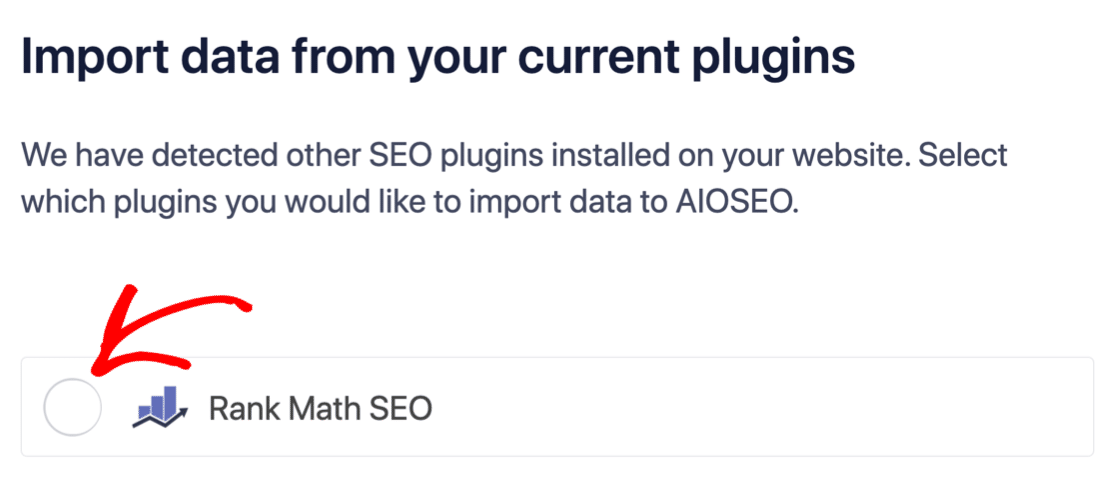
Αλλά τι γίνεται αν μεταφέρεστε από ένα άλλο πρόσθετο SEO; Κάθε πρόσθετο χειρίζεται τα μεταδεδομένα διαφορετικά. Λοιπόν, πρέπει να κάνετε τα πάντα από την αρχή; Έχει χαθεί όλη η προηγούμενη προσπάθειά σας;
Όχι! Αν το All in One SEO ανιχνεύσει ένα άλλο πρόσθετο SEO κατά τη διάρκεια του Οδηγού Εγκατάστασης, θα προσφερθεί να αντιγράψει τις βασικές ρυθμίσεις για εσάς:
Στο τέλος της εγκατάστασης, ο Οδηγός Εγκατάστασης θα σας ζητήσει να απενεργοποιήσετε και το παλιό σας πρόσθετο SEO. Με αυτόν τον τρόπο, δεν υπάρχουν συγκρούσεις προσθέτων και λάθη:
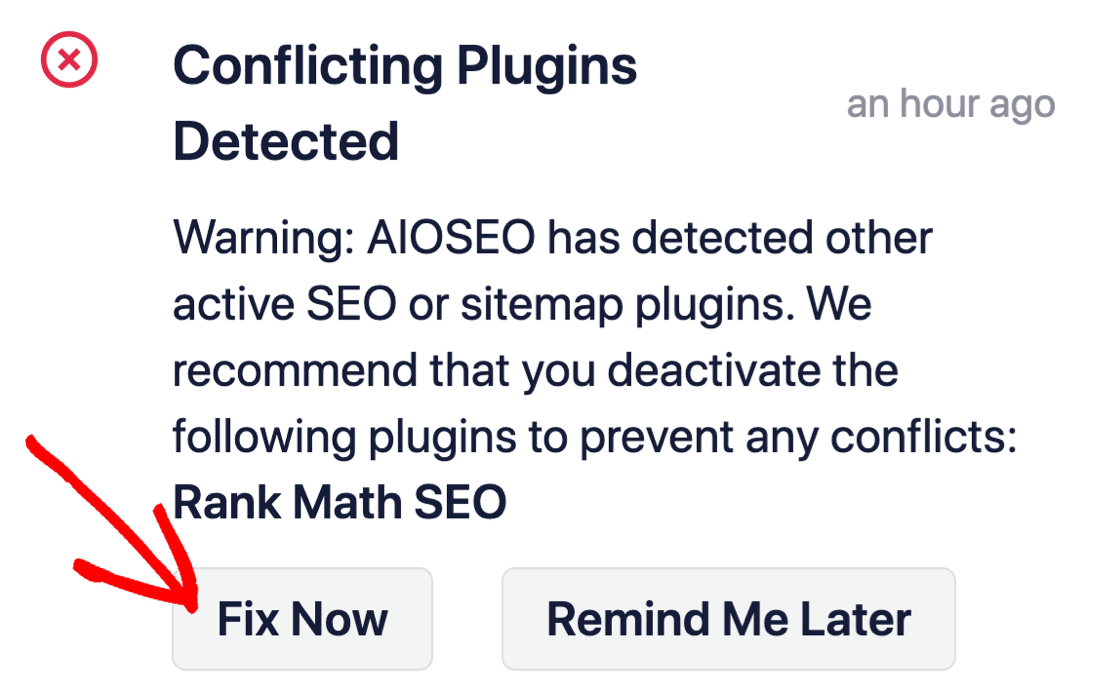
Η επιλογή Διόρθωση Τώρα δεν διαγράφει τις ρυθμίσεις στο παλιό σας πρόσθετο SEO. Απλώς απενεργοποιεί το πρόσθετο για να αποτρέψει συγκρούσεις.
Βήμα #2: Διαμορφώστε τις Ρυθμίσεις Κοινωνικών Δικτύων
Στον πίνακα ελέγχου του WordPress, μεταβείτε στο All in One SEO » Social Networks » Social Profiles και προσθέστε τα προφίλ σας στα κοινωνικά δίκτυα στον ιστότοπο:
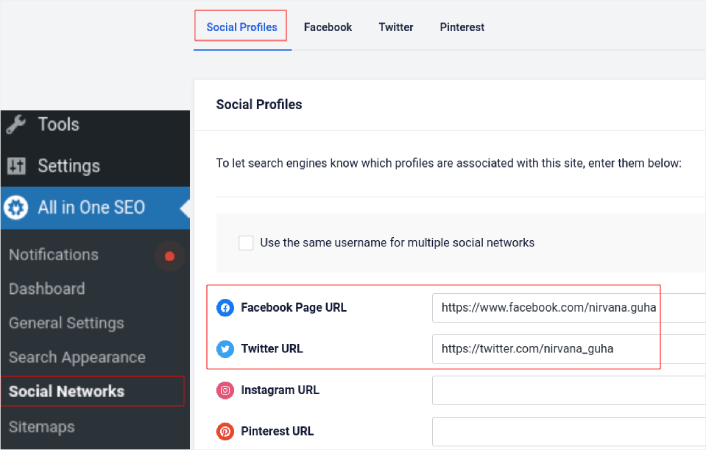
Αυτό το βήμα διασφαλίζει ότι οι μηχανές αναζήτησης όπως η Google και η Bing γνωρίζουν ποια προφίλ κοινωνικών δικτύων σχετίζονται με τον ιστότοπό σας. Ταυτόχρονα, αυτό σας βοηθά και με τις ρυθμίσεις κοινοποίησης στα κοινωνικά δίκτυα. Αυτό είναι το επόμενο.
Βήμα #3: Επεξεργαστείτε τις Γενικές Ρυθμίσεις Facebook
Μεταβείτε στο All in One SEO » Social Networks και κάντε κλικ στην καρτέλα Facebook. Εδώ, μπορείτε να διαμορφώσετε τις Γενικές Ρυθμίσεις Facebook σας:
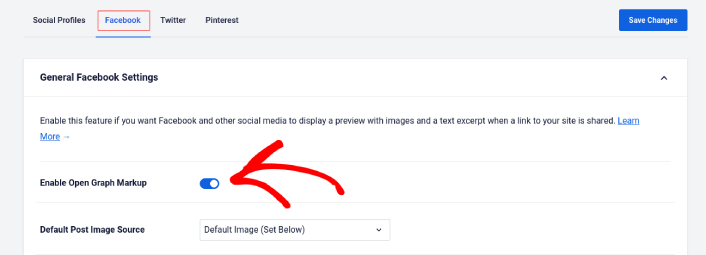
Ενεργοποιήστε τον διακόπτη Enable Open Graph Markup για να τον ενεργοποιήσετε.
Εδώ, μπορείτε να ορίσετε την Πηγή Εικόνας Προεπιλεγμένης Δημοσίευσης και μια Εικόνα Facebook Προεπιλεγμένης Δημοσίευσης:

Συνιστούμε να χρησιμοποιήσετε την επιλογή Featured Image ως πηγή εικόνας για τις δημοσιεύσεις σας. Αλλά θα πρέπει να εξετάσετε και τις άλλες επιλογές:
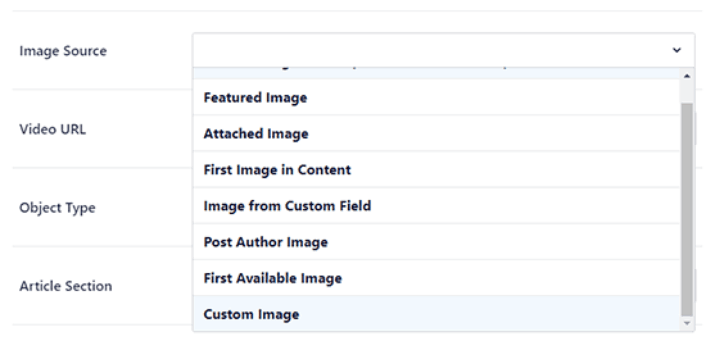
Μπορείτε να ορίσετε την προεπιλεγμένη εικόνα Facebook να είναι το λογότυπό σας ή οτιδήποτε αντιπροσωπεύει την επωνυμία σας. Κάντε κλικ στο κουμπί Upload or Select Image για να αλλάξετε την προεπιλεγμένη εικόνα. Στο παράδειγμά μας, χρησιμοποιούμε μια προσωπική επωνυμία. Έτσι, η προεπιλεγμένη εικόνα Facebook είναι μια φωτογραφία του συγγραφέα.
Μόλις τελειώσετε, πατήστε το κουμπί Save.
Και αυτό ήταν! Τελειώσατε. Μόλις αποθηκεύσετε τις αλλαγές, μπορείτε να δοκιμάσετε να μοιραστείτε μια ανάρτηση στον ιστότοπό σας στη σελίδα ή στο προφίλ σας στο Facebook.
Τι να κάνετε Αφού Προσθέσετε Ετικέτες Meta WordPress Open Graph
Αυτό ήταν για αυτό το θέμα, φίλοι!
Στη συνέχεια, θα πρέπει να αρχίσετε να σκέφτεστε πολλούς τρόπους για να προσελκύσετε και να μετατρέψετε την επισκεψιμότητα που φέρνετε από τους λογαριασμούς σας στα μέσα κοινωνικής δικτύωσης. Ένας εξαιρετικός τρόπος για να το κάνετε αυτό είναι να χρησιμοποιήσετε ειδοποιήσεις push. Οι ειδοποιήσεις push μπορούν να είναι ένα ισχυρό εργαλείο μάρκετινγκ για την προσέλκυση επισκεψιμότητας, αφοσίωσης και άμεσων πωλήσεων για την επιχείρησή σας.
Αν δεν είστε 100% πεπεισμένοι, θα πρέπει να ελέγξετε αυτούς τους πόρους για το πώς να χρησιμοποιήσετε αποτελεσματικά τις ειδοποιήσεις push:
- 7 Έξυπνες Στρατηγικές για την Ενίσχυση της Αφοσίωσης Πελατών
- Είναι Αποτελεσματικές οι Ειδοποιήσεις Push; 7 Στατιστικά + 3 Συμβουλές Ειδικών
- Πώς να Ρυθμίσετε Ειδοποιήσεις Push για Εγκαταλελειμμένα Καλάθια (Εύκολο Οδηγός)
- Πώς να προσθέσετε ένα πρόσθετο WordPress για ειδοποιήσεις ιστού στον ιστότοπό σας
Συνιστούμε τη χρήση του PushEngage για τη δημιουργία των καμπανιών ειδοποιήσεων push. Το PushEngage είναι το #1 λογισμικό ειδοποιήσεων push στον κόσμο. Έτσι, αν δεν το έχετε κάνει ήδη, ξεκινήστε με το PushEngage σήμερα!


