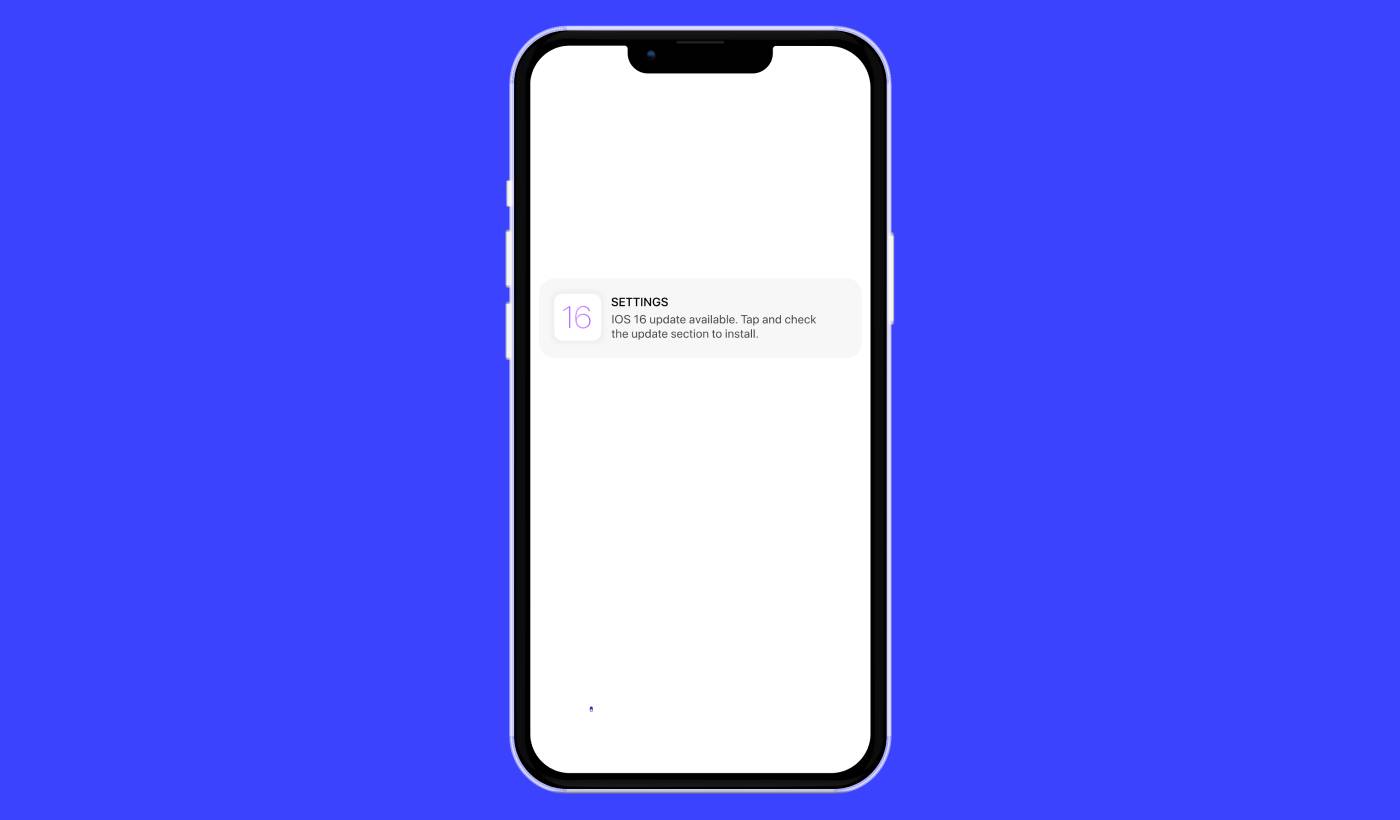
Ψάχνετε για έναν απλό οδηγό για καμπάνιες ειδοποιήσεων push στο iOS; Οι ειδοποιήσεις push στο iOS, αυτά τα βολικά μικρά μηνύματα που εμφανίζονται στην οθόνη σας, μπορούν να αλλάξουν πραγματικά το παιχνίδι για την επιχείρησή σας αν χρησιμοποιηθούν σωστά.
Τώρα φανταστείτε αυτό: Είστε ιδιοκτήτης επιχείρησης και μόλις ξεκινήσατε μια προωθητική ενέργεια στον ιστότοπό σας και την εφαρμογή σας. Πώς θα κάνετε τους πελάτες να συρρεύσουν αμέσως στον ιστότοπό σας; Απλά, στέλνοντας μια ειδοποίηση push στο iOS. Έτσι απλά, οι αγοραστές λαμβάνουν μια έγκαιρη ειδοποίηση για την προσφορά, και η επισκεψιμότητα του ιστότοπου και της εφαρμογής σας εκτοξεύεται στα ύψη.
Αλλά τι ακριβώς είναι μια ειδοποίηση push στο iOS; Σκεφτείτε το σαν τη δική σας προσωπική, φορητή διαφημιστική πινακίδα. Είναι ένα σύντομο μήνυμα ή ειδοποίηση που ωθείται σε συσκευές iOS (iPhones, iPads) από εφαρμογές που είναι εγκατεστημένες στη συσκευή.
Το καλύτερο είναι ότι μπορείτε να τα ρυθμίσετε όλα αυτά πολύ γρήγορα! Ακούγεται ενδιαφέρον, σωστά; Ας βουτήξουμε.
Τι είναι μια Ειδοποίηση Push iOS;
Μια ειδοποίηση push στο iOS είναι σαν ένα μικρό ψηφιακό σημείωμα που εμφανίζεται στις κινητές συσκευές σας Apple. Μπορεί να προέρχεται από τις αγαπημένες σας πλατφόρμες κοινωνικής δικτύωσης, διανομείς ειδήσεων ή εφαρμογές online αγορών – όλες με στόχο να σας κρατούν ενήμερους, αφοσιωμένους και συνδεδεμένους.
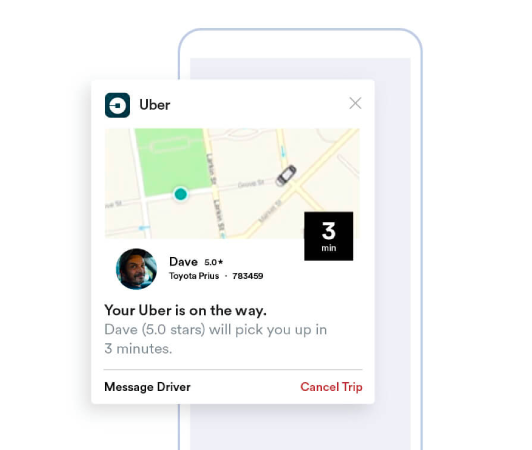
Σκεφτείτε αυτά τα μίνι-μηνύματα ως απαλές υπενθυμίσεις στον ώμο της συσκευής σας iOS που αποστέλλονται μέσω της υπηρεσίας ειδοποιήσεων push της Apple (APNs). (Όταν είστε έτοιμοι να επιλέξετε έναν πάροχο, συγκρίνετε τις καλύτερες υπηρεσίες ειδοποιήσεων push για iOS.) Είναι σχεδόν σαν η εφαρμογή να ψιθυρίζει στη συσκευή σας, ζητώντας την προσοχή σας. Το αξιοσημείωτο χαρακτηριστικό των ειδοποιήσεων push iOS είναι ότι δεν χρειάζεται καν να έχετε την εφαρμογή ενεργή ή να τη χρησιμοποιείτε. Σαν από μαγεία, οι ειδοποιήσεις εμφανίζονται ακόμη και στην κλειδωμένη οθόνη σας, διασφαλίζοντας ότι δεν παραλείπετε ποτέ σημαντικές ενημερώσεις ή προτροπές.
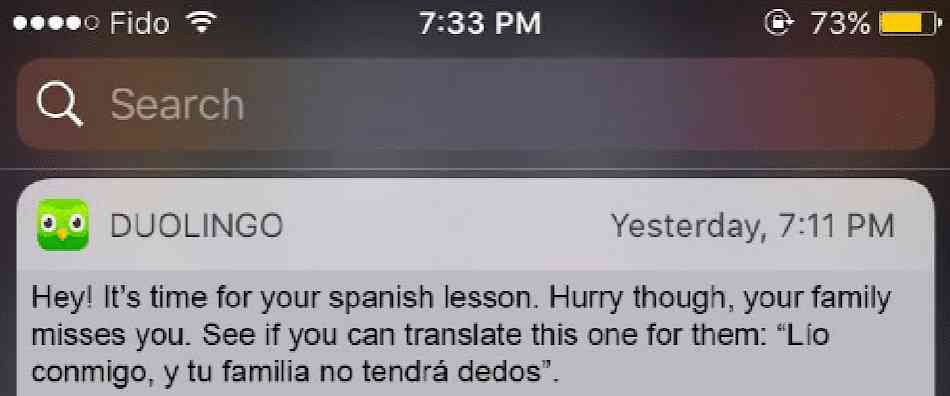
Οι ειδοποιήσεις push στο iOS προσφέρουν πλούσια οφέλη. Πρώτα και κύρια, είναι ένα εξαιρετικό εργαλείο για να σας κρατούν ενήμερους με τις πιο πρόσφατες πληροφορίες. Φανταστείτε μια ειδοποίηση από μια εφαρμογή online αγορών που σας ενημερώνει για μια τρέχουσα προσφορά.

Επιπλέον, μπορούν να σας εξοικονομήσουν πολύτιμο χρόνο. Φανταστείτε την εφαρμογή τραπεζών σας να στέλνει μια ειδοποίηση που επιβεβαιώνει μια επιτυχημένη συναλλαγή, εξαλείφοντας την ανάγκη να συνδεθείτε και να ελέγξετε χειροκίνητα. Πέρα από αυτά τα πρακτικά οφέλη, οι ειδοποιήσεις push στο iOS βελτιώνουν τη συνολική εμπειρία της εφαρμογής σας, καθιστώντας την πιο ζωντανή και διαδραστική.
Η πλοήγηση σε αυτές τις ειδοποιήσεις γίνεται φιλική προς τον χρήστη από πλατφόρμες όπως το PushEngage. Ενισχυμένο με εξελιγμένες λειτουργίες, το PushEngage διασφαλίζει ότι αυτά τα μικρά κομμάτια πληροφοριών που εξυπηρετούν τα ενδιαφέροντά σας, φτάνουν σε εσάς έγκαιρα και είναι προσαρμοσμένα στις προτιμήσεις σας. Είτε πρόκειται για τη συχνότητα ειδοποιήσεων είτε για τον τύπο των ειδοποιήσεων· το PushEngage θέτει τον έλεγχο στα χέρια σας.
Με μια βασική κατανόηση του τι είναι οι ειδοποιήσεις push στο iOS και της λειτουργίας τους, ας εμβαθύνουμε στην ποικιλία των ειδοποιήσεων και ας αποκαλύψουμε πώς οι εφαρμογές τις αξιοποιούν για να αφοσιώσουν και να μετατρέψουν τους χρήστες τους.
Τύποι Καμπανιών Ειδοποιήσεων Push iOS που Μπορείτε να Χρησιμοποιήσετε
Υπάρχουν πολλοί τύποι ειδοποιήσεων push για iOS που μπορούν να χρησιμοποιηθούν για να αυξήσετε την αλληλεπίδραση με το κοινό σας. Κατανοώντας αυτούς τους διαφορετικούς τύπους, μπορείτε να βελτιώσετε την αποτελεσματικότητά τους και να δημιουργήσετε μια πιο εξατομικευμένη και διαδραστική εμπειρία χρήστη.
- Ειδοποιήσεις εντός εφαρμογής: Αυτές οι ειδοποιήσεις μπορούν να αποστέλλονται όταν ένας χρήστης χρησιμοποιεί ενεργά την εφαρμογή σας. Για παράδειγμα, μια εφαρμογή ηλεκτρονικού εμπορίου μπορεί να στείλει μια ειδοποίηση σχετικά με μια ειδική έκπτωση σε ένα αντικείμενο που ενδιαφέρει τον χρήστη. Με το PushEngage, οι επιχειρήσεις μπορούν εύκολα να στέλνουν αυτά τα σχετικά και έγκαιρα μηνύματα για να αυξήσουν την αφοσίωση των χρηστών.
- Ειδοποιήσεις βάσει τοποθεσίας: Αυτές οι ειδοποιήσεις αποστέλλονται με βάση τη γεωγραφική τοποθεσία του χρήστη. Είναι ιδανικές για επιχειρήσεις όπως καταστήματα λιανικής ή εκδηλώσεις που θέλουν να ενημερώσουν κοντινούς χρήστες για αποκλειστικές προσφορές. Το PushEngage απλοποιεί τη γεωγραφική στόχευση, διασφαλίζοντας ότι οι επιχειρήσεις μπορούν να προσεγγίσουν αποτελεσματικά το κοινό-στόχο τους, ανεξάρτητα από το πού βρίσκονται.
- Ειδοποιήσεις βάσει συμπεριφοράς: Αυτές οι ειδοποιήσεις αποστέλλονται ως απόκριση σε συγκεκριμένες ενέργειες που λαμβάνονται (ή δεν λαμβάνονται) από τον χρήστη στην εφαρμογή. Για παράδειγμα, εάν ένας χρήστης προσθέσει ένα αντικείμενο στο καλάθι του αλλά δεν το αγοράσει, μια ειδοποίηση βάσει συμπεριφοράς θα μπορούσε να του υπενθυμίσει. Με το PushEngage, οι επιχειρήσεις μπορούν να διαχειρίζονται με ακρίβεια αυτούς τους τύπους ειδοποιήσεων.
- Προγραμματισμένες ειδοποιήσεις: Αυτές οι ειδοποιήσεις push έχουν ρυθμιστεί να αποστέλλονται σε προκαθορισμένες ώρες και μπορούν να χρησιμοποιηθούν για επαναλαμβανόμενα συμβάντα ή ειδοποιήσεις. Με το PushEngage, αυτές οι ειδοποιήσεις μπορούν να προγραμματιστούν εκ των προτέρων, διασφαλίζοντας ότι οι χρήστες ενημερώνονται για σημαντικές ενημερώσεις ή συμβάντα.
Μια επιτυχημένη καμπάνια ειδοποιήσεων push χρειάζεται τον σωστό τύπο ειδοποίησης για τους στόχους της. Έτσι, αν θέλετε να ενισχύσετε την επιχείρησή σας χρησιμοποιώντας καμπάνιες ειδοποιήσεων push για iOS, χρειάζεστε μια υπηρεσία ειδοποιήσεων push για iOS με πολλές διαθέσιμες επιλογές για να βελτιστοποιήσετε τη στρατηγική σας για μέγιστη αφοσίωση.
Πώς λειτουργεί μια ειδοποίηση push για iOS;
Μια ειδοποίηση push για iOS δημιουργείται όταν η συγκεκριμένη εφαρμογή στη συσκευή σας iOS επικοινωνεί με το APNs. Μόλις η ειδοποίηση δημιουργηθεί και αποσταλεί, το APNs τη δρομολογεί στην προβλεπόμενη συσκευή – όλα μέσα σε λίγα μικροδευτερόλεπτα.
Τώρα ας βουτήξουμε βαθύτερα στον κόσμο των ειδοποιήσεων push για iOS. Σκεφτείτε να ελέγξετε το τηλέφωνό σας και να δείτε αμέσως μια ειδοποίηση από την αγαπημένη σας εφαρμογή ειδήσεων που σας ενημερώνει για έκτακτα νέα, ή την εφαρμογή αγορών σας που σας ειδοποιεί για μια προσωρινή πώληση. Αυτές είναι οι στιγμές που οι ειδοποιήσεις push για iOS μπαίνουν στο παιχνίδι. Αυτές οι ειδοποιήσεις είναι μικρά μηνύματα που οι εφαρμογές στέλνουν για να εμφανίζονται στην αρχική οθόνη ή στην οθόνη κλειδώματος της συσκευής, ακόμα και όταν η εφαρμογή δεν χρησιμοποιείται αυτήν τη στιγμή.
Οι ειδοποιήσεις push για iOS είναι ζωτικά μέρη της καθημερινής μας ψηφιακής αλληλεπίδρασης. Τροφοδοτούνται από την υπηρεσία ειδοποιήσεων push της Apple, γνωστή ως APNs. Αυτή η υπηρεσία συντονίζει την παράδοση ειδοποιήσεων από τους διακομιστές των εφαρμογών σας στις συσκευές σας Apple. Αυτή η διαδικασία διασφαλίζει ότι είστε πάντα ενήμεροι, λαμβάνοντας ενημερώσεις σε πραγματικό χρόνο από τις εφαρμογές σας χωρίς να χρειάζεται να τις ελέγχετε χειροκίνητα.
Αυτές οι ειδοποιήσεις όχι μόνο παρέχουν πληροφορίες, αλλά και σας εξοικονομούν χρόνο και σας κρατούν συνδεδεμένους. Χρησιμοποιώντας τον συνεργάτη μας, την PushEngage, οι επιχειρήσεις μπορούν να στέλνουν στοχευμένες ειδοποιήσεις push για iOS που ενισχύουν τα επίπεδα ντοπαμίνης και αφοσίωσης των χρηστών. Για παράδειγμα, οι ειδοποιήσεις που οδηγούνται από την PushEngage μπορούν να σας υπενθυμίζουν έξυπνα για τα αντικείμενα που απομένουν στο καλάθι ηλεκτρονικού εμπορίου σας ή να σας ειδοποιούν για την άφιξη ενός πολυαναμενόμενου προϊόντος. Υπό αυτή την έννοια, εμπλουτίζουν τη συνολική εμπειρία χρήστη παρέχοντας βελτιστοποιημένες και εξατομικευμένες ειδοποιήσεις.
Σκεφτείτε το έτσι: οι ειδοποιήσεις push για iOS είναι σαν φιλικοί φύλακες, που παρέχουν χρήσιμες ενημερώσεις ακριβώς στην πόρτα της συσκευής σας. Και το καλύτερο είναι ότι οι ρόλοι τους γίνονται όλο και πιο ποικίλοι και συναρπαστικοί με την πάροδο του χρόνου. Έτσι, χρησιμοποιώντας ένα ισχυρό εργαλείο όπως η PushEngage, τόσο οι επιχειρήσεις όσο και οι χρήστες μπορούν να αποκομίσουν σημαντικά οφέλη από αυτά τα εξελιγμένα συστήματα ειδοποιήσεων.
Πώς να Προσθέσετε Ειδοποιήσεις Push για iOS στην Εφαρμογή σας
Ενσωμάτωση με έναν βοηθό κωδικοποίησης AI; Οι δεξιότητες PushEngage Agent ανοιχτού κώδικα διδάσκουν στο Claude Code, Cursor και σε οποιονδήποτε συμβατό με SKILL.md πράκτορα να ενσωματώνει και να διορθώνει αυτό το SDK. Και μόλις αποστείλετε, ο διακομιστής PushEngage MCP επιτρέπει στον ίδιο πράκτορα να εκτελεί τις καμπάνιες σας — τμήματα, αποστολές, A/B δοκιμές και αναφορές. Δημιουργείτε στο Replit, Lovable ή Bolt; Τα κιτ vibe-coding ανοιχτού κώδικα περιλαμβάνουν ένα έτοιμο κατάστημα επίδειξης, ένα πρόγραμμα εκκίνησης Flutter και επιδείξεις ενός προτροπής με το PushEngage προ-καλωδιωμένο.
Υπάρχουν ουσιαστικά δύο τύποι καμπανιών ειδοποιήσεων push για iOS:
- Μια ειδοποίηση push για iOS από το διαδίκτυο
- Μια ειδοποίηση push για εφαρμογή iOS
Με βάση την επιχείρησή σας, ίσως μπορείτε να στείλετε ειδοποιήσεις push μέσω web και εφαρμογής. Και συνιστούμε ανεπιφύλακτα την αποστολή και των δύο τύπων ειδοποιήσεων push. Αλλά πριν δημιουργήσετε μια ειδοποίηση push για iOS, πρέπει να επιλέξετε μια υπηρεσία ειδοποιήσεων push. Μια υπηρεσία ειδοποιήσεων push είναι ένα λογισμικό που σας επιτρέπει να δημιουργείτε καμπάνιες push χωρίς καμία κωδικοποίηση.
Συνιστούμε τη χρήση του PushEngage.

Το PushEngage είναι το #1 plugin ειδοποιήσεων push στον κόσμο.
Οι ειδοποιήσεις push σας βοηθούν να αυξήσετε την επισκεψιμότητα του ιστότοπού σας και την αλληλεπίδραση σε αυτόματο πιλότο. Και αν διαχειρίζεστε ένα online κατάστημα, το PushEngage σας βοηθά επίσης να αυξήσετε τις πωλήσεις σας, βοηθώντας σας να δημιουργήσετε αυτοματοποιημένες ειδοποιήσεις push eCommerce.
Μπορείτε να ξεκινήσετε δωρεάν, αλλά αν σοβαρά θέλετε να αναπτύξετε την επιχείρησή σας, θα πρέπει να αγοράσετε ένα επί πληρωμή πρόγραμμα. Επίσης, πριν αγοράσετε οποιαδήποτε υπηρεσία ειδοποιήσεων push, θα πρέπει να δείτε αυτόν τον οδηγό για το κόστος ειδοποιήσεων push.
Ακολουθεί μια γρήγορη επισκόπηση του τι παίρνετε με το PushEngage:
- Αυτοματοποιημένες εκστρατείες με υψηλή μετατροπή
- Πολλαπλές επιλογές στόχευσης και προγραμματισμού καμπανιών
- Παρακολούθηση στόχων και προηγμένα αναλυτικά στοιχεία
- Έξυπνες Δοκιμές A/B
- Αποδεδειγμένα πρότυπα ειδοποιήσεων push για να σας βοηθήσουν να αποκτήσετε περισσότερη επισκεψιμότητα και μετατροπές
- Ένας Αφοσιωμένος Διαχειριστής Επιτυχίας
Θα δείτε ότι η PushEngage είναι μακράν η καλύτερη επιλογή αν θέλετε να αυξήσετε την επισκεψιμότητα, την αφοσίωση και τις πωλήσεις για την επιχείρησή σας. Και αν έχετε περιορισμένο προϋπολογισμό, μπορείτε πάντα να γίνετε λίγο δημιουργικοί με τις ειδοποιήσεις push σας.
Πώς να Δημιουργήσετε Δωρεάν Λογαριασμό PushEngage
Μεταβείτε στο PushEngage και κάντε κλικ στο Ξεκινήστε Δωρεάν Τώρα:
Μπορείτε να ξεκινήσετε με το δωρεάν πρόγραμμα. Αλλά αν ψάχνετε για τις πιο ισχυρές ειδοποιήσεις μέσω προγράμματος περιήγησης, θα πρέπει να επιλέξετε ένα επί πληρωμή πρόγραμμα με βάση τις ανάγκες της επιχείρησής σας. Μόλις γνωρίζετε ποιο πρόγραμμα θέλετε, κάντε κλικ στο Ξεκινήστε για να δημιουργήσετε τον λογαριασμό σας στο PushEngage.
Εγγραφείτε στο PushEngage
Τώρα, είναι ώρα να δημιουργήσετε τον λογαριασμό σας στο PushEngage. Ξεκινήστε κάνοντας εγγραφή με μια διεύθυνση email ή ένα αναγνωριστικό Gmail:
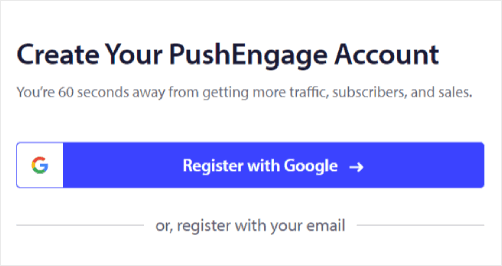
Στη συνέχεια, συμπληρώστε τα στοιχεία του λογαριασμού σας:
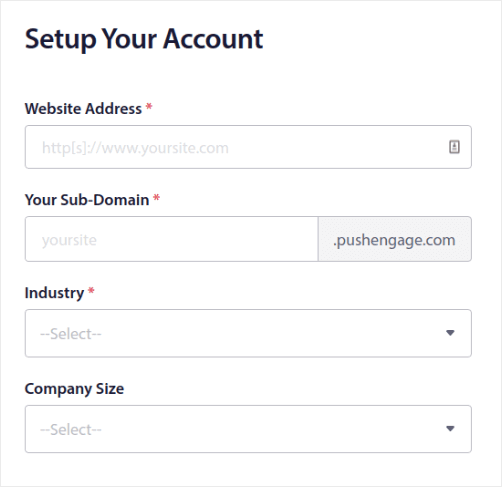
Και προσθέστε τα στοιχεία της πιστωτικής σας κάρτας για να αγοράσετε το πρόγραμμά σας:
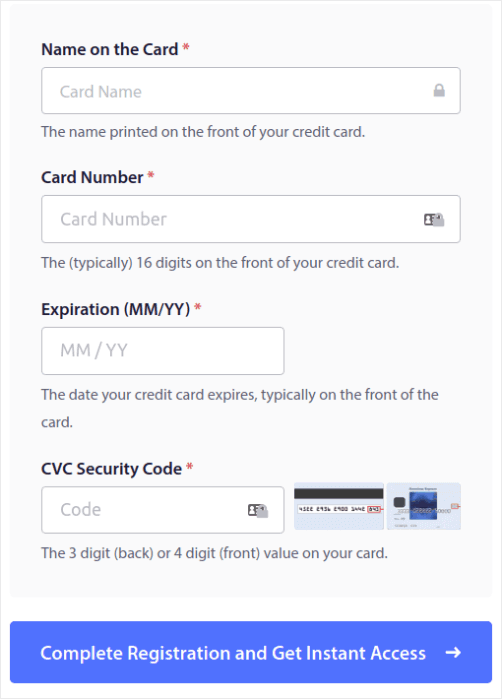
Εάν επιλέξατε τον δωρεάν λογαριασμό, τότε η πιστωτική σας κάρτα δεν θα χρεωθεί ποτέ χρήματα μέχρι να επιλέξετε να αναβαθμίσετε το πρόγραμμά σας. Και τώρα, είστε έτοιμοι να αποκτήσετε πρόσβαση στον πίνακα ελέγχου του PushEngage. Απλώς κάντε κλικ στο Ολοκλήρωση Εγγραφής και Άμεση Πρόσβαση.
Εάν έχετε χρησιμοποιήσει το OneSignal ή το PushAlert στο παρελθόν, θα δείτε ότι το PushEngage σας προσφέρει μια πολύ πιο καθαρή εμπειρία από τον πίνακα ελέγχου. Ο πίνακας ελέγχου του OneSignal δεν είναι σχεδιασμένος για προηγμένες καμπάνιες. Για αυτό, θα χρειαστείτε το API περισσότερο από το plugin του OneSignal.
Πώς να Προσθέσετε Καμπάνιες Ειδοποιήσεων Push για iOS από το Διαδίκτυο στην Ιστοσελίδα σας
Ας ξεκινήσουμε με τη ρύθμιση ειδοποιήσεων push για iOS από την ιστοσελίδα σας. Η ιδέα πίσω από αυτό είναι απλή. Μετατρέπουμε την ιστοσελίδα σας σε μια απλή εφαρμογή ιστού που μπορεί να στέλνει ειδοποιήσεις push για iOS και iPadOS. Αυτή η προσέγγιση είναι ιδανική για την αποστολή ειδοποιήσεων push για εφαρμογές ιστού.
Βήμα #1: Προσθέστε ένα Manifest Εφαρμογής Ιστού στην Ιστοσελίδα σας για να Στείλετε Ειδοποιήσεις Push Ιστού
Σκεφτείτε ένα manifest εφαρμογής ιστού ως ένα ειδικό αρχείο που λειτουργεί σαν οδηγός για την ιστοσελίδα σας όταν εγκαθίσταται στο τηλέφωνο ή τον υπολογιστή κάποιου. Είναι γραμμένο σε μια γλώσσα που ονομάζεται JSON, αλλά δεν χρειάζεται να ανησυχείτε για αυτό το κομμάτι.
Το αρχείο manifest περιέχει σημαντικές πληροφορίες σχετικά με την Προοδευτική Εφαρμογή Ιστού σας (PWA), όπως το όνομα, την περιγραφή, τα εικονίδια και τα χρώματά της. Έτσι, όταν κάποιος προσθέτει την ιστοσελίδα σας στην αρχική οθόνη του ή την εγκαθιστά στη συσκευή του, το πρόγραμμα περιήγησης χρησιμοποιεί αυτό το manifest για να γνωρίζει πώς πρέπει να φαίνεται και να συμπεριφέρεται η εφαρμογή σας. Αυτό σας επιτρέπει να στέλνετε ειδοποιήσεις push PWA.
Για παράδειγμα, το manifest λέει στο πρόγραμμα περιήγησης ποιο εικονίδιο να χρησιμοποιήσει για την εφαρμογή σας στην αρχική οθόνη ή στο συρτάρι εφαρμογών, ώστε να φαίνεται ωραίο και αναγνωρίσιμο. Καθορίζει επίσης τα χρώματα και το θέμα της εφαρμογής σας για να της δώσει μια συνεπή και ελκυστική εμφάνιση.
Επιπλέον, το manifest περιλαμβάνει τη διεύθυνση URL που πρέπει να ανοίξει όταν κάποιος εκκινεί την εφαρμογή σας. Με αυτόν τον τρόπο, το πρόγραμμα περιήγησης γνωρίζει ποια σελίδα ή ενότητα της ιστοσελίδας σας να τους δείξει πρώτα.
Η δημιουργία ενός αρχείου manifest μπορεί να γίνει γρήγορα με διαδικτυακά εργαλεία που κάνουν τη δύσκολη δουλειά για εσάς. Σας προτείνουμε να χρησιμοποιήσετε αυτήν την γεννήτρια manifest δωρεάν εφαρμογής για να δημιουργήσετε το manifest της εφαρμογής σας με λίγα κλικ και μηδενικό κώδικα.
Μόλις έχετε έτοιμο το manifest, συνήθως το ονομάζετε “manifest.json” και το ανεβάζετε στον κύριο φάκελο του ιστότοπού σας.
Με λίγα λόγια, το manifest της εφαρμογής ιστού είναι σαν ένα εγχειρίδιο που κάνει την εφαρμογή σας να φαίνεται και να λειτουργεί σωστά όταν οι χρήστες την χρησιμοποιούν στις συσκευές τους. Είναι ένα ουσιαστικό μέρος για τη δημιουργία μιας εξαιρετικής εμπειρίας χρήστη για τους επισκέπτες του ιστότοπού σας.
Ένα τυπικό manifest μοιάζει κάπως έτσι:
{
	"name": "PushEngage",
	"short_name": "PushEngage",
	"start_url": "/",
	"display": "standalone",
	"theme_color": "#3b43ff",
	"background_color": "#ffffff",
	"icons": [
		{
			"src": "icon/icon-128x128.png",
				"sizes": "128x128",
				"type": "image/png"
		},
		{
			"src": "img/icon-192x192.png",
			"sizes": "192x192",
			"type": "image/png"
		},
		{
			"src": "img/icon-512x512.png",
			"sizes": "512x512",
			"type": "image/png"
		}
 	]
}
Αφού προσθέσετε το αρχείο manifest στον κύριο φάκελο του διακομιστή του ιστότοπού σας, πρέπει να προσθέσετε ένα απόσπασμα κώδικα στην κεφαλίδα HTML του ιστότοπού σας. Το απόσπασμα θα μοιάζει κάπως έτσι:
<link rel="manifest" href="/manifest.json">Αν χρησιμοποιείτε WordPress και χρειάζεστε βοήθεια για την προσθήκη αυτού του αποσπάσματος κώδικα στην κεφαλίδα του ιστότοπού σας, μπορείτε να χρησιμοποιήσετε το WPCode για να ανεβάσετε το αρχείο manifest. Είναι ένα από τα καλύτερα plugins για αποσπάσματα κώδικα για WordPress.
Βήμα #2: Εγκαταστήστε το PushEngage στον Ιστότοπό σας WordPress
Ολοκληρώσατε τη δημιουργία του λογαριασμού σας. Επομένως, μεταβείτε στον πίνακα ελέγχου του PushEngage και ακολουθήστε τις οδηγίες.
ΣΗΜΕΙΩΣΗ: Αν δεν χρησιμοποιείτε ιστότοπο WordPress, θα πρέπει να δείτε τους άλλους οδηγούς εγκατάστασης.

Κάντε κλικ στο Ρυθμίσεις Ιστότοπου » Λεπτομέρειες Ιστότοπου και κάντε κλικ στο κουμπί Κάντε Κλικ Εδώ Για Οδηγίες Εγκατάστασης:

Κάντε κλικ στην καρτέλα WordPress και κάντε κλικ στο κουμπί Εγκατάσταση Πρόσθετου PushEngage WordPress για να εγκαταστήσετε το πρόσθετο στον ιστότοπό σας.

Εδώ είναι το ενδιαφέρον: Όταν δημιουργήσατε τον λογαριασμό σας στο PushEngage, συγχρονίσατε ήδη τον ιστότοπό σας με τον λογαριασμό σας στο PushEngage. Επομένως, κάντε κλικ στον σύνδεσμο εγκατάστασης στον πίνακα ελέγχου του PushEngage για να εγκαταστήσετε αυτόματα το plugin PushEngage για WordPress στον ιστότοπό σας.
Βήμα #3: Συνδέστε τον Ιστότοπό σας WordPress με το PushEngage
Όταν ολοκληρώσετε την εγκατάσταση και ενεργοποίηση του plugin PushEngage για WordPress, θα δείτε τον οδηγό εγκατάστασης του PushEngage:
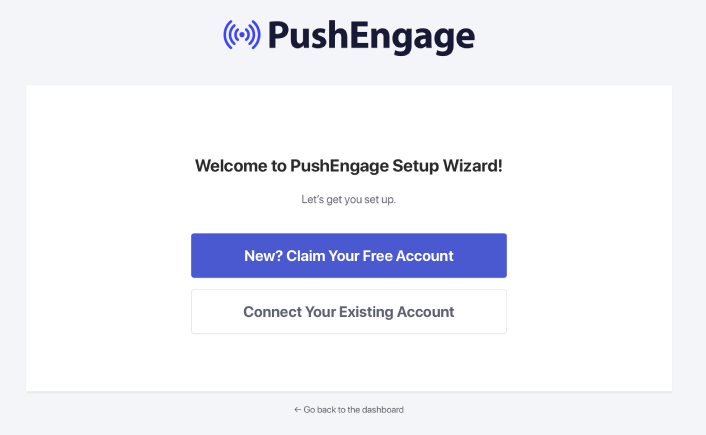
Ο οδηγός είναι αρκετά απλός. Εάν είστε νέος χρήστης, κάντε κλικ στο Νέος; Διεκδικήστε τον Δωρεάν Λογαριασμό σας. Και αν έχετε ήδη εγγραφεί, κάντε κλικ στο Σύνδεση του Υπάρχοντος Λογαριασμού σας.
Στη συνέχεια, μπορείτε να επιλέξετε τον ιστότοπό σας από το αναπτυσσόμενο μενού Επιλογή Ιστότοπου κάτω από το Σύνδεση εγγεγραμμένου ιστότοπου εάν έχετε ήδη καταχωρήσει έναν ιστότοπο κατά την εγγραφή:
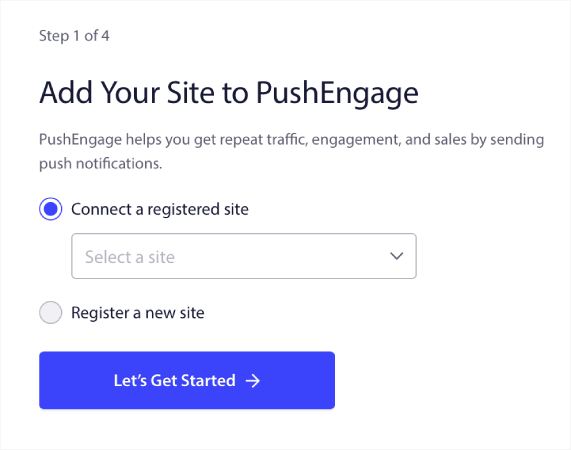
Εναλλακτικά, μπορείτε να κάνετε κλικ στο Εγγραφή νέου ιστότοπου για να προσθέσετε έναν νέο ιστότοπο εάν έχετε πακέτο τιμολόγησης Premium ή υψηλότερο. Στο επόμενο βήμα, ο οδηγός γνωριμίας θα σας ζητήσει να εγκαταστήσετε άλλα απαραίτητα πρόσθετα WordPress.
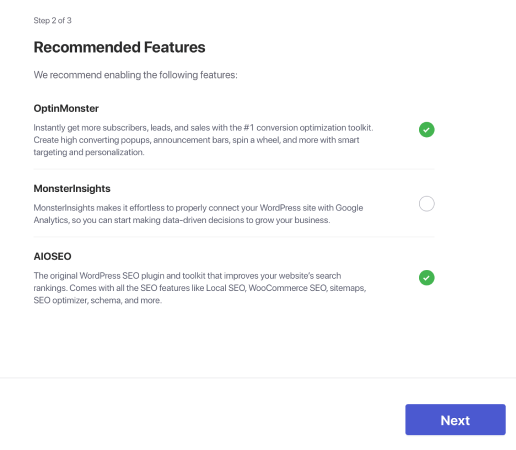
Εάν ακολουθήσατε κάθε βήμα σωστά, θα δείτε αυτό το μήνυμα επιτυχίας από τον οδηγό:
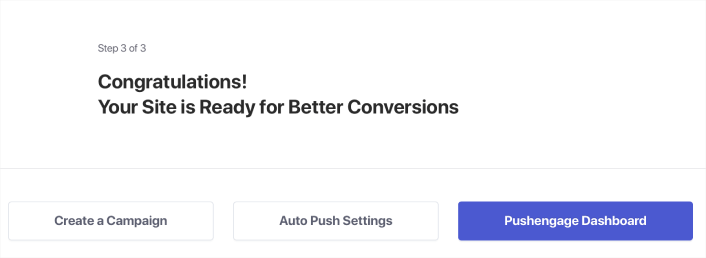
Είστε τώρα έτοιμοι να δημιουργήσετε καμπάνιες και αναδυόμενα παράθυρα ειδοποιήσεων push.
Βήμα #4: Δοκιμάστε το Manifest του Ιστότοπού σας
Εντάξει, ας περάσουμε από τα βήματα για να δοκιμάσουμε την εφαρμογή σας και να βεβαιωθούμε ότι όλα λειτουργούν ομαλά.
Πρώτα, ανοίξτε τον ιστότοπό σας χρησιμοποιώντας το πρόγραμμα περιήγησης Safari στο iPhone ή το iPad σας. Βεβαιωθείτε ότι η συσκευή σας εκτελεί iOS 16.4 ή νεότερη έκδοση. Μόλις φορτωθεί ο ιστότοπός σας, θα δείτε ένα κουμπί Κοινή χρήση. Μοιάζει με ένα τετράγωνο με ένα βέλος που δείχνει προς τα πάνω. Πατήστε αυτό το κουμπί για να ανοίξετε το μενού κοινής χρήσης.
Στο μενού κοινής χρήσης, θα πρέπει να βρείτε μια επιλογή που ονομάζεται Προσθήκη στην Αρχική Οθόνη. Κάντε κλικ σε αυτήν την επιλογή.
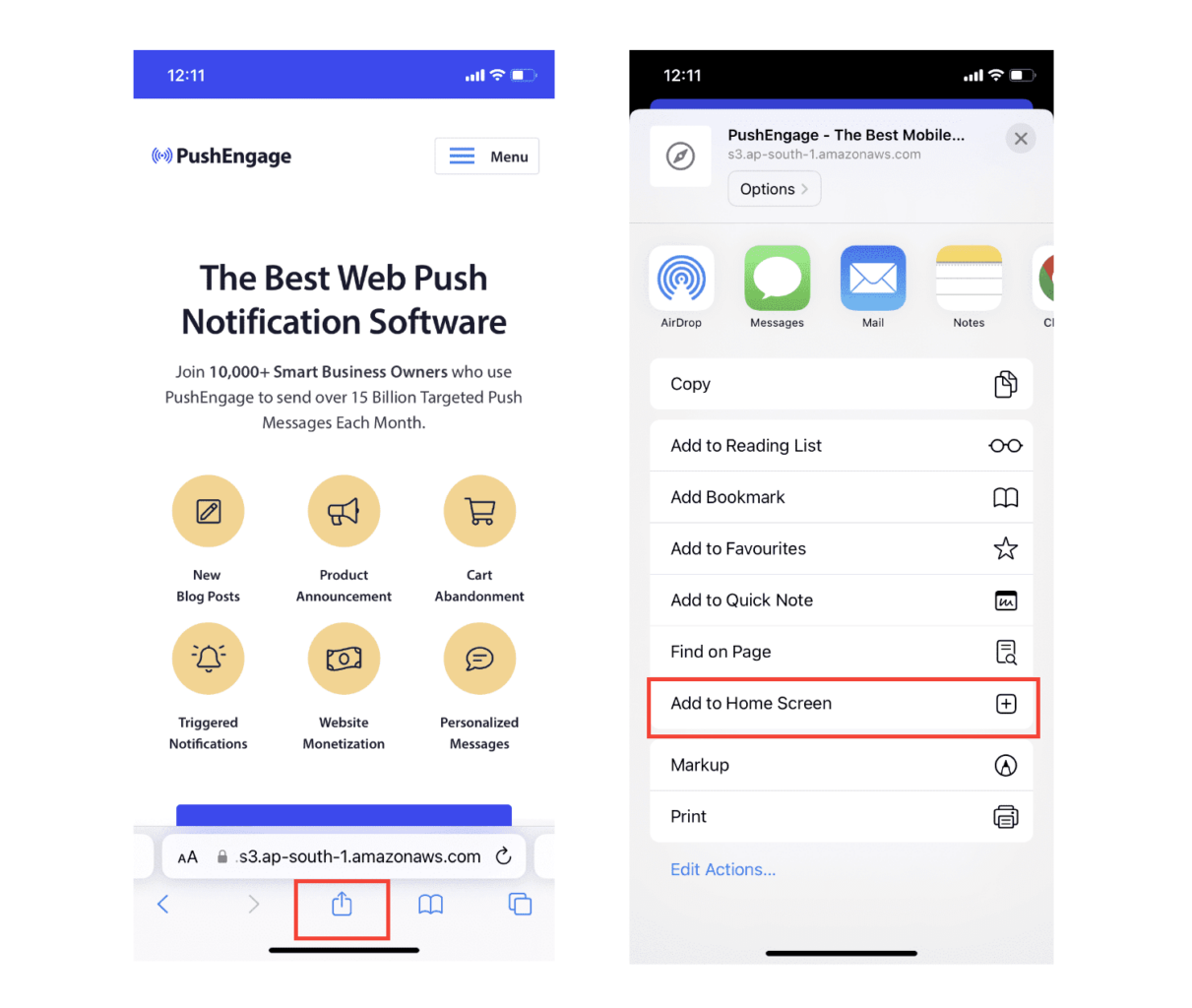
Τώρα, η εφαρμογή ιστού θα αποθηκευτεί στην Αρχική Οθόνη της συσκευής σας, όπως κάθε άλλη εφαρμογή που κατεβάζετε από το App Store.
Αν όλα έχουν ρυθμιστεί σωστά, όταν ανοίγετε την εφαρμογή από την Αρχική σας Οθόνη, δεν θα ανοίγει πλέον στο πρόγραμμα περιήγησης Safari. Αντ' αυτού, θα μοιάζει με τη χρήση μιας κανονικής εφαρμογής στο iPhone ή το iPad σας.
Για να ενημερώσετε τους χρήστες σας ότι μπορούν να λαμβάνουν ειδοποιήσεις push μέσω web από την εφαρμογή σας, μπορείτε να τους εμφανίσετε ένα banner στην οθόνη. Αυτό το banner θα τους προτρέψει να προσθέσουν την εφαρμογή σας στην Αρχική Οθόνη τους και να εγγραφούν στις ειδοποιήσεις push μέσω web. Είναι ένας βολικός τρόπος για να διατηρείτε τους χρήστες σας αφοσιωμένους με την εφαρμογή σας και να λαμβάνετε σημαντικές ενημερώσεις.
Έτσι, ακολουθήστε αυτά τα βήματα και θα είστε έτοιμοι να προσφέρετε μια ομαλή εμπειρία, παρόμοια με εφαρμογή, στους χρήστες σας σε συσκευές iOS! Για μια πλήρη περιήγηση στη δοκιμή των ειδοποιήσεων push, ανατρέξτε στην τεκμηρίωσή μας σχετικά με τις ειδοποιήσεις push μέσω web για iOS.
Πώς να Προσθέσετε Εκστρατείες Ειδοποιήσεων Push για Mobile App iOS στην Εφαρμογή σας
Ο ευκολότερος τρόπος για να στείλετε ειδοποιήσεις push για mobile iOS mobile app από την εγγενή εφαρμογή iOS σας είναι να χρησιμοποιήσετε το PushEngage iOS SDK. Μέχρι τώρα, έπρεπε να χρησιμοποιείτε skeleton SDKs για να στέλνετε ειδοποιήσεις push εφαρμογής. Το πρόβλημα με τη χρήση αυτών των SDKs είναι ότι είναι αρκετά βασικά.
Θεωρητικά, μπορείτε να στείλετε οποιονδήποτε τύπο καμπάνιας push notifications για mobile apps με αυτές. Αλλά μετά, πρέπει επίσης να δημιουργήσετε:
- Μια διεπαφή για τη διαχείριση των καμπανιών σας
- Μια σουίτα αναλύσεων για την παρακολούθηση της απόδοσης των καμπανιών σας
- Καλύτερη υποστήριξη για πλούσια μέσα και συνδέσμους ανακατεύθυνσης εντός εφαρμογής (ή deep links)
- Διαδικασίες για τη συνεννόηση μεταξύ των ομάδων μάρκετινγκ και ανάπτυξης
Όλα για την εισαγωγή ενός μόνο καναλιού ανάπτυξης. Η χρήση των παλιών εργαλείων για την αποστολή push notifications για mobile apps είναι κουραστική, δαπανηρή, απαιτεί πολλούς πόρους και χρονοβόρα. Και φυσικά, απαιτεί βαθιές δεξιότητες κωδικοποίησης στην ομάδα σας για την ανάπτυξη και διαχείριση όλων όσων δημιουργείτε.
Με τα SDK της PushEngage για Android και iOS, μπορείτε να στέλνετε ειδοποιήσεις push εφαρμογών για κινητά χρησιμοποιώντας το ίδιο αξιόπιστο λογισμικό για εξαιρετικά ποσοστά παράδοσης. Έχουμε όμως δημιουργήσει πολλά επίπεδα από πάνω που καθιστούν εξαιρετικά εύκολη τη δημιουργία προσαρμοσμένων ενσωματώσεων με την εφαρμογή σας. Και η PushEngage διαχειρίζεται ολόκληρο το SDK. Έτσι, δεν χρειάζεται καν να ξοδέψετε πολύ χρόνο και χρήμα για να διαχειριστείτε τις ενσωματώσεις σας.
Το μόνο που έχετε να κάνετε είναι να δημιουργήσετε!
Μπορείτε να στέλνετε μαζικές ειδοποιήσεις απευθείας από τον πίνακα ελέγχου της PushEngage αφού έχετε ρυθμίσει την εφαρμογή σας για να στέλνετε ειδοποιήσεις push εφαρμογών για κινητά χρησιμοποιώντας το SDK της PushEngage. Ναι, εξακολουθείτε να πρέπει να προσθέσετε κώδικα στην εφαρμογή σας και να αναπτύξετε τους συνδέσμους μεταξύ της εφαρμογής σας και του API της PushEngage. Αλλά μόλις γίνει αυτό, μπορείτε εύκολα να δημιουργήσετε καμπάνιες push εφαρμογών για κινητά από μια προκατασκευασμένη διεπαφή λογισμικού που έρχεται επίσης με:
- Άκρως ελκυστικοί τύποι καμπανιών push
- Αποδεδειγμένα πρότυπα καμπάνιας με υψηλά ποσοστά μετατροπής
- Αυτοματοποιημένες καμπάνιες για την προώθηση του περιεχομένου σας όποτε δημοσιεύετε
- Πολλαπλές επιλογές στόχευσης και προγραμματισμού καμπάνιας
- Καμπάνιες push στο web ως συμπληρωματικό κανάλι ανάπτυξης
- Αυξημένη διατήρηση κοινού χρησιμοποιώντας εξατομίκευση βάσει δεδομένων
- Παρακολούθηση στόχων και προηγμένη ανάλυση
- Έξυπνες δοκιμές A/B
- Ένας Αφοσιωμένος Διαχειριστής Επιτυχίας
Και πολλά άλλα. Το PushEngage αφαιρεί τον κόπο από την ανάπτυξη εκστρατειών push για Android και iOS για την εφαρμογή σας.
Δημιουργήσαμε έναν λεπτομερή οδηγό βήμα προς βήμα για τη ρύθμιση ειδοποιήσεων push εφαρμογής iOS για το PushEngage. Ελέγξτε τον για να ξεκινήσετε να στέλνετε ειδοποιήσεις push εφαρμογής iOS αμέσως.
Προσθέστε Ειδοποιήσεις Push στην Εφαρμογή σας iOS
Εδώ είναι η πραγματική ενσωμάτωση, χρησιμοποιώντας το PushEngage iOS SDK 1.0. Χρειάζεστε iOS 12+, Xcode 15+, ένα κλειδί APNs ανεβασμένο στο ταμπλό του PushEngage σας (ο επεξηγητής πιστοποιητικών και κλειδιών APNs καλύπτει αυτό σε πέντε λεπτά), και περίπου ένα απόγευμα. Το SDK διανέμεται ως δύο μονάδες: PushEngage για τον στόχο της εφαρμογής σας και PushEngageExtension για τους στόχους επέκτασης ειδοποιήσεων. Μόλις γίνει αυτή η σύνδεση, οι καμπάνιες μετακινούνται στο ταμπλό και παύουν να είναι εισιτήρια μηχανικής.
Βήμα 1: Προσθήκη του Πακέτου
Στο Xcode, μεταβείτε στο Αρχείο → Προσθήκη Εξαρτήσεων Πακέτου και εισαγάγετε τη διεύθυνση URL του αποθετηρίου, ή χρησιμοποιήστε το CocoaPods:
# Swift Package Manager
https://github.com/awesomemotive/pushengage-ios-sdk

# CocoaPods
target 'YourApp' do
  pod 'PushEngage', '~> 1.0.0'
end
target 'YourNotificationServiceExtension' do
  pod 'PushEngageExtension', '~> 1.0.0'
end
Βήμα 2: Διαμόρφωση της Ομάδας Εφαρμογών
Προσθέστε τη δυνατότητα Ομάδες Εφαρμογών στον στόχο της εφαρμογής σας και σε κάθε στόχο επέκτασης ειδοποιήσεων, χρησιμοποιώντας το ίδιο αναγνωριστικό ομάδας, και δηλώστε το στο Info.plist κάθε στόχου:
<key>PushEngage_App_Group_Key</key>
<string>group.com.yourcompany.yourapp</string>
Η εφαρμογή και οι επεκτάσεις της μοιράζονται την κατάσταση συνδρομητή μέσω αυτού του κοντέινερ. Η παράλειψή του είναι το πιο συνηθισμένο λάθος ενσωμάτωσης. Χωρίς αυτό, οι επεκτάσεις σας ξεκινούν κενές σε κάθε παράδοση.
Βήμα 3: Αρχικοποίηση και Αίτηση Άδειας
import PushEngage

@main
class AppDelegate: UIResponder, UIApplicationDelegate {
    func application(_ application: UIApplication,
                     didFinishLaunchingWithOptions launchOptions: [UIApplication.LaunchOptionsKey: Any]?) -> Bool {
        PushEngage.setAppID(id: "YOUR_APP_ID")
        PushEngage.setInitialInfo(for: application, with: launchOptions)
        return true
    }
}

// Later, at a value moment — not on first launch:
PushEngage.requestNotificationPermission { granted, error in
    if granted { /* subscribed */ }
}
Το πού τοποθετείτε αυτήν την κλήση άδειας έχει μεγαλύτερη σημασία από οποιαδήποτε άλλη γραμμή σε αυτήν την ενότητα. Το iOS σας χορηγεί ακριβώς μία εγγενή προτροπή ανά εγκατάσταση, και ο οδηγός προετοιμασίας αδειών καλύπτει το μοτίβο απαλού αιτήματος που την προστατεύει.
Rich Push: Εικόνες, Κουμπιά και Ήχοι
Τα πλούσια μέσα απαιτούν ένα Notification Service Extension, έναν μικρό στόχο που παρεμβαίνει σε κάθε ειδοποίηση και επισυνάπτει μέσα πριν από την εμφάνιση. Προσθέστε τον στόχο στο Xcode, συνδέστε το PushEngageExtension σε αυτόν και προωθήστε δύο κλήσεις κύκλου ζωής:
import PushEngageExtension

class NotificationService: UNNotificationServiceExtension {
    override func didReceive(_ request: UNNotificationRequest,
                             withContentHandler contentHandler: @escaping (UNNotificationContent) -> Void) {
        PushEngageExtension.didReceiveNotificationExtensionRequest(request,
                                                                   bestContentHandler: contentHandler)
    }

    override func serviceExtensionTimeWillExpire() {
        // hand back the best content prepared so far
    }
}
Από εδώ, τα πλούσια μέσα γίνονται χαρακτηριστικό του ταμπλό. Η ομάδα μάρκετινγκ επισυνάπτει την εικόνα του προϊόντος όταν δημιουργεί την καμπάνια, και η επέκταση την αποδίδει. Καμία αλλαγή στην εφαρμογή ανά καμπάνια.
Αναγνώριση Χρηστών και Επισύναψη Χαρακτηριστικών
// Identify the signed-in user (12 predefined fields supported)
PushEngage.identify(fields: [
    "first_name": "Priya",
    "email": "[email protected]",
    "profile_id": "user-42",
    "city": "Austin"
]) { success, error in }

// Attach custom attributes for segmentation
PushEngage.addSubscriberAttributes([
    "favorite_category": "outerwear",
    "loyalty_tier": "gold"
]) { success, error in }

// On sign-out, clear PII but keep the anonymous subscription
PushEngage.logout(fieldNames: nil) { success, error in }
Οι επαναλαμβανόμενες κλήσεις αναγνώρισης με αμετάβλητα δεδομένα διακόπτονται τοπικά, οπότε η κλήση σε κάθε εκκίνηση είναι ασφαλής. Μόλις τα χαρακτηριστικά ροήσουν, ένα τμήμα όπως οι αγοραστές χρυσών εξωτερικών ενδυμάτων στο Τέξας γίνεται ένα αποθηκευμένο κοινό στο ταμπλό αντί για αίτημα δεδομένων.
Deep Links: Προσγειώστε Κάθε Κλικ στην Σωστή Οθόνη
PushEngage.setNotificationOpenHandler { result in
    // actionID is nil when the SDK already opened the URL itself
    guard let deepLink = result.notificationAction.actionID else { return }
    DispatchQueue.main.async {
        router.navigate(to: deepLink)   // e.g. myapp://cart
    }
}
Ορίστε τον χειριστή μία φορά και δρομολογήστε με το deep link που φέρει κάθε καμπάνια. Ο υπεύθυνος μάρκετινγκ επικολλά τον σύνδεσμο στη φόρμα της καμπάνιας. ο χειριστής σας κάνει την πλοήγηση. Πλήρη μοτίβα, συμπεριλαμβανομένων των universal links, βρίσκονται στον οδηγό deep linking.
Εκκίνηση Καμπανιών από Γεγονότα Εφαρμογής
PushEngage.trackEvent(name: "cart_updated",
                      properties: ["cart_value": 89.50, "item_count": 2],
                      profileId: currentUserId,
                      provider: nil, eventType: nil) { _, _ in }
Η κλήση trackEvent μετατρέπει οποιαδήποτε ενέργεια εντός της εφαρμογής σε έναυσμα καμπάνιας: ένα εγκαταλελειμμένο καλάθι, ένα ολοκληρωμένο βήμα onboarding, μια περιηγημένη κατηγορία. Εγκαταστήστε το συμβάν μία φορά, και το μάρκετινγκ επαναλαμβάνει καμπάνιες εναντίον του επ' αόριστον. Ο οδηγός καμπανιών που ενεργοποιούνται από συμβάντα έχει την καλωδίωση για καλάθι, onboarding και επαναπροσέλκυση, και η τεκμηρίωση ρύθμισης περιγράφει κάθε οθόνη πίνακα ελέγχου που ακολουθεί.
Πώς να Εξατομικεύσετε τις Εκστρατείες σας
Πριν δημιουργήσετε μια καμπάνια, θα πρέπει να ρυθμίσετε τμήματα και ομάδες κοινού για να στείλετε εξατομικευμένα μηνύματα push.
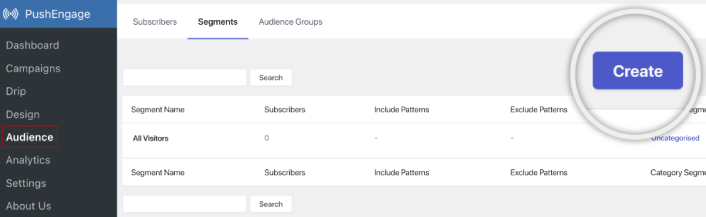
Τίποτα δεν ξεπερνά το επίπεδο εξατομίκευσης που μπορείτε να πετύχετε δημιουργώντας τμήματα και ομάδες κοινού για τους συνδρομητές σας στις ειδοποιήσεις push. Μεταβείτε στο PushEngage » Audience και ξεκινήστε αμέσως τη δημιουργία τμημάτων και ομάδων κοινού.
Στην καρτέλα Segments (Τμήματα), μπορείτε να δημιουργήσετε νέα τμήματα ή να επεξεργαστείτε υπάρχοντα:
Και αν χρειάζεστε ακόμη βαθύτερη εξατομίκευση, δημιουργήστε μια ομάδα κοινού στην καρτέλα Audience Groups (Ομάδες Κοινού):
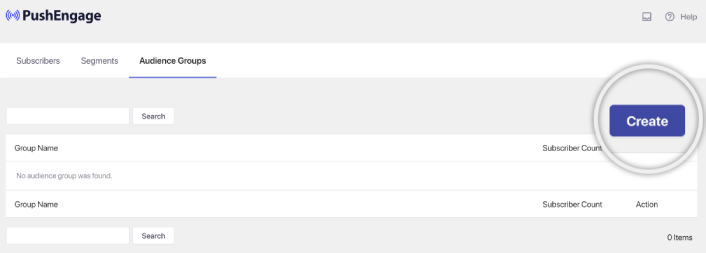
Αν είστε νέοι στα τμήματα ειδοποιήσεων push και στις εξατομικευμένες ειδοποιήσεις push, θα πρέπει να διαβάσετε το άρθρο μας σχετικά με το πώς να δημιουργήσετε τμήματα και την ανακοίνωσή μας σχετικά με την προηγμένη ομαδοποίηση κοινού.
Το πιο εντυπωσιακό είναι ότι μπορείτε να δημιουργήσετε στοχευμένες εκστρατείες push δημιουργώντας μια Ομάδα Κοινού μόνο για τους χρήστες iOS και iPadOS σας:
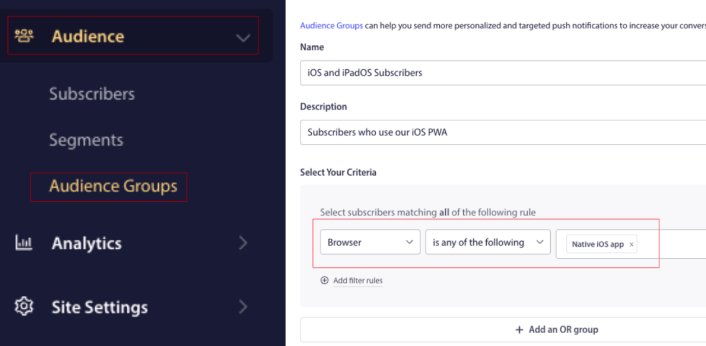
Και μπορείτε να χρησιμοποιήσετε αυτήν την Ομάδα Κοινού για τις εκστρατείες drip και τις μεταδόσεις σας.
Πώς να Δημιουργήσετε μια Εκστρατεία Drip Ειδοποιήσεων Push
Μεταβείτε στον πίνακα ελέγχου PushEngage και πηγαίνετε στο Campaign » Drip Autoresponders και κάντε κλικ στο Create New Drip Autoresponder:

Στη συνέχεια, δώστε ένα όνομα στην καμπάνια σας (προτείνουμε κάτι σαν Welcome Drip) και κάτω από το Content, επιλέξτε την επιλογή που λέει, “Send notification immediately after user subscribes“):

Σε αυτό το σημείο, μπορείτε να κάνετε κλικ στο βέλος δίπλα στην ειδοποίηση για να επεξεργαστείτε το περιεχόμενο της ειδοποίησής σας.
Εάν έχετε πρόγραμμα Premium ή Enterprise με το PushEngage, θα μπορείτε να προσθέσετε περισσότερες από μία ειδοποιήσεις για να δημιουργήσετε μια σειρά από αυτοματοποιημένα μηνύματα καλωσορίσματος. Απλώς κάντε κλικ στο Add New Notification και επεξεργαστείτε το περιεχόμενο.
Μόλις τελειώσετε, κάντε κλικ στο Drip Settings και επιλέξτε την επιλογή αποστολής της καμπάνιας καλωσορίσματός σας σε όλους τους συνδρομητές:

Στη συνέχεια, κάντε κύλιση προς τα κάτω για να ορίσετε τις δικές σας παραμέτρους UTM για να παρακολουθείτε τις ειδοποιήσεις push:
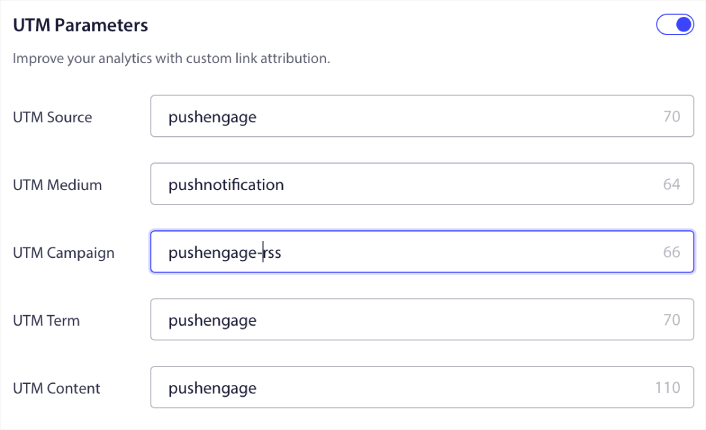
Και όταν τελειώσετε, κάντε κύλιση προς τα πάνω και κάντε κλικ στο κουμπί Activate Autoresponder:

Και τελειώσατε!
Πώς να Στείλετε μια Μετάδοση Web Push για iOS
Μεταβείτε στον πίνακα ελέγχου PushEngage σας και πηγαίνετε στο Campaign » Push Broadcasts και κάντε κλικ στο κουμπί Create a New Push Broadcast:
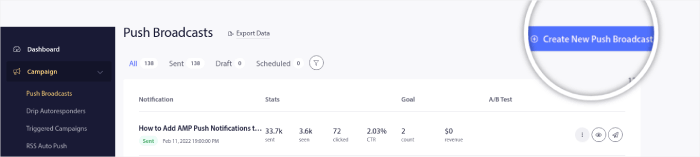
Στην καρτέλα Content, προσθέστε το περιεχόμενο της ειδοποίησης push σας:
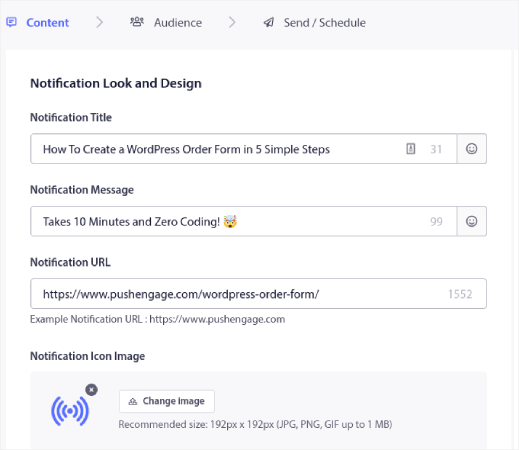
Και μπορείτε να ρυθμίσετε μια δοκιμή A/B για να αυξήσετε τα ποσοστά κλικ σας ή μπορείτε να προγραμματίσετε τις εκπομπές push σας για να λάβετε περισσότερες προβολές. Σε κάθε περίπτωση, θα πρέπει να ελέγξετε τις βέλτιστες πρακτικές ειδοποιήσεων push για τα καλύτερα αποτελέσματα.
Πώς να Δημιουργήσετε ένα Modal Popup Ειδοποίησης Push για iOS
Ένα modal αναδυόμενης ειδοποίησης push είναι ένα μικρό παράθυρο που εμφανίζεται πάνω από τη διεπαφή μιας ιστοσελίδας ή εφαρμογής για κινητά για να εμφανίσει ένα μήνυμα ή μια ειδοποίηση στον επισκέπτη της ιστοσελίδας.
Το modal αναδυόμενο παράθυρο μπορεί να ενεργοποιηθεί από διάφορα γεγονότα. Μπορείτε να ρυθμίσετε αναδυόμενα παράθυρα για να ενεργοποιούνται κατά την επίσκεψη σελίδας, κατά το βάθος κύλισης, ακόμη και κατά προσαρμοσμένες ενέργειες όπως κλικ σε κουμπί.
Συνήθως, θα δείτε μια παρότρυνση για δράση στο αναδυόμενο παράθυρο, όπως «Εγγραφή» ή «Να επιτραπεί», για να λάβετε τη συγκατάθεση των επισκεπτών για την αποστολή ειδοποιήσεων push. Αν ακολουθήσετε αυτό το σεμινάριο, μπορείτε να δημιουργήσετε ένα αναδυόμενο παράθυρο σαν αυτό:
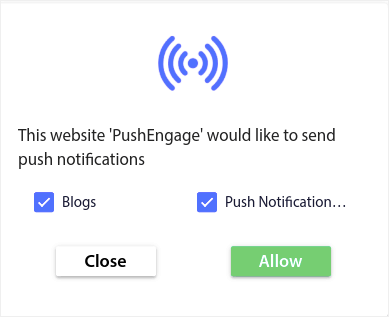
Μπορείτε να δημιουργήσετε αναδυόμενα παράθυρα που μπορούν να τμηματοποιήσουν τους συνδρομητές απευθείας ή να δημιουργήσετε κανονικά αναδυόμενα παράθυρα που απλώς συλλέγουν συνδρομητές με τα προεπιλεγμένα χαρακτηριστικά, όπως γεωγραφική τοποθεσία και πρόγραμμα περιήγησης.
Επιστρέψτε στον πίνακα ελέγχου του WordPress. Μεταβείτε στο PushEngage » Σχεδίαση:
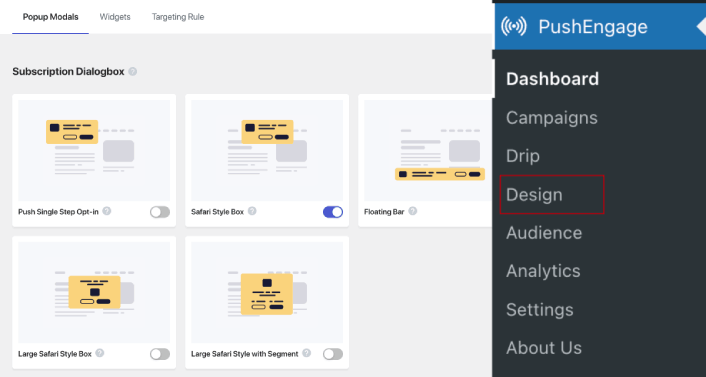
Και μπορείτε να ρυθμίσετε όσα αναδυόμενα παράθυρα θέλετε. Φυσικά, μπορείτε να βεβαιωθείτε ότι ενεργοποιούνται σε διαφορετικές χρονικές στιγμές κάτω από τις Επιλογές Εμφάνισης για κάθε αναδυόμενο παράθυρο.
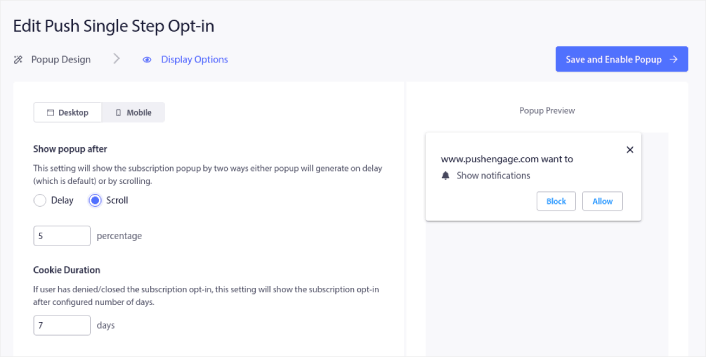
Η ιδέα εδώ είναι να δώσετε στους επισκέπτες σας έναν ισχυρό λόγο για να εγγραφούν. Εάν χρειάζεστε βοήθεια με αυτό, ελέγξτε το άρθρο μας σχετικά με το πώς να δημιουργήσετε μια προσαρμοσμένη φόρμα εγγραφής για ειδοποιήσεις push.
Και αν θέλετε να δημιουργήσετε πιο στοχευμένα αναδυόμενα παράθυρα, μπορείτε να χρησιμοποιήσετε τους κανόνες στόχευσης κάτω από την καρτέλα Κανόνας Στόχευσης:
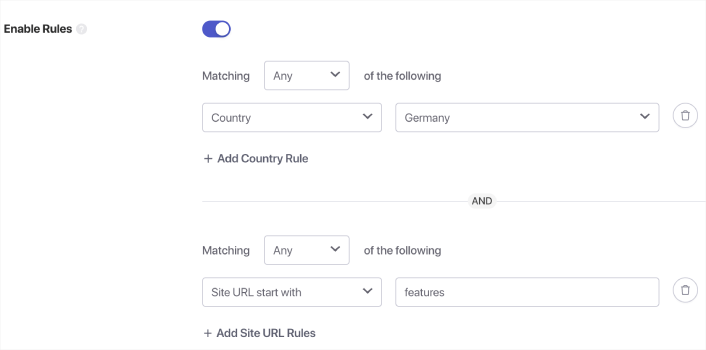
Αυτοί είναι καθολικοί κανόνες στόχευσης και θα έχουν προτεραιότητα έναντι των κανόνων στόχευσης για μεμονωμένα αναδυόμενα παράθυρα. Αλλά αν θέλετε, μπορείτε να δημιουργήσετε ισχυρούς κανόνες στόχευσης για κάθε αναδυόμενο παράθυρο επεξεργαζόμενοι τα.
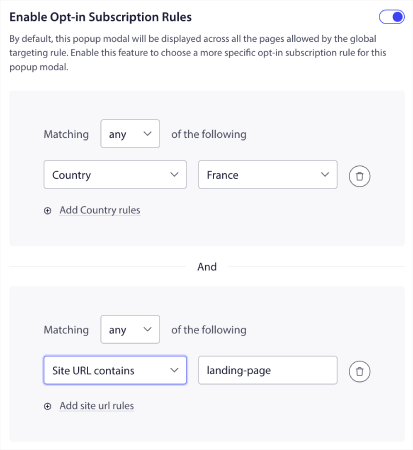
Για παράδειγμα, μπορείτε να δημιουργήσετε αναδυόμενα παράθυρα σε διαφορετικές γλώσσες για να στοχεύσετε επισκέπτες από διαφορετικές χώρες.
Και αν θέλετε μερικά πρότυπα με υψηλό ποσοστό κλικ για να ξεκινήσετε, θα πρέπει να ελέγξετε αυτό το άρθρο σχετικά με τα πρότυπα εγγραφής για ειδοποιήσεις push με υψηλές μετατροπές.
Τι να Κάνετε Πριν Στείλετε Ειδοποιήσεις Push για iOS
Είστε σχεδόν έτοιμοι.
Πριν ξεκινήσετε να στέλνετε ειδοποιήσεις push μέσω web για iOS και iPadOS, θα χρειαστεί να ρυθμίσετε μια επιλογή εγγραφής για τον ιστότοπό σας. Η επιλογή σας θα μετατρέψει τους επισκέπτες του ιστού σε συνδρομητές ειδοποιήσεων push. Επομένως, αυτό είναι ένα κρίσιμο στοιχείο.
Αν χρειάζεστε έμπνευση, μπορείτε να δείτε αυτό το άρθρο σχετικά με επιλογές εγγραφής για ειδοποιήσεις push με υψηλή μετατροπή. Μόλις ολοκληρώσετε τη ρύθμιση της επιλογής, ο ιστότοπός σας μπορεί να συλλέγει συνδρομητές. Αλλά πώς ξέρετε καν ότι η επιλογή σας λειτουργεί σωστά;
Έτσι, το λογικό είναι να ρυθμίσετε μια ειδοποίηση καλωσορίσματος push.
Συμβουλή: Θα πρέπει να αφιερώσετε λίγο χρόνο για μια ολοκληρωμένη δοκιμή των ειδοποιήσεων push. Αυτό θα επιλύσει τα πιο συνηθισμένα προβλήματα και δεν θα χάσετε χρόνο προσπαθώντας να επιλύσετε ζητήματα αργότερα.
Τι να Κάνετε Αφού Στείλετε Ειδοποιήσεις Push για iOS
Αυτό ήταν για αυτό το θέμα, φίλοι!
Αν βρήκατε αυτό το άρθρο χρήσιμο, φροντίστε να αφήσετε ένα σχόλιο παρακάτω.
Η έναρξη με τις ειδοποιήσεις push μπορεί να φαίνεται τρομακτική. Αλλά αν παρακολουθείτε την παρακολούθηση στόχων και την ανάλυση, θα είστε εντάξει. Το πιο σημαντικό, θα κερδίσετε πολύ περισσότερα κέρδη με τη βοήθεια καμπανιών ειδοποιήσεων push. Ακολουθούν μερικοί δροσεροί πόροι για να ξεκινήσετε:
- Πώς να χρησιμοποιήσετε ειδοποιήσεις push επανα στόχευσης για να διπλασιάσετε τα έσοδά σας
- Πώς να ταξινομήσετε τις ειδοποιήσεις push και να βρείτε επιτυχημένες καμπάνιες
- Πώς να καθαρίσετε τις λίστες συνδρομητών ειδοποιήσεων push (Εύκολο)
- Πώς να στέλνετε αυτόματα ειδοποιήσεις push RSS
- Πώς να χρησιμοποιείτε ειδοποιήσεις push για την προώθηση ενός ειδησεογραφικού ιστότοπου
- Πώς να χρησιμοποιείτε ειδοποιήσεις push cross-selling για να διπλασιάσετε τις πωλήσεις σας
- Πώς να χρησιμοποιείτε ειδοποιήσεις push εγκατάλειψης περιήγησης (4 βήματα)
Αν είστε νέοι στις ειδοποιήσεις push, θα πρέπει να δοκιμάσετε το PushEngage. Για να εμβαθύνετε στη στρατηγική, ο οδηγός μάρκετινγκ ειδοποιήσεων push εφαρμογών μας είναι η φυσική επόμενη ανάγνωση. Το PushEngage είναι το #1 λογισμικό ειδοποιήσεων push στην αγορά. Και οι καμπάνιες σας θα είναι σε ασφαλή χέρια.
Έτσι, αν δεν το έχετε κάνει ήδη, ξεκινήστε με το PushEngage σήμερα!


