
Αναζητάτε έναν τρόπο να προσθέσετε ειδοποιήσεις push στην έκδοση AMP του ιστότοπού σας; Η προσθήκη ειδοποιήσεων push AMP μπορεί να είναι λίγο τεχνική. Αλλά θα σας βοηθήσουμε να το κάνετε με τον εύκολο τρόπο.
Οι σελίδες AMP ή Accelerated Mobile Pages είναι ουσιαστικά μια έκδοση του ιστότοπού σας για κινητά. Έτσι, αν δεν έχετε ρυθμίσει ειδοποιήσεις push στο AMP site σας, τότε θα χάσετε πολλούς συνδρομητές, επειδή ένα μεγάλο μέρος του κοινού σας θα χρησιμοποιεί κινητές συσκευές για να επισκεφθεί τον ιστότοπό σας.
Σε αυτό το άρθρο, θα χρησιμοποιήσουμε το PushEngage για να εγκαταστήσουμε ειδοποιήσεις push AMP, επειδή είναι πολύ ευκολότερο από το να κάνουμε τα πράγματα χειροκίνητα.
Ας ξεκινήσουμε.
Πώς να Εγκαταστήσετε Ειδοποιήσεις Push AMP
Η εγκατάσταση ειδοποιήσεων push AMP είναι μια πολύ γρήγορη και εύκολη διαδικασία. Απλώς ακολουθήστε αυτά τα βήματα και στο τέλος αυτού του άρθρου, θα πρέπει να μπορείτε να στέλνετε καμπάνιες push από τον ιστότοπό σας, όπως αυτή:

Φαίνεται καλό, έτσι δεν είναι; Ας βουτήξουμε.
Βήμα #1: Ρυθμίστε τον Λογαριασμό σας PushEngage
Μεταβείτε στην αρχική σελίδα του PushEngage και κάντε κλικ στο κουμπί Ξεκινήστε:

Μπορείτε να επιλέξετε το δωρεάν πρόγραμμα για να δοκιμάσετε το PushEngage, ή να επιλέξετε ένα επί πληρωμή πρόγραμμα αν είστε σοβαροί σχετικά με την ανάπτυξη της επιχείρησής σας. Τα επί πληρωμή προγράμματα έρχονται με περισσότερες επιλογές καμπάνιας και τη δυνατότητα δημιουργίας ακόμα μεγαλύτερων λιστών συνδρομητών.
Μόλις εγγραφείτε στον λογαριασμό σας PushEngage, κατευθυνθείτε στον πίνακα ελέγχου PushEngage και πηγαίνετε στο Ρυθμίσεις Ιστοτόπου » Λεπτομέρειες Ιστοτόπου:

Μπορείτε να ορίσετε το λογότυπό σας, το όνομα του ιστοτόπου και τη διεύθυνση URL του ιστοτόπου εδώ. Είναι πραγματικά σημαντικό να τακτοποιήσετε αυτά τα πράγματα τώρα, ώστε να μπορείτε να δοκιμάσετε ολόκληρη τη ρύθμισή σας αργότερα.
Βήμα #2: Λήψη του Κώδικα Εγκατάστασης Ειδοποιήσεων Push AMP
Για να εγκαταστήσετε ειδοποιήσεις push στον ιστότοπό σας AMP, θα χρειαστεί να λάβετε έναν κώδικα εγκατάστασης. Στην οθόνη Ρυθμίσεις Ιστότοπου, κάντε κύλιση προς τα κάτω και κάντε κλικ στο κουμπί Κάντε Κλικ Εδώ για Οδηγίες Ρύθμισης:

Μεταβείτε στην καρτέλα AMP για να λάβετε τις ρυθμίσεις εγκατάστασης.
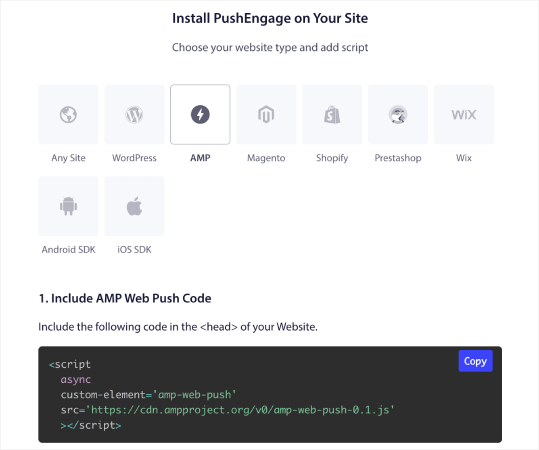
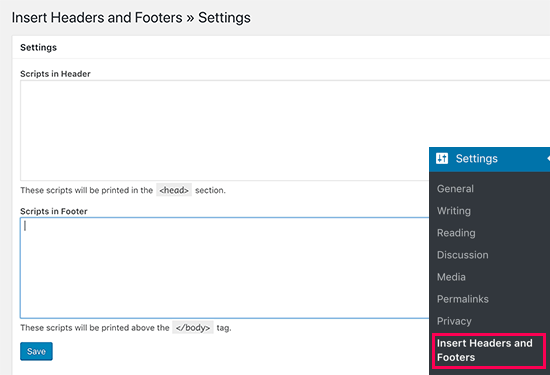
Αντιγράψτε αυτόν τον κώδικα. Θα χρειαστεί να επικολλήσετε αυτόν τον κώδικα στο <head> του HTML του ιστότοπού σας. Εάν χρησιμοποιείτε ιστότοπο WordPress με έκδοση AMP, ο απλούστερος τρόπος για να το κάνετε αυτό είναι να χρησιμοποιήσετε το πρόσθετο Insert Headers and Footers. Είναι ένα δωρεάν πρόσθετο όπου μπορείτε να επικολλήσετε τον κώδικα εγκατάστασης AMP χωρίς να χρειάζεται να μπείτε στο πραγματικό HTML του ιστότοπού σας:
Βήμα #3: Εγκατάσταση του Service Worker στον Ιστότοπό σας AMP
Στη συνέχεια, κατεβάστε το αρχείο πακέτου που περιλαμβάνει το service worker.
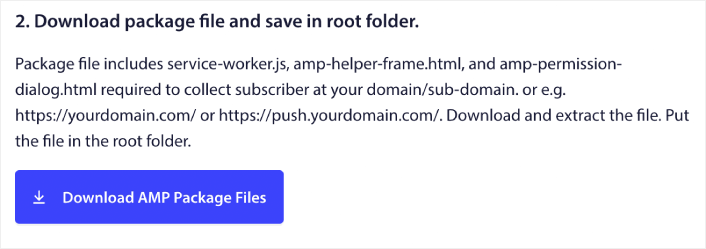
Αυτό περιλαμβάνει:
- service-worker.js
- amp-helper-frame.html
- amp-permission-dialog.html
Αποσυμπιέστε το πακέτο και τοποθετήστε αυτά τα αρχεία στον κύριο φάκελο του διακομιστή σας. Αυτό το μέρος είναι εξαιρετικά σημαντικό. Εάν παραλείψετε αυτό το βήμα, ο ιστότοπός σας δεν θα μπορεί να συλλέγει συνδρομητές push.
Επαγγελματική Συμβουλή: Εάν δεν είστε σίγουροι ποιος είναι ο κύριος φάκελος και πώς μπορείτε να ανεβάσετε αρχεία εκεί, θα πρέπει να διαβάσετε αυτό το άρθρο σχετικά με τη Δομή Αρχείων και Καταλόγων του WordPress. Είναι ένας πολύ απλός οδηγός για αρχάριους και θα πάρετε πολλές πληροφορίες για το πώς λειτουργεί το WordPress.
Βήμα #4: Προσθήκη του Κώδικα HTML Push AMP στον Ιστότοπό σας
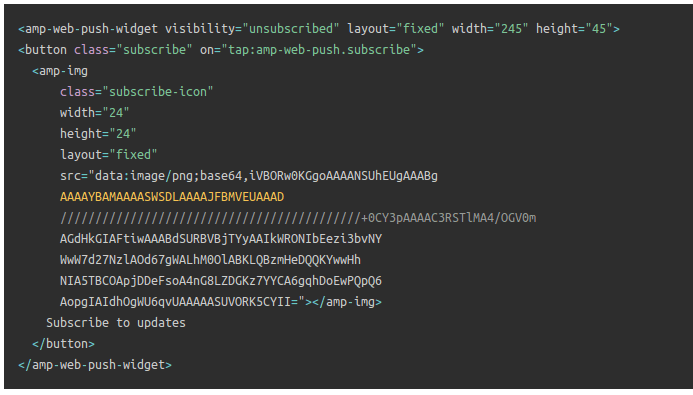
Στη συνέχεια, προσθέστε τον κώδικα HTML για να ενεργοποιήσετε ένα κουμπί εγγραφής με ένα κλικ και ένα κουμπί για διαγραφή από τις καμπάνιες push.
Αυτός ο κώδικας ενεργοποιεί το αρχείο service worker που ανεβάσατε και επιτρέπει στον ιστότοπό σας να εμφανίζει κουμπιά εγγραφής και διαγραφής. Για να συλλέξετε συνδρομητές, πρέπει να δώσετε στους επισκέπτες σας έναν απλό τρόπο να εγγραφούν στις καμπάνιες push σας. Το κουμπί διαγραφής θα δώσει στους ενεργούς συνδρομητές σας έναν τρόπο να αποχωρήσουν εάν δεν ενδιαφέρονται για το περιεχόμενό σας. Και τα δύο είναι αρκετά σημαντικά.
Προσθέστε το κουμπί 'Εγγραφή για ενημερώσεις' όπου θέλετε να εμφανίζεται στον ιστότοπό σας:
Και προσθέστε ένα κουμπί 'Διαγραφή από τις ενημερώσεις':
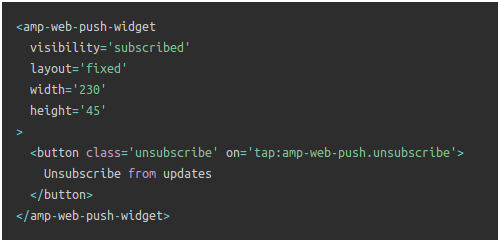
Το κουμπί κατάργησης εγγραφής θα είναι ένα απλό κουμπί «πατήστε για κατάργηση εγγραφής». Λαμβάνετε πολύ περισσότερες επιλογές προσαρμογής για την έκδοση που δεν είναι AMP του ιστότοπού σας τόσο σε κινητές όσο και σε επιτραπέζιες συσκευές. Επομένως, συνιστούμε να προσθέσετε AMP CSS στην ενότητα <body> σας.
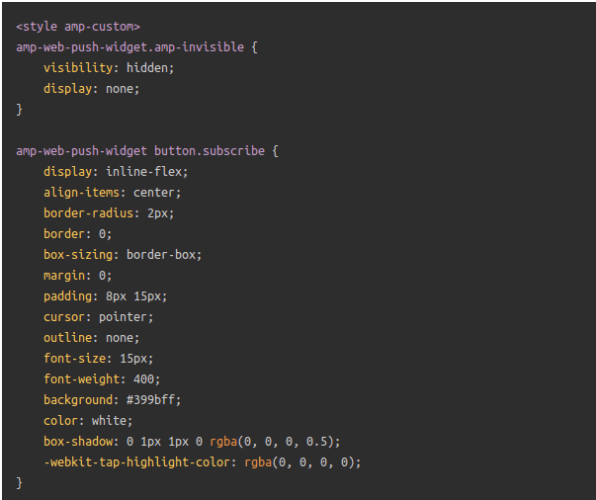
Αυτό το απόσπασμα κώδικα προορίζεται για την προσαρμογή της εμφάνισης τόσο των κουμπιών Εγγραφής όσο και Κατάργησης εγγραφής. Αν θέλετε να πειραματιστείτε με αυτά τα στυλ, προχωρήστε. Απλώς βεβαιωθείτε ότι δεν αλλάζετε τις ετικέτες AMP HTML που στυλίζει ο κώδικας.
Και αυτό είναι όλο. Τελειώσατε.
Βήμα #5: Διαμόρφωση της Εγγραφής PushEngage
Τώρα, επιστρέψτε στον πίνακα ελέγχου PushEngage. Πηγαίνετε στο Σχεδίαση » Αναδυόμενα Παράθυρα και επιλέξτε την επιλογή εγγραφής της επιλογής σας:
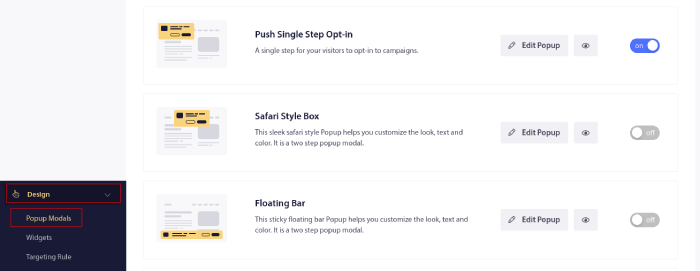
Η ιδέα εδώ είναι να δώσετε στους επισκέπτες σας έναν ισχυρό λόγο για να εγγραφούν. Εάν χρειάζεστε βοήθεια με αυτό, ελέγξτε το άρθρο μας σχετικά με το πώς να δημιουργήσετε μια προσαρμοσμένη φόρμα εγγραφής για ειδοποιήσεις push.
Και αν θέλετε κάποια πρότυπα για να ξεκινήσετε, θα πρέπει να δείτε αυτό το άρθρο σχετικά με πρότυπα εγγραφής ειδοποιήσεων push με υψηλές μετατροπές.
ΒΗΜΑ BONUS: Δημιουργία καμπάνιας καλωσορίσματος
Μόλις ολοκληρώσετε τη ρύθμιση της προαιρετικής συμμετοχής, ο ιστότοπός σας μπορεί να συλλέγει συνδρομητές.
Αλλά πώς ξέρετε αν οι καμπάνιες push λειτουργούν σωστά;
Συνιστούμε να δημιουργήσετε μια ειδοποίηση καλωσορίσματος push για να ελέγξετε αν η ρύθμισή σας πήγε ομαλά. Μια ειδοποίηση καλωσορίσματος είναι μια ειδοποίηση push ιστότοπου που στέλνετε σε έναν νέο συνδρομητή για να επιβεβαιώσετε τη συνδρομή του και να τον καλωσορίσετε.
Μεταβείτε στον πίνακα ελέγχου PushEngage και πηγαίνετε στο Campaign » Drip Autoresponders και κάντε κλικ στο Create New Drip Autoresponder:

Στη συνέχεια, δώστε ένα όνομα στην καμπάνια σας (προτείνουμε κάτι σαν Welcome Drip) και κάτω από το Content, επιλέξτε την επιλογή που λέει, “Send notification immediately after user subscribes“):

Σε αυτό το σημείο, μπορείτε να κάνετε κλικ στο βέλος δίπλα στην ειδοποίηση για να επεξεργαστείτε το περιεχόμενο της ειδοποίησής σας. Εάν έχετε πρόγραμμα Premium ή Enterprise με το PushEngage, θα μπορείτε να προσθέσετε περισσότερες από μία ειδοποιήσεις για να δημιουργήσετε μια σειρά αυτοματοποιημένων μηνυμάτων καλωσορίσματος. Απλώς κάντε κλικ στο Add New Notification και επεξεργαστείτε το περιεχόμενο.
Μόλις τελειώσετε, κάντε κλικ στο Drip Settings και επιλέξτε την επιλογή αποστολής της καμπάνιας καλωσορίσματός σας σε όλους τους συνδρομητές:

Στη συνέχεια, κάντε κύλιση προς τα κάτω για να ορίσετε τις δικές σας παραμέτρους UTM για παρακολούθηση των καμπανιών push:

Και όταν τελειώσετε, κάντε κύλιση προς τα πάνω και κάντε κλικ στο κουμπί Activate Autoresponder:

Και αυτό ήταν όλο!
Έχετε ρυθμίσει με επιτυχία τις ειδοποιήσεις push ιστότοπου AMP στον ιστότοπό σας. Είναι ώρα να επιστρέψετε στον πίνακα ελέγχου PushEngage και να αρχίσετε να δημιουργείτε τις καμπάνιες push σας.
Τι να κάνετε αφού προσθέσετε ειδοποιήσεις push AMP στον ιστότοπό σας
Αυτό ήταν για αυτό το θέμα, φίλοι!
Αν είστε νέοι στις καμπάνιες push, θα πρέπει να ακολουθήσετε μια πλήρη διαδικασία δοκιμής ειδοποιήσεων push πριν δημοσιεύσετε. Θα σας βοηθήσει να αντιμετωπίσετε κοινά προβλήματα πριν τα δουν οι επισκέπτες σας και αρχίσουν να παραπονιούνται για μια προβληματική εμπειρία χρήστη.
Θα πρέπει επίσης να ελέγξετε μερικές ακόμη αυτοματοποιημένες καμπάνιες ειδοποιήσεων push, όπως:
Συνιστούμε να επικοινωνήσετε με τους Υπεύθυνους Επιτυχίας Πελατών μας εάν κολλήσετε σε οτιδήποτε από αυτά. Είμαστε περισσότερο από ευτυχείς να σας βοηθήσουμε με οποιοδήποτε πρόβλημα.
Και αν δεν το έχετε κάνει ήδη, προχωρήστε και δοκιμάστε το PushEngage. Το PushEngage είναι η #1 υπηρεσία ειδοποιήσεων push στον κόσμο. Έτσι, αν σοβαρά θέλετε να αναπτύξετε την επιχείρησή σας, το PushEngage είναι η σωστή επιλογή για εσάς.


Ευχαριστώ για αυτές τις συμβουλές & πληροφορίες. Είναι πολύ εύκολο να κατανοηθεί.
καλή εξήγηση