Ψάχνετε για έναν οδηγό για τη δημιουργία καμπανιών waterfall push;
Οι ειδοποιήσεις waterfall κερδίζουν μεγάλη δημοτικότητα αυτές τις μέρες. Για πολύ καιρό, μπορούσατε να στέλνετε μόνο καμπάνιες email waterfall. Αλλά τώρα, μπορείτε να αναδημιουργήσετε τις ίδιες αποτελεσματικές καμπάνιες και να χρησιμοποιήσετε τις επιλογές στόχευσης στο λογισμικό ειδοποιήσεων push για να στείλετε ειδοποιήσεις push waterfall.
Αλλά πώς ξεκινάτε; Χρειάζεστε εμπειρία με καμπάνιες waterfall; Χρειάζεστε εμπειρία στη ρύθμιση καμπανιών ειδοποιήσεων push;
Σε αυτό το άρθρο, θα σας βοηθήσουμε να δημιουργήσετε καμπάνιες waterfall push χρησιμοποιώντας ένα παράδειγμα. Θα απαντήσουμε επίσης σε όλες τις ερωτήσεις σας σχετικά με τις ειδοποιήσεις push waterfall.
Ακούγεται καλό; Ας βουτήξουμε.
Τι είναι οι Καμπάνιες Waterfall Push;
Μια καμπάνια push waterfall είναι ένας τύπος διαφημιστικής καμπάνιας για κινητές συσκευές. Λειτουργεί ως εξής: στέλνετε ειδοποιήσεις push σε μια ομάδα ατόμων, αλλά όχι όλους ταυτόχρονα. Αντ' αυτού, στέλνετε την ειδοποίηση πρώτα στα άτομα που είναι πιο πιθανό να αλληλεπιδράσουν με την ειδοποίηση και να κάνουν την ενέργεια που θέλετε να κάνουν.
Αν αυτά τα άτομα δεν ανταποκριθούν, προχωράτε στην επόμενη ομάδα ατόμων, και ούτω καθεξής.
Η ιδέα είναι να προσελκύσετε όσο το δυνατόν περισσότερα άτομα να αλληλεπιδράσουν με την ειδοποίηση, ξοδεύοντας το λιγότερο δυνατό ποσό χρημάτων. Ονομάζεται "waterfall" επειδή είναι σαν μια σειρά από βήματα που ακολουθεί το δίκτυο, στοχεύοντας διαφορετικές ομάδες ατόμων σε κάθε βήμα.
Επιτρέψτε μου να εξηγήσω.
Με οποιαδήποτε επιχείρηση κι αν τρέχετε, θα δείτε μια ομάδα συνδρομητών που είναι εξαιρετικά αφοσιωμένοι. Αγοράζουν ό,τι πουλάτε, προσφέρουν ευχαρίστως μαρτυρίες και κριτικές, και σας παραπέμπουν νέους πελάτες.
Και πάλι, θα δείτε συνδρομητές που απλά δεν ενδιαφέρονται για τίποτα σχετικά με την επιχείρησή σας.
Οι καμπάνιες ειδοποιήσεων push έρχονται με λεπτομερή αναλυτικά στοιχεία. Έτσι, μπορείτε να δείτε και τις δύο ομάδες αρκετά καθαρά στη λίστα συνδρομητών σας. Και το ωραίο είναι ότι μπορείτε να δημιουργήσετε Ομάδες Κοινού στο PushEngage για να επαναστοχεύσετε και τους δύο τύπους συνδρομητών.
Στη συνέχεια, μπορείτε να δημιουργήσετε επιλογές στόχευσης για τις ειδοποιήσεις push σας για να επαναστοχεύσετε συγκεκριμένη συμπεριφορά σε κάθε ειδοποίηση που στέλνετε. Μόλις μπούμε στο παράδειγμά μας, θα δείτε πιο καθαρά πώς η στόχευση συμπεριφοράς επηρεάζει μια καμπάνια push waterfall. Προς το παρόν, θα πρέπει να γνωρίζετε ότι όλες οι καμπάνιες push waterfall έχουν δύο βασικά στοιχεία:
- Ένα σύνολο ειδοποιήσεων push με κοινό στόχο
- Ομάδες κοινού για επανα στόχευση διαφορετικών τύπων συνδρομητών
Ας δούμε γιατί οι καμπάνιες push waterfall είναι τόσο αποτελεσματικές στη συνέχεια.
Γιατί να στείλετε Καμπάνιες Waterfall Push;
Υπάρχουν πολλά πλεονεκτήματα στη χρήση καμπανιών push waterfall για την ανάπτυξη της επωνυμίας σας:
- Αποτελεσματική χρήση διαφημιστικού προϋπολογισμού: Στοχεύοντας πρώτα τους πιο πολύτιμους χρήστες και στη συνέχεια προχωρώντας προς τα κάτω στη λίστα προτεραιότητας, μια καμπάνια push waterfall μπορεί να βοηθήσει στη μεγιστοποίηση της απόδοσης επένδυσης (ROI) για τις διαφημιστικές σας δαπάνες. Αυτό διασφαλίζει ότι ο διαφημιστικός σας προϋπολογισμός χρησιμοποιείται όσο το δυνατόν πιο αποτελεσματικά.
- Υψηλότερα ποσοστά αλληλεπίδρασης: Στοχεύοντας χρήστες που είναι πιο πιθανό να αλληλεπιδράσουν με τη διαφήμιση, αυξάνετε τις πιθανότητες για υψηλότερο ποσοστό κλικ και ποσοστό μετατροπής, κάτι που μπορεί να οδηγήσει σε αυξημένα έσοδα.
- Προσαρμόσιμη στόχευση: Με μια καμπάνια push waterfall, μπορείτε να δημιουργήσετε διαφορετικά τμήματα χρηστών με βάση τα δημογραφικά τους στοιχεία, τη συμπεριφορά τους και άλλους παράγοντες. Αυτό σας επιτρέπει να προσαρμόσετε τα μηνύματά σας σε κάθε ομάδα και να αυξήσετε την πιθανότητα επιτυχίας.
- Βελτιστοποίηση σε πραγματικό χρόνο: Με μια καμπάνια push waterfall, μπορείτε να παρακολουθείτε την απόδοση κάθε τμήματος σε πραγματικό χρόνο και να προσαρμόζετε τη στρατηγική στόχευσής σας ανάλογα. Αυτό διασφαλίζει ότι βελτιστοποιείτε πάντα για τα καλύτερα δυνατά αποτελέσματα.
Συνολικά, οι καμπάνιες push τύπου waterfall μπορούν να είναι ένας αποτελεσματικός τρόπος για να προσεγγίσετε το κοινό-στόχο σας και να αυξήσετε την αλληλεπίδραση και τις μετατροπές, ελαχιστοποιώντας παράλληλα τη σπατάλη δαπανών διαφήμισης.
Πώς να Στείλετε Ειδοποιήσεις Push τύπου Waterfall
Τώρα που γνωρίζουμε τι είναι μια καμπάνια push τύπου waterfall και γιατί πρέπει να τις δημιουργήσετε, ας δούμε ένα πραγματικό παράδειγμα με οδηγίες βήμα προς βήμα για τη δημιουργία μιας.
Πριν ξεκινήσετε να στέλνετε ειδοποιήσεις push τύπου waterfall, πρέπει να επιλέξετε μια υπηρεσία ειδοποιήσεων push. Συνιστούμε τη χρήση του PushEngage.
Βήμα #1: Δημιουργήστε έναν Δωρεάν Λογαριασμό PushEngage
Μεταβείτε στο PushEngage και κάντε κλικ στο Ξεκινήστε Δωρεάν Τώρα:

Μπορείτε να ξεκινήσετε με το δωρεάν πρόγραμμα. Αλλά αν ψάχνετε για τις πιο ισχυρές ειδοποιήσεις προγράμματος περιήγησης, θα πρέπει να επιλέξετε ένα επί πληρωμή πρόγραμμα με βάση τις ανάγκες της επιχείρησής σας:
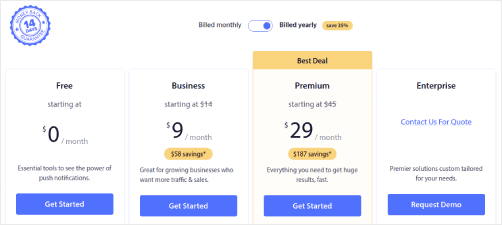
Μόλις γνωρίζετε ποιο πρόγραμμα θέλετε, κάντε κλικ στο Ξεκινήστε για να δημιουργήσετε τον λογαριασμό σας στο PushEngage.
Βήμα #2: Εγγραφείτε στο PushEngage
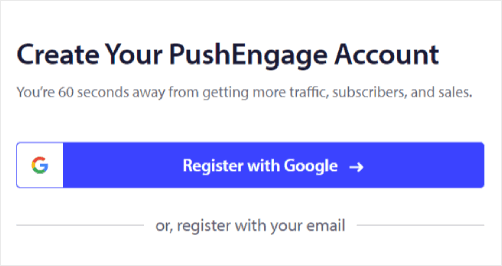
Τώρα, είναι ώρα να δημιουργήσετε τον λογαριασμό σας στο PushEngage. Ξεκινήστε κάνοντας εγγραφή με μια διεύθυνση email ή ένα αναγνωριστικό Gmail:
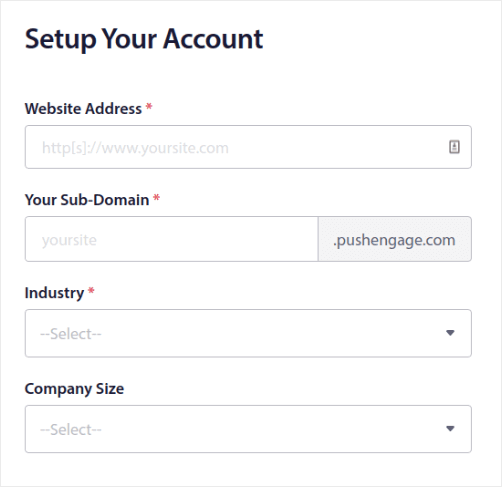
Στη συνέχεια, συμπληρώστε τα στοιχεία του λογαριασμού σας:
Και προσθέστε τα στοιχεία της πιστωτικής σας κάρτας για να αγοράσετε το πρόγραμμά σας:
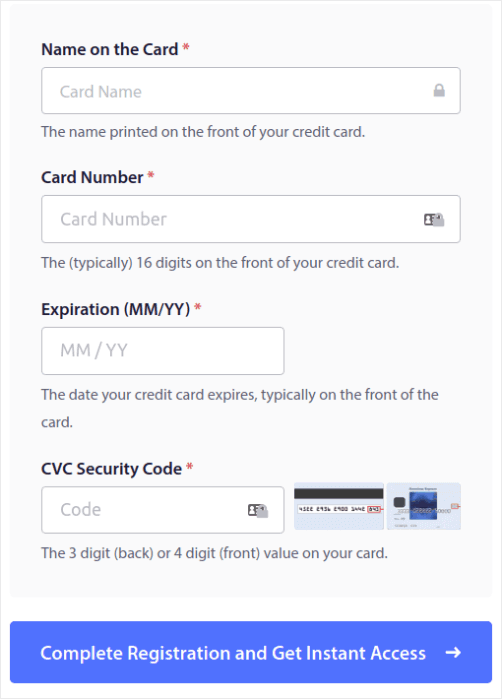
Εάν επιλέξατε τον δωρεάν λογαριασμό, τότε η πιστωτική σας κάρτα δεν θα χρεωθεί ποτέ χρήματα μέχρι να επιλέξετε να αναβαθμίσετε το πρόγραμμά σας. Και τώρα, είστε έτοιμοι να αποκτήσετε πρόσβαση στον πίνακα ελέγχου του PushEngage. Απλώς κάντε κλικ στο Ολοκλήρωση Εγγραφής και Άμεση Πρόσβαση.
Εάν έχετε χρησιμοποιήσει το OneSignal ή το PushAlert στο παρελθόν, θα δείτε ότι το PushEngage σας προσφέρει μια πολύ πιο καθαρή εμπειρία από τον πίνακα ελέγχου. Ο πίνακας ελέγχου του OneSignal δεν είναι σχεδιασμένος για προηγμένες καμπάνιες. Για αυτό, θα χρειαστείτε το API περισσότερο από το plugin του OneSignal.
Βήμα #3: Εγκαταστήστε το Plugin Ειδοποιήσεων Web για WordPress
Έχετε ολοκληρώσει τη δημιουργία του λογαριασμού σας. Λοιπόν, μεταβείτε στον πίνακα ελέγχου του PushEngage και ακολουθήστε:

Κάντε κλικ στο Ρυθμίσεις Ιστοτόπου » Λεπτομέρειες Ιστοτόπου και κάντε κλικ στο κουμπί Κάντε Κλικ Εδώ για Οδηγίες Εγκατάστασης:

Κάντε κλικ στην καρτέλα WordPress και κάντε κλικ στο κουμπί Εγκατάσταση Plugin WordPress PushEngage για να εγκαταστήσετε το plugin στον ιστότοπό σας.

Ορίστε το ενδιαφέρον μέρος: Όταν δημιουργήσατε τον λογαριασμό σας στο PushEngage, συγχρονίσατε ήδη τον ιστότοπό σας με τον λογαριασμό σας στο PushEngage. Επομένως, κάντε κλικ στον σύνδεσμο εγκατάστασης στον πίνακα ελέγχου του PushEngage για να εγκαταστήσετε αυτόματα το πρόσθετο PushEngage WordPress στον ιστότοπό σας.
Βήμα #4: Συνδέστε τον Ιστότοπό σας WordPress με το PushEngage
Όταν ολοκληρώσετε την εγκατάσταση και ενεργοποίηση του plugin WordPress PushEngage, θα δείτε τον οδηγό ρύθμισης του PushEngage:
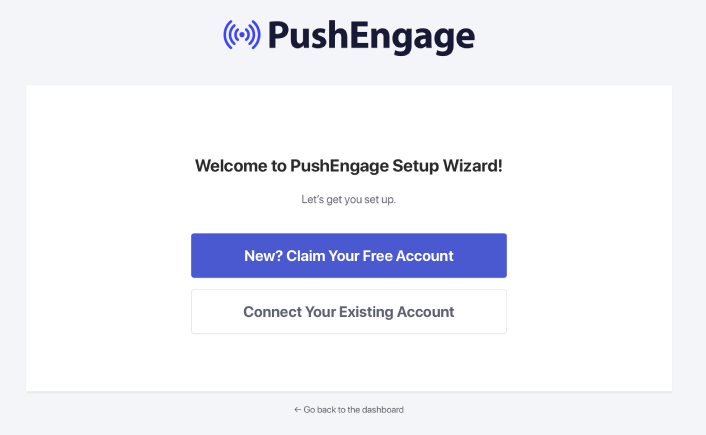
Ο οδηγός είναι αρκετά απλός. Εάν είστε νέος χρήστης, κάντε κλικ στο Νέος; Διεκδικήστε τον Δωρεάν Λογαριασμό σας. Και εάν έχετε ήδη εγγραφεί, κάντε κλικ στο Συνδέστε τον Υπάρχοντα Λογαριασμό σας.
Στη συνέχεια, μπορείτε να επιλέξετε τον ιστότοπό σας από το αναπτυσσόμενο μενού Επιλογή Ιστοτόπου στην ενότητα Σύνδεση καταχωρημένου ιστοτόπου εάν έχετε ήδη καταχωρήσει έναν ιστότοπο κατά την εγγραφή:
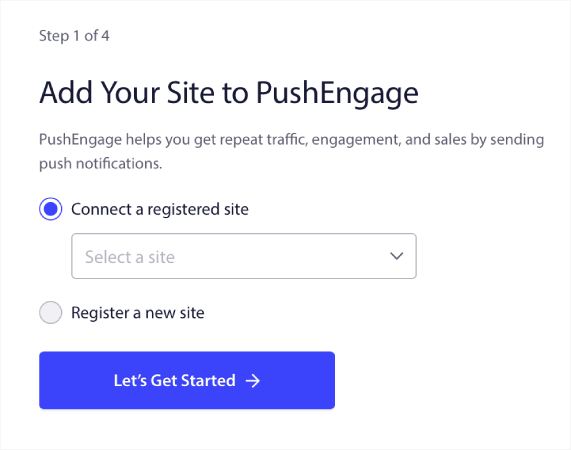
Εναλλακτικά, μπορείτε να κάνετε κλικ στο Εγγραφή νέας τοποθεσίας για να προσθέσετε μια νέα τοποθεσία εάν έχετε ένα Premium pricing plan ή ανώτερο. Στο επόμενο βήμα, ο οδηγός εγκατάστασης θα σας ζητήσει να εγκαταστήσετε άλλα απαραίτητα πρόσθετα WordPress.
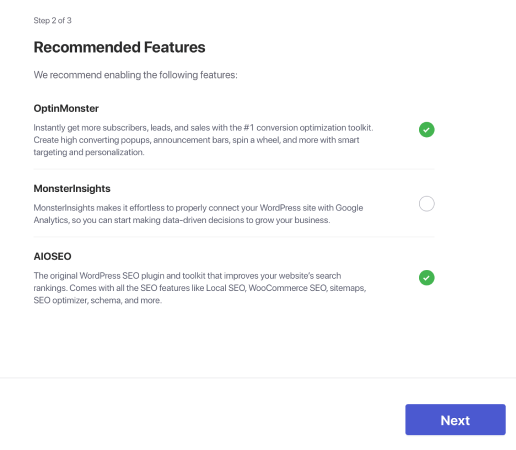
Εάν ακολουθήσατε κάθε βήμα σωστά, θα δείτε αυτό το μήνυμα επιτυχίας από τον οδηγό:
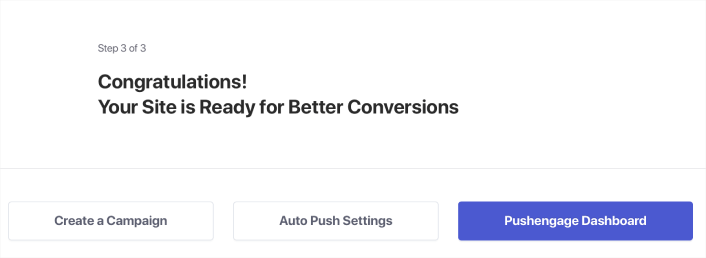
Είστε τώρα έτοιμοι να δημιουργήσετε καμπάνιες.
Βήμα #5: Δημιουργία Καμπανιών Push τύπου Waterfall
Τέλος, έφτασε η ώρα για το παράδειγμά μας. Για να σας δείξουμε μια πραγματική περίπτωση χρήσης για καμπάνιες push τύπου waterfall, θα πάρουμε το παράδειγμα των προσφορών Black Friday. Στόχος μας είναι να μεγιστοποιήσουμε τις μετατροπές στην προσφορά μας για τη Black Friday.
Για να επαναστοχεύσουμε τους συνδρομητές μας βάσει της συμπεριφοράς τους, θα στείλουμε μια μετάδοση σε όλους τους συνδρομητές μας. Στη συνέχεια, βάσει των επιπέδων αφοσίωσής τους, θα δημιουργήσουμε διαφορετικές Ομάδες Κοινού για επανα στόχευση.
Πώς να Στείλετε την Ειδοποίησή σας σε Όλους τους Συνδρομητές
Θέλουμε τη μέγιστη εμβέλεια για 3 ειδοποιήσεις:
- Ανακοίνωση Πρώιμης Black Friday
- Προσφορά Αστραπή Black Friday
- Προσφορά Cyber Monday
Έτσι, στέλνουμε αυτές τις 3 ειδοποιήσεις σε όλους. Στην καρτέλα Κοινό, επιλέξτε Αποστολή σε Όλους τους Συνδρομητές:

Πώς να Επαναστοχεύσετε Συνδρομητές που δεν Έκαναν Κλικ στην Εκπομπή σε Όλους
Αν δεν στέλνετε την ειδοποίηση σε όλους τους συνδρομητές, θα χρειαστεί να δημιουργήσετε μια Ομάδα Κοινού. Για παράδειγμα, αν θέλετε να στοχεύσετε τους συνδρομητές που δεν έκαναν κλικ στην εκπομπή προς όλους, θα χρειαστεί να δημιουργήσετε μια νέα Ομάδα Κοινού.
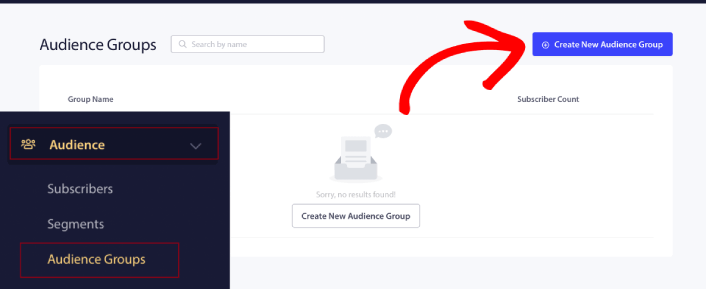
Στον πίνακα ελέγχου του WordPress, μεταβείτε στις Ομάδες Κοινού » Ομάδες Κοινού και κάντε κλικ στο Δημιουργία Νέας Ομάδας Κοινού:
Για να στοχεύσετε συνδρομητές που δεν έκαναν κλικ στην τελευταία ειδοποίηση, θα χρειαστεί να φιλτράρετε με βάση την Ημερομηνία Τελευταίου Κλικ:
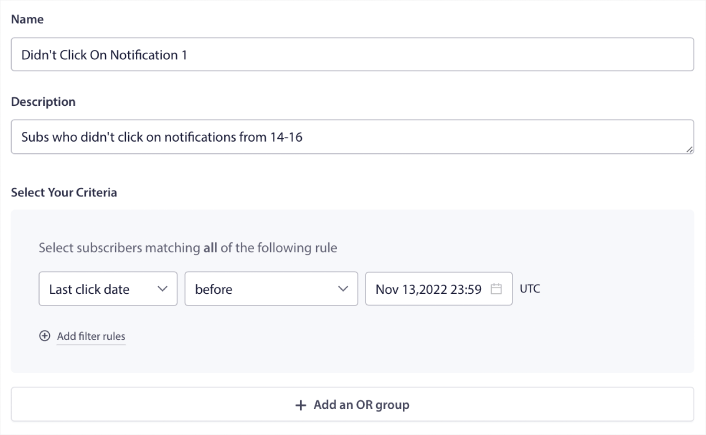
Φιλτράρετε με βάση την ημερομηνία τελευταίου κλικ πριν από την ημερομηνία που στείλατε την προηγούμενη ειδοποίησή σας. Έτσι, αν στείλατε την τελευταία ειδοποίηση push στις 14 Νοεμβρίου, φιλτράρετε για συνδρομητές που έκαναν κλικ σε ειδοποιήσεις μόνο πριν από τις 13 Νοεμβρίου τα μεσάνυχτα.
ΣΗΜΕΙΩΣΗ: Σε αντίθεση με μια καμπάνια email, δεν μπορείτε πραγματικά να φιλτράρετε με βάση το ποσοστό κλικ στην τελευταία ειδοποίηση. Η πλησιέστερη προσέγγιση είναι να φιλτράρετε για κλικ σε ένα εύρος ημερομηνιών.
Όταν τελειώσετε, κάντε κλικ στο Αποθήκευση Ειδοποίησης.
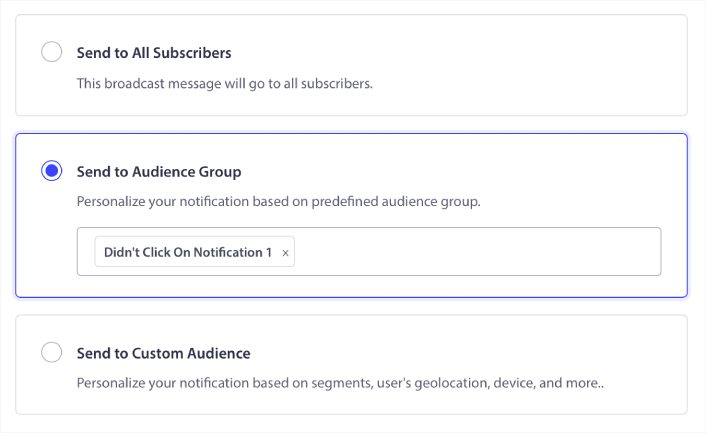
Στη συνέχεια, επιστρέψτε στην εκπομπή της ειδοποίησης push και επιλέξτε Αποστολή σε Ομάδα Κοινού. Από την αναπτυσσόμενη λίστα, επιλέξτε την Ομάδα σας:
Πώς να Επαναστοχεύσετε Συνδρομητές που Έκαναν Κλικ στην Εκπομπή σε Όλους
Εάν θέλετε να στοχεύσετε συνδρομητές που έκαναν κλικ στην τελευταία σας ειδοποίηση, μπορείτε να δημιουργήσετε μια άλλη Ομάδα Κοινού.
Φιλτράρετε τους συνδρομητές σας με βάση την Ημερομηνία τελευταίου κλικ μετά την ημερομηνία που στείλατε την προηγούμενη ειδοποίησή σας ΚΑΙ πριν την ημερομηνία που θέλετε να στείλετε την επόμενη ειδοποίησή σας:
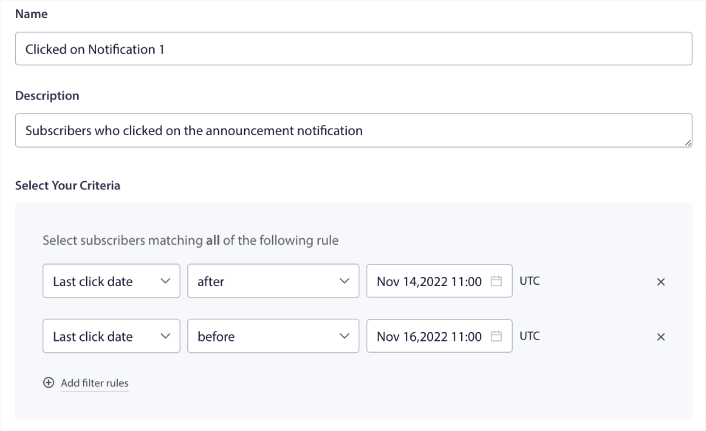
Μπορείτε να προσθέσετε κριτήρια ΚΑΙ στο φίλτρο σας κάνοντας κλικ στο Προσθήκη κανόνων φίλτρου. Ένα φίλτρο σαν αυτό είναι ιδανικό για ειδοποιήσεις push cross-selling.
Το αποτέλεσμα αυτών των Ομάδων Κοινού είναι πιο λεπτομερής στόχευση. Έτσι, κάθε φορά, μπορείτε να στέλνετε διαφορετικές προσφορές για να βελτιώσετε τα ποσοστά μετατροπής σας.
Τι να κάνετε Αφού Δημιουργήσετε Καμπάνιες Push τύπου Waterfall
Ένα από τα πιο σημαντικά πράγματα που πρέπει να θυμάστε σχετικά με τις καμπάνιες push τύπου waterfall είναι ότι μπορείτε να χρησιμοποιήσετε αυτή τη μεθοδολογία μόνο σε ειδοποιήσεις push τύπου broadcast. Οι καμπάνιες drip στις ειδοποιήσεις push δεν έχουν ακόμη τόσο λεπτομερείς επιλογές στόχευσης.
Έτσι, βεβαιωθείτε ότι θα δοκιμάσετε A/B τις ειδοποιήσεις push σας. Σας προτείνουμε επίσης να αφιερώσετε λίγο χρόνο για να διαβάσετε τα άρθρα μας και να μάθετε πώς να ενισχύσετε τις αυτοματοποιημένες ειδοποιήσεις push σας. Ξεκινήστε με το άρθρο μας σχετικά με τις βέλτιστες πρακτικές για ειδοποιήσεις push.
Εάν είστε νέοι στις ειδοποιήσεις push, θα πρέπει να ακολουθήσετε μια πλήρη διαδικασία δοκιμής ειδοποιήσεων push πριν δημοσιεύσετε. Θα σας βοηθήσει να αντιμετωπίσετε κοινά προβλήματα πριν τα δουν οι επισκέπτες σας και αρχίσουν να παραπονιούνται για μια χαλασμένη εμπειρία χρήστη. Και σίγουρα θα πρέπει να ρυθμίσετε το Google Analytics για να παρακολουθείτε τις ειδοποιήσεις push.
Επαναστόχευση ειδοποιήσεων push για να στοχεύσετε τους συνδρομητές που έκαναν κλικ σε αυτές ή όχι. Ενημερώστε μας πώς λειτουργεί αυτό για εσάς. Εν τω μεταξύ, ελέγξτε αυτούς τους πόρους:
- Πώς να αυξήσετε τα κλικ στις ειδοποιήσεις push σας με την περιέργεια
- Πώς να εξατομικεύσετε κάθε ειδοποίηση push
- Πώς να ξεχωρίσετε με πλούσια μέσα στις ειδοποιήσεις push σας
- Πώς να επανενεργοποιήσετε αδρανείς συνδρομητές push
- Πώς να χρησιμοποιήσετε τις ειδοποιήσεις push για να κρατάτε τους πελάτες ενήμερους
- Πώς να χρησιμοποιήσετε emojis στις ειδοποιήσεις push σας για υψηλότερα ποσοστά κλικ
- Πώς να αυξήσετε τις μετατροπές δημιουργώντας αίσθηση επείγοντος
Και αν δεν το έχετε κάνει ήδη, ξεκινήστε με το PushEngage.


