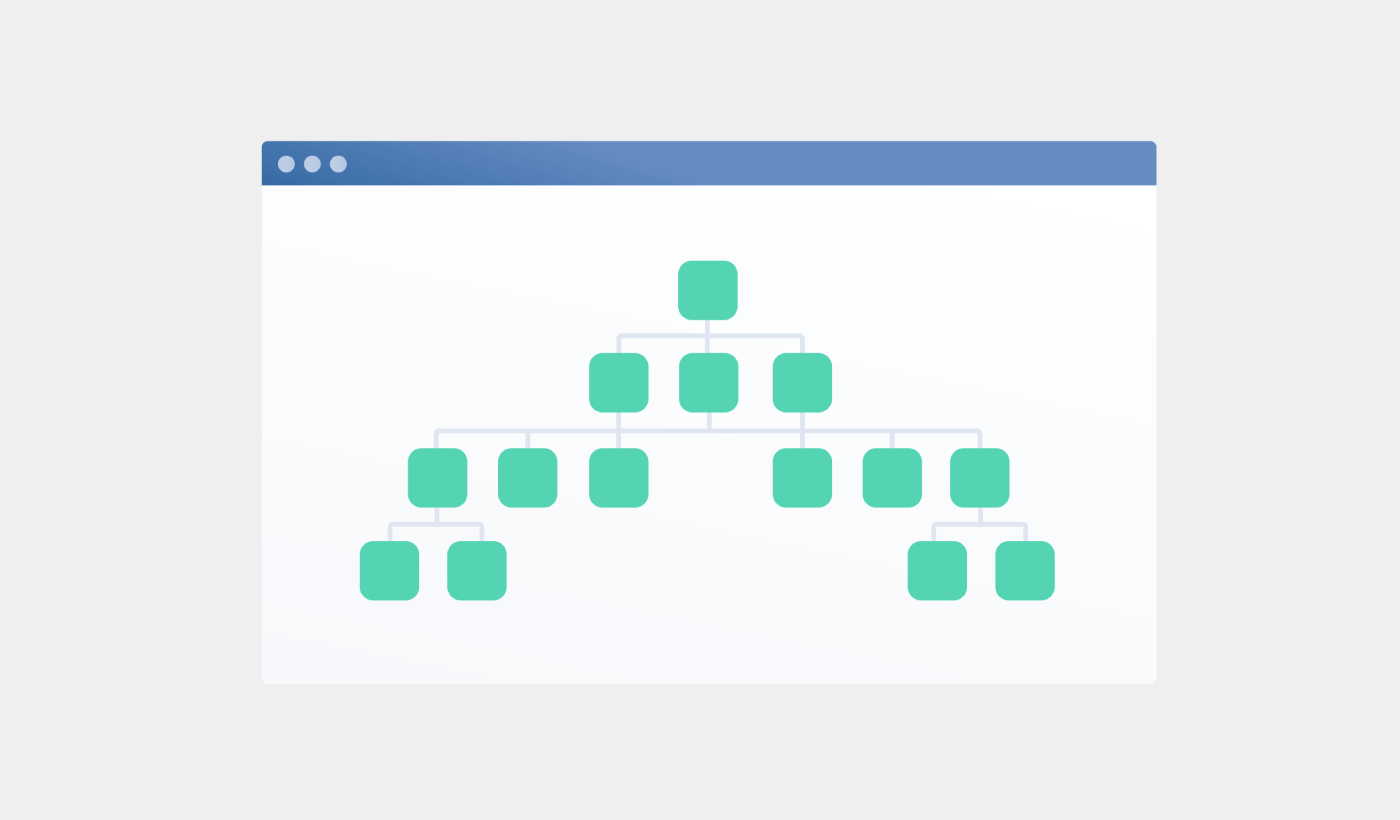
Looking for a detailed tutorial on how to create a sitemap for WordPress?
Sitemaps help search engines to crawl and index your website with ease. In simple terms, a sitemap is a list of all the links on your site. This includes pages, posts, categories, and even media files.
Having a sitemap on your site makes it easy for search engines to discover your site content. But how do you do it?
Simple answer: You can add a WordPress SEO title from any SEO plugin at all. In this article, we’ll show you how to create a sitemap for WordPress in less than a minute with zero coding.
Ας ξεκινήσουμε.
What Is a Sitemap for WordPress?
A WordPress sitemap is an XML (extensible markup language) file that contains a list of all (or most of) the pages of your website.
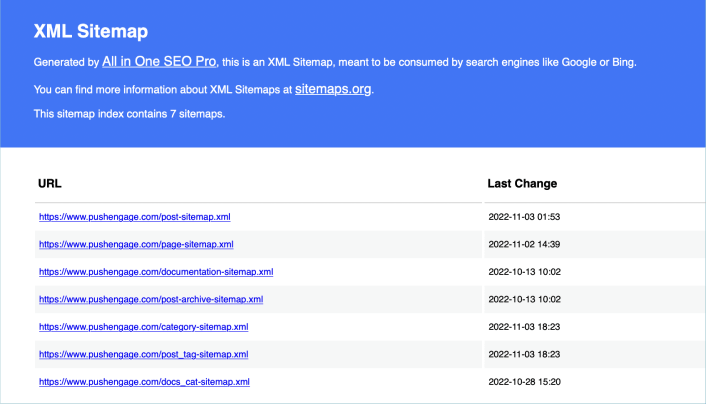
A sitemap tells Google, Bing, DuckDuckGo, and other search engines where your content is located, when was the page last updated, how important is the page for your website, and more information.
If you have no backlinks to your content, it’s difficult for search engines to find your content. Sitemaps get search engines started with indexing your content. And if you use a WordPress SEO plugin, you can easily create an XML sitemap for your WordPress site.
How to Create a Sitemap for WordPress
The simplest way to create a sitemap for WordPress is to use an SEO plugin. WordPress generates a basic sitemap on its own, but it includes anything that you might have no-indexed. There’s also no way to customize the default WordPress sitemap unless you know PHP code.
So, the default WordPress sitemap is usually full of errors. We recommend using AIOSEO as your WordPress SEO plugin.

All In One SEO is the best WordPress SEO plugin in the world.
Όχι μόνο το AIOSEO είναι αρκετά ισχυρό για να εφαρμόσει τις τελευταίες βέλτιστες πρακτικές SEO, αλλά λαμβάνετε επίσης προηγμένες επιλογές για την επίλυση συγκεκριμένων προβλημάτων SEO απευθείας από το κουτί. Αυτό περιλαμβάνει:
- Ενότητες Τοπικού SEO για μικρές επιχειρήσεις με τοπικό κοινό
- SEO WooCommerce για ηλεκτρονικά καταστήματα
- Ένας βελτιστοποιητής SEO μέσα στον επεξεργαστή σας στο WordPress
- Έξυπνοι Χάρτες Ιστοτόπου (Smart Sitemaps) για άμεση ευρετηρίαση στις Μηχανές Αναζήτησης
- Ένα plugin Schema για να κατατάσσονται τα περιεχόμενά σας στα Εμπλουτισμένα Αποσπάσματα (Rich Snippets)
And of course, you can add, edit, and optimize the WordPress title tag for any page or post on your site! Check out the features in more detail from our review of AIOSEO.
Step #1: Configure the All in One SEO Plugin
After you download and install the plugin, you get a Setup Wizard:
And the setup process will take less than 10 minutes.
But what if you’re migrating from another SEO plugin? Every plugin handles metadata differently. So, do you have to do everything from scratch? Is all your previous effort wasted?
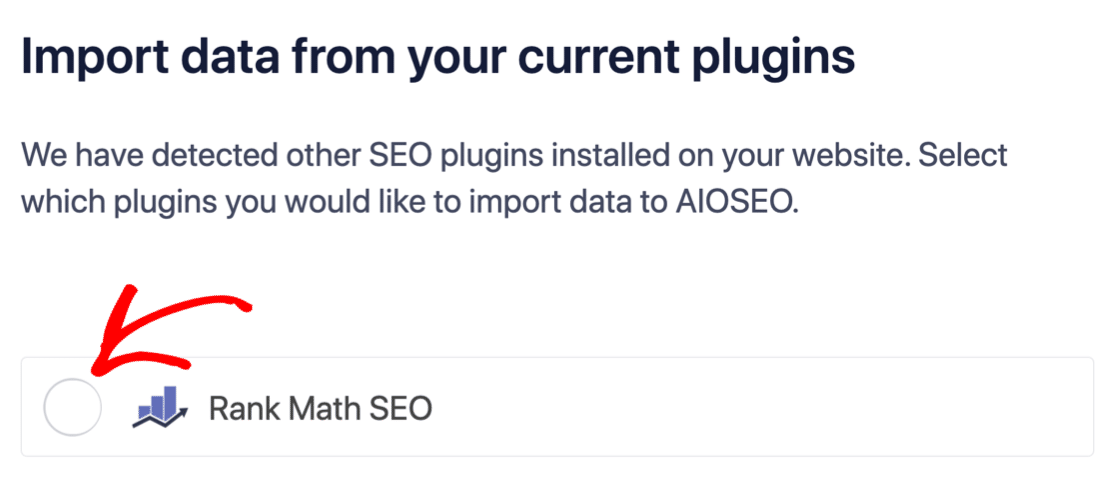
No! If All in One SEO detects another SEO plugin during the Setup Wizard, it’ll offer to copy over the basic settings for you:
At the end of the setup, the Setup Wizard will prompt you to deactivate your old SEO plugin as well. This way, there are no plugin conflicts and errors:
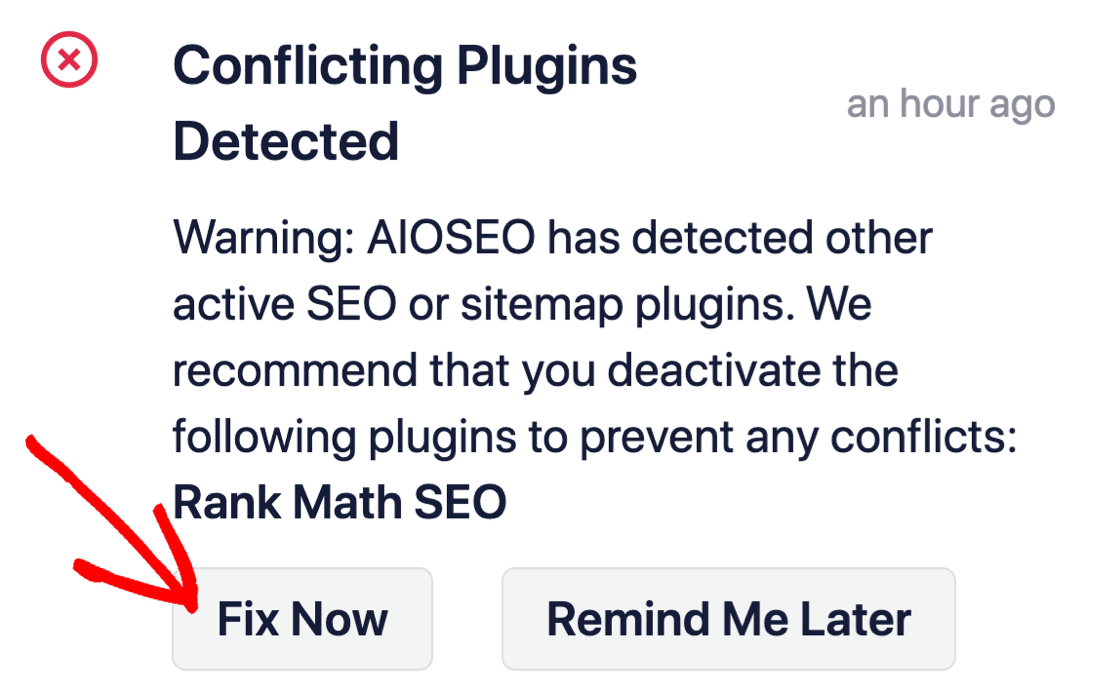
Clicking on Fix Now won’t delete the settings in your old SEO plugin. It just deactivates the plugin to prevent conflicts.
Step #2: View Enabled Sitemap in All in One SEO
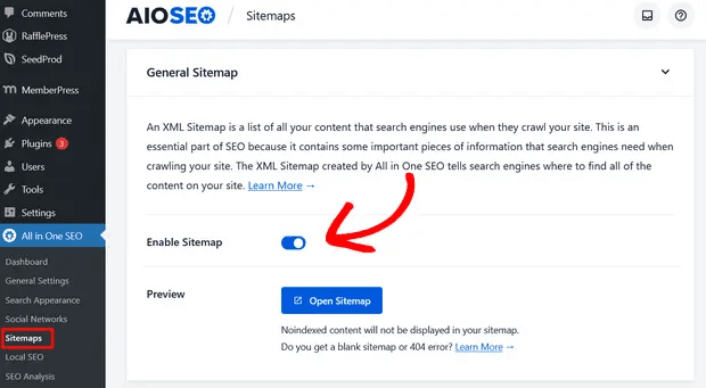
The best part of the All in One SEO plugin is that the sitemap is enabled by default. So, all you have to do is install the plugin and you’re all set. But if you’re switching SEO plugins, you should double-check that the sitemap is enabled.
Go to All in One SEO » Sitemaps from your WordPress dashboard. Then, go to the Enable Sitemap option and check if the toggle button is set to enabled mode:
Και τελειώσατε!
Step #3: Verify Your Site’s Sitemap
After making sure the sitemap is enabled, you can verify your website’s sitemap. Just click on the Open Sitemap button:
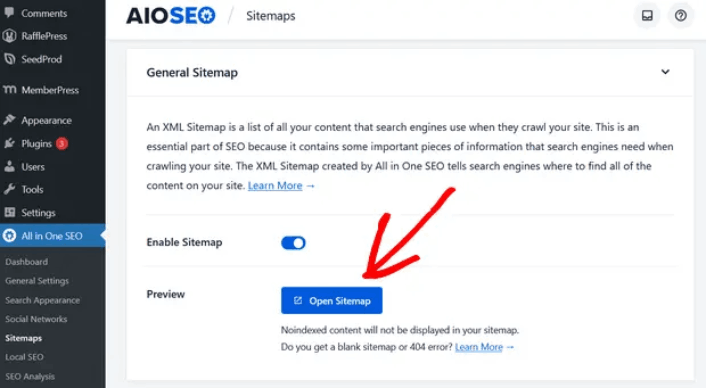
If everything goes well, you should see an XML sitemap like this one:
By default, All in One SEO will create sitemaps for your posts, pages, and categories. And if you have an online store like a eCommerce store or have any products listed, then it will set up a sitemap for them as well.
What to do Once You Know How to Create a Sitemap for WordPress
Now that you know how to create a sitemap for WordPress, it’s time to learn how to get even more traffic to your site. SEO is a great way to bring in fresh traffic to your site using just content. But you also need to bring in repeat traffic, website engagement, and sales.
That’s where push notifications can be super useful for your site.
Αν δεν είστε 100% πεπεισμένοι, θα πρέπει να ελέγξετε αυτούς τους πόρους για το πώς να χρησιμοποιήσετε αποτελεσματικά τις ειδοποιήσεις push:
- 7 Έξυπνες Στρατηγικές για την Ενίσχυση της Αφοσίωσης Πελατών
- Είναι Αποτελεσματικές οι Ειδοποιήσεις Push; 7 Στατιστικά + 3 Συμβουλές Ειδικών
- Πώς να Ρυθμίσετε Ειδοποιήσεις Push για Εγκαταλελειμμένα Καλάθια (Εύκολο Οδηγός)
- Πώς να προσθέσετε ένα πρόσθετο WordPress για ειδοποιήσεις ιστού στον ιστότοπό σας
Συνιστούμε τη χρήση του PushEngage για τη δημιουργία των καμπανιών ειδοποιήσεων push. Το PushEngage είναι το #1 λογισμικό ειδοποιήσεων push στον κόσμο. Έτσι, αν δεν το έχετε κάνει ήδη, ξεκινήστε με το PushEngage σήμερα!


