
Ψάχνετε έναν γρήγορο και εύκολο τρόπο να δημιουργήσετε μια σελίδα πωλήσεων στο WordPress;
Η δημιουργία μιας σελίδας πωλήσεων είναι ο καλύτερος τρόπος για να προβάλετε τα προϊόντα και τις υπηρεσίες σας σε πιθανούς πελάτες και να τους κάνετε να θέλουν να αγοράσουν. Αλλά τι γίνεται αν δεν έχετε σχεδιάσει ποτέ μια ιστοσελίδα; Τι γίνεται αν δεν έχετε καμία εμπειρία προγραμματισμού και δεν ξέρετε πώς να προσθέσετε προσαρμοσμένη λειτουργικότητα στις σελίδες σας;
Ευτυχώς, υπάρχει ένας εύκολος τρόπος να δημιουργήσετε μια σελίδα πωλήσεων στο WordPress. Σε αυτό το άρθρο, θα σας βοηθήσουμε να δημιουργήσετε μια σελίδα πωλήσεων σε λιγότερο από 15 λεπτά.
Είστε έτοιμοι; Ας ξεκινήσουμε.
Τι είναι μια Σελίδα Πωλήσεων και Γιατί Πρέπει να σας Ενδιαφέρει;
Μια σελίδα πωλήσεων είναι μια πλήρως προσαρμόσιμη ιστοσελίδα που εστιάζει στην πώληση ενός προϊόντος ή μιας υπηρεσίας στους επισκέπτες του ιστότοπού σας. Σε αντίθεση με έναν ιστότοπο κοινωνικής δικτύωσης ή μια αγορά όπως το Amazon ή το Etsy, η σελίδα πωλήσεών σας εστιάζει σε ένα μόνο προϊόν ή υπηρεσία προς πώληση κάθε φορά. Ακόμα καλύτερα, δεν προβάλλει όλους τους ανταγωνιστές σας στην ίδια ιστοσελίδα!
Κάθε σελίδα πωλήσεων έχει σχεδιαστεί για να πείσει και να μετατρέψει τους επισκέπτες του ιστότοπου σε πελάτες που πληρώνουν. Ανάλογα με τον χρόνο που έχετε, το επιχειρηματικό σας μοντέλο και τα χρήματα που περιμένετε να κερδίσετε από τους συνδρομητές σας, θα μπορούσατε:
- Να προσφέρετε κουπόνια και εκπτώσεις
- Να φιλοξενήσετε ένα δώρο
- Να δημιουργήσετε έναν δωρεάν οδηγό ή λίστα ελέγχου ως lead magnet
- Να δεχτείτε δωρεές από θαυμαστές
Και πολλά άλλα!
Αλλά πριν ξεκινήσετε, θυμηθείτε να έχετε έναν πολύ σαφή και συγκεκριμένο στόχο για τη σελίδα προορισμού σας. Μόνο και μόνο επειδή μπορείτε να κάνετε πολλά πράγματα δεν σημαίνει ότι πρέπει να τα κάνετε όλα σε μία σελίδα. Συχνά, αν δώσετε στους επισκέπτες σας πάρα πολλά πράγματα για να κάνουν κλικ, δεν θα κάνουν κλικ σε τίποτα.
Τι Έχουν Όλες οι Επιτυχημένες Σελίδες Πωλήσεων;
Τώρα που ξέρετε τι κάνει μια σελίδα προορισμού πωλήσεων στο WordPress και γιατί πρέπει να δημιουργήσετε μία, ήρθε η ώρα να δημιουργήσετε ένα σχέδιο για τη σελίδα προορισμού σας. Αν δείτε οποιεσδήποτε επιτυχημένες σελίδες προορισμού, θα παρατηρήσετε ότι όλες έχουν κάποια πολύ βασικά κοινά στοιχεία:
- Επικεφαλίδα: Η επικεφαλίδα είναι εκεί που τραβάτε την προσοχή των ανθρώπων και τους κάνετε να θέλουν να κάνουν κύλιση προς τα κάτω και να μάθουν περισσότερα για εσάς.
- Περιγραφή: Ακριβώς κάτω από την επικεφαλίδα, θα πρέπει να έχετε μια περιγραφή του τι πρέπει να περιμένουν οι θεατές σας από το υπόλοιπο της σελίδας. Αυτό είναι ένα εξαιρετικό μέρος για να πείσετε τους αναγνώστες να αγοράσουν το προϊόν σας επίσης.
- Τελευταία επεισόδια: Μόλις οι άνθρωποι γνωρίζουν τι να περιμένουν από την επωνυμία σας, δώστε τους μια γεύση της εκπομπής σας παραθέτοντας τα τελευταία σας επεισόδια. Συνιστούμε να προβάλλετε το πολύ 3-5 επεισόδια.
- Κουμπί αγοράς: Ακολουθήστε με ένα κουμπί αγοράς, ώστε οι επισκέπτες σας να μπορούν να προσθέσουν απευθείας το προϊόν σας στο καλάθι. Αυτό είναι γνωστό ως κουμπί παρότρυνσης για δράση (CTA). Είναι ο τρόπος που ωθείτε τους επισκέπτες σας να αναλάβουν δράση στη σελίδα σας. Ανάλογα με τον στόχο σας για τη σελίδα προορισμού, το CTA σας θα διαφέρει.
- Κοινωνική απόδειξη: Ένας εξαιρετικός τρόπος για να δώσετε στους αναγνώστες σας έναν ισχυρό λόγο για να εγγραφούν είναι προσφέροντας κοινωνική απόδειξη. Η κοινωνική απόδειξη απλώς λέει στον επισκέπτη σας ότι υπάρχουν άλλοι άνθρωποι που αναλαμβάνουν ήδη την ίδια ενέργεια που θέλετε να αναλάβουν.
- Εγγραφή στο newsletter: Αφού παρουσιάσετε στους επισκέπτες σας την κύρια προσφορά, μπορείτε επίσης να τους ζητήσετε να γίνουν συνδρομητές email. Μπορείτε επίσης να τους ζητήσετε να γίνουν συνδρομητές ειδοποιήσεων push χρησιμοποιώντας ένα κουμπί κλικ για εγγραφή. Είναι πάντα καλύτερο αν προσφέρετε κάτι πολύτιμο σε αντάλλαγμα.
- Κουμπιά κοινοποίησης στα κοινωνικά δίκτυα: Όσο περισσότεροι άνθρωποι μιλούν για εσάς στα κοινωνικά δίκτυα, τόσο καλύτερες πιθανότητες έχετε να εκτοξεύσετε τους συνδρομητές σας. Επομένως, τοποθετήστε κουμπιά κοινοποίησης στα κοινωνικά δίκτυα στη σελίδα προορισμού σας για να ενθαρρύνετε τους ανθρώπους να την κοινοποιήσουν στα κοινωνικά δίκτυα.
Ακολουθεί μια πρώτη ματιά στη σελίδα πωλήσεων του WordPress που θα δημιουργήσουμε στο σεμινάριό μας.
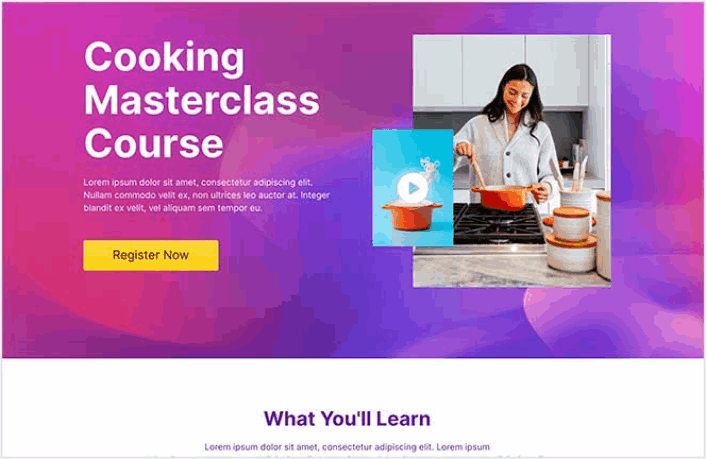
Θυμηθείτε, αυτά είναι μόνο τα πιο βασικά μέρη οποιασδήποτε επιτυχημένης σελίδας προορισμού. Για τη σελίδα σας, μπορείτε να προσθέσετε πολλές άλλες ενότητες και να δημιουργήσετε προσαρμοσμένες προσφορές για να αυξήσετε τις μετατροπές σας.
Πώς να Δημιουργήσετε μια Σελίδα Πωλήσεων στο WordPress
Τώρα που ξέρετε τι να δημιουργήσετε, ήρθε η ώρα να λανσάρετε τη σελίδα πωλήσεών σας στο WordPress. Συνιστούμε ανεπιφύλακτα τη χρήση του SeedProd για τη δημιουργία των σελίδων προορισμού σας.

Το SeedProd είναι ο καλύτερος κατασκευαστής σελίδων προορισμού για WordPress. Είναι ιδανικό για επιχειρήσεις, bloggers και ιδιοκτήτες ιστοσελίδων που θέλουν να δημιουργήσουν σελίδες προορισμού υψηλής μετατροπής χωρίς καμία δεξιότητα ανάπτυξης.
Με το SeedPreed, λαμβάνετε προκατασκευασμένα πρότυπα για σελίδες προορισμού υψηλής μετατροπής που μπορείτε να δημοσιεύσετε άμεσα. Αυτό περιλαμβάνει πρότυπα για:
- Σελίδες πωλήσεων
- Σελίδες "Έρχονται Σύντομα"
- Σελίδες 404
- Σελίδες συντήρησης
- Σελίδες συμπίεσης
- Σελίδες σύνδεσης
- Σελίδες ευχαριστίας
- Σελίδες webinar
- Σελίδες βίντεο
Και πολλά άλλα!
Βήμα #1: Εγκατάσταση και Ενεργοποίηση του SeedProd
Πρώτα, θα θέλετε να αποκτήσετε το plugin SeedProd Pro και να το ενεργοποιήσετε. Αν δεν είστε σίγουροι πώς να το κάνετε, διαβάστε αυτό το άρθρο για το πώς να εγκαταστήσετε ένα plugin WordPress. Στη συνέχεια, μεταβείτε στο SeedProd » Ρυθμίσεις στον πίνακα ελέγχου του WordPress και ενεργοποιήστε την έκδοση Pro:

Στη συνέχεια, μεταβείτε στο SeedProd » Σελίδες για μια επισκόπηση του πίνακα ελέγχου σελίδων προορισμού του SeedProd. Εδώ μπορείτε να δείτε τους διαφορετικούς τύπους σελίδων προορισμού που μπορείτε να δημιουργήσετε χρησιμοποιώντας το SeedProd:

Λάβετε υπόψη ότι αυτές είναι όλες ειδικές σελίδες με προκατασκευασμένη λειτουργικότητα και πρότυπα σχεδίασης. Για μια σελίδα προορισμού πωλήσεων, δεν θέλετε να χρησιμοποιήσετε ΚΑΜΙΑ από αυτές τις ειδικές σελίδες προορισμού. Αντ' αυτού, πρόκειται να δημιουργήσετε μια προσαρμοσμένη σελίδα προορισμού.
Κάντε κύλιση πιο κάτω και κάντε κλικ στο κουμπί Προσθήκη Νέας Σελίδας Προορισμού για να ξεκινήσετε:

Βήμα #2: Δημιουργία Νέας Σελίδας Προορισμού Πωλήσεων
Αφού κάνετε κλικ στο κουμπί Προσθήκη Νέας Σελίδας Προορισμού, θα δείτε τη βιβλιοθήκη προτύπων σελίδων προορισμού του SeedProd. Αυτά είναι επαγγελματικά σχεδιασμένα πρότυπα σελίδων προορισμού που είναι πλήρως ανταποκρίσιμα.
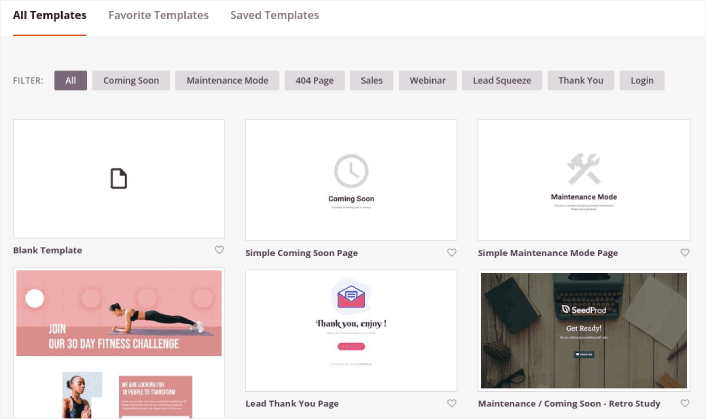
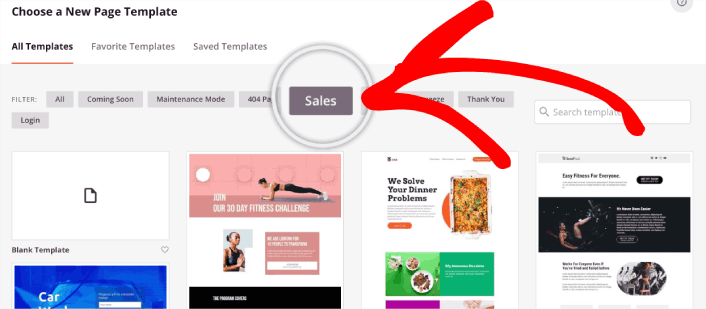
Στη συνέχεια, μπορείτε να επιλέξετε ένα από αυτά τα πρότυπα για να σας βοηθήσει να ξεκινήσετε. Θυμηθείτε, το πρότυπο είναι απλώς ένα σημείο εκκίνησης. μπορείτε να προσαρμόσετε τα πάντα για τη σελίδα αργότερα. Προς το παρόν, βρείτε ένα πρότυπο που πιστεύετε ότι θα ταιριάζει. Όταν ανοίξει η σελίδα προτύπων, μπορείτε να κάνετε κλικ στο Πωλήσεις για να φιλτράρετε τη λίστα:
Για αυτόν τον οδηγό, θα επιλέξουμε τη Σελίδα Πωλήσεων Masterclass. Προχωρήστε και κάντε κλικ σε αυτήν τώρα.
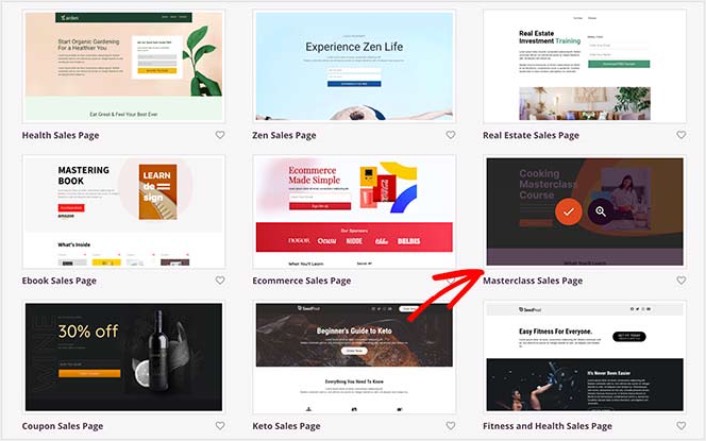
Στη συνέχεια, πρόκειται να προσαρμόσουμε τη σελίδα προορισμού.
Βήμα #3: Προσαρμογή Σχεδίασης Σελίδας Προορισμού
Ο οπτικός κατασκευαστής του SeedProd σας επιτρέπει να προσαρμόσετε τη σελίδα προορισμού σας χρησιμοποιώντας μπλοκ περιεχομένου με μεταφορά και απόθεση.
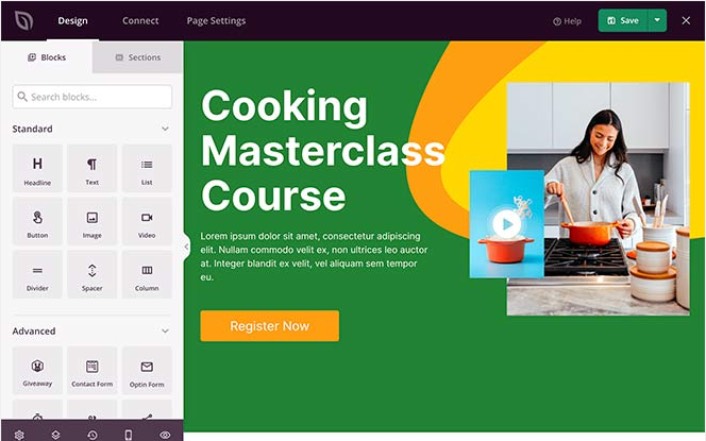
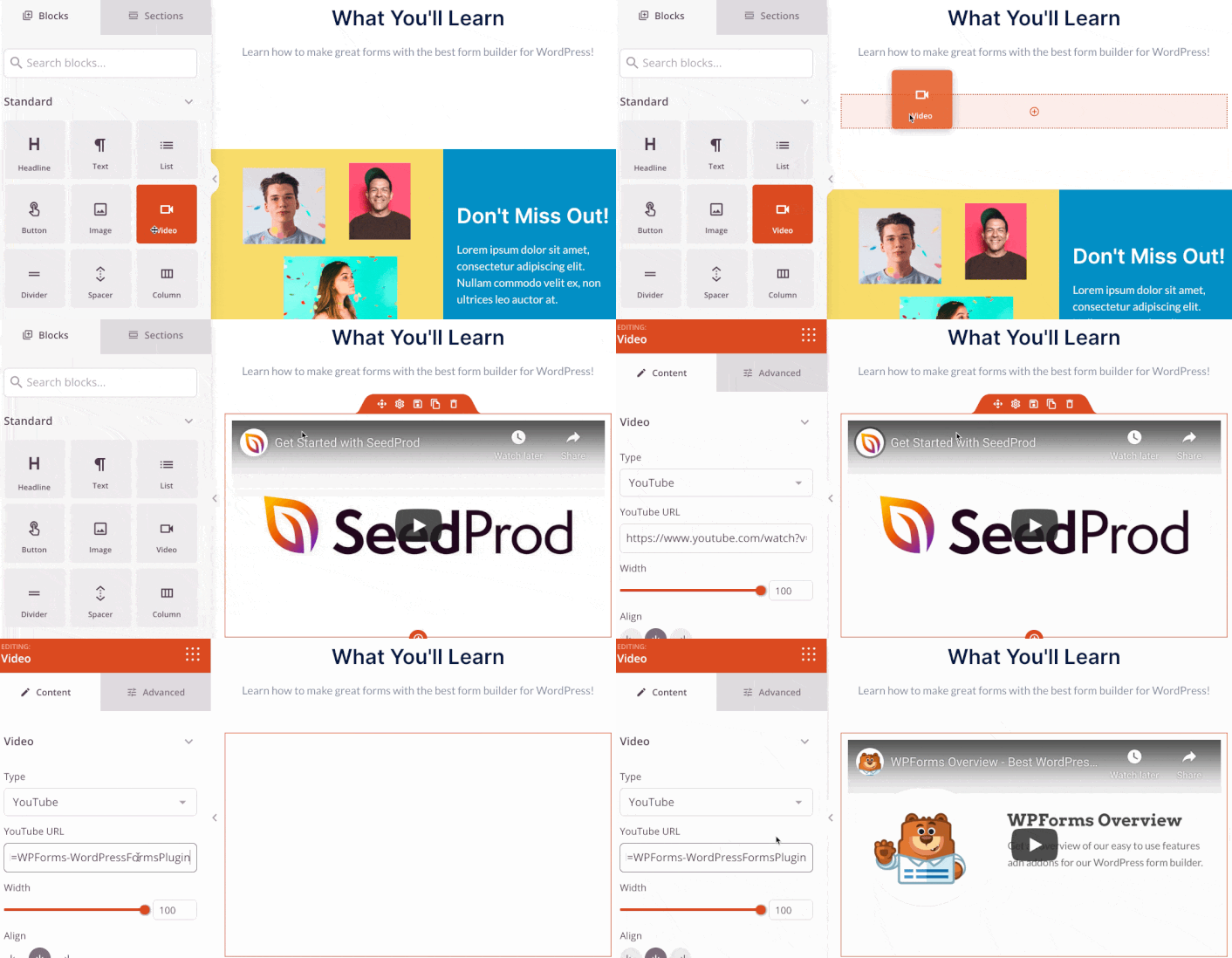
Μπορείτε να δημιουργήσετε μια πλήρως προσαρμοσμένη κεφαλίδα για τη σελίδα προορισμού σας μέσα σε λίγα λεπτά. Μπορείτε ακόμη και να προσθέσετε προσαρμοσμένα στοιχεία για να πείσετε και να μετατρέψετε την επισκεψιμότητά σας. Για παράδειγμα, μπορείτε να δημιουργήσετε μια ενότητα βίντεο και να ενσωματώσετε ένα βίντεο από το YouTube για να πείσετε τους επισκέπτες σας να αγοράσουν το προϊόν ή την υπηρεσία σας.
Είναι επίσης εξαιρετικά εύκολο να προσθέσετε μια ενότητα με μια σύντομη περιγραφή του προϊόντος ή της υπηρεσίας σας. Μεταβείτε στην καρτέλα Ενότητες στον οπτικό επεξεργαστή και κάτω από την ενότητα Hero, θα βρείτε διάφορα προκατασκευασμένα πρότυπα που μπορείτε να εισαγάγετε με ένα μόνο κλικ.
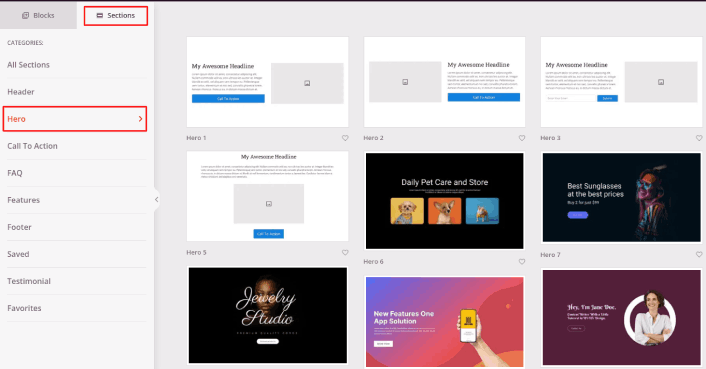
Προχωρήστε και επιλέξτε αυτό που σας αρέσει.
Μην ανησυχείτε για τα χρώματα ή το περιεχόμενο. Μπορείτε να τα επεξεργαστείτε όλα. Αυτό που πρέπει να αναζητήσετε είναι μια διάταξη που ταιριάζει με το πρότυπό σας.
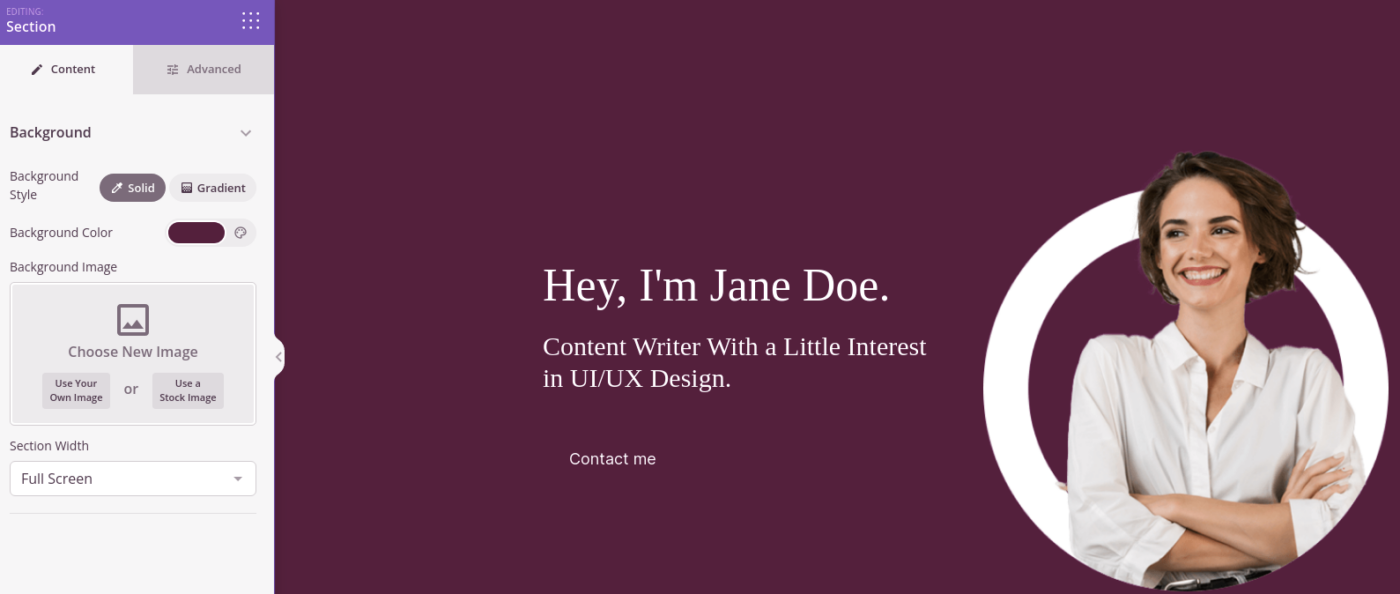
Μπορείτε να προσαρμόσετε την ενότητα hero με τον ίδιο τρόπο που κάναμε νωρίτερα, επιλέγοντας μια διαφορετική εικόνα και αλλάζοντας την επικεφαλίδα και την περιγραφή. Ενώ το κάνετε αυτό, προσθέστε ένα κουμπί παρότρυνσης για δράση που ωθεί τους επισκέπτες να αγοράσουν από εσάς.
Στη συνέχεια, από την καρτέλα Ενότητες , επιλέξτε την επικεφαλίδα Μαρτυρίες , και επιλέξτε ένα σχέδιο που σας αρέσει. Και ακριβώς έτσι, έχετε μια ενότητα μαρτυριών στη σελίδα προορισμού σας.
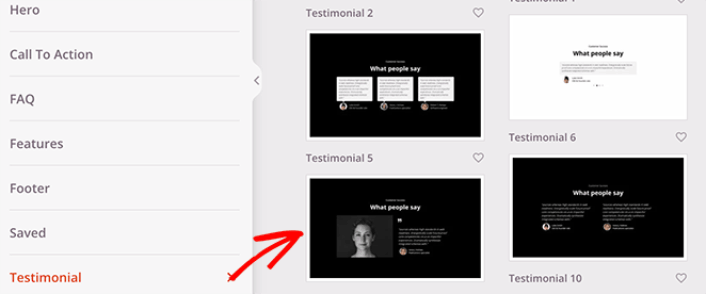
Είναι τόσο απλό!
Βήμα #4: Προσθέστε ένα κουμπί Κλικ για Εγγραφή στη Σελίδα Πωλήσεών σας
Μπορείτε επίσης να προσθέσετε ένα κουμπί κλικ για εγγραφή για να συλλέξετε συνδρομητές ειδοποιήσεων push. Οι ειδοποιήσεις push είναι ένας εξαιρετικός τρόπος για να αυξήσετε την επαναλαμβανόμενη επισκεψιμότητα, να αυξήσετε την αλληλεπίδραση, ακόμη και να πουλήσετε επίσημα εμπορεύματα αν έχετε.
Στο SeedProd, απλώς σύρετε και αποθέστε τη μονάδα Προσαρμοσμένο HTML από την πλαϊνή μπάρα.
Τοποθετήσαμε το κουμπί εγγραφής ακριβώς κάτω από τη φόρμα εγγραφής email στην πρώτη πτυχή.

Αλλά μπορείτε να εισαγάγετε το κουμπί οπουδήποτε θέλετε.
Για αυτό το μέρος, χρειάζεστε κάποια εμπειρία με HTML και CSS. Ή, μπορείτε να αντιγράψετε αυτόν τον κώδικα και να τον επικολλήσετε στο μπλοκ Προσαρμοσμένου HTML:
<button onclick="subscribeOnClickButton()" style="border: none; padding-left: 5%; padding-right:5%; text-align: center; display: inline-block; color: blue;">Get Updates via Push Notifications</button>Αυτό είναι ένα τυπικό κουμπί σε HTML με πολύ λίγο στυλ. Το μόνο φανταχτερό κομμάτι είναι η συνάρτηση onclick στον κώδικα. Βασικά σημαίνει ότι οι επισκέπτες σας μπορούν να κάνουν κλικ στο κουμπί για να εγγραφούν σε κάτι. Τώρα, πρέπει να δώσουμε στο κουμπί επιπλέον κώδικα για να επιτρέψουμε στους επισκέπτες σας να εγγραφούν σε ειδοποιήσεις push.
Μεταβείτε στην αρχική σελίδα του PushEngage και κάντε κλικ στο κουμπί Έναρξη:

Στη συνέχεια, θα θέλετε να επιλέξετε το δωρεάν πρόγραμμα για να δοκιμάσετε το PushEngage ή να επιλέξετε ένα επί πληρωμή πρόγραμμα αν είστε σοβαροί σχετικά με την ανάπτυξη της επιχείρησής σας. Τα επί πληρωμή προγράμματα έρχονται με περισσότερες επιλογές καμπάνιας και τη δυνατότητα δημιουργίας ακόμη μεγαλύτερων λιστών συνδρομητών.
Στον πίνακα ελέγχου του PushEngage, μεταβείτε στις Ρυθμίσεις Ιστότοπου » Λεπτομέρειες Ιστότοπου και κάντε κλικ στο κουμπί Κάντε κλικ εδώ για οδηγίες εγκατάστασης. Κάτω από το πεδίο Οποιοσδήποτε Ιστότοπος, θα λάβετε τον κωδικό εγκατάστασής σας:

ΠΡΟΕΙΔΟΠΟΙΗΣΗ: Πρέπει να αντιγράψετε τον κωδικό που λαμβάνετε από τον πίνακα ελέγχου σας. Ο κωδικός είναι μοναδικός για κάθε χρήστη του PushEngage. Δεν θα μπορείτε να αντιγράψετε τον κωδικό στην εικόνα και να συλλέξετε συνδρομητές ειδοποιήσεων push.
Μόλις έχετε τον κωδικό στον πίνακα ελέγχου του PushEngage, προσθέστε αυτό το απόσπασμα στον κώδικά σας:
<script> window._peq = window._peq || [];</script> <script>
function subscribeOnClickButton(){
window._peq.push(['subscribe',{}.pe,function(res){
if(res.statuscode==1)
{
// Code to return response
console.log(res);
}
}]);
}
</script>
Ο τελικός σας κώδικας θα πρέπει να μοιάζει κάπως έτσι:
<script src="https://clientcdn.pushengage.com/core/02a6e92667ae2279fcba8932356c1d93.js" async></script>
<script> window._peq = window._peq || [];</script> <script>
function subscribeOnClickButton(){
window._peq.push(['subscribe',{}.pe,function(res){
if(res.statuscode==1)
{
// Code to return response
console.log(res);
}
}]);
}
</script>
Θα θέλετε να προσθέσετε αυτόν τον κώδικα στο μπλοκ HTML στη σελίδα προορισμού σας μετά τον κώδικα για το κουμπί. Θα πρέπει να μοιάζει κάπως έτσι:

Μη διστάσετε να προσαρμόσετε τα στυλ για το κουμπί όπως θέλετε. Όταν τελειώσετε την προσαρμογή της σελίδας πωλήσεών σας, προχωρήστε και πατήστε το κουμπί Αποθήκευση.
Βήμα #5: Διαμόρφωση των Ρυθμίσεων Σελίδας σας
Αφού ολοκληρώσετε τη σχεδίαση της σελίδας πωλήσεών σας, κάντε κλικ στην καρτέλα Σύνδεση στο πάνω μέρος του επεξεργαστή σελίδων σας και επιλέξτε τον πάροχο μάρκετινγκ email σας για να συλλέξετε leads στον ιστότοπό σας.

Στη συνέχεια, κάντε κλικ στην καρτέλα Ρυθμίσεις Σελίδας στο επάνω μέρος της οθόνης σας.

Εδώ, μπορείτε να προσθέσετε ένα πρόσθετο SEO και ένα πρόσθετο Google Analytics στη σελίδα πωλήσεών σας. Μπορείτε ακόμη και να ρυθμίσετε προσαρμοσμένους κώδικες παρακολούθησης, όπως ένα Facebook Pixel ή ένα Pinterest pixel για την παρακολούθηση της απόδοσης διαφημίσεων.
Βήμα #6: Δημοσίευση της Σελίδας Πωλήσεών σας στο WordPress
Τώρα ας προχωρήσουμε και ας δημοσιεύσουμε το σχέδιό σας. Για να το κάνετε αυτό, κάντε κλικ στο βέλος αναπτυσσόμενου μενού δίπλα στο κουμπί αποθήκευσης και κάντε κλικ στο Δημοσίευση.
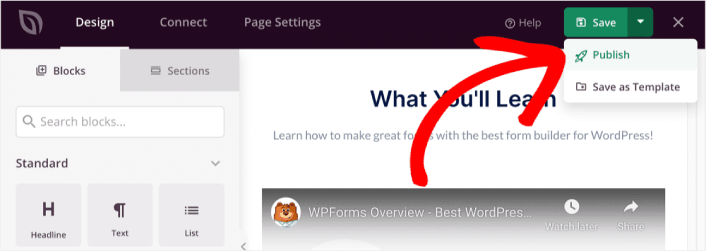
Στη συνέχεια, μπορείτε να κάνετε κλικ στο κουμπί Προβολή Ζωντανής Σελίδας για να δείτε πώς φαίνεται.
Συγχαρητήρια! Μόλις δημοσιεύσατε την πρώτη σας σελίδα πωλήσεων.
Τι να κάνετε Αφού Δημιουργήσετε μια Σελίδα Πωλήσεων
Τώρα που η σελίδα πωλήσεών σας είναι ζωντανή, ήρθε η ώρα να εργαστείτε για την επισκεψιμότητα, την αλληλεπίδραση και τις πωλήσεις σας. Θα πρέπει να δοκιμάσετε να χρησιμοποιήσετε ειδοποιήσεις push στον ιστότοπό σας. Οι ειδοποιήσεις push είναι ένα εξαιρετικό εργαλείο μάρκετινγκ που μπορεί να σας βοηθήσει να αναπτύξετε την επιχείρησή σας.
Ρίξτε μια ματιά σε αυτούς τους επικούς πόρους και θα καταλάβετε τι εννοούμε:
- 7 Έξυπνες Στρατηγικές για την Ενίσχυση της Αφοσίωσης Πελατών
- Είναι Αποτελεσματικές οι Ειδοποιήσεις Push; 7 Στατιστικά + 3 Συμβουλές Ειδικών
- Πώς να Ρυθμίσετε Ειδοποιήσεις Push για Εγκαταλελειμμένα Καλάθια (Εύκολο Οδηγός)
Συνιστούμε τη χρήση του PushEngage για τη δημιουργία των καμπανιών ειδοποιήσεων push. Το PushEngage είναι το #1 λογισμικό ειδοποιήσεων push στον κόσμο. Έτσι, αν δεν το έχετε κάνει ήδη, ξεκινήστε με το PushEngage σήμερα!


