Ψάχνετε έναν τρόπο να ενεργοποιήσετε μια εγγραφή με ένα βήμα στον ιστότοπό σας για τη συλλογή συνδρομητών ειδοποιήσεων push;
Οι ειδοποιήσεις push μπορούν να είναι ένα πραγματικά εξαιρετικό εργαλείο για τη δημιουργία αλληλεπίδρασης, επαναλαμβανόμενης επισκεψιμότητας και πωλήσεων. Είναι επίσης ένα πολύ προσιτό εργαλείο μάρκετινγκ που είναι ιδανικό για την ανάπτυξη μικρών επιχειρήσεων.
Αλλά πριν στείλετε ειδοποιήσεις push, πρέπει πρώτα να δημιουργήσετε μια εγγραφή για να συλλέξετε μια λίστα συνδρομητών από τους επισκέπτες του ιστότοπου.
Σε αυτό το άρθρο, θα δημιουργήσουμε μια εγγραφή με ένα βήμα για τον ιστότοπό σας σε λιγότερο από 10 λεπτά. Θα χρησιμοποιήσουμε το PushEngage για αυτό το άρθρο για να σας δείξουμε πώς να ξεκινήσετε με τις ειδοποιήσεις push. Το PushEngage είναι το #1 λογισμικό ειδοποιήσεων push στον κόσμο. Έτσι, οι καμπάνιες σας θα είναι σε ασφαλή χέρια.
Ας ξεκινήσουμε.
Πώς να Ενεργοποιήσετε την Εγγραφή Push με Ένα Βήμα στον Ιστότοπό σας
ΣΗΜΑΝΤΙΚΟ: Πριν ξεκινήσετε, υπάρχουν μερικά γρήγορα πράγματα που πρέπει να φροντίσετε. Για να εγκαταστήσετε μια εγγραφή με ένα βήμα για ειδοποιήσεις push, πρέπει να έχετε:
- Έναν ιστότοπο HTTPS (έναν ιστότοπο με πιστοποιητικό SSL)
- Πρόσβαση στον κύριο κατάλογο της υπηρεσίας φιλοξενίας σας
Όλα καλά; Ας ξεκινήσουμε!
Βήμα #1: Ρυθμίστε τον Λογαριασμό σας PushEngage
Μεταβείτε στην αρχική σελίδα του PushEngage και κάντε κλικ στο κουμπί Έναρξη:

Μπορείτε να δοκιμάσετε το PushEngage δωρεάν. Αν διαχειρίζεστε ένα μικρό blog που χρειάζεται επαναλαμβανόμενη επισκεψιμότητα και αλληλεπίδραση, αυτό είναι πιθανώς αρκετό. Αλλά αν είστε σοβαροί σχετικά με τις πωλήσεις, θα πρέπει να αποκτήσετε το πακέτο Enterprise και να ξεκλειδώσετε τις αυτοματοποιημένες καμπάνιες.
Μόλις εγγραφείτε στον λογαριασμό σας PushEngage, κατευθυνθείτε στον πίνακα ελέγχου PushEngage και πηγαίνετε στο Ρυθμίσεις Ιστοτόπου » Λεπτομέρειες Ιστοτόπου:

Εδώ, μπορείτε να ενημερώσετε τις βασικές λεπτομέρειες του ιστότοπού σας. Μπορείτε να ορίσετε το λογότυπό σας, το όνομα του ιστότοπου και τη διεύθυνση URL του ιστότοπου. Είναι πραγματικά σημαντικό να τακτοποιήσετε αυτά τα πράγματα τώρα, ώστε να μπορείτε να δοκιμάσετε ολόκληρη τη ρύθμισή σας αργότερα.
Βήμα #2: Εγκαταστήστε το PushEngage στον Ιστότοπό σας
Στην ίδια καρτέλα, κάντε κύλιση προς τα κάτω και κάντε κλικ στο κουμπί που λέει Κάντε κλικ εδώ για οδηγίες εγκατάστασης:

Ανάλογα με την πλατφόρμα στην οποία δημιουργήθηκε ο ιστότοπός σας, η διαδικασία εγκατάστασης θα διαφέρει. Ελέγξτε τους οδηγούς εγκατάστασης για να ολοκληρώσετε αυτήν τη διαδικασία. Αν χρησιμοποιείτε ένα CMS για να δημιουργήσετε τον ιστότοπό σας, το μεγαλύτερο μέρος της διαδικασίας εγκατάστασης θα γίνει από το plugin PushEngage για αυτήν την πλατφόρμα. Για έναν προσαρμοσμένο ιστότοπο, θα χρειαστεί να κατεβάσετε το πακέτο Service Worker.
Αφού κάνετε κλικ στο Κάντε κλικ εδώ για οδηγίες εγκατάστασης, κάντε κλικ στο Λήψη αρχείου Service Worker:
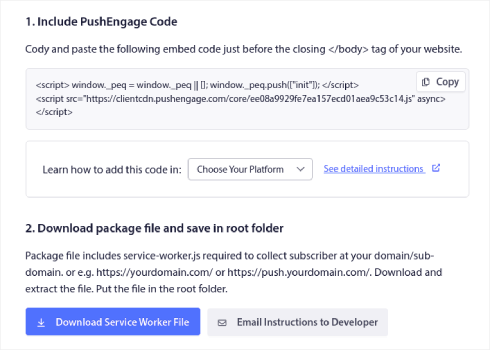
Στη συνέχεια, ανεβάστε το αρχείο zip στον κύριο κατάλογο του ιστότοπού σας στον φάκελο public_html.
Μόλις προσθέσετε το αρχείο εδώ, βεβαιωθείτε ότι είναι προσβάσιμο. Μεταβείτε στο https://yoursite.com/service-worker.js και ελέγξτε αν είναι έγκυρο URL (αντικαταστήστε το yoursite.com με τη διεύθυνση URL του ιστότοπού σας).
Εδώ είναι η διεύθυνση URL του αρχείου service-worker.js του PushEngage για παράδειγμα: https://www.pushengage.com/service-worker.js.
Βήμα #3: Δημιουργήστε την Εγγραφή Ειδοποίησης Push με Ένα Βήμα
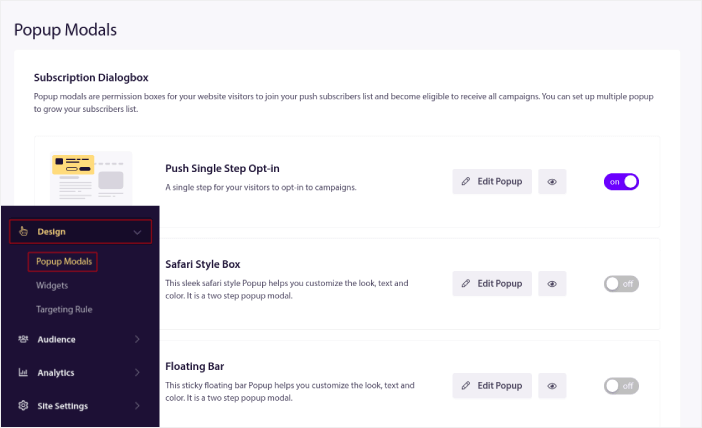
Στον πίνακα ελέγχου του PushEngage, μεταβείτε στο Σχεδίαση » Αναδυόμενα Παράθυρα για να δείτε τη λίστα με τους διαφορετικούς τύπους εγγραφής:
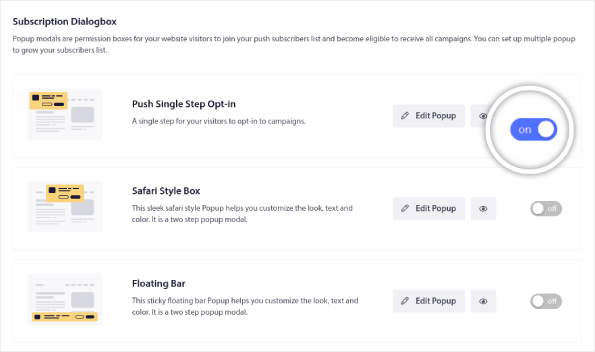
Από αυτήν τη λίστα, μεταβείτε στο Εγγραφή Ειδοποίησης Push Μιας Βήματος και κάντε κλικ στο διακόπτη για να ενεργοποιήσετε την εγγραφή:
Στη συνέχεια, κάντε κλικ στο κουμπί Επεξεργασία Αναδυόμενου Παραθύρου για να προσαρμόσετε την εγγραφή:
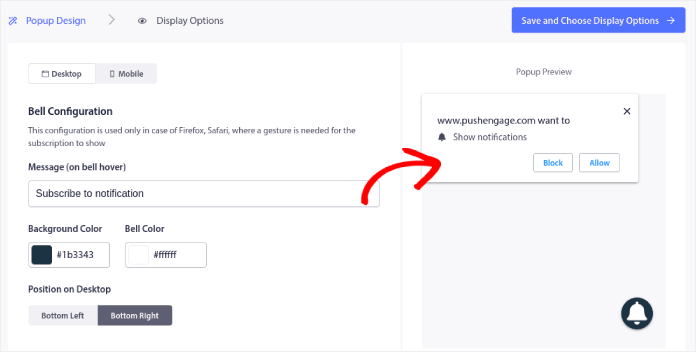
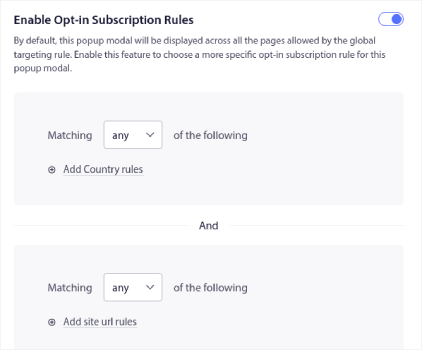
Μπορείτε επίσης να επιλέξετε πού θα εμφανίζεται το αναδυόμενο παράθυρό σας στον ιστότοπό σας. Κάντε κλικ στο Ενεργοποίηση Κανόνων Εγγραφής Ειδοποιήσεων:
Αν θέλετε η εγγραφή σας να είναι πραγματικά εμφανής, μπορείτε να χρησιμοποιήσετε μια επικάλυψη εγγραφής για να θολώσετε το υπόλοιπο του ιστότοπου μέχρι ο επισκέπτης σας να εγγραφεί στις ειδοποιήσεις σας ή να κλείσει το αναδυόμενο παράθυρο. Κάντε κλικ στο Ενεργοποίηση Επικάλυψης Εγγραφής:
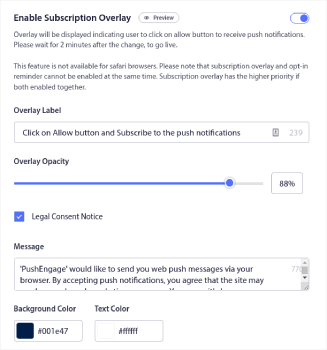
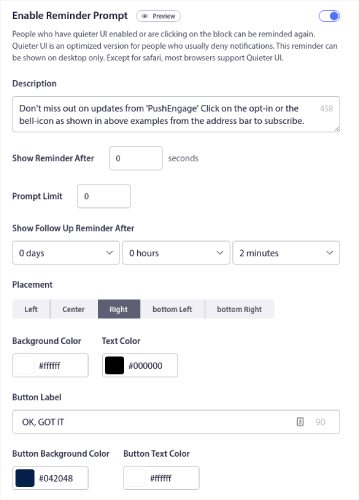
Μπορείτε να προσαρμόσετε την επικάλυψή σας ώστε να ταιριάζει με την επωνυμία σας και να φαίνεται υπέροχη στον ιστότοπό σας. Τέλος, μπορείτε επίσης να ενεργοποιήσετε υπενθυμίσεις για επισκέπτες που έχουν ενεργοποιημένη τη λειτουργία QuieterUI στο πρόγραμμα περιήγησής τους:
Όταν τελειώσετε, κάντε κλικ στο Αποθήκευση και Επιλογή Επιλογών Εμφάνισης.
Στις Επιλογές Εμφάνισης, μπορείτε να ρυθμίσετε πότε θα εμφανιστεί το optin σας αφού ένας επισκέπτης προσγειωθεί στον ιστότοπό σας:
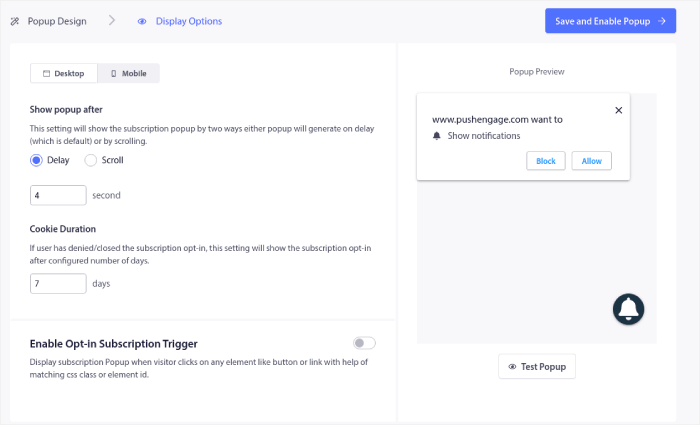
Μπορείτε να ορίσετε μια χρονική καθυστέρηση μετά την οποία θα εμφανιστεί το αναδυόμενο παράθυρο. Εναλλακτικά, μπορείτε να ρυθμίσετε το optin να εμφανίζεται αφού οι επισκέπτες του ιστότοπού σας κάνουν κύλιση σε ένα συγκεκριμένο ποσοστό της ιστοσελίδας.
Αν θέλετε να δημιουργήσετε ένα κουμπί κλικ για εγγραφή, μπορείτε επίσης να Ενεργοποιήσετε το Ερέθισμα Εγγραφής Optin. Όταν τελειώσετε, κάντε κλικ στο Αποθήκευση και Ενεργοποίηση Popup.
Και τελειώσατε!
Συνοψίζοντας
Αυτό ήταν για αυτό το θέμα, φίλοι!
Μόλις προσθέσατε μια ειδοποίηση push ενός βήματος στον ιστότοπό σας σε λιγότερο από 10 λεπτά!
Δείτε πώς να δημιουργήσετε αυτοματοποιημένες καμπάνιες ειδοποιήσεων push επίσης. Οι περισσότερες καμπάνιες push είναι απλές και αποτελεσματικές. Επομένως, συνιστούμε τη δημιουργία πολλαπλών καμπανιών για τον ιστότοπό σας. Ακολουθούν μερικές εξαιρετικές για να ξεκινήσετε:
- Πώς να στέλνετε αυτόματα ειδοποιήσεις push RSS
- Πώς να Ρυθμίσετε Ειδοποιήσεις Push Εγκατάλειψης Καλαθιού Χρησιμοποιώντας το GTM
- Πώς να Προγραμματίσετε Ειδοποιήσεις Push με τον Εύκολο Τρόπο [Οδηγός 5 Λεπτών]
Και αν δεν το έχετε κάνει ήδη, ξεκινήστε με το PushEngage. Το PushEngage είναι το λογισμικό ειδοποιήσεων push #1 στον κόσμο. Έτσι, οι καμπάνιες σας είναι σε ασφαλή χέρια.


