
Looking for a quick and easy tutorial on how to embed Instagram photos in WordPress?
Instagram embeds are not the same as having a link to an Instagram post. With Instagram embeds, you can showcase your entire Instagram feed or parts of it as you see fit.
But the tricky part is to create an Instagram embed for WordPress. WordPress doesn’t support Facebook and Instagram oEmbeds anymore. oEmbed was a simple way to fetch Instagram photos on any site by simply pasting the link. But now, you have to sign up as a Facebook app developer and create an app with oEmbed permissions to embed Instagram photos in WordPress.
If that sounds complicated, that’s because it really is. The good news is that there’s a super simple way to embed Instagram photos in WordPress. In this article, we’re going to see exactly how you can embed Instagram photos in WordPress without a single line of code.
Και θα το κάνουμε σε 10 λεπτά ή λιγότερο!
Ας ξεκινήσουμε.
Why You Should Embed Instagram Photos in WordPress
If you can embed Instagram photos in WordPress, you’ll see a lot of benefits right away. It’s a great way to get the website visitors you bring in from other channels such as SEO to become your Instagram follower.
But that’s just the most obvious benefit. With Instagram feeds, you can customize the section to show your customer reviews, content from your top affiliates and influencers, and your most successful campaigns. It’s super easy to do as well. You can filter the showcased posts by specific hashtags and brand mentions.
Το δυναμικό περιεχόμενο αυξάνει επίσης την αλληλεπίδραση στον ιστότοπό σας. Μπορείτε ακόμη και να λάβετε κάποιες ενισχύσεις για το SEO στον ιστότοπό σας λόγω του πρόσθετου περιεχομένου στις σελίδες σας.
How to Embed Instagram Photos on Your WordPress Site
You can easily embed Instagram feeds on your website using the Instagram Feed Pro plugin from Smash Balloon.

Smash Balloon is the #1 social media feed plugin for WordPress. The Instagram Feed Pro plugin by Smash Balloon is the easiest way to embed Instagram photos in WordPress.
Μπορείτε να χρησιμοποιήσετε το Smash Balloon για:
- Χρησιμοποιήστε τις ροές hashtag σας στον ιστότοπό σας ως κοινωνική απόδειξη
- Display interactive Twitter feeds to boost website engagement
- Embed your YouTube videos on your site to grow your subscribers
- Προσθέστε αυθεντικές κριτικές από τη σελίδα σας στο Facebook Business στον ιστότοπό σας για να αυξήσετε τις μετατροπές
And lots more! Most importantly, Instagram Feed Pro lets you embed an Instagram feed without registering as an app developer. This will save you a ton of time and hassle.
Αν θέλετε να δείτε την πλήρη λίστα των χαρακτηριστικών του Smash Balloon, θα πρέπει να ρίξετε μια ματιά στην κριτική μας για το Smash Balloon.
The next few steps are all you need to do to embed Instagram photos in WordPress. If you follow every step, you should be able to create an Instagram feed on your site like this one:

Ας ξεκινήσουμε.
Step #1: Install and Activate the Instagram Feed Pro Plugin
First off, install and activate the Instagram Feed Pro plugin. You can download the Instagram Feed Pro plugin from your Smash Balloon account under Downloads:
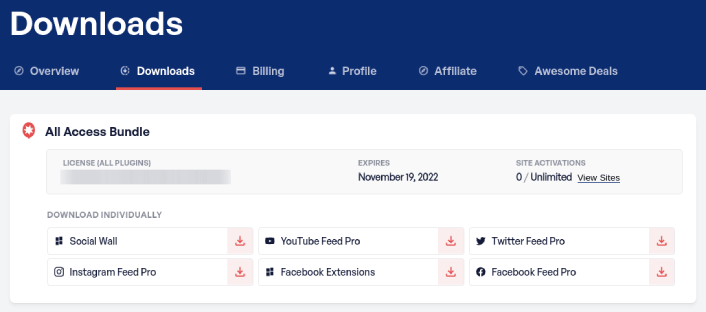
Then, activate the plugin using your license key in your WordPress dashboard by going to Instagram Feed » Settings » General » License Key:
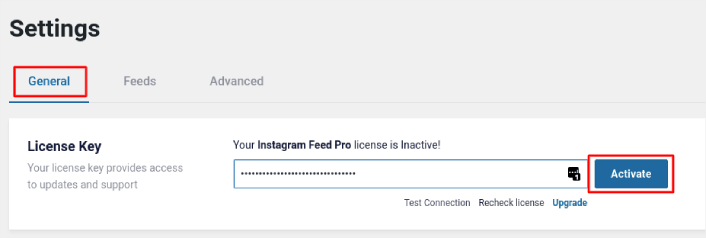
Paste in your license key and click on the Activate button.
Step #2: Connect Your Instagram Account to WordPress
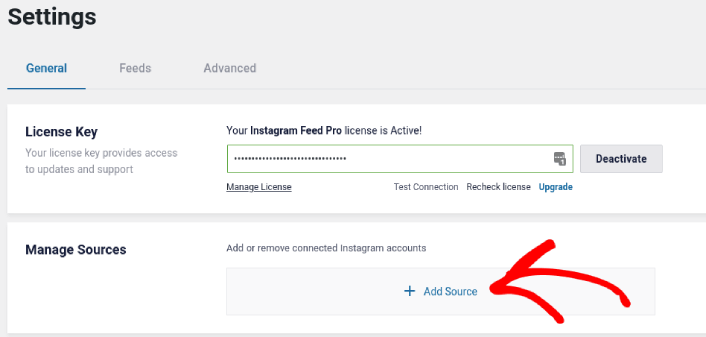
In your WordPress dashboard, go to Instagram Feed » Settings » General » Manage Sources and the click the plus (+) button:
Then, click on the Login with Instagram button:
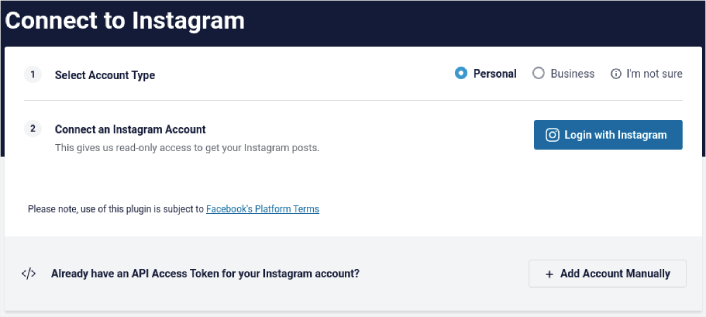
Once you’re done logging in to your account, you can start creating Instagram feeds for your site.
Step #3: Choose the Instagram Content to Display
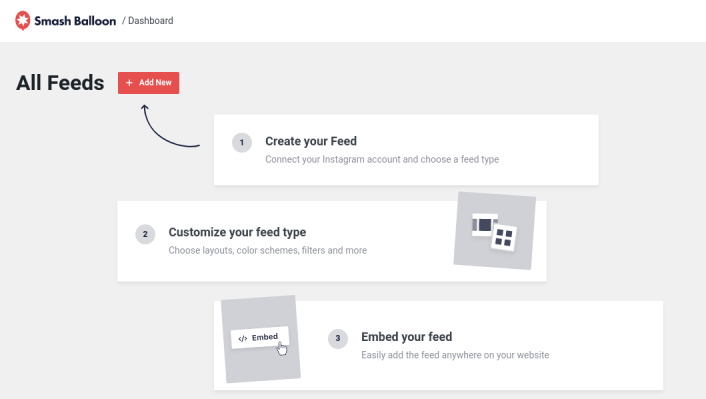
In your WordPress dashboard, go to Instagram Feed » All Feeds and click the Add New button:
Next, you’ll need to select the type of content you want to display on your site:
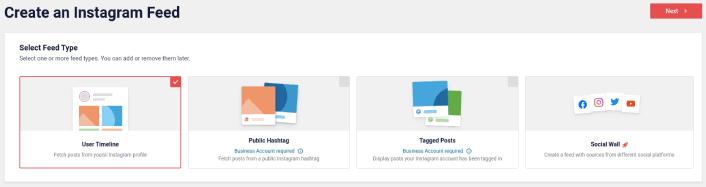
You can create 4 types of Instagram feeds:
- Χρονολόγιο Χρήστη: Αυτός ο τύπος ροής είναι διαθέσιμος για όλους τους λογαριασμούς και μπορείτε να τον χρησιμοποιήσετε για να εμφανίσετε τις τελευταίες σας δημοσιεύσεις.
- Public Hashtag: You can embed this type of feed to display only posts with a specific hashtag.
- Tagged Posts: This type of feed displays only posts where your Instagram handle is tagged. It’s perfect for showcasing social media reviews.
- Social Wall: You can embed Instagram photos in WordPress as part of a custom wall with feeds from other social media platforms as well.
Pick the right type of content for your site and click the Next button. You’ll be prompted to select the source for your Instagram feed. Just select the account you connected with your WordPress site earlier.
Step #4: Customize Your Instagram Feed
Now for the coolest bit about Smash Balloon. You can use a drag-and-drop editor to customize your Instagram feed! In the left-hand sidebar, you get a bunch of design options that are super easy to use.
Προσαρμογή Διάταξης Ροής
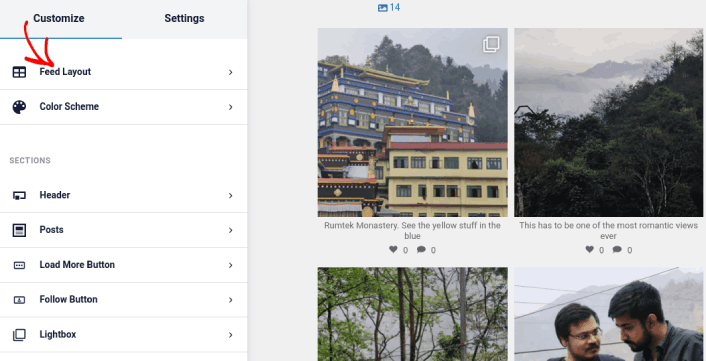
Μπορείτε να κάνετε κλικ στην καρτέλα Διάταξη Ροής στην ενότητα Προσαρμογή για να επιλέξετε μια διάταξη για την ενσωμάτωσή σας:
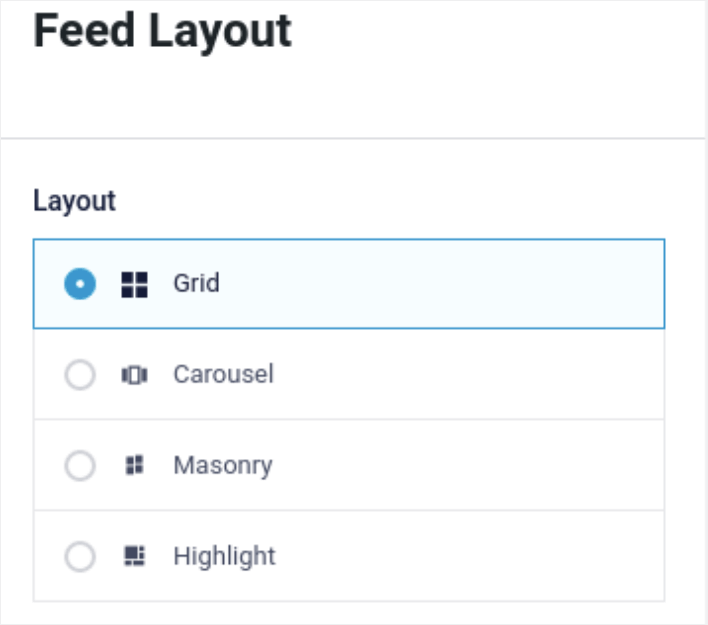
Υπάρχουν 4 τύποι διατάξεων από τις οποίες μπορείτε να επιλέξετε. Μπορείτε να δείτε πώς φαίνεται καθεμία από αυτές στην προεπισκόπηση και, στη συνέχεια, να επιλέξετε αυτή που σας αρέσει περισσότερο:
Μπορείτε επίσης να ορίσετε ένα προσαρμοσμένο ύψος και διάκενο ροής:
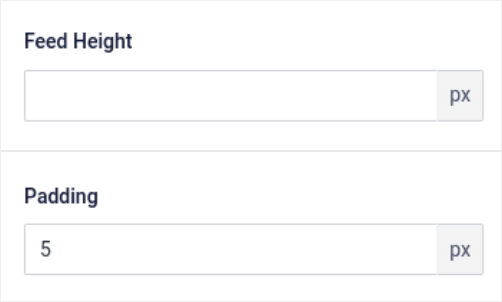
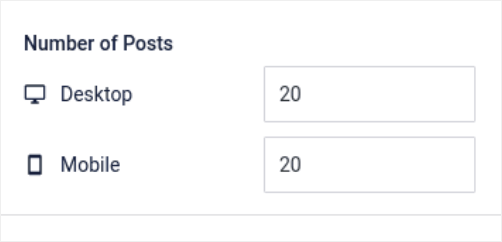
Μπορείτε ακόμη και να επιλέξετε τον αριθμό των δημοσιεύσεων που θέλετε να εμφανίζετε κάθε φορά:
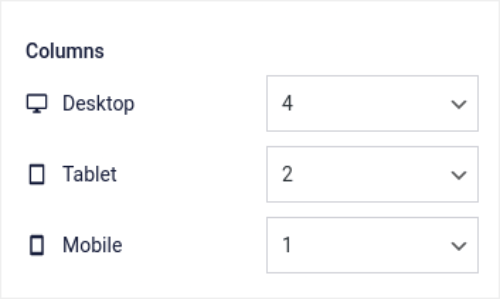
And if you’re feeling really fancy, you can also set the number of columns in your Instagram feed:
Προσαρμογή Χρωματικής Παλέτας
The default color scheme in Instagram Feed Pro is meant to work with almost any site’s design. But just in case you feel that it’s out of place with the rest of your site, you can customize the feed’s color scheme as well.
Στην ενότητα Προσαρμογή, μεταβείτε στην Χρωματική Παλέτα για να επιλέξετε μια προσαρμοσμένη εμφάνιση:
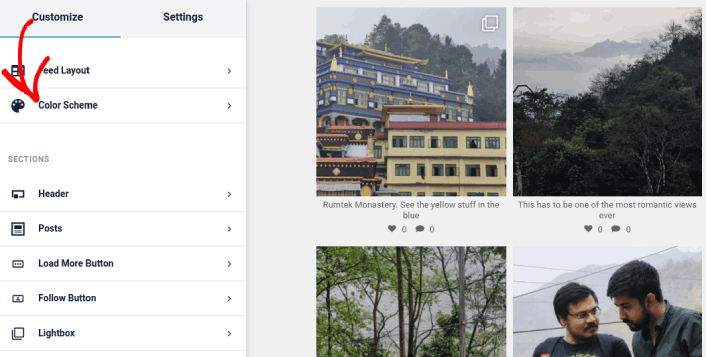
Συνιστούμε τη χρήση της επιλογής Κληρονομιά από Θέμα, επειδή ανακτά αυτόματα τις στυλ του θέματός σας.
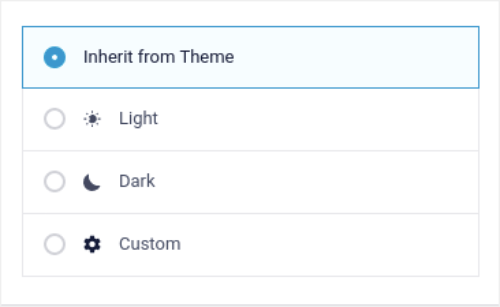
Αλλά μπορείτε να κάνετε κλικ στο Προσαρμοσμένο για να δημιουργήσετε τη δική σας χρωματική παλέτα.
Προσθήκη Ενοτήτων στη Ροή Instagram
Finally, you can also add custom sections to your Instagram feed under Customize » Sections:
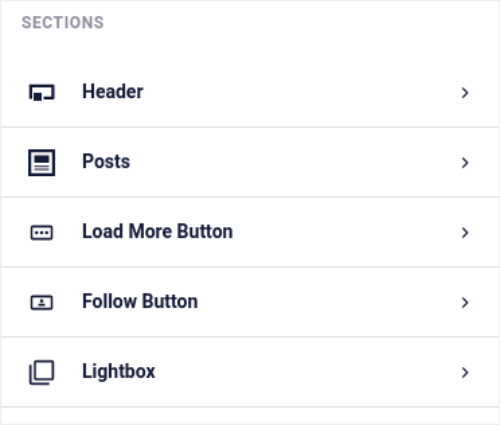
Αυτό περιλαμβάνει:
- Κεφαλίδα: Μπορείτε να προσαρμόσετε την κεφαλίδα για να συμπεριλάβετε στυλ γραμματοσειράς, μια προσαρμοσμένη εικόνα προφίλ, μια προσαρμοσμένη βιογραφία και πολλά άλλα.
- Δημοσιεύσεις: Μπορείτε να προσαρμόσετε την ανάλυση εικόνας και βίντεο για τις δημοσιεύσεις σας, να επιτρέψετε λεζάντες, να συμπεριλάβετε περιλήψεις likes και σχολίων και να δημιουργήσετε εφέ κατά την τοποθέτηση του δείκτη του ποντικιού.
- Κουμπί Φόρτωσης Περισσότερων: Μπορείτε να προσθέσετε ένα κουμπί Φόρτωση Περισσότερων στη ροή σας για να ανακτήσετε περισσότερες εικόνες όταν οι επισκέπτες σας κάνουν κλικ σε αυτές.
- Follow Button: You can add a button to nudge your website visitors to follow you on Instagram.
- Lightbox: Μπορείτε να δημιουργήσετε ένα αναδυόμενο παράθυρο lightbox όπου οι δημοσιεύσεις σας εμφανίζονται σε λειτουργία πλήρους οθόνης όταν κάνετε κλικ.
Μόλις είστε ικανοποιημένοι με τις ρυθμίσεις, προχωρήστε και κάντε κλικ στο κουμπί Αποθήκευση.
Step #5: Embed Instagram Photos in WordPress Page/Post
Now that your feed has been fully customized, it’s time to embed Instagram photos on your site. In your WordPress dashboard, go to Instagram Feed » All Feeds and copy the feed shortcode:
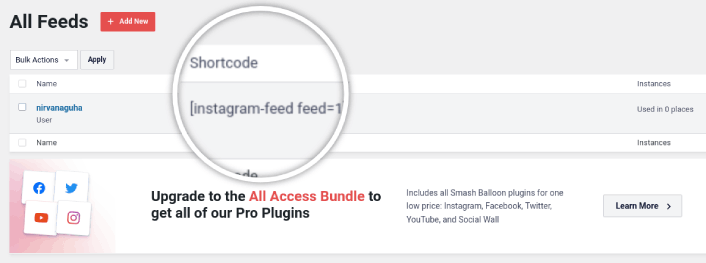
Now, you can use this shortcode to embed Instagram photos in WordPress instantly. You can add it to the sidebar, footer, posts, and even pages across your site.
If you followed all the steps from start to finish, you should have an Instagram feed on your site like this one:
Αυτό ήταν! Ολοκληρώσατε.
What to do After You Embed Instagram Photos in WordPress
Αυτό ήταν για αυτό το θέμα, φίλοι!
By now, you’ve managed to embed Instagram photos in WordPress. Next, you should set up a viral giveaway to supercharge your social media following.
After that, all that’s left is generating traffic to your site so that your contact forms can get to work. A simple way to do that is to start using push notifications. Sending push notifications is a great way to generate repeat traffic for your site. If that’s something you’re interested in, you should check out these articles as well:
- Κόστος Ειδοποιήσεων Push: Είναι Πραγματικά Δωρεάν; (Ανάλυση Τιμών)
- Πώς να αυξήσετε την επισκεψιμότητα στο WordPress Blog σας (9 εύκολοι τρόποι)
- Πώς να Αυξήσετε το Ποσοστό Συγκατάθεσης για Ειδοποιήσεις Push στο Web (7 Τρόποι)
- Πώς να προσθέσετε ένα πρόσθετο WordPress για ειδοποιήσεις ιστού στον ιστότοπό σας
Συνιστούμε τη χρήση του PushEngage για την αποστολή των ειδοποιήσεων push σας. Το PushEngage είναι το #1 λογισμικό ειδοποιήσεων push στον κόσμο. Έτσι, αν δεν το έχετε κάνει ήδη, ξεκινήστε με το PushEngage σήμερα.


