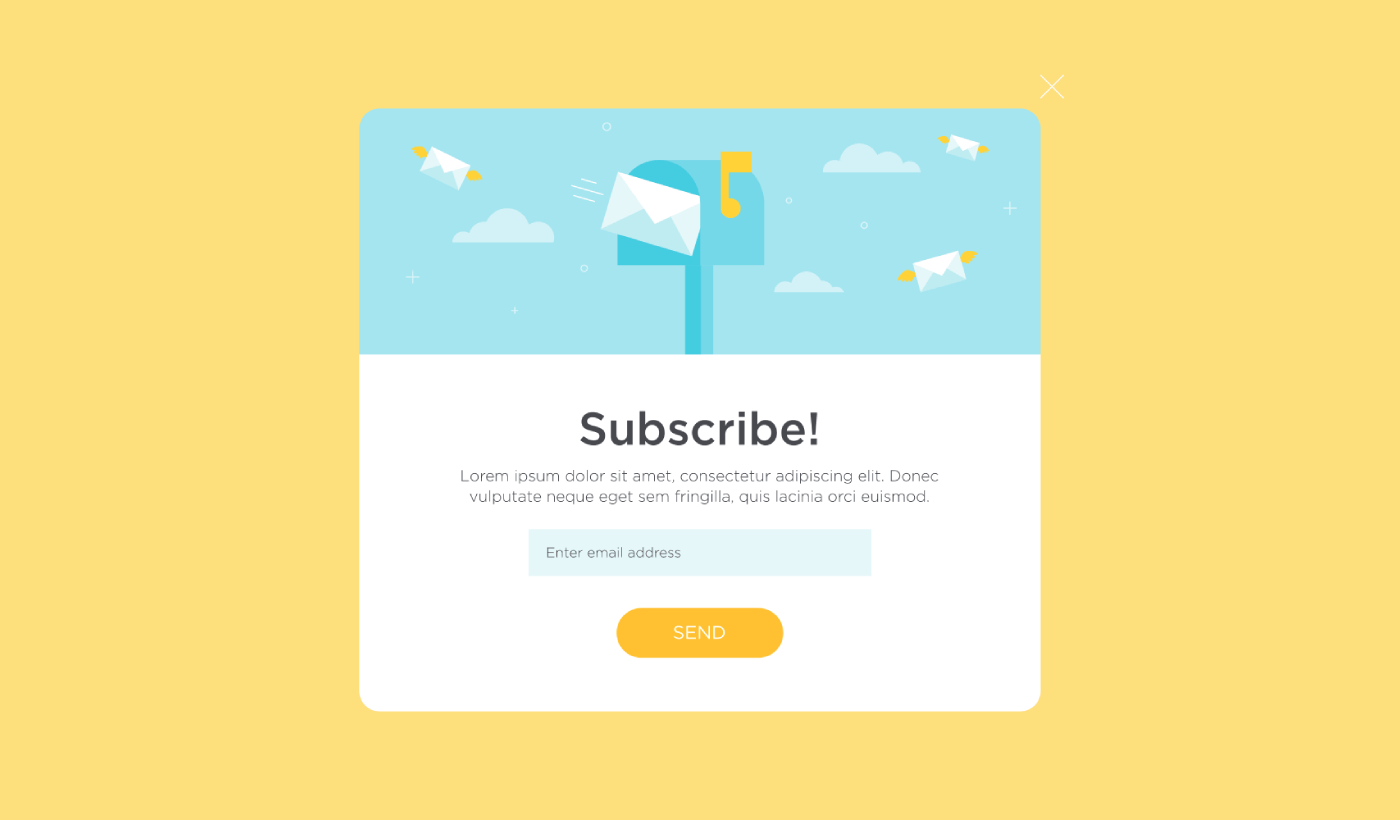
Ψάχνετε έναν τρόπο να δημιουργήσετε ένα αναδυόμενο παράθυρο lightbox για τον ιστότοπό σας;
Ένα αναδυόμενο παράθυρο lightbox μπορεί να είναι απίστευτα αποτελεσματικό για τη συλλογή leads. Είναι σχεδιασμένα για να πείθουν και να μετατρέπουν.
Όμως, η δημιουργία ενός από το μηδέν είναι πραγματικός μπελάς. Καταρχάς, θα έπρεπε να γνωρίζετε αρκετά HTML, CSS και Javascript για να δημιουργήσετε το αναδυόμενο παράθυρο μαζί με κανόνες ενεργοποίησης για το πότε θα εμφανίζεται. Στη συνέχεια, θα έπρεπε να δημιουργήσετε μια χειροκίνητη ενσωμάτωση με τον πάροχο υπηρεσιών email σας. Και τέλος, θα έπρεπε να διαχειριστείτε τυχόν ζητήματα απορρήτου και ασφάλειας.
Καλά νέα: υπάρχει ένας πολύ απλούστερος τρόπος.
Σε αυτό το άρθρο, θα σας δείξουμε πώς να ξεκινήσετε ένα αναδυόμενο παράθυρο lightbox χωρίς καθόλου κώδικα σε λιγότερο από 10 λεπτά.
Ας ξεκινήσουμε.
Τι είναι ένα Αναδυόμενο Παράθυρο Lightbox;
Ένα αναδυόμενο παράθυρο lightbox είναι μια φόρμα εγγραφής που εμφανίζεται με κινηματογραφικό εφέ. Όταν εμφανίζεται ένα lightbox, θολώνει το υπόλοιπο του ιστότοπου στο παρασκήνιο. Με αυτόν τον τρόπο, όλη η εστίασή σας είναι στο αναδυόμενο παράθυρο.
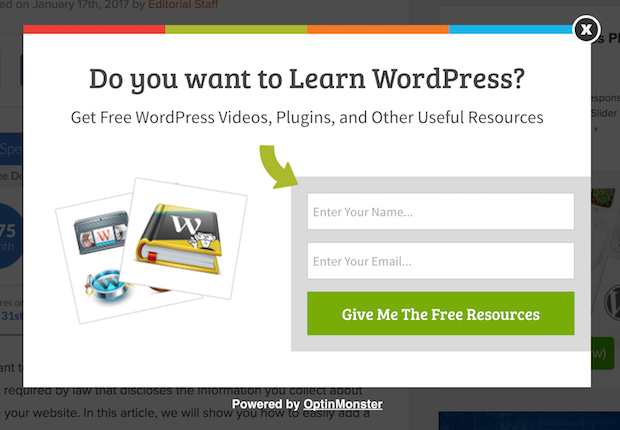
Αρχικά, η ιδέα των lightboxes προέρχεται από την υπαίθρια διαφήμιση:
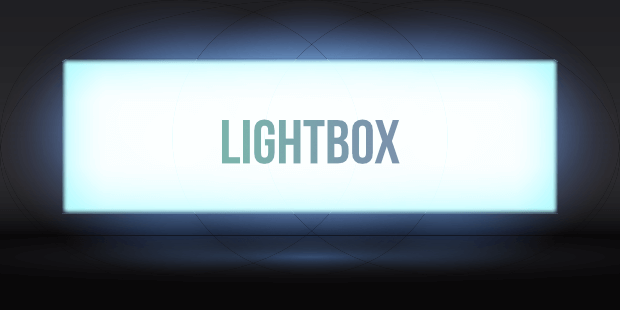
Και μετά, μερικοί προγραμματιστές σκέφτηκαν ότι αυτό ήταν ένα πολύ ωραίο εφέ και δημιούργησαν μια βιβλιοθήκη Javascript για να αναδημιουργήσουν το ίδιο εφέ σε διαδικτυακά στοιχεία. Αργότερα, ήρθε η ιδέα της χρήσης αναδυόμενων παραθύρων lightbox.
Γιατί Λειτουργούν τα Αναδυόμενα Παράθυρα Lightbox
Τα αναδυόμενα παράθυρα lightbox συλλέγουν περισσότερα email από μια παραδοσιακή φόρμα εγγραφής email.
Αλλά γιατί λειτουργούν;
Ας ρίξουμε μια γρήγορη ματιά στους κύριους λόγους για τους οποίους τα αναδυόμενα παράθυρα lightbox λειτουργούν τόσο καλά.
#1. Τα Αναδυόμενα Παράθυρα Lightbox Διαθέτουν μια Σαφή Παρότρυνση για Δράση
Οι περισσότεροι άνθρωποι πιστεύουν ότι είναι υπέροχο να δίνουν στους πελάτες τους πολλές επιλογές.
Αλλά αυτό δεν είναι πραγματικά αλήθεια.
Αν ψάχνετε για άμεσες μετατροπές, θέλετε μια ενιαία, σαφή παρότρυνση για δράση στην οποία μπορεί να εστιάσει το κοινό σας. Με αυτόν τον τρόπο, αφαιρείτε όλους τους περισπασμούς από το μυαλό του χρήστη. Και τα αναδυόμενα παράθυρα lightbox κάνουν εξαιρετική δουλειά τονίζοντας την κύρια προσφορά σας και κάνοντας τους ανθρώπους να εστιάσουν στην παρότρυνση για δράση.
Έτσι, φυσικά, τα ποσοστά μετατροπής είναι αρκετά καλά.
#2. Τα Αναδυόμενα Παράθυρα Lightbox Είναι Αδύνατο να Αγνοηθούν
Τα αναδυόμενα παράθυρα lightbox καταλαμβάνουν ολόκληρη την οθόνη και θολώνουν τα πάντα τα άλλα. Έτσι, είναι πρακτικά αδύνατο να τα αγνοήσετε.
Αυτό ισχύει ιδιαίτερα αν είναι κινούμενα:
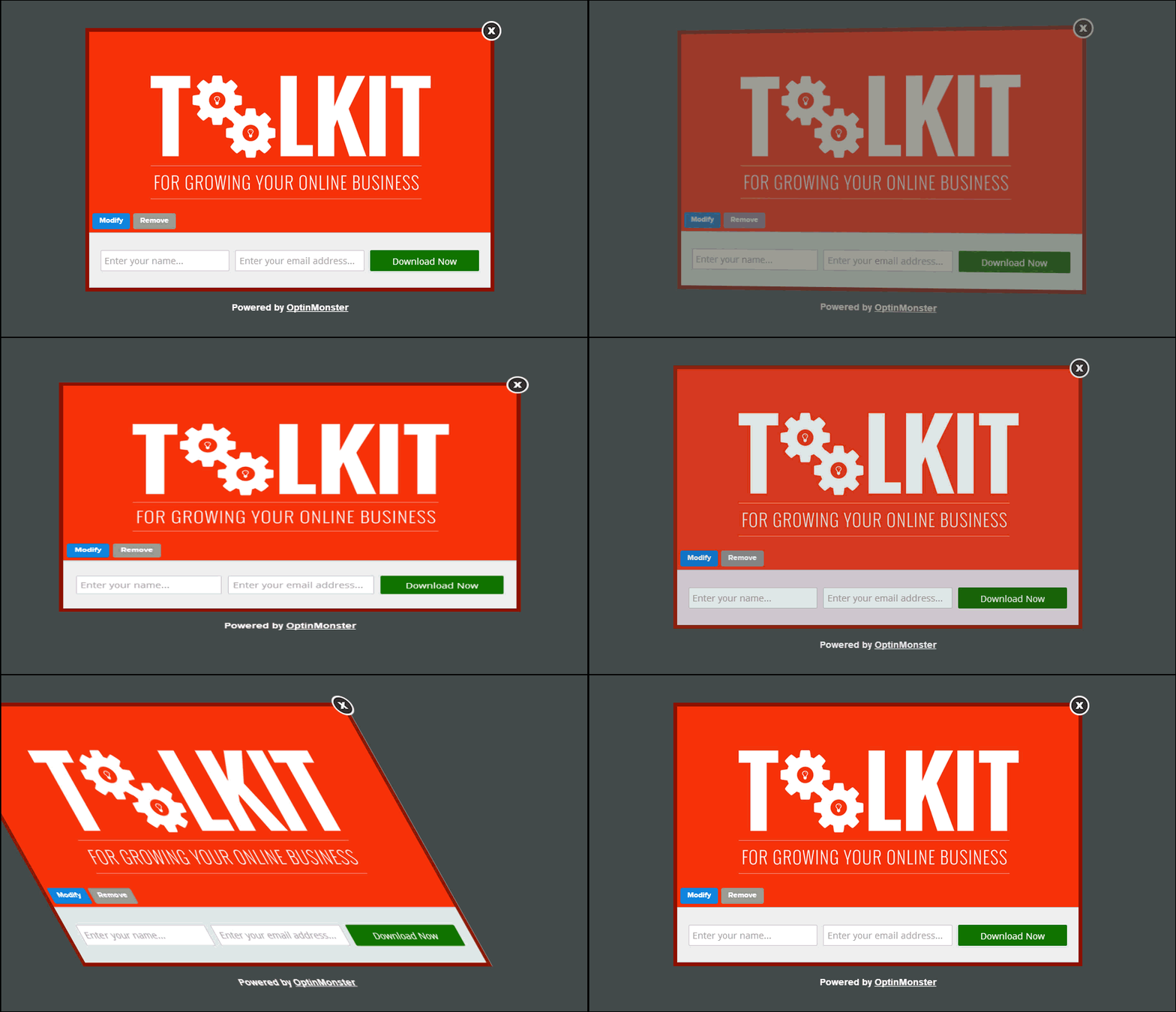
Φυσικά, πρέπει να διασφαλίσετε ότι τα αναδυόμενα παράθυρά σας δεν είναι παρεμβατικά. Και μπορείτε να το κάνετε αυτό προσαρμόζοντας πότε θα ενεργοποιείτε διαφορετικά αναδυόμενα παράθυρα στον ιστότοπό σας. Όσο το κοινό σας δεν ενοχλείται από τη διακοπή, μπορείτε πολύ εύκολα να το πείσετε και να το μετατρέψετε.
#3. Τα Αναδυόμενα Παράθυρα Lightbox Έχουν Εξατομικευμένες Ενεργοποιήσεις
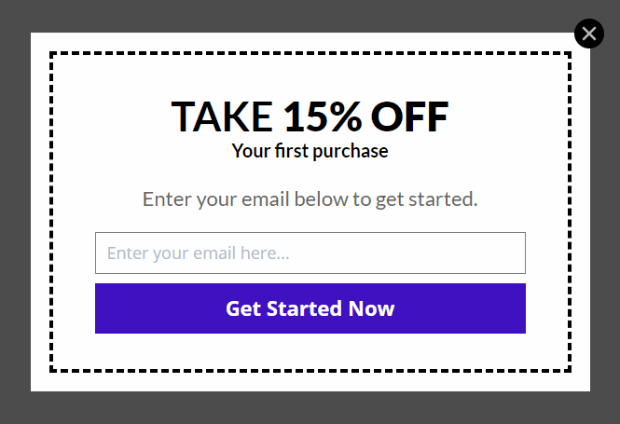
Δεν πρέπει να εμφανίζετε την ίδια προσφορά σε όλους τους επισκέπτες του ιστότοπού σας. Αν διαχειρίζεστε ένα κατάστημα ηλεκτρονικού εμπορίου, θα χρειαστείτε πολύ διαφορετικές προσφορές για νέους και επανερχόμενους πελάτες.
Για έναν νέο πελάτη, μπορείτε να ενεργοποιήσετε μια καμπάνια καλωσορίσματος:
Αλλά για έναν επανερχόμενο πελάτη, μπορεί να θέλετε να του στείλετε μια διαφορετική προσφορά:
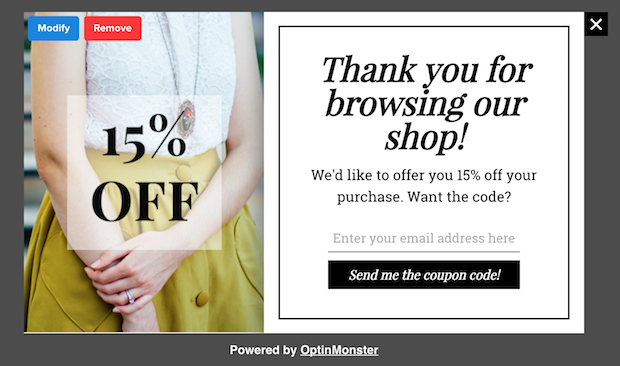
Παρατηρήστε πώς τα ποσά έκπτωσης και για τις δύο προσφορές είναι ακριβώς τα ίδια. Αλλά ο τρόπος με τον οποίο πλαισιώνεται η προσφορά είναι δραστικά διαφορετικός. Και αυτό είναι εξαιρετικά σημαντικό επειδή τα αναδυόμενα παράθυρα lightbox είναι φτιαγμένα για θεατρικά εφέ. Έτσι, μια πιο εξατομικευμένη προσέγγιση θα σας δώσει σίγουρα πολύ καλύτερα αποτελέσματα.
Θα μπορούσατε ακόμη και να εξατομικεύσετε την προσφορά με βάση τις προτιμήσεις περιεχομένου του χρήστη σας. Αν διαβάζουν ένα άρθρο για συνταγές δείπνου, έχει περισσότερο νόημα να τους δείξετε μια προσφορά που σχετίζεται με συνταγές δείπνου αντί να τους δείξετε μια προσφορά για αυτοκίνητα.
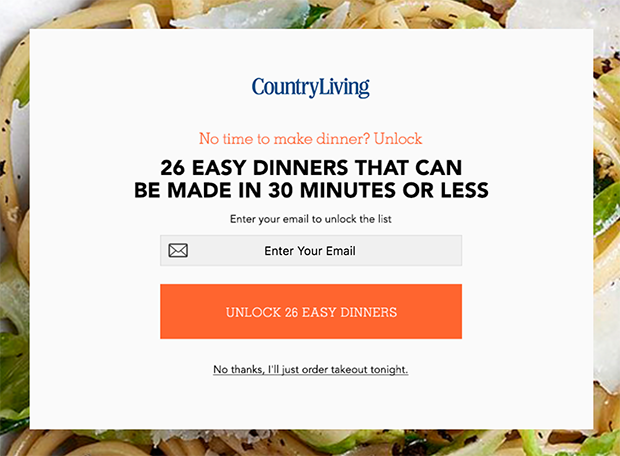
#4. Τα Lightbox Popups Μπορούν να Αιχμαλωτίσουν Επισκέπτες που Εγκαταλείπουν
Τα Lightboxes είναι απλώς ένας τρόπος εμφάνισης του popup σας. Έτσι, δεν υπάρχει τίποτα που να σας εμποδίζει να προσαρμόσετε το ερέθισμα σε οποιοδήποτε βαθμό θέλετε. Συνιστούμε τη δημιουργία popups lightbox με πρόθεση εξόδου.
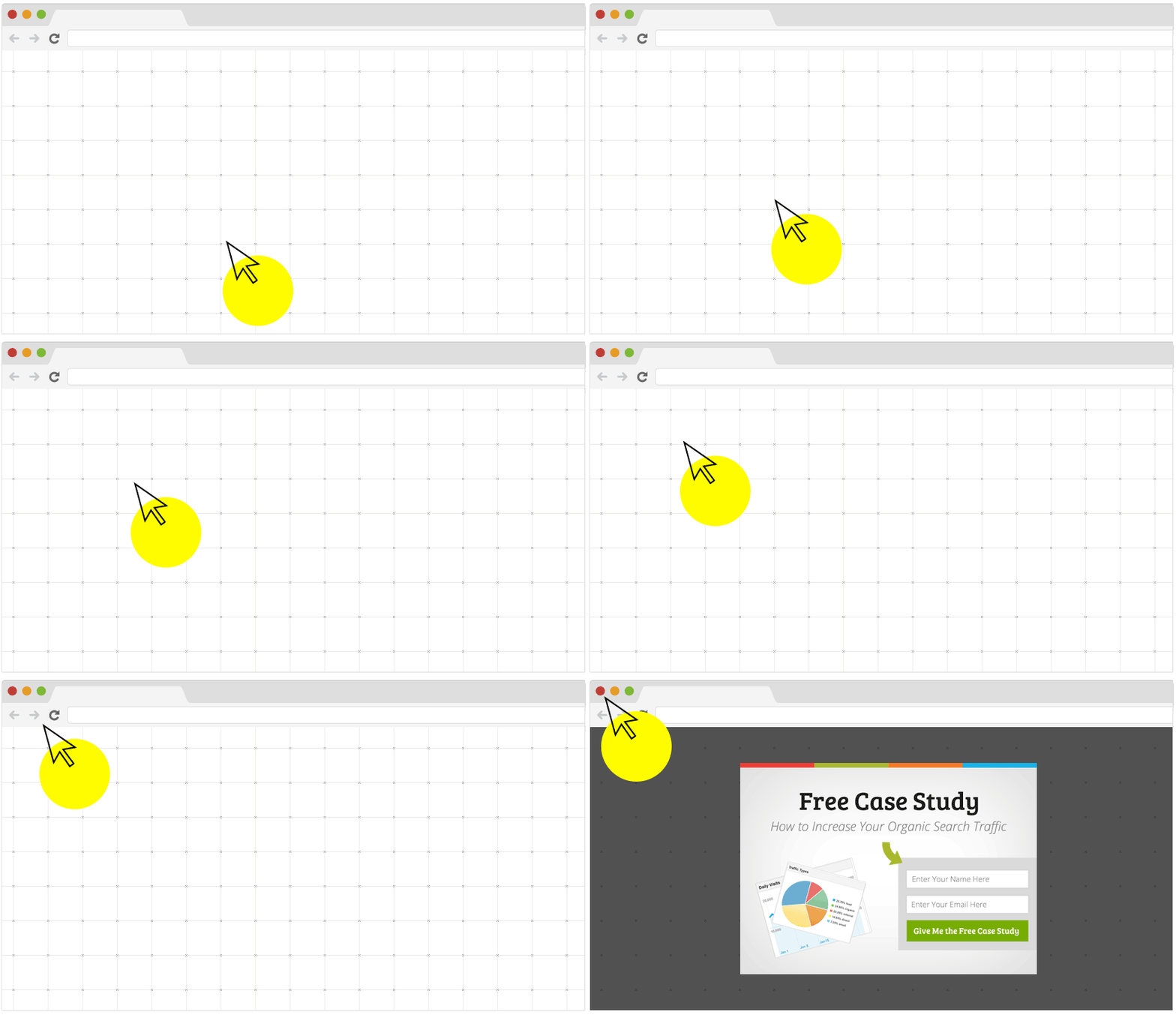
Τα popups πρόθεσης εξόδου ενεργοποιούνται όταν οι επισκέπτες σας προσπαθούν να εγκαταλείψουν τον ιστότοπό σας. Ως αποτέλεσμα, διατηρείτε έναν τεράστιο αριθμό επισκεπτών που διαφορετικά θα είχαν εγκαταλείψει τον ιστότοπό σας. Έτσι, αν υποφέρετε από εγκατάλειψη ιστότοπου, θα πρέπει σίγουρα να δημιουργήσετε ένα popup lightbox με πρόθεση εξόδου.
Πώς να Δημιουργήσετε ένα Lightbox Popup
Τώρα που καταλαβαίνετε τι είναι ένα lightbox popup και γιατί θα θέλατε να δημιουργήσετε ένα, πώς δημιουργείτε ένα lightbox popup; Συνιστούμε τη χρήση του OptinMonster για τη δημιουργία των popups σας.
Το OptinMonster είναι το #1 εργαλείο μετατροπών στον κόσμο και το έχουμε χρησιμοποιήσει οι ίδιοι. Το OptinMonster καθιστά εξαιρετικά απλή τη δημιουργία ισχυρών popups που μετατρέπουν. Και δεν θα χρειαστεί ποτέ να χρησιμοποιήσετε καθόλου κώδικα.
Έχουμε ακόμη γράψει μια πλήρη κριτική για το OptinMonster.
Μπορείτε να το δείτε, ή να ξεκινήσετε την καμπάνια σας αμέσως. Το μόνο που έχετε να κάνετε είναι να εγγραφείτε στο OptinMonster και να ακολουθήσετε το υπόλοιπο αυτού του άρθρου.
Βήμα #1: Δημιουργία Καμπάνιας
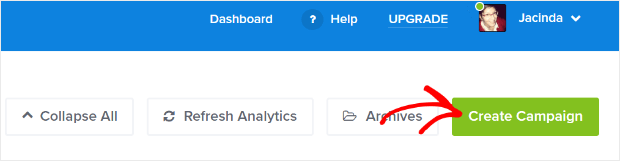
Μεταβείτε στον πίνακα ελέγχου του OptinMonster και πατήστε το κουμπί Δημιουργία:
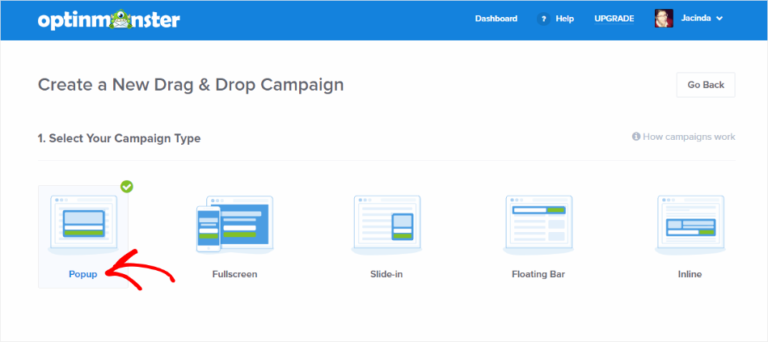
Επιλέξτε τον τύπο καμπάνιας Lightbox Popup:
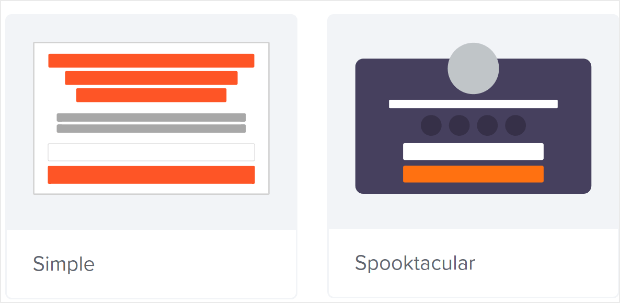
Στη συνέχεια, επιλέξτε ένα πρότυπο καμπάνιας. Μπορείτε να επιλέξετε όποιο πρότυπο θέλετε, αλλά εμείς θα χρησιμοποιήσουμε τον τύπο καμπάνιας Simple για αυτό το σεμινάριο.
Τώρα, δώστε ένα όνομα στην καμπάνια σας. Θυμηθείτε, αυτό το όνομα καμπάνιας είναι για εσάς και πιθανότατα θα δημιουργήσετε πολλές από αυτές τις εμφανίσεις με διαφορετικές επιλογές στόχευσης. Έτσι, δώστε ένα ουσιαστικό όνομα στην καμπάνια ή θα καταλήξετε πραγματικά μπερδεμένοι αργότερα.
Επίσης, ανάλογα με το πρόγραμμά σας, μπορείτε επίσης να χρησιμοποιήσετε το OptinMonster σε πολλούς ιστότοπους. Έτσι, επιλέξτε τον ιστότοπο όπου θέλετε να εμφανίσετε την καμπάνια σας.
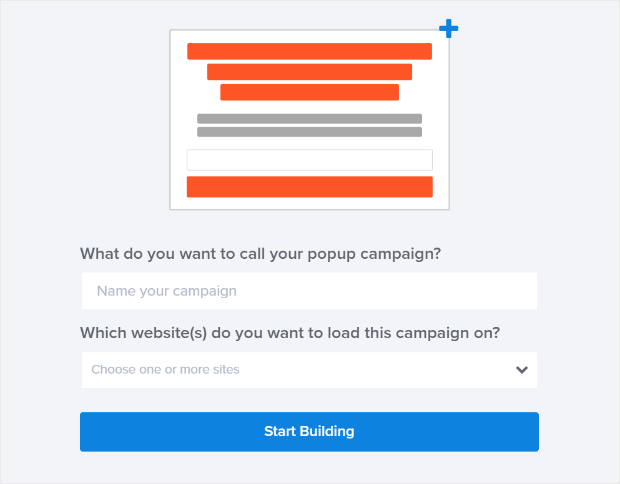
Πατήστε Έναρξη Δημιουργίας όταν τελειώσετε.
Βήμα #2: Επεξεργασία του Lightbox Popup σας
Με το OptinMonster, θα αποκτήσετε έναν οπτικό κατασκευαστή popup drag and drop. Μόλις τελειώσετε τη δημιουργία της καμπάνιας σας, θα μπορείτε να επεξεργαστείτε ακόμη και τις πιο μικρές λεπτομέρειες του popup σας. Ξεκινήστε επεξεργαζόμενοι τον τίτλο του popup σας:
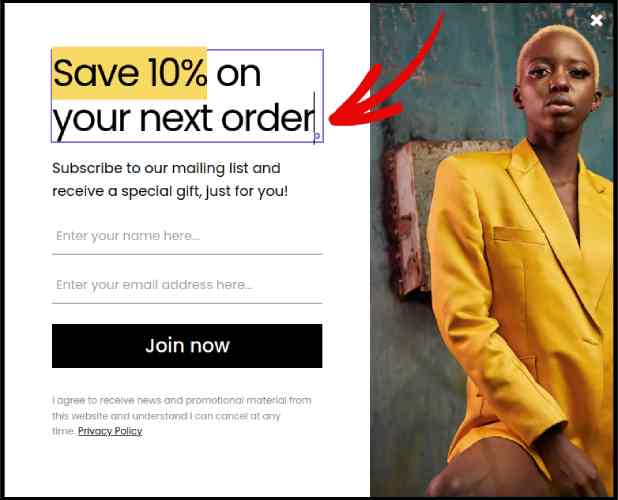
Το πιο εκπληκτικό μέρος εδώ είναι ότι απλά κάνετε κλικ σε οποιοδήποτε κείμενο θέλετε να επεξεργαστείτε και το αλλάζετε απευθείας. Δεν υπάρχει ανάγκη να συμπληρώσετε μια φόρμα ή να επεξεργαστείτε οποιονδήποτε κώδικα HTML στο popup.
Και στη συνέχεια, προσαρμόστε το κείμενο και την εμφάνιση του κουμπιού σας για να δημιουργήσετε μια σαφή πρόσκληση για δράση:
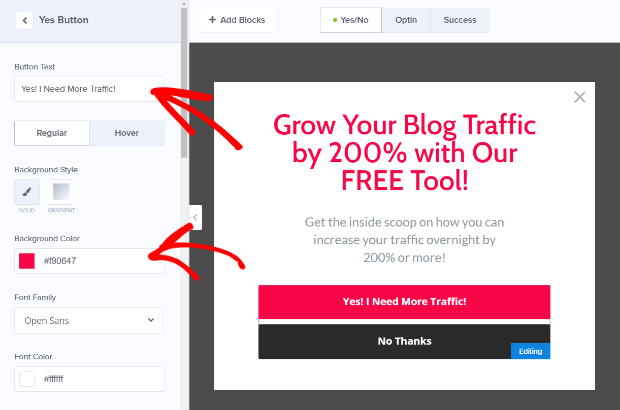
Όταν είστε ικανοποιημένοι με την εμφάνιση του popup σας, μπορείτε να προχωρήσετε σε πιο προηγμένες ρυθμίσεις.
Βήμα #3: Ορισμός Κανόνων Εμφάνισης
Οι κανόνες εμφάνισης προορίζονται να ορίζουν πότε εμφανίζεται η καμπάνια σας στον ιστότοπό σας και ποιος τη βλέπει.
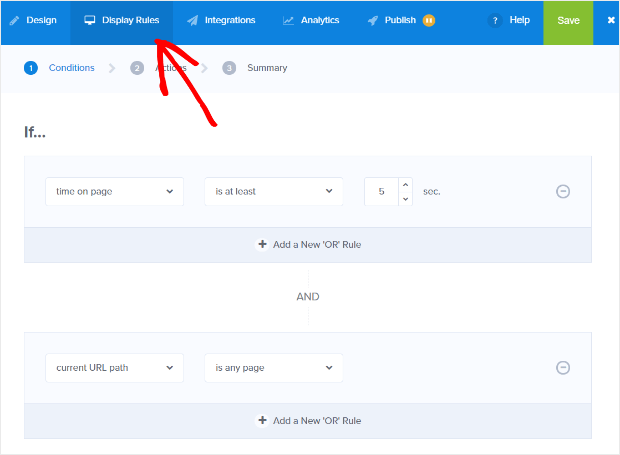
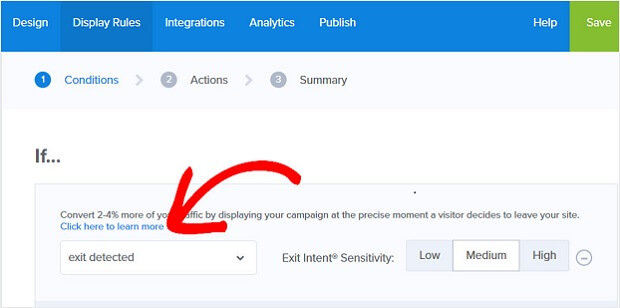
Η σύστασή μας είναι να αλλάξετε την συνθήκη ενεργοποίησης σε πρόθεση εξόδου:
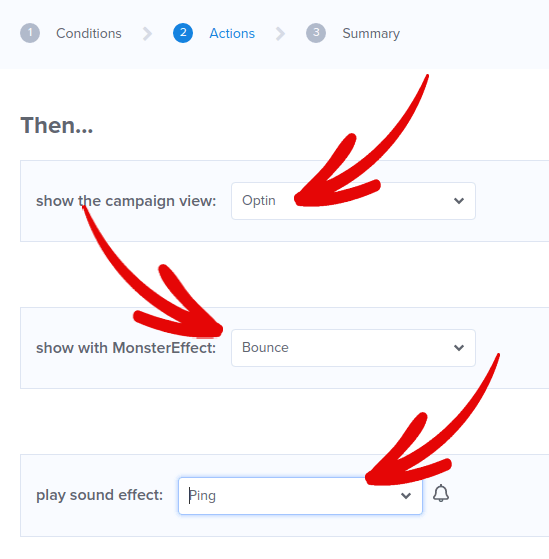
Κάντε κλικ στο Επόμενο Βήμα για να επιλέξετε την Ενέργεια. Εδώ, συνιστούμε να ορίσετε το Εμφάνιση της προβολής καμπάνιας σε Προβολή Εγγραφής, να ορίσετε το εμφάνιση με MonsterEffect σε οποιαδήποτε κινούμενη εικόνα εισόδου θέλετε, και το αναπαραγωγή ηχητικού εφέ σε οποιοδήποτε ηχητικό εφέ για το popup σας.
Και στη συνέχεια, κάντε κλικ στο κουμπί Επόμενο Βήμα. Μπορείτε να δείτε την πλήρη έκταση των ρυθμίσεών σας στην καρτέλα Σύνοψη.
Βήμα #4: Ρύθμιση της Ενσωμάτωσης Email σας
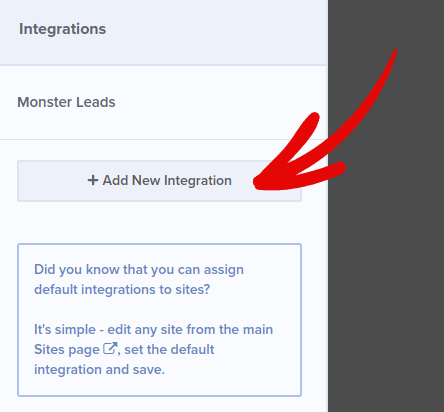
Το επόμενο βήμα είναι να ρυθμίσετε την ενσωμάτωση email σας. Κάντε κλικ στο Προσθήκη Νέας Ενσωμάτωσης από την καρτέλα Ενσωματώσεις και επιλέξτε τον πάροχο υπηρεσιών email σας:
Συνιστούμε να χρησιμοποιήσετε το Drip για το email marketing σας, εάν δεν έχετε ήδη πάροχο υπηρεσιών email.
Βήμα #5: Δημοσιεύστε το Lightbox Popup σας
Όταν δημιουργείτε μια νέα καμπάνια, είναι Σε παύση εξ ορισμού.
Μεταβείτε στην καρτέλα Δημοσίευση από το επάνω μενού για να δείτε τις Επιλογές Δημοσίευσης. Στη συνέχεια, ορίστε την κατάσταση σε Δημοσίευση και επιλέξτε την πλατφόρμα του ιστότοπου:
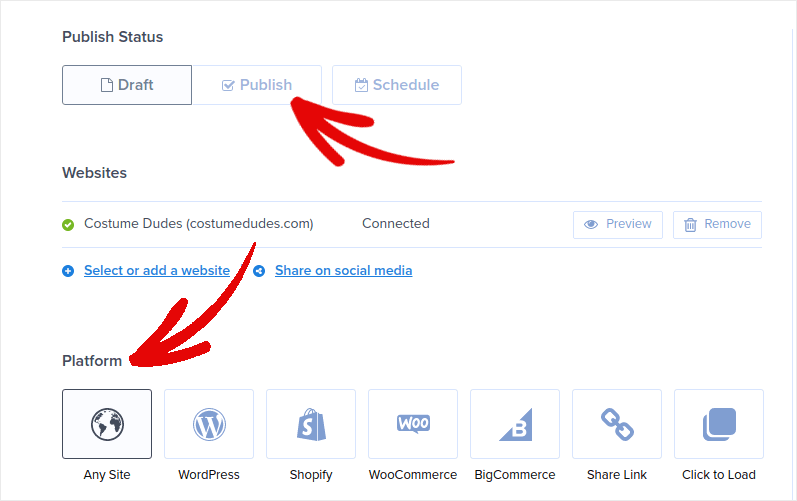
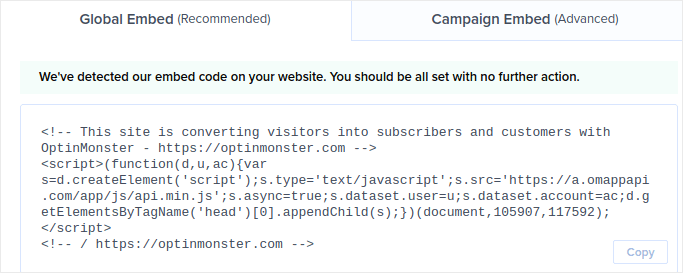
Αν διαχειρίζεστε έναν ιστότοπο WordPress, το πρόσθετο OptinMonster χειρίζεται αυτόματα την υπόλοιπη ρύθμιση. Το ίδιο ισχύει για Shopify και BigCommerce. Για οποιονδήποτε άλλο ιστότοπο, κάντε κλικ στο Οποιοσδήποτε Ιστότοπος και επικολλήστε τον κώδικα ενσωμάτωσης στο κεφάλι του ιστότοπού σας:
Και τελειώσατε!
ΜΠΟΝΟΥΣ: Συλλέξτε Συνδρομητές Ειδοποιήσεων Push από το Popup σας
Οι ειδοποιήσεις push σας βοηθούν να αυξήσετε την επισκεψιμότητα και την αλληλεπίδραση του ιστότοπού σας αυτόματα. Οι ειδοποιήσεις push στο web είναι ένας αποτελεσματικός τρόπος για να επαναφέρετε χρήστες που μπορεί να έχουν εγκαταλείψει τη συνεδρία τους ή τον ιστότοπο. Βοηθά στην επαναδέσμευση χρηστών ειδοποιώντας τους για νέο περιεχόμενο, προσφορές ή εκδηλώσεις.
Οι ειδοποιήσεις push περιλαμβάνουν επίσης σαφή και πρακτικά μηνύματα και κουμπιά παρότρυνσης για δράση, ενθαρρύνοντας τους χρήστες να αναλάβουν συγκεκριμένες ενέργειες, όπως η ανάγνωση ενός άρθρου, η ολοκλήρωση μιας αγοράς ή η συμμετοχή σε μια εκδήλωση.
Μπορείτε να προσαρμόσετε τις ειδοποιήσεις push με βάση τις προτιμήσεις, τη συμπεριφορά και τα ενδιαφέροντα των χρηστών, για να διασφαλίσετε ότι τα μηνύματα είναι σχετικά και πολύτιμα για κάθε χρήστη. Οι χρήστες πρέπει να συμφωνήσουν για να λαμβάνουν ειδοποιήσεις push στο web. Αυτό διασφαλίζει ότι τα μηνύματα δεν θεωρούνται spam και ότι αποστέλλονται με την άδεια των χρηστών.
Το πιο εντυπωσιακό είναι ότι μπορείτε να συλλέξετε συνδρομητές ειδοποιήσεων push από το email popup σας. Έτσι, σε περίπτωση που οι επισκέπτες του ιστότοπού σας δεν θέλουν να δώσουν το email τους, μπορείτε ακόμα να τους κάνετε να εγγραφούν χρησιμοποιώντας ειδοποιήσεις push στο web.
Και αυτό ακριβώς θα κάνουμε.
Βήμα #1: Επιλέξτε μια Υπηρεσία Ειδοποιήσεων Push
Συνιστούμε να χρησιμοποιήσετε το PushEngage για την αποστολή ειδοποιήσεων push στο web.

Εδώ είναι μια γρήγορη επισκόπηση του τι παίρνετε με το PushEngage:
- Αυτοματοποιημένες εκστρατείες με υψηλή μετατροπή
- Πολλαπλές επιλογές στόχευσης και προγραμματισμού καμπάνιας
- Παρακολούθηση στόχων και προηγμένα αναλυτικά στοιχεία
- Έξυπνες δοκιμές A/B
- Ένας Αφοσιωμένος Διαχειριστής Επιτυχίας
Μπορείτε να ξεκινήσετε δωρεάν, αλλά αν σοβαρά θέλετε να αναπτύξετε την επιχείρησή σας, θα πρέπει να αγοράσετε ένα επί πληρωμή πρόγραμμα. Επίσης, πριν αγοράσετε οποιαδήποτε υπηρεσία ειδοποιήσεων push, θα πρέπει να δείτε αυτόν τον οδηγό για το κόστος ειδοποιήσεων push.
Και αν διαχειρίζεστε ένα online κατάστημα, το PushEngage σας βοηθά επίσης να αυξήσετε τις πωλήσεις σας, βοηθώντας σας να δημιουργήσετε αυτοματοποιημένες ειδοποιήσεις push για ηλεκτρονικό εμπόριο.
Θα δείτε ότι η PushEngage είναι μακράν η καλύτερη επιλογή αν θέλετε να αυξήσετε την επισκεψιμότητα, την αφοσίωση και τις πωλήσεις για την επιχείρησή σας. Και αν έχετε περιορισμένο προϋπολογισμό, μπορείτε πάντα να γίνετε λίγο δημιουργικοί με τις ειδοποιήσεις push σας.
Βήμα #2: Προσθέστε ένα μπλοκ HTML στο Popup σας
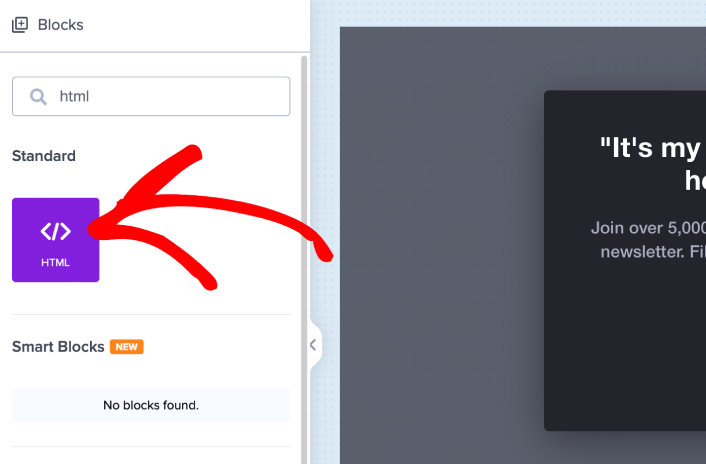
Πρώτα, προσθέστε ένα μπλοκ HTML στο αναδυόμενο παράθυρό σας από την πλαϊνή μπάρα στο OptinMonster.
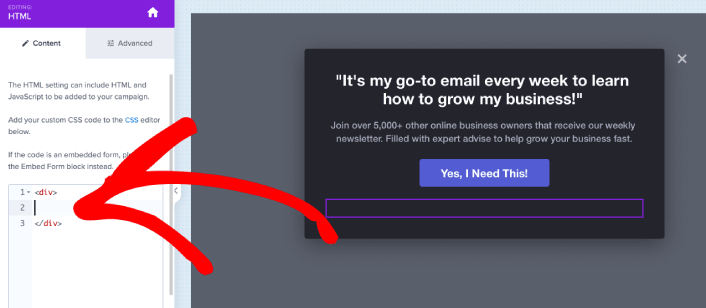
Εδώ θα προσθέσουμε τον κώδικα για τη συλλογή συνδρομητών ειδοποιήσεων push. Πρώτα, επικολλήστε τον παρακάτω κώδικα για να δημιουργήσετε ένα κλικ κουμπί:
<button onclick="subscribeOnClickButton()" style="border: none; width: 100%; padding-left: 15%; padding-right:15%; text-align: center; display: inline-block; color: white;">Get Updates via Push Notifications Instead</button>Επικολλήστε τον κώδικα εκεί που λέει ότι μπορείτε να προσθέσετε HTML:
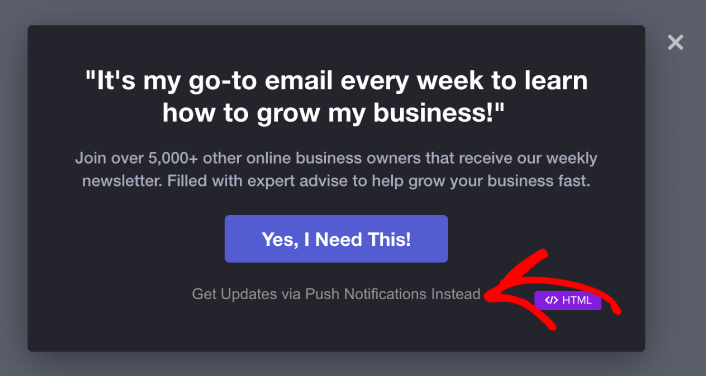
Σε αυτό το σημείο, θα πρέπει να δείτε ένα νέο κουμπί στο popup σας που λέει, «Λήψη Ενημερώσεων μέσω Ειδοποιήσεων Push Αντί» ακριβώς κάτω από το κουμπί εγγραφής email:
Φυσικά, μπορείτε να πειραματιστείτε με τα στυλ για να το κάνετε να φαίνεται πιο ελκυστικό. Στη συνέχεια, θα κάνουμε το κουμπί να συλλέγει συνδρομητές ειδοποιήσεων push όταν κάνετε κλικ.
Βήμα #3: Λάβετε τον Κωδικό Εγγραφής από το PushEngage
Μεταβείτε στην αρχική σελίδα του PushEngage και κάντε κλικ στο κουμπί Έναρξη:

Στη συνέχεια, θα θέλετε να επιλέξετε το δωρεάν πρόγραμμα για να δοκιμάσετε το PushEngage ή να επιλέξετε ένα επί πληρωμή πρόγραμμα αν είστε σοβαροί σχετικά με την ανάπτυξη της επιχείρησής σας. Τα επί πληρωμή προγράμματα έρχονται με περισσότερες επιλογές καμπάνιας και τη δυνατότητα δημιουργίας ακόμη μεγαλύτερων λιστών συνδρομητών.
Στον πίνακα ελέγχου του PushEngage, μεταβείτε στις Ρυθμίσεις Ιστότοπου » Λεπτομέρειες Ιστότοπου και κάντε κλικ στο κουμπί Κάντε κλικ εδώ για οδηγίες εγκατάστασης. Κάτω από το πεδίο Οποιοσδήποτε Ιστότοπος, θα λάβετε τον κωδικό εγκατάστασής σας:

ΠΡΟΕΙΔΟΠΟΙΗΣΗ: Πρέπει να αντιγράψετε τον κωδικό που λαμβάνετε από τον πίνακα ελέγχου σας. Ο κωδικός είναι μοναδικός για κάθε χρήστη του PushEngage. Δεν θα μπορείτε να αντιγράψετε τον κωδικό στην εικόνα και να συλλέξετε συνδρομητές ειδοποιήσεων push.
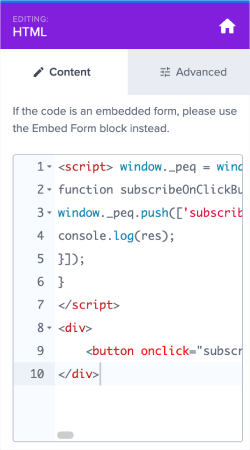
Μόλις έχετε τον κωδικό στον πίνακα ελέγχου του PushEngage, πάρτε το δεύτερο script και προσθέστε του επιπλέον κώδικα. Ο τελικός σας κώδικας θα πρέπει να μοιάζει κάπως έτσι:
<script src="https://clientcdn.pushengage.com/core/02a6e92667ae2279fcba8932356c1d93.js" async></script>
<script> window._peq = window._peq || [];
function subscribeOnClickButton(){
window._peq.push(['subscribe',{}.pe,function(res){
console.log(res);
}]);
}
</script>
Βήμα #4: Προσθέστε τον Κωδικό Εγγραφής σας στο Μπλοκ HTML στο Popup σας
Προσθέστε αυτόν τον κωδικό στο μπλοκ HTML στο OptinMonster και τελειώσατε!
Όταν τελειώσετε, απλώς πατήστε τα κουμπιά Αποθήκευση και Δημοσίευση.
Αν ελέγξετε τον ιστότοπό σας, θα πρέπει τώρα να βλέπετε το lightbox popup να συλλέγει συνδρομητές email και ειδοποιήσεων push:
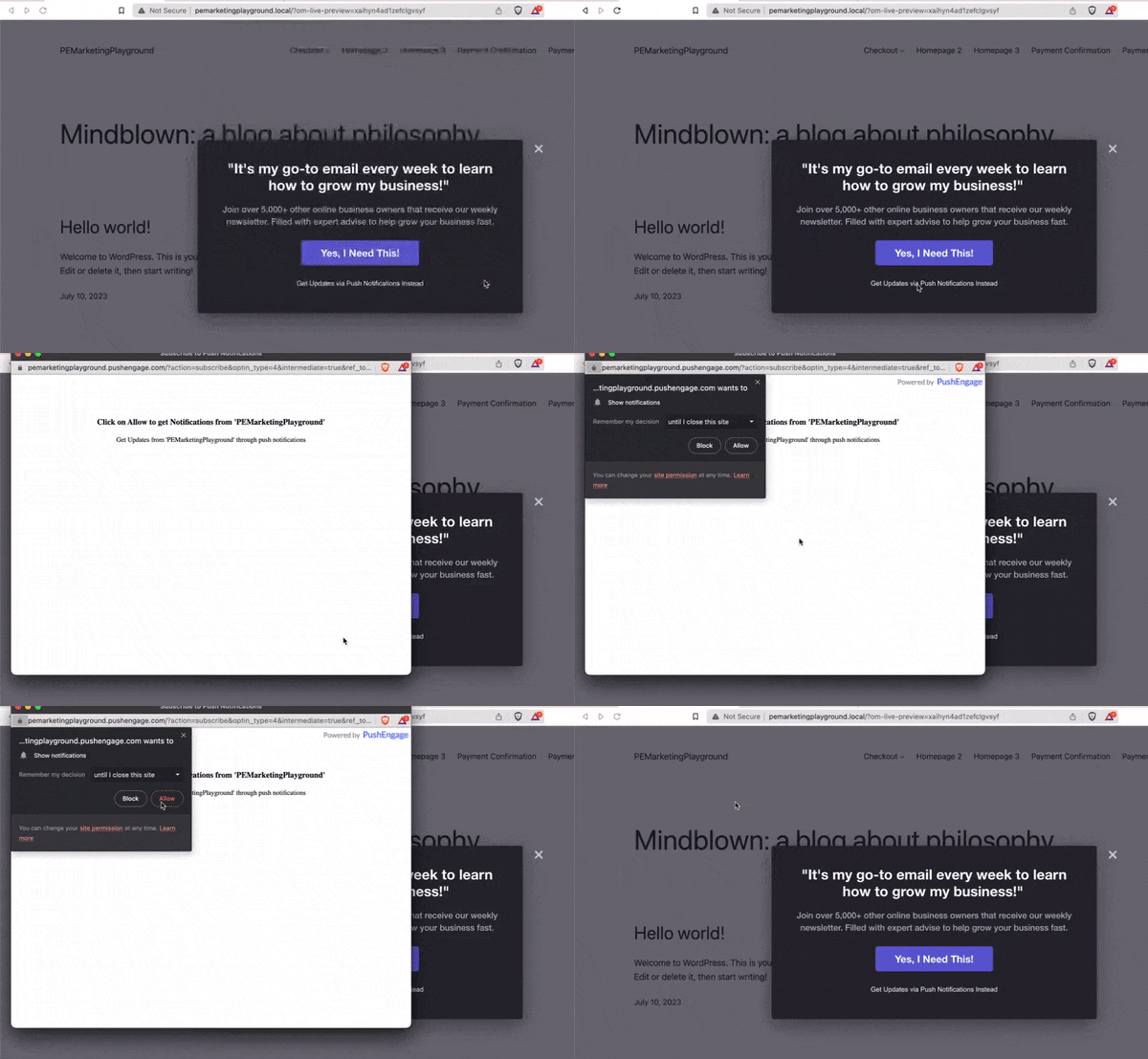
Και ακριβώς έτσι, συλλέγετε συνδρομητές push από το popup σας. Οι ειδοποιήσεις push έρχονται με τα δικά τους modals popup. Αλλά είναι λίγο δύσκολο να τα προσαρμόσετε. Έτσι, μπορείτε να δημιουργήσετε όμορφα popups χρησιμοποιώντας το OptinMonster και στη συνέχεια να τα χρησιμοποιήσετε ως popups ειδοποιήσεων push.
Τι να κάνετε Αφού Δημιουργήσετε ένα Lightbox Popup
Αυτό ήταν για αυτό το θέμα, φίλοι!
Ενημερώστε μας αν αυτό το άρθρο βοήθησε. Η δημιουργία popups στον ιστότοπό σας μπορεί να σας βοηθήσει να μετατρέψετε την επισκεψιμότητά σας σε συνδρομητές email και γνήσιους επιχειρηματικούς υποψήφιους πελάτες. Και συνιστούμε ανεπιφύλακτα να ξεκινήσετε τη δημιουργία lightbox popups αμέσως.
Και αν ψάχνετε για έναν προσιτό τρόπο να αυξήσετε την επισκεψιμότητά σας, σας προτείνουμε να χρησιμοποιήσετε ειδοποιήσεις push. Οι ειδοποιήσεις push μπορούν να σας βοηθήσουν να προσελκύσετε περισσότερη επαναλαμβανόμενη επισκεψιμότητα και αλληλεπίδραση με τον ιστότοπο. Μπορείτε επίσης να δημιουργήσετε αυτοματοποιημένες καμπάνιες ειδοποιήσεων push που παράγουν πωλήσεις.
Δεν πειστήκατε; Ελέγξτε αυτούς τους πόρους:
- 7 Έξυπνες Στρατηγικές για την Ενίσχυση της Αφοσίωσης Πελατών
- Είναι Αποτελεσματικές οι Ειδοποιήσεις Push; 7 Στατιστικά + 3 Συμβουλές Ειδικών
- Πώς να Ρυθμίσετε Ειδοποιήσεις Push για Εγκαταλελειμμένα Καλάθια (Εύκολο Οδηγός)
Συνιστούμε τη χρήση του PushEngage για τη δημιουργία των καμπανιών ειδοποιήσεων push. Το PushEngage είναι το λογισμικό ειδοποιήσεων push #1 στον κόσμο. Έτσι, αν δεν το έχετε κάνει ήδη, ξεκινήστε με το PushEngage σήμερα!


