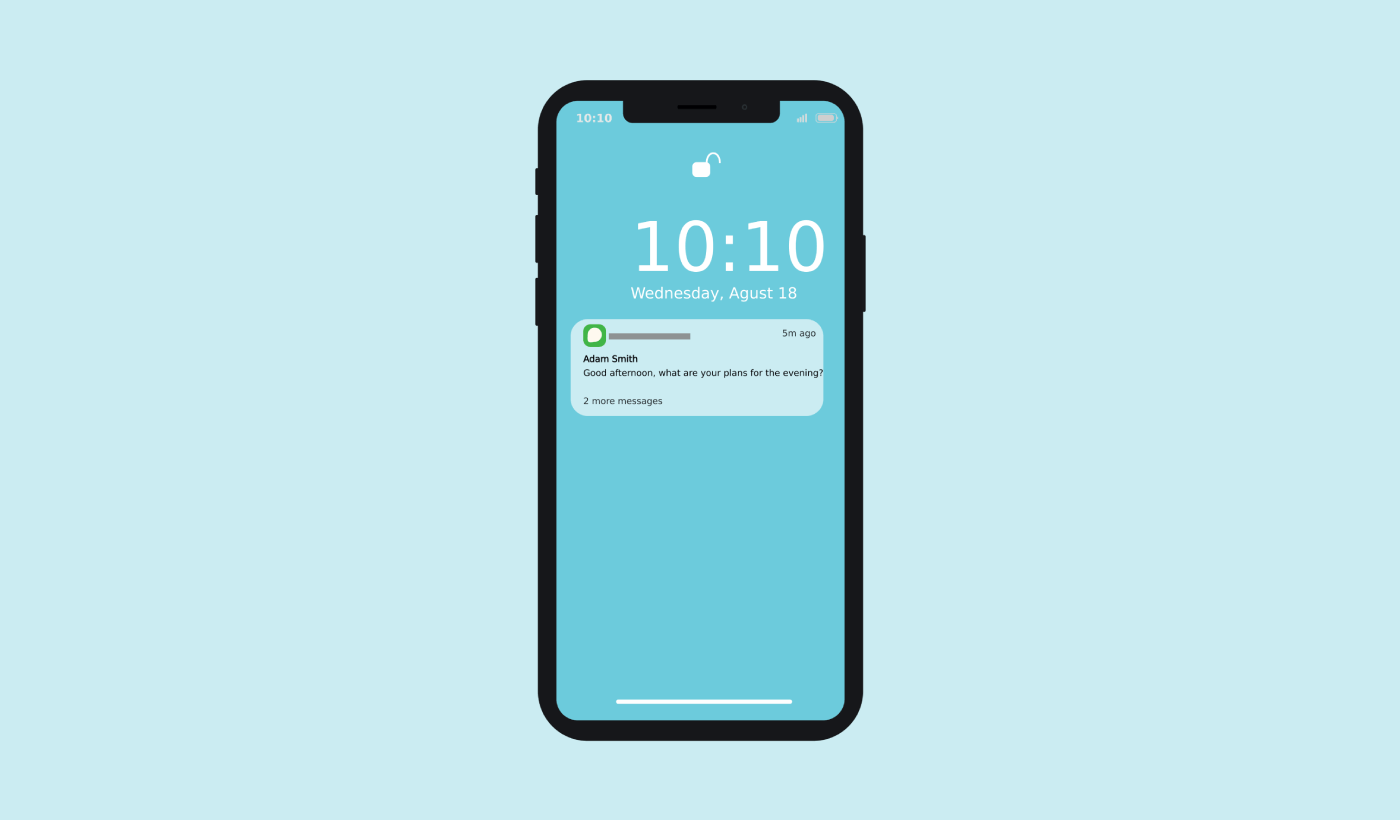
Ακόμα δυσκολεύεστε να επαναφέρετε τους χρήστες της εφαρμογής σας Android αφού κλείσουν την εφαρμογή σας; Δεν είστε μόνοι. Οι περισσότεροι χρήστες εγκαταλείπουν τις εφαρμογές μέσα σε λίγες ημέρες, και χωρίς τα σωστά εργαλεία για να τους επαναφέρετε, χάνονται για πάντα. Εκεί λάμπουν τα μηνύματα push για Android.
Αυτές οι μικρές, έγκαιρες ειδοποιήσεις μπορούν να επαναφέρουν τους χρήστες, να αυξήσουν τις επαναλαμβανόμενες συνεδρίες και να οδηγήσουν σε μετατροπές — ακόμα και όταν δεν χρησιμοποιούν ενεργά την εφαρμογή σας.
Σε αυτόν τον οδηγό, θα αναλύσουμε:
- Τι είναι τα μηνύματα push για Android
- Πώς λειτουργούν (με οπτικά στοιχεία)
- Γιατί είναι σημαντικά για την ανάπτυξη εφαρμογών
- Και πώς να αρχίσετε να τα χρησιμοποιείτε αποτελεσματικά
Ας βουτήξουμε και ας μετατρέψουμε την εφαρμογή σας σε μια μηχανή διατήρησης.
Στείλτε Ειδοποιήσεις Push για Εφαρμογές Κινητών Σήμερα!
Οι ειδοποιήσεις push είναι ένα εξαιρετικά αποτελεσματικό, χαμηλού κόστους εργαλείο μάρκετινγκ που σας βοηθά να αυξήσετε την επαναλαμβανόμενη επισκεψιμότητα, την αλληλεπίδραση και τις πωλήσεις σας αυτόματα.
- Τι Είναι τα Μηνύματα Push για Android;
- Ποια Υπηρεσία Μηνυμάτων Push για Android να Επιλέξετε;
- Πώς να Εγκαταστήσετε Μηνύματα Push για Android στον Ιστότοπό σας
- Πώς να Στείλετε Μηνύματα Push Εφαρμογής σε Android
- Πώς Λειτουργούν τα Μηνύματα Push Ιστού για Android;
- Πώς Λειτουργούν τα Μηνύματα Push για Κινητές Συσκευές Android;
- Ποια Είναι τα Διαφορετικά Μέρη των Μηνυμάτων Push για Android;
- Διαφορετικοί Τύποι Εγγραφών για Ειδοποιήσεις Push
- Πώς να Εξατομικεύσετε τα Μηνύματα Push για Android
- Πώς να Δημιουργήσετε Στοχευμένα Μηνύματα Push για Android
- Πώς να Στείλετε Στοχευμένα Μηνύματα Push για Android
- Πώς να Δημιουργήσετε Αναδυόμενα Παράθυρα Μηνυμάτων Push για Android
- Τι να Κάνετε Πριν Στείλετε Στοχευμένα Μηνύματα Push για Android
- Τι να Κάνετε Αφού Στείλετε Μηνύματα Push για Android
Τι Είναι τα Μηνύματα Push για Android;
Ένα μήνυμα push Android είναι ένα σύντομο, κλικαριστό μήνυμα pop-up που εμφανίζεται στη συσκευή ενός συνδρομητή και τον ανακατευθύνει στο περιεχόμενό σας με ένα κλικ.
Γενικά, μπορείτε να στείλετε δύο τύπους μηνυμάτων push Android:
- Μηνύματα push web Android: Μηνύματα push προγράμματος περιήγησης που παραδίδονται στο πρόγραμμα περιήγησης του συνδρομητή. Εφόσον η υπηρεσία ειδοποιήσεων push είναι συμβατή με πολλά προγράμματα περιήγησης, μπορείτε να στοχεύσετε συνδρομητές σε συσκευή Android.
- Μηνύματα push mobile Android: Μηνύματα push που παραδίδονται μέσω της εφαρμογής σας για κινητά Android χρησιμοποιώντας το Firebase Cloud Messaging (FCM) της Google.
Έτσι, μπορείτε να στείλετε μηνύματα push Android με μια εφαρμογή ή έναν απλό ιστότοπο. Αν διαχειρίζεστε μια Progressive Web App (PWA), μπορείτε να στείλετε μηνύματα push και στα δύο κοινά ταυτόχρονα.
Αν επιλέξετε να στείλετε μια ειδοποίηση push web, τότε το μήνυμα push εμφανίζεται ακόμα κι αν ο συνδρομητής δεν χρησιμοποιεί πρόγραμμα περιήγησης. Είναι σαν ένα μαζικό email, αλλά με μια ειδοποίηση push web, οι συνδρομητές σας δεν χρειάζεται να χρησιμοποιούν μια εφαρμογή για να δουν το μήνυμά σας.
Αλλά αν διαχειρίζεστε μια επιχείρηση εφαρμογών και θέλετε να στείλετε μηνύματα push Android στους χρήστες της εφαρμογής σας, μπορείτε να το κάνετε κι αυτό.
Με λίγα λόγια: Ένα μήνυμα push Android είναι ένας απλός τρόπος αποστολής ενός κλικαριστού deep link ή ενός κλικαριστού URL στο περιεχόμενό σας σε οποιονδήποτε έχει δώσει τη συγκατάθεσή του.
Με τις ακολουθίες ειδοποιήσεων push, το κοινό σας δεν έχει πλέον καμία δικαιολογία να σας αγνοήσει. Και σε αντίθεση με τους ιστότοπους κοινωνικής δικτύωσης, δεν υπάρχει αλγόριθμος που να περιορίζει την εμβέλειά σας για να σας αναγκάσει να πληρώσετε για διαφημίσεις.
ΣΗΜΑΝΤΙΚΟ: Τα μηνύματα push web και εφαρμογών λειτουργούν θεμελιωδώς διαφορετικά για οποιαδήποτε συσκευή. Το web push απαιτεί χειροκίνητη συγκατάθεση από τους επισκέπτες του ιστότοπού σας πριν μπορέσετε να στείλετε ένα μήνυμα push. Το app push δεν χρειάζεται καμία συγκατάθεση ως τέτοια. Αν κάποιος κατεβάσει την εφαρμογή σας, μπορείτε να του στείλετε ένα μήνυμα εφόσον έχει ενεργοποιημένες τις ειδοποιήσεις στη συσκευή του.
Ποια Υπηρεσία Μηνυμάτων Push για Android να Επιλέξετε;
Συνιστώ ανεπιφύλακτα τη χρήση του PushEngage για την αποστολή μηνυμάτων push Android.
Ας ξεκινήσουμε λέγοντας ότι οι περισσότερες από τις δωρεάν υπηρεσίες μηνυμάτων push που υπάρχουν είναι στην πραγματικότητα δωρεάν δοκιμές. Μερικοί από τους παρόχους προσφέρουν δωρεάν λογισμικό δοκιμής, ενώ άλλοι έχουν ένα δωρεάν πρόγραμμα για πάντα στο οποίο μπορείτε να επιλέξετε. Αλλά πριν το κάνετε, θα πρέπει να διαβάσετε το άρθρο μας σχετικά με την ανάλυση κόστους ειδοποιήσεων push.
Πέρασα πολύ χρόνο συγκρίνοντας τις καλύτερες εφαρμογές ειδοποιήσεων push και αναλύοντας τι προσφέρουν στην πραγματικότητα.
Προς το παρόν, θα ανακεφαλαιώσω γρήγορα γιατί θα πρέπει να επιλέξετε το PushEngage.
Αποκτήστε μια Λύση Χαμηλού Κώδικα για Μηνύματα Push για Android
Μέχρι τώρα, έπρεπε να χρησιμοποιείτε skeleton SDKs για να στέλνετε ειδοποιήσεις push εφαρμογών. Το πρόβλημα με τη χρήση αυτών των SDKs είναι ότι είναι αρκετά βασικά.
Θεωρητικά, μπορείτε να στείλετε οποιονδήποτε τύπο καμπάνιας push notifications για mobile apps με αυτές. Αλλά μετά, πρέπει επίσης να δημιουργήσετε:
- Μια διεπαφή για τη διαχείριση των καμπανιών σας
- Μια σουίτα αναλύσεων για την παρακολούθηση της απόδοσης των καμπανιών σας
- Καλύτερη υποστήριξη για πλούσια μέσα και συνδέσμους ανακατεύθυνσης εντός εφαρμογής (ή deep links)
- Διαδικασίες συντονισμού μεταξύ ομάδων μάρκετινγκ και ανάπτυξης
Όλα για τον σκοπό της εισαγωγής ενός ενιαίου καναλιού ανάπτυξης. Η χρήση των παλιών εργαλείων για την αποστολή ειδοποιήσεων push για κινητές εφαρμογές είναι κουραστική, δαπανηρή, απαιτεί πολλούς πόρους και χρονοβόρα. Και φυσικά, απαιτεί βαθιές δεξιότητες κωδικοποίησης στην ομάδα σας για την ανάπτυξη και διαχείριση ό,τι κατασκευάζετε.
Με τα νέα SDK του PushEngage για Android και iOS, μπορείτε να στείλετε push για κινητές εφαρμογές χρησιμοποιώντας το ίδιο αξιόπιστο λογισμικό για εξαιρετικά ποσοστά παράδοσης. Αλλά έχουμε δημιουργήσει πολλά επίπεδα από πάνω που καθιστούν εξαιρετικά εύκολη τη δημιουργία προσαρμοσμένων ενσωματώσεων με την εφαρμογή σας. Και το PushEngage διαχειρίζεται ολόκληρο το SDK. Έτσι, δεν χρειάζεται καν να ξοδέψετε πολύ χρόνο και χρήμα για να διαχειριστείτε τις ενσωματώσεις σας.
Το μόνο που έχετε να κάνετε είναι να δημιουργήσετε!
Μπορείτε να στέλνετε ειδοποιήσεις εκπομπής απευθείας από τον πίνακα ελέγχου PushEngage σας, αφού έχετε ρυθμίσει την εφαρμογή σας για να στέλνει ειδοποιήσεις push εφαρμογής για κινητά χρησιμοποιώντας το SDK της PushEngage. Ναι, εξακολουθείτε να πρέπει να προσθέσετε κώδικα στην εφαρμογή σας και να αναπτύξετε τους συνδέσμους μεταξύ της εφαρμογής σας και του API της PushEngage. Αλλά μόλις γίνει αυτό, μπορείτε εύκολα να δημιουργήσετε καμπάνιες push για εφαρμογές για κινητά από μια προκατασκευασμένη διεπαφή λογισμικού που έρχεται επίσης με:
- Άκρως ελκυστικοί τύποι καμπανιών push
- Αποδεδειγμένα πρότυπα καμπάνιας με υψηλά ποσοστά μετατροπής
- Αυτοματοποιημένες καμπάνιες για την προώθηση του περιεχομένου σας όποτε δημοσιεύετε
- Πολλαπλές επιλογές στόχευσης και προγραμματισμού καμπάνιας
- Καμπάνιες push στο web ως συμπληρωματικό κανάλι ανάπτυξης
- Αυξημένη διατήρηση κοινού χρησιμοποιώντας εξατομίκευση βάσει δεδομένων
- Παρακολούθηση στόχων και προηγμένη ανάλυση
- Έξυπνες δοκιμές A/B
- Ένας Αφοσιωμένος Διαχειριστής Επιτυχίας
Και πολλά άλλα. Απλά αφαιρέσαμε τον πόνο από την ανάπτυξη καμπανιών push για εφαρμογές Android και iOS για την εφαρμογή σας.
Καθιερώστε την Ταυτότητα της Μάρκας σας
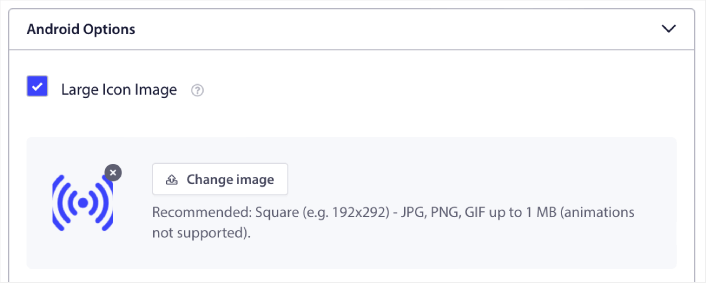
Μπορείτε εύκολα να ορίσετε ένα εικονίδιο για το push εφαρμογής Android:
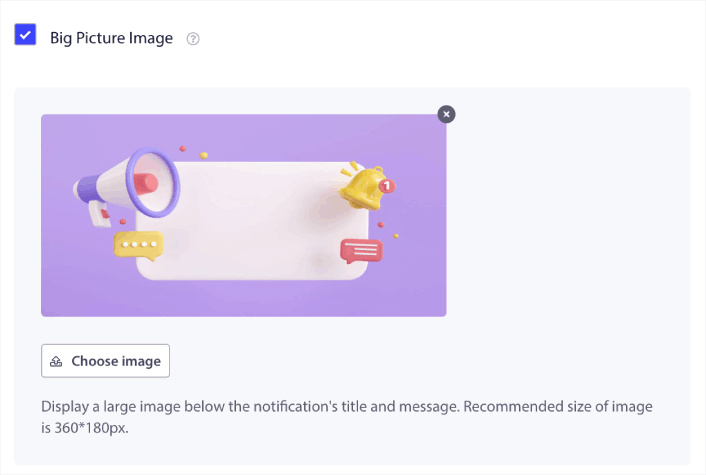
Καθώς και μια εικόνα εμφάνισης για να κάνετε τις ειδοποιήσεις push της εφαρμογής σας για κινητά πιο κλικαρίσιμες:
Μπορείτε να κάνετε το ίδιο και για το push εφαρμογής iOS. Ορίστε μια εικόνα πολυμέσων για την ειδοποίηση push της εφαρμογής σας iOS για να κάνετε την καμπάνια σας πιο εντυπωσιακή:
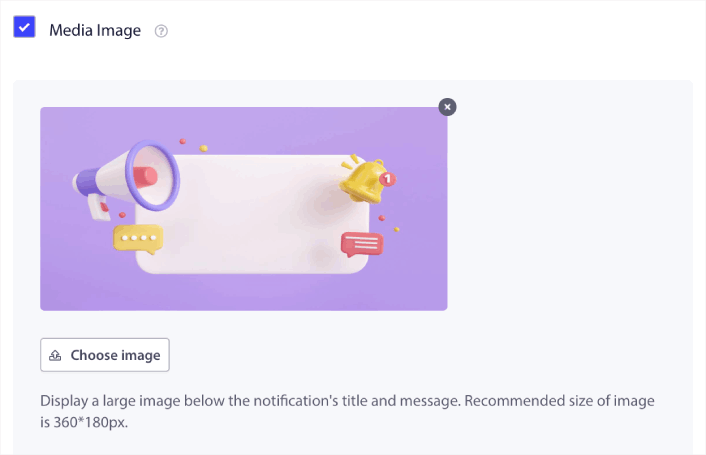
Με άλλα λόγια, μπορείτε να διατηρήσετε τις οδηγίες σχεδιασμού της επωνυμίας σας αρκετά εύκολα όταν στέλνετε ειδοποιήσεις push για κινητά. Και όλα αυτά, από μια εύχρηστη διεπαφή που δεν θα χρειαστεί ποτέ να διαχειριστείτε!
Στείλτε πιο Στοχευμένα και Εξατομικευμένα Μηνύματα
Για push εφαρμογών Android, μπορείτε να δημιουργήσετε Ομάδες και Κανάλια για να προσαρμόσετε ακριβώς πώς φαίνονται, πώς αισθάνονται και πώς ακούγονται οι ειδοποιήσεις σας.
Μια Ομάδα είναι μια συλλογή τύπων ειδοποιήσεων με ένα κοινό όνομα.
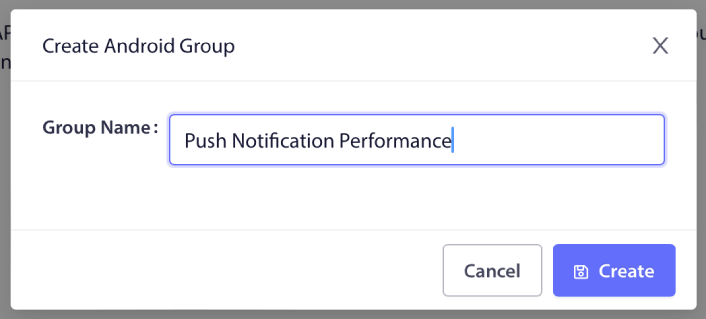
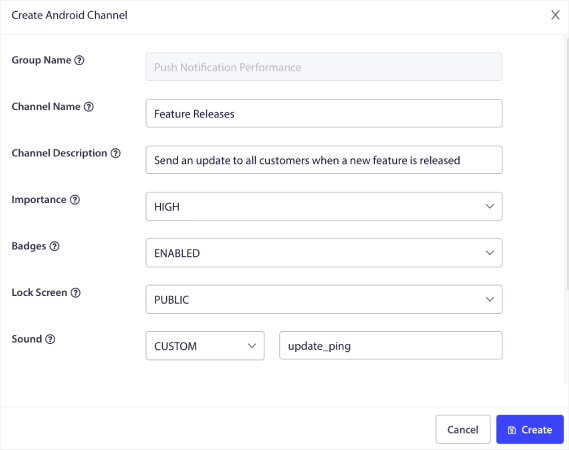
Σκεφτείτε το σαν κατηγορίες σε ένα blog. Μέσα σε κάθε Ομάδα, μπορείτε να προσθέσετε Κανάλια:

Ένα κανάλι περιγράφει πώς θα συμπεριφέρονται οι ειδοποιήσεις της εφαρμογής σας όταν οι χρήστες σας λαμβάνουν την ειδοποίηση. Θα εμφανίζεται στην οθόνη κλειδώματος; Θα πρέπει να εμφανίζει το εικονίδιο της εφαρμογής ως σήμα; Τι επίπεδο προτεραιότητας θα έχει για τους χρήστες σας; Θέλετε να παίξει ένας προσαρμοσμένος ήχος ειδοποίησης όταν οι χρήστες σας τη λαμβάνουν;
Όλες αυτές οι ρυθμίσεις μπορούν να διαμορφωθούν μέσα σε ένα κανάλι.
Για μια ειδοποίηση εφαρμογής iOS, δεν υπάρχει η έννοια της Ομάδας και του Καναλιού. Ωστόσο, μπορείτε να δημιουργήσετε εξατομικευμένες ειδοποιήσεις χρησιμοποιώντας άλλες ρυθμίσεις. Μπορείτε να ορίσετε έναν ήχο ειδοποίησης, μια κατηγορία για τις ειδοποιήσεις σας και ένα κοινό αναγνωριστικό νήματος για να τις ομαδοποιήσετε.
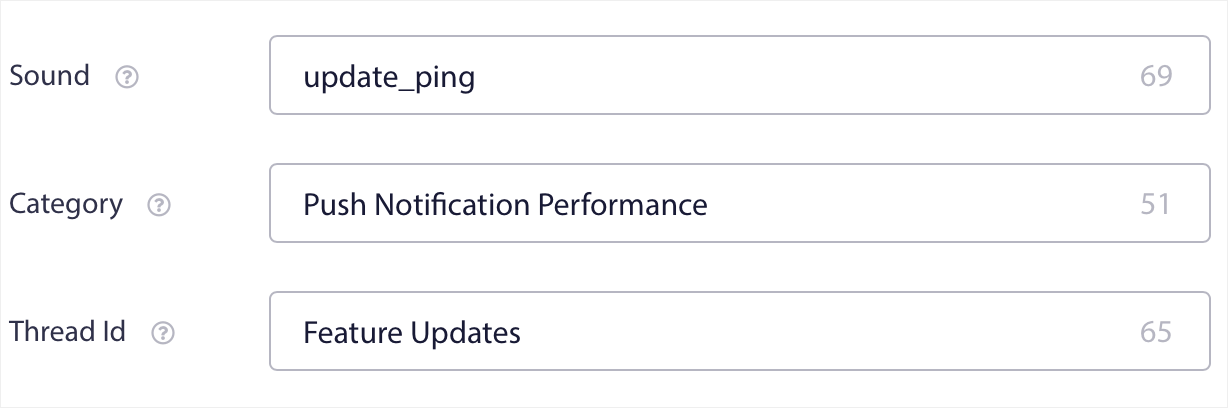
Μπορείτε ακόμη και να ορίσετε ένα προσαρμοσμένο σήμα για αυτήν την ειδοποίηση που δείχνει πόσες μη αναγνωσμένες ειδοποιήσεις έχει λάβει ο χρήστης από την εφαρμογή σας.
Ανακατευθύνετε τους Χρήστες σας σε Οποιονδήποτε Σύνδεσμο Μέσα ή Έξω από την Εφαρμογή σας
Οι ειδοποιήσεις push για κινητές εφαρμογές έχουν ένα μοναδικό χαρακτηριστικό που ονομάζεται Deep Links. Οι βαθιές συνδέσεις είναι σαν διευθύνσεις URL, αλλά αυτές που δείχνουν σε μια οθόνη μέσα στην εφαρμογή σας. Μπορείτε να στείλετε τους χρήστες σας σε οποιαδήποτε οθόνη θέλετε χρησιμοποιώντας ένα Deep Link από τον πίνακα ελέγχου του PushEngage, ή θα μπορούσατε να τους στείλετε σε οποιοδήποτε κανονικό URL στο διαδίκτυο.
Αυτό σημαίνει ότι μπορείτε να κάνετε τους χρήστες σας να ανοίξουν την εφαρμογή σας όταν θέλετε.
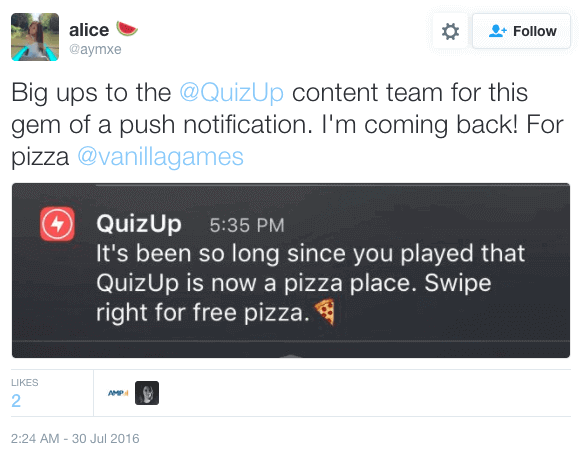
Ή, ακόμα και να τους ανακατευθύνετε στο App Store ή στον ιστότοπό σας για να αφήσουν μια κριτική της εφαρμογής σας.
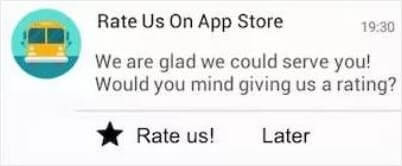
Φυσικά, αυτές είναι μόνο βασικές ιδέες. Μπορείτε να χρησιμοποιήσετε αυτούς τους συνδέσμους για να εκτελέσετε σύνθετες, πολυεπίπεδες καμπάνιες αλληλεπίδρασης τόσο εντός όσο και εκτός της εφαρμογής σας!
Πώς να Εγκαταστήσετε Μηνύματα Push για Android στον Ιστότοπό σας
Ενσωμάτωση με έναν βοηθό κωδικοποίησης AI; Οι δεξιότητες PushEngage Agent ανοιχτού κώδικα διδάσκουν στο Claude Code, Cursor και σε οποιονδήποτε συμβατό με SKILL.md πράκτορα να ενσωματώνει και να διορθώνει αυτό το SDK. Και μόλις αποστείλετε, ο διακομιστής PushEngage MCP επιτρέπει στον ίδιο πράκτορα να εκτελεί τις καμπάνιες σας — τμήματα, αποστολές, A/B δοκιμές και αναφορές. Δημιουργείτε στο Replit, Lovable ή Bolt; Τα κιτ vibe-coding ανοιχτού κώδικα περιλαμβάνουν ένα έτοιμο κατάστημα επίδειξης, ένα πρόγραμμα εκκίνησης Flutter και επιδείξεις ενός προτροπής με το PushEngage προ-καλωδιωμένο.
Συνιστούμε να χρησιμοποιήσετε το PushEngage για να ξεκινήσετε δωρεάν με μηνύματα push για Android. Κάθε φορά που δημοσιεύετε μια ανάρτηση ιστολογίου, το PushEngage θα στέλνει αυτόματα μια ειδοποίηση push σε όλους τους συνδρομητές σας.
Ας αρχίσουμε να αυξάνουμε το κοινό σας με μηνύματα push για Android δωρεάν.
Βήμα #1: Δημιουργήστε έναν Δωρεάν Λογαριασμό PushEngage
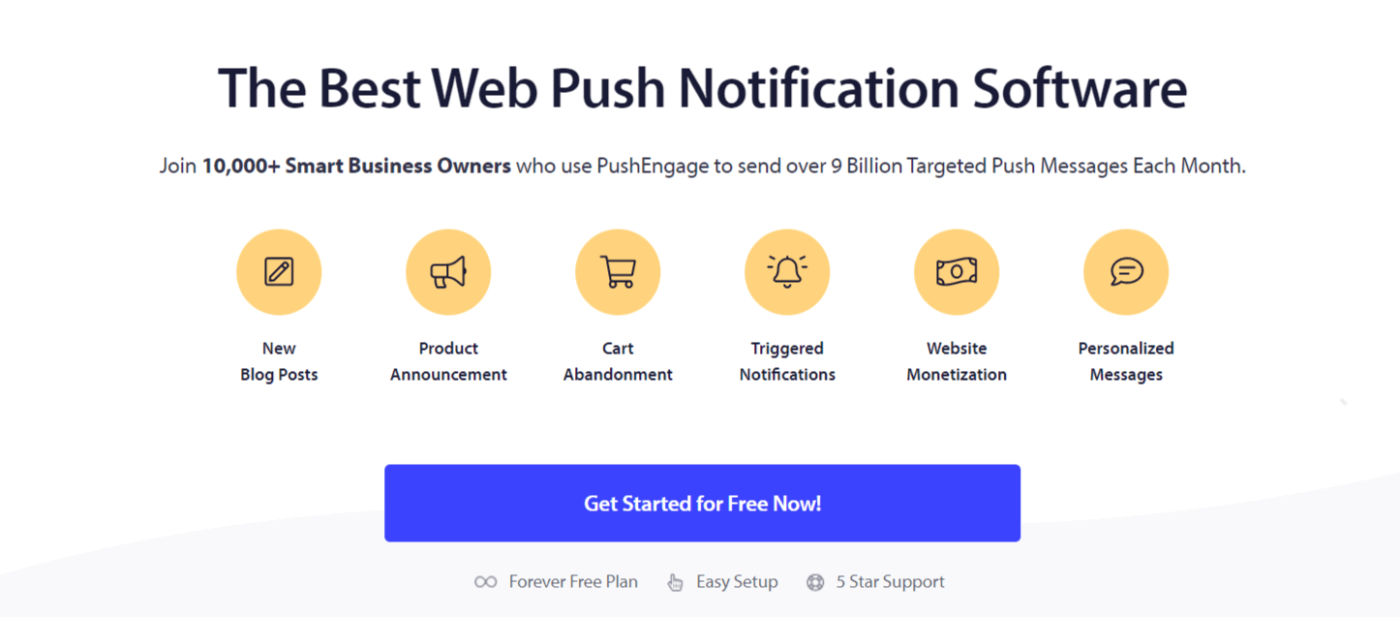
Μεταβείτε στο PushEngage και κάντε κλικ στο Ξεκινήστε Δωρεάν:
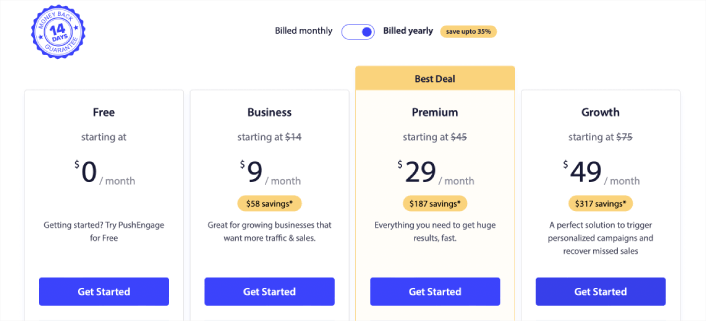
Επιλέξτε το δωρεάν πακέτο ή όποιο ταιριάζει καλύτερα στις ανάγκες σας:
Βήμα #2: Εγγραφείτε στο PushEngage
Εγγραφείτε για το πρόσθετο χρησιμοποιώντας τα στοιχεία χρήστη σας ή το Gmail ID σας:
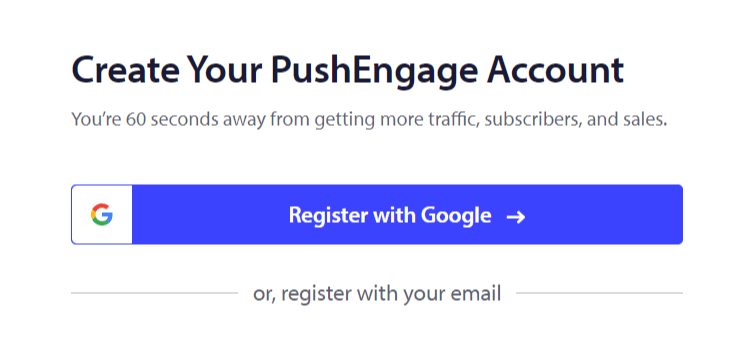
Και απλώς ακολουθήστε τις οδηγίες και ολοκληρώστε τη ρύθμιση του λογαριασμού σας.
Βήμα #3: Εγκαταστήστε το Plugin του WordPress
ΣΗΜΕΙΩΣΗ: Εάν ο ιστότοπός σας δεν είναι κατασκευασμένος με WordPress, μπορείτε να εγκαταστήσετε μηνύματα push για Android χρησιμοποιώντας άλλες μεθόδους. Δεν καλύπτουμε αυτές τις μεθόδους σε αυτό το άρθρο, αλλά ρίξτε μια ματιά στον οδηγό εγκατάστασης εάν ενδιαφέρεστε.
Μόλις εγγραφείτε, θα μεταφερθείτε στον πίνακα ελέγχου του PushEngage:

Μεταβείτε στις Ρυθμίσεις Ιστότοπου » Λεπτομέρειες Ιστότοπου:

Κάντε κλικ στο κουμπί Κάντε Κλικ Εδώ Για Οδηγίες Ρύθμισης :

Στη συνέχεια, κάντε κλικ στο κουμπί Εγκατάσταση Plugin WordPress:

Αν έχετε ήδη ρυθμίσει τη διεύθυνση URL του ιστότοπού σας, το PushEngage θα εγκατασταθεί αυτόματα στον ιστότοπό σας.
Βήμα #4: Συνδέστε τον Ιστότοπό σας WordPress με το PushEngage
Όταν ολοκληρώσετε την εγκατάσταση και ενεργοποίηση του plugin WordPress PushEngage, θα δείτε τον οδηγό ρύθμισης του PushEngage:
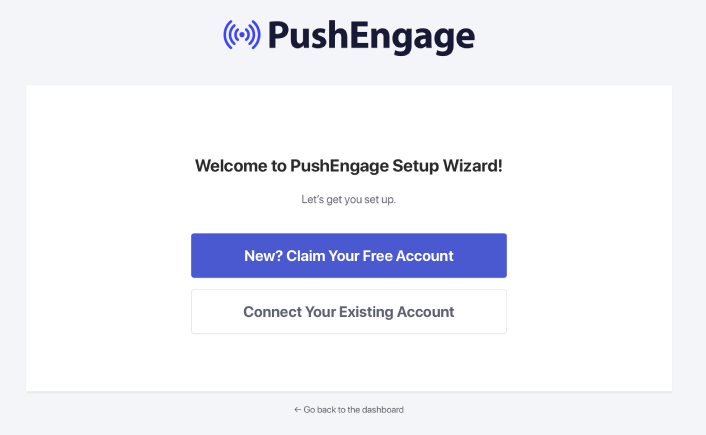
Ο οδηγός είναι αρκετά απλός. Εάν είστε νέος χρήστης, κάντε κλικ στο Νέος; Διεκδικήστε τον Δωρεάν Λογαριασμό σας. Και αν έχετε ήδη εγγραφεί, κάντε κλικ στο Σύνδεση του Υπάρχοντος Λογαριασμού σας.
Στη συνέχεια, μπορείτε να επιλέξετε τον ιστότοπό σας από το αναπτυσσόμενο μενού Επιλογή Ιστότοπου κάτω από το Σύνδεση εγγεγραμμένου ιστότοπου εάν έχετε ήδη καταχωρήσει έναν ιστότοπο κατά την εγγραφή:
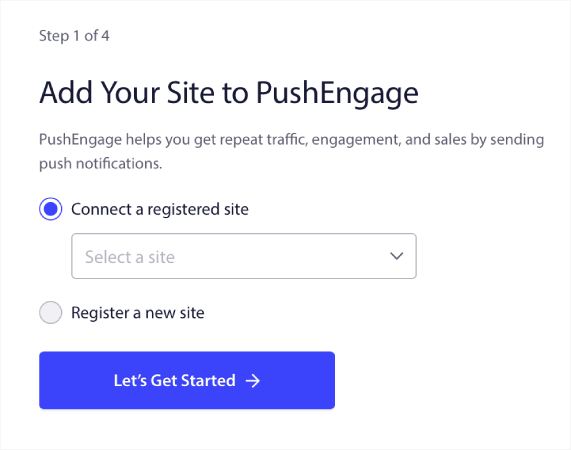
Εναλλακτικά, μπορείτε να κάνετε κλικ στο Εγγραφή νέου ιστότοπου για να προσθέσετε έναν νέο ιστότοπο εάν έχετε πακέτο τιμολόγησης Premium ή υψηλότερο. Στο επόμενο βήμα, ο οδηγός γνωριμίας θα σας ζητήσει να εγκαταστήσετε άλλα απαραίτητα πρόσθετα WordPress.
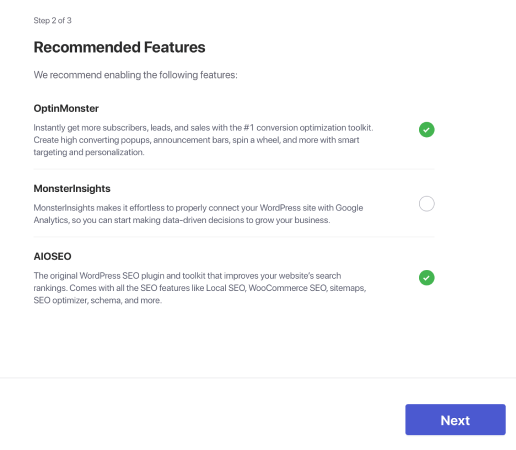
Εάν ακολουθήσατε κάθε βήμα σωστά, θα δείτε αυτό το μήνυμα επιτυχίας από τον οδηγό:
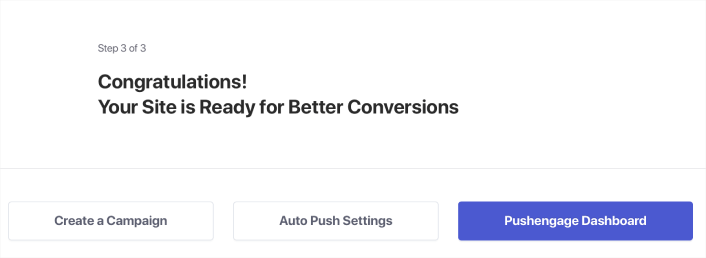
Είστε τώρα έτοιμοι να δημιουργήσετε καμπάνιες και αναδυόμενα παράθυρα ειδοποιήσεων push. Το καλύτερο μέρος για να ξεκινήσετε είναι να εγκαταστήσετε ένα plugin WordPress για ειδοποιήσεις ιστού.
Πώς να Στείλετε Μηνύματα Push Εφαρμογής σε Android
Η υλοποίηση ειδοποιήσεων push για την εφαρμογή σας Android είναι πλέον δυνατή με το PushEngage. Απλώς ενσωματώστε το SDK μία φορά και δώστε τη δυνατότητα στην ομάδα μάρκετινγκ σας να στέλνει περιεκτικά και εξατομικευμένα μηνύματα στους χρήστες της εφαρμογής σας Android. Θα χρειαστείτε τη βοήθεια του προγραμματιστή σας για να το θέσετε σε λειτουργία.
Ρυθμίστε ένα Έργο Firebase
Πριν ξεκινήσετε με τις ειδοποιήσεις push εφαρμογών, πρέπει να βεβαιωθείτε ότι έχετε έναν υπάρχοντα λογαριασμό Firebase. Συνδεθείτε στην κονσόλα Firebase, χρησιμοποιώντας τον λογαριασμό σας Google, και κάντε κλικ στο Προσθήκη έργου ή επιλέξτε ένα υπάρχον έργο.

Εισαγάγετε ένα όνομα έργου και κάντε κλικ στο Συνέχεια. Στην επόμενη οθόνη, κάντε κλικ στο Δημιουργία έργου με το όνομα του έργου σας.

Στη συνέχεια, κάντε κλικ στο Συνέχεια. Μόλις η Firebase ολοκληρώσει τη διαμόρφωση του λογαριασμού σας, μπορείτε να κάνετε κλικ στο Δημιουργία έργου.

Τέλος, κάντε κλικ στο εικονίδιο Android για να προσθέσετε μια εφαρμογή Android στο έργο.

Στη συνέχεια, εισαγάγετε το όνομα πακέτου της εφαρμογής σας Android. Σας προτείνω να χρησιμοποιήσετε το όνομα της Εφαρμογής Android που προσπαθείτε να ενσωματώσετε και κάντε κλικ στην εγγραφή.

Λήψη του αρχείου google-services.json και τοποθετήστε το στον ριζικό κατάλογο της ενότητας της εφαρμογής σας Android.

Στην κονσόλα Firebase, κάντε κλικ στο εικονίδιο Ρυθμίσεις δίπλα στην Επισκόπηση Έργου στην επάνω αριστερή γωνία και επιλέξτε Ρυθμίσεις Έργου.
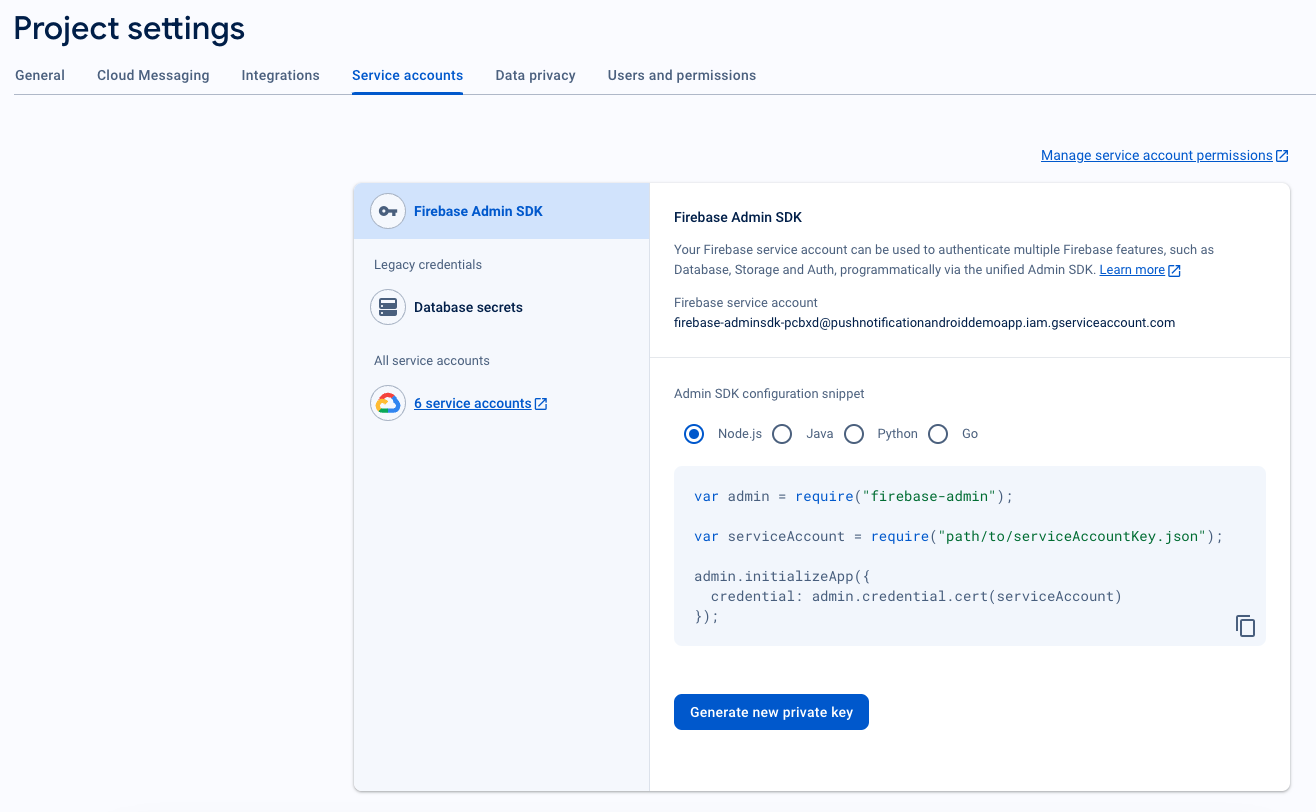
Κάντε κλικ στο Δημιουργία νέου ιδιωτικού κλειδιού.
ΣΗΜΑΝΤΙΚΟ: Αποθηκεύστε το αρχείο .json που λήφθηκε από το προηγούμενο βήμα κάπου ασφαλές. Θα το χρειαστείτε για να το ρυθμίσετε στον πίνακα ελέγχου PushEngage.
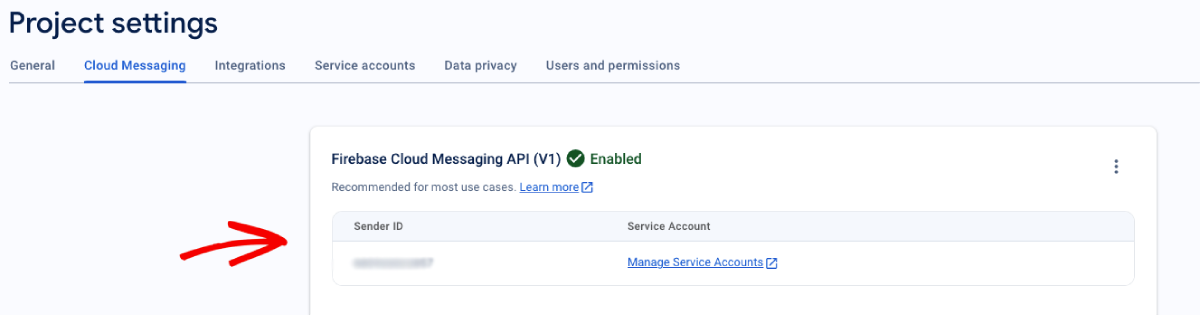
Στην κονσόλα του Firebase, κάντε κλικ στο εικονίδιο Ρυθμίσεις δίπλα στο Επισκόπηση έργου στην επάνω αριστερή γωνία και επιλέξτε “Ρυθμίσεις έργου.”. Μεταβείτε στην καρτέλα Cloud Messaging και βρείτε το Αναγνωριστικό αποστολέα σας.
Ενσωμάτωση FCM με τον Πίνακα Ελέγχου PushEngage
Μόλις δημιουργήσετε το έργο στο Firebase, μπορείτε στη συνέχεια να ενσωματώσετε το αναγνωριστικό αποστολέα στον πίνακα ελέγχου του PushEngage. Στον λογαριασμό σας PushEngage, μεταβείτε στις Ρυθμίσεις Ιστότοπου » Εγκατάσταση και επιλέξτε την καρτέλα Android SDK.
Εδώ, μπορείτε να διαμορφώσετε το Αναγνωριστικό αποστολέα και το Αρχείο JSON του Λογαριασμού Υπηρεσίας σας:
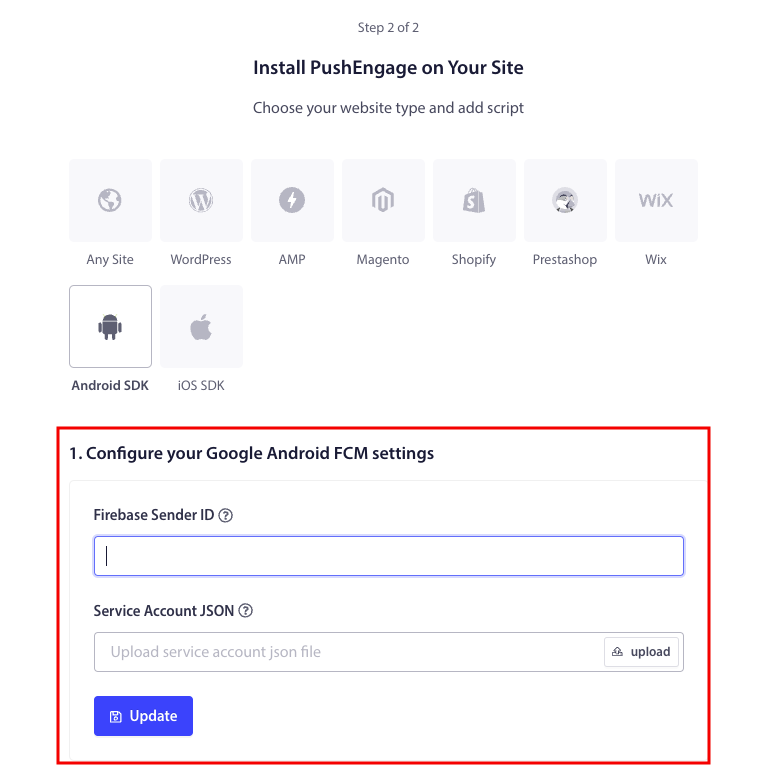
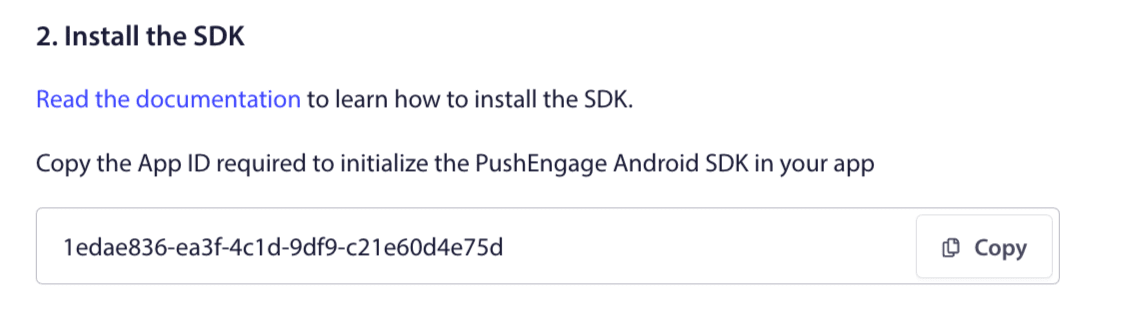
Αντιγράψτε το Αναγνωριστικό εφαρμογής που απαιτείται για την αρχικοποίηση του PushEngage Android SDK στην εφαρμογή σας.
Προσθέστε Εξαρτήσεις SDK
Τώρα είναι η ώρα να προσθέσετε τις Εξαρτήσεις SDK. Προσθέτουμε την ακόλουθη γραμμή στο αρχείο build.gradle του root σας.
1. Εάν το έργο σας δεν χρησιμοποιεί κεντρική δήλωση αποθετηρίου, τότε στο αρχείο build.gradle σε επίπεδο έργου, προσθέστε τις ακόλουθες γραμμές. Διαφορετικά, μπορείτε να προχωρήσετε στη δεύτερη ενότητα.
// Project level build file where you can add configuration options common to all sub-projects/modules.
buildscript {
   repositories {
       google()
       jcenter()
   }
   dependencies {
       // ...
       // Add this line
       classpath "com.google.gms:google-services:4.3.10"

   }
}

allprojects {
   repositories {
      // ...
      // Check that you have the following line (if not, add it):
      google()
      maven {url 'https://jitpack.io' }
   }
}
Εάν το έργο σας χρησιμοποιεί κεντρική δήλωση αποθετηρίου, προσθέστε τα ακόλουθα στο αρχείο settings.gradle σας.
dependencyResolutionManagement {
    repositoriesMode.set(RepositoriesMode.FAIL_ON_PROJECT_REPOS)
    repositories {
        //add this line
        maven { url 'https://jitpack.io' }
    }
Στη συνέχεια, στο αρχείο “build.gradle” σε επίπεδο εφαρμογής προσθέστε τα εξής:
plugins {
   id 'com.android.application'
   // Add this line
   id 'com.google.gms.google-services'
}

dependencies {
   // ...
   // Add the following lines
   implementation 'com.github.awesomemotive:pushengage-android-sdk:0.0.5'
   implementation platform('com.google.firebase:firebase-bom:26.1.1')
}
Αρχικοποιήστε το SDK Μηνυμάτων Push για Android
Προσθέστε το μπλοκ κώδικα αρχικοποίησης του PushEngage SDK στη μέθοδο onCreate στην κλάση Application. Το PUSHENGAGE_APP_ID πρέπει να αντικατασταθεί από το App Id που λάβατε από τον πίνακα ελέγχου PushEngage.
Σημείωση: Εάν η εφαρμογή σας για κινητά δεν διαθέτει μια προσαρμοσμένη κλάση που επεκτείνει την κλάση Application για το PushEngage, πρέπει να δημιουργήσετε μια κλάση που επεκτείνει την κλάση Application.
Ακολουθεί ένα παράδειγμα σε Java:
public class PEApplication extends Application {
@Override
public void onCreate() {
super.onCreate();

// PushEngage SDK Initialization code
PushEngage pushEngage = new PushEngage.Builder()
.addContext(getApplicationContext())
.setAppId("PUSHENGAGE_APP_ID")
.build();
// The small icon is displayed on the top status bar and in the notification.
// By default PushEngage displays a bell icon, however It is recommended to
// customize this so users easily recognize notifications from your app.
PushEngage.setSmallIconResource("your_icon_name");
}
}
Ακολουθεί ένα παράδειγμα σε Kotlin:
class PEApplication : Application() {
   override fun onCreate() {
       super.onCreate()
       // PushEngage SDK Initialization code
       val pushEngage = PushEngage.Builder()
           .addContext(applicationContext)
           .setAppId("PUSHENGAGE_APP_ID")
           .build()
        // The small icon is displayed on the top status bar and in the notification.
       // By default PushEngage displays a bell icon, however It is recommended to
       // customize this so users easily recognize notifications from your app.
       PushEngage.setSmallIconResource("your_icon_name");
   }
}
Για να καταχωρήσετε το όνομα της προσαρμοσμένης κλάσης σας, η οποία επεκτείνει την κλάση Application, μεταβείτε στο αρχείο Manifest.xml της εφαρμογής σας. Βρείτε τη γραμμή που λέει “android:name=.”PEApplication”,” και αντικαταστήστε το “PEApplication” με το όνομα της προσαρμοσμένης κλάσης σας. Έτσι θα πρέπει να φαίνεται:
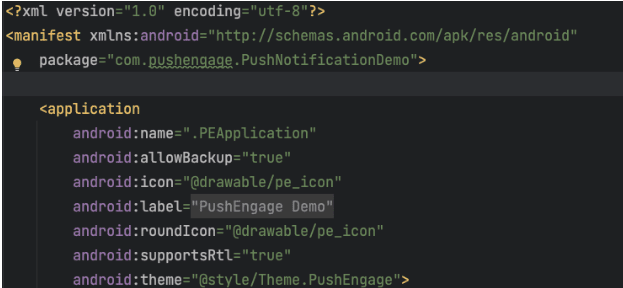
Αφού διαμορφώσετε όλα τα παραπάνω βήματα, μπορείτε να στείλετε ειδοποιήσεις push στην εφαρμογή σας Android. Δημιουργήστε και εκτελέστε την εφαρμογή σε μια φυσική συσκευή και στείλτε δοκιμαστικές ειδοποιήσεις push από τον πίνακα ελέγχου PushEngage.
Χειριστείτε τα Δικαιώματα Ειδοποιήσεων για Android 13 και Άνω
Το Android 13 απαιτεί άδεια για ορισμένες συσκευές πριν τους στείλει οποιεσδήποτε ειδοποιήσεις. Έτσι, αν εκτελείτε σε Android 13 ή νεότερη έκδοση, εδώ είναι ο κώδικας που χρειάζεστε για τις άδειες:
 @RequiresApi(api = Build.VERSION_CODES.TIRAMISU)
    private void requestNotificationPermissionIfNeeded() {
        int permissionState = ContextCompat.checkSelfPermission(this, android.Manifest.permission.POST_NOTIFICATIONS);

        if (permissionState == PackageManager.PERMISSION_DENIED) {
            ActivityCompat.requestPermissions(this, new String[]{android.Manifest.permission.POST_NOTIFICATIONS}, 100);
        }
    }
Μπορείτε να χειριστείτε το αποτέλεσμα της προτροπής άδειας ειδοποίησης:
@Override
    public void onRequestPermissionsResult(int requestCode, String[] permissions, int[] grantResults) {
        super.onRequestPermissionsResult(requestCode, permissions, grantResults);
        if (requestCode == 100) {
            if (grantResults.length > 0 && grantResults[0] == PackageManager.PERMISSION_GRANTED) {
                PushEngage.subscribe();
            } else {
                Log.d("MainActivity", "onRequestPermissionsResult: Permission denied");
            }
        }
    }
Και αυτό ήταν! Ολοκληρώσατε. Μπορείτε τώρα να επιστρέψετε στον πίνακα ελέγχου PushEngage και να στείλετε μηνύματα push Android απευθείας από τον ίδιο πίνακα ελέγχου.
Αν θέλετε να εξερευνήσετε λίγο περισσότερο το Android SDK μας, μπορείτε να ανατρέξετε στην λεπτομερή τεκμηρίωση API μας.
Πώς Λειτουργούν τα Μηνύματα Push Ιστού για Android;
Ας γίνουμε λίγο τεχνικοί τώρα και ας εξερευνήσουμε πώς λειτουργούν τα μηνύματα web push Android.
Η απλοποιημένη έκδοση είναι ότι κάθε φορά που ένας νέος επισκέπτης εισέρχεται στον ιστότοπό σας, του ζητείται να γίνει συνδρομητής ειδοποιήσεων push.
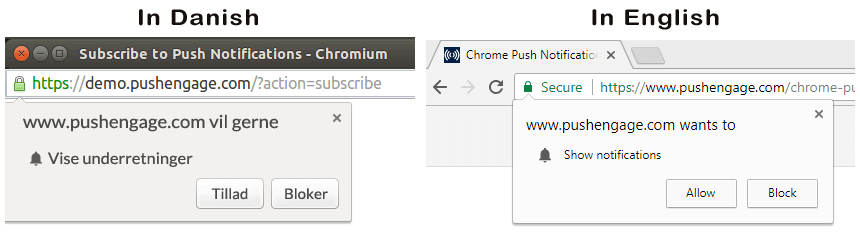
Στη συνέχεια, χρησιμοποιείτε μια υπηρεσία ειδοποιήσεων web push όπως το PushEngage για να δημιουργήσετε και να προγραμματίσετε τα μηνύματα push Android που θέλετε να στείλετε στους συνδρομητές σας. Μπορείτε να επιλέξετε να τα στείλετε είτε σε όλους τους συνδρομητές της λίστας σας είτε σε συγκεκριμένα τμήματα των συνδρομητών σας.
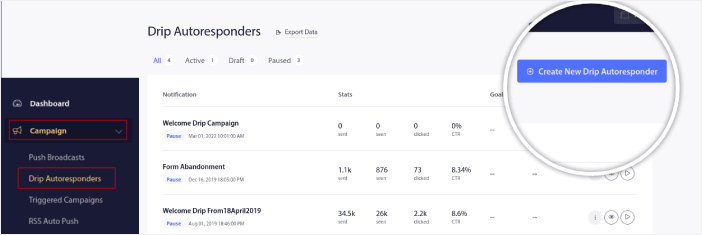
Θα θέλετε να ξεκινήσετε δημιουργώντας έναν Drip Autoresponder:
Τέλος, οι συνδρομητές σας λαμβάνουν τα μηνύματα push σας όταν η συσκευή τους συνδέεται στο διαδίκτυο και εκτελούν την προτεινόμενη ενέργεια.

Όλα αυτά είναι απολύτως αληθινά, αλλά είναι μόνο ένα μικρό μέρος αυτών που συμβαίνουν στο παρασκήνιο. Λοιπόν, ας ρίξουμε μια ματιά στις τεχνικές λεπτομέρειες. Αλλά πρώτα, αν δεν το έχετε κάνει ήδη, ξεκινήστε με το PushEngage σήμερα.
Καταρχάς, το PushEngage διαθέτει διακομιστές που συνδέονται με τις συσκευές των συνδρομητών σας και τους στέλνουν τα μηνύματα push Android. Τώρα, αυτοί οι διακομιστές δεν αποθηκεύουν προσωπικές πληροφορίες, όπως το όνομα ή τη διεύθυνση email οποιουδήποτε συνδρομητή.
Λοιπόν, τι αποθηκεύουν αυτοί οι διακομιστές;
Για το PushEngage και τους διακομιστές μας, οι συνδρομητές σας είναι ένας μοναδικός αριθμός hash που δημιουργείται με βάση τη συσκευή και το πρόγραμμα περιήγησης του συνδρομητή σας. Εκτός αυτού, ο διακομιστής μπορεί επίσης να αποθηκεύσει τη γεωγραφική θέση των συνδρομητών σας.
Τώρα, δεν θα έχετε άμεση πρόσβαση σε αυτούς τους διακομιστές. Μπορείτε μόνο να χρησιμοποιήσετε το PushEngage Dashboard για να δημιουργήσετε, να βελτιστοποιήσετε και να διαχειριστείτε καμπάνιες ειδοποιήσεων push.
Με άλλα λόγια, το PushEngage είναι ο πάροχος υπηρεσιών σας. Αυτό σημαίνει ότι δεν χρειάζεται να γνωρίζετε τίποτα για κωδικοποίηση ή πώς να συντηρείτε τους αρχικούς διακομιστές. Εμείς αναλαμβάνουμε όλα αυτά για εσάς. Το μόνο για το οποίο πρέπει να ανησυχείτε είναι η ρύθμιση των καμπανιών σας και η απόκτηση κέρδους!
Μέχρι τώρα, πιθανότατα αναρωτιέστε πώς λειτουργούν οι εξατομικευμένες ειδοποιήσεις push εάν οι διακομιστές αποθηκεύουν μόνο έναν αριθμό hash και όχι προσωπικά στοιχεία. Εδώ έρχεται το API του παρόχου υπηρεσιών. Για εσάς, αυτό θα ήταν το PushEngage Javascript API.
Μπορείτε να χρησιμοποιήσετε αυτό το API και να το συνδέσετε με οποιοδήποτε άλλο CRM ή βάση δεδομένων έχετε. Αυτό σας επιτρέπει να χρησιμοποιήσετε τα προσωπικά στοιχεία των συνδρομητών σας για να τους στείλετε εξατομικευμένα μηνύματα push Android.
Μπορείτε επίσης να χρησιμοποιήσετε το PushEngage API για να στείλετε προηγμένες καμπάνιες, όπως καμπάνιες εγκατάλειψης καλαθιού.
Πώς Λειτουργούν τα Μηνύματα Push για Κινητές Συσκευές Android;
Τα μηνύματα push Android παραδίδονται στους χρήστες μέσω μιας υπηρεσίας που ονομάζεται Firebase Cloud Messaging (FCM). Δείτε τι συμβαίνει στα παρασκήνια όταν η εφαρμογή σας στέλνει μια ειδοποίηση push:
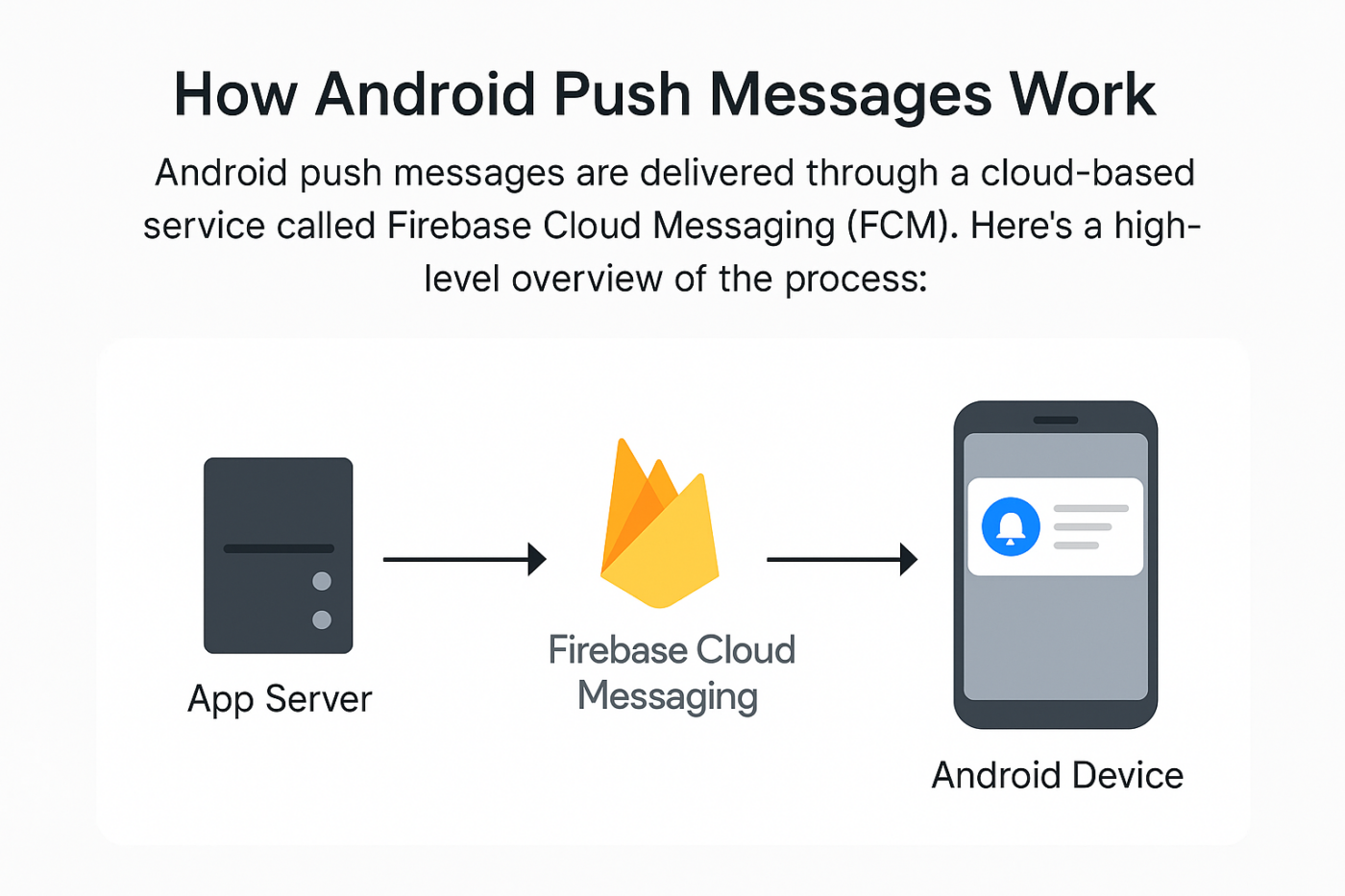
Βήμα #1: Ο χρήστης εγκαθιστά την εφαρμογή σας
Όταν ένας χρήστης κατεβάζει και ανοίγει την εφαρμογή σας, η εφαρμογή εγγράφεται στο Firebase Cloud Messaging (FCM) και λαμβάνει ένα μοναδικό διακριτικό συσκευής.
Βήμα #2: Ο διακομιστής σας προετοιμάζει μια ειδοποίηση
Το backend σας (ή πάροχος ειδοποιήσεων όπως το PushEngage) δημιουργεί ένα μήνυμα μαζί με rich media και επιλέγει τον χρήστη/τους χρήστες που θα το λάβουν. Επίσης, ρυθμίζει διαδικασίες αυτοματισμού πλήρους κλίμακας για κάθε μήνυμα push.
Βήμα #3: Το PushEngage το στέλνει στο FCM
Η ειδοποίηση αποστέλλεται στο Firebase Cloud Messaging, το οποίο λειτουργεί ως ενδιάμεσος μεταξύ του διακομιστή σας και του τηλεφώνου του χρήστη.
Βήμα #4: Το FCM παραδίδει στη συσκευή Android
Το FCM δρομολογεί με ασφάλεια το μήνυμα push στη συσκευή Android του χρήστη — ακόμα κι αν η εφαρμογή είναι κλειστή.
Βήμα #5: Ο χρήστης βλέπει την ειδοποίηση
Το λειτουργικό σύστημα Android εμφανίζει την ειδοποίηση push στη γραμμή κατάστασης, στην οθόνη κλειδώματος ή ως banner, ανάλογα με τις ρυθμίσεις της συσκευής.
Ποια Είναι τα Διαφορετικά Μέρη των Μηνυμάτων Push για Android;
Τώρα που κατανοήσαμε πώς λειτουργούν τα μηνύματα push Android, ας δούμε τα διάφορα μέρη μιας ειδοποίησης push που μπορείτε να προσαρμόσετε (ή όχι):
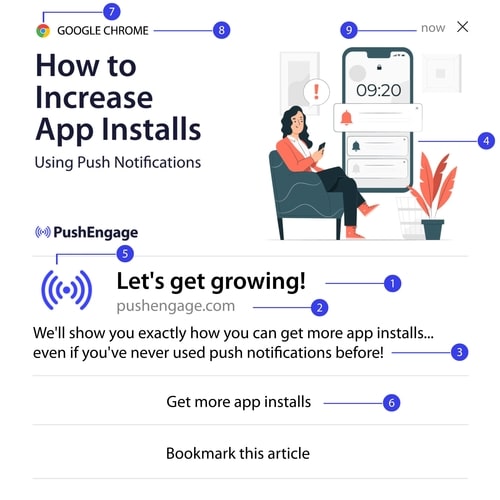
#1. Τίτλος ειδοποίησης push
Ο τίτλος είναι το πιο εμφανές κείμενο στην ειδοποίηση push. Περιορίζεται σε 60-80 χαρακτήρες για σαφή ορατότητα. Ο σκοπός αυτού του τίτλου είναι να προσελκύσει την προσοχή του συνδρομητή. Έτσι, είναι σημαντικό ολόκληρος ο τίτλος να είναι σαφώς ορατός.
Δείτε τον οδηγό copywriting για ειδοποιήσεις push για να δημιουργήσετε εκπληκτικούς τίτλους που θα λατρέψουν οι συνδρομητές σας.
#2. Ο Τομέας
Ο τομέας μιας ειδοποίησης push είναι απλώς η διεύθυνση URL του ιστότοπού σας. Ούτε αυτό μπορείτε να το αλλάξετε. Αλλά σε αντίθεση με το εικονίδιο του προγράμματος περιήγησης, ο τομέας σας πρέπει να είναι ευδιάκριτος καθώς προσθέτει στην αναγνώριση της επωνυμίας σας.
Τώρα, υπάρχει μια επιλογή για να αποθηκεύσετε τα δεδομένα των ειδοποιήσεων push σε έναν υποτομέα του PushEngage. Εάν χρησιμοποιήσετε τον υποτομέα, τότε αυτό το μέρος της ειδοποίησης push θα εμφανίσει τη διεύθυνση URL ενός υποτομέα του PushEngage αντί για την επωνυμία σας.
Δεν συνιστούμε τη χρήση αυτής της επιλογής, καθώς μπορεί να μειώσει την αξία της επωνυμίας σας.
#3. Περιεχόμενο ειδοποίησης push
Το περιεχόμενο της ειδοποίησης περιέχει το μεγαλύτερο μέρος κειμένου σε ολόκληρη την ειδοποίηση. Περιορίζεται σε 120-150 χαρακτήρες για ορατότητα, όπως και ο τίτλος. Ενώ μπορείτε να χρησιμοποιήσετε περισσότερους χαρακτήρες, συνιστούμε να το κρατήσετε σύντομο και περιεκτικό.
Συνήθως, αυτό το μέρος χρησιμεύει ως τρόπος παροχής περισσότερου πλαισίου σχετικά με τον τίτλο ή για την ολοκλήρωση μιας προσφοράς. Μην ασχοληθείτε με τη χρήση μιας παρότρυνσης για δράση στο ίδιο το κείμενο. Με τις ειδοποιήσεις push, μπορείτε να προσθέσετε κουμπιά παρότρυνσης για δράση.
Επαγγελματική Συμβουλή: Μπορείτε να χρησιμοποιήσετε τοπικές γλώσσες για να κάνετε τις ειδοποιήσεις push σας να φαίνονται πιο εξατομικευμένες. Διαβάστε αυτήν τη μελέτη περίπτωσης για το πώς η Phooto χρησιμοποίησε τοπικές γλώσσες στις ειδοποιήσεις push για να αυξήσει την αφοσίωσή τους.
#4. Μεγάλη εικόνα ειδοποίησης
Η μεγάλη εικόνα είναι η βασίλισσα της μπάλας και είναι το πρώτο πράγμα που παρατηρείτε σε οποιαδήποτε ειδοποίηση. Είναι συνήθως μια εικόνα 360×180 που χρησιμεύει ως το πιο ελκυστικό μέρος μιας ειδοποίησης push.
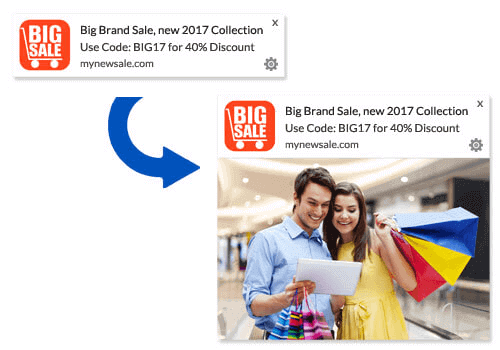
Η εικόνα ειδοποίησης είναι επίσης εντελώς προαιρετική. Μπορείτε να επιλέξετε να μην χρησιμοποιήσετε μία, αν θέλετε. Η χρήση μιας εικόνας ειδοποίησης μπορεί να κάνει την ειδοποίηση push να μοιάζει με διαφήμιση. Αυτό μπορεί να προκαλέσει την αγνόηση της ειδοποίησης από πολλούς συνδρομητές.
Αλλά αν το κάνετε σωστά, οι εικόνες μπορούν να βελτιώσουν το CTR (ποσοστά κλικ) έως και 62%. Δείτε τη μελέτη μας σχετικά με τον αντίκτυπο των εικόνων στις ειδοποιήσεις push ανά κλάδο.
Αν δεν είστε σίγουροι αν πρέπει να χρησιμοποιήσετε μια μεγάλη εικόνα, προτείνουμε δοκιμή A/B της ειδοποίησης με και χωρίς την εικόνα.
#5. Εικονίδιο Ειδοποίησης Push
Το εικονίδιο της ειδοποίησης push είναι σαν το εικονίδιο του ιστότοπου στον ιστότοπό σας, αλλά για τις καμπάνιες push σας. Είναι μια εικόνα 192×192 ή μεγαλύτερη για να αντιπροσωπεύει την επιχείρησή σας. Συνήθως, αυτό θα είναι το εικονίδιο του ιστότοπού σας και μπορείτε να το ορίσετε μόνο μία φορά για όλα τα μηνύματα push Android.
Επαγγελματική Συμβουλή: Αν αλλάξετε την επωνυμία σας οποιαδήποτε στιγμή, θυμηθείτε να αλλάξετε και το εικονίδιο ειδοποίησης push στο PushEngage. Επίσης, θυμηθείτε ότι δεν μπορείτε να χρησιμοποιήσετε κινούμενες εικόνες για το εικονίδιό σας. Έτσι, τα GIFs δεν θα λειτουργήσουν εδώ.
#6. Κουμπιά Παρότρυνσης για Δράση
Κάθε ειδοποίηση push υποστηρίζει έως και 2 κουμπιά. Συνιστούμε τη χρήση προσαρμοσμένων κουμπιών παρότρυνσης για δράση για τις καμπάνιες σας. Μπορείτε ακόμη και να προσθέσετε ξεχωριστές διευθύνσεις URL και εικονίδια κουμπιών για κάθε CTA.
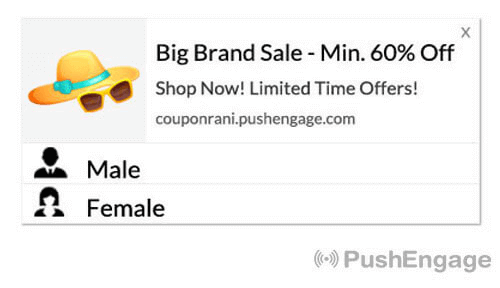
Δείτε αυτήν τη λίστα με τρικ για ειδοποιήσεις push μέσω προγράμματος περιήγησης για μερικές ωραίες ιδέες CTA.
#7. Εικονίδιο Προγράμματος Περιήγησης
Το μικρότερο μέρος της ειδοποίησης push είναι το εικονίδιο του προγράμματος περιήγησης που υποδηλώνει ποιο πρόγραμμα περιήγησης χρησιμοποιεί αυτήν τη στιγμή ο συνδρομητής σας. Είναι ένα από τα πιο παραμελημένα μέρη επειδή δεν μπορείτε να το αλλάξετε με κανέναν τρόπο και ως επί το πλείστον, ένας συνδρομητής δεν θα παρατηρήσει ούτε το εικονίδιο του προγράμματος περιήγησης.
#8. Η Ετικέτα Προγράμματος Περιήγησης
Η ετικέτα του προγράμματος περιήγησης είναι απλώς η μορφή κειμένου ενός εικονιδίου προγράμματος περιήγησης. Όπως και το εικονίδιο, δεν μπορείτε να αλλάξετε την ετικέτα ονόματος του προγράμματος περιήγησης.
#9. Χρονοσφραγίδα
Η χρονοσφραγίδα είναι ένας απλός τρόπος για τους συνδρομητές σας να γνωρίζουν πότε ελήφθη το μήνυμα. Δημιουργείται από το σύστημα και ούτε αυτό μπορείτε να το αλλάξετε.
Διαφορετικοί Τύποι Εγγραφών για Ειδοποιήσεις Push
Κάθε καμπάνια ειδοποιήσεων push για ιστότοπους ξεκινά με τη συγκατάθεση. Είναι μια επέκταση της ιδέας του Seth Godin για το permission marketing. Η ιδέα είναι πολύ απλή: πριν στείλετε στους επισκέπτες του ιστότοπού σας οποιοδήποτε περιεχόμενο μπορεί να θέλουν ή να μην θέλουν να δουν, ζητήστε άδεια.
Η διαδικασία λήψης άδειας για αποστολή οποιασδήποτε ειδοποίησης push ονομάζεται “εγγραφή”. Έτσι, πριν μπορέσετε να στείλετε μια καμπάνια ειδοποιήσεων push, πρέπει πρώτα οι επισκέπτες του ιστότοπού σας να εγγραφούν και να εγγραφούν στις ειδοποιήσεις σας.
Αν είστε δημιουργός περιεχομένου στο YouTube, τότε είστε ήδη εξοικειωμένοι με το πώς λειτουργούν οι συνδρομητές. Η μόνη διαφορά είναι ότι δεν κατέχετε τη λίστα των συνδρομητών σας στο YouTube και δεν μπορείτε να ελέγξετε τις ειδοποιήσεις που τους στέλνετε.
Με το PushEngage, κατέχετε αυτήν τη λίστα επειδή αυτές οι πληροφορίες αποθηκεύονται στον τομέα σας. Τώρα, υπάρχουν δύο τύποι εγγραφών που μπορείτε να χρησιμοποιήσετε για τον ιστότοπό σας:
- Ενιαίες Εγγραφές
- Διπλές Εγγραφές
Η κύρια διαφορά μεταξύ τους είναι πολύ σαφής. Οι απλές εγγραφές ζητούν άδεια για αποστολή μηνυμάτων push μόνο μία φορά. Οι διπλές εγγραφές ζητούν από κάθε συνδρομητή να επιβεβαιώσει την απόφασή του.
Λοιπόν, ποιο να επιλέξετε;
Έχουμε παρατηρήσει ότι οι απλές εγγραφές μπορούν να αποκτήσουν έως και 150% περισσότερους συνδρομητές από τις διπλές εγγραφές. Δείτε το άρθρο μας για το πώς να αυξήσετε το ποσοστό εγγραφής σας αν δυσκολεύεστε με αυτό.
Από νομική άποψη, ο GDPR απαιτεί να έχετε μόνο μία απλή εγγραφή. Αλλά με τις διπλές εγγραφές, έχετε πολύ καλύτερη αλληλεπίδραση επειδή οι συνδρομητές σας θέλουν πραγματικά περισσότερο περιεχόμενο από εσάς. Όσον αφορά τους καθαρούς αριθμούς εγγραφών, οι μονοβάθμιες εγγραφές είναι πολύ πιο αποτελεσματικές.
Ένα άλλο σημείο που πρέπει να λάβετε υπόψη είναι ότι ΠΡΕΠΕΙ να εγκαταστήσετε ένα πιστοποιητικό SSL στον ιστότοπό σας για να μπορείτε να χρησιμοποιείτε απλές εγγραφές. Αλλά μπορείτε να εγκαταστήσετε διπλοβάθμιες εγγραφές ακόμη και χωρίς ασφαλή ιστότοπο.
Έτσι, αν έχετε εγκατεστημένο πιστοποιητικό SSL, χρησιμοποιήστε απλές εγγραφές. Αν όχι, ρίξτε μια ματιά σε αυτό το άρθρο σχετικά με το πώς να εγκαταστήσετε ένα πιστοποιητικό SSL σε ιστότοπους WordPress.
ΣΗΜΕΙΩΣΗ: Δεν χρειάζεστε εγγραφή για ειδοποιήσεις push εφαρμογών, εκτός αν χρησιμοποιείτε Android 13 ή νεότερη έκδοση.
Πώς να Εξατομικεύσετε τα Μηνύματα Push για Android
Πριν δημιουργήσετε μια καμπάνια, θα πρέπει να ρυθμίσετε τμήματα και ομάδες κοινού για να στείλετε εξατομικευμένα μηνύματα push.
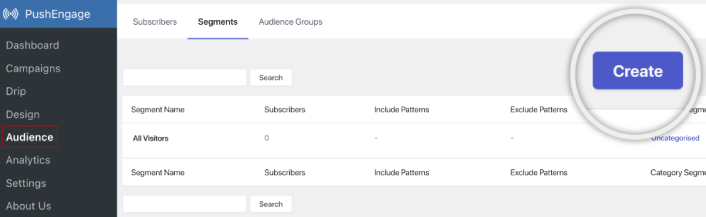
Τίποτα δεν ξεπερνά το επίπεδο εξατομίκευσης που μπορείτε να πετύχετε δημιουργώντας τμήματα και ομάδες κοινού για τους συνδρομητές σας στις ειδοποιήσεις push. Μεταβείτε στο PushEngage » Audience και ξεκινήστε αμέσως τη δημιουργία τμημάτων και ομάδων κοινού.
Στην καρτέλα Segments (Τμήματα), μπορείτε να δημιουργήσετε νέα τμήματα ή να επεξεργαστείτε υπάρχοντα:
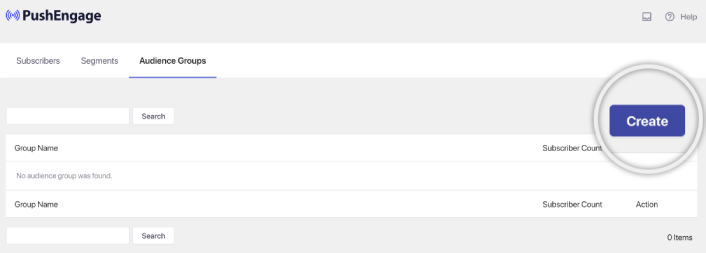
Και αν χρειάζεστε ακόμη βαθύτερη εξατομίκευση, δημιουργήστε μια ομάδα κοινού στην καρτέλα Audience Groups (Ομάδες Κοινού):
Αν είστε νέοι στα τμήματα ειδοποιήσεων push και στις εξατομικευμένες ειδοποιήσεις push, θα πρέπει να διαβάσετε το άρθρο μας σχετικά με το πώς να δημιουργήσετε τμήματα και την ανακοίνωσή μας σχετικά με την προηγμένη ομαδοποίηση κοινού.
Πώς να Δημιουργήσετε Στοχευμένα Μηνύματα Push για Android
Μεταβείτε στον πίνακα ελέγχου PushEngage και πηγαίνετε στο Campaign » Drip Autoresponders και κάντε κλικ στο Create New Drip Autoresponder:

Στη συνέχεια, δώστε ένα όνομα στην καμπάνια σας (προτείνουμε κάτι σαν Welcome Drip) και κάτω από το Content, επιλέξτε την επιλογή που λέει, “Send notification immediately after user subscribes“):

Σε αυτό το σημείο, μπορείτε να κάνετε κλικ στο βέλος δίπλα στην ειδοποίηση για να επεξεργαστείτε το περιεχόμενο της ειδοποίησής σας.
Εάν έχετε πρόγραμμα Premium ή Enterprise με το PushEngage, θα μπορείτε να προσθέσετε περισσότερες από μία ειδοποιήσεις για να δημιουργήσετε μια σειρά από αυτοματοποιημένα μηνύματα καλωσορίσματος. Απλώς κάντε κλικ στο Add New Notification και επεξεργαστείτε το περιεχόμενο.
Μόλις τελειώσετε, κάντε κλικ στο Drip Settings και επιλέξτε την επιλογή αποστολής της καμπάνιας καλωσορίσματός σας σε όλους τους συνδρομητές:

Στη συνέχεια, κάντε κύλιση προς τα κάτω για να ορίσετε τις δικές σας παραμέτρους UTM για να παρακολουθείτε τις ειδοποιήσεις push:

Και όταν τελειώσετε, κάντε κύλιση προς τα πάνω και κάντε κλικ στο κουμπί Activate Autoresponder:

Και τελειώσατε!
Πώς να Στείλετε Στοχευμένα Μηνύματα Push για Android
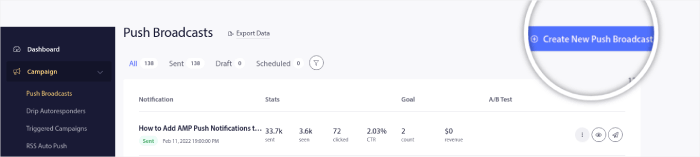
Μεταβείτε στον πίνακα ελέγχου PushEngage, πηγαίνετε στο Campaign » Push Broadcasts και κάντε κλικ στο κουμπί Δημιουργία Νέας Εκπομπής Push:
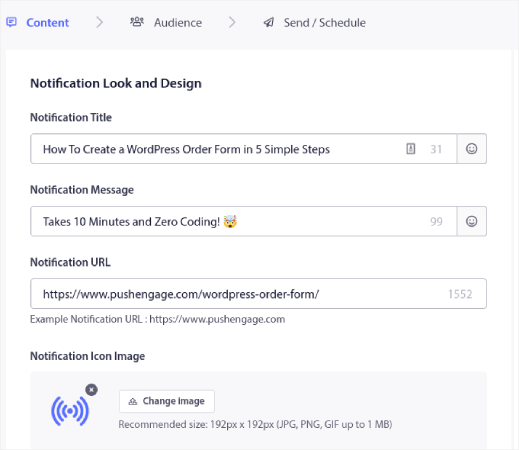
Στην καρτέλα Content, προσθέστε το περιεχόμενο της ειδοποίησης push σας:
Και μπορείτε να ρυθμίσετε μια δοκιμή A/B για να αυξήσετε τα ποσοστά κλικ σας ή μπορείτε να προγραμματίσετε τις εκπομπές push σας για να λάβετε περισσότερες προβολές. Σε κάθε περίπτωση, θα πρέπει να ελέγξετε τις βέλτιστες πρακτικές ειδοποιήσεων push για τα καλύτερα αποτελέσματα.
Πώς να Δημιουργήσετε Αναδυόμενα Παράθυρα Μηνυμάτων Push για Android
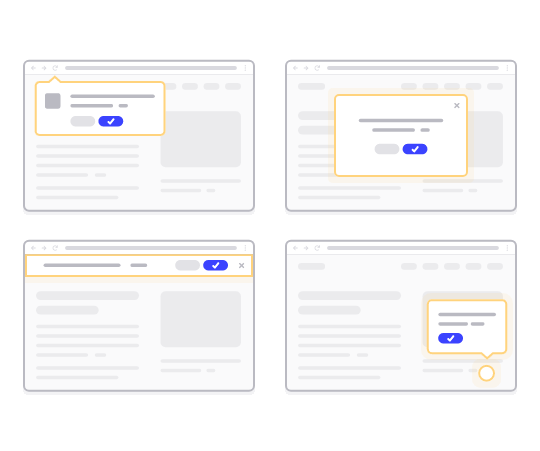
Ένα αναδυόμενο παράθυρο ειδοποίησης push είναι ένα μικρό παράθυρο που εμφανίζεται πάνω από τη διεπαφή ενός ιστότοπου ή μιας εφαρμογής για κινητά για να εμφανίσει ένα μήνυμα ή μια ειδοποίηση στον επισκέπτη του ιστότοπου.
Το modal αναδυόμενο παράθυρο μπορεί να ενεργοποιηθεί από διάφορα γεγονότα. Μπορείτε να ρυθμίσετε αναδυόμενα παράθυρα για να ενεργοποιούνται κατά την επίσκεψη σελίδας, κατά το βάθος κύλισης, ακόμη και κατά προσαρμοσμένες ενέργειες όπως κλικ σε κουμπί.
Συνήθως, θα δείτε μια παρότρυνση για δράση στο αναδυόμενο παράθυρο, όπως “Εγγραφή” ή “Να επιτρέπεται” για να λάβετε συγκατάθεση από τους επισκέπτες για αποστολή μηνυμάτων push Android. Αν ακολουθήσετε αυτό το σεμινάριο, μπορείτε να δημιουργήσετε ένα αναδυόμενο παράθυρο σαν αυτό:
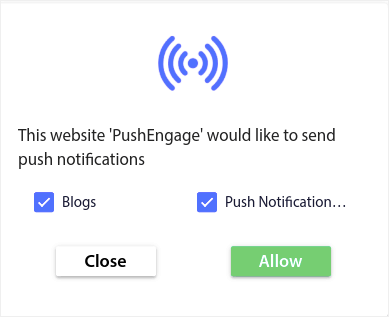
Μπορείτε να δημιουργήσετε αναδυόμενα παράθυρα που μπορούν να τμηματοποιήσουν τους συνδρομητές απευθείας ή να δημιουργήσετε κανονικά αναδυόμενα παράθυρα που απλώς συλλέγουν συνδρομητές με τα προεπιλεγμένα χαρακτηριστικά, όπως γεωγραφική τοποθεσία και πρόγραμμα περιήγησης.
Επιστρέψτε στον πίνακα ελέγχου του WordPress. Μεταβείτε στο PushEngage » Σχεδίαση:
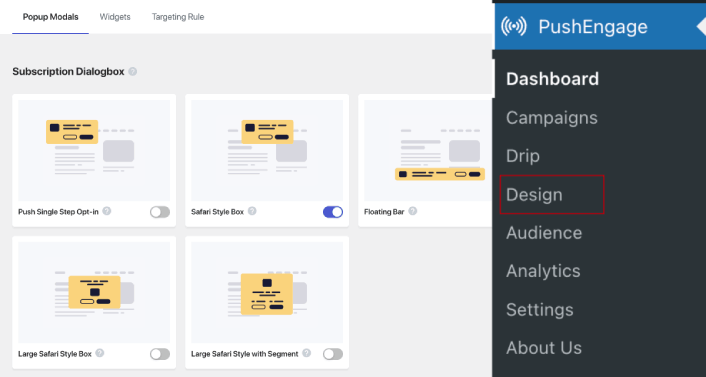
Και μπορείτε να ρυθμίσετε όσα αναδυόμενα παράθυρα θέλετε. Φυσικά, μπορείτε να βεβαιωθείτε ότι ενεργοποιούνται σε διαφορετικές ώρες στις Επιλογές Εμφάνισης για κάθε αναδυόμενο παράθυρο.
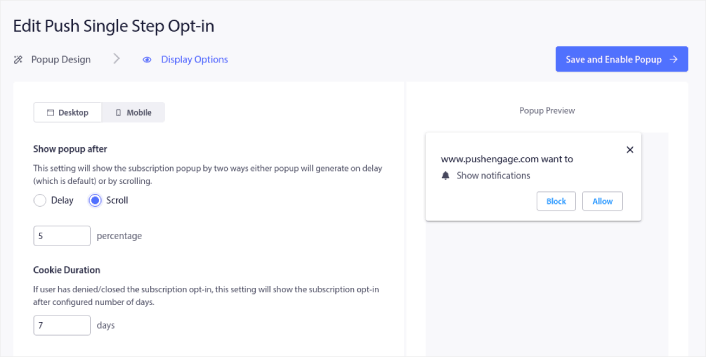
Η ιδέα εδώ είναι να δώσετε στους επισκέπτες σας έναν ισχυρό λόγο για να εγγραφούν. Εάν χρειάζεστε βοήθεια με αυτό, ελέγξτε το άρθρο μας σχετικά με το πώς να δημιουργήσετε μια προσαρμοσμένη φόρμα εγγραφής για ειδοποιήσεις push.
Και αν θέλετε να δημιουργήσετε πιο στοχευμένα αναδυόμενα παράθυρα, μπορείτε να χρησιμοποιήσετε τους κανόνες στόχευσης στην καρτέλα Κανόνας Στόχευσης:
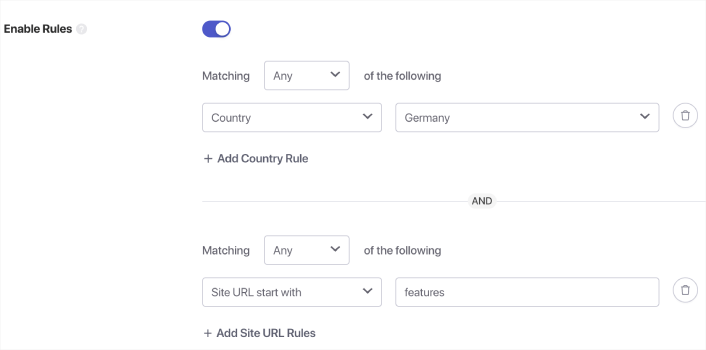
Αυτοί είναι καθολικοί κανόνες στόχευσης και θα έχουν προτεραιότητα έναντι των κανόνων στόχευσης για μεμονωμένα αναδυόμενα παράθυρα. Αλλά αν θέλετε, μπορείτε να δημιουργήσετε ισχυρούς κανόνες στόχευσης για κάθε αναδυόμενο παράθυρο επεξεργαζόμενοι τα.
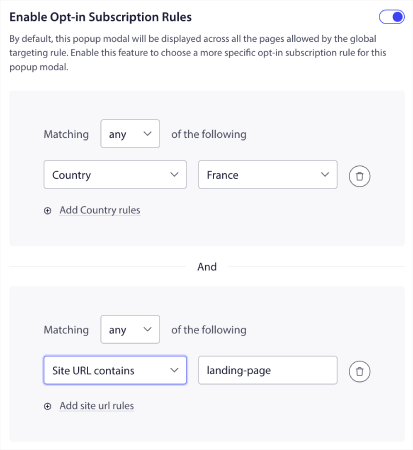
Για παράδειγμα, μπορείτε να δημιουργήσετε αναδυόμενα παράθυρα σε διαφορετικές γλώσσες για να στοχεύσετε επισκέπτες από διαφορετικές χώρες.
Και αν θέλετε μερικά πρότυπα με υψηλό ποσοστό κλικ για να ξεκινήσετε, θα πρέπει να ελέγξετε αυτό το άρθρο σχετικά με τα πρότυπα εγγραφής για ειδοποιήσεις push με υψηλές μετατροπές.
Τι να Κάνετε Πριν Στείλετε Στοχευμένα Μηνύματα Push για Android
Είστε σχεδόν έτοιμοι.
Πριν ξεκινήσετε να στέλνετε ειδοποιήσεις push, θα χρειαστεί να ρυθμίσετε μια επιλογή εγγραφής για τον ιστότοπό σας. Η επιλογή σας θα μετατρέψει τους επισκέπτες του ιστότοπου σε συνδρομητές ειδοποιήσεων push. Επομένως, αυτό είναι ένα κρίσιμο στοιχείο.
Αν χρειάζεστε έμπνευση, μπορείτε να δείτε αυτό το άρθρο σχετικά με επιλογές εγγραφής για ειδοποιήσεις push με υψηλή μετατροπή. Μόλις ολοκληρώσετε τη ρύθμιση της επιλογής, ο ιστότοπός σας μπορεί να συλλέγει συνδρομητές. Αλλά πώς ξέρετε καν ότι η επιλογή σας λειτουργεί σωστά;
Έτσι, το λογικό είναι να ρυθμίσετε μια ειδοποίηση καλωσορίσματος push.
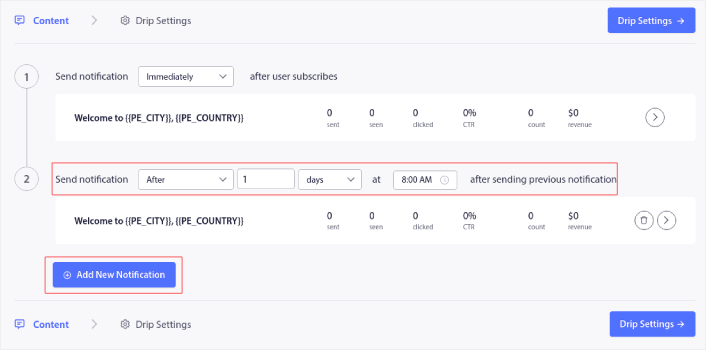
Συμβουλή: Θα πρέπει να αφιερώσετε λίγο χρόνο για μια ολοκληρωμένη δοκιμή των ειδοποιήσεων push. Αυτό θα επιλύσει τα πιο συνηθισμένα προβλήματα και δεν θα χάσετε χρόνο προσπαθώντας να επιλύσετε ζητήματα αργότερα.
Τι να Κάνετε Αφού Στείλετε Μηνύματα Push για Android
Αυτό ήταν για αυτό το θέμα, φίλοι!
Αν βρήκατε αυτό το άρθρο χρήσιμο, φροντίστε να αφήσετε ένα σχόλιο παρακάτω.
Η έναρξη με μηνύματα push Android μπορεί να φαίνεται τρομακτική. Αλλά αν παρακολουθείτε τις παρακολούθηση στόχων και αναλύσεις, θα είστε εντάξει. Το πιο σημαντικό, θα αποκομίσετε πολύ περισσότερα κέρδη με τη βοήθεια καμπανιών ειδοποιήσεων push. Ακολουθούν μερικοί δροσεροί πόροι για να ξεκινήσετε:
- Πώς να χρησιμοποιήσετε ειδοποιήσεις push επανα στόχευσης για να διπλασιάσετε τα έσοδά σας
- Πώς να ταξινομήσετε τις ειδοποιήσεις push και να βρείτε επιτυχημένες καμπάνιες
- Πώς να καθαρίσετε τις λίστες συνδρομητών ειδοποιήσεων push (Εύκολο)
- Πώς να στέλνετε αυτόματα ειδοποιήσεις push RSS
- Πώς να χρησιμοποιείτε ειδοποιήσεις push για την προώθηση ενός ειδησεογραφικού ιστότοπου
- Πώς να χρησιμοποιείτε ειδοποιήσεις push cross-selling για να διπλασιάσετε τις πωλήσεις σας
- Πώς να χρησιμοποιείτε ειδοποιήσεις push εγκατάλειψης περιήγησης (4 βήματα)
Αν είστε νέοι στις ειδοποιήσεις push, θα πρέπει να δοκιμάσετε το PushEngage. Και όταν είστε έτοιμοι να δημιουργήσετε μια πλήρη στρατηγική, ο οδηγός μάρκετινγκ για ειδοποιήσεις push εφαρμογών είναι η επόμενη ανάγνωση. Το PushEngage είναι το λογισμικό ειδοποιήσεων push #1 στην αγορά. Και οι καμπάνιες σας θα είναι σε ασφαλή χέρια.
Έτσι, αν δεν το έχετε κάνει ήδη, ξεκινήστε με το PushEngage σήμερα!


