Τα αναδυόμενα παράθυρα είναι οι προτροπές εγγραφής που βλέπουν οι αγοραστές στο κατάστημά σας και τους ζητούν να επιτρέψουν τις ειδοποιήσεις push. Το PushEngage σας παρέχει διάφορα στυλ συγκατάθεσης που μπορείτε να ενεργοποιήσετε, να προσαρμόσετε και να στοχεύσετε σε συγκεκριμένες σελίδες, ώστε να αυξήσετε τη λίστα συνδρομητών σας. Αυτός ο οδηγός δείχνει πώς να ενεργοποιήσετε και να διαμορφώσετε αναδυόμενα παράθυρα στην εφαρμογή PushEngage Shopify.
Πριν Ξεκινήσετε
- Εγκαταστήστε και συνδέστε το PushEngage στο κατάστημα Shopify σας, ώστε η συγκατάθεση να μπορεί να εμφανιστεί στο κατάστημά σας.
- Αποφασίστε ποιο στυλ συγκατάθεσης ταιριάζει στο κατάστημά σας και πού θέλετε να εμφανίζεται.
- Λάβετε υπόψη ότι ορισμένοι περιηγητές, όπως ο Safari, και οι συγκαταθέσεις ενός βήματος συμπεριφέρονται διαφορετικά, γι' αυτό το PushEngage προσφέρει περισσότερα από ένα στυλ.
Πώς λειτουργούν τα αναδυόμενα παράθυρα
Κάθε συγκατάθεση είναι ένα πρότυπο που ενεργοποιείτε και προσαρμόζετε. Επιλέγετε ένα στυλ, επεξεργάζεστε το κείμενο και την εμφάνισή του και ορίζετε κανόνες στόχευσης που αποφασίζουν ποιες σελίδες εμφανίζουν την προτροπή. Μπορείτε να ενεργοποιήσετε περισσότερα από ένα στυλ για διαφορετικές καταστάσεις, και μια προεπισκόπηση δείχνει πώς φαίνεται κάθε ένα πριν το δημοσιεύσετε.
| Στυλ συγκατάθεσης | Ιδανικό για |
|---|---|
| Κομψό πλαίσιο συγκατάθεσης | Ένα καθαρό, μοντέρνο πλαίσιο εγγραφής. |
| Κουτί Στυλ Safari | Μια εγγενής προτροπή τύπου περιηγητή. |
| Μπάρα Τοποθετημένης Καμπάνας | Μια γραμμή με κουδούνι ειδοποιήσεων για πρόσκληση συγκατάθεσης. |
| Κυλιόμενη Μπάρα | Μια λεπτή γραμμή που αιωρείται στη σελίδα. |
| Συγκατάθεση Push ενός βήματος | Ένα βήμα για τους επισκέπτες να δώσουν τη συγκατάθεσή τους για καμπάνιες. |
| Μεγάλο πλαίσιο τύπου Safari | Μια μεγαλύτερη προτροπή εγγενούς τύπου με περισσότερο χώρο για μηνύματα. |
Ενεργοποίηση και προσαρμογή αναδυόμενου παραθύρου
1. Μεταβείτε στις Ειδοποιήσεις Push » Σχεδίαση.
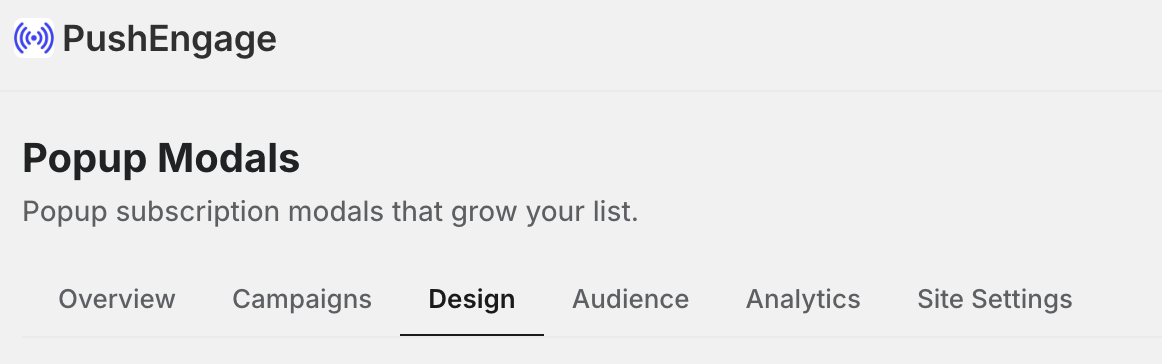
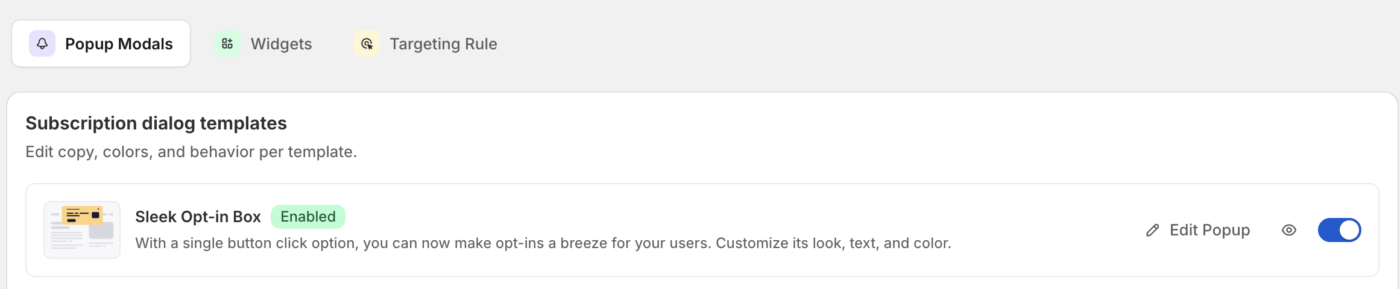
2. Τώρα μεταβείτε στην καρτέλα Αναδυόμενα παράθυρα. Βρείτε το στυλ συγκατάθεσης που θέλετε και ενεργοποιήστε το.
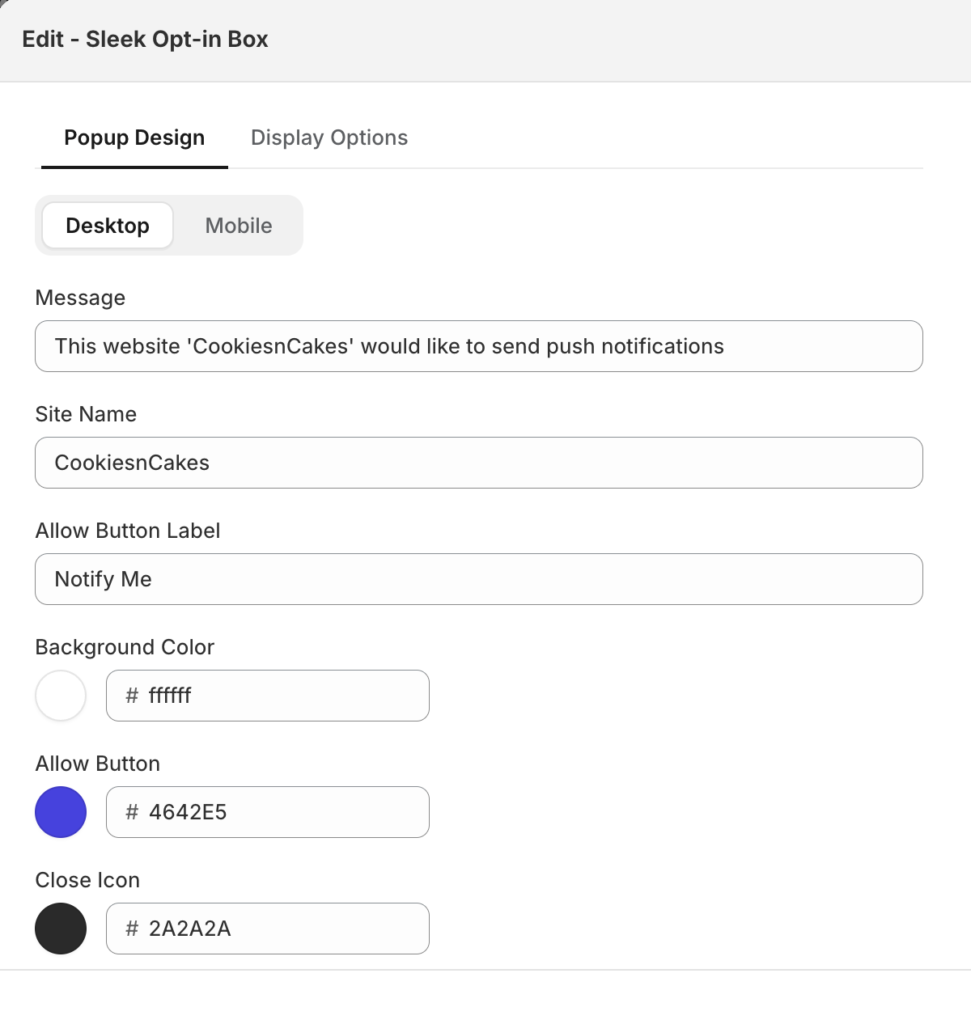
3. Ανοίξτε το στυλ για να επεξεργαστείτε την επικεφαλίδα, το μήνυμα και το κείμενο του κουμπιού. Προσαρμόστε την εμφάνιση και τη θέση για να ταιριάζουν στο κατάστημά σας.
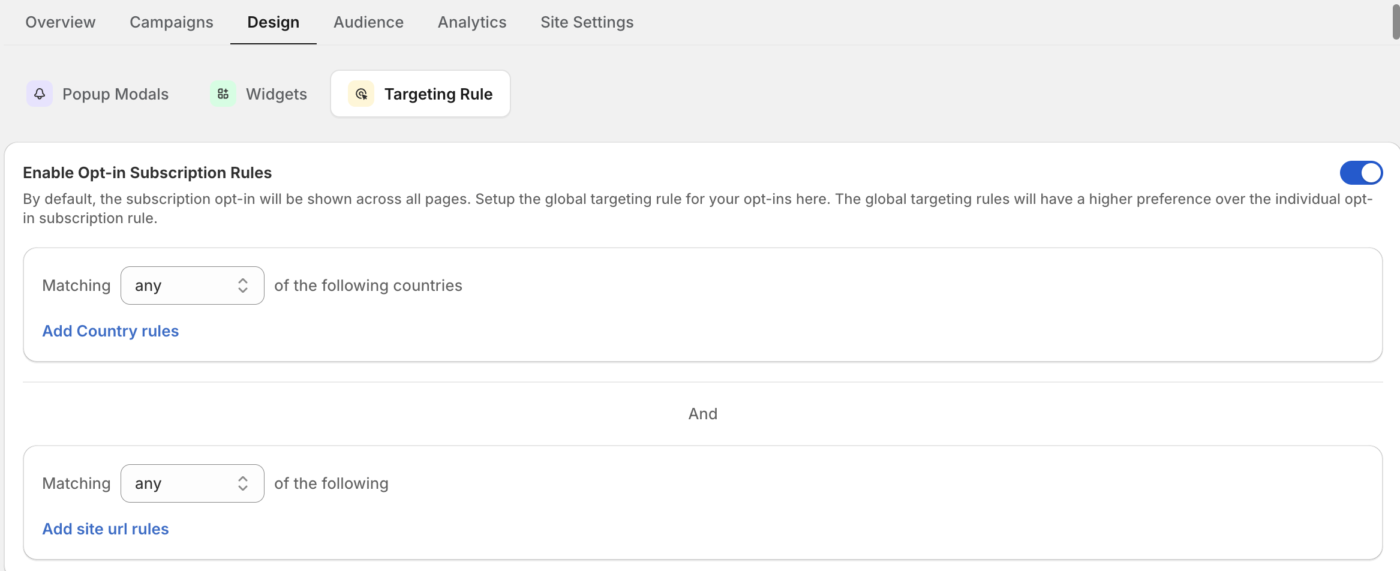
4. Ορίστε κανόνες στόχευσης για να ελέγξετε ποιες σελίδες εμφανίζουν την προτροπή.
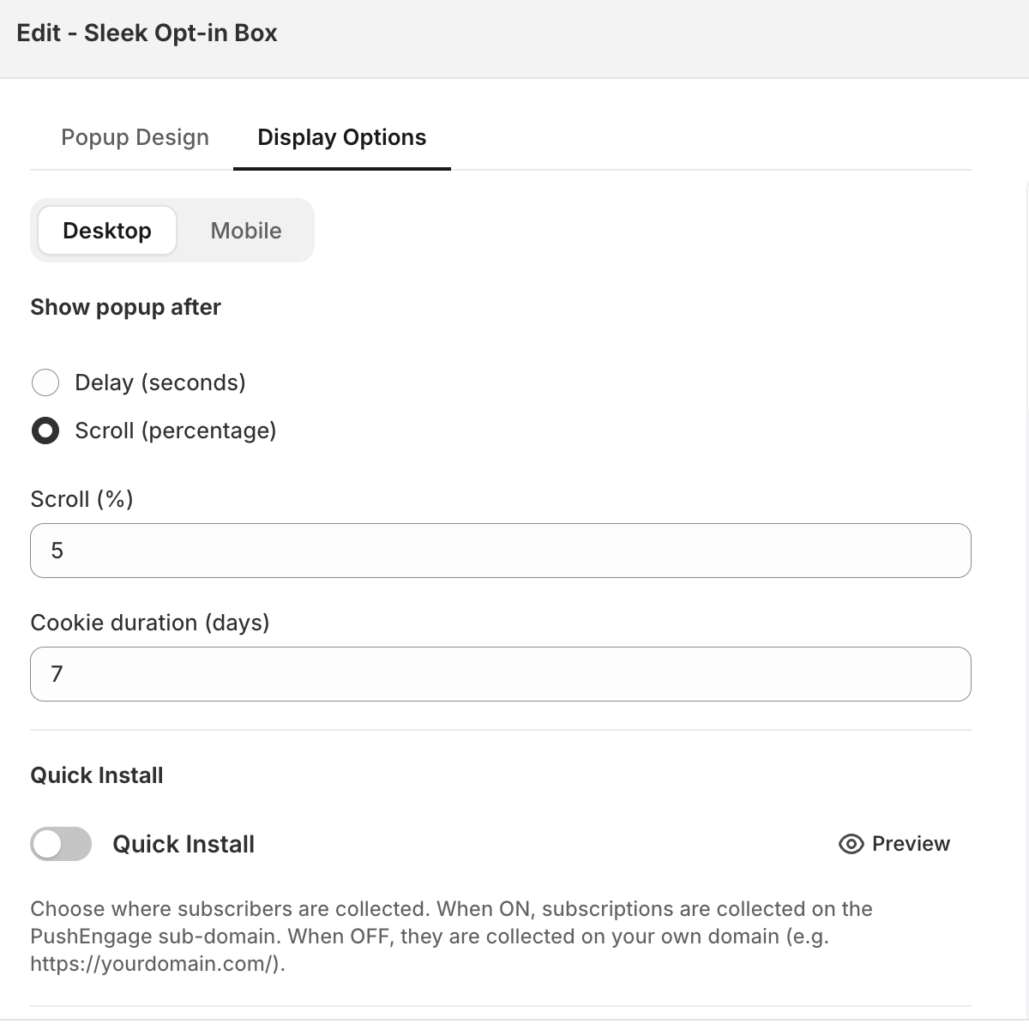
5. Αποθηκεύστε τις αλλαγές σας για να δημοσιεύσετε τη συγκατάθεση.
Επεξεργαστείτε το περιεχόμενο και την εμφάνιση
Ανοίξτε ένα στυλ για να επεξεργαστείτε τι λέει και πώς φαίνεται, συμπεριλαμβανομένης της επικεφαλίδας, του μηνύματος εγγραφής και των ετικετών των κουμπιών. Χρησιμοποιήστε την προεπισκόπηση για να επιβεβαιώσετε τη διατύπωση και τη διάταξη πριν τη δημοσίευση.
Στοχεύστε στις σωστές σελίδες
Χρησιμοποιήστε κανόνες στόχευσης για να αποφασίσετε πού εμφανίζεται η συγκατάθεση. Αντιστοιχίστε ανά URL σελίδας χρησιμοποιώντας συνθήκες όπως περιέχει, ξεκινά με, τελειώνει με και ισούται με, ώστε να μπορείτε να εμφανίζετε την προτροπή σε συγκεκριμένες σελίδες ή να την εξαιρείτε από άλλες. Συνδυάστε κανόνες για να βελτιστοποιήσετε πού βλέπουν οι αγοραστές την προτροπή εγγραφής.
Συχνές Ερωτήσεις
Ποιο στυλ συγκατάθεσης πρέπει να χρησιμοποιήσω;
Ξεκινήστε με ένα καθαρό στυλ υψηλής ορατότητας, όπως το "Κουτί Εγγραφής Sleek" ή το "Κουτί Στυλ Safari", τα οποία οι πελάτες αναγνωρίζουν ως προτροπή εγγραφής. Μπορείτε να ενεργοποιήσετε περισσότερα από ένα στυλ και να χρησιμοποιήσετε κανόνες στόχευσης, ώστε κάθε ένα να εμφανίζεται στο σωστό σημείο.
Μπορώ να εμφανίσω την προτροπή μόνο σε συγκεκριμένες σελίδες;
Ναι. Χρησιμοποιήστε κανόνες στόχευσης για να αντιστοιχίσετε με τη διεύθυνση URL της σελίδας με συνθήκες όπως "περιέχει" ή "ξεκινά με", ώστε η προτροπή να εμφανίζεται μόνο εκεί που θέλετε και να μην εμφανίζεται σε σελίδες όπως η ολοκλήρωση αγοράς.
Γιατί ένας πελάτης δεν βλέπει την προτροπή;
Επιβεβαιώστε ότι το στυλ είναι ενεργοποιημένο, ότι οι κανόνες στόχευσής σας αντιστοιχούν στις σελίδες που περιμένετε και ότι ο πελάτης δεν έχει ήδη εγγραφεί ή αποκλείσει τις ειδοποιήσεις στο πρόγραμμα περιήγησής του. Ένας πελάτης που προηγουμένως απέρριψε ή μπλόκαρε την προτροπή ενδέχεται να μην τη δει ξανά. Εάν ο συνδρομητής ανοίγει τον ιστότοπό σας σε Λειτουργία Επισκέπτη/Ανώνυμη Λειτουργία του προγράμματος περιήγησης, τότε ενδέχεται να μην δει την προτροπή.
Αν αντιμετωπίσετε οποιοδήποτε πρόβλημα, μη διστάσετε να επικοινωνήσετε μαζί μας κάνοντας κλικ εδώ. Η ομάδα υποστήριξής μας θα μπορέσει να σας βοηθήσει.