Εάν θέλετε να εμφανίζετε διαφορετικά στυλ αναδυόμενων παραθύρων στον ιστότοπό σας ταυτόχρονα, χρειάζεστε μια διαφορετική στρατηγική για να κάνετε τους χρήστες να εγγραφούν (Opt-in) ή να εμφανίσετε προτιμήσεις τμήματος σε ορισμένα αναδυόμενα παράθυρα και να έχετε ένα κανονικό αναδυόμενο παράθυρο σε άλλες σελίδες. Μπορείτε να ενεργοποιήσετε πολλαπλά αναδυόμενα παράθυρα τώρα με το PushEngage.
Σε αυτόν τον οδηγό, θα εξερευνήσετε πώς μπορείτε να στοχεύσετε αποτελεσματικά τους συνδρομητές σας μέσω πολλαπλών αναδυόμενων παραθύρων χρησιμοποιώντας Κανόνες Τοπικής Στόχευσης.
Πώς να Ρυθμίσετε Κανόνα Τοπικής Στόχευσης
Εάν επιθυμείτε να χρησιμοποιήσετε περισσότερα από ένα Modal Αναδυόμενο παράθυρο για τη συλλογή συνδρομητών από τον ιστότοπό σας, τότε συνιστάται να εφαρμόσετε Τοπικούς Κανόνες κατά την προσαρμογή των Αναδυόμενων παραθύρων. Αυτό σας επιτρέπει να διαχειρίζεστε διαφορετικά στυλ σε συγκεκριμένες σελίδες ή για διαφορετικές χώρες. Για να το κάνετε αυτό, μεταβείτε στο "Σχεδίαση" > "Modal Αναδυόμενα παράθυρα", μετακινηθείτε στο στυλ του Αναδυόμενου παραθύρου που θέλετε να επεξεργαστείτε και κάντε κλικ στο "Επεξεργασία Αναδυόμενου παραθύρου" όπως φαίνεται παρακάτω.
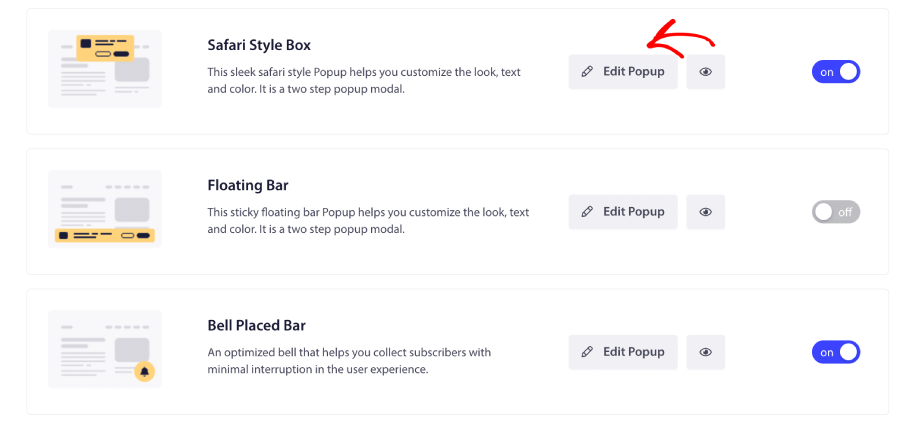
Στα επόμενα βήματα, πρέπει να μετακινηθείτε προς τα κάτω στην ενότητα "Κανόνες Εγγραφής (Opt-in)" και να ενεργοποιήσετε την εναλλαγή.
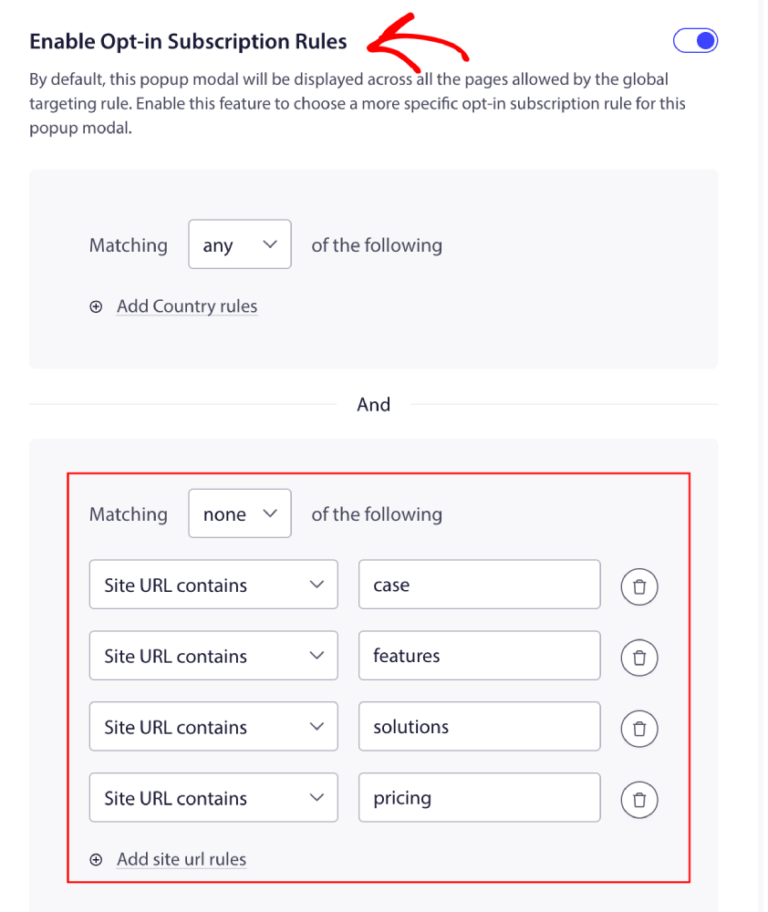
Μπορείτε τώρα να προσθέσετε τους κανόνες, να κάνετε κλικ στο "Αποθήκευση" και, στη συνέχεια, να επιλέξετε τις επιλογές εμφάνισής σας.
Αυτό είναι! Έτσι μπορείτε να διαχειριστείτε τους κανόνες στόχευσης για το Αναδυόμενο παράθυρο Εγγραφής.
Εάν αντιμετωπίσετε οποιοδήποτε πρόβλημα, παρακαλώ επικοινωνήστε μαζί μας κάνοντας κλικ εδώ. Η ομάδα υποστήριξής μας θα μπορέσει να σας βοηθήσει.