Είναι εύκολο να ενημερώσετε τα στοιχεία χρέωσής σας με μια άλλη κάρτα στον λογαριασμό σας για να διατηρήσετε τις υπηρεσίες σας αδιάκοπες. Θα μάθετε πώς να ενημερώνετε πρόσθετα στοιχεία πιστωτικής κάρτας σε αυτό το άρθρο.
Πριν Ξεκινήσετε
Εάν εγγραφείτε χρησιμοποιώντας το PayPal, θα χρειαστεί να ενημερώσετε τα στοιχεία χρέωσής σας από τον λογαριασμό σας στο PayPal. Δεν θα μπορείτε να ενημερώσετε τα στοιχεία χρέωσης στον λογαριασμό σας PushEngage, εκτός εάν εγγραφείτε απευθείας με πιστωτική κάρτα.
Προσθήκη άλλης κάρτας
Πρέπει να Συνδεθείτε στον Πίνακα Ελέγχου PushEngage, να μεταβείτε στην επάνω δεξιά γωνία και να πλοηγηθείτε στο Χρεώσεις.
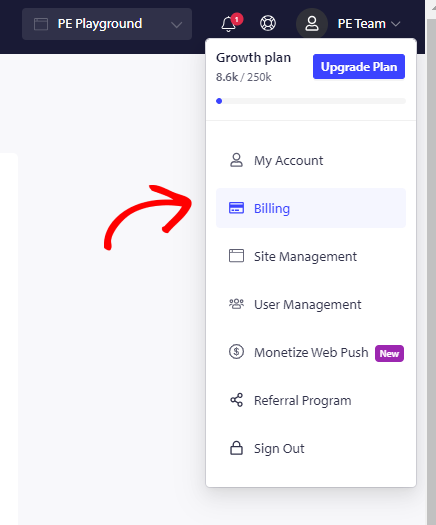
Θα δείτε όλες τις λεπτομέρειες της συνδρομής σας. Κάντε κλικ στο Ενημέρωση Προγράμματος » Μεταβείτε στο «Χρεώσεις & Πληρωμή».
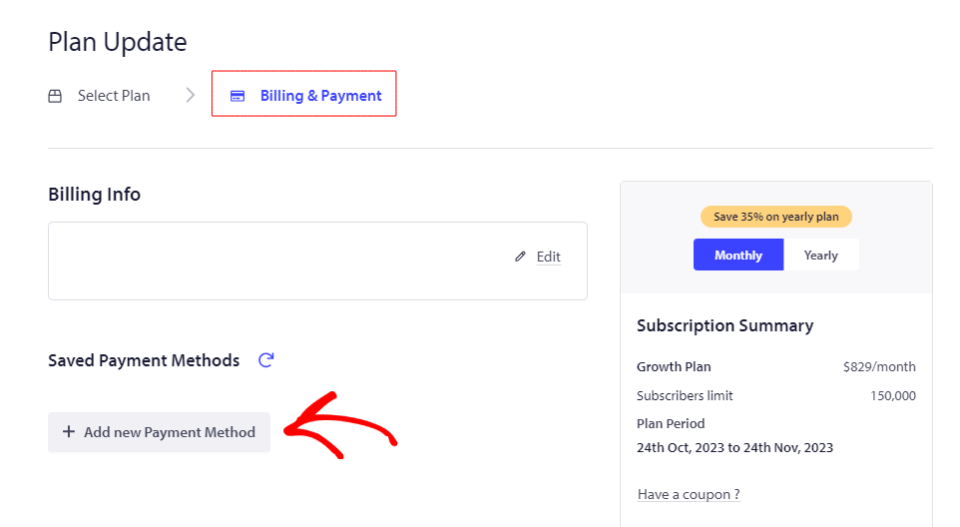
Κάντε κλικ στο Προσθήκη Νέας Μεθόδου Πληρωμής και εισαγάγετε τον Αριθμό Κάρτας, την Ημερομηνία που αναγράφεται στην κάρτα μαζί με τον Κωδικό Ασφαλείας Κάρτας (CVC).
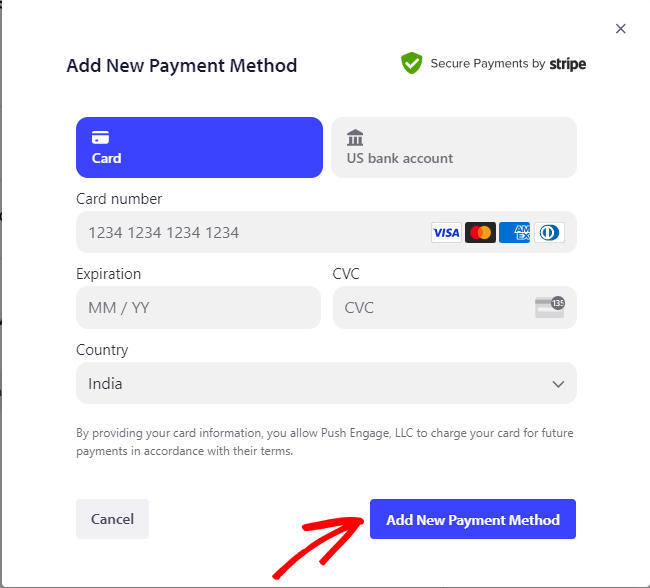
Κάντε κλικ στο Προσθήκη Νέας Μεθόδου Πληρωμής αφού έχετε εισαγάγει όλες τις λεπτομέρειες.
Η νέα σας κάρτα έχει πλέον ενημερωθεί στον λογαριασμό και μπορεί να χρησιμοποιηθεί για την επεξεργασία της πληρωμής.
Σημείωση: Παρακαλώ σημειώστε ότι θα χρειαστεί να προσθέσετε τουλάχιστον μία κάρτα στον λογαριασμό σας, δεν μπορείτε να αφαιρέσετε όλες τις κάρτες από τον λογαριασμό σας.
Σε περίπτωση που αντιμετωπίσετε οποιοδήποτε πρόβλημα, μη διστάσετε να επικοινωνήσετε μαζί μας κάνοντας κλικ εδώ. Η ομάδα υποστήριξής μας θα μπορέσει να σας βοηθήσει.