Sıfırdan bir kampanya oluşturmak göz korkutucu gelebilir. Ama arkanızdayız! Farklı sektörlerden ve kullanım senaryolarından bir sürü şablon hazırladık. Bu şablonlar hayatınızı kolaylaştırmak ve zamandan tasarruf etmenizi sağlamak için tasarlandı.
Bu makalede, bu şablonları kullanarak kampanyalarınızı zahmetsizce özelleştirmeyi ve zamandan tasarruf etmeyi göstereceğiz.
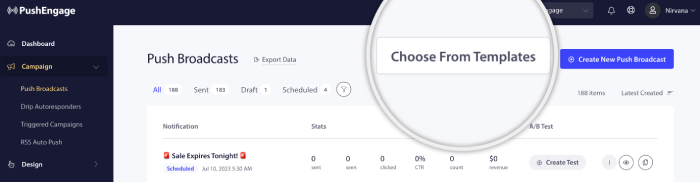
Lütfen PushEngage kontrol paneline giriş yapın ve Kampanyalar » Push Yayınları'na gidin.
Ardından, sıfırdan yeni bir push yayını oluşturabilir veya şablonlardan birini seçebilirsiniz. Bunun için Şablonlardan Seç düğmesine tıklayabilirsiniz.
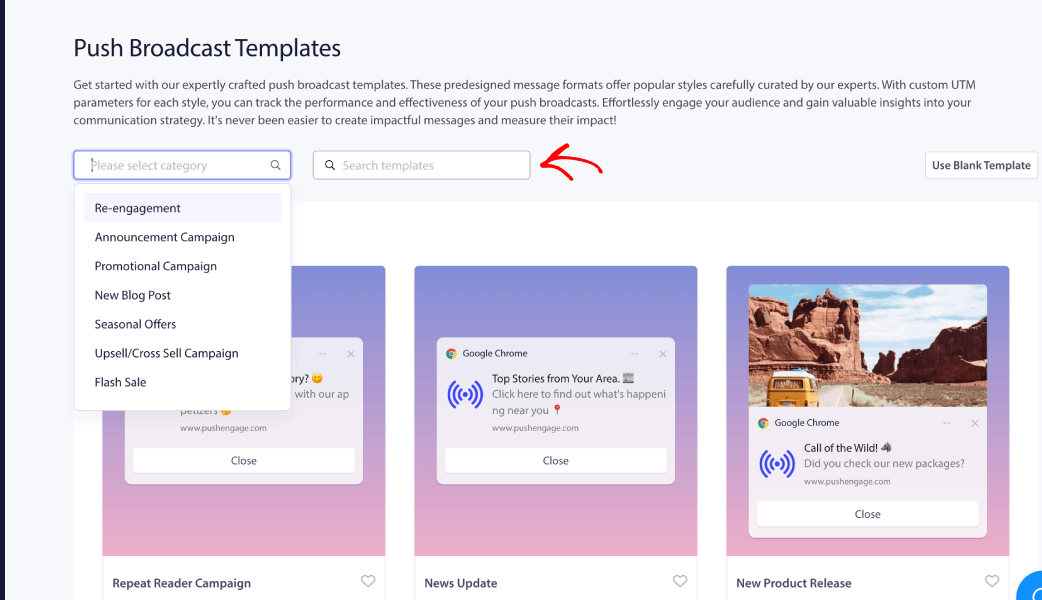
Tüm şablonlar, doğru kampanyayı keşfetmeniz ve seçmeniz için açılacaktır. Anahtar kelimelerle arama yapabilir veya açılır menüden kampanya kategorisini seçebilirsiniz.
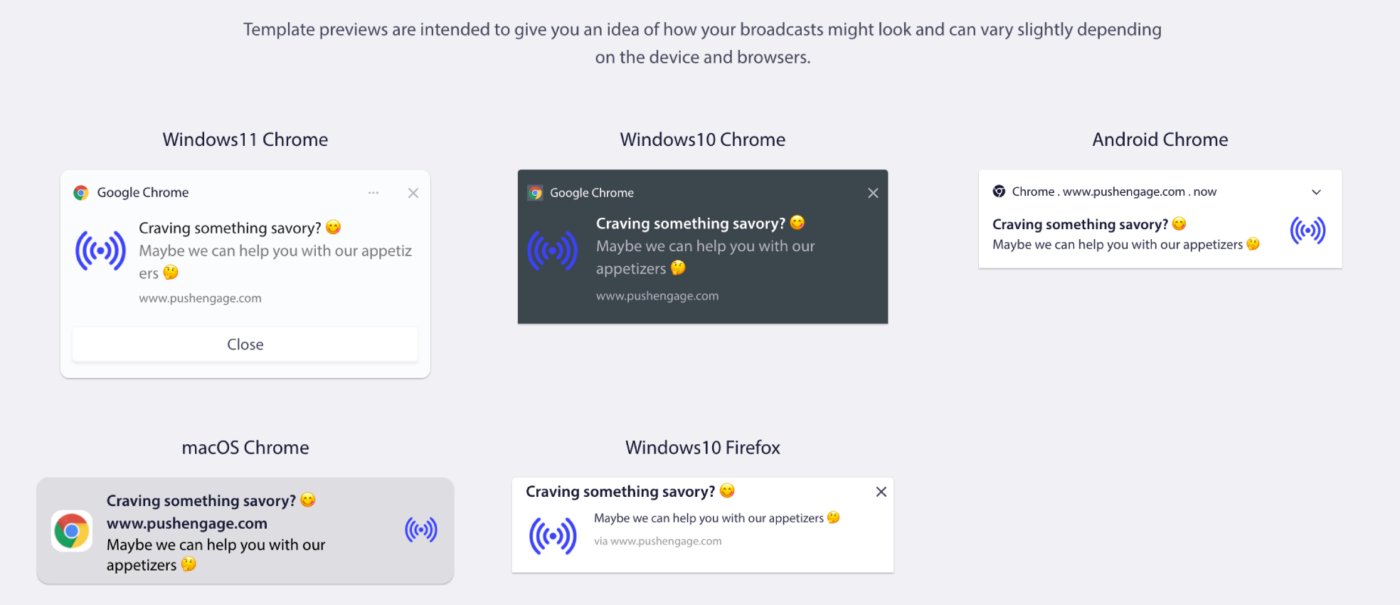
Çeşitli işletim sistemleri ve tarayıcı kombinasyonlarında nasıl görüneceğini anlamak için Önizleme'ye tıklayabilirsiniz. Web push kampanya görünümü, cihaza ve tarayıcılara büyük ölçüde bağlıdır. İşte bir örnek –
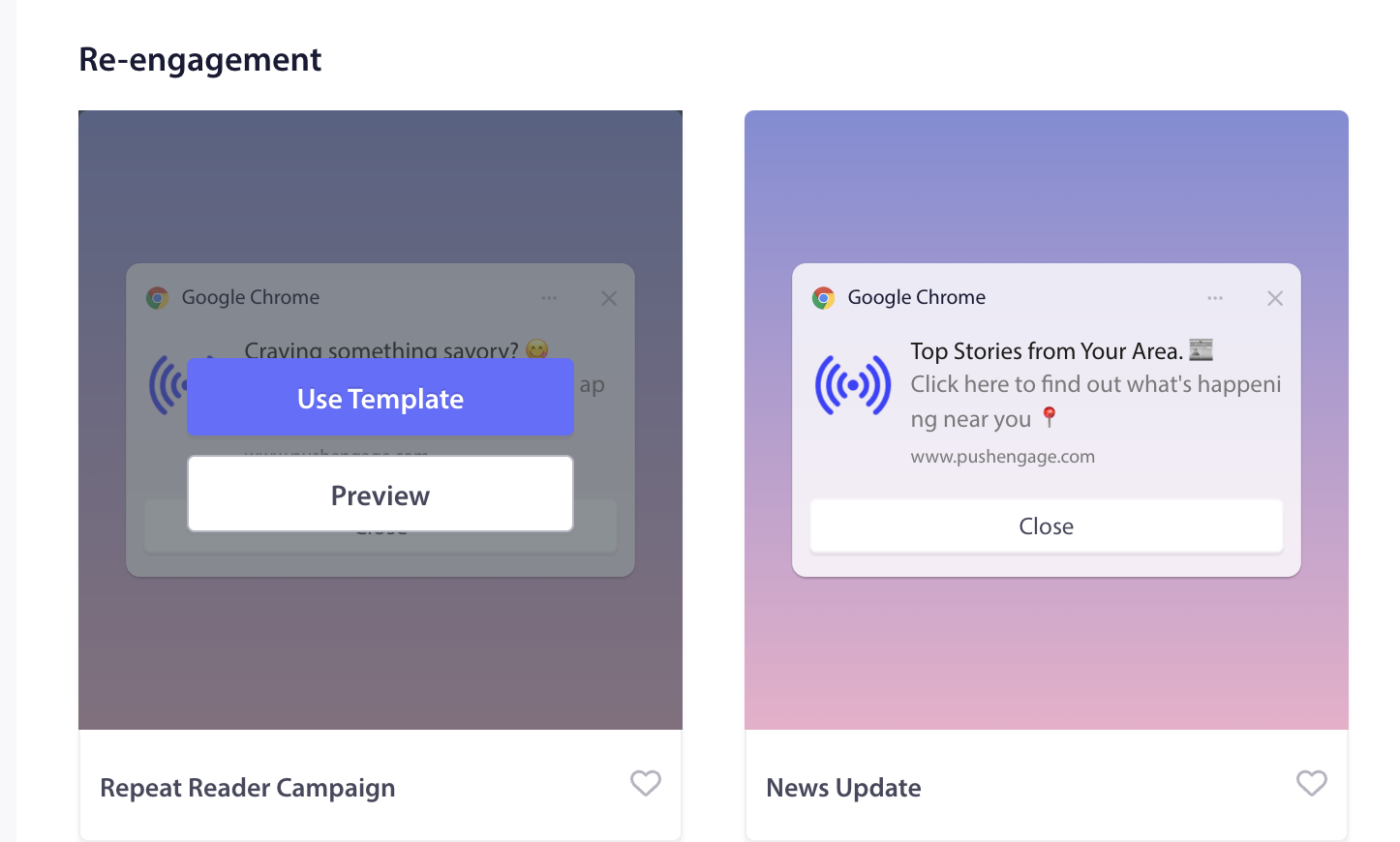
Şablonu Kullan'a tıklarsanız, kampanya düzenleyici önceden doldurulmuş metinle açılacaktır. Hedef aboneleri seçmek için kitleye geçebilir veya stratejinize göre içeriği özelleştirebilirsiniz.
Şablonu Özelleştirme
Seçilen şablonu özelleştirebilir veya olduğu gibi kitlenize gönderebilirsiniz.
Not: Ekibimiz tarafından toplanan aboneleriniz için yayın olarak oluşturulan ücretsiz bir kampanyadan yararlanabilirsiniz. Sorun yaşarsanız bize ulaşabilirsiniz, biz de ücretsiz olarak oluşturacağız.
Kampanya İçeriğini Düzenleme
Kampanya başlığı, mesajı ve URL'si önceden doldurulacaktır. Sitenizin logosu da bildirim resmi olarak eklenecektir. Kampanyaları özelleştirmeye başlarken dikkat etmeniz gereken birkaç şey var –
- 135 karaktere kadar (emojiler dahil 😊) herhangi bir Yayın mesajı oluşturabilirsiniz
- 85 karaktere kadar bir başlık ekleyin
- 1MB'a kadar bir resim
- Açılış URL'si (192px x 192px) – Bu URL, yayın mesajına tıklandığında açılır.
Kampanya Davranışı ve İzleme
Bildirim Süresi: Abonelerinizi bildirimlerle bunaltmamak için göndermeden önce tüm bildirimlerin Süresini ayarlamanız gerekir. Bu, abonelerinize çok sayıda bildirim gönderir ve abonelikten çıkma oranlarının artmasına yol açar. Bildirimin süresini en fazla 28 güne ayarlayabilirsiniz.
Google Analytics Takibi için UTM parametreleri: UTM parametreleri eklemek, Google Analytics'te verileri analiz etmenizi sağlar. Bildirimler gönderdiğinizde, UTM parametreleri ayarlamak GA'da görünen verileri yakalamanıza yardımcı olacaktır. Aşağıdaki örnekte gösterildiği gibi zorunlu alanları – UTM Kaynağı, UTM Ortamı ve UTM Kampanyası – belirtebilirsiniz.
Kampanyaları Test Etme
Bir Test gönderimi, yayının abonelere gönderildiğinde nasıl görüneceğini gösterir. Aşağı kaydırın ve Bildirim Testi Gönder'e tıklayın. PushEngage için bildirimlere izin verdiğinizden emin olun.
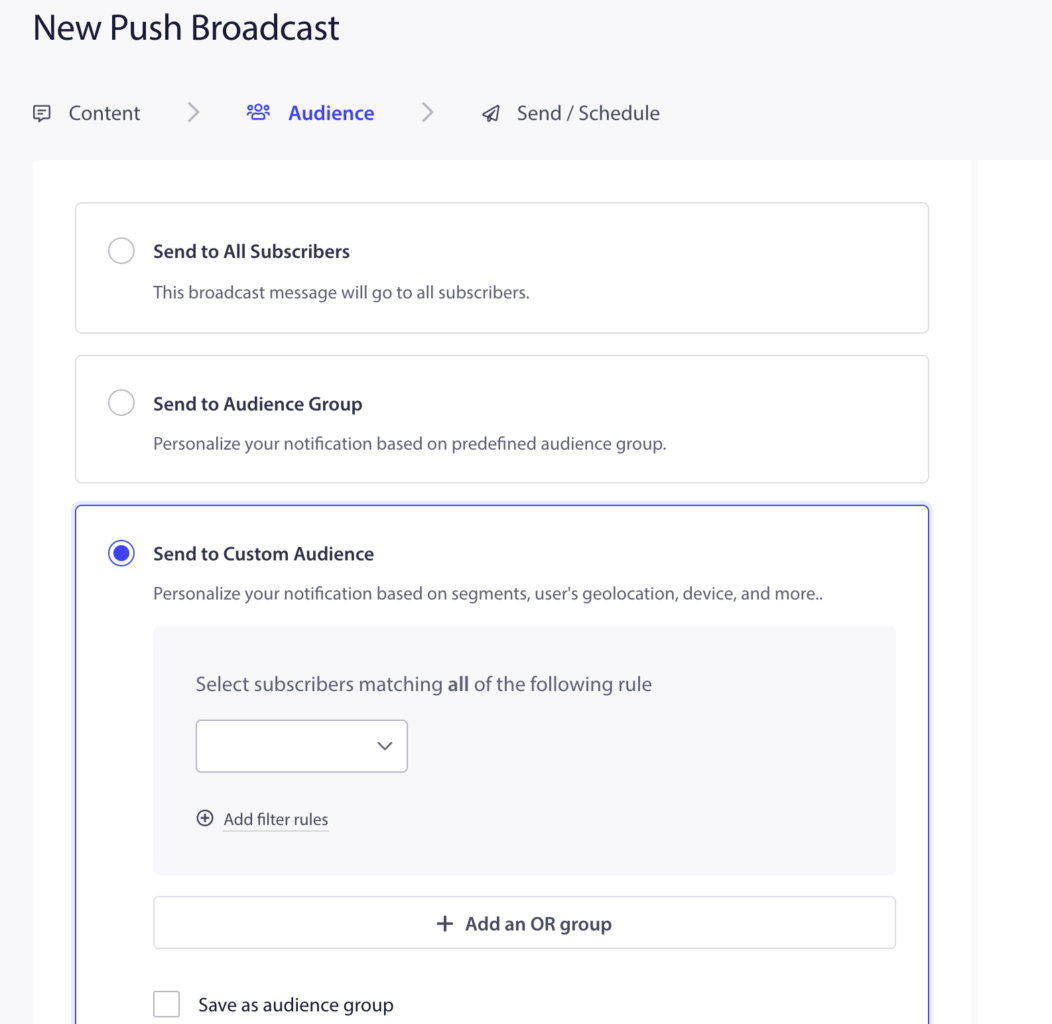
Kitleyi Seçme
Tüm abonelere gönderebilir, kitle grubuna gönderebilir veya özel bir kitleye gönderebilirsiniz.
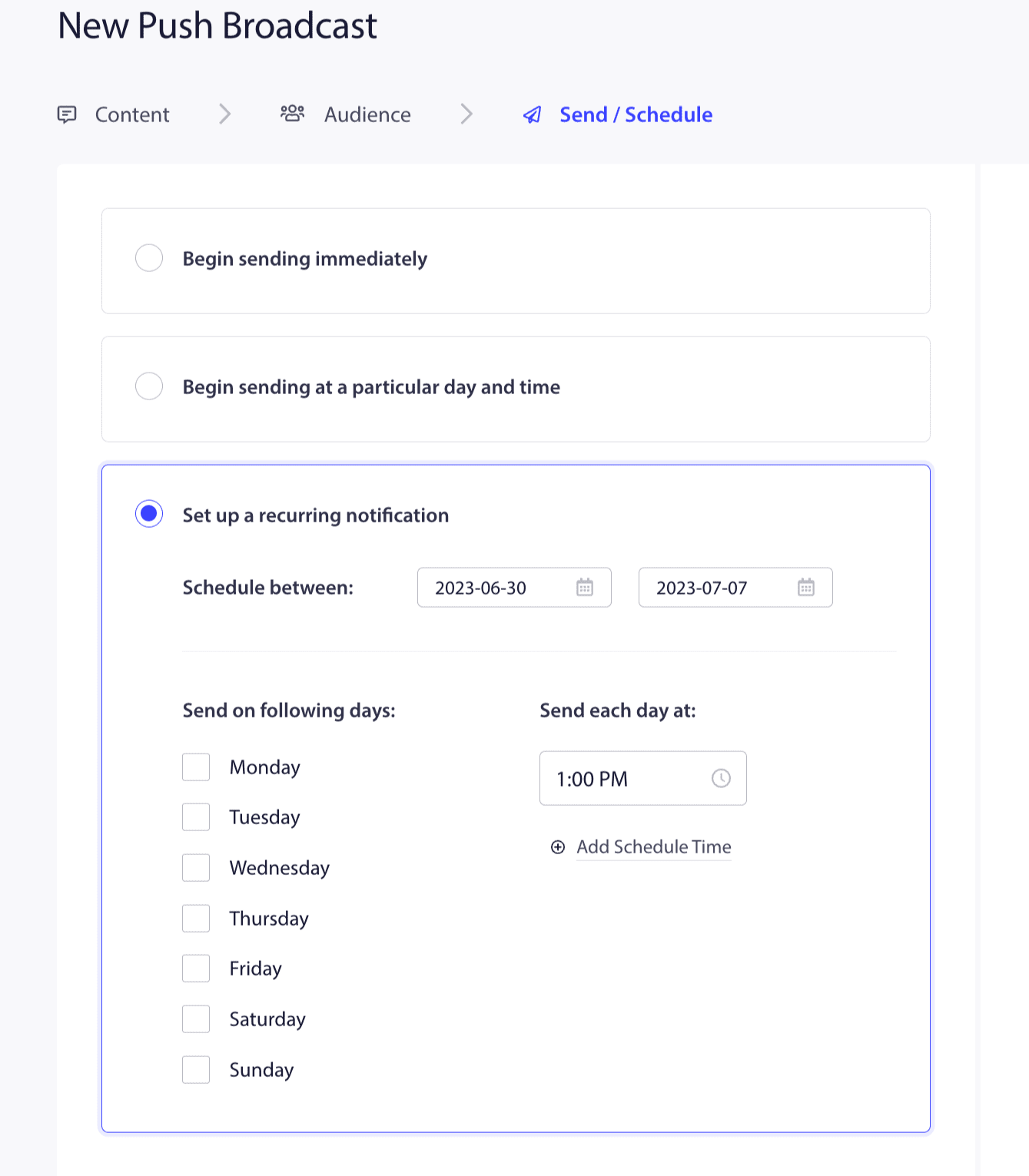
Gönderme/Zamanlama Seçenekleri
Bir kampanyayı zamanlayabilir veya hemen kitlenize gönderebilirsiniz.
İşte bu kadar; bir şablon kullanmaya ve abonelerinize göndermeye hazırsınız.
Herhangi bir sorunla karşılaşırsanız, lütfen buraya tıklayarak bizimle iletişime geçmekten çekinmeyin. Destek ekibimiz size yardımcı olabilecektir.