PushEngage automatically creates two segments – Customers and Leads , when WooCommerce is connected to your PushEngage account. These segments update dynamically: a subscriber in the Leads segment moves to the Customers segment automatically after completing their first purchase. You can use both segments to target campaigns precisely, send the right message to buyers versus non-buyers, and personalize your push strategy without any manual list management.
Understanding the Default Segments
| Segment | Who it includes | Updates automatically? |
|---|---|---|
| Customers | Subscribers who have completed at least one purchase | Yes |
| Leads | Subscribers who have not yet purchased | Yes – exits after first purchase |
These segments are created automatically by the PushEngage WooCommerce integration. No manual setup is required.
Viewing Your Segments
- In your PushEngage dashboard, go to Audience » Segments.
- Locate Customers and Leads in the segment list.
- Click either segment to see the current subscriber count and segment details.
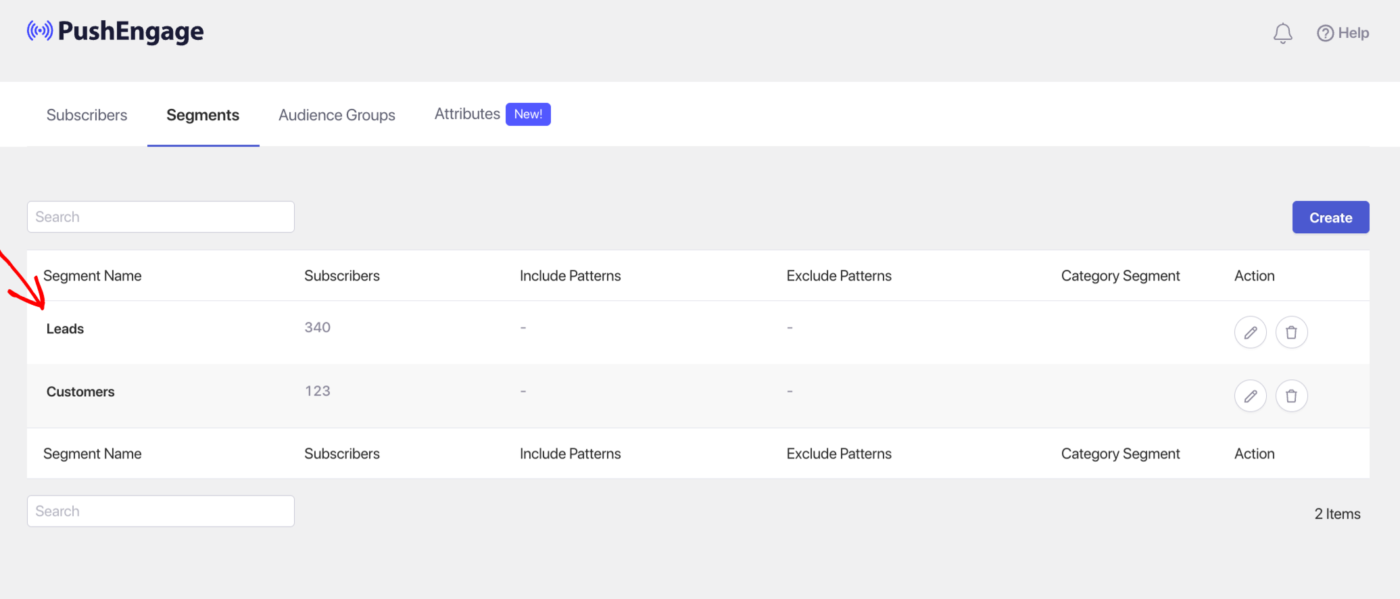
The subscriber count updates as purchases occur and new subscribers opt in.
Using Segments in Campaigns
In Drip Autoresponders
Drip autoresponders let you send time-based push sequences to a specific segment.
- Go to Campaign » Drip Autoresponders and open an existing drip or create a new one.
- Navigate to the Audience tab within the campaign.
- Under Segment, select Customers or Leads.
- Save your changes.
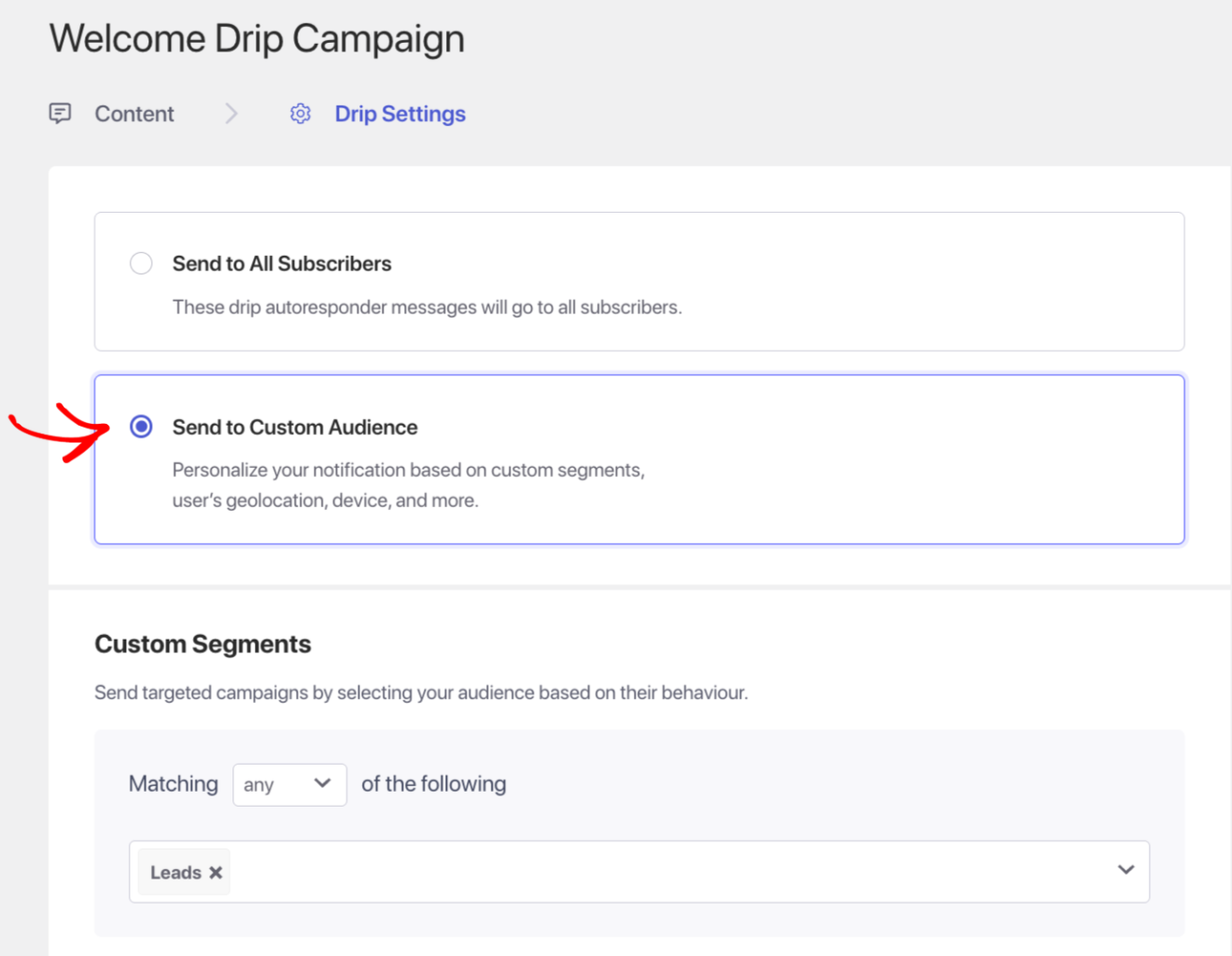
Common use cases:
- Welcome drip → target Leads – introduce your brand and incentivize a first purchase.
- Re-engagement drip → target Customers – remind past buyers to return, highlight new arrivals or loyalty perks.
In Push Broadcasts
Push broadcasts let you send a one-time push to a targeted segment.
- When creating a new broadcast, scroll to the Audience section.
- Under Segment, choose Customers or Leads.
- Complete the rest of the broadcast setup and send or schedule.
\
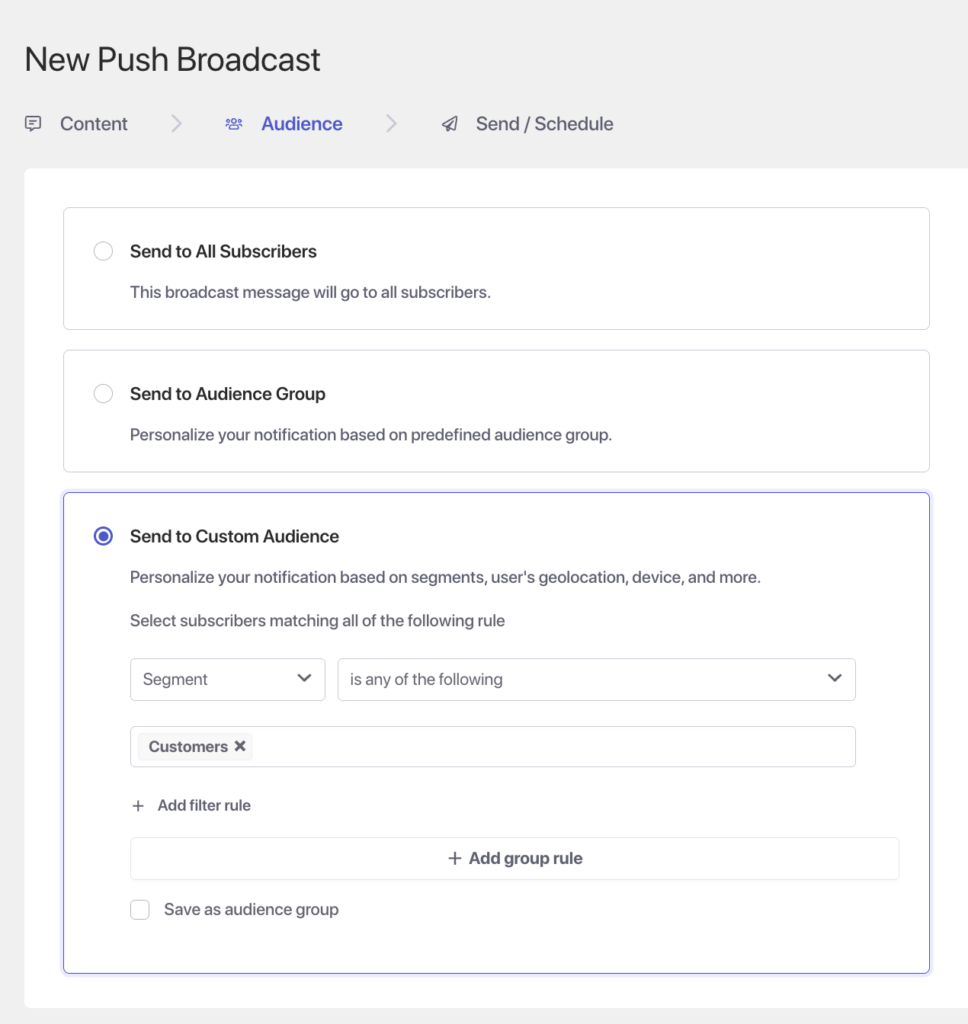
Common use cases:
- Flash sale → target Customers – reward your buyers with early access.
- New subscriber welcome offer → target Leads – convert first-time visitors with a limited-time discount.
Creating Custom Segments for Purchase Behavior
The default Customers and Leads segments cover buyer versus non-buyer. For more granular segmentation – such as subscribers who have purchased in the last 30 days, spent over a threshold, or purchased from a specific category – you can create custom segments.
- Go to Audience » Segments and click Create New Segment.
- Define your segment rules using subscriber attributes.
Filtering by purchase date, order count, or order value requires custom attributes passed to PushEngage via the PushEngage WordPress plugin or the PushEngage API. For full details on setting up custom attributes, see the Guide to Using PushEngage Attributes for WordPress.

FAQ
How long until a subscriber moves from Leads to Customers? The move happens automatically after the subscriber completes a WooCommerce purchase. The segment update typically occurs within a few minutes of the order being marked complete.
Can I see which segment a specific subscriber is in? Yes. Go to Audience » Subscribers, find the subscriber, and open their profile. Their current segment membership is displayed in the subscriber detail view.
Can I target subscribers who have purchased 3+ times? Not with the default Customers and Leads segments alone. To filter by purchase frequency you need custom attributes. Pass a purchase count attribute to PushEngage via the WordPress plugin or API, then build a custom segment using that attribute. See the Guide to Using PushEngage Attributes for WordPress for instructions.
Can I delete the default Customers and Leads segments? We recommend keeping the default segments in place since they update automatically and are used by built-in WooCommerce campaign templates. If you delete them, you will need to recreate equivalent segments manually.
Do these segments work the same as Shopify’s Customers and Leads segments? The Customers and Leads segments work the same way conceptually – buyers versus non-buyers – regardless of whether you are on WooCommerce or Shopify. The underlying data source differs (WooCommerce orders vs. Shopify orders), but the segment logic and how you use them in campaigns is identical.
If you run into any issues, please feel free to contact us by clicking here. Our support team will be able to help you.